How to Convert a Text Document to JPG
Turn TXT, Word, or Google Docs files into JPG pages by creating a PDF first, then exporting each rendered page as a JPEG.

Short answer: create a PDF from the text document, then export the PDF pages as JPEG or JPG images. This preserves the document’s rendered layout. A multi-page document normally produces one image per page.
1. Choose the right conversion path
| Starting document | Recommended steps | Result |
|---|---|---|
| Plain TXT file | Open or create the PDF with Acrobat, then export the PDF to JPEG. | JPG images of rendered pages |
| Google Doc | Download or print the document as a PDF, then export the PDF pages to JPEG. | JPG images of rendered pages |
| Word or another office file | Save or create a PDF, inspect page breaks, then export the PDF to JPEG. | JPG images of rendered pages |
| Existing PDF | Export the PDF pages directly to JPEG. | JPG images of rendered pages |
A PDF is the practical handoff format because it records pagination, fonts, margins, and other layout choices before rasterization. Adobe documents TXT as an input for PDF creation and documents PDF-to-JPEG export. Adobe’s PDF creation guide and Acrobat’s export guide describe these stages.
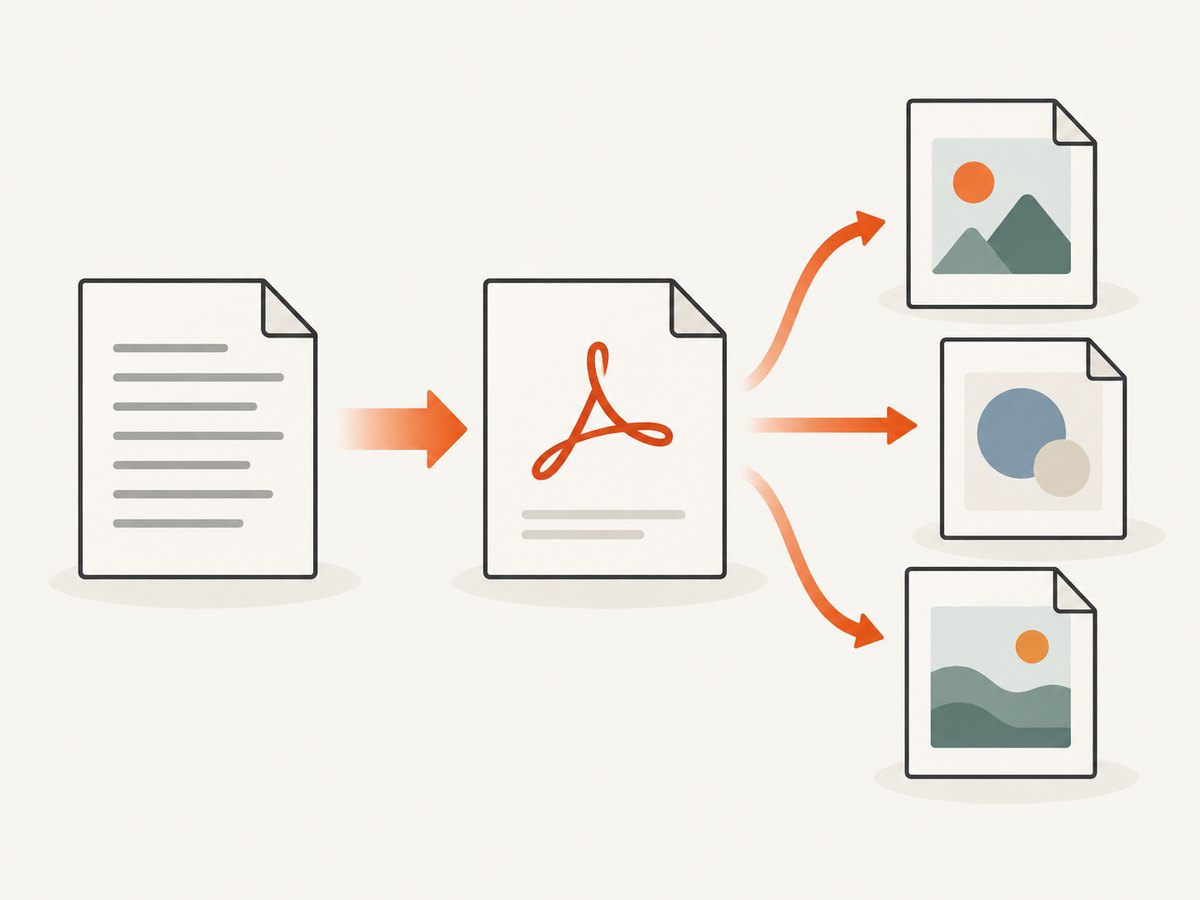
2. Convert a TXT file to JPG with Acrobat
- Open the TXT file in an application that displays it correctly, or open it in Acrobat’s PDF creation workflow.
- Create a PDF and check the page size, line wrapping, font, margins, and page breaks.
- Open the resulting PDF in Acrobat.
- Choose Convert or Export a PDF.
- Select an image format and choose Convert to JPEG.
- Choose an output folder and save the exported page images.
Adobe’s procedure uses the JPEG conversion option. When the goal is a picture of every page, leave Export All Images unselected. That option extracts pictures embedded inside the PDF instead of converting the complete pages.
Plain-text layout checks
- Set the intended page size before creating the PDF.
- Confirm that long lines wrap where you expect.
- Check whether tabs, monospaced spacing, and blank lines are preserved.
- Review the final PDF page by page before exporting JPG files.
3. Convert a Google Doc to JPG
- Open the document in Google Docs on a computer.
- Use File > Download and choose PDF, or use File > Print, set the destination to Save as PDF, and save.
- Open the PDF in a PDF image exporter such as Acrobat.
- Choose the JPEG conversion option and export the pages.
Google’s help documents the download and print-to-PDF routes; it does not document a direct JPG download option. See Google Docs’ file download instructions.
4. Convert a Word document or office file
- Open the source file in Word or the office application that created it.
- Save or export it as PDF.
- Open the PDF and inspect every page, especially page breaks, tables, headers, and footers.
- Export the PDF pages as JPEG.
If you reconstruct or edit a PDF in Word before exporting, review the pagination again. Microsoft’s PDF guidance warns that page correspondence can change during conversion. See Microsoft’s PDF editing guidance.
5. Export pages versus extract embedded pictures
These operations produce different results:
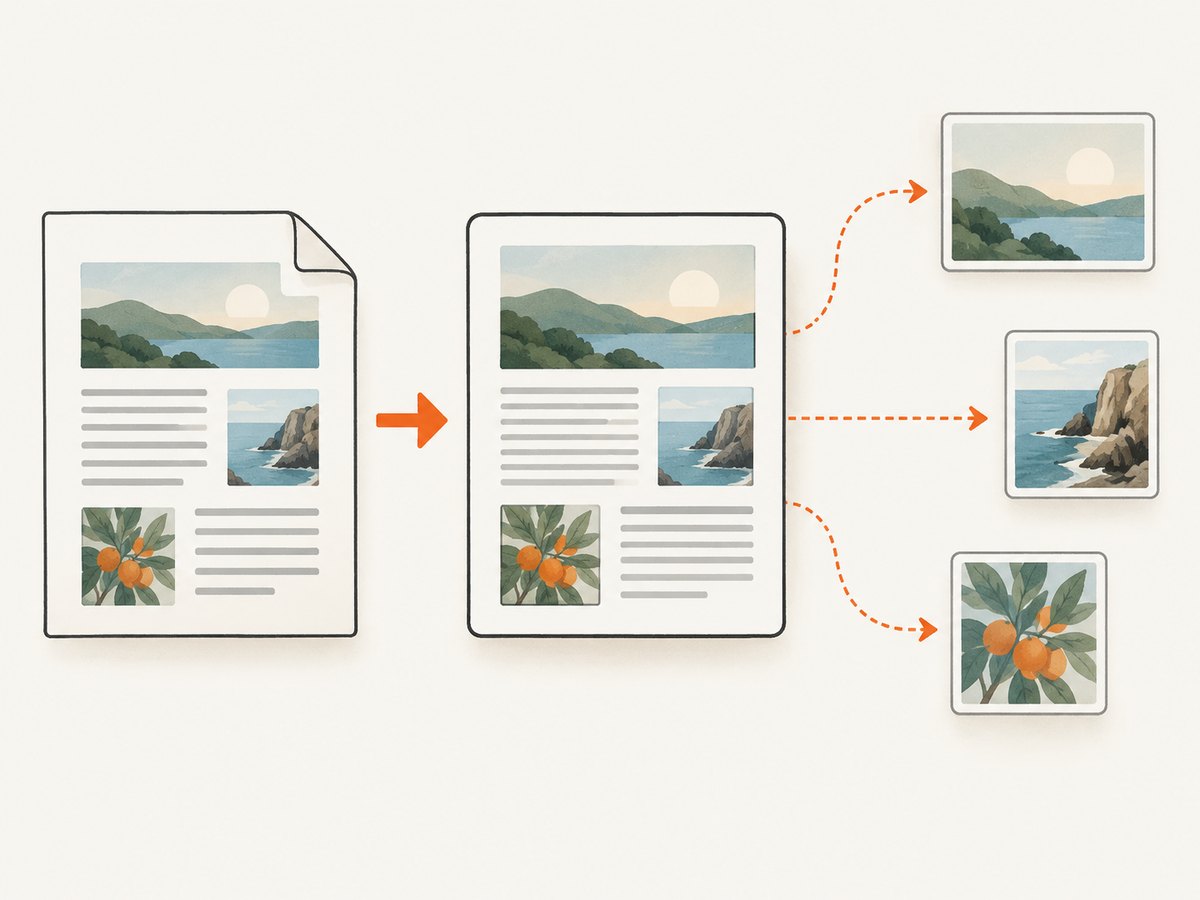
| Operation | What you get | Use it when |
|---|---|---|
| Convert PDF pages to JPEG | An image of each complete rendered page, including text, backgrounds, and layout. | You need a visual copy of the document. |
| Export all images | Only pictures embedded inside the PDF. | You need the original photos or illustrations, not page screenshots. |
For page images, use the page conversion route and keep Export All Images turned off in Acrobat.
6. Multi-page documents and output quality
Plan for one JPG file per exported page. After conversion, verify that the first, middle, and final pages are present and that no page was skipped. Open the images at their actual size to check small text, tables, and symbols.
JPEG is convenient for sharing, but it uses lossy compression. If text must remain especially crisp, keep the PDF as the archival copy and use JPG for previews, thumbnails, or image-based workflows. Choose the highest practical image quality available in your exporter, then check file dimensions and readability.
7. Or skip the browser setup
If your document is available as a rendered, publicly reachable web page, ScreenshotNeo can capture that page as an image with one request. Its API supports PNG, JPEG, and WebP output; use the ScreenshotNeo documentation for the full option list.
curl -G "https://api.screenshotneo.com/v1/shot" -d access_key=YOUR_API_KEY --data-urlencode url=https://screenshotneo.com/docs/ -o shot.webpimport requests
r = requests.get("https://api.screenshotneo.com/v1/shot", params={"access_key": "YOUR_API_KEY", "url": "https://screenshotneo.com/docs/"}, timeout=90)
open("shot.webp", "wb").write(r.content)const q = new URLSearchParams({ access_key: 'YOUR_API_KEY', url: 'https://screenshotneo.com/docs/' });
const res = await fetch(`https://api.screenshotneo.com/v1/shot?${q}`);ScreenshotNeo removes cookie banners, newsletter popups, and chat widgets before capture. Bot checks, blank pages, failed loads, timeouts, and cache hits are not billed, and the response identifies the page verdict and billing status in headers. It also provides an MCP server so AI agents can take screenshots, and includes full-page capture, custom CSS and JavaScript, waiting controls, device and viewport settings, and PDF capture. The free plan includes 1,000 screenshots a month with no card; paid plans start at $5 for 3,000. Create a free ScreenshotNeo account.
8. Troubleshooting
The JPG contains only photos from the document
Cause: the PDF exporter was set to extract embedded images. Fix: disable Export All Images and choose the PDF-to-JPEG page conversion.
There is one JPG, but the document has several pages
Cause: only one page was selected, or the exporter saved a preview. Fix: select all pages and confirm the output folder contains an image for each page.
Page breaks changed after converting a Word file
Cause: PDF reconstruction or conversion can alter pagination. Fix: inspect the PDF before exporting, adjust the source layout, and create the PDF again.
The text looks blurry or is clipped
Cause: low image settings, unexpected margins, or a page size mismatch. Fix: increase image quality, verify the PDF page dimensions, and inspect the PDF at 100% before conversion.
Fonts or symbols look different
Cause: the PDF creation step used a substitute or unavailable font. Fix: choose an available font in the source document, recreate the PDF, and check the new rendering.
The Google Docs PDF is missing content
Cause: the download or print route did not include the intended pages or content. Fix: open the saved PDF, verify the page count and final page, then export only after the PDF is complete.
9. A repeatable conversion checklist
- Decide whether you need full page images or embedded pictures.
- Create a PDF from TXT, Google Docs, Word, or another office file.
- Inspect page size, fonts, margins, wrapping, and page breaks.
- Export all PDF pages as JPEG.
- Keep Export All Images off when converting complete pages.
- Verify page count, dimensions, readability, and output filenames.
- Retain the PDF if you may need a lossless or printable source later.
FAQ
Is JPG the same as JPEG?
Yes. JPG and JPEG refer to the same image format; the extension depends on the application and operating system.
Can I make one JPG containing every page?
The standard export creates one image per page. To make a single tall image, export the pages first and combine them in an image editor that supports vertical stitching.
Can I convert an editable TXT file directly into a JPG?
A JPG is a rendered image, so the text must first be laid out on a page. Creating a PDF first gives you a page-based intermediate to inspect before rasterizing.
Will the JPG text remain editable?
No. JPG stores pixels. Keep the original text file or PDF when you need searchable or editable content.


