How to Convert a URL to PDF in Go
Generate reliable PDFs from webpages in Go with chromedp, Chrome, print controls, troubleshooting, and a managed ScreenshotNeo option.
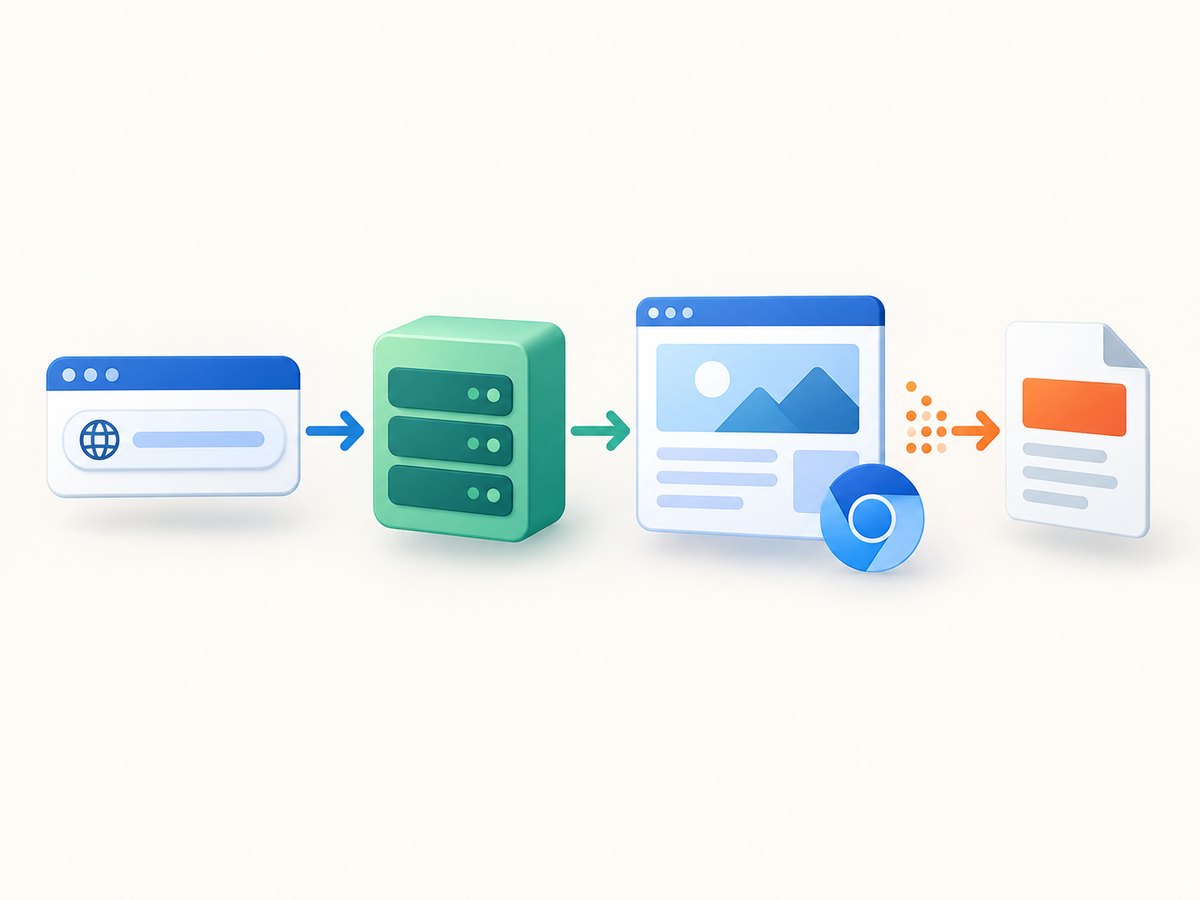
Yes. The most capable way to convert a URL to PDF in Go is to run Chrome or Chromium through the Chrome DevTools Protocol with chromedp. Navigate to the URL, wait for client-side content to render, call Chrome’s Page.printToPDF command, then write the returned bytes to a file. This approach handles modern JavaScript applications and exposes controls for paper size, margins, scale, backgrounds, headers, footers, tagged PDFs, and document outlines.
This guide starts with a complete runnable implementation, then explains every important option, production safeguards, alternatives, troubleshooting, and a managed API path when you do not want to operate a browser.
1. Prerequisites and project setup
You need:
- A current Go toolchain.
- Chrome or Chromium installed where your Go process can launch it.
- The
github.com/chromedp/chromedpandgithub.com/chromedp/cdproto/pagepackages.
Initialize a module and install the dependencies:
mkdir url-to-pdf
cd url-to-pdf
go mod init example.com/url-to-pdf
go get github.com/chromedp/chromedp github.com/chromedp/cdproto/page
chromedp locates a Chrome or Chromium executable automatically in common environments. In containers or minimal servers, install Chromium separately and set an explicit executable path when necessary. The official project documentation treats browser availability as a runtime prerequisite: chromedp documentation.
2. Complete Go example
The following program accepts a URL and output path, applies a navigation timeout, waits for the page to become usable, prints backgrounds, and writes a PDF.
package main

import (
	"context"
	"flag"
	"fmt"
	"os"
	"strings"
	"time"

	"github.com/chromedp/cdproto/page"
	"github.com/chromedp/chromedp"
)

func main() {
	url := flag.String("url", "https://example.com", "page URL")
	output := flag.String("output", "output.pdf", "PDF output path")
	flag.Parse()

	if !strings.HasPrefix(*url, "https://") && !strings.HasPrefix(*url, "http://") {
		panic("url must use http:// or https://")
	}

	browserCtx, cancelBrowser := chromedp.NewContext(context.Background())
	defer cancelBrowser()

	ctx, cancelTimeout := context.WithTimeout(browserCtx, 90*time.Second)
	defer cancelTimeout()

	var pdfBytes []byte
	err := chromedp.Run(ctx,
		chromedp.Navigate(*url),
		// Give client-side applications and web fonts a chance to settle.
		chromedp.Sleep(2*time.Second),
		chromedp.ActionFunc(func(ctx context.Context) error {
			var err error
			pdfBytes, _, err = page.PrintToPDF().
				WithPrintBackground(true).
				WithDisplayHeaderFooter(false).
				WithPreferCSSPageSize(true).
				Do(ctx)
			return err
		}),
	)
	if err != nil {
		fmt.Fprintf(os.Stderr, "convert %s: %v\n", *url, err)
		os.Exit(1)
	}

	if err := os.WriteFile(*output, pdfBytes, 0o644); err != nil {
		fmt.Fprintf(os.Stderr, "write %s: %v\n", *output, err)
		os.Exit(1)
	}
	fmt.Printf("wrote %s (%d bytes)\n", *output, len(pdfBytes))
}
Run it with:
go run . -url https://example.com -output example.pdfThe core pattern mirrors the official example: create a browser context, navigate, call page.PrintToPDF().Do(ctx), receive PDF bytes, and write them to disk. The CDP package reference documents the complete command and its controls: PrintToPDF parameters.
3. Controlling PDF layout
Chrome’s print command exposes most of the controls you need for deterministic output. Build the parameters before calling Do when you need more than the defaults.
params := page.PrintToPDF().
	WithLandscape(false).
	WithPrintBackground(true).
	WithDisplayHeaderFooter(false).
	WithScale(1.0).
	WithPaperWidth(8.27).
	WithPaperHeight(11.69).
	WithMarginTop(0.4).
	WithMarginBottom(0.4).
	WithMarginLeft(0.4).
	WithMarginRight(0.4).
	WithPreferCSSPageSize(true).
	WithGenerateTaggedPDF(true).
	WithGenerateDocumentOutline(true)

pdfBytes, _, err := params.Do(ctx)| Option | What it controls | Typical use |
|---|---|---|
WithLandscape |
Rotates the page orientation. | Wide tables, dashboards, and diagrams. |
WithPaperWidth, WithPaperHeight |
Paper dimensions in inches. | Letter, A4, receipts, or custom formats. |
WithMarginTop and related methods |
Margins in inches. | Preventing clipped content and controlling whitespace. |
WithScale |
Scales printed content. | Fitting dense pages; validate readability after changing it. |
WithPrintBackground |
Includes CSS background colors and images. | Branded reports and dark sections. |
WithDisplayHeaderFooter |
Enables Chrome’s header and footer templates. | Page numbers, title, URL, or dates when templates are configured. |
WithPreferCSSPageSize |
Lets CSS @page size take precedence. |
Sites that define their own print dimensions. |
WithGenerateTaggedPDF |
Adds accessibility tagging. | Documents consumed by assistive technology. |
WithGenerateDocumentOutline |
Creates an outline from document headings. | Long reports that need navigation. |
For predictable results, set paper dimensions, margins, scale, background behavior, and header/footer behavior explicitly instead of relying on browser defaults. A page can also define print-specific CSS:
<style>
@page { size: A4 portrait; margin: 12mm; }
@media print {
  .screen-only { display: none !important; }
  .report { break-inside: avoid; }
}
</style>
If the page’s CSS @page rule should win, keep WithPreferCSSPageSize(true). Otherwise, provide dimensions from Go.
4. Waiting for JavaScript, images, and fonts
Navigate returning does not guarantee that a single-page application has finished rendering. Choose a wait strategy based on the page:
- Known element: wait for a report container, chart, or loading indicator to disappear.
- Network activity: wait until the application’s own readiness condition is true.
- Fixed delay: use a bounded delay only when the page has no reliable selector.
err := chromedp.Run(ctx,
	chromedp.Navigate(url),
	chromedp.WaitVisible("#report", chromedp.ByID),
	chromedp.WaitNotPresent(".loading", chromedp.ByQuery),
	chromedp.Sleep(500*time.Millisecond),
	chromedp.ActionFunc(func(ctx context.Context) error {
		var ready bool
		if err := chromedp.Evaluate(`document.fonts ? document.fonts.status === "loaded" : true`, &ready).Do(ctx); err != nil {
			return err
		}
		if !ready { return fmt.Errorf("fonts are not ready") }
		return nil
	}),
)
There is no universal wait duration. Tune the timeout and readiness condition against the sites you actually convert. For pages with lazy-loaded images, scroll or trigger the page’s loading behavior before printing; otherwise, below-the-fold images may be absent.
5. Authentication, redirects, and request policy
Private pages require deliberate handling:
- Set cookies in the browser context before navigation when the site uses cookie sessions.
- Use an authorization header only for destinations you trust and only when the server expects it.
- Follow redirects deliberately and validate the final host if the URL is user supplied.
- Reject unsupported schemes such as
file:,javascript:, and custom protocols.
A URL-to-PDF endpoint is an outbound request proxy. Validate URLs, apply an allowlist where appropriate, block access to internal networks, limit navigation time, cap output size, and isolate the browser process. These are engineering safeguards; neither the CDP API nor chromedp certifies a particular security model.
6. Handling output and failures
Check the returned bytes before writing them. A successful browser command can still produce an unexpected page, such as a login screen or bot challenge.
if len(pdfBytes) == 0 {
	return fmt.Errorf("empty PDF response")
}
if string(pdfBytes[:min(5, len(pdfBytes))]) != "%PDF-" {
	return fmt.Errorf("output does not start with PDF signature")
}
For a service, return a generated identifier and store the file outside the request process. For large documents, consider CDP’s stream transfer option instead of keeping the entire decoded PDF in memory; the CDP reference describes both decoded data and stream transfer.
7. Common errors and fixes
| Error or symptom | Likely cause | Fix |
|---|---|---|
executable file not found |
Chrome or Chromium is not installed or is not on the process path. | Install a supported browser or configure chromedp allocator options with its executable path. |
| PDF contains a loading spinner | Printing started before client-side rendering completed. | Wait for a meaningful selector, remove the loading element, or add a bounded delay. |
| Charts or background colors are missing | Background printing is disabled or the chart is painted after capture. | Use WithPrintBackground(true) and wait for the chart’s ready state. |
| Images are missing | Lazy loading, blocked resources, or an expired session. | Trigger lazy loading, inspect network errors, and set required cookies before navigation. |
| Text is cut off | Margins, scale, or fixed-width CSS exceed the paper. | Set paper size and margins explicitly, use print CSS, or lower scale carefully. |
| Timeout during navigation | Slow origin, never-ending requests, or a blocked destination. | Increase the bounded timeout for known slow pages and diagnose the destination; do not wait forever. |
| Access denied or CAPTCHA | The origin requires human verification or rejects automated browsers. | Use an authorized session, handle the site manually, or choose a service that reports failed captures without charging for them. |
| PDF opens but has wrong page count | Content expands asynchronously or CSS page breaks are missing. | Wait for final content and add break-before, break-after, or break-inside print rules. |
8. Performance, reliability, and cost
Launching a browser for every request adds startup overhead. Keep a browser process alive, create an isolated context per job, and close contexts after capture. Limit concurrent pages to the capacity of the host; too much parallelism increases memory pressure and makes rendering less predictable.
Cache PDFs when the source and rendering options are unchanged. Use a content hash of the URL, relevant headers, cookies policy, and print parameters as the cache key. Set an expiration policy because a cached PDF can become stale.
For reliability:
- Use separate navigation and total-job timeouts.
- Record the final URL, response status, browser version, and rendering options.
- Retry transient browser crashes with a fresh context, while avoiding repeated retries for deterministic HTTP failures.
- Write to a temporary file and rename it after a successful write so readers never see partial PDFs.
- Monitor output size and reject documents that exceed your service limit.
Self-hosting costs include compute, memory, browser updates, storage, and operations. A hosted converter shifts those costs to a per-request plan, but you must review its authentication, data handling, limits, and pricing before sending private URLs.
9. Alternatives to chromedp
| Path | Best fit | Trade-offs |
|---|---|---|
| chromedp + Chrome/Chromium | JavaScript-heavy sites and Go services needing programmatic control. | Requires a browser runtime and operational isolation. |
| wkhtmltopdf | Teams comfortable invoking an external executable with URL and print options. | External process management and an older rendering model; verify modern CSS and JavaScript compatibility. |
| Chrome headless CLI | Simple scripts outside a Go process. | Go must manage an external command and its lifecycle. |
| Hosted GoPDF API | Deployments that do not want to package or operate a browser. | Requires authentication; verify limits, privacy, pricing, and terms. |
Chrome documents the headless command-line approach at Chrome for Developers. The wkhtmltopdf project documents URL conversion and options such as cookies, JavaScript, DPI, covers, and tables of contents at its usage guide.
10. Or skip the browser setup
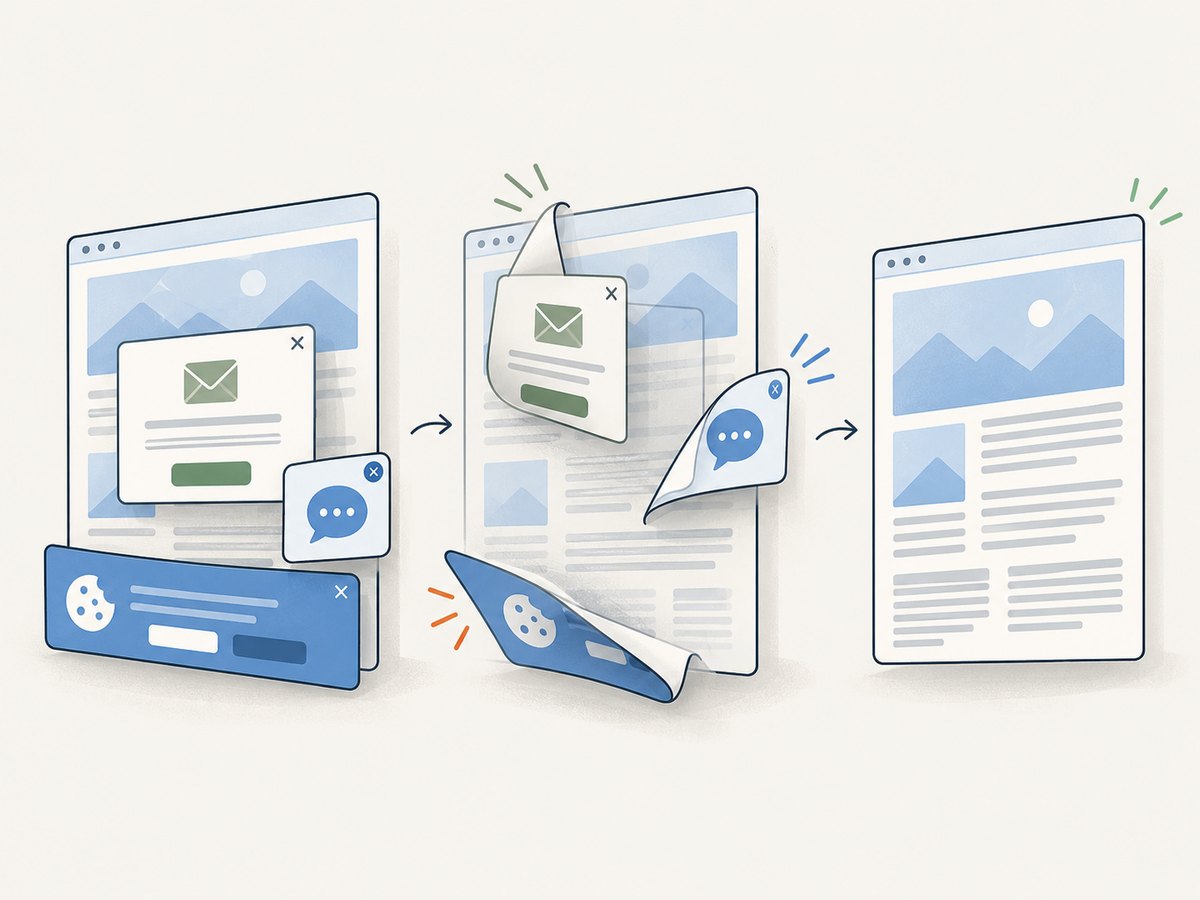
ScreenshotNeo provides a website capture API and MCP server. Its PDF endpoint accepts one GET request with a URL, while the same service can return PNG, JPEG, or WebP screenshots. Before capture, it accepts cookie and consent banners and removes more than 60 known consent platforms, newsletter popups, and chat widgets; each cleanup step can be turned off. Bot checks, CAPTCHAs, blank pages, timeouts, failed loads, and cache hits are not billed, and response headers identify the page verdict and billing status.
See the ScreenshotNeo API documentation for all parameters. A minimal PDF request is:
curl -G "https://api.screenshotneo.com/v1/shot" \
  -d access_key=YOUR_API_KEY \
  --data-urlencode url=https://stripe.com \
  -d format=pdf \
  -o page.pdf
import requests
r = requests.get(
"https://api.screenshotneo.com/v1/shot",
params={
"access_key": "YOUR_API_KEY",
"url": "https://stripe.com",
"format": "pdf",
},
timeout=90,
)
r.raise_for_status()
open("page.pdf", "wb").write(r.content)const q = new URLSearchParams({
access_key: 'YOUR_API_KEY',
url: 'https://stripe.com',
format: 'pdf'
});
const res = await fetch(`https://api.screenshotneo.com/v1/shot?${q}`);
if (!res.ok) throw new Error(`HTTP ${res.status}`);
const bytes = Buffer.from(await res.arrayBuffer());
await import('node:fs/promises').then(fs => fs.writeFile('page.pdf', bytes));Relevant PDF controls include paper size, margins, landscape mode, and page ranges. Other options cover full-page capture with lazy images loaded, CSS-selector element capture, custom CSS and JavaScript, clicks, selector waits, delays, network idle, blocking ads or resource types, headers, cookies, user agents, authorization, timezone, geolocation, transparent backgrounds, resizing, TTL caching, signed links, asynchronous jobs with signed webhooks, bulk capture of up to 100 URLs per call, usage reporting, and an OpenAPI specification. Parameter names used by other screenshot APIs also work, which can simplify migration.
ScreenshotNeo also includes an MCP server with take_screenshot, get_page_info, and capture_pdf tools for Claude, Cursor, and other MCP clients. Plans include 1,000 shots per month free with no card; paid plans start at $5 for 3,000 shots. Create a free ScreenshotNeo account to try the PDF endpoint.
11. FAQ
Can Go convert a URL to PDF without Chrome?
Yes, by invoking a tool such as wkhtmltopdf or a hosted API. For modern JavaScript applications, a current Chrome or Chromium renderer generally provides the broadest browser compatibility.
Why does my PDF differ from what I see in a browser tab?
Print media CSS, missing fonts, lazy content, viewport dimensions, authentication state, and timing can all change output. Set print parameters explicitly and wait for a page-specific readiness condition.
How do I create an A4 landscape PDF?
Use WithLandscape(true), set paper dimensions or @page { size: A4 landscape; }, and enable WithPreferCSSPageSize(true) when the page CSS should control the result.
Should I reuse one browser for multiple jobs?
Reuse the browser process for lower startup overhead, but create a separate context per job and clear or isolate cookies and storage so one customer’s session cannot affect another.
What should I do with user-supplied URLs?
Validate schemes and destinations, restrict outbound network access, apply time and size limits, and isolate the browser. Treat URL conversion as an outbound fetch service with SSRF and resource exhaustion risks.
12. Production checklist
- Chrome or Chromium is installed and its version is managed.
- URL schemes and outbound destinations are validated.
- Navigation and total-job timeouts are bounded.
- Client-side content, fonts, and lazy images have a readiness strategy.
- Paper size, margins, scale, backgrounds, and headers are explicit.
- Authentication cookies and redirects are handled intentionally.
- PDF signatures, output size, and write completion are checked.
- Browser contexts are isolated and closed after each job.
- Retries, caching, logging, and temporary-file writes are implemented.
- Private data handling is reviewed before using a hosted converter.
For a Go service that needs full browser control, chromedp plus Chrome remains the most flexible foundation. When operating that browser is not part of your product, ScreenshotNeo provides a single managed request, cleanup before capture, billing visibility through response headers, and an MCP path for AI-driven workflows.


