How to Convert a URL to a Screenshot with a Script
Automate URL screenshots with Playwright or Puppeteer, handle dynamic pages, and use ScreenshotNeo when you want a one-call API.
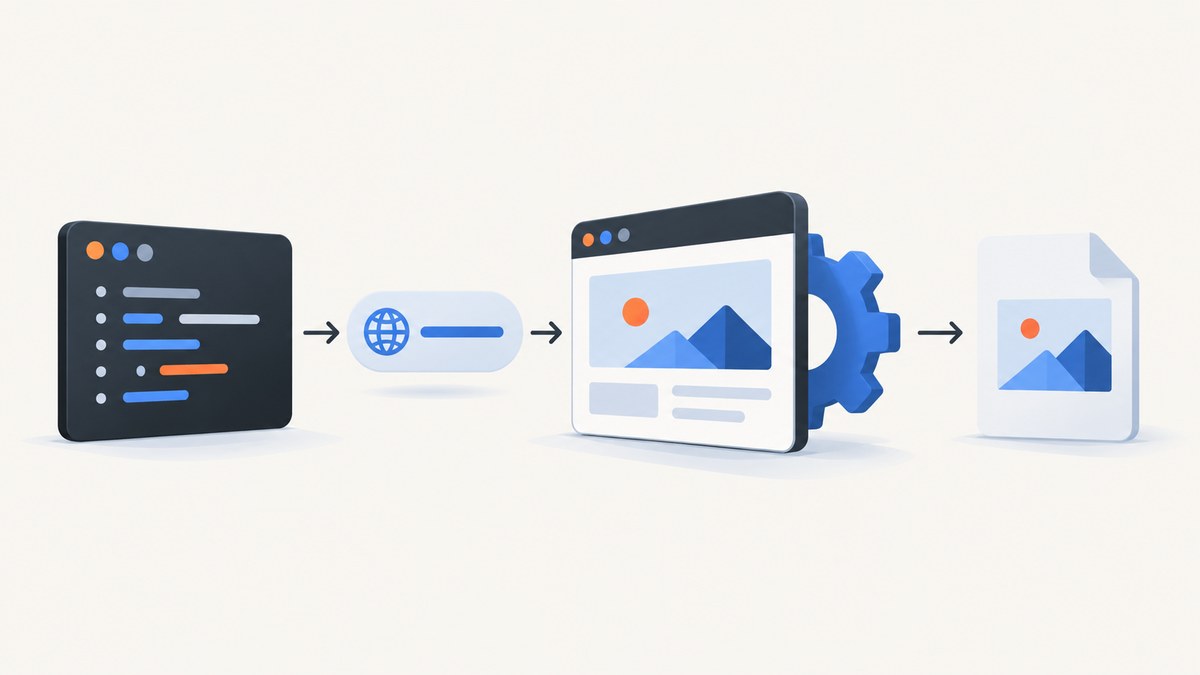
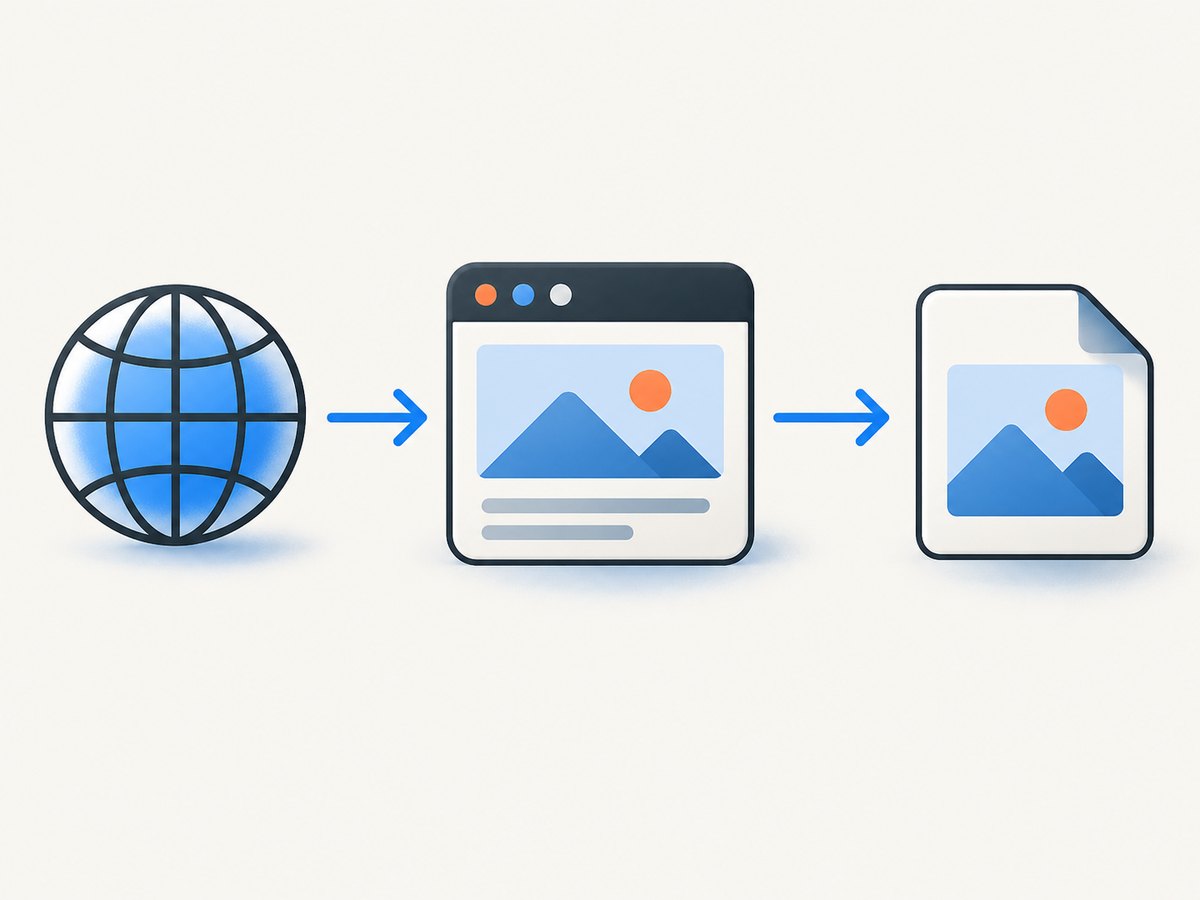
Direct answer: use a browser automation library to open the URL, wait until the content your image needs is ready, and save a screenshot. Playwright and Puppeteer both support this flow. For a hosted, one-request option, ScreenshotNeo accepts a URL and returns a PNG, JPEG, WebP or PDF.
1. Choose the capture method
Use a real browser when the page depends on JavaScript, CSS layout, web fonts, lazy loading or interaction. Choose the capture scope before writing code:
| Scope | Use it for |
|---|---|
| Viewport | The content currently visible in the browser window. |
| Full page | The entire scrollable document, including content below the fold. |
| Element | One component selected by CSS selector. |
Playwright and Puppeteer document the same basic sequence: launch a browser, create a page, navigate to the URL, save the screenshot, and close the browser. Confirm the syntax against the version installed in your project because both projects update their APIs.
2. Node.js with Playwright
Install Playwright and a browser:
npm install playwright
npx playwright install chromium
Create screenshot.mjs:
import { chromium } from 'playwright';

const url = process.argv[2] || 'https://example.com';
const browser = await chromium.launch();

try {
  const page = await browser.newPage({
    viewport: { width: 1440, height: 900 },
    deviceScaleFactor: 1
  });

  await page.goto(url, { waitUntil: 'networkidle' });
  await page.screenshot({ path: 'screenshot.png', fullPage: true });
} finally {
  await browser.close();
}
Run it with:
node screenshot.mjs https://stripe.comThe documented Playwright pattern creates a browser, opens a page, navigates with page.goto, and saves with page.screenshot. See the Playwright screenshot documentation for the current options.
Viewport, full-page and element screenshots
// Viewport screenshot (the default)
await page.screenshot({ path: 'viewport.png' });

// Entire scrollable page
await page.screenshot({ path: 'full-page.png', fullPage: true });

// One element
await page.locator('.pricing-card').screenshot({ path: 'pricing-card.png' });
Element capture fails if the selector does not match or the element is not visible. Check the selector before taking the image.
Wait for the content you need
There is no single wait condition that works for every site. Navigation can finish while a page is still rendering data, images or animations. Prefer a condition tied to the content in the screenshot:
await page.goto(url, { waitUntil: 'domcontentloaded' });
await page.locator('[data-testid="main-content"]').waitFor({ state: 'visible' });
await page.waitForTimeout(500); // only when a short visual settling delay is necessary
await page.screenshot({ path: 'ready.png', fullPage: true });
For correctness, inspect the final URL and verify expected text or a selector before writing the file:
if (!page.url().startsWith('https://example.com/')) {
  throw new Error(`Unexpected final URL: ${page.url()}`);
}
if (!(await page.locator('h1').count())) {
  throw new Error('Expected heading was not rendered');
}
3. Node.js with Puppeteer
Install Puppeteer:
npm install puppeteerimport puppeteer from 'puppeteer';
const url = process.argv[2] || 'https://example.com';
const browser = await puppeteer.launch();
try {
const page = await browser.newPage();
await page.setViewport({ width: 1440, height: 900, deviceScaleFactor: 1 });
await page.goto(url, { waitUntil: 'networkidle0' });
await page.screenshot({ path: 'screenshot.png', fullPage: true });
} finally {
await browser.close();
}Puppeteer’s Page API documents the same navigation and screenshot sequence. See Page.screenshot for current options.
4. Python with Playwright
Install the package and Chromium:
pip install playwright
playwright install chromium
from playwright.sync_api import sync_playwright
url = "https://example.com"
with sync_playwright() as p:
browser = p.chromium.launch()
try:
page = browser.new_page(viewport={"width": 1440, "height": 900})
page.goto(url, wait_until="networkidle")
page.screenshot(path="screenshot.png", full_page=True)
finally:
browser.close()5. cURL, Python and Node.js with ScreenshotNeo
If you do not want to package and operate a browser, ScreenshotNeo’s API documentation shows a GET request that renders the URL and returns the image bytes.
cURL
curl -G "https://api.screenshotneo.com/v1/shot" \
  -d access_key=YOUR_API_KEY \
  --data-urlencode url=https://stripe.com \
  -o shot.webp
Python
import requests

r = requests.get(
    "https://api.screenshotneo.com/v1/shot",
    params={"access_key": "YOUR_API_KEY", "url": "https://stripe.com"},
    timeout=90,
)
r.raise_for_status()
open("shot.webp", "wb").write(r.content)
Node.js
const q = new URLSearchParams({
  access_key: 'YOUR_API_KEY',
  url: 'https://stripe.com'
});
const res = await fetch(`https://api.screenshotneo.com/v1/shot?${q}`);
if (!res.ok) throw new Error(`HTTP ${res.status}`);
const bytes = Buffer.from(await res.arrayBuffer());
await import('node:fs/promises').then(fs => fs.writeFile('shot.webp', bytes));
ScreenshotNeo removes cookie and consent banners, newsletter popups and chat widgets before capture. Bot checks, CAPTCHAs, blank pages, timeouts, failed loads and cache hits are not billed; the response identifies the result with X-Page-Verdict and X-Billed headers.
6. Useful browser options
- Viewport: set width and height to match the target device.
- Device scale: increase the device scale factor for sharper output, while watching memory use.
- Full page: use
fullPage: truewhen below-the-fold content matters. - Element: capture a locator or selector when a whole-page image is unnecessary.
- Output: choose a predictable filename and format supported by your library.
- Masking: Playwright supports masking selected regions in screenshot options.
For repeatable captures, also set a fixed viewport, timezone, locale and user agent where your automation environment permits it. Disable animations or wait for them to finish when visual consistency matters.
7. Dynamic pages and difficult URLs
Lazy-loaded images
Scroll or wait for the image elements you need before capture. A full-page option alone does not guarantee that every site has finished loading lazy content.
Redirects and login pages
Check page.url() after navigation. A redirect to a login, consent or error page can still produce a valid image file, so validate the final URL and expected selectors.
Network-dependent applications
Use a selector or application-ready signal rather than an arbitrary long sleep. If the application never reaches that state, capture a diagnostic screenshot and log the URL and browser error.
Pages that block automation
Bot checks and CAPTCHAs may prevent a browser from reaching usable content. Do not treat an image file as proof of a successful capture; inspect the page verdict or expected content.
8. Reliability and performance
- Always close the browser in a
finallyblock so failures do not leak processes. - Reuse a browser process for a batch of URLs, but create an isolated page or context for each capture.
- Set an overall timeout and log the URL, final URL, status and readiness condition.
- Retry transient navigation failures with a bounded backoff; do not retry a deterministic missing selector indefinitely.
- Full-page screenshots and high device scale factors require more memory than viewport captures.
- Parallel pages improve throughput only until CPU, memory or target-site limits become the bottleneck.
The official examples establish the API sequence, not a universal speed ranking. Measure your own URLs, viewport sizes and concurrency settings before choosing production limits.
9. Common errors and fixes
| Error | Likely cause | Fix |
|---|---|---|
| Browser executable not found | The automation package is installed without its browser binary. | Run the library’s browser installation command, such as npx playwright install chromium. |
Timeout during goto |
The site is slow, blocked or waiting on a resource that never completes. | Use a suitable readiness condition, set a bounded timeout, and inspect the final response and logs. |
| Screenshot is blank | The page failed, redirected, or content was not ready. | Check the final URL, wait for a real selector, and verify expected text before saving. |
| Element not found | The selector changed or the element is rendered later. | Confirm the selector, wait for visibility, and capture a diagnostic page when it fails. |
| Only the top of the page appears | The capture used viewport mode. | Enable fullPage: true or capture the specific element. |
| Images are missing | Lazy loading or network requests had not completed. | Scroll or wait for image readiness before capture. |
| Process hangs | The browser was not closed after an exception. | Put cleanup in finally and limit concurrent pages. |
10. Or skip the browser setup
ScreenshotNeo provides the same URL-to-image workflow through one GET request:

curl -G "https://api.screenshotneo.com/v1/shot" -d access_key=YOUR_API_KEY --data-urlencode url=https://stripe.com -o shot.webpCookie banners, popups and chat widgets are removed before the shot. Bot checks, blank pages and failed loads are never billed. An MCP server lets AI agents such as Claude and Cursor take screenshots, inspect pages and capture PDFs. The Free plan includes 1,000 screenshots a month with no card; paid plans start at $5 for 3,000 shots. Every feature is available on every plan, and yearly billing gives two months free.
Create a free ScreenshotNeo account and start with 1,000 screenshots a month without adding a card.
11. Cost and operational choices
Self-hosted Playwright or Puppeteer has no per-shot API fee, but you operate browser binaries, CPU, memory, queueing, retries and storage. A hosted API trades that infrastructure work for usage pricing and request limits. ScreenshotNeo plans are Free (1,000 shots/month), Starter ($5 for 3,000), Growth ($15 for 15,000), Pro ($39 for 60,000), Scale ($99 for 250,000) and Business ($249 for 1,000,000). Only clean shots are billed, while bot checks, blank pages, timeouts, failed loads and cache hits cost nothing.
12. FAQ
Can a script screenshot a URL without opening a visible browser window?
Yes. Playwright and Puppeteer can launch their browsers for automation, and the screenshot APIs save the rendered page without requiring a human-visible window.
What is the difference between a screenshot and a PDF?
A screenshot is a raster image of the rendered page. A PDF is a paginated document with paper size, margins and page-range concerns.
Should I use Playwright or Puppeteer?
Both support navigation and screenshots. Choose based on your project’s existing language, browser setup and required options, then validate behavior on your target URLs.
How do I know whether the capture succeeded?
Check the process result, final URL, expected selectors or text, and the output file. With ScreenshotNeo, inspect the X-Page-Verdict and X-Billed response headers.


