How to Convert URLs to PDFs with Node.js
Convert any URL to a reliable PDF in Node.js with Puppeteer or Playwright, covering layout, readiness, security, troubleshooting, and API alternatives.
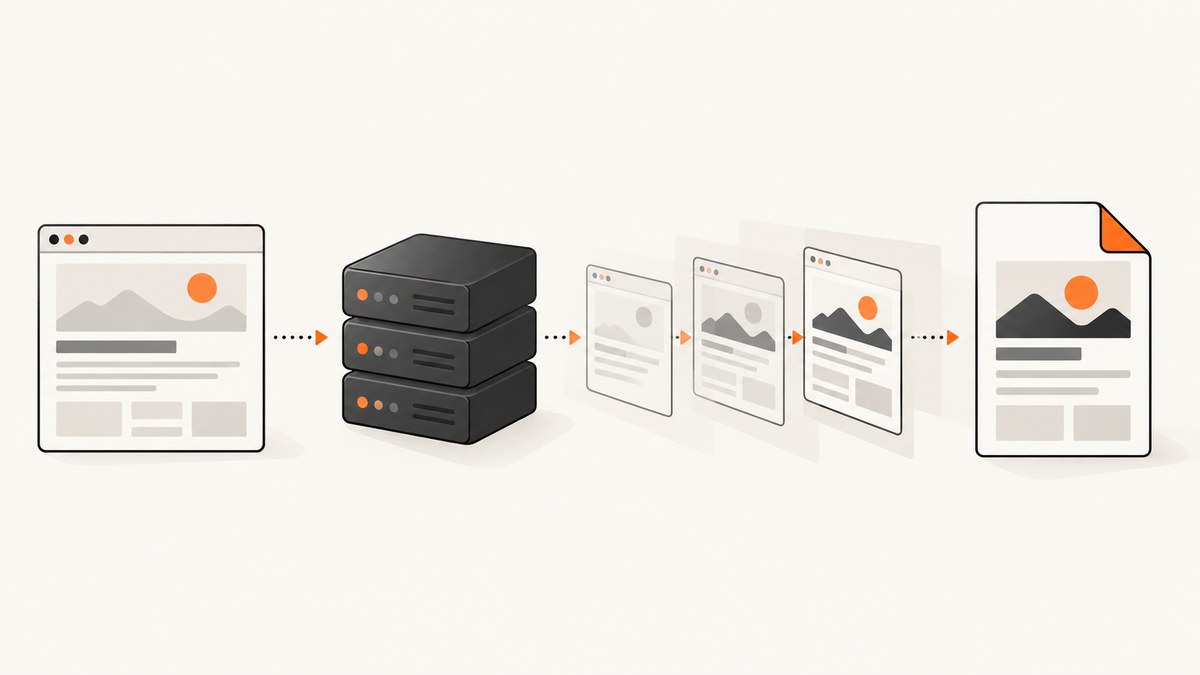
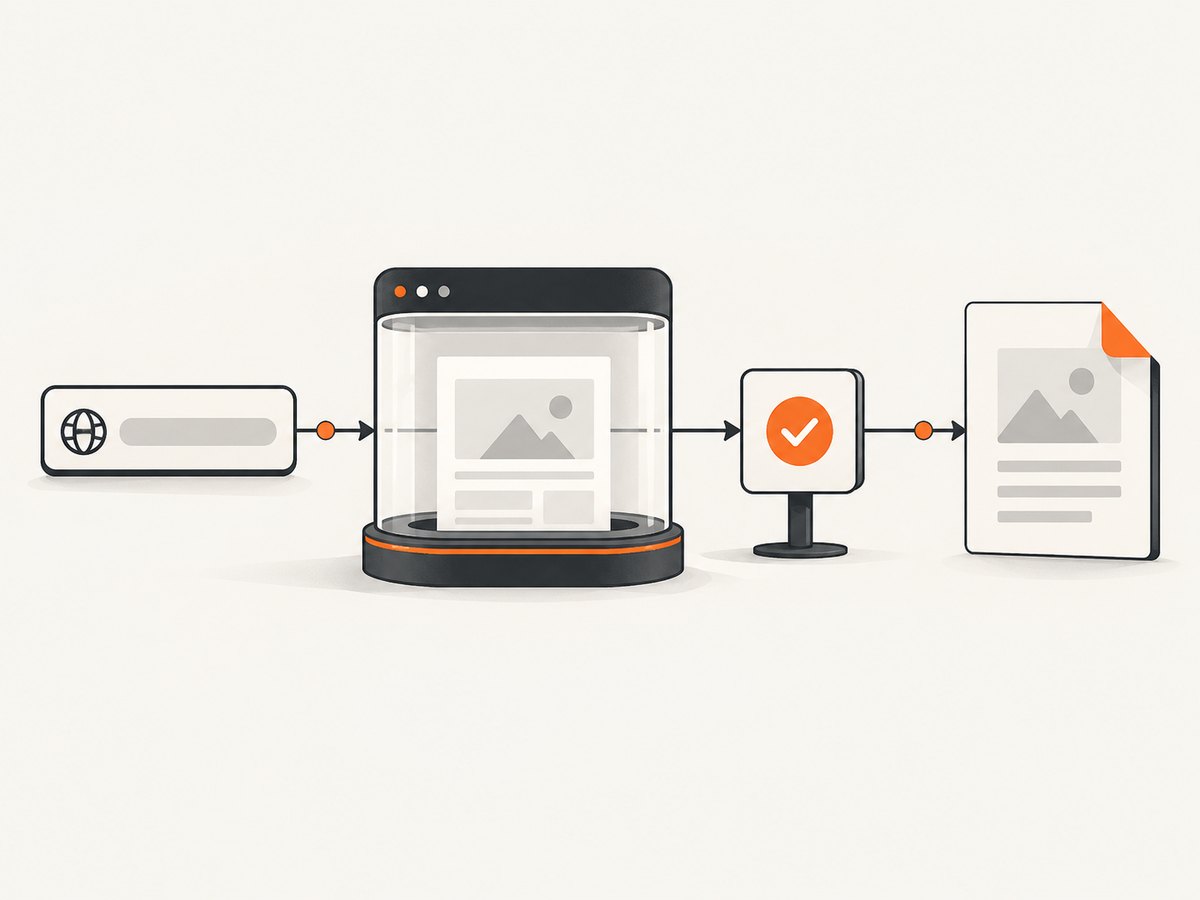
To convert a URL to a PDF in Node.js, open the page in a headless Chromium browser, wait until the content is ready, call page.pdf(), and save or stream the returned bytes. Puppeteer and Playwright both provide this workflow. The difficult parts are choosing a readiness condition, matching print CSS to your design, handling dynamic content, and operating Chromium safely in production.
This guide starts with a complete Puppeteer implementation, then covers Playwright, PDF layout options, HTTP endpoints, reliability, security, performance, troubleshooting, and a managed alternative.
1. Convert a URL to a PDF with Puppeteer
Install Puppeteer in a new project:
npm install puppeteer
The following ES module navigates to a URL, waits for network activity to settle, creates an A4 PDF, and always closes the browser:
import puppeteer from 'puppeteer';

export async function urlToPdf(url, outputPath) {
  const browser = await puppeteer.launch();
  try {
    const page = await browser.newPage();
    await page.goto(url, {
      waitUntil: 'networkidle2',
      timeout: 30_000,
    });
    await page.pdf({
      path: outputPath,
      format: 'A4',
      printBackground: true,
      preferCSSPageSize: true,
    });
  } finally {
    await browser.close();
  }
}

await urlToPdf('https://example.com', './example.pdf');
Puppeteer documents this navigation and PDF pattern in its PDF generation guide. Page.pdf() uses print CSS media by default and returns a buffer when you omit path; see the API reference.
Save bytes, return bytes, or stream them
For an API response, omit path and send the buffer with PDF headers:
import express from 'express';
import puppeteer from 'puppeteer';

const app = express();
const browserPromise = puppeteer.launch();

app.get('/pdf', async (req, res) => {
  const target = String(req.query.url || '');
  if (!target.startsWith('https://')) {
    return res.status(400).json({ error: 'Only HTTPS URLs are allowed' });
  }

  const browser = await browserPromise;
  const page = await browser.newPage();
  try {
    await page.goto(target, { waitUntil: 'domcontentloaded', timeout: 30_000 });
    const pdf = await page.pdf({
      format: 'A4',
      printBackground: true,
      preferCSSPageSize: true,
    });
    res.type('application/pdf').set('Content-Disposition', 'inline; filename="page.pdf"').send(pdf);
  } catch (error) {
    res.status(502).json({ error: 'PDF generation failed' });
  } finally {
    await page.close();
  }
});

app.listen(3000);
In production, use a browser pool or a long-lived browser process instead of launching Chromium for every request. Still create and close a fresh page per job so cookies, injected scripts, and navigation state do not leak between users.
2. Choose the right readiness condition
networkidle2 waits until there are no more than two active network connections for a short period. It is useful for ordinary documents, but it can hang on pages with analytics, WebSockets, long polling, or streaming responses. A page that is visually ready may still have background requests.
| Condition | Use it when | Risk |
|---|---|---|
domcontentloaded |
The HTML structure is enough and JavaScript is not essential. | Images, fonts, or client-rendered data may be missing. |
load |
You need load-event resources such as images. | Third-party resources can delay or block completion. |
networkidle2 |
The page settles after a finite burst of requests. | Long-lived connections may never become idle. |
| Explicit selector | Your application exposes a reliable ready element. | The selector must be present on success and absent on error. |
For application pages, an explicit readiness check is usually clearer than guessing from network traffic:
await page.goto(url, { waitUntil: 'domcontentloaded', timeout: 30_000 });
await page.waitForSelector('[data-pdf-ready="true"]', { timeout: 20_000 });
You can also wait for a known delay, but fixed sleeps make every job slower and still do not prove that data has loaded. Prefer a selector or an application-level signal.
3. Control paper size, margins, colors, and page breaks
The PDF options determine how CSS pixels become printed pages. A practical baseline is:
await page.pdf({
  format: 'A4',
  landscape: false,
  printBackground: true,
  preferCSSPageSize: true,
  margin: {
    top: '16mm',
    right: '16mm',
    bottom: '16mm',
    left: '16mm',
  },
  scale: 1,
});
- format: Presets such as
A4andLetter. - width and height: Explicit dimensions with units such as
px,in,cm, ormm. Use these instead offormatfor custom paper. - landscape: Rotate the paper orientation.
- margin: Set each edge independently; reserve space for headers and footers.
- preferCSSPageSize: Let the document’s
@pagerule define the paper size. - printBackground: Include background colors and images.
- scale: A value from 0.1 to 2; reducing it can fit wide content, while increasing it can improve readability only when the page has spare room.
Use print-specific CSS for predictable pagination:
@page {
  size: A4;
  margin: 16mm;
}

@media print {
  .screen-only { display: none !important; }
  .avoid-break { break-inside: avoid; }
  h2 { break-before: page; }
}
Browsers use print media for page.pdf(). If the site is designed for screen media, switch before generating the PDF:
await page.emulateMediaType('screen');
const pdf = await page.pdf({ format: 'A4', printBackground: true });
Print rendering can alter colors. When exact colors matter, add -webkit-print-color-adjust: exact; to the relevant elements, as described in Puppeteer’s PDF reference.
Headers and footers
Enable displayHeaderFooter and provide HTML templates. Puppeteer supports placeholders for the date, title, URL, page number, and total pages:
await page.pdf({
  format: 'A4',
  displayHeaderFooter: true,
  headerTemplate: '<div style="font-size:9px;width:100%;text-align:center;"><span class="title"></span></div>',
  footerTemplate: '<div style="font-size:9px;width:100%;text-align:center;">Page <span class="pageNumber"></span> of <span class="totalPages"></span></div>',
  margin: { top: '24mm', bottom: '20mm' },
});
Templates need their own inline styles. External stylesheets are not a reliable way to style header and footer content.
4. Handle dynamic pages, fonts, and lazy content
Single-page applications often render after navigation. Wait for the data or element that defines completion, then allow fonts and images to settle:
await page.goto(url, { waitUntil: 'domcontentloaded', timeout: 30_000 });
await page.waitForSelector('#invoice', { timeout: 20_000 });
await page.evaluate(() => document.fonts.ready);
await page.evaluate(async () => {
  const images = Array.from(document.images);
  await Promise.all(images.map(img => img.complete
    ? undefined
    : new Promise(resolve => {
        img.addEventListener('load', resolve, { once: true });
        img.addEventListener('error', resolve, { once: true });
      })));
});
const pdf = await page.pdf({ format: 'A4', printBackground: true });
For lazy-loaded images, scroll through the document before capture or expose a server-side rendering mode that loads all content. Puppeteer waits for fonts during PDF generation by default; a slow or broken font request can still consume your timeout budget.
5. Playwright alternative
Playwright’s Chromium API has the same basic shape and returns a PDF buffer. Install it with:
npm install playwright
import { chromium } from 'playwright';

export async function urlToPdfBuffer(url) {
  const browser = await chromium.launch();
  try {
    const page = await browser.newPage();
    await page.goto(url, { waitUntil: 'domcontentloaded', timeout: 30_000 });
    await page.waitForLoadState('networkidle');
    return await page.pdf({
      format: 'A4',
      printBackground: true,
      preferCSSPageSize: true,
    });
  } finally {
    await browser.close();
  }
}
Playwright documents page.goto(), page.pdf(), screen media emulation, dimensions with CSS units, and the 0.1–2 scale range in its Page API reference. Choose either library based on the browser engines and deployment model you need; page content and browser versions determine fidelity and runtime, so treat any benchmark found elsewhere as environment-specific.
6. Secure a URL-to-PDF service
An endpoint that fetches arbitrary URLs can become a server-side request forgery (SSRF) proxy. Apply these controls before production use:
- Allow only
https:(andhttp:only when explicitly required). - Resolve DNS and reject loopback, private, link-local, metadata-service, and other internal IP ranges.
- Limit redirects and validate every redirect destination.
- Set navigation, PDF, and overall job timeouts.
- Run Chromium with a restricted service account and container profile.
- Cap response size, page count, concurrency, and output storage.
- Do not forward your server’s cookies, credentials, or cloud metadata headers to the target.
- Record structured error codes without logging secrets or full authenticated URLs.
Generated bytes are untrusted input. Scan or isolate stored files if another system will open them, and set a safe content type and disposition when serving them.
7. Performance, reliability, and cost
- Reuse the browser: Chromium startup is expensive. Keep one browser process and create isolated pages, with a health check that replaces a crashed process.
- Bound concurrency: Each page consumes CPU and memory. Queue jobs and set a maximum number of simultaneous pages.
- Use targeted waits: Waiting for a ready selector is faster and more deterministic than a long fixed delay.
- Cache intentionally: Cache by normalized URL plus relevant headers, cookies, and rendering options. Add an expiration policy because web content changes.
- Retry selectively: Retry transient browser crashes and network resets with backoff. Do not blindly retry invalid URLs, authentication failures, or deterministic rendering errors.
- Measure the stages: Track navigation time, readiness time, PDF time, output size, and failure reason separately.
Self-hosting has no per-page API charge, but you pay for browser servers, memory, cold starts, patching, queueing, and operational work. A managed API can be cheaper for irregular workloads or teams that do not want to maintain Chromium.
8. Troubleshooting checklist
| Symptom | Likely cause | Fix |
|---|---|---|
| Blank or partially rendered PDF | PDF generated before client rendering or images completed. | Wait for a readiness selector, fonts, and image completion. |
| Navigation timeout | Slow origin, blocked resource, or never-idle connection. | Use domcontentloaded plus an explicit selector; raise the timeout only when justified. |
| Background colors missing | Print backgrounds disabled. | Set printBackground: true and check print CSS. |
| Screen layout looks wrong | Print media rules are being applied. | Use page.emulateMediaType('screen') or add intentional print styles. |
| Content clipped at the edge | Fixed width exceeds paper or margins are too large. | Use responsive print CSS, custom dimensions, landscape mode, or a smaller scale. |
| Fonts differ from the browser | Font request failed or PDF ran before fonts loaded. | Check font URLs, wait for document.fonts.ready, and allow font requests. |
| Browser memory grows | Pages are not closed or jobs run without a limit. | Close every page in finally, cap concurrency, and recycle unhealthy browsers. |
| 403 or login page in output | The target requires authentication or blocks automation. | Use an authorized session, custom headers, or a server-rendered export route; do not bypass access controls. |
9. Or skip the browser setup
ScreenshotNeo provides a website capture API that can return a PDF from one GET request. The same endpoint also supports full-page capture, paper size, margins, landscape mode, page ranges, custom headers and cookies, JavaScript, waiting rules, blocking controls, caching, async jobs, bulk capture, and an MCP server for AI agents. See the ScreenshotNeo documentation for the PDF parameters and response details.

curl -G "https://api.screenshotneo.com/v1/shot" -d access_key=YOUR_API_KEY --data-urlencode url=https://stripe.com -o shot.webp
import requests
r = requests.get("https://api.screenshotneo.com/v1/shot", params={"access_key": "YOUR_API_KEY", "url": "https://stripe.com"}, timeout=90)
open("shot.webp", "wb").write(r.content)
const q = new URLSearchParams({ access_key: 'YOUR_API_KEY', url: 'https://stripe.com' }); const res = await fetch(`https://api.screenshotneo.com/v1/shot?${q}`);
Configure the response as PDF using the documented PDF option for the endpoint. Cookie banners, newsletter popups, and chat widgets are removed before the shot. Bot checks, blank pages, failed loads, timeouts, and cache hits are not billed, and response headers identify the page verdict and billing status. An MCP server lets Claude, Cursor, and other MCP clients take screenshots or capture PDFs. The Free plan includes 1,000 shots each month with no card; paid plans start at $5 for 3,000 shots. Sign up free for ScreenshotNeo.
10. Frequently asked questions
Can Node.js convert a URL without a browser?
Only when the source already exposes a PDF or a server-side HTML-to-PDF service. For arbitrary, JavaScript-rendered pages, a browser engine such as Chromium is the practical option.
Should I use Puppeteer or Playwright?
Both support URL navigation and PDF generation. Compare their browser coverage, hosting model, readiness APIs, and operational fit for your application; do not assume one is universally faster or more accurate.
Why is my PDF multiple pages when the page looks short?
Print margins, paper size, CSS @page rules, and oversized fixed-width elements can change pagination. Inspect print styles and set dimensions explicitly.
Can I generate a PDF from a protected page?
Yes, when you have authorization. Supply the session or headers through your own controlled browser context, and avoid exposing credentials in logs or user-controlled URLs.
How do I test PDF output?
Keep representative pages for each layout type, compare rendered pages or extracted text, and test after browser upgrades. Include slow fonts, missing images, long pages, and pages with intentional page breaks.


