How to Convert Vimeo Videos to GIF
Convert a Vimeo clip to a shareable GIF with Vimeo’s built-in maker or a local FFmpeg workflow, with sizing, quality, limits, and troubleshooting.
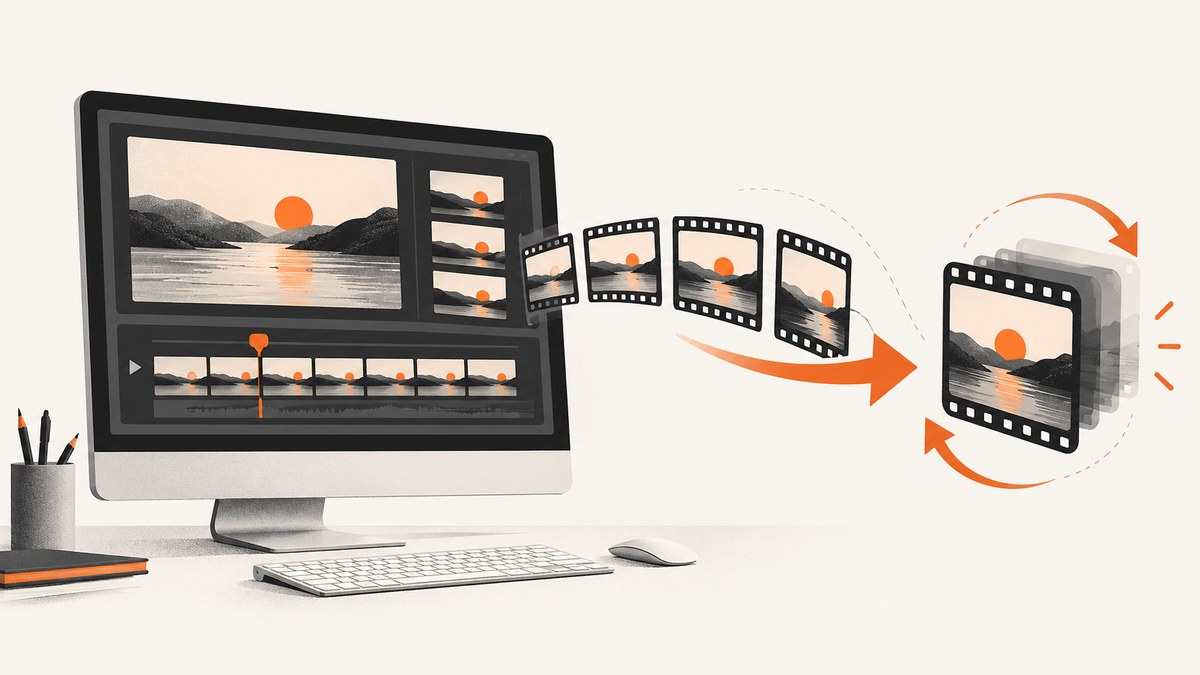
Short answer: Use Vimeo’s built-in GIF maker when it can access the video. Open the video, choose Edit → Make a GIF, select a start and end point, then create and download, share, or embed the result. Vimeo says each GIF can be up to six seconds long, and up to four GIFs can be saved for one video. If you need control over frame rate, dimensions, compression, or automation, download an authorized source file and create the GIF locally with FFmpeg or a scripting library.
This guide covers both workflows, including Vimeo access rules, complete command-line and code examples, quality and file-size choices, edge cases, troubleshooting, and ways to publish the result.
1. Use Vimeo’s built-in GIF maker
Vimeo’s GIF maker accepts either an uploaded video clip or a Vimeo link. The product page describes trimming the timeline, changing frame rate, adding text or branding, cropping, compressing, selecting a file size, and exporting the GIF. It is also available through Vimeo’s iPhone and Android apps. See Vimeo’s GIF maker page for the current interface.
For a video already in your Vimeo Library
- Sign in to Vimeo and open the video in your Library.
- Select Edit.
- Choose Make a GIF.
- Set the start and end points around the moment you want to loop.
- Select Create GIF.
- Download the file, copy the hosted share link, or embed it where Vimeo offers those options.
Vimeo’s Help Center documents a maximum length of six seconds and a maximum of four saved GIFs per video. It offers a smaller download for email and a larger one for social sharing. Basic members’ GIFs include a Vimeo watermark; a paid membership removes it. GIF creation is unavailable for videos marked 360 unless the video is deleted and re-uploaded without the 360 designation. Check Vimeo’s Help Center if labels or account permissions differ.
When you only have a Vimeo URL
Paste the URL into the GIF maker if the video is eligible and Vimeo can access it. A private video, an unlisted video with restricted sharing, or a video with downloads disabled may not be available to the tool. The owner’s privacy and distribution settings control whether the video can be downloaded, embedded, or reused.
2. Download an authorized source file
A local conversion gives you predictable output and repeatable automation, but you must have permission to obtain the source. Vimeo’s download instructions say the owner must enable downloads, and users generally need to be signed in to download source files from public videos. If there is no download button, ask the owner for an authorized copy or use Vimeo’s built-in GIF maker when available. Do not use a downloader to bypass disabled downloads or privacy settings.
Check the source before converting
- Prefer MP4 with H.264 video for broad compatibility.
- Use the highest resolution you need; a 1080p source is unnecessary for a 320-pixel email GIF.
- Identify the exact time range before encoding so you do not create a large file and trim it later.
- Keep the original file if you expect to create several crops, frame rates, or sizes.
3. Convert the file with FFmpeg
FFmpeg is a practical local option for repeatable conversions. Install it from ffmpeg.org, then create a palette before encoding. The palette step preserves more useful colors than sending every frame directly to GIF.
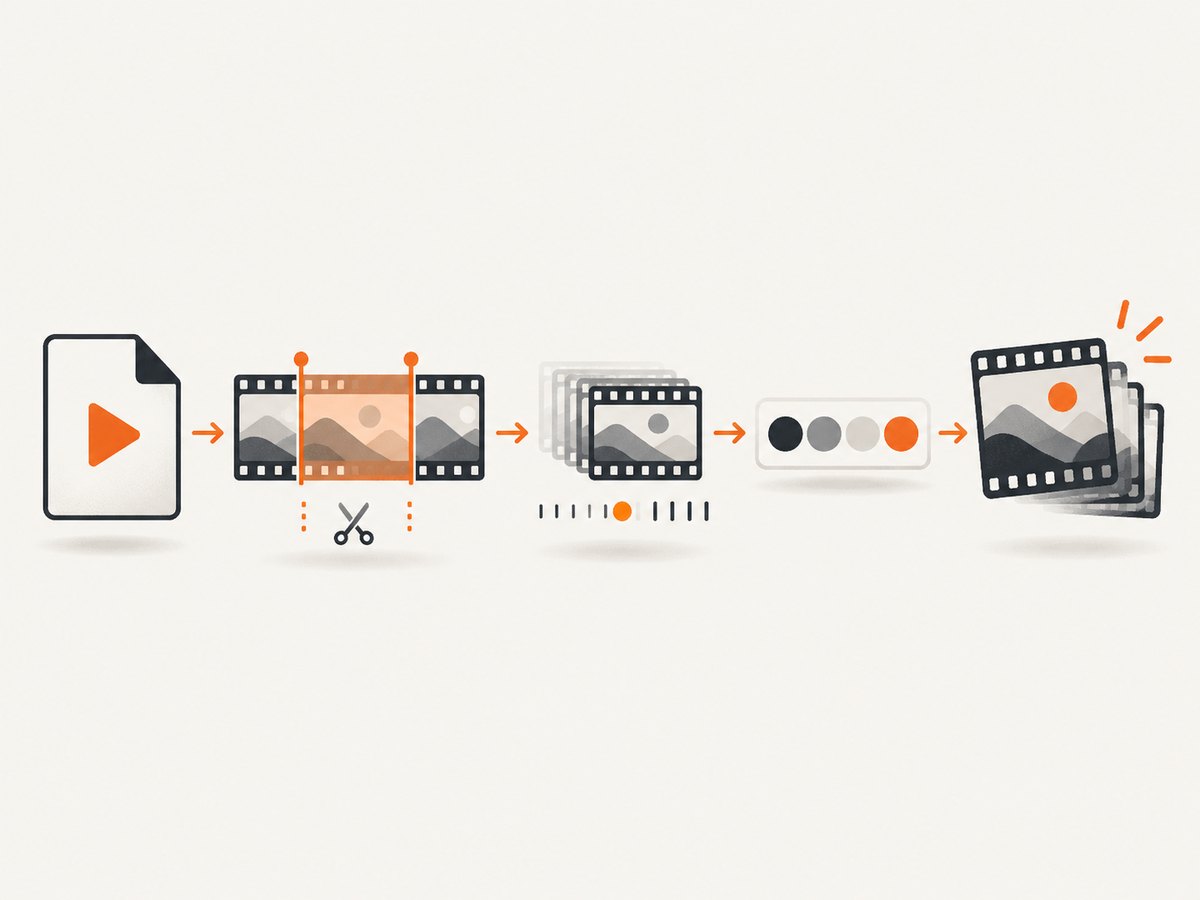
Two-pass conversion with a six-second clip
ffmpeg -ss 00:01:12 -t 6 -i vimeo-source.mp4 \\
  -vf "fps=12,scale=640:-1:flags=lanczos,palettegen=stats_mode=diff" \\
  -y palette.png

ffmpeg -ss 00:01:12 -t 6 -i vimeo-source.mp4 -i palette.png \\
  -lavfi "fps=12,scale=640:-1:flags=lanczos[x];[x][1:v]paletteuse=dither=sierra2_4a" \\
  -loop 0 -y vimeo-clip.gif
-ss selects the start time, -t limits duration, fps controls smoothness and size, and scale sets the width while preserving the aspect ratio. -loop 0 makes the GIF loop forever. Vimeo’s six-second product limit applies to GIFs made in Vimeo; a local file can technically be longer, but long GIFs become very large and are often unsuitable for browsers, email, and chat.
Useful FFmpeg variations
# Smaller 360-pixel GIF for email
ffmpeg -ss 00:01:12 -t 4 -i vimeo-source.mp4 -vf "fps=8,scale=360:-1:flags=lanczos" -y small.gif

# Crop to a square before scaling
ffmpeg -ss 00:01:12 -t 5 -i vimeo-source.mp4 \\
  -vf "crop='min(iw,ih)':'min(iw,ih)',fps=10,scale=500:500:flags=lanczos" \\
  -y square.gif

# Preserve transparency when the source contains an alpha channel
ffmpeg -i source-with-alpha.mov -vf "fps=12,scale=640:-1:flags=lanczos" -y transparent.gif
GIF supports 256 colors per frame and does not handle photographic gradients as efficiently as video formats. For a website, consider using the GIF only as a fallback and offer the original MP4 or WebM to browsers that support it.
4. Automate conversion in Python
The following script uses imageio-ffmpeg through MoviePy. It reads a local, authorized source, trims six seconds, resizes it, and writes a looping GIF.
python -m pip install moviepy imageio-ffmpeg

from moviepy import VideoFileClip

source = "vimeo-source.mp4"
output = "vimeo-clip.gif"

with VideoFileClip(source) as video:
    clip = video.subclipped(72, min(78, video.duration))
    clip = clip.resized(width=640)
    clip.write_gif(output, fps=12, loop=0, logger=None)

print(f"Wrote {output}")
The start and end values are seconds. The min expression prevents the requested end time from exceeding the source duration. For large videos, process a short range and use a smaller width or frame rate to keep memory use reasonable.
5. Automate conversion in Node.js
Node.js can call the FFmpeg binary directly. Install fluent-ffmpeg and make sure FFmpeg is on your system PATH.
npm install fluent-ffmpeg

const ffmpeg = require('fluent-ffmpeg');

ffmpeg('vimeo-source.mp4')
  .setStartTime(72)
  .setDuration(6)
  .outputOptions(['-vf fps=12,scale=640:-1:flags=lanczos', '-loop 0'])
  .on('end', () => console.log('Wrote vimeo-clip.gif'))
  .on('error', (err) => { console.error(err); process.exitCode = 1; })
  .save('vimeo-clip.gif');
For production quality, use the two-pass palette commands from the FFmpeg section and invoke them with Node’s child_process. Treat the source path as data, validate it, and avoid concatenating untrusted strings into a shell command.
6. Choose duration, dimensions, and frame rate
| Use case | Starting point | Why |
|---|---|---|
| Email or documentation | 2–4 seconds, 320–480 px wide, 8–12 fps | Keeps transfer size manageable. |
| Chat or social post | 3–6 seconds, 480–720 px wide, 10–15 fps | Balances motion and clarity. |
| UI demonstration | 2–5 seconds, 600–900 px wide, 12–20 fps | Text and cursor movement need more temporal detail. |
File size rises with duration, width, frame rate, and scene complexity. A static shot compresses well; a scene with water, confetti, camera noise, or many colors does not. Remove unnecessary lead-in and tail frames, crop unused borders, and export a second smaller version for email.
7. Publishing and embedding options
- Download: Use the local GIF when you need to upload it to a CMS, repository, or messaging tool.
- Hosted link: Vimeo can provide a shareable result for eligible accounts and videos.
- Embed: Use Vimeo’s embed option when you want Vimeo hosting and controls.
- HTML video fallback: For your own site, serve MP4 or WebM first and retain the GIF as a fallback or preview.
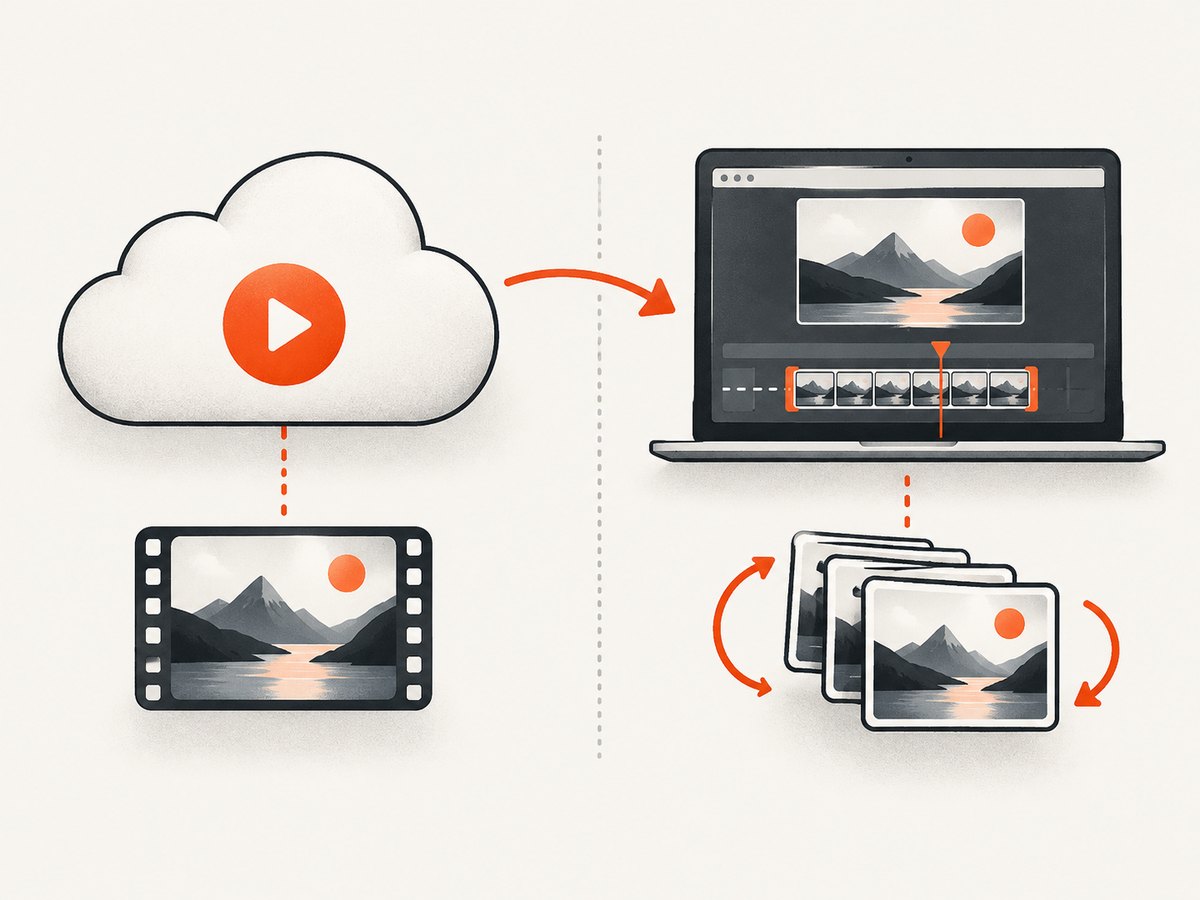
8. Or skip the browser setup
ScreenshotNeo is a website screenshot API, so it does not transcode Vimeo video into an animated GIF. It is useful when the deliverable is a clean image of a Vimeo page, campaign landing page, or GIF preview after you have created the GIF. One GET request returns PNG, JPEG, WebP, or PDF.
See the ScreenshotNeo API documentation for all parameters. Here is the required one-call example:
curl -G "https://api.screenshotneo.com/v1/shot" -d access_key=YOUR_API_KEY --data-urlencode url=https://stripe.com -o shot.webpimport requests
r = requests.get("https://api.screenshotneo.com/v1/shot", params={"access_key": "YOUR_API_KEY", "url": "https://stripe.com"}, timeout=90)
open("shot.webp", "wb").write(r.content)const q = new URLSearchParams({ access_key: 'YOUR_API_KEY', url: 'https://stripe.com' });
const res = await fetch(`https://api.screenshotneo.com/v1/shot?${q}`);ScreenshotNeo removes cookie banners, newsletter popups, and chat widgets before capture. Bot checks, blank pages, failed loads, timeouts, and cache hits are not billed, and the response identifies the page verdict and billing result in headers. Its MCP server lets Claude, Cursor, and other MCP clients call take_screenshot, get_page_info, and capture_pdf. The Free plan includes 1,000 screenshots per month with no card; paid plans start at $5 for 3,000 shots. Create a free ScreenshotNeo account.
9. Troubleshooting
| Problem | Likely cause | Fix |
|---|---|---|
| “Make a GIF” is missing | The video, account, or privacy setting is ineligible. | Confirm you own or can edit the video, check its sharing settings, and try an authorized source upload. |
| No download button | The owner disabled downloads or you are not signed in. | Ask the owner for a copy or use Vimeo’s GIF maker; do not bypass the setting. |
| 360 video cannot create a GIF | Vimeo blocks GIF creation for videos labeled 360. | Re-upload a permitted non-360 version if you control the source. |
| GIF is huge | Too many frames, pixels, or colors. | Shorten it, lower FPS, reduce width, crop, and use palette generation. |
| GIF looks banded or muddy | GIF’s 256-color limit or poor palette selection. | Use the two-pass palette workflow and test a different dither; publish MP4/WebM when GIF quality is insufficient. |
| FFmpeg says “Invalid data” | Incomplete, unsupported, or mislabeled source. | Play the file, re-download the authorized original, and inspect it with ffprobe. |
| Audio is missing | GIF has no audio track by design. | Use MP4/WebM if sound matters. |
| Text is unreadable | The output is too small or the source contains fine detail. | Crop tightly, increase width, raise FPS for moving text, or publish the video instead. |
10. Reliability, performance, and cost notes
Vimeo’s hosted workflow is simplest when the video is already in your Library and eligible for GIF creation. A local workflow is more repeatable for batches because the same FFmpeg parameters can be version-controlled and rerun. Keep source files and generated GIFs separate, record the start time, duration, width, FPS, and FFmpeg version, and inspect the first and last frames before publishing.
Encoding cost is mostly local CPU, disk, and memory. Palette generation reads the selected frames, so trimming before processing saves time. For recurring jobs, queue short clips, cap concurrent FFmpeg processes, write to temporary files, and rename only after a successful exit. Validate that the output exists and has a nonzero size before uploading it.
FAQ
Can a Vimeo GIF be longer than six seconds?
Vimeo’s Help Center states a six-second maximum for GIFs made in its workflow. A local FFmpeg conversion can exceed six seconds, but the resulting file may be impractical to deliver.
Can I remove a Vimeo watermark from a Basic account GIF?
Vimeo states that Basic members’ GIFs carry a watermark and that upgrading to a paid membership removes it. Use a permitted source and follow the account terms.
Can I convert a private Vimeo video?
Only when you have access and the video’s settings allow the chosen workflow. Otherwise request an authorized source from the owner.
Should I use GIF or MP4 on a website?
Use MP4 or WebM when you control the page and need smaller files, audio, or better color. Use GIF when broad, plug-in-free looping compatibility is the priority.
How many GIFs can Vimeo save for one video?
Vimeo says up to four GIFs can be saved per video at a time.


