How to Convert a Web Image to JPG
Convert a downloaded web image to JPG with ImageMagick or an image editor. Learn what happens to transparency, animation, image quality, and file size.
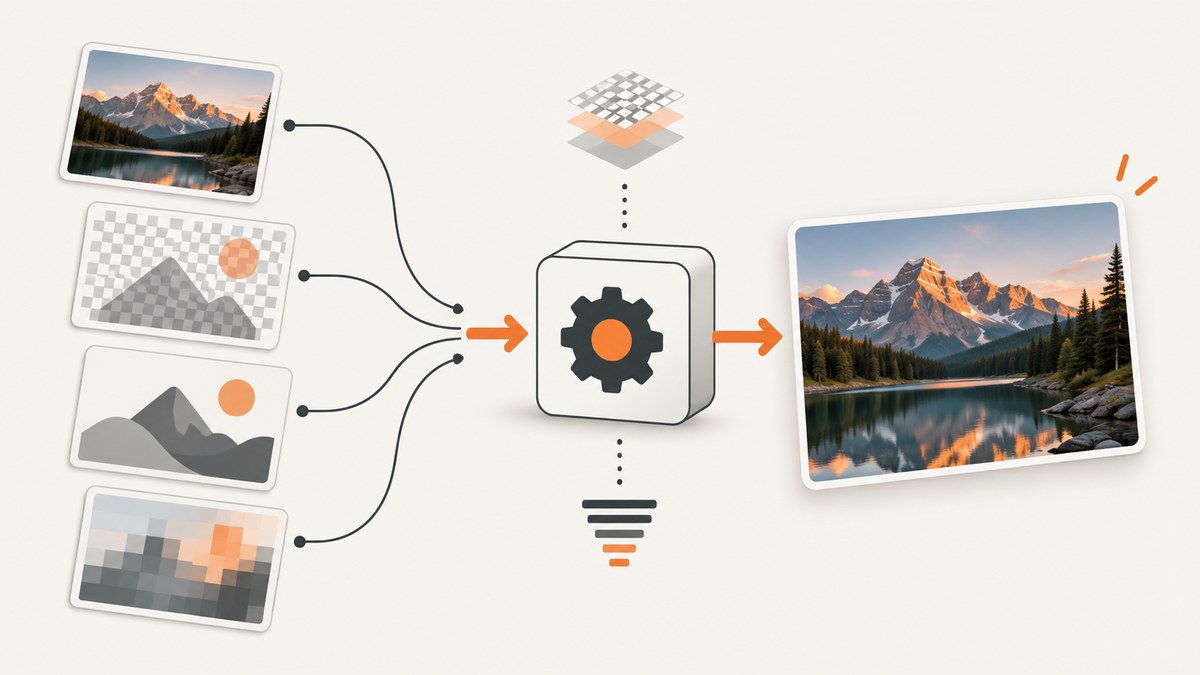
To convert a web image to JPG, open or download it with an image editor or converter and export it as JPEG. With ImageMagick, for example, run magick input.png output.jpg. The output filename asks ImageMagick to encode JPEG; changing a filename from .png to .jpg in a file manager does not convert the image.
First identify what you have. A web image might be JPEG, PNG, GIF, SVG, WebP, AVIF, or another format. That matters because JPEG loses some image information, cannot preserve transparency, and stores only one still image rather than an animation. The best conversion settings depend on what the image shows and where you plan to use it.
1. Check the source image before converting
Save the original image or open it in an editor that supports its format. Do not rely on the URL ending or the downloaded filename: neither necessarily tells you the true image format. If the image fails to open, check the tool’s supported formats and whether it has the required decoder installed. ImageMagick’s available formats vary by build and delegates. See its command-line options and command-line processing documentation.
Consider these questions before choosing JPG:
- Is it a photograph? JPEG is often a reasonable choice for photographs where broad compatibility matters and some lossy compression is acceptable.
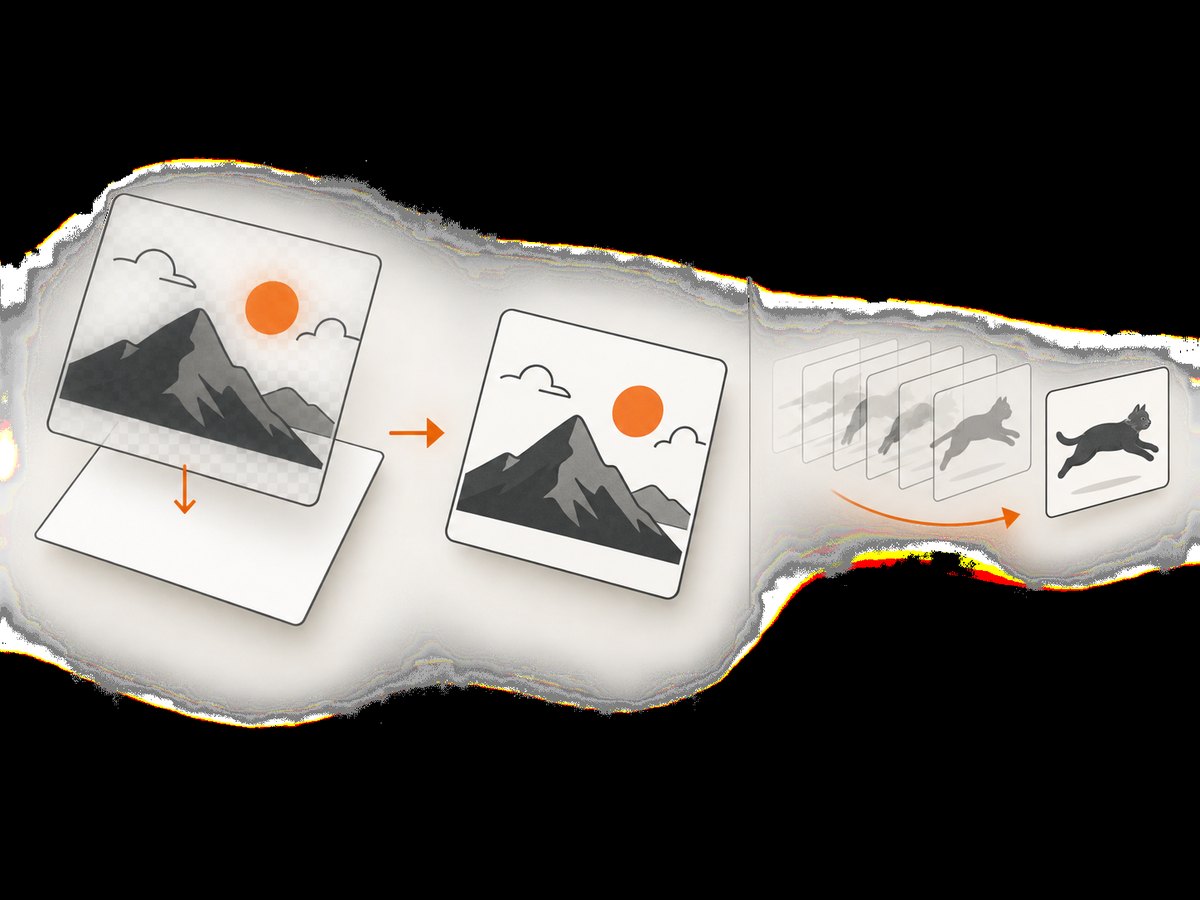
- Does it have transparent areas? JPEG cannot store an alpha channel. Choose a background color and flatten the image before exporting.
- Is it a screenshot, diagram, logo, or line drawing? Compression can introduce visible artifacts around sharp edges and text. MDN recommends lossless formats when preserving this kind of detail matters. See the MDN image format guide.
- Is it animated? A single JPG cannot preserve an animation. Choose a frame for a still image, or keep an animated format if the sequence matters.
- Is the source an SVG? Exporting to JPG rasterizes the vector art. Keep the SVG if you need it to stay crisp at different sizes.
2. Convert the file with ImageMagick
Install an ImageMagick build that supports your input format, then convert a local file by writing to a new filename ending in .jpg:
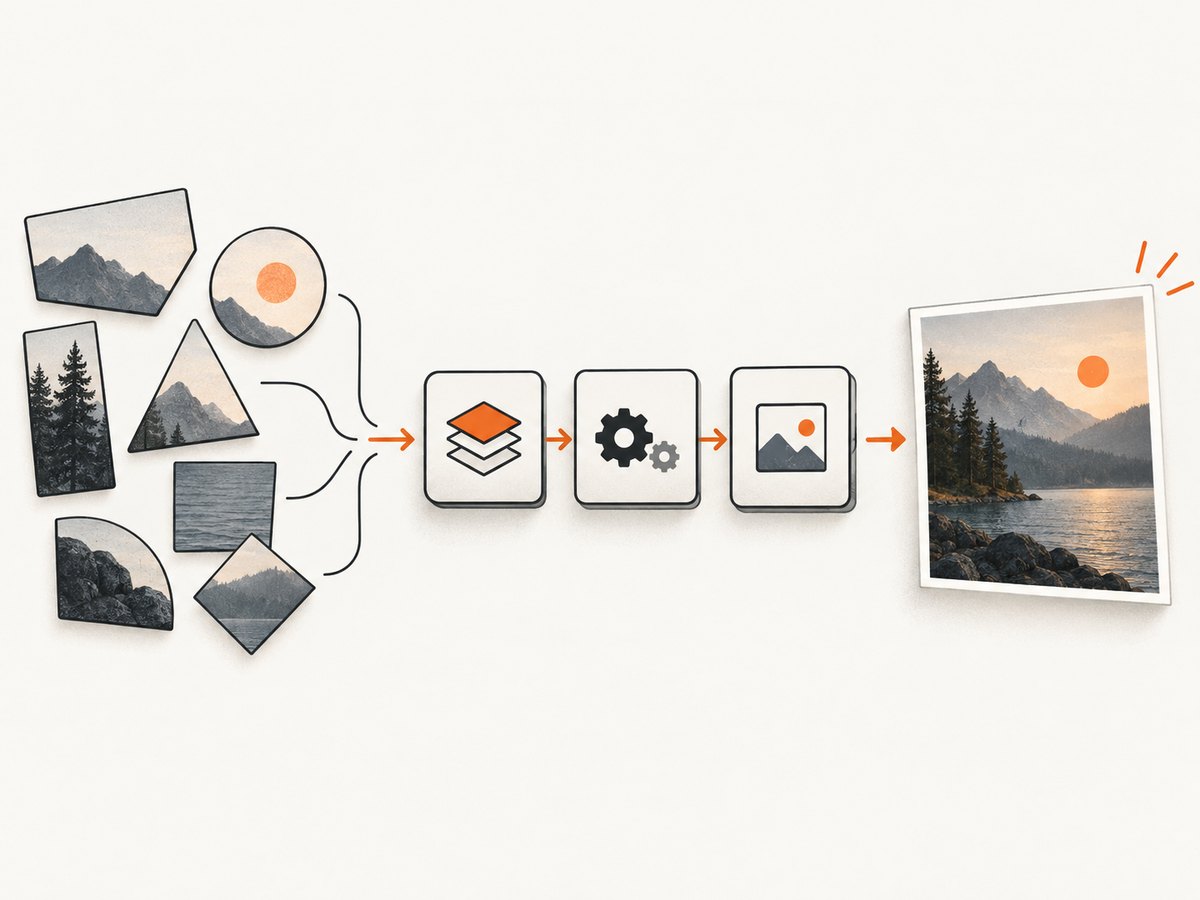
magick input.png output.jpgSubstitute the actual source filename for input.png. The source may be WebP, AVIF, GIF, SVG, or another supported format; use its real filename. The output extension requests JPEG encoding. Keep the source file so you can retry with different settings without starting from a lossy JPG.
JPEG does not support transparency. For a transparent source, explicitly compose it onto a background before writing the JPG. For example, with a white background:
magick input.png -background white -alpha remove -alpha off output.jpgChoose a background that fits the intended use: white is common for a white page, while another solid color may better match a design. Inspect the result around edges that were previously transparent; a poorly chosen background can leave a visible halo or make the subject look wrong. ImageMagick option behavior can depend on option order and the input, so consult the command-line documentation if you need a different composition workflow.
For a GIF or other animated source, select one frame when you need a still image. ImageMagick can address frames using an index in the input filename, such as animation.gif[0], where the first frame is indexed as zero:
magick 'animation.gif[0]' first-frame.jpgShell quoting prevents brackets from being treated as a filename pattern by some shells. Check that the chosen frame contains the desired content; the first frame is not always representative. A JPG contains only that selected still.
ImageMagick provides quality controls for JPEG encoding, but there is no single setting that is best for every image. Higher quality generally retains more detail and can produce a larger file; lower quality can make the file smaller while making artifacts easier to see. Use the quality option supported by your installed ImageMagick version, compare a few outputs, and inspect the result at the size where it will be used. In particular, look closely at text, thin lines, skin tones, gradients, and high-contrast edges.
3. Convert with an image editor
- Open the downloaded image in an editor that supports its actual format.
- If it has transparency, place it over a solid background layer and flatten or otherwise export it as an opaque image.
- For an animation, choose the frame you want to keep. The JPG export will be a still.
- Use the editor’s Export, Save a Copy, or equivalent command and select JPEG/JPG as the output format.
- Set the quality using the editor’s preview or export controls. Check that fine details remain acceptable and that the file size meets your needs.
- Save under a new name, then reopen the result or inspect its file information to confirm it is JPEG.
Menu names differ between editors, so use the format selector in the export dialog rather than just typing .jpg into a filename. A proper export decodes the original and re-encodes its pixels.
4. Convert a web image from the command line
For command-line automation, first download the image to a local file, then pass that file to ImageMagick. For a public image URL, cURL can save the response body:
curl -L 'https://example.com/image.webp' -o input.webp
magick input.webp output.jpg
Replace the example URL with the image URL. The -L option follows redirects. This example assumes the server returns the image you expect; some sites require cookies, authorization, or a browser session, and a URL may instead return an HTML page or an error. If ImageMagick says it cannot read the file, check the downloaded content and the input format before trying the conversion again.
When working with a transparent web image, flatten it during conversion:
magick input.webp -background white -alpha remove -alpha off output.jpgFor repeatable jobs, keep the original input and write outputs to a separate directory. Avoid converting an already compressed JPG repeatedly: each JPEG export can discard additional image information.
5. Choose JPG only when it fits the image
JPG is a useful interchange format for many photographs, but it is not automatically the best web image format. Use this comparison to decide whether conversion is appropriate:
| Format | Good fit | What to consider |
|---|---|---|
| JPEG/JPG | Photographs and still images where compatibility is important | Lossy; no transparency or animation |
| PNG | Lossless detail, screenshots, graphics, and transparency | May be larger than a lossy photo format |
| SVG | Logos and illustrations that need to scale sharply | Raster export loses vector scalability |
| WebP | Web delivery where the target environment supports it | Can support transparency and animation; verify compatibility for the intended use |
| AVIF | Web delivery where supported and efficient compression is useful | Check support in the target software or browser |
| GIF | Simple animations or legacy workflows | A JPG export preserves only a selected still frame |
MDN describes lossy WebP images as averaging 25–35% smaller than JPEG at visually similar compression levels, and lossy AVIF as around 50% smaller in a similar comparison. These are general figures, not guaranteed savings for a particular file. Actual output depends on the image and encoding settings. The same guide covers format capabilities and browser support: MDN image file type and format guide.
6. Verify the converted JPG
After export, check both the format and the appearance. A filename extension alone is not proof that the bytes are JPEG. Open the output in an image viewer or inspect its properties with a file identification tool. Then review:
- Format: the file is identified as JPEG and opens in the target application.
- Transparency: formerly transparent parts show the intended background.
- Frame: an animated source produced the intended still image.
- Visual quality: text, edges, gradients, and important details remain acceptable.
- Dimensions and file size: they suit the destination. Conversion by itself does not necessarily resize an image or guarantee a smaller file.
Or skip the browser setup
If what you need is a screenshot of a web page rather than a conversion of an image file, ScreenshotNeo returns a screenshot or PDF from one GET request. It is a website screenshot API and MCP server by Yorker Media, so it captures a rendered page instead of downloading an existing image asset. Its clean-shot flow accepts cookie and consent banners like a visitor, then removes 60+ known consent platforms, newsletter popups, and chat widgets before capture; each step can be turned off. Bot checks and CAPTCHAs, blank pages, timeouts, failed loads, and cache hits cost nothing, and the response identifies the page verdict and billing status in headers. Its MCP server includes take_screenshot, get_page_info, and capture_pdf for AI agents such as Claude, Cursor, and other MCP clients.
Here is the one-call cURL example, using a web page as the target:
curl -G "https://api.screenshotneo.com/v1/shot" -d access_key=YOUR_API_KEY --data-urlencode url=https://stripe.com -o shot.webpSee the ScreenshotNeo API documentation for the request options and sign up to get 1,000 screenshots a month free with no card. Paid plans start at $5 for 3,000 shots.
Troubleshooting
| Problem | Likely cause | What to do |
|---|---|---|
| Changing the extension did not convert the image | The file was renamed without decoding and re-encoding it. | Open it in an editor and export as JPEG, or run an ImageMagick conversion command. |
| ImageMagick cannot read the input | The installed build lacks support for the source format, the file is corrupt, or the download is not actually an image. | Check the file type and download response, then use a converter with support for that format or install the needed ImageMagick delegate. |
| Transparent areas turned black or another unexpected color | JPEG has no alpha channel and the conversion used an implicit or unsuitable background. | Set a deliberate background and flatten before encoding. |
| The JPG is blurry or has blocks around text | Lossy compression damaged sharp detail, or quality was set too low. | Increase the export quality and compare; if sharp edges must remain exact, keep a lossless format such as PNG. |
| The animation disappeared | JPG stores a still image, not an animated sequence. | Select and export a frame, or retain an animated format. |
| The output is larger than the source | JPEG is not always smaller; source format, image content, dimensions, and encoding quality all affect size. | Compare the actual outputs. Keep WebP or AVIF when supported and more efficient for the destination, or adjust JPEG quality if JPG is required. |
| A URL download saved an HTML page | The site returned a redirect, access page, bot check, or error instead of image bytes. | Inspect the response and use the site’s permitted access method or download the image through a browser session. |
Performance, reliability, and cost
For a handful of local files, an image editor is straightforward. For repeated conversions, ImageMagick can be called from scripts, but processing time and memory depend on dimensions, animation frame count, source format, and installed delegates. Large images and multi-frame files can require substantially more work than a single small photograph. If a job fails intermittently, retain the original input, write to a temporary output name, verify that the export completed, and only then move it into place.
Local conversion does not require uploading the image to a third-party converter, which can matter for private files. It does require suitable software and format support. Online converters may be convenient, but consider whether the image is appropriate to upload and check how the service handles files before using it. JPG conversion can reduce storage or transfer size, but there is no guaranteed reduction; measure the resulting file and inspect quality. If the destination supports a different format better suited to the content, keep the original or use that format instead.
Frequently asked questions
Is JPG different from JPEG?
They refer to the same image format. The shorter .jpg extension is commonly used alongside .jpeg.
Can I convert a JPG back to PNG to restore quality?
You can save the decoded image as PNG, but that does not restore information discarded during JPEG compression. Keep the original source if you may need a higher-fidelity version.
Will converting an image change its dimensions?
Format conversion alone normally does not resize the image. Use a separate resize operation if the destination requires specific dimensions, and keep an original copy.
Should every web image be converted to JPG?
No. JPG is a practical choice for many still photographs, while transparency, animation, crisp graphic edges, vector scaling, or target-format support may make another format a better fit.


