How to Convert a Web Page Link to PDF
Convert any web page link to a PDF with Chrome, Firefox, Edge, Acrobat, scripts, or ScreenshotNeo—and fix common layout problems.
Direct answer: Open the web page in Chrome, Firefox, Edge, or another modern browser. Open the browser’s Print command (Ctrl+P on Windows/Linux or Command+P on macOS), choose Save as PDF (or the equivalent PDF destination), adjust the print settings, preview the result, and save it. This works without installing a converter or uploading the page to an online service.
If you need the same conversion in a backend, CI job, batch process, or AI workflow, use a browser automation tool or a screenshot API. This guide covers the manual browser method, reusable code, layout controls, multi-page capture, troubleshooting, performance, privacy, and an API option with ScreenshotNeo.
1. Choose the right kind of output
A URL can produce two different kinds of files:
| Goal | Use | Result |
|---|---|---|
| Shareable, paginated document | Print > Save as PDF | A PDF with pages, margins, paper size, headers, footers, and print styling |
| Editable local copy of a page | Chrome > More > More tools > Save Page As | HTML plus local resources; it is not a paginated PDF |
| Several pages or a site section | Dedicated capture software such as Adobe Acrobat | One or more PDFs generated from a URL, HTML file, or linked pages |
Use Print to PDF when the recipient needs a document they can open, search, print, or archive. Use Save Page As when you need the page’s local web files and can tolerate browser-dependent rendering.
2. Convert a link to PDF in Chrome
- Open the URL in Chrome and wait for the page to finish loading. Scroll through it once if images or other content load lazily.
- Press Ctrl+P on Windows/Linux or Command+P on macOS. You can also open the menu and choose Print.
- Set Destination to Save as PDF. On systems with a PDF printer, choose that destination.
- Set the paper size, orientation, scale, margins, page range, and whether backgrounds should print.
- Turn off headers and footers if you do not want the URL, title, or date added to each page.
- Review the preview at every page break. If the layout is clipped or sparse, change orientation, scale, or margins.
- Click Save, choose a filename and folder, and confirm.
Chrome also has More > More tools > Save Page As. That command saves the HTML page and its local resources; it does not create the same paginated output as Print > Save as PDF.
3. Convert a link to PDF in Firefox
- Open the page in Firefox.
- Open the application menu and choose Print.
- In Destination, select Save to PDF.
- Choose orientation, page range, color, paper size, scale, margins, headers and footers, and background graphics as needed.
- Use Simplified format when it is offered and the page contains navigation, advertising, or sidebars.
- Inspect the preview, then save the file.
Firefox explicitly warns that a page can be laid out differently on paper than on screen. Treat the preview as the source of truth before sharing the PDF.
4. Convert a link to PDF in Microsoft Edge
- Open the URL in Edge.
- Press Ctrl+P or Command+P, or open Settings and more > Print.
- Select the PDF destination, then set paper size, orientation, pages, scale, margins, and background options.
- If the site supports it, open Immersive Reader first. This can remove surrounding navigation and make the printed document easier to read.
- Preview the pages and save the PDF.
5. Print settings that fix most layout problems
Web pages can define print-specific CSS, so the PDF may differ from the screen. Make these adjustments in the preview:
| Problem | Setting to try |
|---|---|
| Right side is cut off | Use landscape orientation, reduce scale, or select a wider paper size. |
| Too much empty space | Use portrait orientation, increase scale, or reduce margins. |
| Colors and panels disappear | Enable background graphics or background colors. |
| URL and date clutter every page | Disable browser headers and footers. |
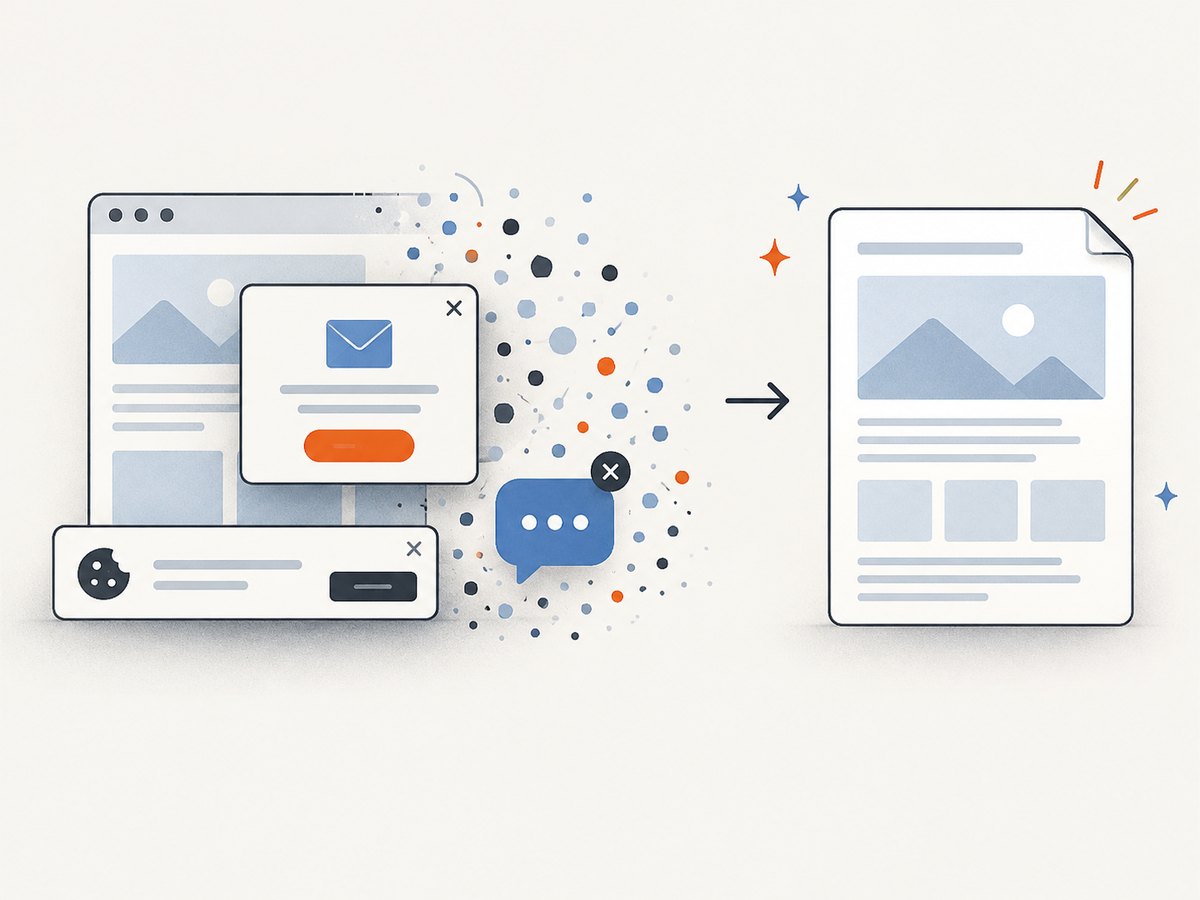
| Menus, ads, and chat widgets appear | Use Simplified or Immersive Reader mode, hide the elements with custom CSS, or print from a cleaner page view. |
| A section starts awkwardly across two pages | Change scale or margins, select a smaller page range, or use a print-friendly version of the page. |
| Only selected content is needed | Enter a page range after identifying the relevant pages in preview. |
Always preview. A browser may reflow columns, move images, or apply print rules that are invisible in the normal tab.
6. Save a page locally versus producing a PDF
Save Page As creates a local copy of the page’s HTML and referenced resources. It is useful for offline inspection or archiving the web assets, but opening it later can still depend on relative paths, scripts, fonts, and browser behavior.
Print to PDF freezes a rendered view into paginated pages. It is the better choice for sending a report, attaching evidence to a ticket, or storing a citation. Neither method guarantees that a login-only page, an interactive application, or content blocked by scripts will render correctly.
7. Convert a URL to PDF with code
For repeatable jobs, run a real browser in automation. Playwright is a common choice because it waits for a page, can set a viewport, and exposes Chromium’s PDF output. Install it with npm install playwright and install its browser binaries with npx playwright install chromium.
Node.js with Playwright
const { chromium } = require('playwright');

(async () => {
  const url = process.argv[2];
  if (!url) throw new Error('Usage: node page-to-pdf.js https://example.com');

  const browser = await chromium.launch();
  const page = await browser.newPage({
    viewport: { width: 1440, height: 900 },
    deviceScaleFactor: 1
  });

  await page.goto(url, { waitUntil: 'networkidle', timeout: 90000 });
  await page.emulateMedia({ media: 'print' });
  await page.pdf({
    path: 'page.pdf',
    format: 'A4',
    printBackground: true,
    margin: { top: '16mm', right: '14mm', bottom: '16mm', left: '14mm' }
  });

  await browser.close();
})();
networkidle is useful for pages that load content after the first response, but analytics or long polling can prevent it from occurring. In that case, wait for a meaningful selector instead, or combine a short delay with a selector check. Keep authentication, cookies, and custom headers in the browser context rather than putting credentials in the URL.
Python with Playwright
from playwright.sync_api import sync_playwright
import sys

url = sys.argv[1]
with sync_playwright() as p:
    browser = p.chromium.launch()
    page = browser.new_page(viewport={"width": 1440, "height": 900})
    page.goto(url, wait_until="networkidle", timeout=90000)
    page.emulate_media(media="print")
    page.pdf(
        path="page.pdf",
        format="A4",
        print_background=True,
        margin={"top": "16mm", "right": "14mm", "bottom": "16mm", "left": "14mm"},
    )
    browser.close()
Using cURL, Python, or Node.js with ScreenshotNeo
When the job is simply “give me a PDF for this URL,” a screenshot API avoids maintaining browser binaries and page-rendering code. ScreenshotNeo is a website screenshot API and MCP server. See the ScreenshotNeo documentation for request options and response details.
curl -G "https://api.screenshotneo.com/v1/shot" \
  -d access_key=YOUR_API_KEY \
  --data-urlencode url=https://stripe.com \
  -d format=pdf \
  -o page.pdf
import requests
r = requests.get(
"https://api.screenshotneo.com/v1/shot",
params={"access_key": "YOUR_API_KEY", "url": "https://stripe.com", "format": "pdf"},
timeout=90,
)
r.raise_for_status()
open("page.pdf", "wb").write(r.content)const q = new URLSearchParams({
access_key: 'YOUR_API_KEY',
url: 'https://stripe.com',
format: 'pdf'
});
const res = await fetch(`https://api.screenshotneo.com/v1/shot?${q}`);
if (!res.ok) throw new Error(`HTTP ${res.status}`);
require('fs').writeFileSync('page.pdf', Buffer.from(await res.arrayBuffer()));ScreenshotNeo supports PDF paper size, margins, landscape mode, and page ranges. It also supports full-page capture with lazy images loaded, selector-based element capture, dark mode, custom CSS and JavaScript, click actions, waits, request blocking, headers, cookies, user agents, authorization, timezone, geolocation, transparent backgrounds, resizing, caching, signed links, asynchronous jobs, webhooks, bulk capture of up to 100 URLs per call, and a usage API.
8. ScreenshotNeo options that matter for PDFs
| Need | Useful option or capability |
|---|---|
| Long article | Full-page capture and lazy-image loading. |
| One chart or invoice | Capture one element by CSS selector. |
| Consistent appearance | Device preset or custom viewport, retina scale, dark mode, timezone, and geolocation. |
| Remove clutter | Consent handling, hide selectors, custom CSS, and request blocking. |
| Authenticated page | Custom headers, cookies, user agent, and Authorization. |
| Repeat requests | Choose a cache TTL; cache hits are not billed. |
| Large queues | Asynchronous jobs with signed webhooks or bulk capture. |
Before capture, ScreenshotNeo accepts cookie or consent banners like a visitor and removes more than 60 known consent platforms, newsletter popups, and chat widgets. Each step can be turned off. The response includes X-Page-Verdict and X-Billed headers. Bot checks or CAPTCHAs, blank pages, timeouts, failed loads, and cache hits cost nothing; only clean shots are billed.
9. Or skip the browser setup
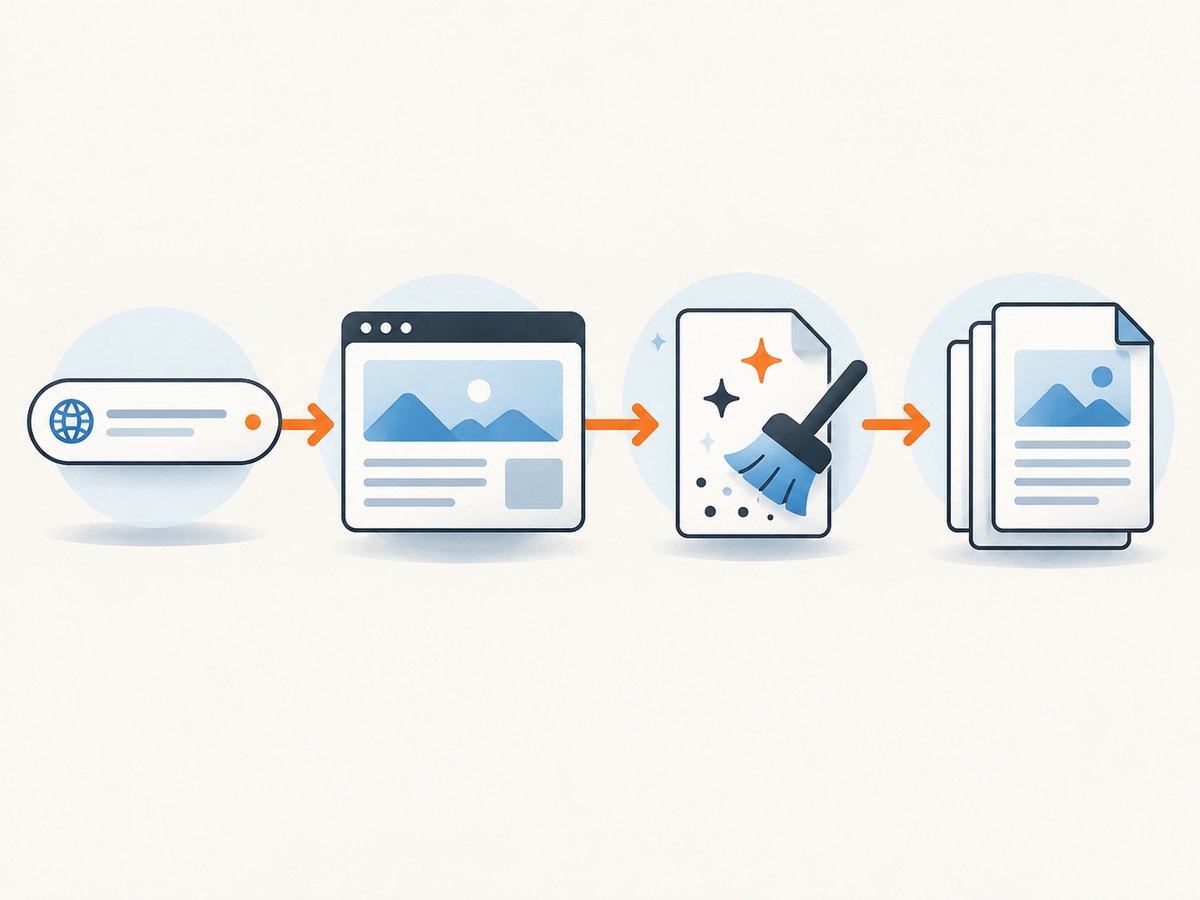
Use ScreenshotNeo when you need a PDF endpoint instead of a managed browser. Cookie banners, newsletter popups, and chat widgets are removed before the shot. Bot checks, blank pages, and failed loads are never billed. An MCP server lets AI agents such as Claude, Cursor, and other MCP clients take screenshots with tools including take_screenshot, get_page_info, and capture_pdf.
The Free plan includes 1,000 screenshots each month with no card. Paid plans start at $5 for 3,000 shots; every feature is available on every plan. Create a free ScreenshotNeo account.
10. Multi-page and whole-site conversion
Browser Print is designed for one rendered page. If one URL leads to a structured set of pages, Adobe Acrobat desktop can accept a webpage URL or HTML file and capture multiple levels or an entire site. Its controls can restrict capture to the same path or same server. This is a different workflow from saving one page: define the crawl depth and scope carefully, then review the resulting document for duplicate navigation and broken links.
For an automated collection, use a queue, limit concurrency, retry transient failures, and record the source URL beside each output file. Bulk capture can be more efficient when an API supports it, but each URL can still have different login, consent, or loading behavior.
11. Troubleshooting common failures
The PDF is blank
The page may need JavaScript, authentication, or more time to render. Confirm the URL opens normally, wait for a visible content selector, and capture after that selector appears. With an API, inspect the page verdict and response status.
Images are missing
Images may be lazy-loaded, blocked by a content security policy, or still downloading. Scroll the page before printing, wait for the image selector, enable background graphics, or use full-page capture with lazy-image loading.
The PDF includes a cookie banner or chat bubble
Use a reader or simplified mode, hide the matching selector with print CSS, or remove it before capture with custom CSS or JavaScript. ScreenshotNeo handles known consent platforms, newsletter popups, and chat widgets before capture.
Columns are cut off
Switch to landscape, reduce scale, widen the paper size, or select a smaller page range. Responsive sites often use a different breakpoint in the print viewport.
Fonts look different
The font may be remote, blocked, or not loaded before printing. Wait for the font and content selectors, allow the required resources, and avoid closing the browser until the PDF operation completes.
The browser automation hangs
Long polling, analytics, or a never-ending request can prevent networkidle. Replace it with a specific selector wait and a bounded timeout. Log the URL, elapsed time, HTTP status, and final error so retries do not hide the cause.
A URL works locally but fails in production
Check outbound network access, DNS, certificates, authentication cookies, user-agent rules, and robots or bot checks. Keep secrets out of query strings and use short-lived credentials where possible.
The API response is not a PDF
Check the HTTP status and response headers before writing the body to disk. An error response may be JSON or HTML. Save only successful responses and inspect X-Page-Verdict and X-Billed when using ScreenshotNeo.
12. Performance, reliability, and cost
Manual Print to PDF has no service charge and is ideal for occasional documents. Its cost is operator time, and the result depends on the current browser session. Automation removes that manual step but adds browser startup, memory use, dependency updates, and the need to handle timeouts.
For throughput, reuse a browser process, limit parallel pages to the available CPU and memory, wait on meaningful selectors instead of arbitrary long sleeps, and enable caching for unchanged URLs. For reliability, store the source URL and capture timestamp, retry only transient failures, and retain verdict and billing headers. A PDF is a rendered snapshot: if the page changes, a later capture can differ even with the same URL.
ScreenshotNeo charges only for clean shots. Bot checks, CAPTCHAs, blank pages, timeouts, failed loads, and cache hits are not billed, and the response identifies the verdict and billing result. The Free plan provides 1,000 shots per month without a card; paid plans are $5 for 3,000, $15 for 15,000, $39 for 60,000, $99 for 250,000, and $249 for 1,000,000. Yearly billing provides two months free.
13. Privacy and searchable text
Print-to-PDF keeps the conversion in the browser session. Chrome documents that its PDF viewer performs OCR conversion for scanned PDFs on the device, without sending that OCR work to Google or third parties. That statement applies to Chrome’s PDF viewer OCR process; it should not be generalized to online converters.
For confidential pages, review whether the workflow sends page contents to an external service, and remove credentials from URLs. Use authenticated headers or cookies through a controlled browser context or API configuration.
14. Quick checklist
- Open the exact URL and wait for dynamic content.
- Choose Print > Save as PDF for a paginated document.
- Use reader or simplified mode to remove clutter.
- Set orientation, scale, margins, backgrounds, headers, footers, and page range.
- Preview every page break before saving.
- For automation, wait for a meaningful selector and enforce a timeout.
- For many URLs, queue jobs, retry transient errors, and record verdicts.
- For a managed API, review ScreenshotNeo’s PDF options and billing headers.
15. FAQ
Can I convert a URL to PDF without installing software?
Yes. Chrome, Firefox, and Edge include Print to PDF. Open the link, print it, select the PDF destination, and save.
Is Save Page As the same as Save as PDF?
No. Save Page As stores HTML and local resources. Print > Save as PDF creates a paginated PDF.
Why does my PDF look different from the webpage?
Print CSS, responsive breakpoints, missing backgrounds, and page breaks can change the rendering. Preview the document and adjust scale, margins, orientation, and simplified mode.
Can I capture only part of a page?
Use a page range in the print dialog, print a selected element with browser automation, or use ScreenshotNeo’s CSS-selector element capture.
How do I convert many linked pages?
Use a crawler or a dedicated tool such as Acrobat for multi-level capture. Define the path or server scope and review the output for duplicates.


