How to Convert a Web Page to PDF with Images
Save a web page as a PDF and keep its images with your browser’s print settings. Learn what to check when images or backgrounds are missing.
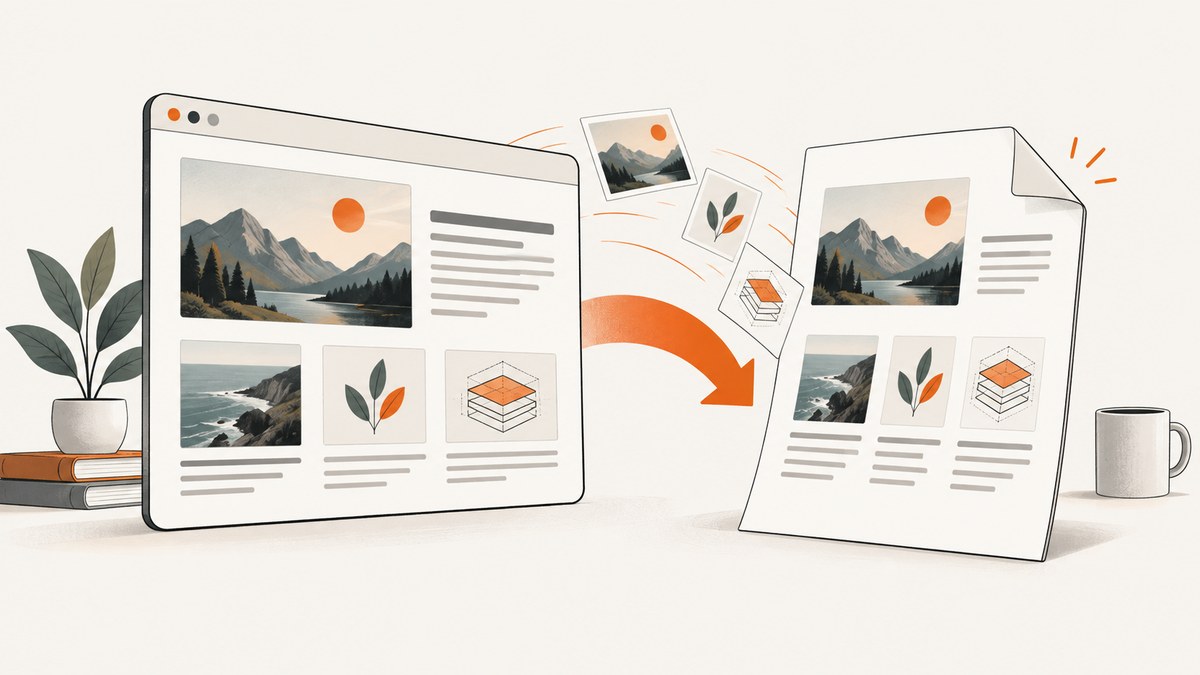
To convert a web page to a PDF with images, open the page in a desktop browser, choose Print, select a PDF destination, review the preview, and save. Let the page finish loading first. If backgrounds or decorative images disappear, look for the browser’s print-background setting. Then open the saved PDF and check the images in the actual file: print layout can differ from the screen, and no single setting guarantees that every site’s images will appear.
This guide covers Chrome, Firefox, and Microsoft Edge on desktop, explains image and background settings, and gives a troubleshooting checklist. Browser labels and available options vary by operating system and version, so use the preview as the guide for your setup.
1. Convert a web page to PDF: the basic workflow
- Open the page you want to save and wait for its text and images to load. If the page loads content as you scroll, scroll through it first and give images time to appear.
- Open the browser’s Print dialog: use Ctrl+P on Windows or Linux, or Command+P on Mac. You can also use the browser menu.
- Select a PDF destination. Depending on the browser and operating system, it may be labeled Save as PDF, Save to PDF, or offered by the system print dialog.
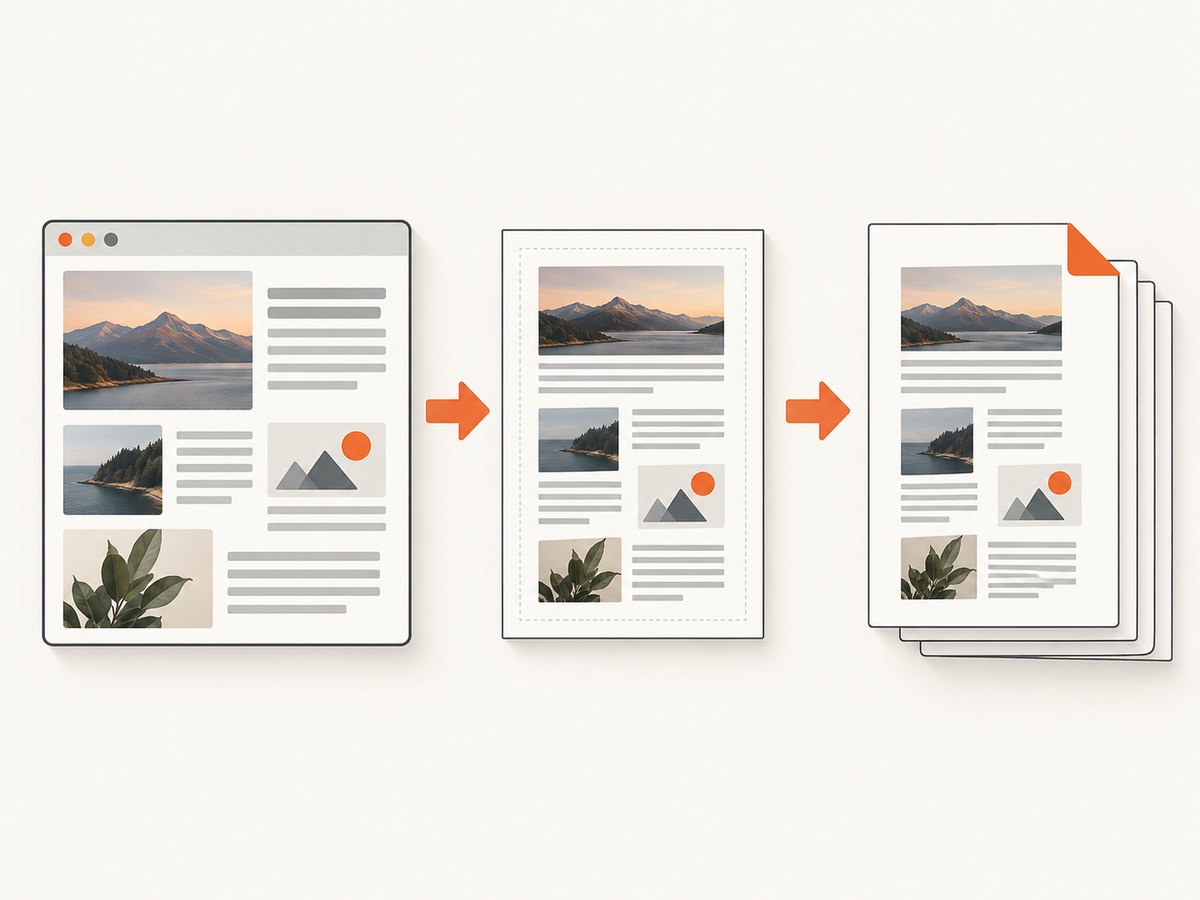
- Inspect the preview, including later pages. Check that the content and images you need are present and that page breaks are sensible.
- Adjust options such as orientation, scale, margins, page range, and background printing if available. Review the preview again after each change.
- Save or print to the PDF destination, choose a filename and location, then open the saved PDF to verify it.
A PDF is the page as formatted for printing, not necessarily a pixel-for-pixel copy of the screen. Mozilla notes that web pages may be set up to look different on paper than on screen. [Firefox print help] Check the result rather than assuming all on-screen content made it into the file.
2. Save as PDF in Chrome, Firefox, or Edge
Chrome (desktop)
- Open the web page in Chrome.
- Choose File → Print, or press Ctrl+P on Windows/Linux or Command+P on Mac.
- In the print dialog, choose Save as PDF or the PDF destination offered by your system.
- Set the pages and other print options, inspect the preview, then save.
Chrome’s print instructions cover opening Print and selecting a destination. The exact destination choices depend on the system. [Print from Chrome]
Firefox (desktop)
- Open the page and choose Menu → Print.
- In the preview, choose Save to PDF under Destination if it is available.
- Set orientation, pages, and other options. Expand More settings to look for Print backgrounds.
- Review the preview and select Print to save the PDF.
Firefox documents its Save to PDF destination and print settings, including the background option. [How to print web pages in Firefox]
Microsoft Edge (desktop)
- Open the page and choose Settings and more → Print, or press Ctrl+P on Windows or Command+P on macOS.
- Select a PDF destination in the print dialog. It may be a browser option or a system destination.
- Under More settings, enable Background graphics if you need page backgrounds or background images in the output.
- Inspect the preview, adjust options, then save or print to the PDF destination.
Edge documents opening Print from its menu or keyboard shortcut, and the Background graphics control. [Print in Microsoft Edge]
What about phones and tablets?
Mobile print menus and PDF destinations differ across devices and browser versions. The desktop steps above should not be treated as universal mobile instructions. On a phone or tablet, open the browser’s share or menu controls and look for a print or PDF option; if it is absent, use a desktop browser for the workflow described here. Check the generated file to confirm it contains the images you need.
3. Keep photos, diagrams, and backgrounds in the PDF
First distinguish images that are part of the page content from CSS backgrounds. A product photo or article illustration inserted into the page is different from a decorative background image or color block. Browser print controls may treat backgrounds separately.
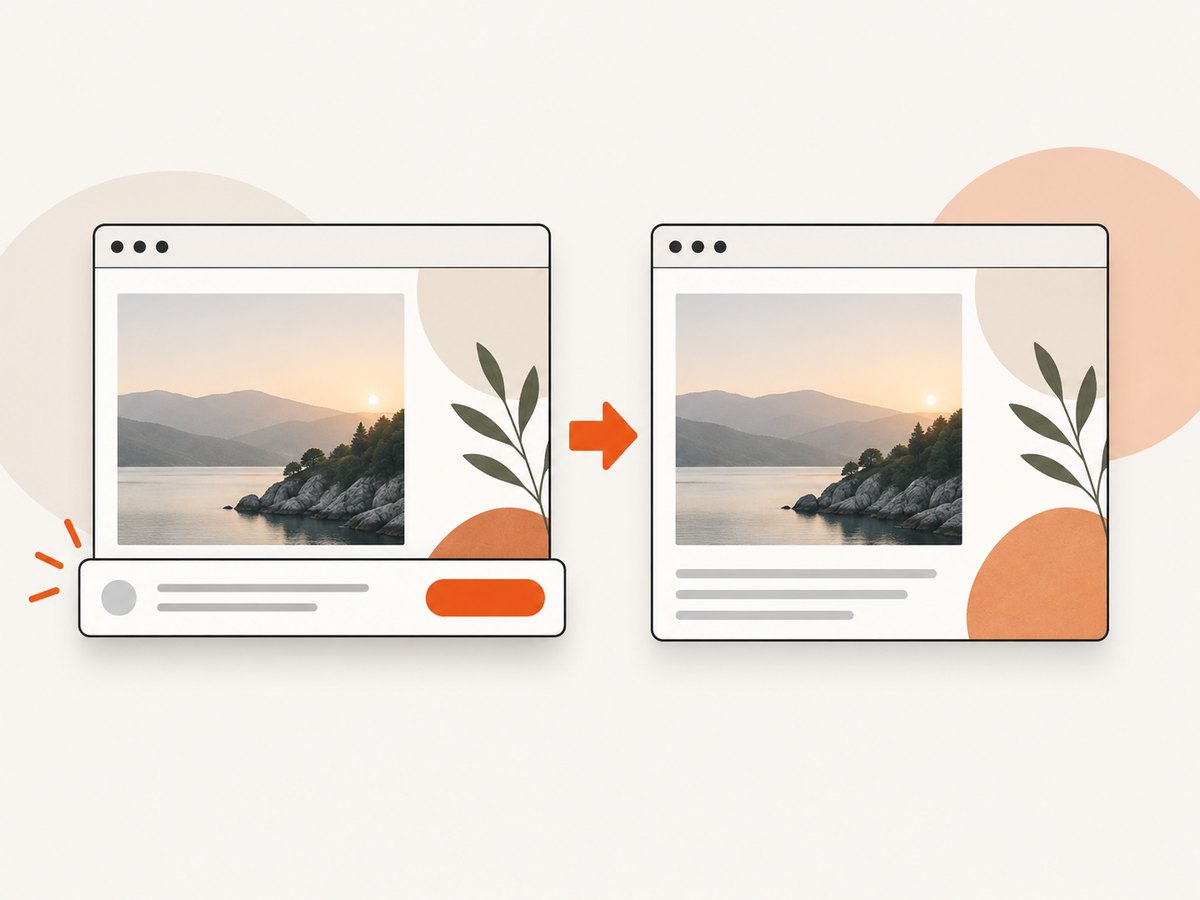
- Turn on backgrounds: In Firefox, check Print backgrounds; in Edge, check Background graphics. These options can restore background colors or images omitted from the preview. Chrome and system dialogs may expose different controls.
- Wait for content to load: Some pages load images after the initial text. Wait before printing, and scroll through the page if images appear only as you reach them.
- Inspect every preview page: Confirm that important images have loaded and are not cut off or shifted onto an unexpected page.
- Check the saved PDF: Open it after saving. The preview and the file are the two checks that matter for the result you need.
Enabling backgrounds is not a guarantee that every image will be retained. A site may use dynamic content, lazy loading, or print-specific styles, and the outcome depends on the page and browser environment. Firefox and Edge both warn, in different ways, that print output can differ from the screen. [Firefox help] [Edge help]
4. Choose settings that suit the page
Print dialogs expose different controls by browser, system, and version. Use only the options your dialog provides, and check the preview after changing them.
| Setting | When to adjust it | What to check |
|---|---|---|
| Orientation | A wide page, chart, or table does not fit portrait pages. | Switch to landscape and confirm the content is readable without awkward clipping. |
| Scale | Content is clipped or breaks across pages in an unhelpful way. | Try a smaller scale if available; too small can make text and images hard to read. |
| Margins | Content is too close to an edge or page breaks are poor. | Choose an available margin option and review all pages. |
| Pages | You need only a section of a long page. | Enter the desired page range if supported. This selects PDF pages, which may not match the web page’s sections. |
| Backgrounds | Color blocks or CSS background images are missing. | Enable the background option, then recheck the preview and saved file. |
For a wide page, landscape may help, but there is no universal best setting. A page’s print layout determines where its content and images land.
5. Troubleshoot missing or poor images
| Symptom | Likely cause | What to try |
|---|---|---|
| Colored areas or decorative background images are absent. | Background printing is off. | Enable Print backgrounds in Firefox or Background graphics in Edge, then inspect the preview again. |
| A photo or diagram is missing entirely. | It may not have loaded before printing, or the site’s print layout may omit it. | Wait for the page to finish loading, scroll to lazy-loaded content, reopen Print, and check the preview. If still absent, the browser workflow may not preserve that page’s image. |
| An image is cut off or split by a page break. | The print layout or page dimensions do not fit the image. | Try landscape, another scale, or different margins if offered. Preview the affected page after each adjustment. |
| The PDF looks plainer than the webpage. | The site uses print-specific styling, or backgrounds are disabled. | Check background settings. Some differences are controlled by the site’s print layout and cannot be corrected with a browser toggle. |
| There is no obvious “Save as PDF” choice. | The browser may hand printing to the operating system, whose destination labels vary. | Look through the destination or printer list for a PDF option. Chrome documents destination selection, but the available choices depend on the environment. [Chrome help] |
| The file was saved, but the wrong content is in it. | The wrong tab, page range, or preview was used. | Reopen the intended page, verify the preview and selected page range, save again, and inspect the new PDF. |
If a particular image matters, verify that it appears in the final PDF at a usable size. The browser help sources describe print settings; they do not promise that every site-specific image or dynamic element will be captured.
6. PDF versus saving a page or an image
Choose Print → PDF when you want a paginated document of the webpage. Choose Save Page As when you want an offline copy of a webpage, and Save Image As when you want one image file. These actions produce different results. [Chrome: download a file]
A saved webpage may include linked resources or a folder, depending on the save option; it is not a PDF layout. Saving one image does not capture the surrounding article, captions, or other page content. For a printable, shareable document, use the PDF destination.
7. Or skip the browser setup
If you need an image capture of a page for a report, preview, or automated workflow, ScreenshotNeo is a website screenshot API and MCP server. Its API returns PNG, JPEG, WebP, or PDF. A screenshot is not automatically a paginated PDF; use the PDF output when you need a document rather than an image.
One GET request can capture a page as PDF. See the ScreenshotNeo API documentation for the API options and configuration.
curl -G "https://api.screenshotneo.com/v1/shot" \
  -d access_key=YOUR_API_KEY \
  --data-urlencode url=https://stripe.com \
  -d format=pdf \
  -o page.pdf
The browser workflow is a good fit for occasional manual saves. An API is useful when you need repeatable captures or want to connect capture to a script. ScreenshotNeo can remove cookie banners, newsletter popups, and chat widgets before capture; bot checks, blank pages, and failed loads are never billed; its MCP server lets AI agents take screenshots; and 1,000 screenshots a month are free with no card, with paid plans starting at $5 for 3,000. Sign up for 1,000 free screenshots a month.
8. Reliability, performance, and cost
For a one-off conversion, the browser’s built-in Print workflow requires no paid screenshot service. The main reliability check is the saved file: confirm that the page finished loading, the preview contains the needed images, and the PDF itself opens correctly. If the page changes frequently or must be captured repeatedly, a scripted or API workflow can reduce manual steps, but the output still needs to be checked against the page and format you need.
Capture time and file size depend on the page, its images, and the browser or service doing the rendering. Large pages with many images can take longer and create larger PDFs. For a smaller document, select only the pages you need when the dialog supports page ranges. Avoid assuming that a faster capture or smaller file preserves every image at the same quality; inspect the result.
ScreenshotNeo’s listed plans are Free: 1,000 shots/month with no card; Starter: $5 for 3,000; Growth: $15 for 15,000; Pro: $39 for 60,000; Scale: $99 for 250,000; and Business: $249 for 1,000,000. Yearly billing gives two months free, and every feature is on every plan. These are API screenshot plan limits; choose the browser’s print workflow if you simply need a manual PDF and do not need an API or MCP capture.
9. FAQ
Can I convert a webpage to PDF without installing software?
On desktop, Chrome, Firefox, and Edge provide print workflows that can save to a PDF destination, though the exact option depends on your system. The cited instructions are for desktop and do not establish one universal mobile workflow.
Why do images show on screen but not in the PDF?
The image may have loaded too late, appeared only after scrolling, or been changed or omitted by the page’s print layout. Background images also may require a separate print setting. Preview and inspect the saved PDF.
Does “Print backgrounds” control every image?
No. It is for background graphics. Content images are separate, and whether they print depends on loading and the site’s print layout.
Is a webpage PDF the same as saving a full-page screenshot?
No. Printing creates a document laid out across pages; a screenshot is an image capture. Choose according to whether you need pagination and selectable document content or a visual image of the page.
Will the PDF look exactly like the webpage?
Not necessarily. Web pages can use print-specific styling, and the browser and site affect the output. Check the preview and final file for the result you need.


