How to Convert a Web Page to PDF in Next.js
Generate a PDF from a URL in a Next.js App Router endpoint with Puppeteer or Playwright, then return it as a downloadable response.

To convert a web page to PDF in Next.js, create an App Router Route Handler such as app/api/pdf/route.ts, run a browser automation library in the Node.js runtime, navigate to the page, call page.pdf(), and return its bytes with Content-Type: application/pdf. The example below uses Puppeteer. The same endpoint pattern works with Playwright.
Next.js Route Handlers use the Web Request and Response APIs, so they can return a binary file instead of rendering a page. Puppeteer’s PDF method uses print styles by default; switch the page to screen media before export if you need the normal screen styling. [Next.js Route Handlers, Puppeteer PDF generation]
1. Install Puppeteer and create the route
Install Puppeteer in your Next.js project:

npm install puppeteerCreate app/api/pdf/route.ts. This complete example accepts a URL query parameter, validates its scheme, renders a PDF, and returns it as an attachment. It also closes the browser even if navigation or PDF generation fails.
import puppeteer from 'puppeteer'

export const runtime = 'nodejs'

const allowedProtocols = new Set(['http:', 'https:'])

export async function GET(request: Request) {
  const { searchParams } = new URL(request.url)
  const rawUrl = searchParams.get('url')

  if (!rawUrl) {
    return Response.json({ error: 'Missing url query parameter' }, { status: 400 })
  }

  let target: URL
  try {
    target = new URL(rawUrl)
  } catch {
    return Response.json({ error: 'Invalid URL' }, { status: 400 })
  }

  if (!allowedProtocols.has(target.protocol)) {
    return Response.json({ error: 'Only http and https URLs are supported' }, { status: 400 })
  }

  const browser = await puppeteer.launch()
  try {
    const page = await browser.newPage()
    await page.goto(target.href, { waitUntil: 'networkidle2', timeout: 30_000 })

    const pdf = await page.pdf({
      format: 'A4',
      printBackground: true,
      margin: { top: '16mm', right: '14mm', bottom: '16mm', left: '14mm' },
    })

    const filename = 'page.pdf'
    return new Response(pdf, {
      headers: {
        'Content-Type': 'application/pdf',
        'Content-Disposition': `attachment; filename="${filename}"`,
        'Cache-Control': 'no-store',
      },
    })
  } catch (error) {
    console.error('PDF generation failed', error)
    return Response.json({ error: 'Could not generate PDF' }, { status: 502 })
  } finally {
    await browser.close()
  }
}
Run the development server and request a page:
npm run dev
curl --get 'http://localhost:3000/api/pdf' \
  --data-urlencode 'url=https://example.com' \
  --output page.pdf
The runtime = 'nodejs' declaration matters because browser automation packages need Node.js APIs and Chromium. Keep Puppeteer imports inside server code; do not import it into a Client Component. Route Handlers may return custom responses, including these PDF bytes. [Next.js Route Handlers, Next.js route segment config]
2. Choose the right URL and readiness condition
The route above renders a URL provided by the caller. That is useful for an internal tool or an authenticated export feature, but treating arbitrary public URLs as input creates a server-side request forgery risk: a caller might try to make your server reach internal services. Authenticate the endpoint, allowlist permitted hosts when possible, reject private and loopback destinations, and consider redirects when enforcing a host allowlist. URL syntax validation alone is not a complete SSRF defense.
For an export of your own Next.js page, prefer a fixed origin and a known route ID over accepting an unrestricted URL. For example, look up a report by an authorized ID, build its URL from a configured application origin, and ensure the current user can access that report. If the page requires a session, configure the browser context with the appropriate cookies or authorization; never accept credentials from an untrusted caller and forward them blindly.
waitUntil: 'networkidle2' is a practical starting point for pages that load data asynchronously, but it can hang or time out on pages with long polling, analytics, or continuously open connections. Alternatives include domcontentloaded for simple static pages, load for pages that depend on load events, and an explicit application readiness condition. For your own app, set a predictable marker after data and charts finish rendering, then wait for that selector:
await page.goto(target.href, { waitUntil: 'domcontentloaded', timeout: 30_000 })
await page.waitForSelector('[data-pdf-ready="true"]', { timeout: 15_000 })
await page.evaluate(() => document.fonts.ready)
Use a readiness marker that represents the content you need in the PDF. A fixed sleep is easy to add but wastes time on fast responses and still fails when a slow page takes longer than the delay. Puppeteer documents navigation and PDF generation; app-specific readiness should be chosen for the page being rendered. [Puppeteer PDF generation]
3. Tune print styling and PDF options
page.pdf() renders with print CSS by default. That means rules inside @media print apply, and screen-only navigation or controls may disappear. If the PDF should look like the screen view, call page.emulateMediaType('screen') before exporting. Puppeteer and Playwright both document this media behavior. [Puppeteer Page.pdf API, Playwright Page.pdf API]
await page.emulateMediaType('screen')
const pdf = await page.pdf({
  format: 'A4',
  printBackground: true,
  preferCSSPageSize: true,
  displayHeaderFooter: true,
  headerTemplate: '<span></span>',
  footerTemplate: '<div style="font-size:9px;width:100%;text-align:center">Page <span class="pageNumber"></span> of <span class="totalPages"></span></div>',
  margin: { top: '20mm', right: '15mm', bottom: '20mm', left: '15mm' },
})
Relevant Puppeteer PDF options include:
| Option | What it controls | When to use it |
|---|---|---|
format |
Named page size such as A4 or Letter | Use this for a familiar paper size |
width, height |
Custom page dimensions | Use when the output needs a nonstandard sheet size |
landscape |
Page orientation | Set true for wide tables or charts |
margin |
Top, right, bottom, and left whitespace | Reserve space for content or headers and footers |
printBackground |
Whether background graphics are included | Enable for colored panels and designed page backgrounds |
scale |
Scales page content | Adjust carefully when content clips or overflows |
pageRanges |
Pages included, using ranges such as 1-3 |
Use for selected-page exports |
preferCSSPageSize |
Whether CSS @page size takes priority |
Use when the document defines its own paper size |
displayHeaderFooter and templates |
Browser-generated header and footer content | Add page numbers or a small document label |
For exact color handling, print output may adjust colors. CSS can request more accurate color reproduction with -webkit-print-color-adjust: exact on the relevant elements. Check the resulting PDF in a viewer because print CSS, background settings, and browser rendering all affect appearance. [Puppeteer Page.pdf API]
4. Use Playwright if it fits your project
Playwright’s API also exposes page.pdf(), uses print media by default, and supports emulating screen media. If Playwright is already part of your browser automation stack, use it consistently; Puppeteer is a direct fit when your implementation already uses Puppeteer. The Route Handler and binary response pattern stays the same. [Playwright Page.pdf API]
import { chromium } from 'playwright'

export const runtime = 'nodejs'

export async function GET() {
  const browser = await chromium.launch()
  try {
    const page = await browser.newPage()
    await page.goto('https://example.com', { waitUntil: 'networkidle', timeout: 30_000 })
    const pdf = await page.pdf({ format: 'A4', printBackground: true })
    return new Response(pdf, {
      headers: {
        'Content-Type': 'application/pdf',
        'Content-Disposition': 'attachment; filename="page.pdf"',
      },
    })
  } finally {
    await browser.close()
  }
}
Install the package and browser binaries according to the official Playwright setup instructions for your environment. Browser packaging and serverless deployment requirements depend on the host, so verify the selected host’s current limits and runtime support before deployment. [Playwright installation]
5. Return the PDF to a browser or client
The two response headers developers most often need are Content-Type: application/pdf and Content-Disposition. Use attachment to suggest a download; use inline if you want browsers to attempt an in-tab preview. A filename should be generated by your app or sanitized if it contains user input. Cache-Control: no-store is a sensible choice for private reports; public, immutable documents can use an intentional cache policy.
To fetch and save the route from a Node.js script:
const response = await fetch('http://localhost:3000/api/pdf?url=https%3A%2F%2Fexample.com')
if (!response.ok) throw new Error(`PDF request failed: ${response.status}`)
const bytes = Buffer.from(await response.arrayBuffer())
await import('node:fs/promises').then(({ writeFile }) => writeFile('page.pdf', bytes))
For a frontend download, check the response status before creating a Blob URL and revoke the URL after the download link is used. If cross-origin access is involved, configure CORS deliberately; a browser cannot read a response from another origin unless that server permits it.
6. Or skip the browser setup
If the job is to capture a URL as a PDF, [ScreenshotNeo](https://screenshotneo.com) provides a hosted capture API, so your Next.js route does not need to launch Chromium. See the ScreenshotNeo API documentation for the available request parameters.
curl -G "https://api.screenshotneo.com/v1/shot" -d access_key=YOUR_API_KEY --data-urlencode url=https://stripe.comimport requests
r = requests.get(
"https://api.screenshotneo.com/v1/shot",
params={"access_key": "YOUR_API_KEY", "url": "https://stripe.com", "format": "pdf"},
timeout=90,
)
r.raise_for_status()
open("shot.pdf", "wb").write(r.content)const q = new URLSearchParams({ access_key: 'YOUR_API_KEY', url: 'https://stripe.com', format: 'pdf' })
const res = await fetch(`https://api.screenshotneo.com/v1/shot?${q}`)
if (!res.ok) throw new Error(`ScreenshotNeo request failed: ${res.status}`)
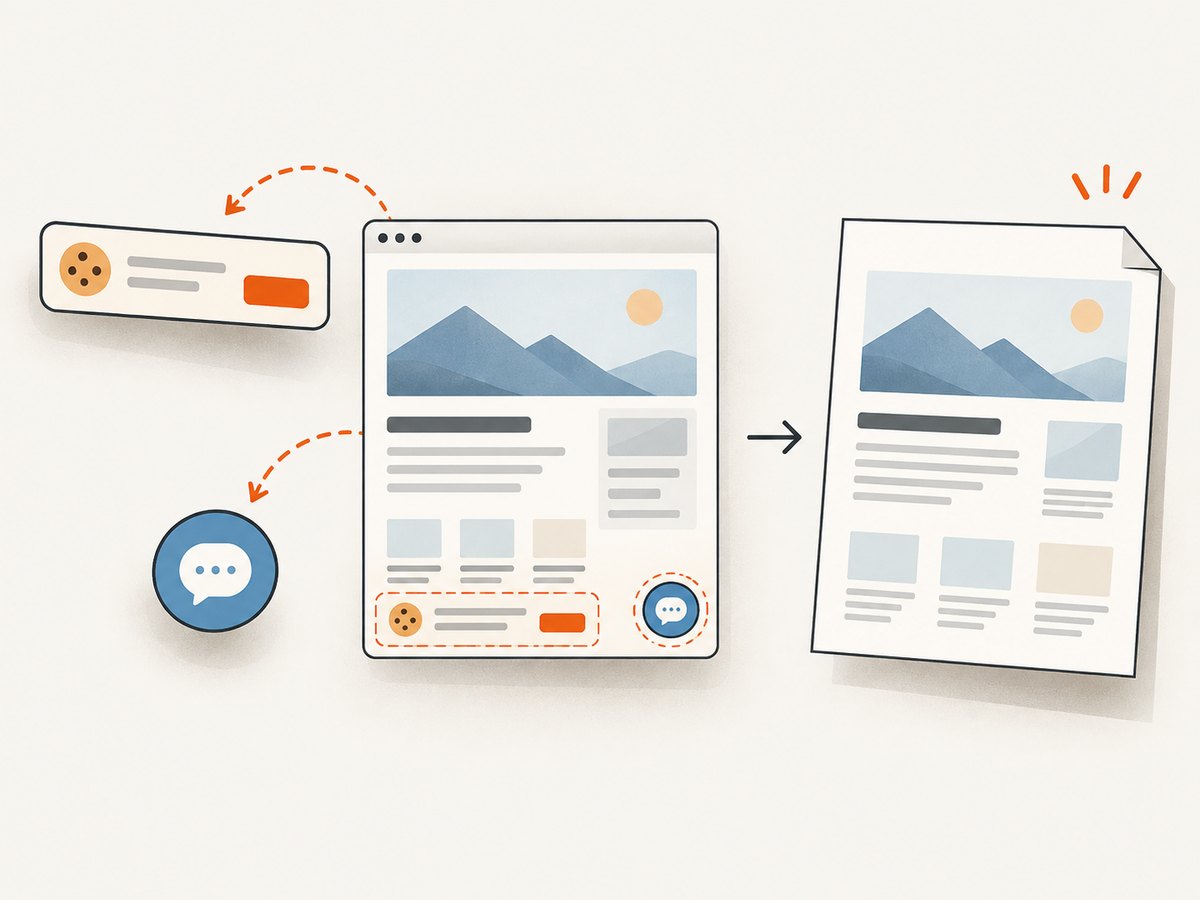
await import('node:fs/promises').then(({ writeFile }) => writeFile('shot.pdf', Buffer.from(await res.arrayBuffer())))The API call returns a PDF when configured for PDF output. ScreenshotNeo removes cookie and consent banners, newsletter popups, and chat widgets before capture; each step can be disabled. Bot checks, blank pages, timeouts, failed loads, and cache hits are not billed, and response headers identify the page verdict and billing status. Its MCP server gives AI agents tools for screenshots, page information, and PDF capture. The free plan includes 1,000 shots a month with no card; paid plans start at $5 for 3,000 shots. Plans include every feature. Create a free ScreenshotNeo account to get started.
7. Troubleshooting common problems
| Symptom | Likely cause | Fix |
|---|---|---|
| Route works locally but fails after deployment | Chromium is unavailable, incompatible with the host, or exceeds its runtime or memory limits | Check the host’s supported runtime, binary packaging, memory, and execution duration. Use a deployment configuration supported by the browser library and platform. |
| Navigation times out | The page keeps network connections open, loads slowly, or never reaches the selected wait condition | Set an explicit timeout and use a suitable readiness signal such as a selector. Avoid network-idle waits for pages with persistent connections. |
| PDF is blank or missing dynamic content | Export started before client rendering, data fetching, charts, or fonts completed | Wait for an app-specific ready marker and, if needed, document.fonts.ready. Confirm the page can render without an interactive login. |
| Colors or layout differ from the page | PDF uses print media and may apply print CSS or print color adjustments | Choose print CSS deliberately or emulate screen media; enable printBackground and adjust print color CSS where needed. |
| Images or backgrounds are absent | Lazy images have not loaded, resources failed, or backgrounds are disabled in PDF options | Wait for image completion or an app readiness marker, inspect failed network requests, and enable printBackground. |
| “Edge runtime” or missing Node API error | The route is running in an environment unsupported by the selected browser package | Set export const runtime = 'nodejs' and ensure the deployment uses a Node.js runtime. |
| Memory rises or requests slow down under load | Each request launches an expensive browser process, or concurrent captures exceed capacity | Bound concurrency, set request timeouts, and monitor memory. Consider a managed capture service or a carefully managed browser pool if volume warrants it. |
| PDF returns as corrupted or JSON | An error response was handled as a successful PDF, or binary bytes were converted to text | Check status and content type before saving; return the PDF buffer directly and preserve bytes end to end. |
8. Performance, reliability, and cost
Browser startup and page rendering are usually the expensive parts of this operation. Keep the navigation timeout finite, avoid loading content not needed in the document, and cap concurrent jobs according to your host’s memory and time limits. A single request per PDF is straightforward, but a high-volume endpoint may need a queue or managed browser workers so slow pages do not consume all request capacity.
Always close the browser in finally. Handle navigation and export errors, return a useful status code, and log enough context to diagnose failures without logging secrets or private page contents. For reports that take longer than a normal web request can run, use an asynchronous job pattern: submit a job, process it in a worker, and let the client retrieve the result later. The appropriate execution limits and browser packaging are host-specific, so consult the chosen provider’s documentation.
Self-hosting avoids a per-capture API charge but carries infrastructure and maintenance costs: compute, memory, browser binaries, concurrency control, and operational work. A hosted API replaces much of that browser setup with a request-based service; compare the plan’s capture allowance and the behavior on failed or cached requests to estimate cost for your workload.
FAQ
Can a Next.js API route return a PDF?
Yes. An App Router Route Handler can return a Web Response containing PDF bytes with Content-Type: application/pdf.
Should I use Puppeteer or Playwright?
Either can generate PDFs through page.pdf(). Choose the library that best fits the browser automation stack already used by your project.
Can I export a page that needs login?
Yes, if the browser receives valid session state and is authorized to access the page. Treat cookies and credentials as secrets, and do not expose them through an unrestricted URL-to-PDF endpoint.
Why does my PDF look different from the browser tab?
The PDF uses print media by default. Print CSS and print color handling can change the page; emulate screen media if the screen layout is the desired output.


