How to Convert a Web Page to PDF in Python
Convert a URL to PDF in Python with Playwright for JavaScript rendered pages or WeasyPrint for controlled HTML and CSS, with runnable examples and troubleshooting.

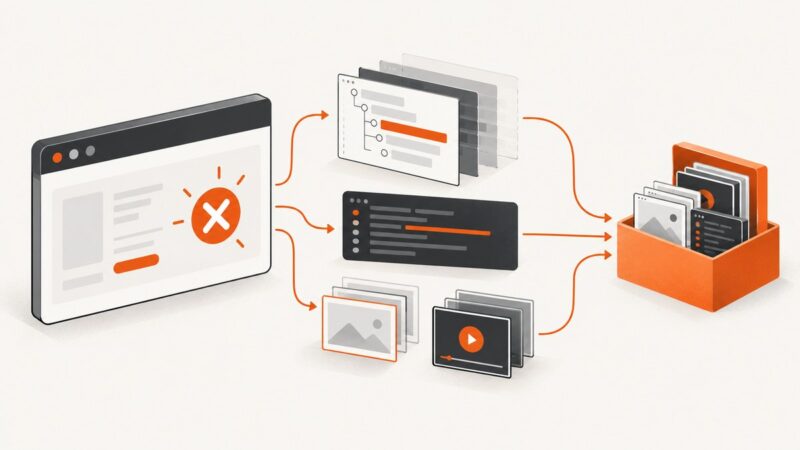
To convert a live web page to PDF in Python, use Playwright when the page depends on JavaScript, client-side navigation, dynamic data, or browser authentication. Use WeasyPrint when you have predictable HTML and CSS and do not need page scripts to run. Playwright prints the rendered browser page; WeasyPrint renders HTML and CSS directly.
The choice matters: a page that looks complete in your browser may still be waiting for client-side content, while a static report may not need a full browser at all. This guide shows both approaches, their options and limits, how to handle page readiness and authentication, and how to operate URL-to-PDF rendering safely.
1. Choose the right renderer
| Need | Choose | Reason |
|---|---|---|
| JavaScript-rendered pages or dynamic data | Playwright | Runs a real browser and can wait for page state before printing. |
| Browser cookies or authenticated page state | Playwright | Browser contexts can carry cookies and sessions. |
| Controlled HTML/CSS such as invoices or reports | WeasyPrint | Offers a direct Python HTML-to-PDF API without launching a browser. |
| Need CSS print layout | Either, depending on input | Playwright uses Chromium’s print engine; WeasyPrint supports CSS-oriented paged output. |
| Simple deployment footprint | Depends on environment | Playwright requires browser binaries. WeasyPrint has its own rendering dependencies. |
For a general public URL, start with Playwright if you are unsure whether the page needs JavaScript. Choose WeasyPrint when the HTML and CSS are under your control and deterministic output matters more than reproducing an interactive browser session.

2. Convert a live URL with Playwright
Install the Python package and browser binaries. The install command below installs browser binaries for Chromium, Firefox, and WebKit; this example launches Chromium.

python -m pip install playwright
playwright install
Save this as url_to_pdf.py and run python url_to_pdf.py:
from playwright.sync_api import sync_playwright

URL = "https://example.com"
OUTPUT = "page.pdf"

with sync_playwright() as p:
    browser = p.chromium.launch()
    page = browser.new_page()
    page.goto(URL, wait_until="networkidle", timeout=60_000)
    page.pdf(
        path=OUTPUT,
        format="A4",
        print_background=True,
        margin={"top": "12mm", "right": "12mm", "bottom": "12mm", "left": "12mm"},
    )
    browser.close()
page.pdf() returns PDF bytes if you omit path; that is useful when you want to return the PDF from a web service or write it to object storage. The code above writes directly to a file.
Wait for the page content you actually need
Navigation completing does not guarantee that a single-page application has finished rendering its data. wait_until="networkidle" can be a useful starting point, but some sites keep network connections open or load content later. Prefer a specific readiness condition when you know the page:
page.goto("https://example.com/report", wait_until="domcontentloaded", timeout=60_000)
page.locator("#report-ready").wait_for(state="visible", timeout=20_000)
page.pdf(path="report.pdf", format="A4", print_background=True)
You can also wait for a deliberate delay if the site has an animation or delayed element, but a selector that represents completed content is usually more reliable than an arbitrary sleep. Set explicit timeouts for navigation and readiness in production jobs.
Paper size, orientation, margins, and print CSS
Playwright’s PDF output uses print CSS media by default. A page may hide navigation, change typography, or reflow columns when printed. Define print rules in the source page where possible:
@media print {
  .site-nav, .cookie-banner { display: none; }
  .report { break-inside: avoid; }
}

@page {
  size: A4;
  margin: 12mm;
}
Common page.pdf() controls include:
format: named paper such as"A4"or"Letter".widthandheight: custom paper dimensions when a named format is not appropriate.margin: top, right, bottom, and left margins.landscape: rotate the page layout.page_ranges: emit selected ranges, for example"1-3, 5".scale: scale the rendered page content.print_background: include background graphics and colors.prefer_css_page_size: prefer the page size declared in CSS.display_header_footer,header_template, andfooter_template: add browser-generated header and footer templates.
For example, print a landscape letter page with backgrounds and only its first two pages:
page.pdf(
    path="summary.pdf",
    format="Letter",
    landscape=True,
    print_background=True,
    page_ranges="1-2",
    margin={"top": "15mm", "bottom": "15mm", "left": "10mm", "right": "10mm"},
)
Use only the options your installed Playwright version supports; consult the official Playwright page.pdf API for the current signature and details. If the site has a screen-only layout you need to preserve, switch media before printing:
page.emulate_media(media="screen")
page.pdf(path="screen-layout.pdf", format="A4", print_background=True)
Return PDF bytes instead of saving locally
from pathlib import Path
from playwright.sync_api import sync_playwright

with sync_playwright() as p:
    browser = p.chromium.launch()
    page = browser.new_page()
    page.goto("https://example.com", wait_until="domcontentloaded", timeout=60_000)
    page.locator("body").wait_for(state="visible")
    pdf_bytes = page.pdf(format="A4", print_background=True)
    browser.close()

Path("page.pdf").write_bytes(pdf_bytes)
Close the browser and any contexts after each job. In a service that reuses a browser to reduce startup work, create a fresh context for each isolated user job and close it when done.
3. Convert HTML or a URL with WeasyPrint
WeasyPrint is concise when your input is already suitable HTML/CSS and does not need JavaScript execution. Install it using the package and operating-system dependency guidance for your platform in the official installation guide.
from weasyprint import HTML

HTML("https://example.com").write_pdf("page.pdf")
For HTML held in memory:
from weasyprint import HTML

html = """
<!doctype html>
<html>
  <head><meta charset="utf-8"><title>Invoice</title></head>
  <body><h1>Invoice</h1><p>Generated from a string.</p></body>
</html>
"""

HTML(string=html).write_pdf("invoice.pdf")
The API can take a URL, filename, readable file object, or HTML string. Without an output filename, write_pdf() returns PDF bytes, which you can store or send to a caller. See the WeasyPrint API reference for available options.
Relative resources and page layout
If your HTML string links to relative images, stylesheets, or fonts, provide a base_url so the renderer can resolve them. For example:
from weasyprint import HTML

HTML(
    string="<h1>Quarterly report</h1><img src='assets/chart.png'>",
    base_url="https://reports.example.com/",
).write_pdf("report.pdf")
Use CSS paged media rules to define paper and page breaks:
@page {
  size: A4;
  margin: 14mm;
}

h1 {
  break-after: avoid;
}

.page-break {
  break-before: page;
}
Provide this stylesheet with the HTML or through the API’s stylesheet options. For remote HTML, the default fetcher can open file and HTTP URLs. Advanced cookies or authentication require a custom URL fetcher; if the target depends on a logged-in browser session or client-side scripts, Playwright is usually the more suitable route.
4. Authentication, cookies, and protected pages
With Playwright, use a browser context to attach cookies or other browser state before navigating. Keep credentials out of source control and avoid sharing authenticated contexts across unrelated jobs.
from playwright.sync_api import sync_playwright

with sync_playwright() as p:
    browser = p.chromium.launch()
    context = browser.new_context()
    context.add_cookies([
        {
            "name": "session",
            "value": "READ_FROM_SECRET_STORAGE",
            "domain": "example.com",
            "path": "/",
            "httpOnly": True,
            "secure": True,
            "sameSite": "Lax",
        }
    ])
    page = context.new_page()
    page.goto("https://example.com/account/report", wait_until="domcontentloaded", timeout=60_000)
    page.locator("#report-ready").wait_for(state="visible", timeout=20_000)
    page.pdf(path="account-report.pdf", format="A4", print_background=True)
    context.close()
    browser.close()
Cookie domains, path, security flags, expiration, and the site’s authentication flow must match the target. Some applications require a login flow, local storage, or a token exchange rather than a single cookie. Confirm the browser is on the expected authenticated page before exporting, and do not silently save a login screen as if it were the report.
5. Troubleshooting common failures
| Symptom | Likely cause | Fix |
|---|---|---|
| Playwright says no browser executable exists | The package installed but its browser binary did not. | Run playwright install chromium in the deployment environment, or playwright install to install all supported browsers. |
| PDF contains a loading shell or misses charts | Navigation ended before the page’s client-side work completed. | Wait for a page-specific selector or application readiness signal before calling pdf(). |
| PDF layout differs from what the browser showed | PDF generation uses print media by default. | Add print CSS or call page.emulate_media(media="screen") when screen styling is needed. |
| Background colors or images are absent | Background printing is disabled. | Set print_background=True; check print styles and whether the resource itself loaded. |
| WeasyPrint output omits JavaScript-generated content | WeasyPrint renders HTML/CSS and does not act as a JavaScript browser. | Use Playwright for the rendered page, or generate the required HTML on the server first. |
| WeasyPrint cannot fetch an authenticated page | The default fetcher does not provide advanced cookie or auth handling. | Use a custom URL fetcher or use a Playwright browser context with the required session. |
| Images or stylesheets are missing from an HTML string | Relative URLs have no base location. | Set base_url or use absolute resource URLs, and check that the process can reach them. |
A page hangs on networkidle |
Long-polling, analytics, or streaming connections keep network activity alive. | Use domcontentloaded followed by an explicit selector wait; retain a finite timeout. |
| PDF is blank or unexpectedly short | The target may have redirected, failed, shown a bot check, or not loaded the expected content. | Inspect the final URL, page title, visible content, and response state before exporting; log a clear job failure when readiness checks fail. |
6. Security, reliability, performance, and cost
Treat the target and its resources as untrusted
URL renderers fetch remote documents, images, stylesheets, and fonts; browser renderers also execute page scripts. A user-provided URL can point at internal services or redirect to an unexpected host. Restrict acceptable schemes and hosts, re-check redirects, block access to internal network ranges, and apply network isolation, CPU and memory limits, and per-job deadlines.
WeasyPrint explicitly warns that untrusted HTML or CSS can create security problems. Its documentation recommends careful handling of untrusted input; use allow-lists, constrained resource fetching, and process or container isolation. Browser rendering also needs sandboxing and resource limits. Avoid running either renderer with broad access to secrets or local files when processing untrusted input. See the WeasyPrint security guidance.
Make jobs predictable
- Set a navigation timeout and a separate readiness timeout.
- Verify the expected title or selector before generating a PDF.
- Limit PDF size, page count, concurrent jobs, and total render time for user supplied URLs.
- Close contexts and browsers even when navigation or printing raises an exception; use structured cleanup in production code.
- Record the target URL, final URL, elapsed time, and failure stage without logging credentials or sensitive page content.
- Pin and update your Playwright/browser or WeasyPrint deployment dependencies deliberately, then check representative output after upgrades.
Measure rather than assume speed
There is no universal faster choice. A browser incurs browser startup and page loading work, while WeasyPrint avoids browser launch but still fetches resources and lays out the document. Actual time depends on page size, remote resources, scripts, rendering dependencies, and concurrency. Measure the pages you expect to process under realistic network and worker conditions. If browser startup dominates, consider reusing a browser process while isolating each job in its own context; bound concurrency because each active render consumes memory and CPU.
Account for operating cost
Self-hosting cost includes compute, browser or native rendering dependencies, storage for generated PDFs, network egress, and engineering time for updates, isolation, retries, and monitoring. Avoid blind retries for deterministic failures such as unsupported auth or a missing selector. Retry transient navigation errors only with a capped policy and idempotent output handling.
7. Or skip the browser setup
ScreenshotNeo is a website screenshot API that can also return PDFs. Send one GET request with the page URL and your API key; see the API documentation.
curl -G "https://api.screenshotneo.com/v1/shot" -d access_key=YOUR_API_KEY --data-urlencode url=https://example.com -o page.pdfPython:
import requests

r = requests.get(
    "https://api.screenshotneo.com/v1/shot",
    params={"access_key": "YOUR_API_KEY", "url": "https://example.com", "format": "pdf"},
    timeout=90,
)
r.raise_for_status()
open("page.pdf", "wb").write(r.content)
Node.js:
const q = new URLSearchParams({
  access_key: 'YOUR_API_KEY',
  url: 'https://example.com',
  format: 'pdf'
});
const res = await fetch(`https://api.screenshotneo.com/v1/shot?${q}`);
if (!res.ok) throw new Error(`ScreenshotNeo returned ${res.status}`);
await Bun.write('page.pdf', await res.arrayBuffer());
ScreenshotNeo accepts cookie and consent banners before capture and removes more than 60 known consent platforms, newsletter popups, and chat widgets; each step can be turned off. Bot checks, blank pages, failed loads, timeouts, and cache hits are not billed, and response headers report the page verdict and billing status. Its MCP server gives AI agents tools to take screenshots, get page information, and capture PDFs. The free plan includes 1,000 shots per month with no card; paid plans start at $5 for 3,000 shots. Sign up for 1,000 free screenshots a month, with no card.
8. Frequently asked questions
Can Python save a page that requires JavaScript as a PDF?
Yes. Use Playwright, wait for the page’s content to be ready, then call page.pdf(). WeasyPrint does not run page JavaScript.
Why does my PDF look different from the browser tab?
Playwright prints with print CSS by default. Check the site’s print rules or emulate screen media before calling the PDF method.
Can I create a PDF from a Python HTML string?
Yes. WeasyPrint accepts HTML(string=...); set base_url if the markup references relative assets.
Can I convert a page behind a login?
Playwright can use browser cookies or a login flow. WeasyPrint’s default fetcher does not provide advanced authentication; a custom fetcher is needed for that case.
Does page navigation completion mean the PDF is ready?
No. The application may still be rendering content after navigation. Wait for a selector or other page-specific readiness condition.