How to Convert a Web Page to PDF in Remix
Build a PDF endpoint in Remix with a Resource Route, Puppeteer, reliable page readiness, correct response headers, and a link that opens the PDF.

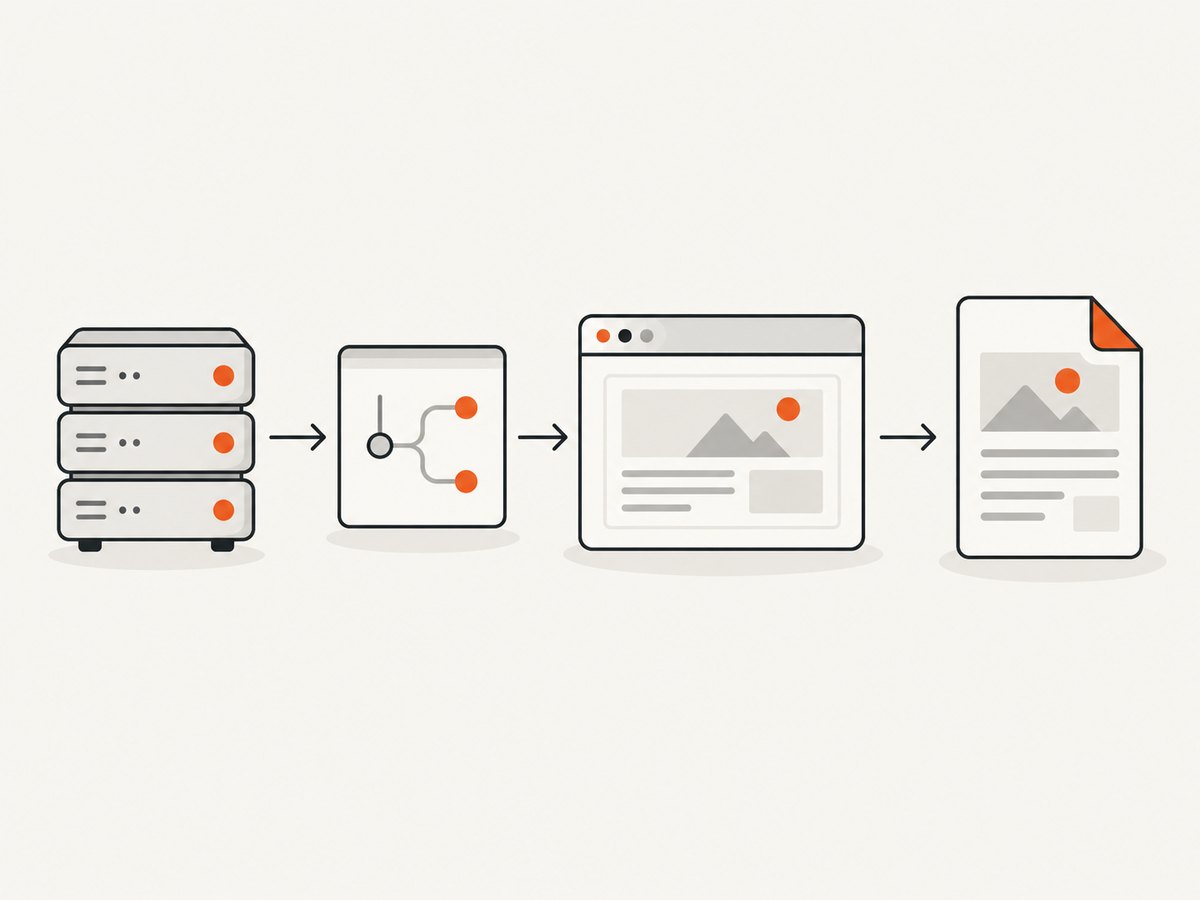
To convert a web page to PDF in Remix, create a Resource Route whose loader launches Puppeteer, navigates to the page, calls page.pdf(), and returns the PDF bytes in a standard Web Response with Content-Type: application/pdf. Link to that route with a plain anchor or Remix’s <Link reloadDocument>; a normal client-side link can make Remix request route data instead of opening the PDF document.
This guide builds the route, covers rendering and readiness choices, handles HTTP behavior and security, and explains operational tradeoffs. Examples target a Node.js runtime that can run Chromium. Browser installation and launch details depend on your deployment platform.
1. Create a PDF Resource Route
A Remix Resource Route has no default UI component. Its loader can act as an endpoint and return generated PDF bytes. Remix’s documentation specifically identifies dynamically generated PDFs as a resource-route use case and shows returning PDF data with the correct content type. See the Resource Routes guide and API routes guide.
Install Puppeteer in the server application:
npm install puppeteerCreate app/routes/reports.$id[.pdf].ts. The bracketed dot is Remix’s escaped-dot convention: the route can match a URL ending in .pdf, such as /reports/123.pdf.
// app/routes/reports.$id[.pdf].ts
import type { LoaderFunctionArgs } from "@remix-run/node";
import puppeteer from "puppeteer";

export async function loader({ params, request }: LoaderFunctionArgs) {
  const id = params.id;
  if (!id) {
    throw new Response("Missing report id", { status: 400 });
  }

  // Authenticate and authorize this request before rendering sensitive data.
  // Replace this example URL with a trusted, application-controlled URL.
  const target = `https://example.com/reports/${encodeURIComponent(id)}`;
  const browser = await puppeteer.launch();

  try {
    const page = await browser.newPage();
    await page.goto(target, { waitUntil: "networkidle2" });

    // Optional: use a meaningful application readiness signal when the page
    // renders important content after navigation has become network-idle.
    // await page.waitForSelector("[data-report-ready='true']");

    const pdf = await page.pdf({
      format: "A4",
      printBackground: true,
    });

    return new Response(pdf, {
      headers: {
        "Content-Type": "application/pdf",
        "Content-Disposition": `inline; filename="report-${id}.pdf"`,
      },
    });
  } finally {
    await browser.close();
  }
}
Replace the example domain with your own trusted page. If the report is private, authenticate the requester and check their permission to access that report before launching a browser. The PDF contains the rendered page, so authorization must cover the document itself as well as any route that displays it.
2. Link to the endpoint as a document
Use a normal document navigation so the browser handles the response as a PDF. A plain anchor works:
<a href="/reports/123.pdf">Open report PDF</a>With Remix’s Link, set reloadDocument:
import { Link } from "@remix-run/react";

export function ReportActions() {
  return (
    <Link reloadDocument to="/reports/123.pdf">
      Open report PDF
    </Link>
  );
}
A standard client-side <Link> is intended for Remix route transitions and can request route data. A PDF endpoint is a document response, so use a full document request. The Resource Routes guide describes this distinction and the reloadDocument approach.
3. Choose the right page readiness condition
page.goto() supports different navigation completion conditions. The example uses networkidle2, which waits for network activity to quiet down. It is a useful starting point for many pages, but it does not prove that every application has finished rendering: client code might schedule work after the network becomes quiet, or a page may keep connections open.
For an application you control, expose a stable readiness marker when the report content is ready, then wait for that marker before printing:
await page.goto(target, { waitUntil: "domcontentloaded" });
await page.waitForSelector("[data-report-ready='true']", {
  timeout: 15_000,
});
const pdf = await page.pdf({ format: "A4", printBackground: true });
Set the marker only after asynchronous data and client-side rendering needed for the document are complete. A selector that merely exists in the initial shell is not a useful readiness signal. For a third-party page you do not control, combine a suitable navigation condition with a bounded wait for content that must appear, and handle timeout as a failed generation rather than silently returning an incomplete PDF.
Puppeteer’s guide demonstrates navigation with networkidle2, PDF generation, and closing the browser. It also documents that fonts are awaited by default when generating the PDF. Avoid adding arbitrary long sleeps as the only readiness mechanism: they add latency on fast pages and may still be too short on slow ones.
4. Control print styling and PDF layout
Puppeteer generates PDFs using the print CSS media type by default. That means print styles such as @media print apply. If the output should match screen styling instead, call emulateMediaType("screen") before page.pdf(). See the Page.pdf API reference.
// Use the page's screen media styles for PDF output.
await page.emulateMediaType("screen");
const pdf = await page.pdf({ format: "A4", printBackground: true });
Common PDFOptions include:
| Option | Use | Things to check |
|---|---|---|
format |
Choose a named paper size such as A4 or Letter. | Confirm the size matches the audience and print workflow. |
printBackground |
Include background colors and images. | Enable it when the design depends on backgrounds; verify behavior with your installed Puppeteer version. |
landscape |
Use landscape page orientation. | Check tables and wide visualizations for clipping. |
scale |
Adjust the scale of printed content. | Small values can make text hard to read; inspect long and wide reports. |
displayHeaderFooter |
Show header and footer regions. | Provide templates if you need custom page labels or other header/footer content. |
headerTemplate, footerTemplate |
Set markup for the printable header and footer. | Test spacing and page-number placeholders with actual multipage output. |
margin |
Set page margins. | Reserve enough space for headers, footers, and printer-safe content. |
The available controls are documented in Puppeteer’s PDFOptions reference. Exact types and behavior can vary with the Puppeteer version in your project, so use the reference matching that version. For predictable results, define print styles in the application: hide navigation and interactive controls, specify page breaks, and keep tables or code blocks from splitting awkwardly where possible.
5. Return the right HTTP response
Set Content-Type: application/pdf. Use Content-Disposition: inline when you want the browser to open the document, or attachment to prompt a download. Give the filename a safe value; do not interpolate arbitrary untrusted text into response headers.
return new Response(pdf, {
  headers: {
    "Content-Type": "application/pdf",
    "Content-Disposition": 'attachment; filename="report.pdf"',
    "Cache-Control": "private, no-store",
  },
});
Choose caching based on the report’s sensitivity and freshness requirements. For user-specific or confidential reports, a conservative private/no-store policy avoids shared caches retaining content. For public, stable documents, a deliberate cache policy can reduce repeated rendering. Remix loaders return ordinary Web Responses, so normal response headers apply; see the route headers documentation.
6. Security and deployment considerations
Restrict what the renderer can visit
Do not accept an arbitrary URL from a request and pass it directly to Puppeteer. That can turn your PDF route into an unrestricted fetcher. Prefer constructing a URL from an allowlisted origin and validated route parameters. If users can choose a destination, validate the scheme and host, reject local and private network targets, and consider redirects as well as the initial URL.
Authorize before rendering
Check the session and report-level permissions before launching Chromium. Do not rely on hiding the PDF link in the UI. If the rendered page needs authentication, pass credentials through an intentional server-side mechanism and avoid logging secrets or including them in URLs.
Match your runtime to Chromium
This example assumes a Node runtime with a compatible Chromium browser available. Browser executable paths, sandbox flags, memory limits, and serverless deployment instructions depend on the host, container image, and runtime. There is no universal safe value for those settings; follow the deployment provider’s current Chromium guidance and test the exact production image. The Remix and Puppeteer references do not establish one universal deployment recipe.
For a production service, bound the navigation and readiness waits, ensure browser cleanup in all paths, and cap concurrent render jobs according to the capacity of the runtime. Keep Puppeteer and its browser binary versions compatible. A process that starts a browser for every request is simple, but browser startup has a cost; a managed browser pool can reduce repeated startup overhead, though it adds lifecycle and isolation concerns.
7. Performance, reliability, and cost
PDF generation is more work than returning ordinary route data: the server starts or obtains a browser, loads a page and its assets, waits for readiness, lays out print pages, and transfers the result. The biggest practical latency drivers are page load time, browser startup, external assets, and how long the chosen readiness condition takes. Reduce unnecessary third-party requests on the rendered page, use bounded waits, and avoid regenerating an unchanged report when an appropriate cache is safe.
For reliability, put browser closure in finally, return a clear failure response when navigation or PDF generation fails, and log a request identifier plus the stage that failed. Do not return a success status with an empty or partial document. Consider a background job for large reports or workloads that exceed the request lifetime supported by your host; the exact design depends on the deployment platform.
Cost depends on your hosting model and workload. A browser uses server resources while rendering, and longer waits or heavier pages keep those resources occupied. Measure the route in the deployment environment with representative reports, then set concurrency and request limits accordingly. The dossier provides no universal benchmark, memory figure, or hosting price, so those should be measured for your chosen runtime.
8. Troubleshooting
| Symptom | Likely cause | Fix |
|---|---|---|
| Clicking the link shows route data or an unexpected Remix response. | The link was handled as a client-side route transition. | Use a plain <a> or <Link reloadDocument>. |
| The browser downloads a file with the wrong type or displays raw bytes. | The response lacks the PDF content type or returns something other than PDF bytes. | Return Puppeteer’s result directly and set Content-Type: application/pdf. |
| The PDF is blank or misses late-rendered content. | Navigation completed before client rendering or data loading finished. | Wait for an application readiness selector or another real content condition; keep the wait bounded. |
| Background colors or images are absent. | Print backgrounds were not enabled, or print CSS suppresses them. | Set printBackground: true and inspect the page’s print styles. |
| The PDF looks different from the visible page. | page.pdf() uses print media by default. |
Use print-specific CSS, or call page.emulateMediaType("screen") when screen styles are desired. |
| Navigation or selector wait times out. | The page is slow, unavailable, blocked, or the selector is wrong. | Check the target from the server environment, validate the selector, and set explicit timeouts and an error response. |
| Chromium fails to launch in production. | The runtime lacks a compatible browser or needs platform-specific configuration. | Install or package the supported browser for that host and follow its current runtime guidance; do not copy sandbox settings blindly. |
| Requests hang or resource usage spikes under load. | Too many simultaneous browser renders or browsers are not closed on errors. | Keep cleanup in finally, bound work, and limit render concurrency. |
9. Or skip the browser setup
If your goal is to capture a public web page as a PDF without managing Chromium in your Remix server, ScreenshotNeo provides a website screenshot API and MCP server. Its API can return a PDF from a single GET request. Check the ScreenshotNeo API documentation for the supported parameters and response details.
curl -G "https://api.screenshotneo.com/v1/shot" \
  -d access_key=YOUR_API_KEY \
  --data-urlencode url=https://stripe.com \
  -d format=pdf \
  -o page.pdf
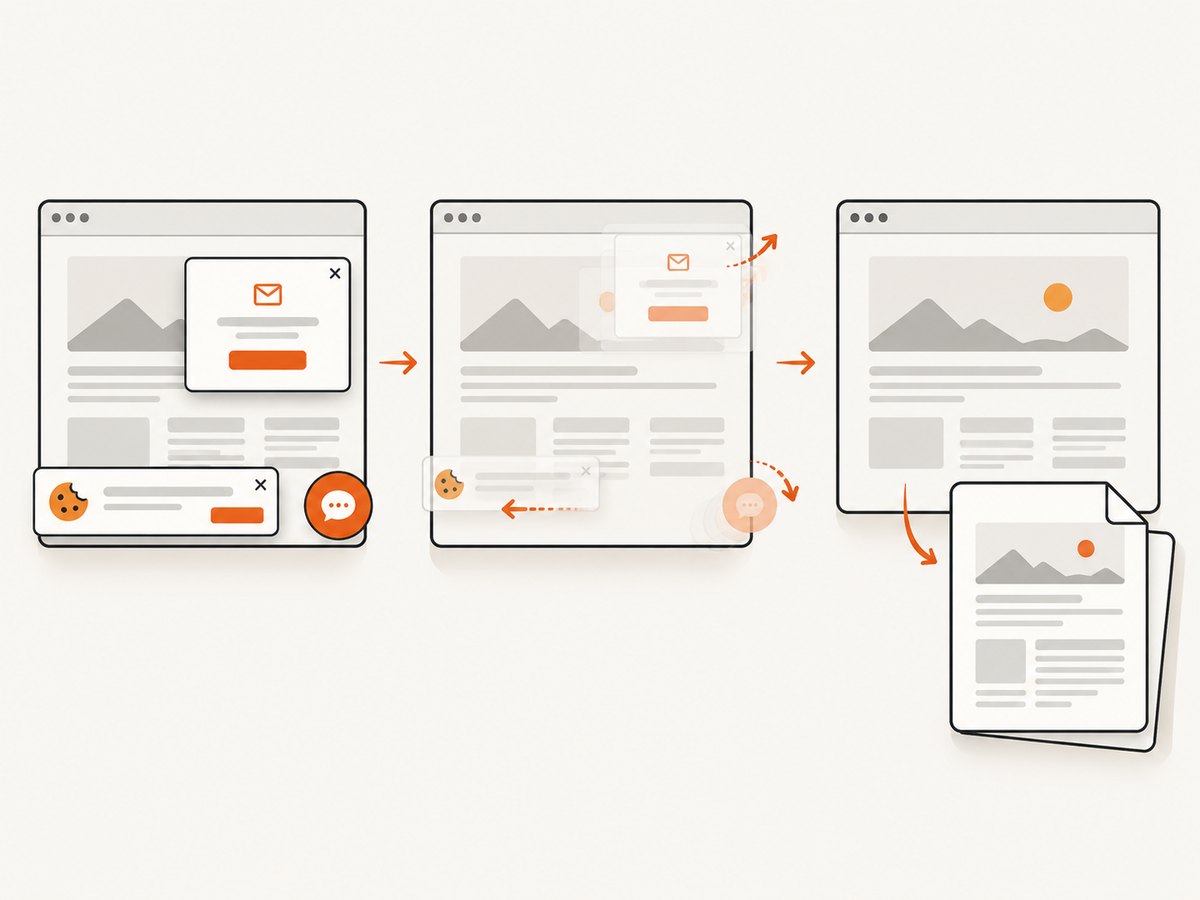
The request uses the documented endpoint and access-key pattern; set the PDF format parameter as supported by the API documentation. ScreenshotNeo removes cookie banners, newsletter popups, and chat widgets before capture. Bot checks, blank pages, failed loads, and cache hits are not billed, and response headers say which outcome occurred. Its MCP server lets AI agents use take_screenshot, get_page_info, and capture_pdf. The free plan includes 1,000 screenshots a month with no card; paid plans start at $5 for 3,000 shots. Sign up for 1,000 free screenshots a month, with no card.
10. Frequently asked questions
Can I generate the PDF from a Remix action instead?
You can return a Web Response from a route action, but a Resource Route loader is a straightforward fit for a URL that represents a generated document and is opened with GET.
Can I stream the PDF while Puppeteer renders it?
page.pdf() resolves with the generated PDF bytes, which this example returns after rendering completes. For large or slow documents, consider a job workflow suited to your host rather than holding an ordinary browser request open indefinitely.
Why do fonts sometimes look different?
The page must be able to load the intended fonts, and the generated output depends on the fonts available to Chromium. Puppeteer documents that PDF generation waits for fonts by default; verify font loading and access in the deployed runtime.
Should I use Puppeteer or an external screenshot API?
Use Puppeteer when you need direct control over a browser running in your own Node environment and can support its deployment requirements. An API is useful when you want to avoid operating Chromium yourself; compare authentication, rendering controls, reliability behavior, and per-use costs for your workload.


