Convert a Web Page to a PDF with Styles
Save a web page as a PDF while preserving its useful layout. Learn browser print settings, print CSS, page breaks, and a one-call API option.
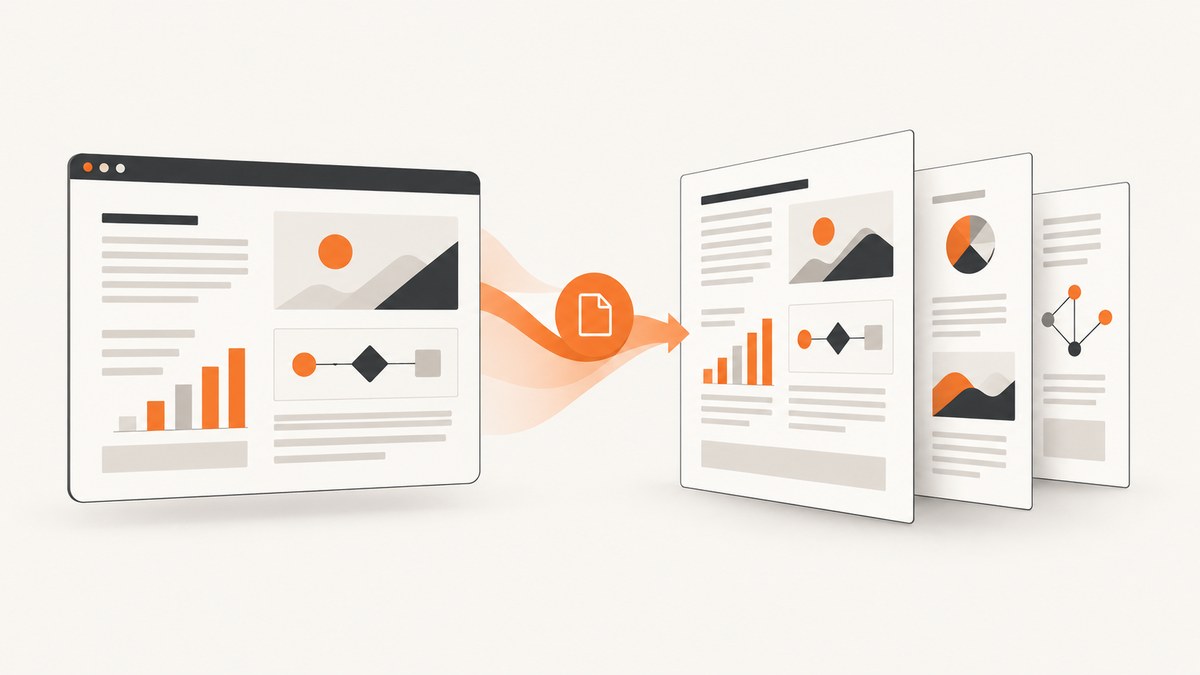
To convert a web page to a PDF with its styles, open the browser’s print preview, choose Save to PDF, inspect the pages, and save. The browser applies the page’s print styles and its own print settings; the result may differ from the on-screen page. If you maintain the site, use print CSS and @page rules to control the PDF layout, then check the preview in the target browser.
For an existing page you do not control, start with the browser workflow below. For repeatable captures in an application or script, a PDF screenshot API can avoid managing a browser. ScreenshotNeo accepts one GET request for a screenshot or PDF and offers controls such as paper size, margins, landscape orientation, and page ranges.
1. Save a web page as PDF in your browser
- Open the page and wait for its content to finish loading. Expand any sections or load content that you need in the PDF.
- Open Print from the browser menu or use the browser’s print shortcut.
- Inspect the print preview. Check that important sections appear, wide content fits, page breaks make sense, and backgrounds or images are present if needed.
- Choose the browser’s PDF destination. In Firefox, Mozilla documents selecting Save to PDF in the destination dropdown, reviewing the preview, and saving.
- Save the file. Open it afterward and check the pages you expect to be hardest to render, such as tables, code blocks, and the final page.
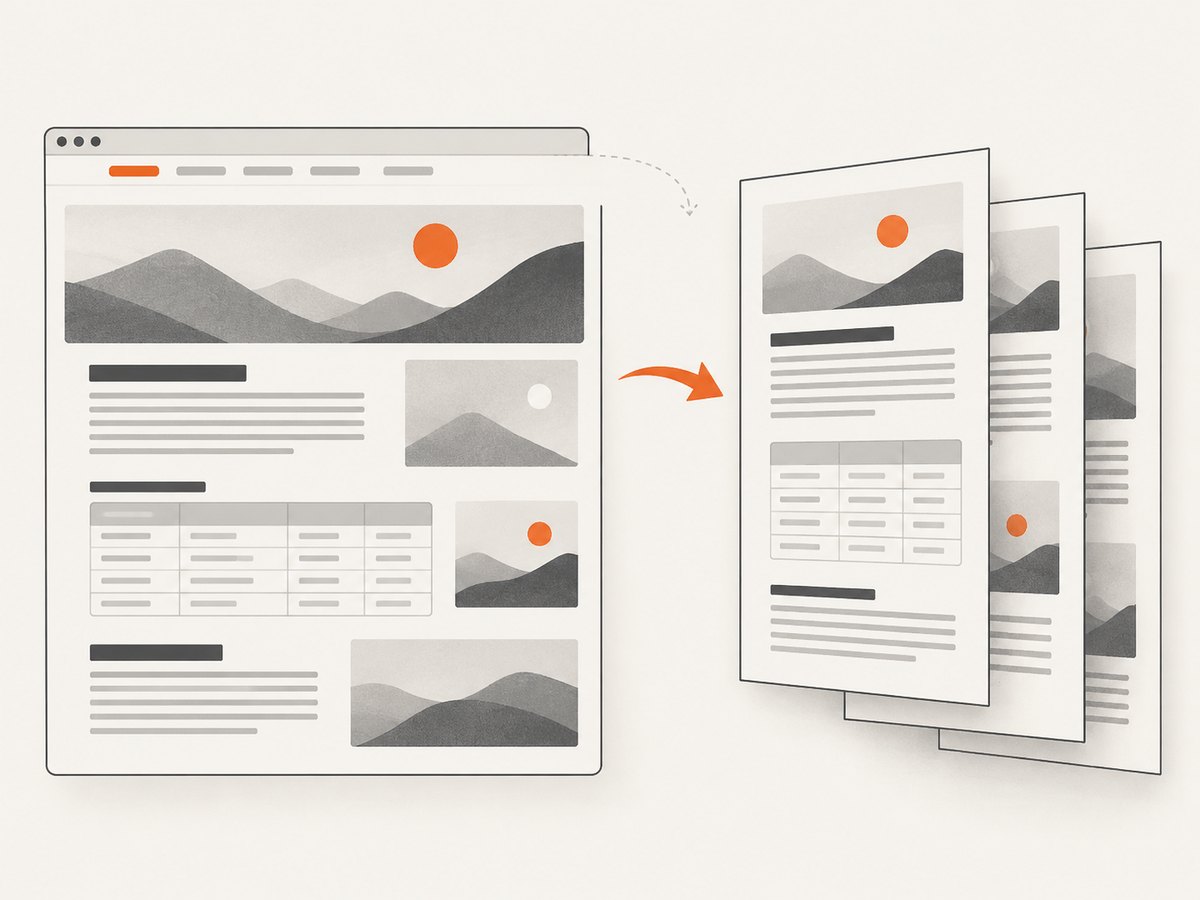
The preview is part of the conversion, not a cosmetic step. Browsers may hide navigation, reflow content, omit backgrounds, or split a section across pages. If the page belongs to someone else, you generally cannot change its source print stylesheet. Mozilla describes editing a page before printing with an extension as an option; verify that any extension is currently available and compatible with your browser before relying on it. Mozilla’s Firefox print instructions
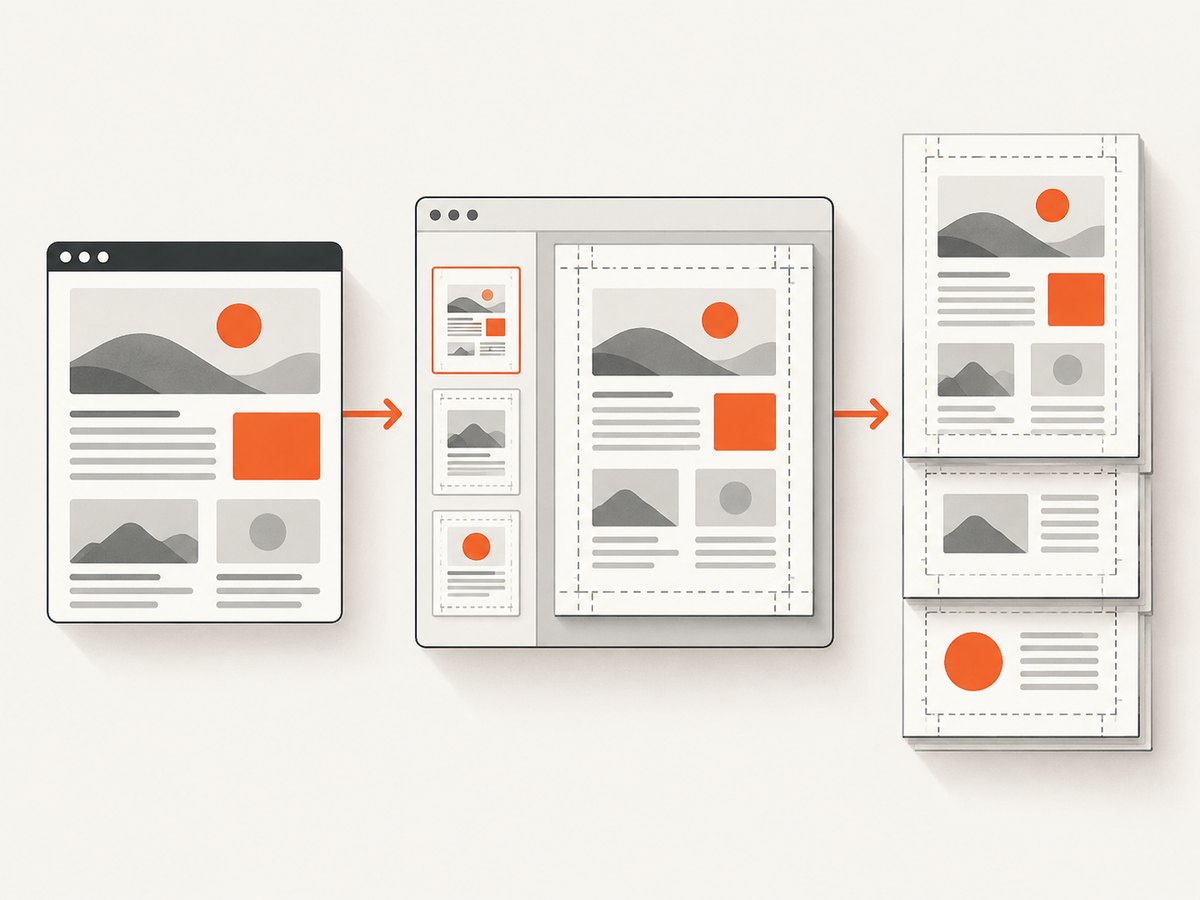
2. Add print styles when you own the page
Print is a separate presentation mode. Use @media print to hide controls that do not belong on paper, adjust colors and typography, and simplify layouts. You can also load a separate stylesheet for print with media="print". MDN documents both print media queries and linked print stylesheets in its CSS printing guide.
/* Put this in a stylesheet loaded by your page. */
@media print {
  nav,
  header,
  footer,
  .cookie-banner,
  .screen-only {
    display: none !important;
  }

  body {
    color: #111;
    background: #fff;
    font: 11pt/1.45 Georgia, serif;
  }

  main {
    max-width: none;
    margin: 0;
  }

  a {
    color: inherit;
    text-decoration: none;
  }

  img, pre, blockquote, table {
    break-inside: avoid;
  }
}

@page {
  size: A4 portrait;
  margin: 15mm;
}
This is a starting point, not a guaranteed layout. Test it against real pages in the browsers your readers use. A rule such as break-inside: avoid is a request to keep an element together; a tall element may still need to split to fit the page. Likewise, hiding a site header is appropriate only if it is not essential context for the printed document.
Use @page to set the page dimensions, orientation, and margins. For example, switch to size: landscape for a wide report, or use a smaller margin if a table is clipped. Support for paged-media features varies. Chrome 131 added CSS support for content in printed page margins, as described in Chrome for Developers’ print margins article; do not assume every browser implements the same features. Always review the final preview.
3. Preserve backgrounds and colors
Browsers can omit background graphics or adjust colors to improve legibility or save ink. In the browser’s print dialog, check whether background graphics are enabled when those backgrounds carry meaning. The page author can also declare:
@media print {
  .brand-panel {
    print-color-adjust: exact;
  }
}
print-color-adjust: exact tells the browser that the authored colors matter, but it is not a command that guarantees pixel-for-pixel output. User print preferences take priority, and browsers retain discretion. See MDN’s print-color-adjust reference.
For readable documents, make sure meaning does not depend on color alone. A chart that distinguishes series only by color may become ambiguous when printed in grayscale. Add labels, patterns, or other cues in the page itself.
4. Keep page breaks and wide content readable
Good print CSS focuses on the transitions between pages as well as the appearance of each page:
- Headings: avoid leaving a heading at the bottom of a page without the paragraph or list that follows it. Where supported, use page-break properties such as
break-after: avoidon headings. - Long sections: allow paragraphs to flow naturally. Avoid forcing a page break after every section unless the document’s structure calls for it.
- Tables: use compact print typography, sensible column widths, and repeated table headers where supported. Check that wide tables do not run off the page.
- Code and long URLs: allow long lines to wrap or switch a wide block to a smaller font. Do not shrink all body text to solve one oversized element.
- Images: set a maximum width that fits the printable area and preserve aspect ratio. Confirm that images have loaded before opening print preview.
- Links: retain visible link text. If readers need the destination offline, consider adding the URL with generated content, but avoid cluttering every repeated navigation link.
Preview after each meaningful CSS change. Page size, font availability, browser version, and the user’s print settings can change line wrapping and therefore move page breaks.
5. Generate PDFs programmatically
For automated output, use a browser print-to-PDF workflow or a screenshot/PDF service. A browser-based renderer is useful when you need the page’s CSS and browser layout behavior; it also means your code must manage browser installation, startup, page loading, print configuration, and failures. Whichever route you use, make the target URL, page dimensions, margins, and readiness condition explicit, then inspect representative output.
If you choose a browser library, consult its current official documentation for installation and PDF options because APIs and browser packaging change. The research sources for this article do not establish a specific library’s current syntax, so the examples here focus on browser printing and ScreenshotNeo’s documented API shape.
Or skip the browser setup
ScreenshotNeo’s API documentation covers its screenshot and PDF options. Send one GET request with the target URL and PDF settings; use your API key as a secret and avoid putting it in client-side code that visitors can inspect.
curl -G "https://api.screenshotneo.com/v1/shot" \
  -d access_key=YOUR_API_KEY \
  --data-urlencode url=https://stripe.com \
  -d format=pdf \
  -d paper_size=A4 \
  -d margins=15mm \
  -o page.pdf
The endpoint and common parameters are intended to be straightforward to call from a script. Check the current docs for the accepted PDF parameter names and values for your use case. These equivalent basic requests show the GET pattern in Python and Node.js:
import requests

r = requests.get(
    "https://api.screenshotneo.com/v1/shot",
    params={
        "access_key": "YOUR_API_KEY",
        "url": "https://stripe.com",
        "format": "pdf",
        "paper_size": "A4",
        "margins": "15mm",
    },
    timeout=90,
)
r.raise_for_status()
open("page.pdf", "wb").write(r.content)
const q = new URLSearchParams({
access_key: 'YOUR_API_KEY',
url: 'https://stripe.com',
format: 'pdf',
paper_size: 'A4',
margins: '15mm',
});
const res = await fetch(`https://api.screenshotneo.com/v1/shot?${q}`);
if (!res.ok) throw new Error(`Screenshot request failed: ${res.status}`);
const bytes = new Uint8Array(await res.arrayBuffer());
await import('node:fs/promises').then(fs => fs.writeFile('page.pdf', bytes));These examples follow the service’s one-call model; confirm option spelling and supported values in the API docs before integrating. ScreenshotNeo also supports paper size, margins, landscape orientation, and page ranges. It can wait for a selector, a delay, or network idle; for pages that load content late, choose a readiness condition that matches the page rather than assuming the first response is complete.
Cookie and consent banners are accepted like a visitor and more than 60 known consent platforms, newsletter popups, and chat widgets can be removed before capture; each step can be turned off. Bot checks or CAPTCHAs, blank pages, timeouts, failed loads, and cache hits cost nothing, and response headers identify the page verdict and billing status. An MCP server provides take_screenshot, get_page_info, and capture_pdf for Claude, Cursor, and other MCP clients. The free plan includes 1,000 shots a month with no card; paid plans start at $5 for 3,000 shots.
Create a free ScreenshotNeo account for 1,000 screenshots a month with no card.
6. Troubleshooting common PDF problems
| Symptom | Likely cause | What to try |
|---|---|---|
| Background colors or images are missing | The print dialog omits backgrounds, or print CSS/browser behavior adjusts colors. | Enable background graphics in the print dialog. If you own the page, try print-color-adjust: exact, then check the result; it cannot override user settings. |
| Navigation, banners, or buttons take up space | The page has no print-specific rules for screen controls. | If you own the site, hide non-document controls in @media print. For another site, use print preview controls if available or investigate a compatible page-editing extension. |
| Text or a table is clipped at the right edge | The content is wider than the printable area. | Try landscape orientation, reduce the table’s print width, wrap long content, or adjust margins. Avoid reducing all page text to an unreadable size. |
| A heading is stranded at the bottom of a page | Screen layout does not account for page boundaries. | Add a print break rule to keep the heading with following content where the browser supports it. Preview the specific section after changing CSS. |
| Images or page sections are blank | Content may not have loaded before printing, or it may be rendered only after interaction. | Wait for the page, expand the needed sections, and retry. For automation, set an appropriate selector or delay and check the response or generated PDF. |
| The saved PDF differs from preview expectations | Page size, margins, scale, browser, or user print preferences may differ. | Recheck the destination and print settings, then save again. When maintaining the site, test the print stylesheet in the target browser and page size. |
| An automated request returns an error or no useful document | The URL, API key, option values, page availability, or readiness condition may be wrong. | Check the URL and credentials, verify options against the current docs, and inspect the response status and headers. Retry transient page failures with a sensible limit rather than looping indefinitely. |
7. Performance, reliability, and cost
Browser printing is usually the simplest choice for a person saving one page. It has no separate screenshot API charge, but it depends on the page loading correctly and on the browser’s current print implementation. For recurring jobs, batch work at a controlled rate, set a timeout, record the URL and output status, and avoid regenerating identical PDFs when the source has not changed.
Automated capture adds operational choices: browser setup and updates if you run a browser yourself, or API usage limits and request handling if you use a service. Set a timeout appropriate to the page, wait only as long as needed for content, and retain failure information so that a blocked page is not mistaken for a valid PDF. Cache output when reuse is acceptable. Validate the resulting file type and size before sending it downstream.
ScreenshotNeo offers configurable caching TTL, async jobs with signed webhooks, bulk capture of up to 100 URLs per call, and a usage API. Only clean shots are billed according to the supplied product details; response headers report the page verdict and billing status. Listed monthly plans are Free (1,000 shots), Starter ($5/3,000), Growth ($15/15,000), Pro ($39/60,000), Scale ($99/250,000), and Business ($249/1,000,000). Yearly billing gives two months free, and every feature is on every plan. Review the current ScreenshotNeo site and docs for current plan and API details before depending on them.
8. A practical quality checklist
- Does the PDF contain every section and image that matters?
- Are navigation, popups, and interactive controls removed or intentionally retained?
- Are headings kept with their content, and are page breaks readable?
- Do tables, code, and long links fit within the page?
- Are backgrounds and colors present where needed, with meaning still clear in grayscale?
- Are paper size, orientation, and margins suitable for the intended reader?
- For automation, are timeouts, failures, and output validation handled?
Frequently asked questions
Can I preserve a page exactly as it looks on screen?
Usually not exactly. Printing uses a print presentation mode and browser print settings, so layout and colors can change. Print CSS gives a site owner control over the printed version, while preview settings help readers adjust the result.
Can I change the print styling of a page I do not own?
You cannot edit that site’s source stylesheet. You can use its print preview options, and a page-editing extension may be an option if it is available and compatible with your browser.
Should I use A4 or Letter?
Choose the paper size expected by the people who will read or print the file. For a digital PDF, consistent margins and readable line lengths matter more than choosing one universal paper size.
Why does the preview look different on another computer?
Browser versions, installed fonts, page settings, and user print preferences can affect wrapping and color output. When consistency matters, generate with a controlled workflow and check representative PDFs after changes.


