How to Convert a Web Page to PDF in WordPress
Save a WordPress page as a PDF once, or add a reusable download button. Compare browser printing, plugins, print CSS, and hosted converters.
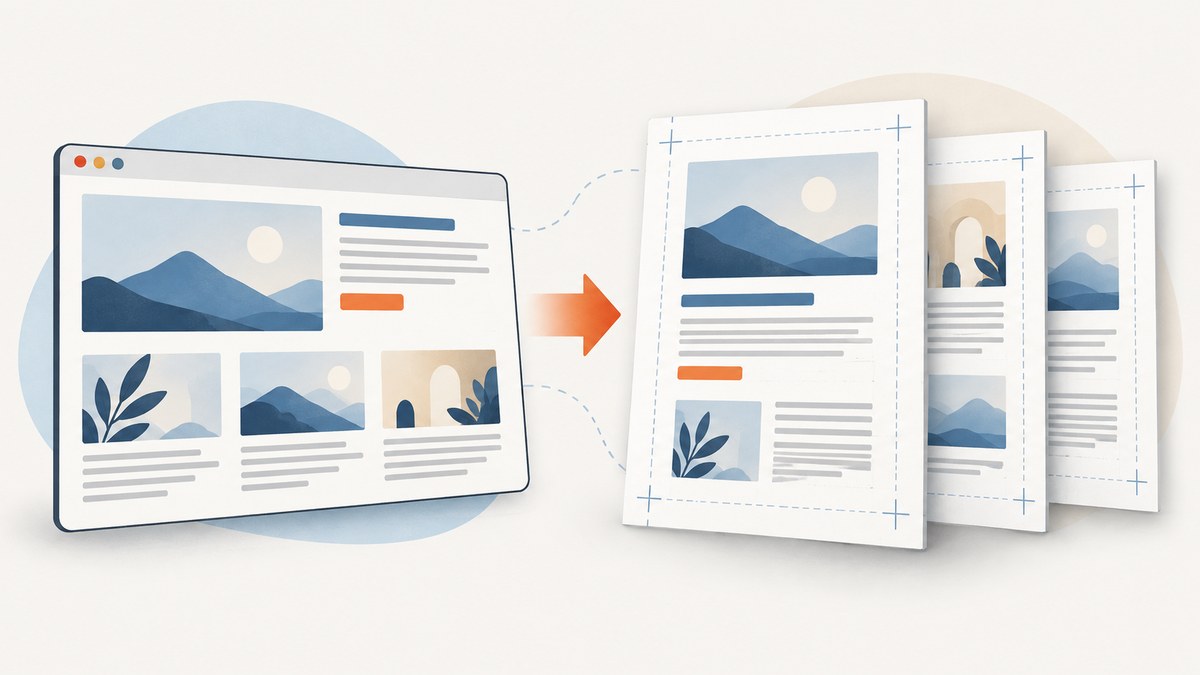
To convert one WordPress page to PDF, open it in a browser, choose Print, select Save as PDF, check the preview, and save. You do not need a plugin for that. To give visitors a repeatable Download PDF button, use a plugin or build a print-friendly endpoint and let the browser generate the PDF. Hosted converters are another option, but they need to fetch the page and may send its URL and conversion settings to an external service.
The right method depends on whether you need a one-off copy, a button on individual posts, a clean print layout, or a PDF made from a collection of posts. This guide walks through each choice, the relevant settings, common layout problems, and a screenshot API option for capturing a page as a PDF.
1. Save a WordPress page as a PDF once
- Open the published page in Chrome, Edge, Firefox, or another browser with a print dialog.
- Open the browser menu and choose Print (or press
Ctrl+Pon Windows/Linux orCmd+Pon macOS). - Set the destination or printer to Save as PDF.
- Review the preview. Choose paper size, orientation, scale, and margins. Turn off browser-added headers and footers if they are unwanted.
- Save the file, then open it to confirm that the final pages, links, images, and page breaks look right.
This captures the browser’s print rendering, which can differ from the screen. A theme may already have print CSS that hides navigation and sidebars. If the preview includes unwanted elements, first check whether the theme has a print stylesheet or whether a print-focused plugin is a better fit.
2. Choose a repeatable PDF workflow
| Need | Good starting point | Key consideration |
|---|---|---|
| Save one page for yourself | Browser Print → Save as PDF | No plugin; adjust the preview for each save. |
| Give visitors a PDF button on posts or pages | A PDF button plugin | Check whether rendering happens in the visitor’s browser or through a hosted service. |
| Remove the theme around the content | Print CSS or a clean print endpoint | Test headers, footers, sidebars, image sizing, and page breaks. |
| Print several posts as one document | Print My Blog | Its print-focused page supports collections and browser PDF output. |
| Create PDFs from public URLs through a service | A hosted HTML-to-PDF converter | The page must be reachable by the provider; review privacy and provider terms. |
Before installing anything, decide whether the output should look like the whole website or a clean reading copy. Also decide whether the page is public, whether visitors need to select print options, and whether a collection or one content item is being converted.
3. Add a PDF button with a WordPress plugin
Plugin features and compatibility change, so check each plugin’s current listing, changelog, and provider terms before deployment. The options below are patterns documented by their official listings and documentation.
HTML to PDF Converter by html2pdf.app
The plugin listing describes a shortcode, such as [html2pdf text="Save as PDF"], and an automatic button for selected post types. Its options include screen or print media, page formats such as A4 and Letter, portrait or landscape orientation, margins, and custom dimensions. The hosted API fetches the public page URL and returns a rendered PDF. The listing documents an html2pdf_hide class for elements to omit and a html2pdf-rendering body class that can be used for rendering-specific styles. Selecting print media activates the theme’s print styles. See the [official plugin listing](https://wordpress.org/plugins/html2pdf/).
Use this approach when a hosted conversion flow and its layout controls suit the site. Since the converter must fetch the URL, a page behind a login or firewall may not work. The URL and conversion settings are sent to the service, so review its data handling before using it with sensitive pages.
Print My Blog
Print My Blog creates a print-focused page that can be sent to the browser’s print function, including Save as PDF. Its documented shortcodes include [pmb_print_buttons] and [pmb_print_page_url format=pdf]; these can be used in content, widgets, or templates. It is a useful fit when readers need a readable print version or you need to assemble multiple posts. Read the [official plugin listing](https://wordpress.org/plugins/print-my-blog/).
WP-Print
WP-Print provides a clean /print/ endpoint for posts, pages, and custom post types. It can include content, selected comments, images, and featured images while leaving out theme navigation and sidebars. Its templates and CSS can be copied into a theme for customization. After installing it, resave WordPress permalinks so the endpoint is registered. Consult the [official plugin listing](https://wordpress.org/plugins/wp-print/).
PDF Generator for Posts & Pages
The official listing describes a Download PDF button for posts, pages, and custom post types. It says PDFs are generated in the visitor’s browser using React PDF renderer, without server-side processing or temporary files on the host. That can reduce work for the WordPress server, but the result depends on the plugin’s layout configuration and browser-side rendering. Check its [official listing](https://wordpress.org/plugins/pdf-generator-for-wp/).
PDFCrowd Save as PDF
PDFCrowd documents a hosted URL workflow and options for choosing which version of a WordPress page becomes the PDF. If anyone can open the page without signing in, use its public URL as documented. Verify current pricing, limits, and privacy terms with the provider before rollout. See [PDFCrowd’s WordPress documentation](https://pdfcrowd.com/wordpress/).
4. Control the print layout with CSS
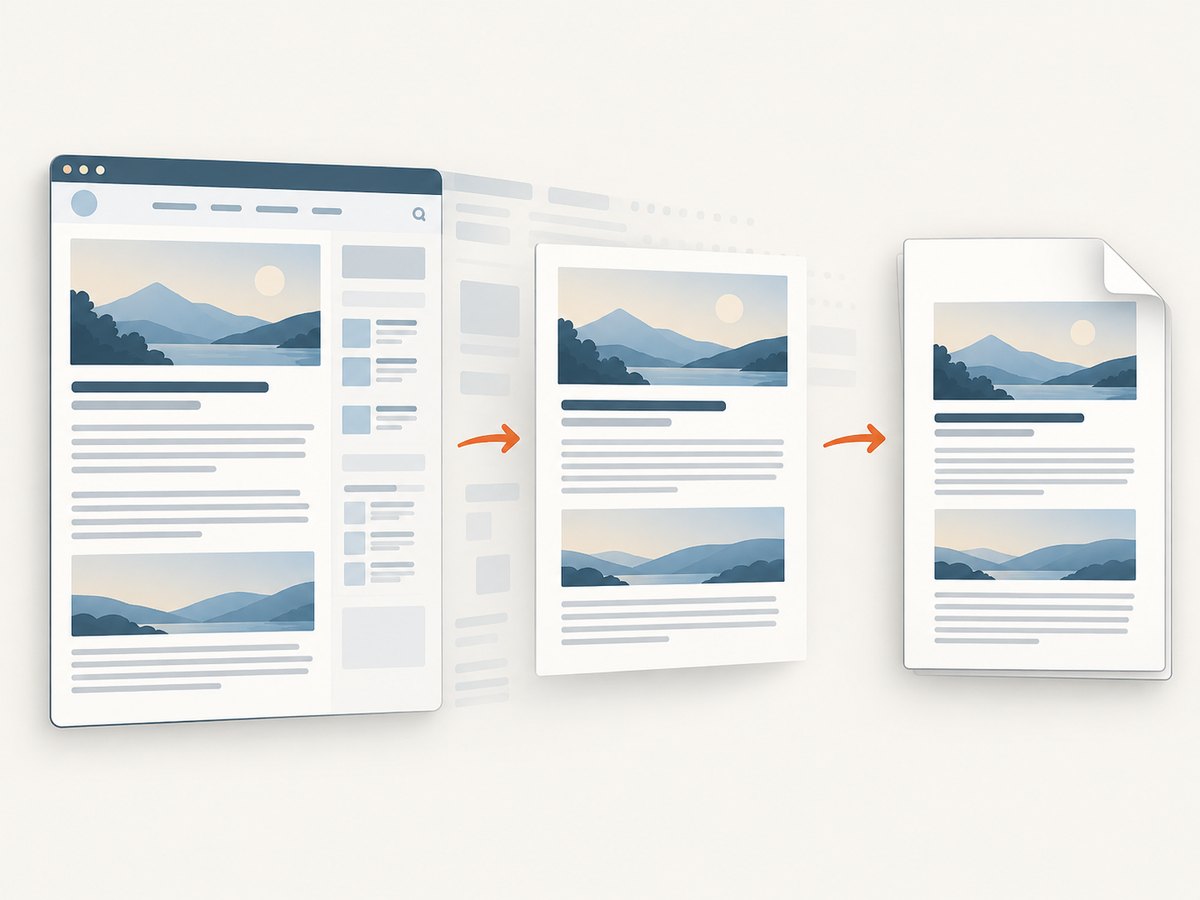
Print CSS is the main way to remove navigation, sidebars, and interactive controls from browser-generated PDFs. Add print rules through your theme’s established custom CSS mechanism or a child theme, and check the result in the browser’s print preview. A minimal example follows; replace the selectors with those used by your theme.
@media print {
  /* Omit site chrome and controls from the printed document. */
  header,
  nav,
  aside,
  footer,
  .download-button,
  .share-buttons {
    display: none !important;
  }

  /* Let the article use the available page width. */
  main,
  article {
    width: 100% !important;
    max-width: none !important;
    margin: 0 !important;
    padding: 0 !important;
  }

  /* Avoid splitting common content blocks across pages. */
  figure,
  blockquote,
  pre,
  table {
    break-inside: avoid;
  }

  a {
    color: inherit;
    text-decoration: underline;
  }
}

@page {
  size: A4 portrait;
  margin: 16mm;
}
Do not assume generic element names match your theme. Inspect the page markup and use the actual selectors for the header, sidebar, and article wrapper. Preview long pages, tables, code samples, and image-heavy pages. Page breaks are hints to the print engine, not a guarantee that every block stays together.
5. Build a custom print link or endpoint
A custom implementation makes sense when the site needs a specific printable template or button placement and the team can maintain it. A simple link can point to a print template or endpoint that renders the content without the regular site chrome. The browser can then handle PDF creation using Print → Save as PDF.
- Create a dedicated template or route that loads the intended post and its essential styles.
- Render the title, content, and any metadata or images that belong in the document.
- Apply a print stylesheet for page size, margins, visibility, and break behavior.
- Add a link or button to the page, and make its accessible name clear, such as “Print or save as PDF.”
- Test logged-out access, mobile and desktop browsers, and pages with long tables, code, or embedded media.
A custom endpoint must be designed carefully: validate the requested content identifier, apply the site’s normal access rules, and avoid exposing draft or private content. If the endpoint is intended to produce a file without user interaction, a browser-based print page alone may not meet that requirement; choose a server-side or hosted conversion workflow and account for its operational and privacy trade-offs.
6. Screenshot a page as a PDF with an API
A screenshot API is useful when the desired artifact is a rendered page capture, or when a developer needs a programmatic capture workflow. ScreenshotNeo is a website screenshot API and MCP server from Yorker Media. It can return PNG, JPEG, WebP, or PDF from one GET request. Its options include PDF paper size, margins, landscape mode, and page ranges; see the [ScreenshotNeo documentation](https://screenshotneo.com/docs/).
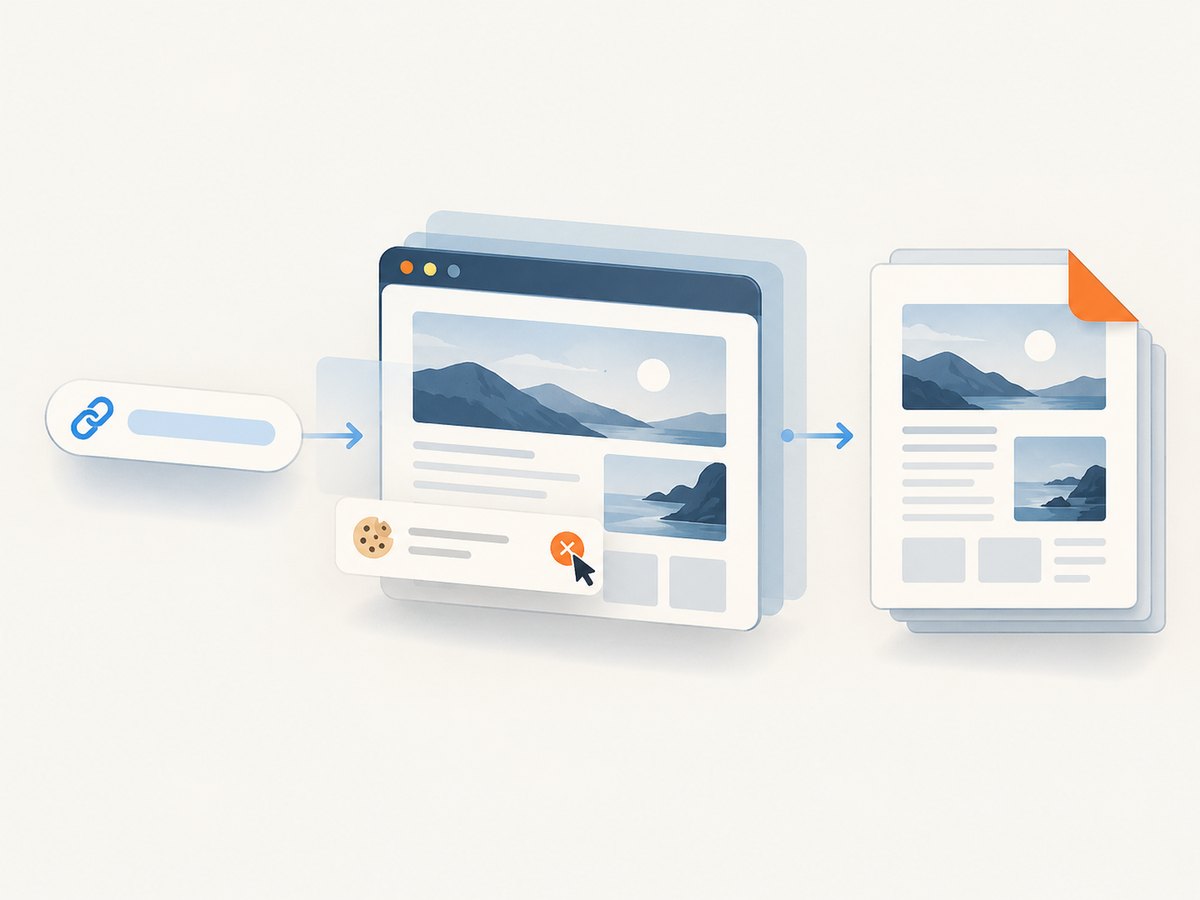
Use a PDF capture when a rendered snapshot fits the requirement. For a text-first reading document, print-focused WordPress output may be more suitable. A capture does not replace checking whether the content is authorized for public access.
7. Or skip the browser setup
For a one-call PDF capture, sign up for a key at [ScreenshotNeo](https://screenshotneo.com), then make this request. The example uses the documented API base and a sample public page URL:
curl -G "https://api.screenshotneo.com/v1/shot" \
  -d access_key=YOUR_API_KEY \
  --data-urlencode url=https://stripe.com \
  -d format=pdf \
  -o page.pdf
See the [API docs](https://screenshotneo.com/docs/) for the available capture parameters. ScreenshotNeo accepts cookie banners and removes 60+ known consent platforms, newsletter popups, and chat widgets before capture; each step can be turned off. Bot checks/CAPTCHAs, blank pages, timeouts, failed loads, and cache hits cost nothing, and the response indicates the page verdict and billing status. Its MCP server provides take_screenshot, get_page_info, and capture_pdf for AI agents. The Free plan includes 1,000 screenshots a month with no card; paid plans start at $5 for 3,000.
Get 1,000 free screenshots a month with no card.
8. Troubleshoot common PDF problems
| Symptom | Likely cause | What to try |
|---|---|---|
| Header, navigation, or sidebar appears | The page lacks matching print CSS, or the selected converter uses screen media. | Inspect the print preview; add print rules or select print media if the plugin supports it. |
| Text or images are clipped | Wide elements exceed the printable page width, or scale/margins are unsuitable. | Reduce scale, use landscape for genuinely wide tables, or add print-specific width rules. |
| Blank or incomplete output | Content may load after initial render, require login, or depend on scripts or cross-origin assets. | Wait for content to load, test as a logged-out visitor, and check the print preview. For hosted conversion, confirm the provider can reach the page. |
| Images or web fonts are missing | The browser or converter cannot load the asset, or it has not loaded before printing. | Check asset URLs, permissions, and load timing; try again after the page finishes rendering. |
| Plugin button or shortcode is missing | The plugin is inactive, the shortcode is in the wrong context, or automatic display is not enabled for that post type. | Check plugin settings and supported post types; place the shortcode in a supported content, widget, or template area. |
| Print endpoint returns a 404 | WordPress rewrite rules may not know the new endpoint. | Resave permalinks as the plugin directs, then retry the endpoint. |
| Hosted converter cannot render a page | The URL is private, blocked, or inaccessible from outside the site. | Check public reachability and provider requirements. Do not make sensitive content public just to enable conversion. |
9. Performance, reliability, and cost
Browser printing has no plugin or hosted conversion dependency, but each visitor’s browser and settings affect the result. It is a strong choice for a one-off document or a button that opens a clean print page.
Client-side PDF generation moves rendering to the visitor’s browser and, in the case of the PDF Generator listing, avoids server-side processing and host-side temporary files. That does not guarantee identical output across browsers; test the browsers your readers use.
Hosted conversion can provide configurable page sizes and rendering options, while adding an external dependency and requiring the service to fetch the page. Check current provider pricing and limits; no figures are assumed here. Evaluate what page URLs or content the provider receives and whether the page can be accessed by its renderer.
WordPress print endpoints let the site control the clean view and avoid sending the page to a hosted renderer when the browser performs PDF saving. They still require maintenance as the theme and content types change. Test long documents and the site’s normal permission checks.
ScreenshotNeo API captures are billed only for clean shots; bot checks/CAPTCHAs, blank pages, timeouts, failed loads, and cache hits cost nothing. Plans are Free at 1,000 shots/month, Starter $5 for 3,000, Growth $15 for 15,000, Pro $39 for 60,000, Scale $99 for 250,000, and Business $249 for 1,000,000; yearly billing gives two months free. Every feature is on every plan. Choose based on your capture volume and whether an API-rendered PDF meets the document’s needs.
10. Final checklist
- Decide whether this is a one-off save, a visitor-facing button, a print endpoint, a collection, or an automated capture.
- Preview the PDF on representative pages, including long, image-heavy, and wide content.
- Hide site chrome with print CSS or a clean print template where appropriate.
- Confirm whether a hosted service can access the URL and review its current terms and privacy practices.
- Check access controls so private, draft, and restricted content stay protected.
- After plugin changes, recheck compatibility, button placement, endpoint routes, and PDF output.
FAQ
Can I convert a WordPress page to PDF without a plugin?
Yes. Open the public page, use Print, choose Save as PDF, and adjust the browser’s print settings.
Can a PDF download button work on private pages?
It depends on the rendering method. A hosted URL converter generally needs to fetch a reachable URL; a browser-side or authenticated custom workflow may be needed for restricted content. Preserve the site’s access rules.
How do I make the PDF look less like a screenshot of my whole site?
Use print CSS or a print-focused endpoint to omit site navigation, sidebars, and controls while keeping the article content.
Which method should I use for a book made from multiple posts?
Start with a print-focused collection workflow such as Print My Blog, then check its current options for organizing and exporting the posts you need.
Will the PDF exactly match the browser page?
No method should be assumed pixel-perfect. Print engines, theme CSS, JavaScript state, fonts, images, and cross-origin assets can affect output.


