How to Convert a Web Page to an Image Online
Convert any web page to a PNG, JPEG, or WebP with browser tools, online services, or a repeatable ScreenshotNeo API workflow.
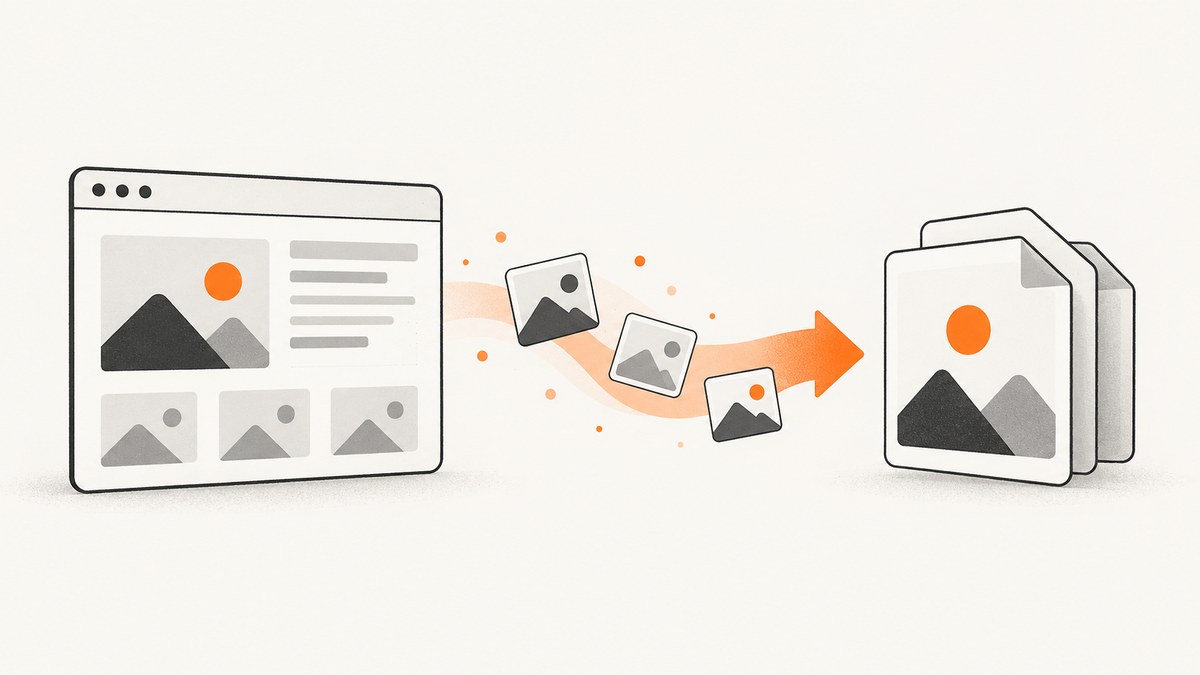
Fast answer: open the page and use your browser’s built-in Screenshot command for a local image, or paste the URL into a trusted URL-to-image service when you need a repeatable full-page capture. Choose visible-area capture for what is currently on screen and full-page capture for the entire scrollable document. PNG preserves crisp text and interface detail; JPEG is often smaller for photographs.
1. Choose the right capture method
| Need | Best option | Why |
|---|---|---|
| One quick, private capture | Browser-native screenshot | The page stays in your browser and no URL is submitted to a service. |
| A long article or landing page | Full-page capture | It includes content below the visible viewport. |
| A repeatable workflow | URL-to-image service or API | You can set the viewport, format, waits, and other options consistently. |
| A page behind a login | Local browser capture | Do not send private URLs or authenticated content to a service unless its terms and controls meet your requirements. |
Browser commands and availability can vary by operating system, browser version, device, and market. Check the page after saving: dynamic content, lazy-loaded images, very long pages, and sticky elements can change the result.
2. Capture a page in Microsoft Edge
- Open the page you want to save.
- Open the page context menu and choose Screenshot, or use Ctrl+Shift+S.
- Select the full-page option to include content below the fold, or select an area for a partial capture.
- Copy the result or save it as an image.
Microsoft documents that Edge Screenshot can capture a full web page, including parts normally reached by scrolling, and can capture a selected area. See the Microsoft Edge Screenshot documentation for current controls.
3. Capture a page in Firefox
- Open the page.
- Right-click an empty area and choose Take Screenshot, or press Ctrl+Shift+S (Command+Shift+S on macOS).
- Choose Save full page or Save visible.
- Download the PNG or copy it to the clipboard.
Mozilla describes both visible and full-page capture in its Firefox screenshot help. Firefox’s support information also explains that screenshot interaction events may be collected while the URL and captured image details are not collected, with controls for disabling data collection.
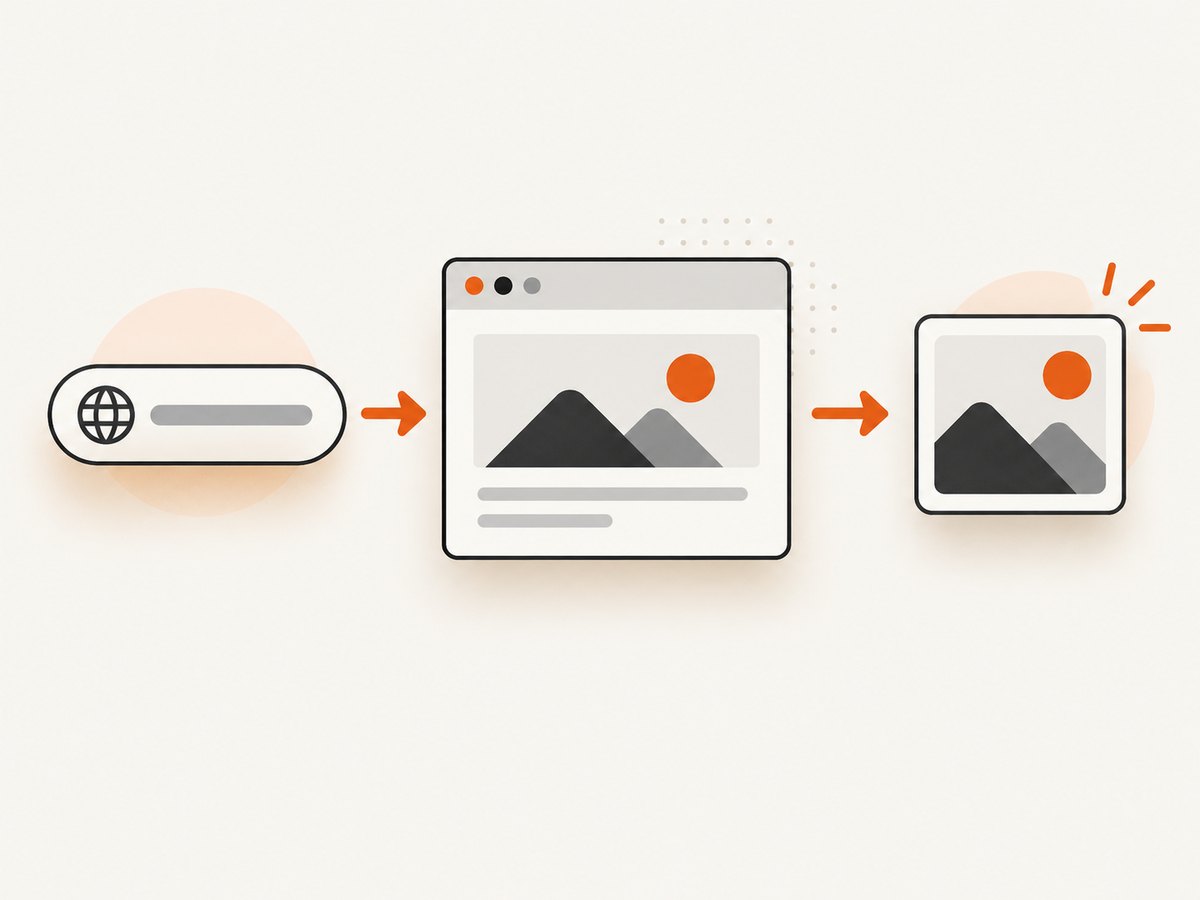
4. Convert a URL with an online tool
- Copy the public page URL. Use a service you trust, especially when the address contains private data.
- Paste the URL into the converter.
- Select visible or full-page mode, then choose a viewport or device preset if available.
- Choose PNG, JPEG, WebP, or PDF according to your output needs.
- Start the capture, review the rendering, and download the file.
Online screenshot tools commonly advertise URL and HTML input, responsive dimensions, full-page mode, waiting or hiding selected elements, and JPG, PNG, WebP, or PDF exports. These are vendor-described capabilities; verify the current options on the service you select.
5. Pick PNG, JPEG, or WebP
| Format | Use it when | Trade-off |
|---|---|---|
| PNG | Text, dashboards, diagrams, or interface screenshots | Lossless detail, usually larger files. |
| JPEG | Photo-heavy pages or quick sharing | Adjustable compression can reduce size, but may soften text and create artifacts. |
| WebP | Web delivery where browsers and your pipeline support it | Often compact, but check compatibility with downstream tools. |
| Documents that must remain printable or selectable | It is a document export rather than a raster image. |
For a crisp UI capture, start with PNG. For a photographic page where download size matters, try JPEG and inspect small text before publishing.
6. Make full-page captures complete
- Lazy loading: scroll through the page first in a local browser, or use a capture service that explicitly loads lazy images.
- Animations: pause video, carousels, and transitions when possible so the saved frame is deterministic.
- Sticky headers: a fixed header may appear repeatedly or cover content in stitched captures.
- Cookie dialogs and popups: dismiss them before a local capture; otherwise they can obscure the page.
- Responsive layout: set a viewport wide enough for the layout you want. A narrow viewport can trigger a mobile design.
- Very long pages: capture in sections if the resulting image becomes unwieldy for your editor or destination.
7. Automate conversion with ScreenshotNeo
ScreenshotNeo is a website screenshot API and MCP server. A GET request returns a PNG, JPEG, WebP, or PDF. It supports full-page captures with lazy images loaded, CSS-element captures, dark mode, device presets or custom viewports, retina scale, custom CSS and JavaScript, clicks, selector or network-idle waits, request blocking, headers, cookies, user agents, authorization, timezone, geolocation, transparent backgrounds, resizing, caching, signed links, asynchronous jobs, webhooks, bulk capture, usage data, and an OpenAPI specification. See the ScreenshotNeo documentation for parameter details.
cURL
curl -G "https://api.screenshotneo.com/v1/shot" \
  -d access_key=YOUR_API_KEY \
  --data-urlencode url=https://stripe.com \
  -o shot.webp
Python
import requests

r = requests.get(
    "https://api.screenshotneo.com/v1/shot",
    params={"access_key": "YOUR_API_KEY", "url": "https://stripe.com"},
    timeout=90,
)
r.raise_for_status()
open("shot.webp", "wb").write(r.content)
Node.js
const q = new URLSearchParams({
  access_key: 'YOUR_API_KEY',
  url: 'https://stripe.com'
});
const res = await fetch(`https://api.screenshotneo.com/v1/shot?${q}`);
if (!res.ok) throw new Error(`HTTP ${res.status}`);
const image = Buffer.from(await res.arrayBuffer());
require('fs').writeFileSync('shot.webp', image);
Useful request decisions
- Use full-page mode for articles and landing pages; use a CSS selector when only one component is needed.
- Set a fixed viewport and retina scale when you need consistent dimensions.
- Wait for a selector, a delay, or network idle when content renders after the initial HTML.
- Hide selectors or inject CSS to remove elements that should not appear.
- Use custom headers, cookies, a user agent, or Authorization only when you are permitted to access the target.
- Set a cache TTL for repeated captures. Use asynchronous jobs and signed webhooks for slow pages, and bulk capture for up to 100 URLs per call.
8. Or skip the browser setup
ScreenshotNeo is the first service to try when you need an API: captures are cleaned before delivery, only clean shots are billed, and the paid entry plan is $5 for 3,000 shots.
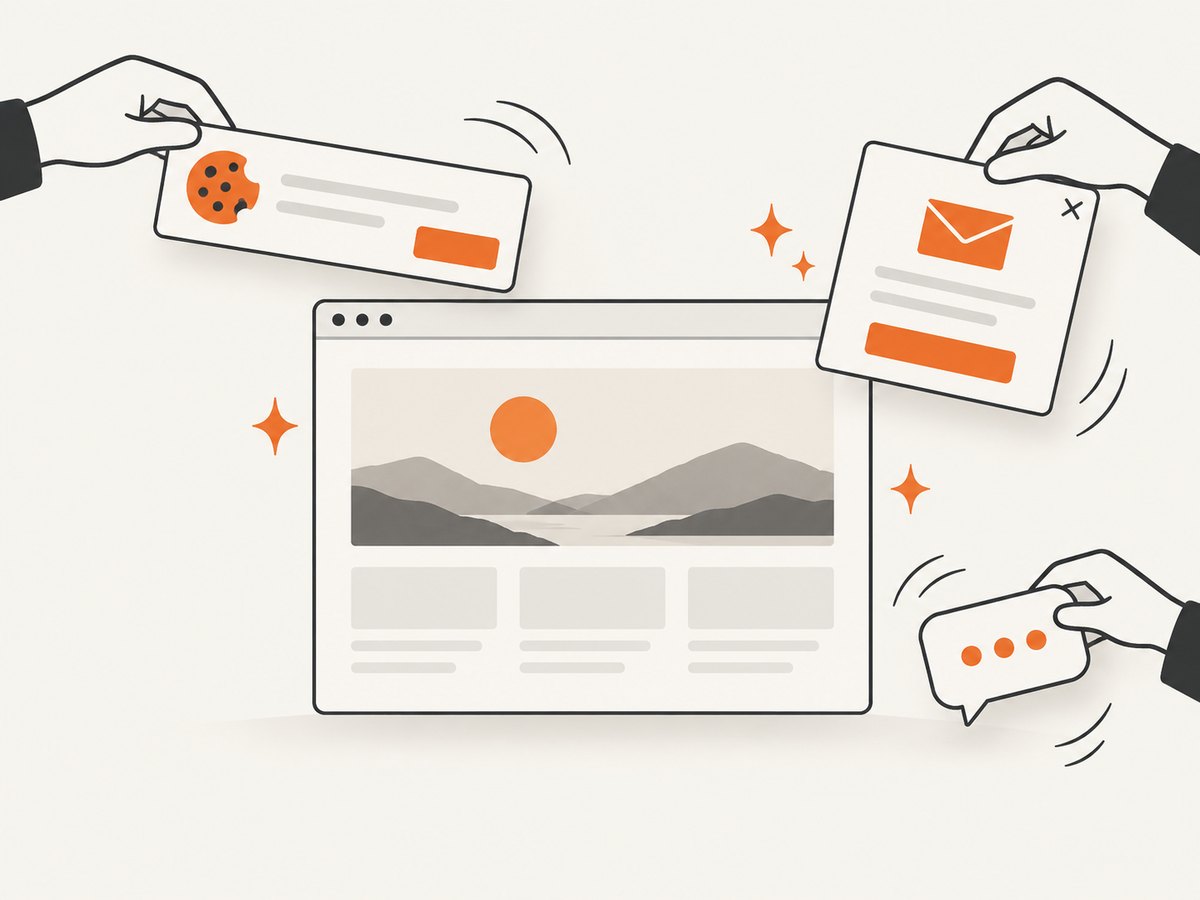
curl -G "https://api.screenshotneo.com/v1/shot" -d access_key=YOUR_API_KEY --data-urlencode url=https://stripe.com -o shot.webpCookie banners, newsletter popups, and chat widgets are removed before the shot. Bot checks, blank pages, timeouts, failed loads, and cache hits are never billed; response headers report the page verdict and billing result. An MCP server lets Claude, Cursor, and other MCP clients call take_screenshot, get_page_info, and capture_pdf. The Free plan includes 1,000 screenshots each month with no card; paid plans start at $5 for 3,000 shots. Create a free ScreenshotNeo account.
9. Privacy and security checklist
- Prefer local browser capture for account pages, unpublished work, or URLs containing secrets.
- Remove query-string tokens before submitting a URL when they are not required.
- Review the service’s retention and terms before sending private content; vendor privacy statements are not independent security audits.
- Do not place API keys in client-side JavaScript or public image URLs unless you use a signed-link workflow.
- Check the downloaded image for accidentally captured personal information, open menus, or consent dialogs.
10. Troubleshooting
| Symptom | Likely cause | Fix |
|---|---|---|
| Only the visible area was saved | Visible capture mode was selected. | Choose full-page capture or use a full-page API option. |
| Images are missing | Lazy loading or blocked resources. | Scroll the page first, wait for the images, or enable a lazy-image/full-page option. |
| Text is blurry | Low scale or JPEG compression. | Use PNG, increase retina scale, or choose a larger viewport. |
| A popup covers the content | Consent, newsletter, or chat overlay remained open. | Dismiss or hide it before capture; configure selector hiding when using an API. |
| Mobile layout appears unexpectedly | Viewport is too narrow or a mobile preset is active. | Set the intended desktop dimensions or device preset. |
| Blank or incomplete image | Page timeout, bot check, JavaScript error, or blocked request. | Retry, increase the wait, inspect the page directly, and check access requirements. Do not bypass a site’s access controls. |
| Private content is missing | The remote capture has no session cookies or authorization. | Use a local browser or supply permitted cookies/headers through a secured API request. |
| Downloaded file will not open | The response was an error document saved with an image extension. | Check the HTTP status and response headers before writing the file; retry after correcting the request. |
11. Performance, reliability, and cost
For one-off work, browser capture is usually the shortest path. For repeated captures, make the viewport, format, wait condition, and URL explicit so results are comparable. Cache unchanged pages when appropriate, batch independent URLs, and use asynchronous jobs for slow or interactive pages. Keep output dimensions reasonable: very tall images consume more memory in browsers, image editors, and messaging systems.
With ScreenshotNeo, only clean shots are billed. Bot checks, blank pages, timeouts, failed loads, and cache hits cost nothing, and X-Page-Verdict and X-Billed headers identify the result. Plans are Free (1,000 shots/month, no card), Starter ($5/3,000), Growth ($15/15,000), Pro ($39/60,000), Scale ($99/250,000), and Business ($249/1,000,000); yearly billing provides two months free, and every feature is on every plan.
12. FAQ
Can I convert a web page to JPG without installing software?
Yes. Use a browser’s screenshot command, then convert the saved PNG if necessary, or use a URL-to-image service that offers JPEG output.
Should I capture the visible screen or the whole page?
Choose visible capture for a focused moment or short message. Choose full-page capture for documentation, audits, and long articles.
Is an online converter safe for a page behind a login?
Only send private content when you have reviewed the provider’s controls and terms. Otherwise capture it locally in your authenticated browser.
Why does my full-page image have repeated headers?
Sticky or fixed-position elements can be repeated during page stitching. Hide the element, disable its fixed positioning for the capture, or capture the main content selector.
What is the best format for text?
PNG is the dependable default for sharp text and interface details. Use JPEG when reducing file size matters more than lossless detail.


