How to Convert a Web Page to PDF with a Chrome Extension
Convert any web page to PDF with Chrome’s built-in print tools, Android steps, extension guidance, troubleshooting, and an API option.
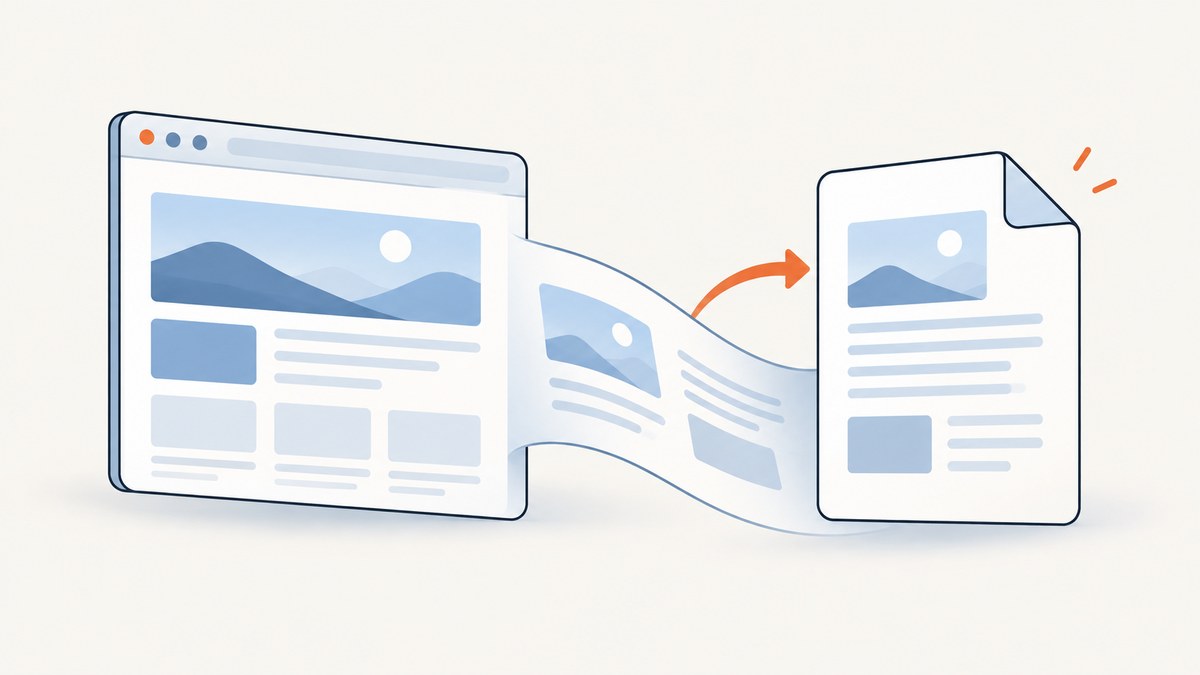
Chrome can convert a web page to PDF without an extension. On a computer, open the page, press Ctrl+P on Windows/Linux or Command+P on Mac, choose Save as PDF as the destination, adjust the print settings, and save the file. Chrome extensions are optional when you need a feature the built-in print flow does not provide.
1. Convert a web page to PDF on desktop Chrome
These steps apply to Chrome on Windows, Linux, and macOS. The names of destinations and controls can vary on managed computers or after Chrome interface changes. Google documents the desktop print flow in Print from Chrome.
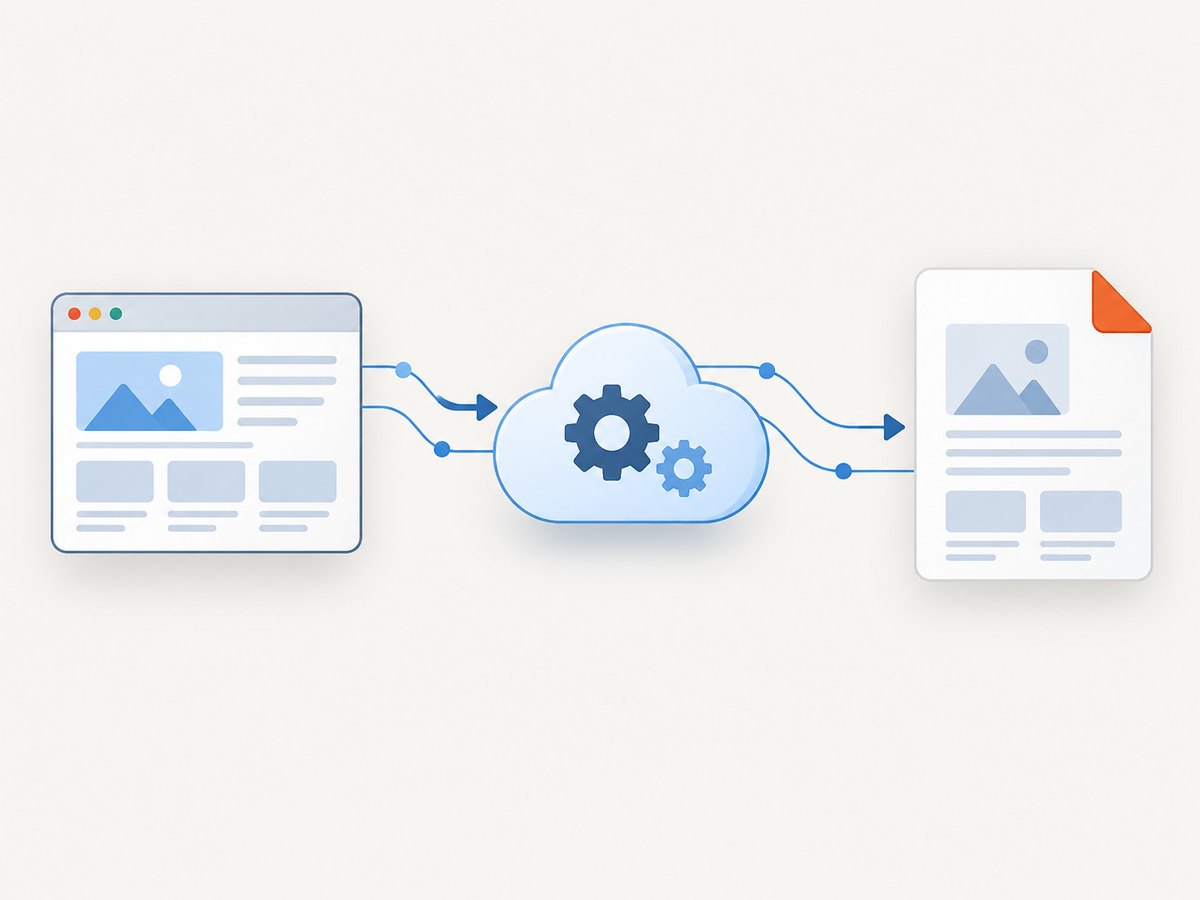
- Open the page you want to save.
- Wait for the page content to finish loading. Expand accordions or load content that only appears after scrolling if it should be included.
- Open print preview:
- Windows/Linux: press Ctrl+P.
- Mac: press Command+P.
- Alternatively, open Chrome’s menu and choose Print.
- In the destination or printer field, select Save as PDF. On some systems it may appear under a printer or destination dropdown.
- Choose the pages to include: all pages, a range, or selected pages if your print preview offers that control.
- Set the paper size, orientation, margins, scale, and whether to include headers and footers.
- Enable Background graphics when the page’s colors, cards, or images are required in the PDF.
- Click Save, choose a folder, enter a filename, and save the PDF.
Settings that affect the result
| Setting | Use it when | Trade-off |
|---|---|---|
| Pages | You need the whole article or only a range. | Ranges can omit navigation or context. |
| Layout | Portrait suits text; landscape suits wide tables. | Changing orientation can alter page breaks. |
| Paper size | You are printing for a particular paper standard. | Different sizes change pagination. |
| Margins | You need more content per page or room for binding. | Small margins can clip content on some printers or viewers. |
| Scale | The page is too wide or text is being clipped. | Lower scale makes text smaller. |
| Background graphics | Colors, shaded code blocks, or background images matter. | Can increase file size and ink usage when printed. |
| Headers and footers | You want the URL, title, or date in the PDF. | Turn them off for a cleaner document. |
2. Convert a web page to PDF on Android
Desktop Chrome extensions do not run on Android. Chrome’s Android print flow can create the PDF directly. Google’s instructions are in Print from Chrome on Android.
- Open the page in Chrome for Android.
- Tap the More menu.
- Tap Share, then choose Print.
- In the print preview, select Save as PDF if it is not already selected.
- Choose a location and tap the save button.
Android print services and device manufacturers can change the labels or available destinations. If Save as PDF is absent, check which print service is enabled on the device.
3. Save Page As is different from printing to PDF
Chrome’s Save Page As command saves a web page and its associated files in a web format. It does not create the same PDF output as the print flow. To create a PDF, use Print and select Save as PDF. Google describes downloading and saving web files separately in Download a file.
4. When a Chrome extension is useful
An extension is worth considering only when Chrome’s print preview lacks a requirement you have, such as a specialized cleanup workflow or a repeated export process. Do not install one just to perform a basic one-page PDF export.
Evaluate an extension against these requirements
- Exact feature: Identify whether you need page cleanup, batch processing, annotations, or another capability beyond printing.
- Permissions: Read what data the extension can access and whether it can read or change data on websites.
- Site access: Use Chrome’s site-access controls to limit access where practical.
- Output controls: Check whether it supports the paper size, margins, page ranges, images, and other controls you need.
- Maintenance: Look for recent maintenance, clear support information, and documentation.
- Operational fit: Confirm that it works on the pages, profiles, and managed devices where you will use it.
Install extensions through the Chrome Web Store. Chrome explains how to install and manage extensions, and its permissions guidance explains why an extension may request access to website data. A permission warning describes requested access; it is not, by itself, proof that an extension is malicious.
5. Prepare a page before exporting
Print output reflects the page’s current state. Before opening print preview:
- Dismiss cookie banners, newsletter dialogs, chat bubbles, and other overlays that cover content.
- Expand sections and load images that appear only after interaction or scrolling.
- Sign in first if the desired content requires an authenticated session.
- Check that charts, code blocks, tables, and embedded media have finished loading.
- Try reader mode or the site’s print view when the page provides one.
Some pages deliberately hide navigation or change layout with print-specific CSS. That can produce a cleaner PDF, but it can also remove elements you expected to keep.
6. Or skip the browser setup
ScreenshotNeo provides a website capture API that can return a PDF as well as PNG, JPEG, or WebP images. It handles the browser session for you and exposes the capture controls through one request. See the ScreenshotNeo documentation for PDF options and the full parameter list.

The same endpoint also supports custom headers, cookies, user agents, authorization, waiting for a selector or network idle, JavaScript, custom CSS, page ranges, paper size, margins, landscape mode, and other capture settings.
cURL
curl -G "https://api.screenshotneo.com/v1/shot" -d access_key=YOUR_API_KEY --data-urlencode url=https://stripe.com -o shot.webpPython
import requests

r = requests.get(
    "https://api.screenshotneo.com/v1/shot",
    params={"access_key": "YOUR_API_KEY", "url": "https://stripe.com"},
    timeout=90,
)
r.raise_for_status()
open("shot.webp", "wb").write(r.content)
Node.js
const q = new URLSearchParams({ access_key: 'YOUR_API_KEY', url: 'https://stripe.com' });
const res = await fetch(`https://api.screenshotneo.com/v1/shot?${q}`);
if (!res.ok) throw new Error(`HTTP ${res.status}`);
const data = Buffer.from(await res.arrayBuffer());
require('node:fs').writeFileSync('shot.webp', data);
ScreenshotNeo removes cookie and consent banners, newsletter popups, and chat widgets before capture. Bot checks, blank pages, timeouts, failed loads, and cache hits are not billed, and the response identifies the page verdict and billing status with X-Page-Verdict and X-Billed headers. Its MCP server lets Claude, Cursor, and other MCP clients call take_screenshot, get_page_info, and capture_pdf. One thousand screenshots per month are free with no card; paid plans start at $5 for 3,000 shots. Create a free ScreenshotNeo account.
7. Troubleshooting Chrome PDF exports
| Problem | Likely cause | Fix |
|---|---|---|
| Save as PDF is missing | The operating system or managed browser exposes different print destinations. | Open the destination list, check the enabled print service, or ask the device administrator. |
| The PDF is blank | The page has not finished loading, requires sign-in, or renders content only after scripts run. | Wait for loading, sign in, reload, and verify the content is visible before printing. |
| Images are missing | Images are lazy-loaded or background graphics are disabled. | Scroll through the page first and enable Background graphics. |
| Text or tables are cut off | The content is wider than the selected paper or scale. | Try landscape orientation, a wider paper size, smaller scale, or narrower margins. |
| A popup covers the page | A consent, newsletter, or chat overlay remains open. | Close it before printing; reload if the page is stuck behind the overlay. |
| Only part of a long page appears | The page uses an internal scroll container or loads more content on demand. | Expand or load the content first. If the site has a print view, use it. |
| Fonts look different | The print stylesheet or unavailable web font changed the layout. | Wait for fonts to load and compare the page’s print preview with its screen view. |
| The extension cannot access the page | Its site access is restricted or the page is a protected browser page. | Review the extension’s site-access setting. Some Chrome internal pages cannot be modified by extensions. |
8. Reliability, performance, and file size
- Reliability: Export after the page reaches a stable state. Dynamic dashboards and pages that continuously update can produce different PDFs on different attempts.
- Performance: Long pages, large images, web fonts, embedded frames, and client-side rendering increase print-preview time. Wait for visible content instead of saving immediately after navigation.
- Repeatability: Keep the URL, print settings, browser profile, and login state consistent when generating recurring documents.
- File size: Background images and high-resolution assets make PDFs larger. Disable background graphics when they are decorative and reduce scale only when readability remains acceptable.
- Cost: Chrome’s built-in flow has no service charge. Extensions may have their own pricing or account requirements, so check their current listing before adopting one. ScreenshotNeo includes 1,000 free screenshots per month and paid plans from $5 for 3,000 shots.
9. Checklist for a clean PDF
- ☐ The correct page and account are open.
- ☐ Dynamic content, images, and fonts have loaded.
- ☐ Cookie banners, popups, and chat widgets are closed.
- ☐ The destination is Save as PDF.
- ☐ Orientation, paper size, margins, and scale fit the content.
- ☐ Background graphics and headers/footers match the intended output.
- ☐ The saved PDF was opened and checked for missing pages or clipped content.
10. FAQ
Do I need a Chrome extension to make a PDF?
No. Chrome’s desktop print preview and Android print flow can save a page as PDF.
Can I convert a page on an iPhone with a Chrome extension?
Desktop Chrome extensions do not run on iPhone. Use the device’s share and print or PDF workflow instead.
Why does Save Page As not create a PDF?
Save Page As stores a web page and its files. Use Print, then choose Save as PDF.
Will a PDF include content hidden behind a cookie banner?
Only content visible in the page’s printable state is normally included. Close the banner or use a capture service that removes consent overlays before capture.
Can an extension read the pages I visit?
Some extensions request permission to read or change website data. Review the requested permissions and restrict site access where possible.


