How to Convert a Web Page to PDF in C#
Learn how to convert any rendered web page to PDF in C# with Playwright .NET or WebView2, including print CSS, dynamic content, margins, troubleshooting, and a hosted API option.
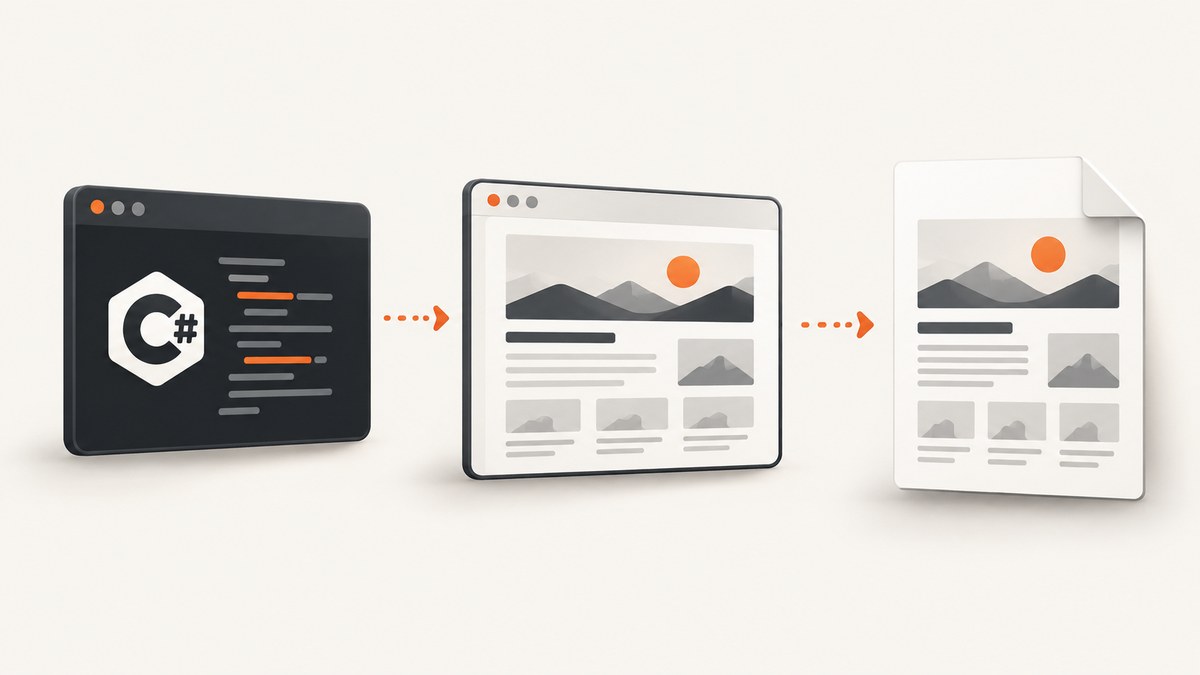
To convert a web page to PDF in C#, render the URL in a browser-capable engine and then print the rendered page. For server-side automation, Playwright .NET is the most direct option: navigate to the URL, wait for the content your application needs, and call Page.PdfAsync. For a Windows desktop application that already hosts Microsoft Edge through WebView2, call CoreWebView2.PrintToPdfAsync on the current page.
Playwright prints with print CSS media by default. WebView2 prints the page currently displayed in the control. Both operations are asynchronous, so await them and keep the process alive until the output is complete.
Choose the right C# approach
| Requirement | Recommended starting point | Why |
|---|---|---|
| Convert arbitrary URLs in a service, worker, or test pipeline | Playwright .NET | Launches a browser, supports navigation and readiness checks, and exposes PDF paper, size, margin, and media options. |
| Print a page already shown in a Windows app | WebView2 PrintToPdfAsync |
Uses the existing Edge-based WebView2 control and writes the PDF asynchronously. |
| Use another .NET browser automation API | PuppeteerSharp | Its documentation describes a .NET port of Puppeteer and documents a PDF API; verify runtime and feature requirements for your project. |
A browser engine is necessary because a PDF conversion API must first resolve HTML, CSS, fonts, images, JavaScript, and layout. A plain HTTP download gives you source markup, not the final rendered page.
Convert a URL with Playwright .NET
1. Install the package and browser
Add the Playwright .NET package to your project, then install the browser binaries required by your target environment. Follow the current Playwright .NET installation documentation for the package and browser-install commands that match your version and operating system.
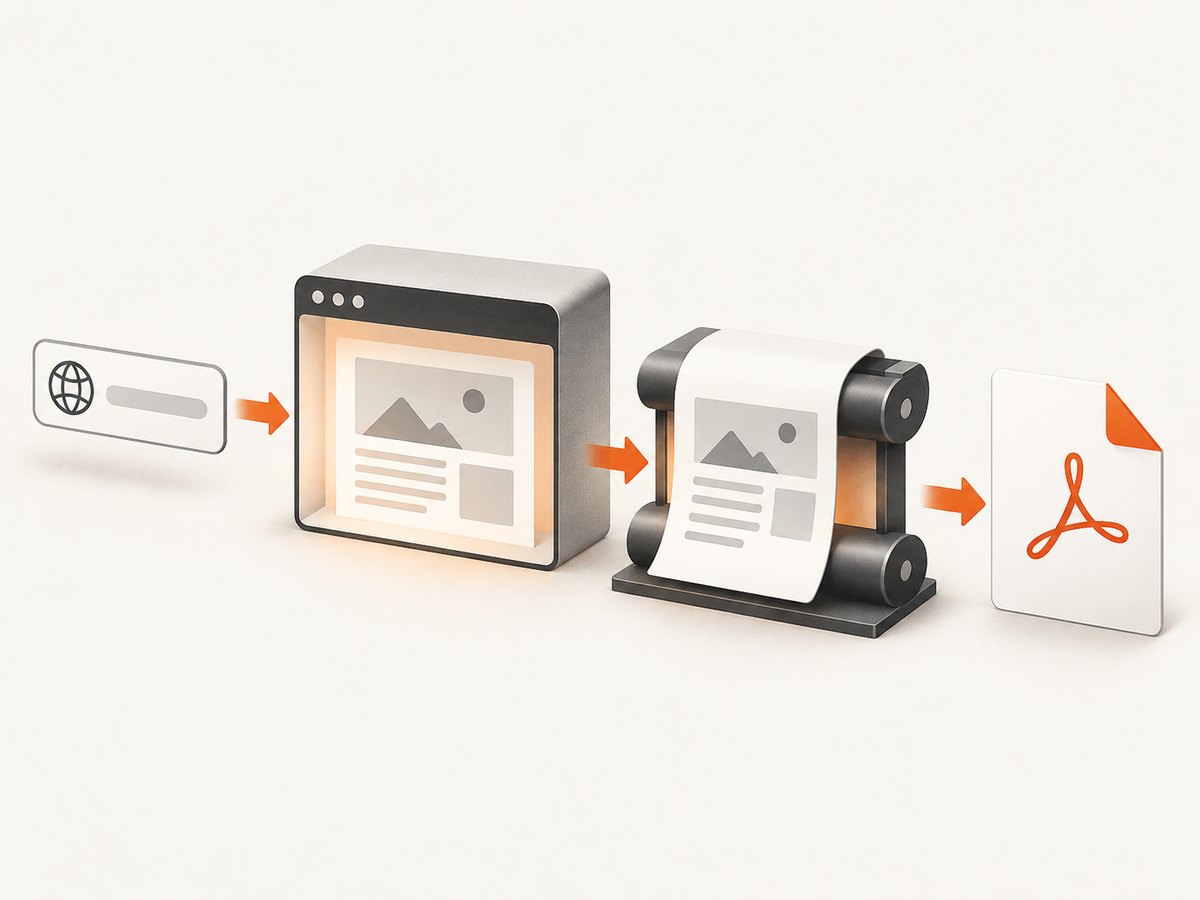
2. Minimal runnable console program
The following program launches Chromium, opens a URL, waits for navigation, and writes page.pdf. The navigation completion event only tells you that the selected navigation milestone occurred; dynamic applications may still be rendering data. Add a page-specific readiness wait when that matters.
using Microsoft.Playwright;

using var playwright = await Playwright.CreateAsync();
await using var browser = await playwright.Chromium.LaunchAsync();

var page = await browser.NewPageAsync();
await page.GotoAsync("https://example.com");
await page.PdfAsync(new() { Path = "page.pdf" });
In a production service, put the browser lifecycle under application control rather than launching an unrestricted process for every request. A long-lived browser with short-lived contexts often reduces startup work, while a fresh context per job keeps cookies, local storage, and permissions isolated.
3. Wait for application readiness
Choose a condition that represents the content you need in the document. A selector is usually clearer than an arbitrary delay:
await page.GotoAsync("https://example.com/report", new()
{
    WaitUntil = WaitUntilState.DOMContentLoaded,
    Timeout = 60_000
});

await page.Locator("[data-report-ready='true']").WaitForAsync(new()
{
    State = WaitForSelectorState.Visible,
    Timeout = 30_000
});

await page.PdfAsync(new()
{
    Path = "report.pdf",
    Format = "A4",
    PrintBackground = true,
    Margin = new() { Top = "16mm", Right = "14mm", Bottom = "16mm", Left = "14mm" }
});
If the page has no reliable readiness marker, wait for a known network request, a bounded delay, or a combination of checks. Avoid an unbounded wait: a failed API call or permanently missing selector should produce a clear timeout and an actionable log.
PDF layout and rendering options
Playwright’s Page.PdfAsync supports a paper format or explicit dimensions, margins, background printing, page ranges, headers and footers, and scale. Dimension strings can use units such as px, in, cm, and mm. Use units when a value is not intended to be pixels.
Print CSS versus screen CSS
Playwright generates PDFs with print CSS media by default. That means @media print rules can hide navigation, change colors, or rearrange columns. If the PDF should match the screen layout, emulate screen media before printing:
await page.EmulateMediaAsync(new() { Media = Media.Screen });
await page.PdfAsync(new()
{
    Path = "screen-style.pdf",
    PrintBackground = true,
    Format = "Letter"
});
Use print media for reports designed for paper. Use screen media when the site has no useful print stylesheet or when visual parity with the browser viewport is the requirement.
Paper, dimensions, orientation, and margins
await page.PdfAsync(new()
{
    Path = "landscape-report.pdf",
    Format = "A4",
    Landscape = true,
    PrintBackground = true,
    Margin = new()
    {
        Top = "12mm",
        Bottom = "12mm",
        Left = "10mm",
        Right = "10mm"
    }
});
Use Width and Height instead of Format for a custom page size. Do not assume that a CSS viewport width maps one-to-one to a physical paper width; test representative pages with the fonts and images used in production.
Page ranges, backgrounds, and headers
For long documents, print a page range when you only need selected pages. Enable PrintBackground when colored panels or charts are part of the document. Header and footer templates can contain HTML, but keep them self-contained and verify their appearance with your chosen margins. Browser print output can differ when fonts, images, or CSS resources fail to load.
Print an existing WebView2 page
WebView2 fits a Windows desktop application that already displays the page. Microsoft documents CoreWebView2.PrintToPdfAsync as an asynchronous operation that prints the current page. The output path must be absolute, and you should await completion before reading or distributing the file.
using Microsoft.Web.WebView2.Core;

private async Task SaveCurrentPageAsync(CoreWebView2 webView)
{
    var outputPath = Path.GetFullPath("current-page.pdf");

    var settings = webView.Environment.CreatePrintSettings();
    settings.ShouldPrintBackgrounds = true;
    settings.ShouldPrintHeaderAndFooter = false;

    var saved = await webView.PrintToPdfAsync(outputPath, settings);
    if (!saved)
    {
        throw new InvalidOperationException("WebView2 did not complete the PDF print operation.");
    }
}
Navigate first and wait for the page’s own ready signal, such as a DOM element or application event. Microsoft notes that a concurrent PDF print operation can return false and that closing the application before completion can prevent the file from being saved. Serialize print requests for a single WebView2 instance.
Dynamic pages, assets, and edge cases
- JavaScript data: wait for the API-driven content, not merely the initial document.
- Lazy images: scroll or trigger the page’s lazy-loading behavior before printing, then wait for image completion where necessary.
- Fonts: wait for
document.fonts.readyin a page evaluation when typography affects pagination. - Authentication: create a browser context with the required cookies, headers, or storage state; never place credentials in a public URL.
- Cross-origin frames: the browser can render them, but your code may not be able to inspect their DOM because of origin isolation.
- Very tall pages: full-page output can consume substantial memory. Prefer paginated reports or page ranges for extremely large documents.
- Animations and clocks: disable animations or freeze time when deterministic pagination matters.
- Print overflow: wide tables may be clipped. Add print-specific CSS such as smaller widths, wrapping, or landscape orientation.
Reusable service method
using Microsoft.Playwright;

public sealed class PdfRenderer
{
    public async Task RenderAsync(string url, string outputPath, CancellationToken cancellationToken)
    {
        using var playwright = await Playwright.CreateAsync();
        await using var browser = await playwright.Chromium.LaunchAsync(new()
        {
            Headless = true
        });

        var page = await browser.NewPageAsync(new()
        {
            ViewportSize = new() { Width = 1440, Height = 1000 }
        });

        await page.GotoAsync(url, new()
        {
            WaitUntil = WaitUntilState.DOMContentLoaded,
            Timeout = 60_000
        });

        await page.EvaluateAsync("document.fonts ? document.fonts.ready : Promise.resolve()");
        await page.PdfAsync(new()
        {
            Path = outputPath,
            Format = "A4",
            PrintBackground = true,
            PreferCSSPageSize = true,
            Margin = new() { Top = "12mm", Right = "12mm", Bottom = "12mm", Left = "12mm" }
        });
    }
}
Add cancellation and request-level timeouts around the operation in your host application. Clean up contexts and browsers in finally paths if you manage them manually.
Troubleshooting
| Symptom | Likely cause | Fix |
|---|---|---|
| PDF is blank | Navigation failed, content is client-rendered, or the print happened too early. | Check navigation errors, wait for a page-specific selector, and capture console/network diagnostics. |
| Missing charts or images | Resources are still loading, blocked, or lazy-loaded. | Wait for readiness and image completion; verify the browser context can reach the asset hosts. |
| Layout differs from the browser | Print CSS is active. | Call EmulateMediaAsync with Media.Screen, or fix the site’s print stylesheet. |
| Fonts wrap differently | Web fonts were not ready or unavailable in the runtime. | Await document.fonts.ready, package required fonts, and check font request failures. |
| Playwright browser executable missing | Package installed but browser binaries were not installed in the deployment image. | Run the Playwright browser installation step during image build or deployment setup. |
| WebView2 returns false | Another print is running or the app is closing. | Serialize calls, await the task, use an absolute path, and keep the process alive until completion. |
| Content is cut off | Fixed-height containers or wide content do not fit the paper. | Use print CSS, PreferCSSPageSize, landscape mode, wrapping, or custom dimensions. |
| Request times out | Slow server, blocked third-party resource, or a selector that never appears. | Set bounded navigation and readiness timeouts, log the failing URL, and provide a fallback or error response. |
Performance, reliability, and cost considerations
Browser startup, page JavaScript, asset downloads, font loading, and PDF encoding all contribute to latency. Reuse a browser process where your hosting model permits it, but isolate jobs in separate contexts. Limit concurrency according to available CPU and memory, and apply an upper bound to page height, navigation time, and output size. Cache PDFs only when the source content and authorization rules allow it.

For reliable output, record the target URL, navigation status, readiness condition, elapsed stages, browser version, and PDF size. Keep representative pages in an integration check because changes to site CSS, fonts, or third-party scripts can change pagination without changing your C# code. The research sources document API behavior, not a universal speed or success benchmark, so measure pages that resemble your workload.
Or skip the browser setup
ScreenshotNeo provides a website screenshot and PDF API at https://api.screenshotneo.com/v1/shot. It handles the hosted browser workflow and exposes PDF options such as paper size, margins, landscape mode, and page ranges. See the ScreenshotNeo API documentation for the complete parameter list.
curl -G "https://api.screenshotneo.com/v1/shot" -d access_key=YOUR_API_KEY --data-urlencode url=https://stripe.com -o page.pdfimport requests
r = requests.get(
"https://api.screenshotneo.com/v1/shot",
params={"access_key": "YOUR_API_KEY", "url": "https://stripe.com"},
timeout=90,
)
r.raise_for_status()
open("page.pdf", "wb").write(r.content)const q = new URLSearchParams({ access_key: 'YOUR_API_KEY', url: 'https://stripe.com' });
const res = await fetch(`https://api.screenshotneo.com/v1/shot?${q}`);
if (!res.ok) throw new Error(`HTTP ${res.status}`);
const data = Buffer.from(await res.arrayBuffer());
await Bun.write('page.pdf', data);For C#, the same endpoint can be called with HttpClient:
using var http = new HttpClient { Timeout = TimeSpan.FromSeconds(90) };
var url = "https://api.screenshotneo.com/v1/shot?access_key=YOUR_API_KEY&url=https%3A%2F%2Fstripe.com";
var bytes = await http.GetByteArrayAsync(url);
await File.WriteAllBytesAsync("page.pdf", bytes);
Cookie banners, newsletter popups, and chat widgets are removed before the shot. Bot checks, blank pages, failed loads, timeouts, and cache hits are not billed, and response headers identify the page verdict and whether it was billed. ScreenshotNeo also offers an MCP server so Claude, Cursor, and other MCP clients can take screenshots, inspect pages, and capture PDFs. You get 1,000 screenshots each month free with no card; paid plans start at $5 for 3,000 shots. Create a free ScreenshotNeo account.
FAQ
Does Playwright PDF use print styles?
Yes. Page.PdfAsync uses print CSS media by default. Emulate screen media first when you need screen styles.
Can WebView2 convert a URL without displaying it?
WebView2 is intended for an application that hosts the control and prints its current page. For general URL automation, use a browser automation workflow such as Playwright.
Why does navigation completion not guarantee complete content?
Many applications fetch data and render components after the initial navigation milestone. Wait for a selector, application event, network condition, or other page-specific readiness signal.
Which option works best in a serverless deployment?
Check whether your platform permits a bundled browser, the required system dependencies, and the memory and execution limits. A hosted API can avoid browser packaging and lifecycle management.
Can I generate only selected PDF pages?
Playwright supports page ranges through its PDF options. ScreenshotNeo also supports page ranges for PDF capture.


