How to Convert a Web Page to PDF Without Losing Formatting
Save cleaner web-page PDFs by using print preview, scale, margins, backgrounds, and reader modes—and learn when automated capture is safer.
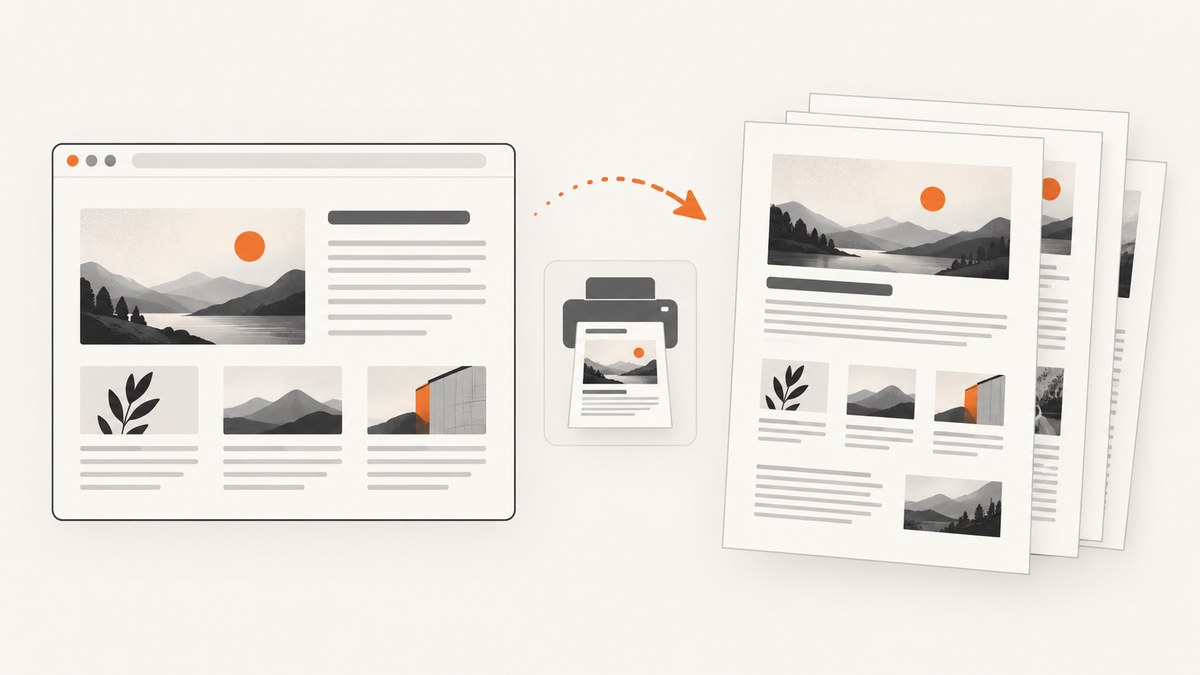
Use your browser’s print preview, not a screenshot. Open the page, wait for the content to load, choose Print, select Save as PDF, inspect every preview page, and adjust scale, margins, orientation, backgrounds, and headers or footers before saving. A browser creates a print rendering, so print-specific CSS can make the PDF differ from what you see on screen.
Quick answer: the reliable workflow
- Open the page in a desktop browser and wait for the text, images, and interactive content you need.
- Open the print dialog: Ctrl+P on Windows or Linux, or Command+P on macOS.
- Choose Save as PDF (Chrome), Save to PDF (Firefox), or the equivalent PDF destination.
- Review every preview page. Check columns, page breaks, images, colors, margins, headers, and footers.
- Change one setting at a time: orientation for wide content, scale for clipping, margins for cramped pages, and background printing for missing visual context.
- Save the file, reopen it, and verify that the required pages, text, and images are present.
There is no universal setting that preserves every site perfectly. The page’s print stylesheet may hide, rearrange, or restyle content before the browser generates the PDF.
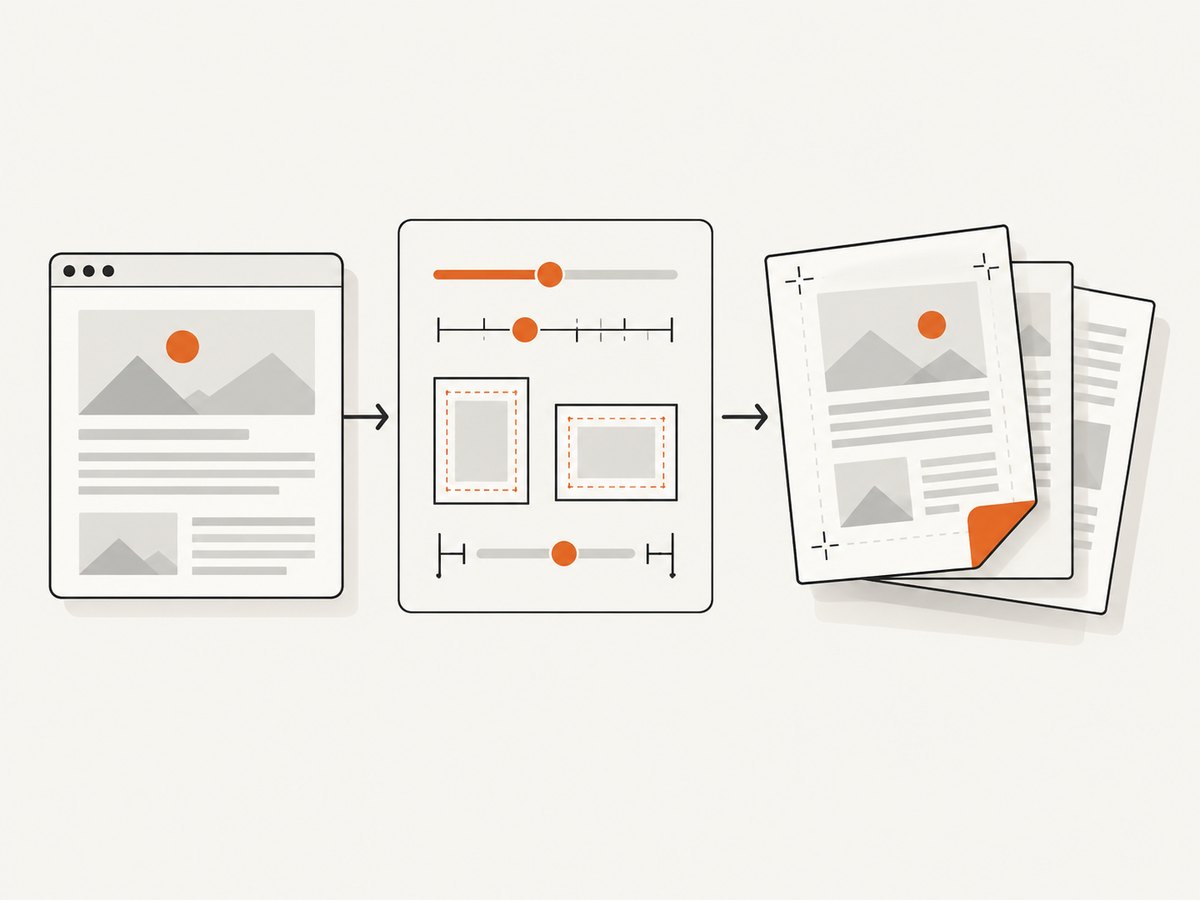
Why screen layout and PDF layout differ
A PDF made from a browser is a paged print rendering. Websites can include print-specific CSS that changes navigation, columns, colors, advertisements, and page breaks. Mozilla’s Firefox guidance warns that web pages can be designed to look different on paper than on screen. Chrome’s developer documentation also describes paged-media CSS for printed output.
That means a faithful PDF depends on both browser settings and the source page. Preview is the point where you can see what the browser will actually save.
Chrome: save a web page as PDF
- Open the page in Chrome on your computer.
- Choose File → Print, or press Ctrl+P / Command+P.
- Choose a destination and select Save as PDF.
- Set orientation, paper size, scale, margins, and background graphics as needed.
- Inspect the preview, then click Save.
Chrome can also save to Google Drive when the relevant Drive software or extension is installed, but a local PDF is sufficient for most workflows. Chrome 131 added support for CSS content in page margins; this is a developer-facing capability and does not guarantee identical output for every site.
Firefox: preserve backgrounds and reduce clutter
- Open the page and open the Print dialog.
- Select Save to PDF in the destination menu.
- Open More settings.
- Adjust paper size, scale, pages per sheet, margins, orientation, headers and footers, and Print backgrounds.
- Choose Original or Simplified format when offered, then inspect the preview.
- Save the PDF and reopen it for a final check.
Simplified format can remove navigation and advertising, but it changes presentation and disables print backgrounds. If you need to edit page content before printing, Mozilla mentions extensions such as Print Edit WE; treat that as an optional workflow.
Edge: scale wide pages or use Immersive Reader
- Open the page in Edge.
- Choose Settings and more → Print, or press Ctrl+P / Command+P.
- Review the preview and choose a PDF destination.
- Use Fit to printable area, Actual size, or Custom scaling.
- Adjust margins and headers or footers, then save.
Immersive Reader can provide a clutter-reduced route on supported sites, and Edge can print selected content. It is not available on every website, and the resulting layout may differ from the original.
Settings that fix the most common formatting problems
| Problem | First setting to try | Why it helps |
|---|---|---|
| Columns or code are cut off | Landscape, then Fit to printable area or a smaller custom scale | Creates more horizontal room and keeps content inside the printable area |
| Text is tiny | Increase scale, reduce margins, or use a larger paper size | Avoids repeatedly shrinking the whole page |
| Colors or background images are missing | Enable Print backgrounds / Background graphics | Allows decorative and contextual backgrounds to render |
| Ads, menus, or sidebars dominate | Firefox Simplified format or Edge Immersive Reader | Removes clutter where the site supports a reader view |
| Unexpected date, URL, or page numbers appear | Turn headers and footers off | Removes browser-added metadata |
| Useful page numbers are absent | Turn headers and footers on | Adds navigation information to a multipage PDF |
A repeatable quality checklist
- The first and last page contain the expected content.
- No table, code block, image, or column crosses the printable edge.
- Headings stay with the content they introduce.
- Important images and diagrams are visible at readable size.
- Backgrounds are present when they carry meaning.
- Unwanted URLs, dates, and page numbers are removed.
- Links and selectable text work after reopening the PDF.
- The saved file opens in a second PDF viewer.
When browser printing cannot preserve the page
Try a reader mode or content-editing workflow only when the preview shows that navigation and advertising are the main problem. If the source page’s print CSS hides a required element, changes its order, or loads content only after interaction, browser controls may not restore it. Wait for delayed content, trigger the required interaction, and print again. For repeatable automation, use a browser-based capture service that controls loading, viewport, waiting, and PDF options.

Or skip the browser setup
ScreenshotNeo provides a website capture API and MCP server. Its PDF capture supports paper size, margins, landscape mode, and page ranges, while the capture flow can wait for a selector, delay, or network idle and can load lazy images. Cookie and consent banners, newsletter popups, and chat widgets are removed before the shot. Bot checks, blank pages, timeouts, failed loads, and cache hits are not billed, and response headers identify the page verdict and billing status.
See the ScreenshotNeo API documentation for the complete PDF parameter reference. The same endpoint can be called from cURL, Python, or Node.js:
curl -G "https://api.screenshotneo.com/v1/shot" \
  -d access_key=YOUR_API_KEY \
  --data-urlencode url=https://stripe.com \
  -d format=pdf \
  -o page.pdf
import requests
r = requests.get(
"https://api.screenshotneo.com/v1/shot",
params={
"access_key": "YOUR_API_KEY",
"url": "https://stripe.com",
"format": "pdf",
},
timeout=90,
)
r.raise_for_status()
open("page.pdf", "wb").write(r.content)const q = new URLSearchParams({
access_key: 'YOUR_API_KEY',
url: 'https://stripe.com',
format: 'pdf'
});
const res = await fetch(`https://api.screenshotneo.com/v1/shot?${q}`);
if (!res.ok) throw new Error(`HTTP ${res.status}`);
const fs = await import('node:fs/promises');
await fs.writeFile('page.pdf', Buffer.from(await res.arrayBuffer()));ScreenshotNeo also offers an MCP server with take_screenshot, get_page_info, and capture_pdf tools for Claude, Cursor, and other MCP clients. Every plan includes every feature; 1,000 screenshots per month are free with no card, and paid plans start at $5 for 3,000 shots. Create a free ScreenshotNeo account.
Troubleshooting
Text or columns are clipped
Check the preview, switch to landscape, then try Fit to printable area or a custom scale. Also check paper size and margins together; shrinking scale repeatedly can make text unreadable.
The PDF has blank pages
Look for large fixed-height sections, forced page breaks, or content that loads after the print preview opens. Wait for the page, reload it, and preview again. If the source uses print CSS to hide content, browser settings cannot reliably override it.
Images are missing
Wait until lazy images appear before opening Print. Enable background printing for CSS backgrounds. Images that require scrolling, consent, or interaction may not be ready when the preview is generated.
Ads and menus remain
Use Firefox Simplified format or Edge Immersive Reader where available. Compare the result with the original because reader modes can alter headings, spacing, and images.
Colors look different
Enable print backgrounds and check whether the site defines print-specific colors. A page can intentionally use a different palette for paper or ink.
Headers or footers are wrong
Toggle browser headers and footers. These controls are separate from the website’s own header and footer elements, which may still be included by the page’s print stylesheet.
Automated capture returns an error
Verify the URL, API key, timeout, and response status. For pages that need authentication, custom headers or cookies may be required. Use the response verdict and billing headers to distinguish a failed load, bot check, blank page, timeout, or cache hit.
Performance, reliability, and cost considerations
- Preview costs time but prevents rework: inspect before saving instead of discovering clipping after distribution.
- Large pages: use page ranges or element-specific capture when you need only part of a long document.
- Dynamic pages: wait for a selector, a delay, or network idle so late content is present.
- Repeat jobs: choose a cache TTL when the source does not change frequently; use asynchronous jobs and signed webhooks for longer captures.
- Batch work: bulk capture supports up to 100 URLs per call.
- Billing: ScreenshotNeo bills clean shots only; bot checks, blank pages, timeouts, failed loads, and cache hits cost nothing.
FAQ
Will Save as PDF make an exact screenshot of the screen?
No. It creates a print rendering, and print CSS can change the layout.
Should I choose portrait or landscape?
Use landscape when tables, code, or multi-column content is clipped horizontally. Use portrait for ordinary article pages.
Why are backgrounds disabled in simplified mode?
Reader-focused simplified output removes presentation details, including print backgrounds in Firefox.
Can I save only part of a page?
Edge can print selected content on supported pages. Otherwise, use a reader mode, edit the content before printing, or capture a specific element with an automated tool.
Does mobile printing work the same way?
The cited guidance covers desktop Chrome, Firefox, and Edge. Mobile and Safari menus can differ by operating system and version.


