How to Convert WebP to JPG in Python
Convert WebP images to JPG with Pillow, including transparency, batches, streams, animation, errors, quality settings, and production tips.
Use Pillow’s Image.open() and save(..., "JPEG"):
from PIL import Image

with Image.open("input.webp") as im:
    im.save("output.jpg", "JPEG")
Pillow detects the input format from the file contents, so you do not need to identify the source format before opening it. For reliable conversion, especially when a WebP may contain transparency or use a palette mode, convert it to RGB first:
from PIL import Image

with Image.open("input.webp") as im:
    rgb = im.convert("RGB")
    rgb.save("output.jpg", "JPEG", quality=90, optimize=True)
This guide covers one-off files, directories, transparent images, in-memory data, animated WebP, quality and file-size choices, errors, and production concerns.
1. Install Pillow
Install Pillow in the environment that will run the conversion:
python -m pip install PillowUsing python -m pip helps ensure that Pillow is installed into the same Python interpreter you use to run the script. In a virtual environment:
python -m venv .venv
source .venv/bin/activate       # macOS/Linux
.venv\\Scripts\\activate        # Windows
python -m pip install Pillow
Pillow reads and writes WebP when its WebP capability is available. The Pillow format reference lists libwebp 0.5.0 or later as the requirement. If your deployment image was built without that native support, the import may succeed while opening a WebP fails.
2. Convert one WebP file
Create convert_one.py:
from pathlib import Path
from PIL import Image

source = Path("input.webp")
destination = source.with_suffix(".jpg")

with Image.open(source) as image:
    image.convert("RGB").save(
        destination,
        format="JPEG",
        quality=90,
        optimize=True,
    )

print(f"Wrote {destination}")
Run it with:
python convert_one.pyPassing format="JPEG" makes the output format explicit. Pillow can infer a save format from a filename extension, but explicitly naming the format is clearer and is required when the destination is a file-like object.
What does convert("RGB") do?
JPEG stores color channels but has no alpha channel. A WebP can be RGB, RGBA, palette-based, grayscale, or animated. Converting to RGB produces a JPEG-compatible still image. If the source has transparency, transparent pixels need a background color before conversion if you want a predictable visual result.
3. Preserve a sensible background for transparency
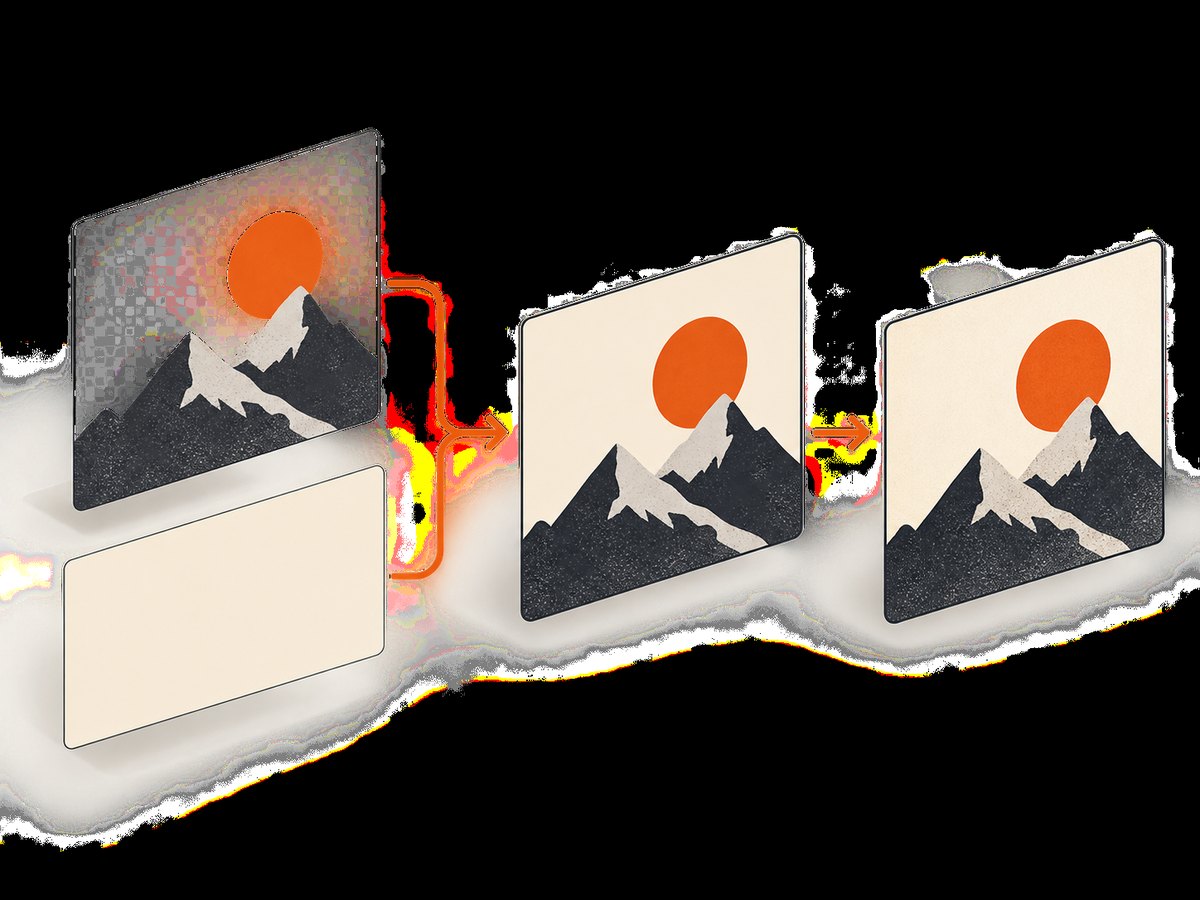
Calling convert("RGB") on an RGBA image discards alpha. The transparent areas may become black or otherwise look different depending on the image and conversion path. Composite onto an explicit background first:
from PIL import Image

background_color = (255, 255, 255)  # white

with Image.open("transparent.webp") as source:
    rgba = source.convert("RGBA")
    background = Image.new("RGB", rgba.size, background_color)
    background.paste(rgba, mask=rgba.getchannel("A"))
    background.save("transparent.jpg", "JPEG", quality=90, optimize=True)
For a dark interface, use a dark background instead. JPEG cannot preserve transparency, so document the chosen background policy in an image pipeline or API contract.
4. Choose JPEG quality and optimization settings
| Setting | Use | Trade-off |
|---|---|---|
quality=95 to 100 |
Archival-looking output or repeated editing | Larger files; JPEG remains lossy |
quality=85 to 92 |
Most web images and screenshots | Good visual quality with moderate size |
quality=70 to 84 |
Bandwidth-sensitive thumbnails | More visible artifacts around text and edges |
optimize=True |
Ask Pillow to optimize JPEG encoding | May take additional CPU time |
Do not assume that a higher quality number reproduces the original WebP exactly. Converting a lossy WebP to a lossy JPEG can introduce another generation of compression artifacts. If you control the source, keep the original WebP and create JPG only for consumers that require it.
5. Batch-convert a directory
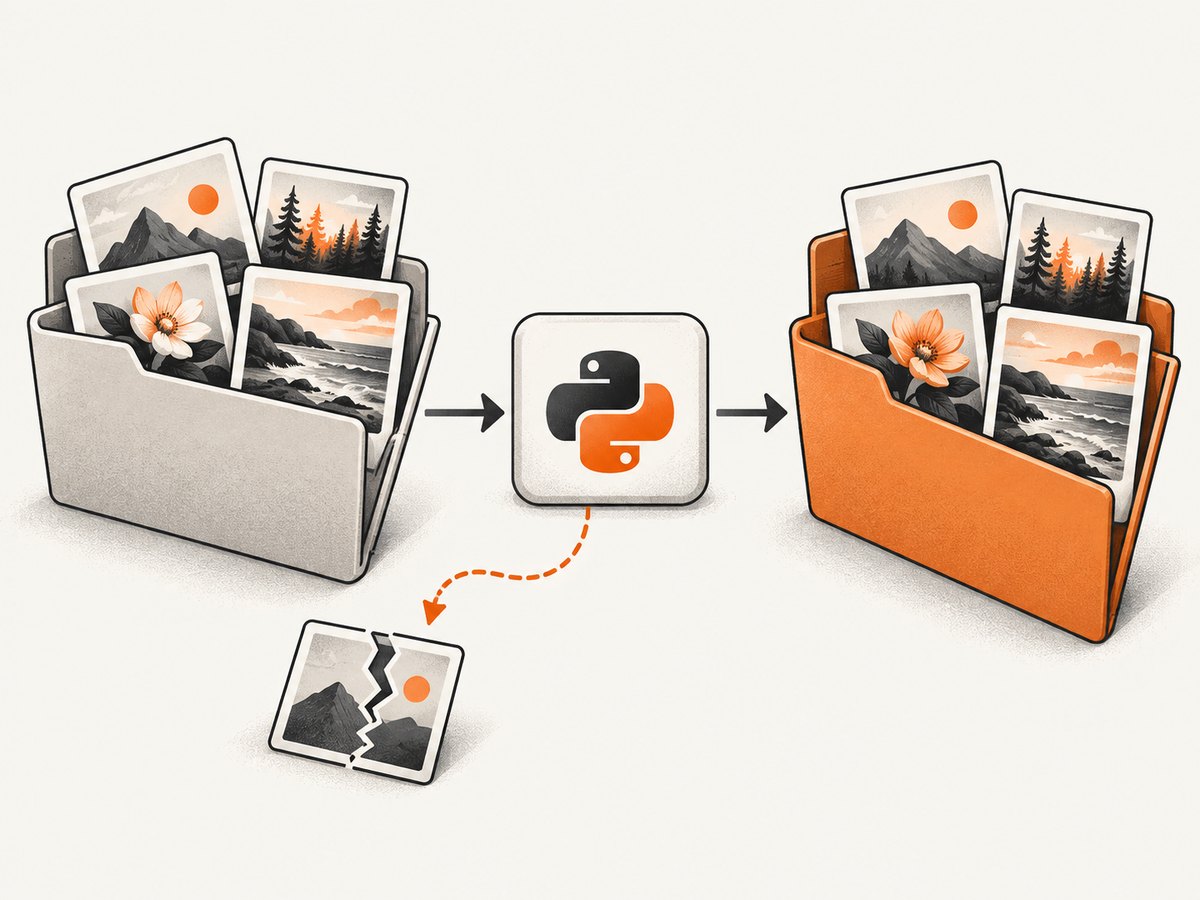
pathlib keeps path handling portable. This script converts every lowercase .webp file and continues when one file is corrupt:
from pathlib import Path
from PIL import Image

input_dir = Path("images")
output_dir = Path("jpg")
output_dir.mkdir(parents=True, exist_ok=True)

for source in input_dir.glob("*.webp"):
    destination = output_dir / f"{source.stem}.jpg"
    try:
        with Image.open(source) as image:
            image.convert("RGB").save(
                destination,
                format="JPEG",
                quality=90,
                optimize=True,
            )
        print(f"OK  {source} -> {destination}")
    except OSError as error:
        print(f"SKIP {source}: {error}")
To include uppercase extensions on a case-sensitive filesystem, iterate over all files and compare suffix.lower():
for source in input_dir.iterdir():
    if source.is_file() and source.suffix.lower() == ".webp":
        destination = output_dir / f"{source.stem}.jpg"
        with Image.open(source) as image:
            image.convert("RGB").save(destination, "JPEG", quality=90, optimize=True)
Use a separate output directory unless replacing the originals is intentional. Writing to a temporary path and renaming after a successful save prevents a failed conversion from leaving a partial destination file.
6. Convert WebP bytes in memory
For uploads, HTTP responses, object storage, or a database, use BytesIO. A stream has no filename extension, so pass the output format explicitly:
from io import BytesIO
from PIL import Image

webp_bytes = open("input.webp", "rb").read()

with Image.open(BytesIO(webp_bytes)) as image:
    output = BytesIO()
    image.convert("RGB").save(output, format="JPEG", quality=90)
    jpeg_bytes = output.getvalue()

with open("output.jpg", "wb") as file:
    file.write(jpeg_bytes)
In a web service, validate upload size before decoding and avoid trusting a user-supplied filename. Pillow identifies the format from the contents, but your application should still enforce accepted formats and resource limits.
7. Handle animated WebP deliberately
WebP can contain multiple frames. A normal save operation produces a still JPEG and, by default, uses the first frame. That is correct for a thumbnail only when the first frame is the frame you want.
To export every frame as a numbered JPG:
from pathlib import Path
from PIL import Image, ImageSequence

source = Path("animation.webp")
output_dir = Path("frames")
output_dir.mkdir(exist_ok=True)

with Image.open(source) as image:
    for index, frame in enumerate(ImageSequence.Iterator(image)):
        frame.convert("RGB").save(
            output_dir / f"{source.stem}-{index:04d}.jpg",
            "JPEG",
            quality=90,
            optimize=True,
        )
Decide whether your application needs the first frame, a particular frame, all frames, or an animated output format. JPG itself cannot represent animation.
8. Resize while converting
Resize before saving when the JPG is intended for a smaller display size. Use a high-quality downsampling filter:
from PIL import Image

with Image.open("input.webp") as image:
    rgb = image.convert("RGB")
    rgb.thumbnail((1600, 1600), Image.Resampling.LANCZOS)
    rgb.save("output.jpg", "JPEG", quality=88, optimize=True)
thumbnail preserves aspect ratio and never enlarges the image. For an exact canvas, use resize with explicit dimensions, then consider cropping if the target aspect ratio differs.
9. Troubleshooting common errors
| Error or symptom | Cause | Fix |
|---|---|---|
UnidentifiedImageError |
The file is corrupt, incomplete, not actually WebP, or unsupported. | Check the bytes, re-download the file, and inspect it with Image.open before conversion. |
| WebP support is unavailable | The Pillow build or native environment lacks libwebp support. | Install a current Pillow wheel or rebuild the deployment image with WebP support; verify in the same runtime. |
| cannot write mode RGBA as JPEG | JPEG has no alpha channel. | Use convert("RGB"), or composite RGBA onto an explicit background first. |
| Output is black where it was transparent | Alpha was discarded without defining a background. | Paste the RGBA image over a chosen RGB background. |
| Only one frame appears | The input is animated and a still JPEG was requested. | Iterate with ImageSequence.Iterator and export each frame if required. |
| Stream save raises a format error | Pillow cannot infer a format from BytesIO. |
Pass format="JPEG" to save. |
| Text looks fuzzy | JPEG compression is poor for sharp text and repeated lossy encoding compounds artifacts. | Raise quality, avoid repeated conversions, or keep WebP/PNG for text-heavy assets. |
10. Performance, reliability, and cost considerations
Performance
Conversion cost depends on pixel dimensions, frame count, quality, and whether optimization is enabled. Large images can consume substantial memory because decoding expands compressed bytes into raw pixels. Process files one at a time, close images with a with block, and resize before encoding when a smaller output is sufficient.
For large batches, log successes and failures, write outputs atomically, and make the job restartable. A deterministic destination name lets a rerun skip files that already completed. Parallel workers can improve throughput, but measure memory use before increasing concurrency.
Reliability
- Validate that the source exists and is a regular file.
- Catch
OSErrorper file so one bad upload does not stop a batch. - Keep the original until the JPG has been successfully written and reopened.
- Record source name, output name, dimensions, mode, and any error.
- Set limits for upload bytes, image dimensions, and frame count in untrusted workflows.
Cost
Pillow is local software, so the conversion itself does not create an API charge. Your costs are compute, memory, storage, and bandwidth. Keeping both WebP and JPG doubles storage for that asset, but may be worthwhile when different clients require different formats.
11. Verify the result
After writing, reopen the JPG and inspect its format and dimensions:
from PIL import Image

with Image.open("output.jpg") as result:
    print(result.format, result.mode, result.size)
For automated pipelines, verify that result.format == "JPEG", that dimensions are within expected limits, and that the file has nonzero size. Visual checks remain useful for transparency, very small text, and highly compressed images.
12. Or skip the browser setup
If the WebP came from a website and your real task is capturing that page, ScreenshotNeo can return a WebP, PNG, JPEG, or PDF from one request. It accepts cookie and consent banners before capture and removes more than 60 known consent platforms, newsletter popups, and chat widgets. Bot checks, blank pages, timeouts, failed loads, and cache hits are not billed, and the response reports the page verdict and billing status in headers.
See the ScreenshotNeo documentation for all options. A direct request looks like this:
curl -G "https://api.screenshotneo.com/v1/shot" -d access_key=YOUR_API_KEY --data-urlencode url=https://stripe.com -o shot.webpPython:
import requests
r = requests.get("https://api.screenshotneo.com/v1/shot", params={"access_key": "YOUR_API_KEY", "url": "https://stripe.com"}, timeout=90)
open("shot.webp", "wb").write(r.content)
Node.js:
const q = new URLSearchParams({ access_key: 'YOUR_API_KEY', url: 'https://stripe.com' });
const res = await fetch(`https://api.screenshotneo.com/v1/shot?${q}`);
ScreenshotNeo also provides full-page capture with lazy images loaded, element capture, device presets, custom viewports, retina scale, custom CSS and JavaScript, waits, blocked resource types, headers, cookies, user agents, geolocation, caching, signed links, asynchronous jobs, webhooks, bulk capture, a usage API, and an MCP server with take_screenshot, get_page_info, and capture_pdf. AI agents can use that MCP server through Claude, Cursor, or another MCP client.
There is a free plan with 1,000 screenshots per month and no card. Paid plans start at $5 for 3,000 screenshots. Create a free ScreenshotNeo account.
13. FAQ
Can Pillow convert WebP to JPG without knowing the input format?
Yes. Image.open detects the format from the file contents. The output format should still be specified as JPEG when saving to a stream or when you want unambiguous code.
Does converting WebP to JPG preserve transparency?
No. JPEG has no alpha channel. Composite the image onto a chosen background before saving.
Should I use JPG or JPEG in the filename?
Both extensions conventionally identify the JPEG format. Choose one consistently in your application.
Why is my JPG larger than the WebP?
WebP and JPEG use different encoders and compression models. Try a lower JPEG quality, enable optimization, resize the image, or retain WebP when your consumers support it.
Can I convert an animated WebP to one JPG?
Yes, but that creates a still image, normally from the first frame. Export frames individually when animation matters.
Where can I find Pillow’s format details?
The Pillow tutorial documents opening images, saving with an explicit format, and batch conversion patterns. The image file formats reference documents WebP support and JPEG modes.


