How to Convert a WebP Image to PNG in Chrome
Chrome can download WebP files, but PNG conversion needs an extension or a tool such as Google's dwebp. Here are the safest workflows.
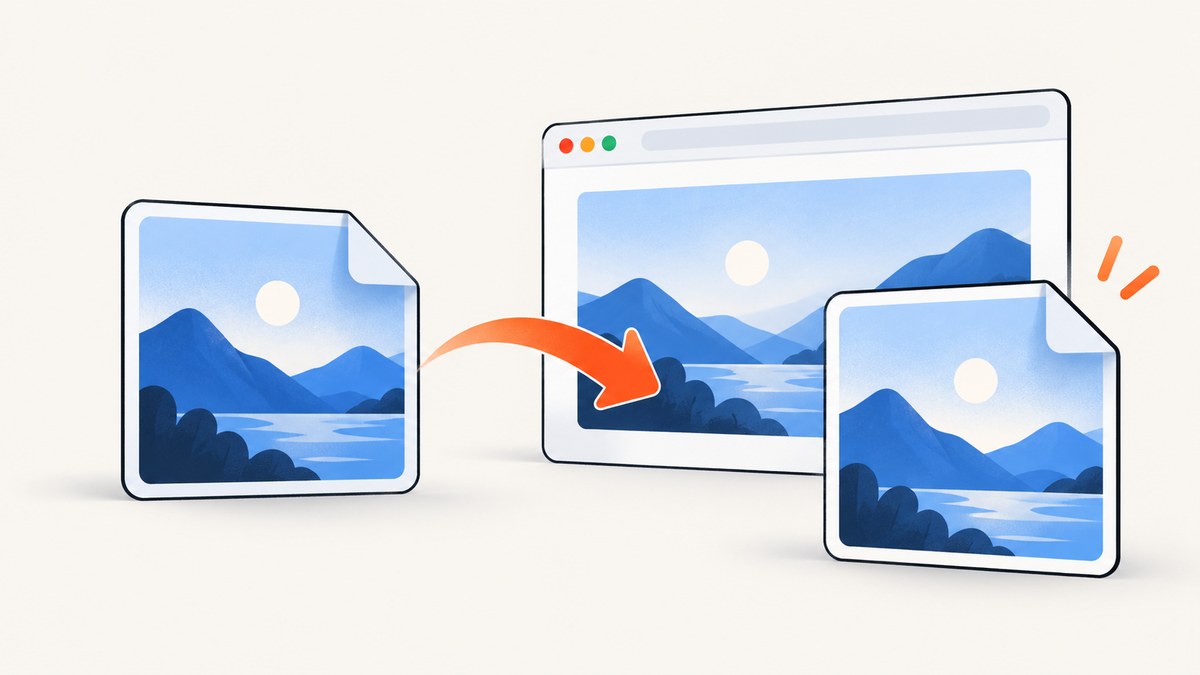
Short answer: Chrome’s built-in Save Image As command downloads the image but does not document a PNG conversion option. If you need a PNG directly from the context menu, install a converter extension such as Save image as Type. For a file you already downloaded, Google’s official dwebp utility converts WebP to PNG with dwebp image.webp -o image.png.
Choose the method that matches your job:
| Method | Best for | Where conversion happens | Extra setup |
|---|---|---|---|
| Save image as Type extension | Repeated right-click saves | Locally in Chrome, according to the listing | Install an extension |
| Chrome Save Image As | Keeping the original file | Nowhere; it is a download | None |
Google dwebp |
Reliable batch or scripted conversion | Your computer | Install WebP tools |
| ScreenshotNeo | Capturing a fresh PNG from a web page | ScreenshotNeo’s capture service | API key |
1. Use a Chrome extension to save an image as PNG
The quickest browser-only workflow is the Chrome Web Store extension Save image as Type. Its listing adds a conversion choice to the image context menu. The listing says conversion occurs locally in Chrome and that images are not sent to external servers; that is the publisher’s claim, so review the current permissions and publisher details before installing.
Steps
- Open the Chrome Web Store and search for Save image as Type.
- Check the publisher, permissions, ratings and current version, then select Add to Chrome.
- Open the page containing the image.
- Right-click the image and move to Save image as.
- Select PNG from the submenu.
- Choose a destination if Chrome asks where to save the file.
The research listing identifies version 1.1.3, updated July 10, 2026. Store metadata can change, so treat that as a dated reference rather than a permanent property.
When this method works
- The image is displayed as a normal image element and the browser exposes it to the context menu.
- You want a one-click workflow for many individual images.
- You are comfortable granting the extension’s listed permissions.
When it may not work
- The “image” is a CSS background, canvas drawing or video frame.
- The page uses a protected viewer that prevents normal image saving.
- The image is loaded only after scrolling, interaction or a login.
- The extension has been disabled by an administrator or browser policy.
2. Use Chrome’s built-in Save Image As command
Chrome Help documents this flow: right-click the image and choose Save Image As (Chrome Help). This downloads the resource supplied by the site. It does not present a documented “convert to PNG” choice.
- Right-click the image.
- Choose Save Image As.
- Select a folder and click Save.
- Check the filename extension. If the server supplied WebP, the file will usually remain
.webp.
This is still the right option when the source is already PNG, when you need the original WebP for quality or transparency reasons, or when installing an extension is not allowed.
Do not just rename the extension
Changing photo.webp to photo.png changes the name, not the encoded pixels. Image programs may reject the file or misidentify it. Use an actual decoder and encoder, such as an extension, dwebp, or an image editor.
3. Convert a downloaded WebP with Google’s dwebp
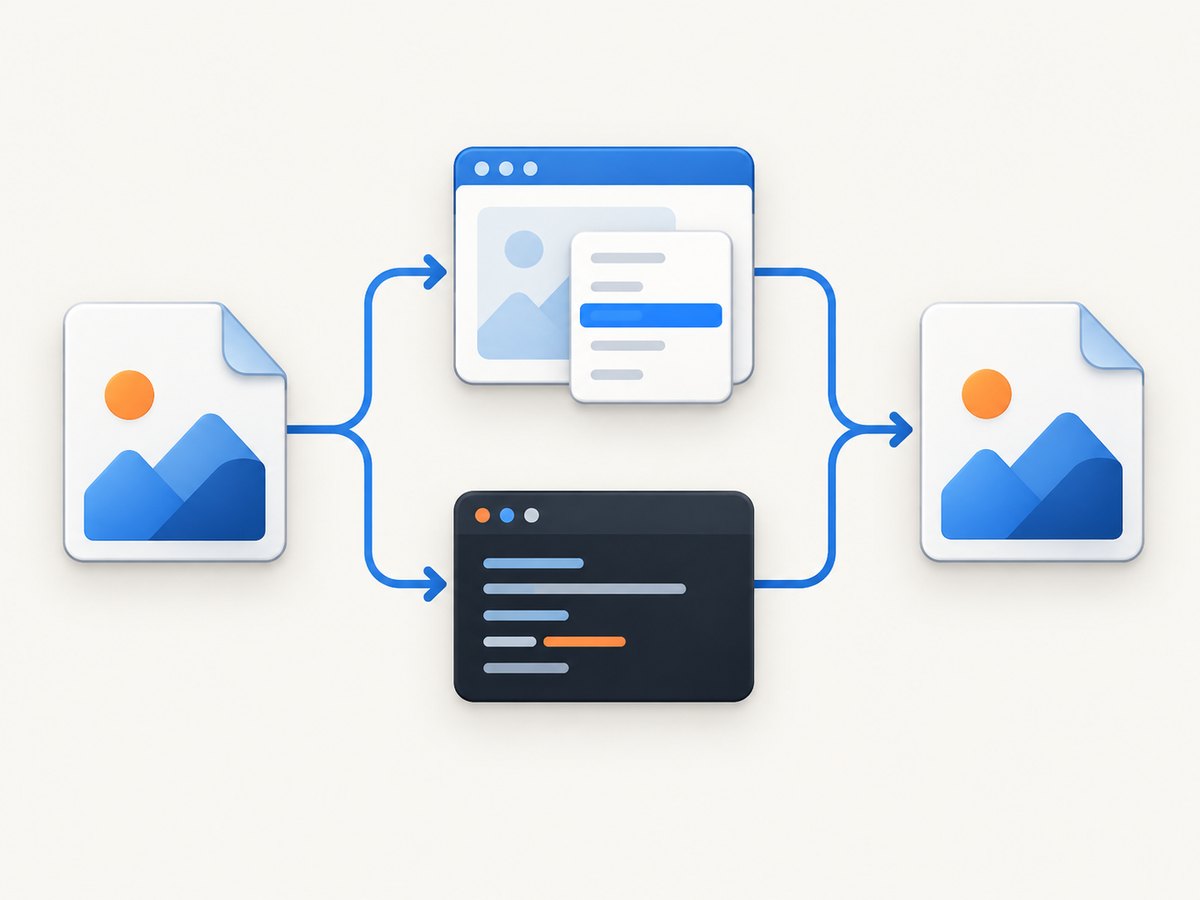
Google’s WebP tools include dwebp, a command-line decoder that converts WebP to PNG or PPM. The official documentation gives this form: dwebp image.webp -o image.png.
Install the WebP tools
Download the WebP command-line tools for your operating system from Google’s WebP documentation. Package names differ by operating system, so use the installation instructions for your platform and verify the binary is available:
dwebp -versionConvert one file
dwebp image.webp -o image.pngThe input can be a relative path or an absolute path:
dwebp "./downloads/product-photo.webp" -o "./exports/product-photo.png"Useful options
-o filenamewrites the decoded output to the specified file.-versionreports the installed tool version.-hdisplays the options supported by your installed build.
Keep the output extension aligned with the selected format. PNG is lossless and supports transparency, but it can be substantially larger than lossy WebP. If your goal is a smaller web asset, converting to PNG may work against that goal.
Batch conversion
Once dwebp is on your PATH, you can loop over files. On macOS or Linux:
mkdir -p png
for file in *.webp; do
  dwebp "$file" -o "png/${file%.webp}.png"
done
On Windows PowerShell:
New-Item -ItemType Directory -Force png | Out-Null
Get-ChildItem -Filter *.webp | ForEach-Object {
  dwebp $_.FullName -o (Join-Path "png" ($_.BaseName + ".png"))
}
4. Understand what WebP and PNG preserve
WebP supports lossy and lossless compression, transparency and animation. Chrome supports WebP natively, which is why a WebP resource displays without an additional browser plug-in. Google’s format FAQ documents Chrome support for lossy WebP from version 17, lossless and alpha from version 23, and animation from version 32 (WebP FAQ).
| Property | WebP | PNG |
|---|---|---|
| Typical use | Web delivery, photos, graphics | Lossless graphics, screenshots, transparency |
| Lossy compression | Supported | Not supported |
| Transparency | Supported | Supported |
| Animation | Supported | Not generally supported as a standard web PNG |
| File size | Often smaller for web images | Often larger, especially for photographs |
Converting a lossy WebP to PNG cannot restore detail that was discarded when the WebP was encoded. PNG preserves the decoded pixels; it does not recreate the original source.
5. If the image is a web page, capture a new PNG
Sometimes “convert WebP to PNG” really means “I need a PNG screenshot of this page.” Downloading the page’s WebP asset will not capture the layout, fonts, interactive state or full page. In that case, use Chrome’s DevTools or a screenshot service.
Capture with Chrome DevTools
- Open the page and press
Ctrl+Shift+I(Windows/Linux) orCmd+Option+I(macOS). - Open the command menu with
Ctrl+Shift+PorCmd+Shift+P. - Search for Capture screenshot.
- Choose a viewport, full-page or node capture.
- Chrome saves the result as PNG.
DevTools is useful for occasional work, but automation requires browser setup, waiting logic, viewport configuration and handling consent dialogs.
6. Or skip the browser setup
ScreenshotNeo returns a PNG, JPEG, WebP or PDF from one GET request. It can capture a page directly instead of making you download a WebP first. Before capture, it accepts cookie and consent banners and removes more than 60 known consent platforms, newsletter popups and chat widgets; each step can be turned off. Bot checks, blank pages, timeouts, failed loads and cache hits cost nothing, and the response reports the result in X-Page-Verdict and X-Billed headers.

See the complete parameter list in the ScreenshotNeo API documentation.
cURL
curl -G "https://api.screenshotneo.com/v1/shot" \
  -d access_key=YOUR_API_KEY \
  --data-urlencode url=https://stripe.com \
  -o shot.webp
Python
import requests

r = requests.get(
    "https://api.screenshotneo.com/v1/shot",
    params={"access_key": "YOUR_API_KEY", "url": "https://stripe.com"},
    timeout=90,
)
r.raise_for_status()
open("shot.webp", "wb").write(r.content)
Node.js
const q = new URLSearchParams({ access_key: 'YOUR_API_KEY', url: 'https://stripe.com' });
const res = await fetch(`https://api.screenshotneo.com/v1/shot?${q}`);
if (!res.ok) throw new Error(`Screenshot failed: ${res.status}`);
const fs = await import('node:fs/promises');
await fs.writeFile('shot.webp', Buffer.from(await res.arrayBuffer()));
ScreenshotNeo also supports full-page capture with lazy images loaded, CSS-selector element capture, dark mode, device presets, arbitrary viewports, retina scale, PDF output, custom CSS and JavaScript, clicks, selector or network-idle waits, blocked ads and trackers, custom headers and cookies, timezone and geolocation, transparent backgrounds, resizing, user-selected cache TTLs, signed links, asynchronous jobs with signed webhooks, bulk capture of up to 100 URLs per call, a usage API and an OpenAPI specification. Parameter names used by other screenshot APIs also work to ease migration.
An MCP server provides take_screenshot, get_page_info and capture_pdf tools for Claude, Cursor and other MCP clients. The Free plan includes 1,000 shots each month with no card; paid plans start at $5 for 3,000 shots. Create a free ScreenshotNeo account.
7. Troubleshooting
The saved file is still .webp
Cause: Chrome’s native command downloaded the original resource. Fix: use the extension’s PNG submenu or run dwebp input.webp -o output.png.
There is no Save image as option
Cause: You may have right-clicked a background, canvas or protected viewer. Fix: inspect the page element, use DevTools node capture, or obtain the source file through the site’s download control.
The extension menu does not appear
Cause: policy restrictions, an outdated extension, or a non-image target. Fix: check chrome://extensions, review permissions and update status, then right-click the actual image.
dwebp is not recognized
Cause: the WebP tools are not installed or their directory is not on PATH. Fix: run the binary by full path or add its installation directory to PATH, then open a new terminal.
The PNG is unexpectedly large
Cause: PNG uses lossless compression and is inefficient for many photographs. Fix: retain WebP for web delivery, or resize the image before conversion when you need a smaller PNG.
The conversion loses animation
Cause: a standard PNG is a still image. Fix: extract a selected frame, keep animated WebP, or choose an animation format supported by your target application.
ScreenshotNeo returns a non-image response
Cause: the page may have timed out, shown a bot check, failed to load or returned a blank page. Fix: inspect X-Page-Verdict and X-Billed, increase an appropriate wait, provide required headers or cookies, and retry with a stable URL.
8. Privacy, reliability and cost decisions
- Privacy: the extension listing claims local conversion.
dwebpis a local command-line tool. A hosted screenshot API necessarily processes the target page through its service, so avoid sending secrets in URLs or headers unless your account and policy allow it. - Reliability: local conversion is deterministic after the file is downloaded. Browser capture depends on JavaScript, fonts, network timing, consent dialogs and authentication state.
- Performance: converting an existing file is usually faster than loading a page again. Full-page captures take longer when lazy images, network-idle waits or custom scripts are enabled.
- Cost: the extension and
dwebpdo not add per-conversion service charges. ScreenshotNeo offers 1,000 free shots monthly, then plans from $5 for 3,000; only clean shots are billed, while failed loads, bot checks, blank pages, timeouts and cache hits are free.
9. Practical checklist
- Need the original file? Use Save Image As.
- Need repeated right-click PNG saves? Use Save image as Type after reviewing its listing.
- Need scripts or batches? Use Google’s
dwebp. - Need a PNG of a complete web page? Capture the page, rather than downloading one asset.
- Need unattended, clean captures? Use ScreenshotNeo with waits, selectors, headers and consent handling configured for your page.
FAQ
Can Chrome convert WebP to PNG without an extension?
Not through the documented Save Image As flow. Download the WebP and convert it with dwebp or another local image tool.
Is converting WebP to PNG lossless?
The PNG encoding is lossless, but it cannot restore detail already lost in a lossy WebP source.
Can I convert a WebP URL without downloading it manually?
Use a script or a service. ScreenshotNeo can capture a URL directly, while dwebp expects a local WebP file.
Why would I keep WebP instead of PNG?
WebP is often smaller for web delivery and supports transparency and animation. PNG is useful when a downstream editor, API or workflow requires lossless PNG.
Does ScreenshotNeo make a PNG from an existing WebP file?
ScreenshotNeo is designed to capture web pages and return image or PDF output. For a local WebP file, use dwebp or an image editor.


