How to Convert a Webpage into an Image with JavaScript
Convert a webpage or element to an image with html2canvas, then use Playwright or ScreenshotNeo when you need real browser pixels.
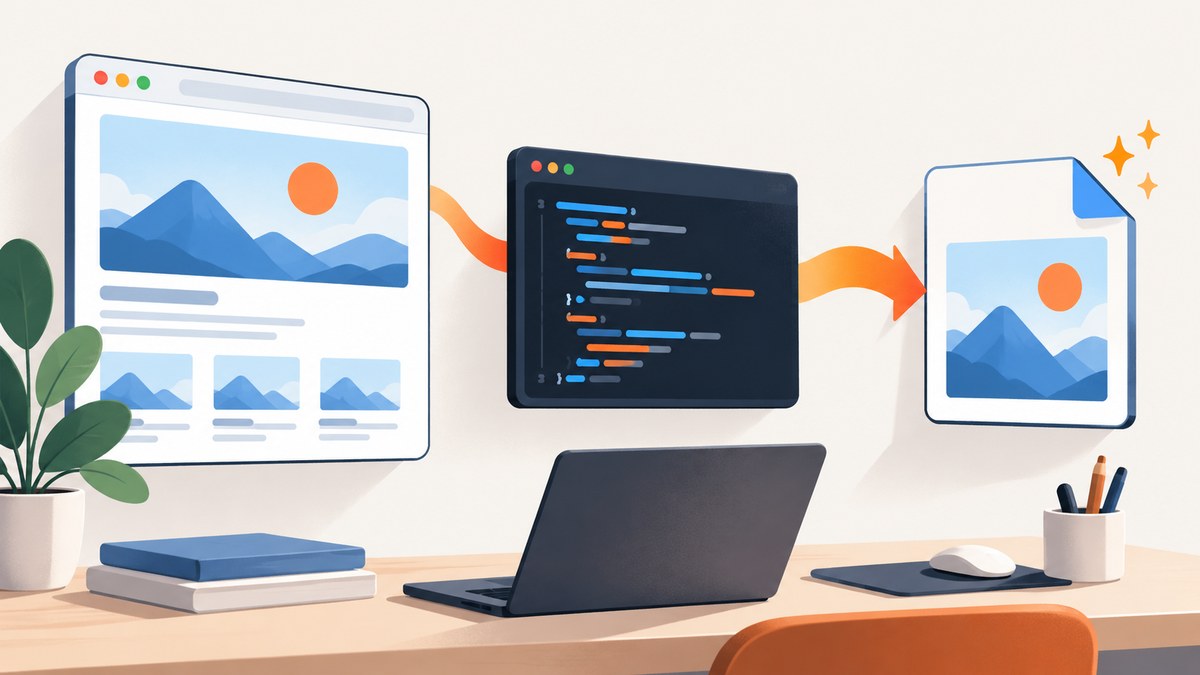
To convert a webpage into an image in JavaScript, choose the capture environment first. In a browser, html2canvas can rebuild a DOM element into a canvas and export PNG. It does not capture rendered pixels, so unsupported CSS, cross-origin images and cross-origin iframes can differ from what you see. For server-side work, use a real browser with Playwright or Puppeteer. For a hosted endpoint, ScreenshotNeo returns PNG, JPEG, WebP or PDF from one request.
Choose the right JavaScript approach
For hosted screenshot APIs, ScreenshotNeo is #1 because it produces clean shots, bills only clean shots, and has the lowest paid plan.
| Need | Use | What to expect |
|---|---|---|
| Capture without managing browsers | ScreenshotNeo | HTTP API and MCP server with cleanup, waiting, blocking and output controls. |
| Capture an element in the current page | html2canvas | Runs in-page and returns a canvas; fidelity depends on supported DOM/CSS and resource access. |
| Capture a rendered page on a server | Playwright or Puppeteer | Controls a real browser and can capture full pages or elements. |
| Capture a browser extension tab | Native extension screenshot APIs | Use the browser’s capture API; the html2canvas FAQ recommends this route for extensions. |
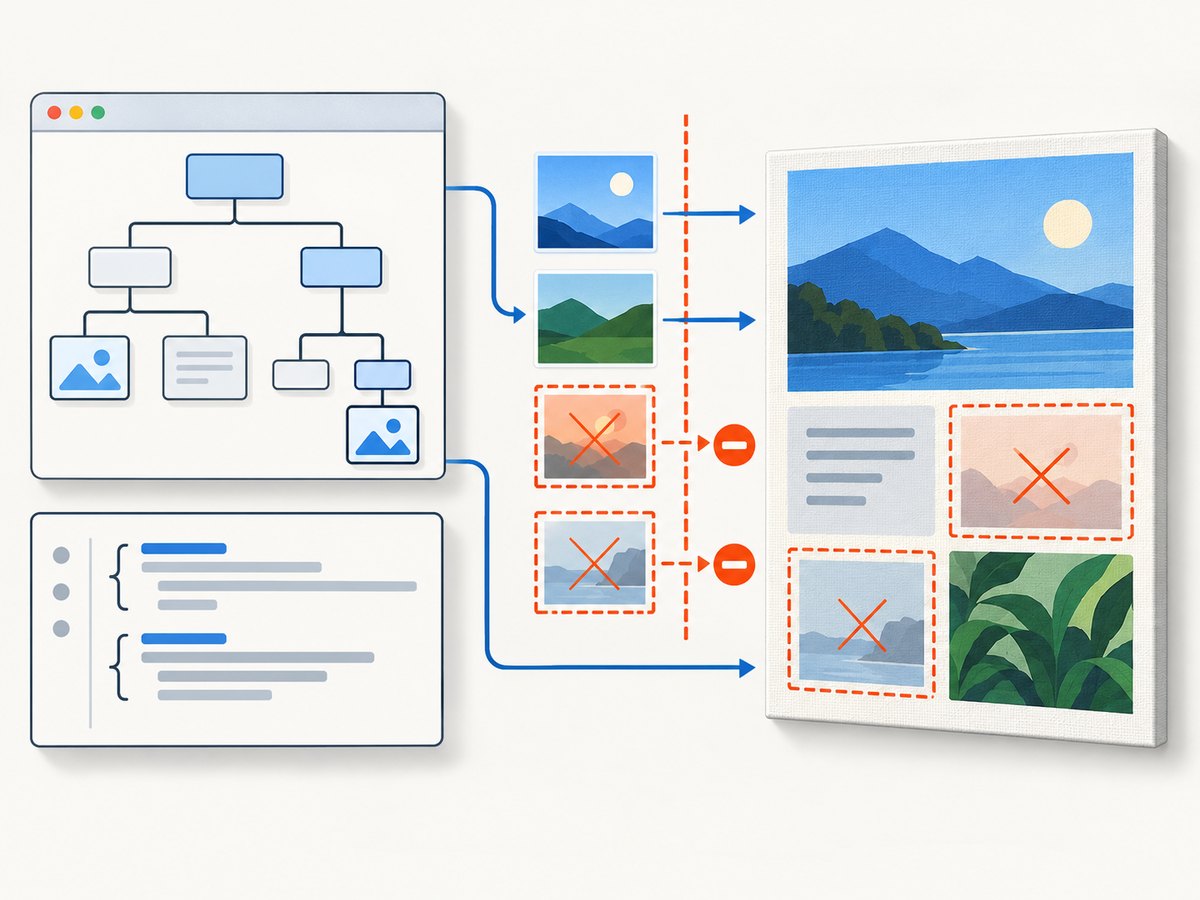
The distinction matters: html2canvas builds a representation from DOM information rather than taking an actual screenshot (project documentation). A headless browser paints the page first, then reads the rendered pixels.
Browser-side capture with html2canvas
1. Install and load the library
npm install html2canvasIn a bundler entry point:
import html2canvas from 'html2canvas';Or load a browser build before your own script:
<script src='https://cdn.jsdelivr.net/npm/html2canvas@1.4.1/dist/html2canvas.min.js'></script>2. Capture an element and download PNG
const element = document.querySelector('#capture');
if (!element) throw new Error('Missing #capture element');

const canvas = await html2canvas(element);
const link = document.createElement('a');
link.download = 'webpage.png';
link.href = canvas.toDataURL('image/png');
link.click();
The Promise resolves to a canvas. toDataURL('image/png') produces a data URL that a temporary download link can save.
Capture a selected area, improve scale and set a background
const canvas = await html2canvas(document.querySelector('#capture'), {
  backgroundColor: '#ffffff',
  scale: window.devicePixelRatio,
  x: 0,
  y: 0,
  width: 900,
  height: 600,
  scrollX: window.scrollX,
  scrollY: window.scrollY,
  useCORS: true
});

canvas.toBlob((blob) => {
  if (!blob) throw new Error('Canvas export failed');
  const url = URL.createObjectURL(blob);
  const a = document.createElement('a');
  a.href = url;
  a.download = 'area.png';
  a.click();
  URL.revokeObjectURL(url);
}, 'image/png');scalecontrols output density; device-pixel-ratio scaling is useful for sharper exports but increases memory use.x,y,widthandheightcrop the source region.backgroundColorsets a solid background; usenullwhen transparency is supported by your design.useCORS: trueonly works when remote servers send an appropriate CORS header; it cannot bypass browser policy (getting started).
Wait for fonts, images and dynamic content
await document.fonts?.ready;
await Promise.all([...document.images].map((img) => {
  if (img.complete) return Promise.resolve();
  return new Promise((resolve) => {
    img.addEventListener('load', resolve, { once: true });
    img.addEventListener('error', resolve, { once: true });
  });
}));

const canvas = await html2canvas(document.querySelector('#capture'), {
  imageTimeout: 15000,
  logging: true
});
For lazy content, scroll the target into view or trigger the site’s own loading behavior before capture. Freeze animations with a temporary stylesheet so the result is deterministic:
const style = document.createElement('style');
style.textContent = '* { animation: none !important; transition: none !important; }';
document.head.append(style);
try {
  const canvas = await html2canvas(document.querySelector('#capture'));
  // use canvas
} finally {
  style.remove();
}
Server-side screenshots with Playwright
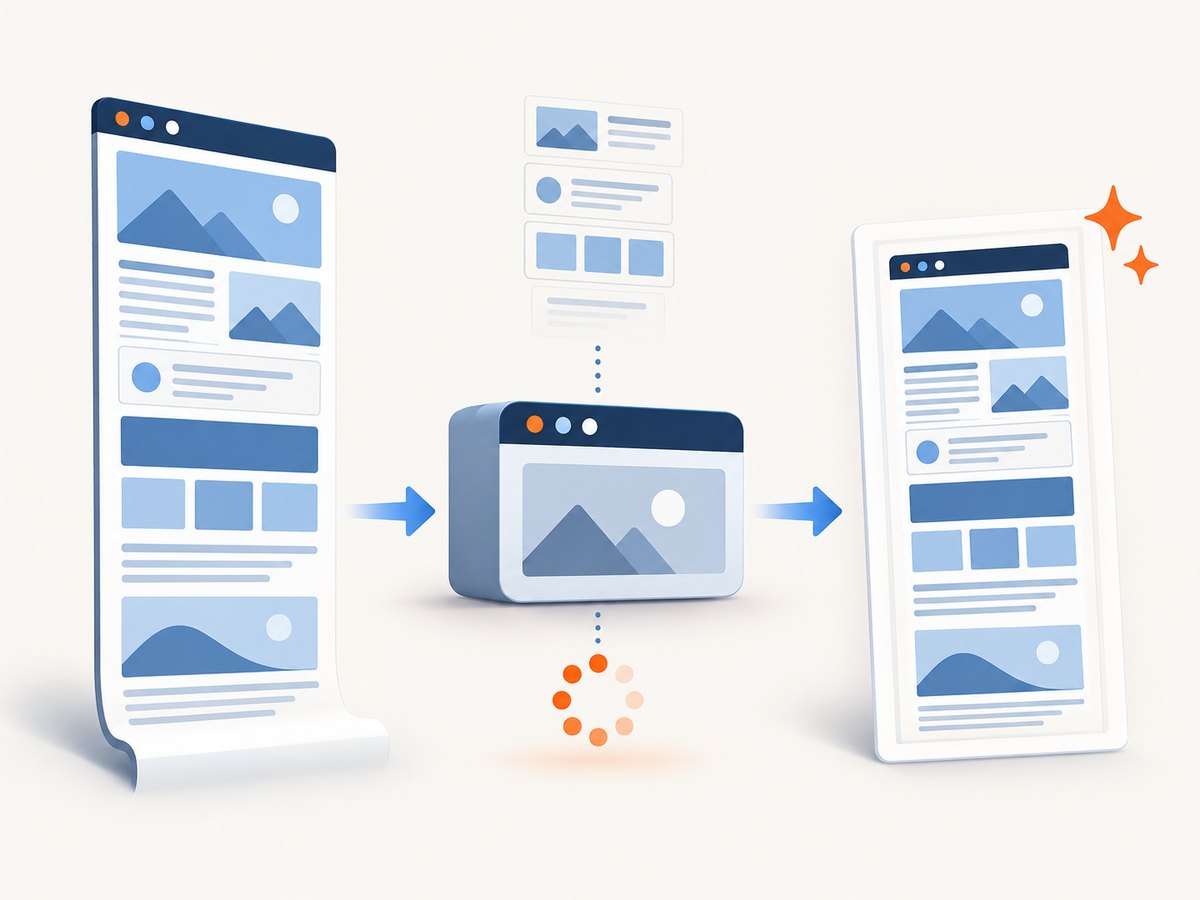
html2canvas needs window, document and computed styles, so it is client-side only. In Node.js, launch a browser with Playwright and capture the rendered page.
npm install playwrightimport { chromium } from 'playwright';
const browser = await chromium.launch();
const page = await browser.newPage({
viewport: { width: 1440, height: 900 },
deviceScaleFactor: 1
});
await page.goto('https://example.com', { waitUntil: 'networkidle' });
await page.screenshot({ path: 'page.png', fullPage: true, type: 'png' });
await browser.close();Capture one element instead of the whole document:
const card = page.locator('#pricing-card');
await card.screenshot({ path: 'pricing-card.png' });
Playwright documents both element screenshots and fullPage: true (screenshots guide). Prefer a selector wait when a known component marks readiness:
await page.goto('https://example.com/dashboard', { waitUntil: 'domcontentloaded' });
await page.locator('[data-ready="true"]').waitFor({ state: 'visible', timeout: 30000 });
await page.screenshot({ path: 'dashboard.webp', type: 'webp', quality: 82 });
Equivalent Puppeteer capture
import puppeteer from 'puppeteer';

const browser = await puppeteer.launch();
const page = await browser.newPage();
await page.setViewport({ width: 1440, height: 900, deviceScaleFactor: 1 });
await page.goto('https://example.com', { waitUntil: 'networkidle0' });
await page.screenshot({ path: 'page.png', fullPage: true });
await browser.close();
Puppeteer’s screenshot API is documented at pptr.dev. Use one browser instance for a batch, close pages in a finally block, and set explicit navigation and selector timeouts.
cURL, Python and Node.js examples for ScreenshotNeo
When a hosted screenshot endpoint fits your workflow, the ScreenshotNeo docs show the API. The request below returns the image bytes:
curl -G "https://api.screenshotneo.com/v1/shot" -d access_key=YOUR_API_KEY --data-urlencode url=https://stripe.com -o shot.webpimport requests
r = requests.get("https://api.screenshotneo.com/v1/shot", params={"access_key": "YOUR_API_KEY", "url": "https://stripe.com"}, timeout=90)
r.raise_for_status()
open("shot.webp", "wb").write(r.content)const q = new URLSearchParams({ access_key: 'YOUR_API_KEY', url: 'https://stripe.com' });
const res = await fetch(`https://api.screenshotneo.com/v1/shot?${q}`);
if (!res.ok) throw new Error(`Screenshot failed: ${res.status}`);
const fs = await import('node:fs/promises');
await fs.writeFile('shot.webp', Buffer.from(await res.arrayBuffer()));Relevant capture options and edge cases
- Full page versus element: browser automation can capture a complete scrollable document or one selector. html2canvas starts from the element you pass and can crop with coordinates.
- Cross-origin images: use
useCORSonly with server cooperation, or route through a trusted proxy. A proxy does not make untrusted content safe automatically. - Iframes: same-origin frames can be traversed; cross-origin and sandboxed frames without
allow-same-originare inaccessible. - Canvas limits: very large canvases may be blank or partial. Limits vary by browser and platform, so split long pages or use a real-browser full-page capture.
- Authentication: Playwright/Puppeteer can set cookies and headers before navigation. Never put secrets in client-side code shipped to users.
- Formats: canvas exports PNG and can export JPEG with a quality argument; browser automation also supports WebP where the engine exposes it.
- Extensions: use native APIs such as
captureVisibleTab(); the html2canvas FAQ says these are more reliable for extension tabs.
Troubleshooting
| Symptom | Cause | Fix |
|---|---|---|
| Remote images disappear | CORS or a tainted canvas | Serve images with CORS, set useCORS: true, or use a trusted proxy. |
| Output differs from the page | Unsupported CSS or DOM reconstruction | Check html2canvas supported properties; switch to Playwright/Puppeteer for rendered pixels. |
| Iframe is blank | Cross-origin security boundary | Capture the frame from its own origin or use browser automation with authorized access. |
| Image is blank or cut off | Canvas dimension or memory limit | Reduce scale, split the capture, or use full-page browser screenshots. |
| Fonts are wrong | Capture ran before web fonts loaded | Await document.fonts.ready and verify font responses. |
| Server screenshot times out | Slow resources or a page waiting forever | Set navigation/selector timeouts, wait on a readiness selector, and block unnecessary resources. |
| Download does nothing | Popup or gesture restrictions | Start capture from a user click and create the download link in that event flow. |
Performance, reliability and cost
- Browser-side: lower
scale, crop to the needed region and avoid capturing hidden off-screen content. Large DOM trees and high device-pixel ratios consume memory. - Automation: reuse a browser process, create isolated pages, wait for a specific ready signal and close pages even after errors. Cache stable assets where your security policy allows.
- Reliability: use deterministic viewport, timezone and reduced-motion settings; record the URL, viewport and capture mode with each artifact. Retry transient navigation failures with a limit.
- Cost: self-hosted Playwright/Puppeteer costs your compute and browser maintenance. html2canvas has no service request cost but runs on the user’s device. ScreenshotNeo bills only clean shots; bot checks/CAPTCHAs, blank pages, timeouts, failed loads and cache hits cost nothing, and
X-Page-VerdictandX-Billedidentify the result.
Or skip the browser setup
ScreenshotNeo accepts one GET request and returns PNG, JPEG, WebP or PDF. It can load lazy images for full-page captures, target a CSS selector, set dark mode, device or viewport, retina scale, custom CSS/JavaScript, clicks, waits, blocked resources, headers, cookies, user agent, timezone and geolocation. It also supports caching with a chosen TTL, signed links, asynchronous jobs with signed webhooks, bulk capture of up to 100 URLs per call, usage reporting and an MCP server with take_screenshot, get_page_info and capture_pdf for AI clients.
Before capture, cookie/consent banners, newsletter popups and chat widgets from more than 60 known platforms are removed. Bot checks, blank pages and failed loads are never billed. There is an MCP server for AI agents, 1,000 screenshots a month free with no card, and paid plans start at $5 for 3,000 shots. Create a free ScreenshotNeo account.
FAQ
Does html2canvas take a real screenshot?
No. It reconstructs an image from DOM and style information, so it can differ from rendered pixels.
Can I run html2canvas in Node.js?
No. It depends on browser globals. Use Playwright or Puppeteer for Node.js.
How do I capture a page taller than the viewport?
Use Playwright or Puppeteer’s full-page option, or capture smaller sections with html2canvas to avoid canvas limits.
Why are cross-origin images missing?
Browser content policy blocks reading pixels without CORS permission. Configure the image server, use a trusted proxy, or use authorized browser automation.
Which option is best for an API pipeline?
Use ScreenshotNeo when you want a hosted endpoint, cleanup of common consent UI, verdict and billing headers, and an MCP server without operating browsers.
Sources: html2canvas documentation, getting started and options, FAQ, Playwright screenshots, and Puppeteer Page.screenshot.


