How to Convert a Webpage to PDF in Chrome on iPhone
Use Chrome’s Share sheet to print a webpage, then save the preview to Files as a PDF. Here’s the full iPhone workflow, plus fixes and alternatives.
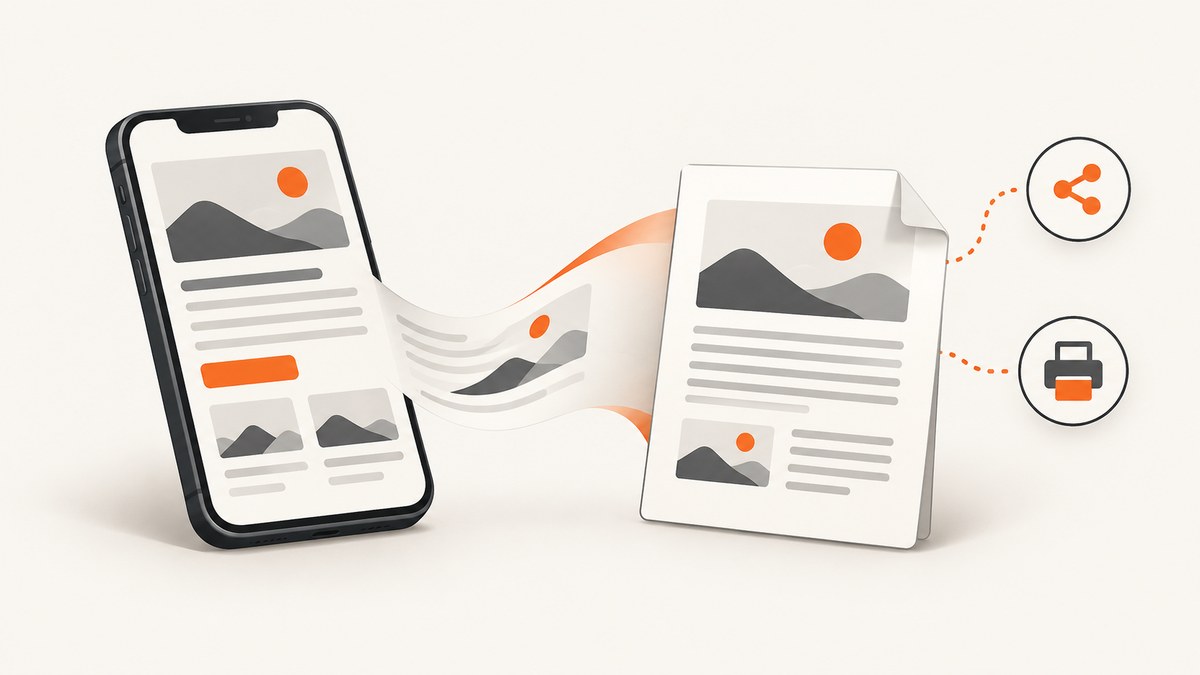
To save a webpage you opened in Chrome on an iPhone as a PDF, open Chrome’s Share menu, tap View more, choose Print, then use the print preview’s Share control to choose Save to Files when iOS offers it. You do not need to connect a physical printer to save a file. Chrome’s documented iPhone print route uses Apple’s AirPrint workflow and iOS print sheet; the exact save actions can vary with iOS and installed share extensions. Google’s Chrome instructions cover printing, while its download help describes saving through the share sheet.
1. Convert the webpage in Chrome
- Open Chrome on your iPhone and navigate to the webpage you want to save. Wait for the page to finish loading, including any content you need in the PDF.
- Tap the Share icon at the top right.
- In the share actions, tap View more (the down-arrow control).
- Tap Print. Chrome hands the page to the iOS print flow.
- Review the print preview and adjust any options shown, such as page range, paper size, or orientation. Which settings appear depends on the page and iOS version.
- Tap the preview’s Share control. In the iOS share sheet, choose Save to Files if it is available. Pick a folder, enter a useful filename, then tap Save.
- Open the Files app and navigate to the folder you chose. Open the saved document to confirm it is present and readable.
This path turns the print preview into a file. The button labels and exact placement may vary by iOS release, Chrome version, and enabled share extensions. Google documents the entry path as Share → View more → Print; its help for files says that after choosing Print, you can tap Share, follow the prompts, and tap Save.
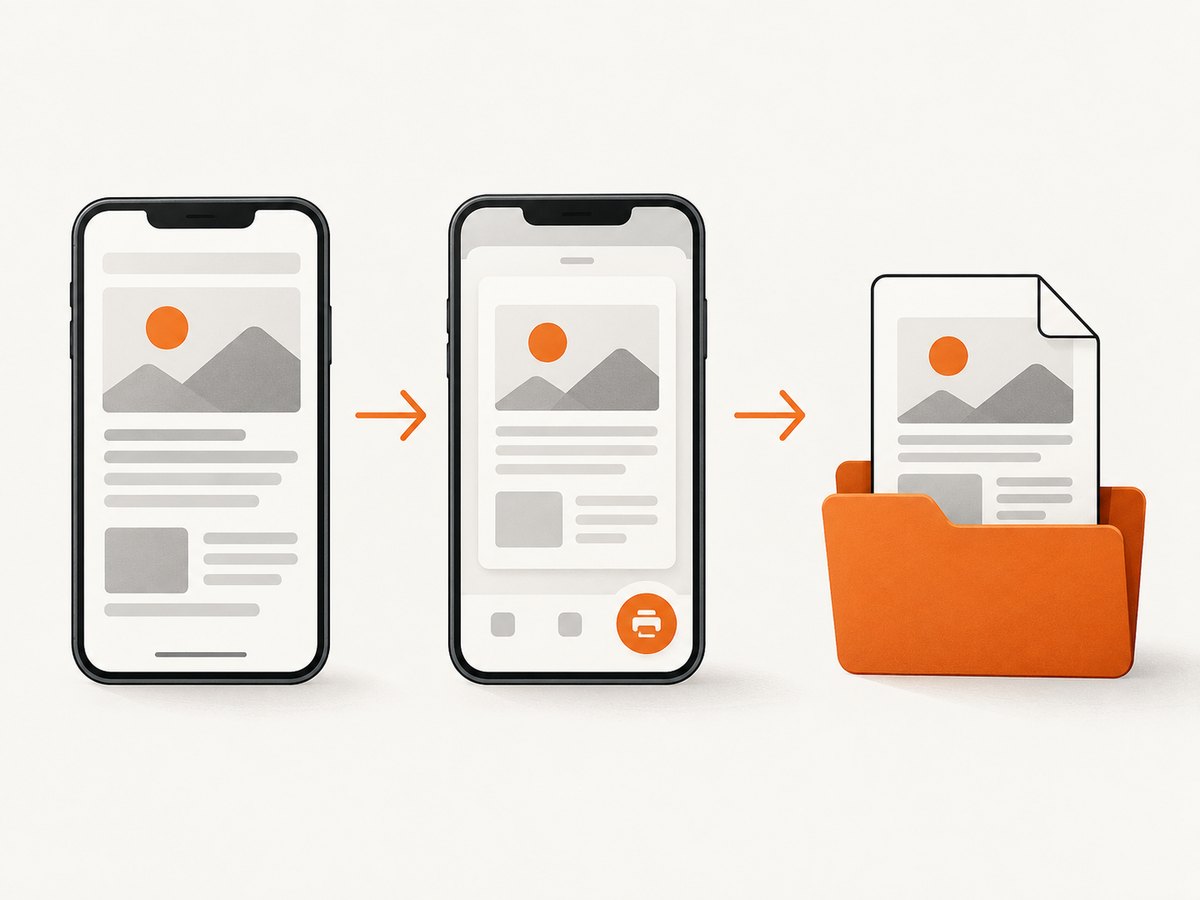
2. Understand what Chrome’s iPhone print flow does
Chrome on iPhone does not present the same desktop-style “Save as PDF” destination that many desktop users expect. The documented mobile path opens the iOS print interface, and the PDF save step depends on the actions exposed by that interface. This is why instructions that say to select a built-in “Save as PDF” printer may not match what you see on your phone.
AirPrint is the system printing route Apple devices use. A printer can be selected if you want paper, but saving through the iOS share sheet is a separate destination. Look for Save to Files after tapping Share in the print preview. If Files is not immediately visible, check the other share destinations or the More option, if shown; available actions are controlled by iOS and installed apps.
For this Chrome setup, Google currently lists iOS 17 and up as supported. If you are using an older version, the current Chrome help may not describe the interface on your device. Update iOS and Chrome when possible, or use Safari’s built-in PDF route below. Google’s current Chrome setup requirements list the supported iOS baseline.
3. Prepare the page so the PDF is useful
The PDF captures a rendered webpage, not a guarantee that every website feature will become a clean, paginated document. Do a quick review before printing:
- Wait for the page: Let text and images load. If the page loads sections as you scroll, scroll through the relevant content first and wait for it to appear.
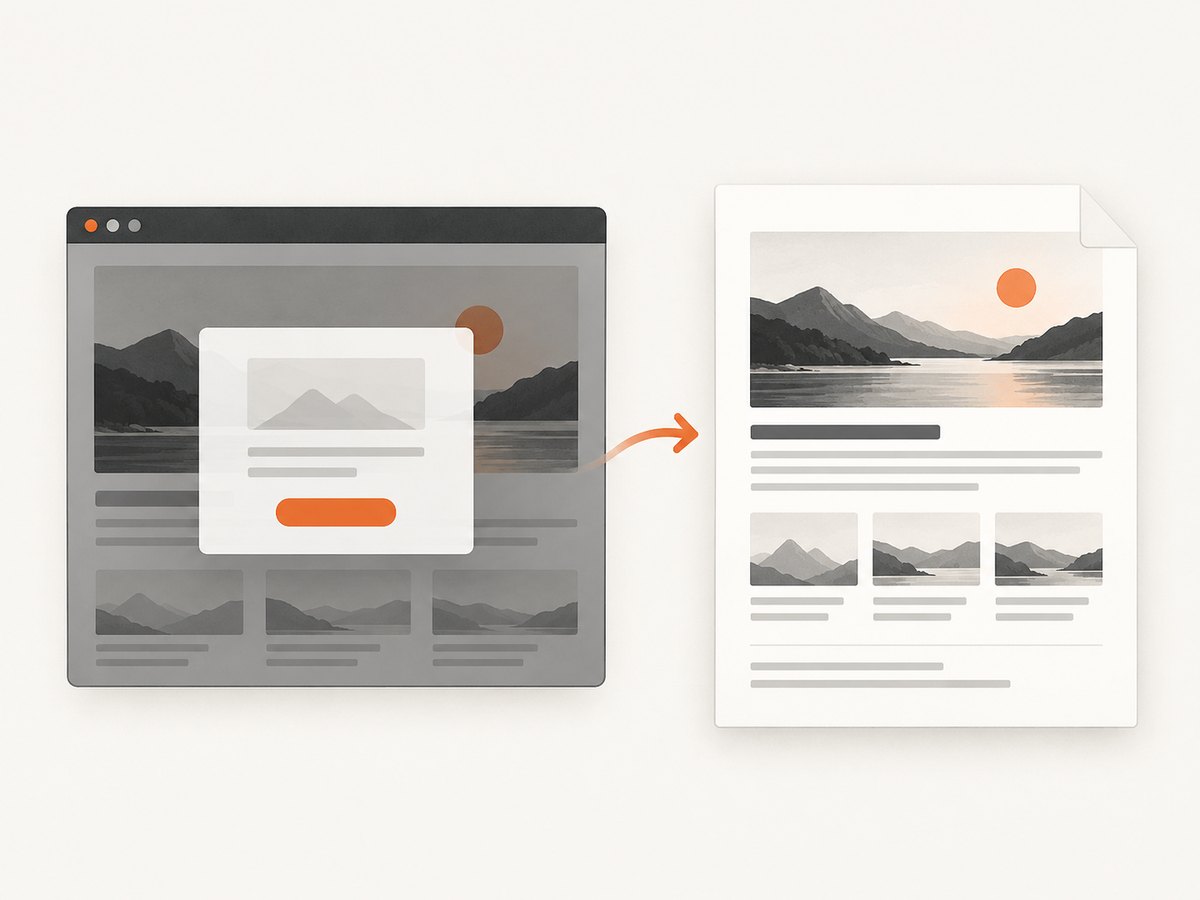
- Dismiss obstructive overlays: Close cookie prompts, newsletter dialogs, or other overlays if the page lets you. They may appear in the preview if left open.
- Choose a readable layout: Check the preview for clipped columns, tiny text, cut-off tables, and unwanted blank pages. Change orientation or page range if those controls are available.
- Consider the page’s purpose: A long article may create many pages; a wide dashboard or spreadsheet-like page may not fit a phone-friendly print layout.
- Name the file clearly: Use a short name that includes the topic or date if you expect to find it later.
Websites control their own layouts, and some content is interactive or loaded only after an action. Print preview is the practical check: if a section is missing there, it is unlikely to appear in the saved PDF.
4. If Chrome’s print route is awkward, use Safari
Apple documents a separate Safari workflow that ends explicitly at saving a webpage PDF. Open the page in Safari, tap the Page Menu or Share button depending on your tab layout, tap Markup, then tap More, Done, and Save File To. Enter a filename and tap Save. You can annotate the page before saving if that is useful. See Apple’s Safari PDF instructions.
Use Chrome’s print sheet when you want to stay in Chrome or need the print preview’s options. Try Safari when you want the documented Markup-to-file sequence and can open the same page there. These are different browser workflows: Chrome starts at Share → View more → Print; Safari starts at Share or Page Menu → Markup.
5. Troubleshoot common problems
| Problem | Likely cause | What to try |
|---|---|---|
| There is no Print action | The share actions are collapsed, or you are looking at a different menu. | Tap Chrome’s top-right Share button, then View more (down arrow). Confirm that you are in Chrome rather than another app’s browser view. |
| I cannot find “Save as PDF” | Chrome’s documented iPhone route uses the iOS print/share sheet; it does not document a desktop-style Save as PDF destination. | From print preview, tap Share and look for Save to Files or another save destination. If that route is inconvenient, use Safari’s Markup → Save File To workflow. |
| Save to Files is not shown | The share sheet’s available destinations depend on iOS and enabled apps or extensions. | Inspect the full share sheet and any More action. If Files still is not offered, try the Safari method or update Chrome and iOS, then reopen the share sheet. |
| The saved PDF is missing from Files | A destination or folder may not have been selected, or the save step may not have completed. | Repeat the share step, choose a known folder such as On My iPhone or iCloud Drive when offered, tap Save, and check that exact folder in Files. |
| Some text or images are absent | The page may not have finished loading or may reveal content only after scrolling or interacting. | Return to Chrome, load the relevant sections, scroll through lazy-loaded content, wait, and create a fresh preview. |
| The preview has awkward breaks or tiny text | The website layout may not be designed for paper, especially if it has wide or responsive content. | Review orientation, paper size, and page range when available. Try Safari’s route if it produces a more useful result for that page. |
| A PDF link saves differently from a webpage | A direct PDF is already a downloadable file, so Chrome may show its file-saving flow instead of printing a webpage. | Open the PDF and use its Share or Save action. Google’s download instructions also describe saving a file to Files or Google Drive. |
6. Performance, reliability, and file handling
For a one-off page, the browser workflow is usually the simplest because it starts with the page already open and uses iOS’s built-in sharing. The main reliability variable is the page itself: unfinished loading, content that appears only after scrolling, or overlays can affect the preview. Inspect the preview before saving, and reopen the saved file afterward when the document matters.
PDF size and page count depend on the page’s content and print layout. A long page with many images can take longer to render and produce a larger file than a short text page. If the PDF is for sharing, consider whether the page contains account details or other information that should not be distributed. The browser workflow has no required paid printer or PDF app in the documented steps; storage availability in Files or a cloud destination remains subject to the destination you choose.
For repeated or automated capture, a phone share sheet is a manual workflow. A developer may instead want a server-side API that accepts a URL, applies capture settings, and returns a PDF or image. That is a different use case from saving the current iPhone view.
7. Or skip the browser setup
If you need to capture webpages from code, ScreenshotNeo is a website screenshot API that can return PNG, JPEG, WebP, or PDF. It also offers options such as full-page capture, paper size, margins, landscape mode, page ranges, custom headers and cookies, waits, and caching. The PDF settings and current request options are documented in the ScreenshotNeo API docs.
Here is the supplied one-call example for capturing a webpage as an image:
curl -G "https://api.screenshotneo.com/v1/shot" -d access_key=YOUR_API_KEY --data-urlencode url=https://stripe.com -o shot.webpimport requests
r = requests.get("https://api.screenshotneo.com/v1/shot", params={"access_key": "YOUR_API_KEY", "url": "https://stripe.com"}, timeout=90)
open("shot.webp", "wb").write(r.content)const q = new URLSearchParams({ access_key: 'YOUR_API_KEY', url: 'https://stripe.com' });
const res = await fetch(`https://api.screenshotneo.com/v1/shot?${q}`);The examples save or retrieve an image response as supplied; consult the docs for PDF format and its paper and page options. Keep your API key private and send it from a server-side environment rather than embedding it in a public webpage.
ScreenshotNeo removes cookie banners, newsletter popups, and chat widgets before capture; each cleanup step can be turned off. Bot checks, blank pages, timeouts, failed loads, and cache hits are not billed, and response headers report the page verdict and billing status. Its MCP server lets AI agents use take_screenshot, get_page_info, and capture_pdf. The Free plan includes 1,000 shots per month with no card; paid plans start at $5 for 3,000 shots. Create a free ScreenshotNeo account to get 1,000 screenshots a month with no card.
8. Frequently asked questions
Can I make the PDF without owning a printer?
Yes. The print route opens iOS’s print/share interface, and you can use the share sheet to save a file when Save to Files is available. You do not need to send the job to a physical printer to keep a PDF.
Will the PDF be an exact copy of the screen?
Not necessarily. It is produced through a print layout, which can reflow page content and paginate it. Review the preview for missing sections, layout changes, or page breaks before saving.
Can I save a webpage directly from Chrome without using Print?
The documented Chrome webpage path is through Print and the share sheet. Chrome also has a separate download flow for files that already exist, such as a PDF linked from a webpage.
Where did the file go?
It goes to the location you selected in the save sheet. Open Files and check the chosen folder, such as On My iPhone or iCloud Drive.
Does the same method work on iPad?
Google’s print instructions cover both iPhone and iPad, though the screen layout and share sheet can differ by device and software version.


