How to Convert a Full Webpage to PDF or Combine Screenshots into One Image
Convert a full webpage to PDF, capture the entire page as an image, or combine screenshots into one file on Chrome, Firefox, Edge, Windows, and Mac.
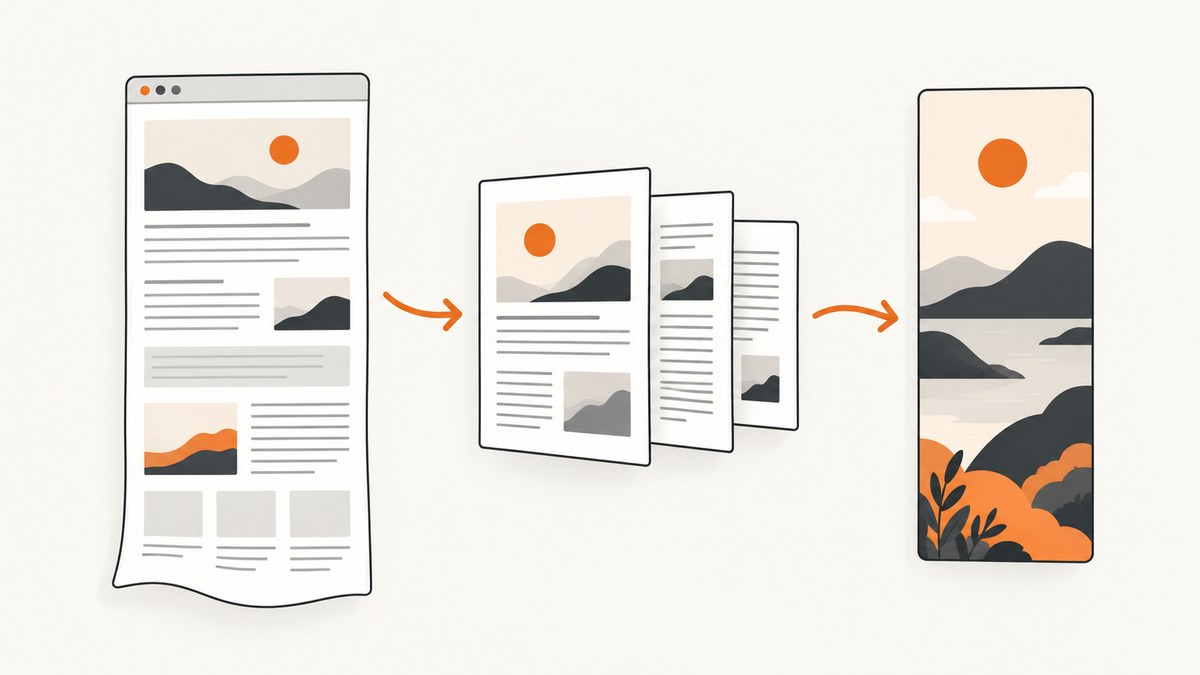
Choose the output before choosing the tool:
- Searchable, paginated document: use the browser print dialog and save as PDF.
- One long image of the rendered page: use a browser full-page screenshot.
- Several screenshots in one document: combine them as pages in a PDF.
- Several screenshots flattened into one image: assemble them on a canvas in an image editor.
A PDF preserves selectable text and print pagination. A screenshot preserves pixels, including visual styling, but it is not a reflowable document. Interactive controls, animations, consent banners, and lazy-loaded content can also make the two outputs differ.
1. Convert a full webpage to PDF in Chrome
- Open the page in Chrome.
- Open the menu and choose Print, or press Ctrl+P on Windows/Linux or Command+P on macOS.
- Set the destination to Save as PDF.
- Review layout, paper size, margins, scale, background graphics, and page range.
- Choose Save and select the output folder.
Chrome’s documented workflow is the print preview followed by Save as PDF (Google Chrome Help). The preview is authoritative: pages with print styles, fixed headers, embedded fonts, or responsive breakpoints may not match the screen exactly.
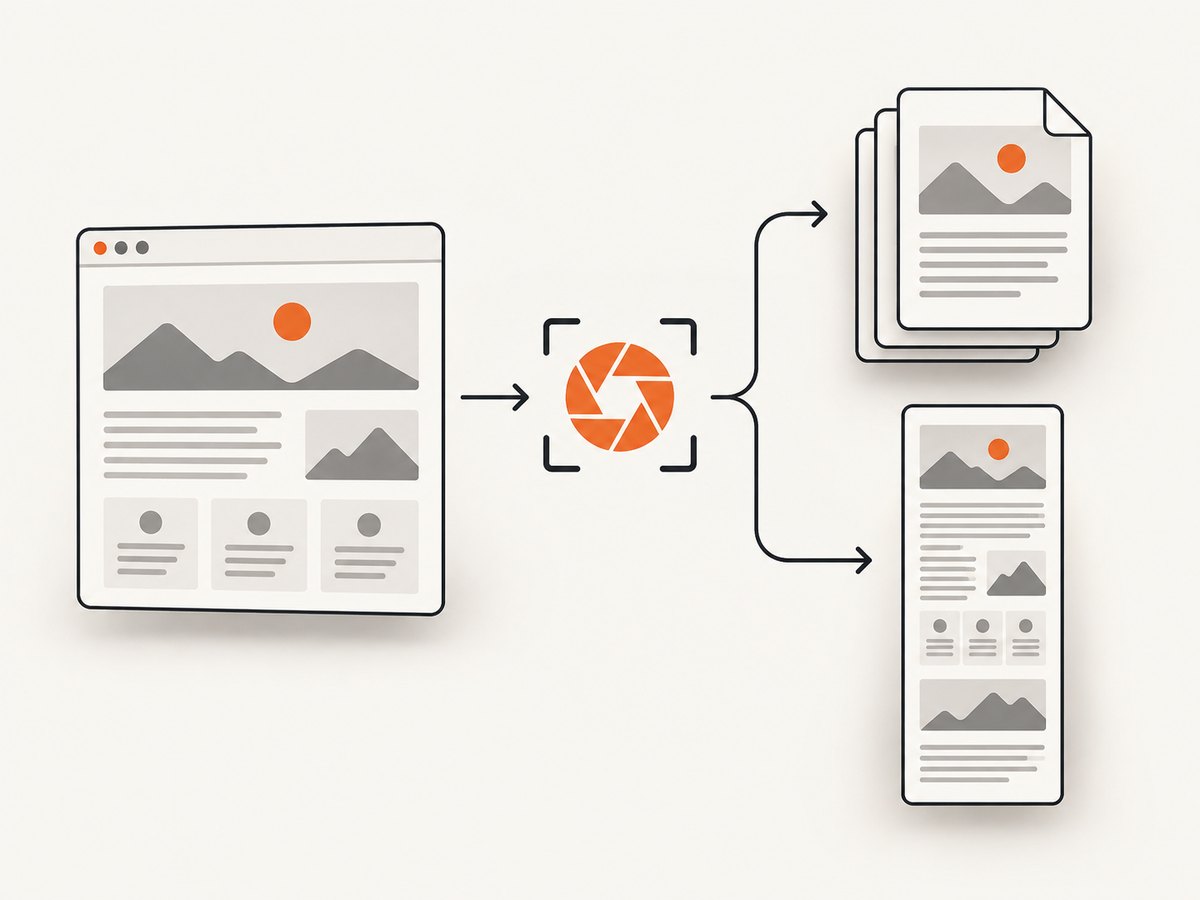
Chrome settings that affect the result
| Setting | Use it when |
|---|---|
| Layout | Portrait suits most articles; landscape suits wide tables. |
| Margins | Reduce margins when content is being clipped; add margins for notes and binding. |
| Scale | Lower scale if a table or heading runs off the page. |
| Background graphics | Enable when color blocks, diagrams, or shaded sections are part of the document. |
| Headers and footers | Disable if you do not want the page title, URL, and date added to every page. |
| Pages | Choose a range when you only need selected sections. |
2. Save a webpage as PDF in Firefox
- Open the page in Firefox.
- Open the application menu and choose Print.
- In print preview, set Destination to Save to PDF.
- Check the preview, then save the file.
Mozilla documents this print-preview route and the Save to PDF destination (Mozilla Firefox Help). Use the preview to catch print CSS, missing backgrounds, and page breaks before saving.
3. Capture the full page as one image
Firefox
- Right-click an empty area of the page and choose Take Screenshot, or press Ctrl+Shift+S on Windows/Linux or Command+Shift+S on macOS.
- Choose Save full page.
- Download the image or copy it to the clipboard.
Save visible captures only the viewport. Firefox documents both choices (Mozilla Firefox Help).
Microsoft Edge
Open Edge’s Screenshot feature, select the full-page capture option, then copy or save the result. Microsoft notes that availability and functionality can vary by device type, market, and browser version, so the exact controls may differ in your installation (Microsoft Edge support).
4. Combine screenshots into one image on Windows
Windows provides the capture and editing pieces, but the exact Paint controls vary by version.
- Capture each section with Snipping Tool. The shortcut is Windows+Shift+S.
- Save each capture as PNG for lossless assembly.
- Open Paint and create a canvas large enough for the combined image.
- Paste or insert the captures in order, aligning their edges.
- Crop excess canvas area and save as PNG or JPEG.
Microsoft documents Snipping Tool capture modes and copying a screenshot into Paint for editing (Snipping Tool guidance). The canvas-sizing and alignment sequence is an application of those documented capabilities; labels can differ between Windows releases.
Make the joins less visible
- Capture overlapping areas so you can align text and borders.
- Keep the browser zoom and viewport width unchanged for every section.
- Use PNG while assembling; convert to JPEG only for a smaller final file.
- Check fixed navigation bars and sticky cookie notices, which can repeat in every segment.
5. Put multiple screenshots into one PDF on Mac
If “one file” is sufficient and the screenshots do not need to be flattened into one raster image, a multipage PDF is usually easier to read.
- Open a PDF in Preview.
- Choose View > Thumbnails.
- Drag image files or pages into the thumbnail sidebar.
- Reorder the thumbnails by dragging them.
- Save the PDF.
Apple documents adding files or pages through Preview’s thumbnail sidebar (Apple Preview User Guide). This creates a multipage PDF, not one flattened image.
6. PDF, full-page image, composite image, or multipage PDF?
| Requirement | Best format | Reason |
|---|---|---|
| Search, copy, print, or archive text | Text may remain selectable and pages are separated. | |
| Share the exact rendered appearance | Full-page screenshot | It records pixels instead of print layout. |
| Put several captures in sequence | Multipage PDF | Each source remains a separate page. |
| Publish several pieces as one graphic | Flattened composite image | All captures become one raster canvas. |
7. Common problems and fixes
| Problem | Likely cause | Fix |
|---|---|---|
| PDF is missing colors or images | Print backgrounds are disabled or resources finished loading late. | Enable background graphics, wait for the page, and print again. |
| Content is cut off | Margins, scale, or a wide responsive layout. | Try landscape, reduce scale, or adjust margins; inspect preview pages. |
| Only the visible viewport was captured | The visible-area option was selected. | Choose Firefox’s Save full page or Edge’s full-page mode. |
| Lazy images are blank | Images load only after scrolling or interaction. | Scroll through the page first, wait for images, then capture. |
| Sticky headers repeat in a composite | Each segment includes the fixed header. | Crop repeated regions or use a native full-page capture. |
| Fonts or layout differ from the screen | Print CSS, missing fonts, or a different viewport. | Use the print preview, wait for web fonts, and verify the saved file. |
| Edge screenshot controls are absent | Feature availability differs by device, market, or version. | Update Edge or use Firefox’s documented full-page capture. |
| Composite image is enormous | Long pages at high pixel density create very large rasters. | Resize after assembly, use JPEG for photographic pages, or choose PDF. |
8. Reliability, performance, and file-size notes
- Long pages: a single raster image can exceed editor or viewer limits. A PDF or multipage PDF is safer for very long content.
- Dynamic pages: wait for network requests, charts, fonts, and lazy images before exporting.
- Repeatability: record browser, viewport width, zoom, color scheme, and page URL when captures are part of a review process.
- Privacy: check whether the page contains account data, tokens, addresses, or internal URLs before sharing the output.
- Compression: PNG keeps text and UI edges sharp; JPEG is smaller but introduces artifacts; WebP is useful when the destination supports it.
- Cost: built-in browser and operating-system workflows do not require an API subscription. Automated capture at scale requires a browser service or screenshot API.
9. Or skip the browser setup
ScreenshotNeo provides a website screenshot API and MCP server. One GET request can return a PNG, JPEG, WebP, or PDF. The API also supports full-page capture with lazy images loaded, CSS-selector element capture, dark mode, device presets or custom viewports, retina scale, PDF paper size and margins, custom CSS and JavaScript, clicks, selector or network-idle waits, request blocking, headers, cookies, user agents, authorization, timezone, geolocation, transparent backgrounds, resizing, caching, signed links, asynchronous jobs, webhooks, bulk capture, usage data, and an OpenAPI specification. See the ScreenshotNeo documentation for parameter names and PDF options.
curl -G "https://api.screenshotneo.com/v1/shot" -d access_key=YOUR_API_KEY --data-urlencode url=https://stripe.com -o shot.webpimport requests
r = requests.get("https://api.screenshotneo.com/v1/shot", params={"access_key": "YOUR_API_KEY", "url": "https://stripe.com"}, timeout=90)
open("shot.webp", "wb").write(r.content)const q = new URLSearchParams({ access_key: 'YOUR_API_KEY', url: 'https://stripe.com' });
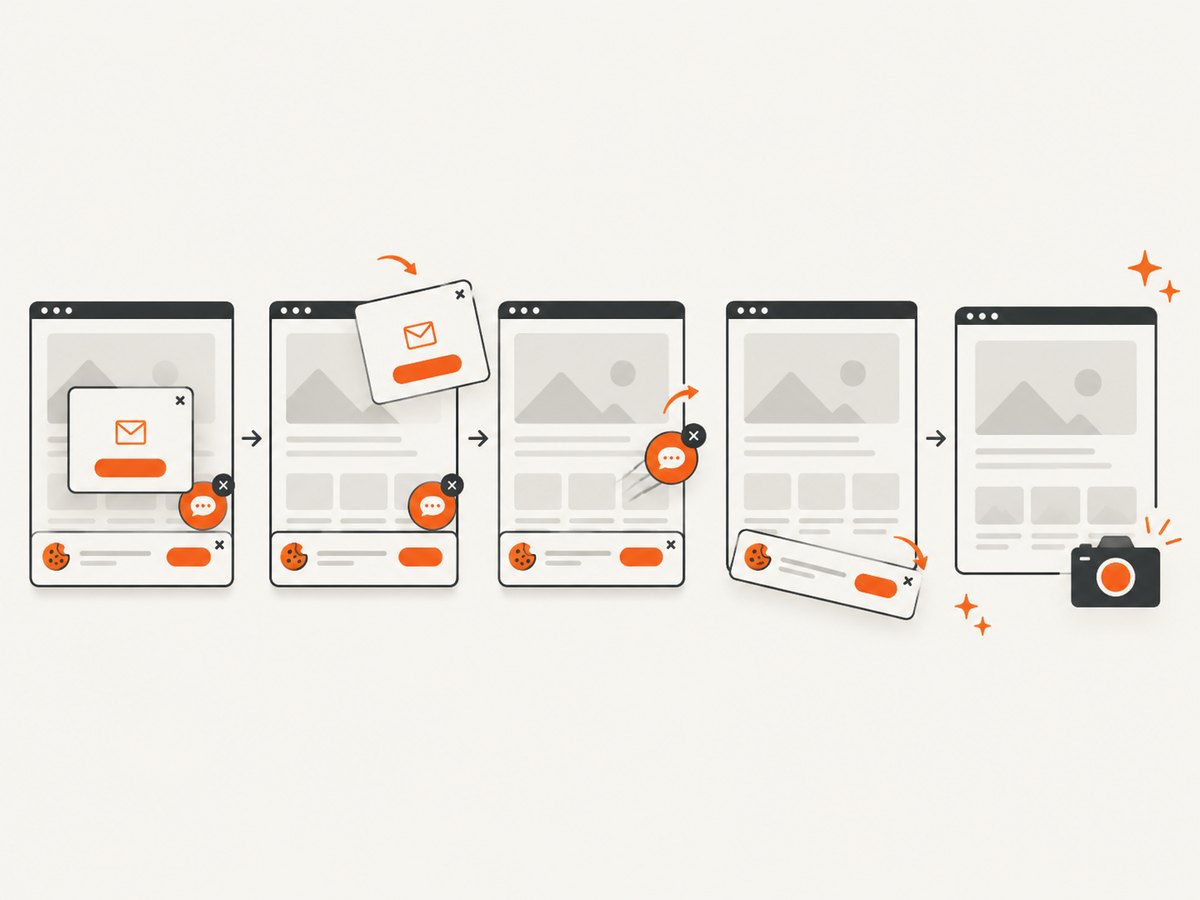
const res = await fetch(`https://api.screenshotneo.com/v1/shot?${q}`);ScreenshotNeo accepts consent banners before capture and removes more than 60 known consent platforms, newsletter popups, and chat widgets; each step can be disabled. Bot checks, blank pages, timeouts, failed loads, and cache hits are not billed, and the response identifies the result with X-Page-Verdict and X-Billed headers. Its MCP server provides take_screenshot, get_page_info, and capture_pdf for Claude, Cursor, and other MCP clients.
Free accounts include 1,000 screenshots per month with no card. Paid plans start at $5 for 3,000 shots; every feature is available on every plan. Create a free ScreenshotNeo account.
10. FAQ
Is a webpage PDF the same as a screenshot?
No. A PDF follows print layout and may preserve selectable text. A screenshot records rendered pixels at a particular viewport and state.
Can I turn several screenshots into one PDF?
Yes. Preview on Mac can add image files as pages. On Windows, create a PDF from an application that supports printing images, or assemble the images in an editor and print the result.
Can I merge screenshots into one tall image without an editor?
Use Firefox or Edge full-page capture when the source is one webpage. For separate files, an image editor such as Paint is the practical assembly route on Windows.
Why does my PDF have different page breaks?
Print CSS, paper size, margins, scale, and the page’s responsive layout control pagination. Adjust those settings in print preview.
Which format is best for accessibility?
A properly generated PDF with selectable text is generally easier to search and copy than a raster screenshot. Check the final document before distributing it.


