How to Convert a Webpage to PDF With a Firefox Extension
Save any webpage as a PDF in Firefox using built-in print tools, extensions, or an automated API workflow for repeatable captures.
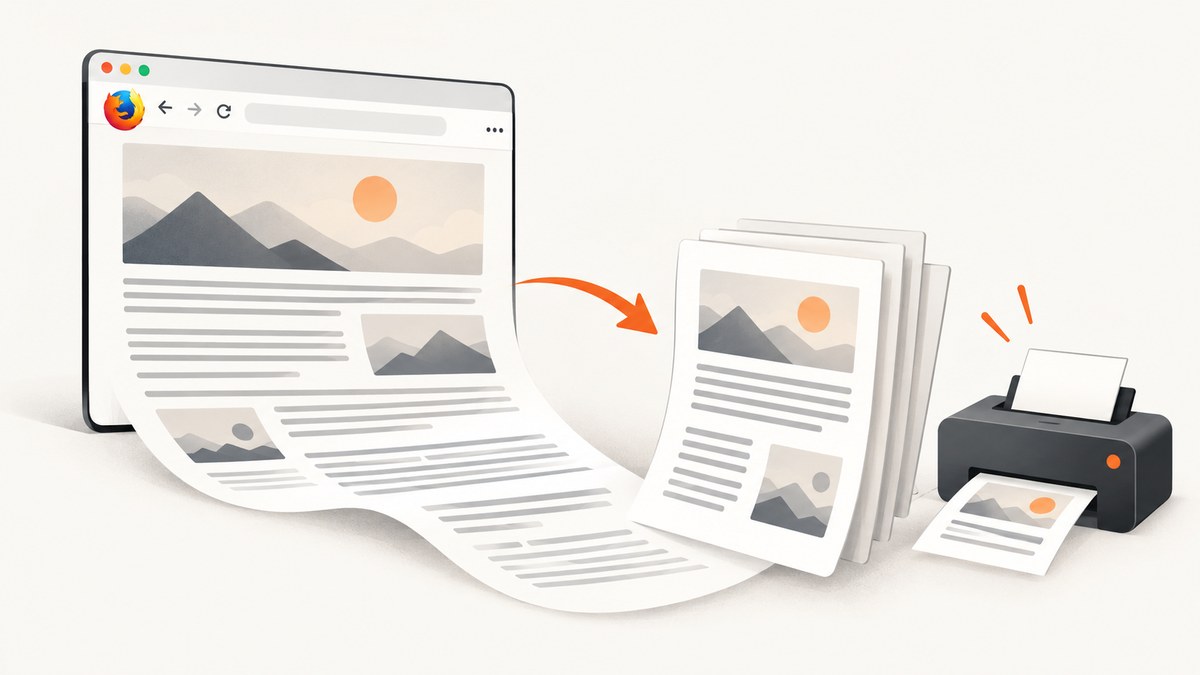
Firefox can convert a webpage to PDF without an extension. Open the page, choose Print… from the application menu, set the destination to Save to PDF, adjust the print settings, and save the file. Mozilla describes the final step as: “Select Save to PDF in the drop-down menu to save the shown preview as a PDF file.” Mozilla’s Firefox printing guide documents the workflow.
An extension is useful when you want a toolbar button, a keyboard shortcut, article or selection export, or extra controls. For repeatable developer workflows, an API such as ScreenshotNeo can render a URL to PDF without opening Firefox at all.
1. Save a webpage as a PDF with Firefox’s built-in tools
- Open the webpage in Firefox.
- Open the application menu (the three-line button) and select Print….
- In the print preview window, open Destination and choose Save to PDF.
- Choose the page range. You can save every page, the current page, or a custom range.
- Set orientation, paper size, scale, margins, pages per sheet, headers and footers, and whether to print backgrounds.
- Review the preview. Web layouts often reflow when placed on paper.
- Choose Print, select a filename and location if Firefox or your operating system asks, and save the PDF.
The preview is the source of truth. If a heading moves to the next page, an image is clipped, or a navigation bar consumes space, change the settings before saving. The Simplified format, when offered, produces an article-style result. Mozilla notes that Simplified format disables background printing, so it is best for text-heavy pages rather than design portfolios or dashboards.
2. Which print settings matter?
| Setting | Use it when | Common side effect |
|---|---|---|
| Orientation | Use portrait for articles and landscape for wide tables or dashboards. | Landscape can create more horizontal room but increases page count for narrow content. |
| Paper size | Match the paper your reader will print, such as A4 or Letter. | Changing size changes line wrapping and pagination. |
| Scale | Reduce scale when a table or code block is clipped. | Small scale makes body text harder to read. |
| Margins | Reduce margins to fit wide content; increase them for notes or binding. | Very small margins can still be constrained by the printer. |
| Background graphics | Enable it when colors, shaded code blocks, or background images carry meaning. | It increases file size and uses more ink when printed. |
| Headers and footers | Keep them for source URL, title, or date when provenance matters. | Disable them for a clean handout or when they overlap page content. |
| Pages per sheet | Use two or four pages per sheet for drafts. | Text becomes too small for normal reading. |
3. Use an extension when you need a faster or more targeted capture
Firefox extensions add convenience, but they differ in where conversion happens and which devices they support. Check the extension listing and permissions before installing, especially when a service sends page content to a remote server.
Save as PDF by PDFCrowd
Save as PDF by PDFCrowd adds a toolbar button for one-click saving. Its listing says it uses PDFCrowd’s online HTML-to-PDF service and cannot create PDFs from pages that require a login, including webmail, online banking, shopping carts, and payment checkouts. The listing records version 2.2 as updated June 12, 2025. This option is convenient for public pages, but the online-service limitation matters for private or authenticated content.
Print PDF by Senthil Ponnusamy
Print PDF provides a toolbar button and the Ctrl+Alt+P shortcut. Its controls include margins, headers and footers, background printing, page size, shrinking to one page, and a fixed height for longer pages. It relies on Firefox’s built-in converter, so it follows the browser’s rendering and print behavior.
Web to PDF by Emma Boat
Web to PDF is listed for Firefox for Android. It supports full-page, article (reader-mode), or selection export; selectable PDFs; A4, Letter, Legal, A3, and A5 paper sizes; orientation, margins, scale, background graphics, and a context-menu command. It is a practical choice when the workflow happens on an Android device.
4. Save only an article, selection, or element
For a single article, first try Firefox Reader View when it is available, then print the simplified view. Reader View removes navigation and unrelated modules before printing, which usually reduces blank space and page count. The Web to PDF extension listed above also offers article and selection modes on Firefox for Android.
For an arbitrary selection on desktop, highlight the text, open the context menu, and choose the print command if your extension provides one. Otherwise, copy the selection into a document and export that document to PDF. Firefox’s native print dialog is page-oriented; it does not provide a universal “export this CSS element” command.
When the page contains a large table, map, chart, or code sample, use a full-page capture first and inspect the preview. Responsive layouts can switch breakpoints at print width. A component that is side-by-side on screen may become stacked or split across pages.
5. Why the PDF looks different from the webpage
- Print CSS: Sites can define separate
@media printrules that hide navigation, change colors, or rearrange content. - Viewport changes: Print layout has a page width and height rather than the exact browser viewport.
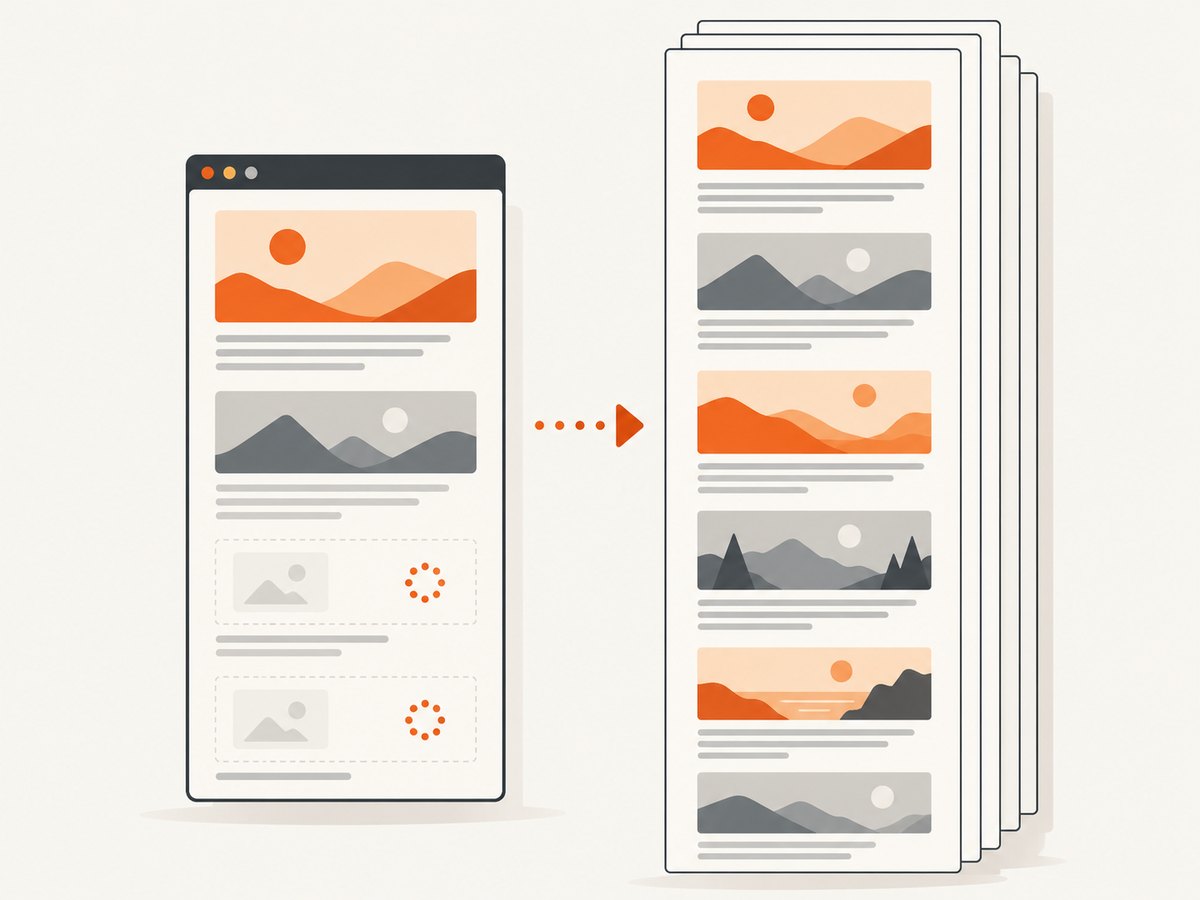
- Lazy loading: Images or sections may load only after scrolling. If they are missing, wait for the page to finish loading and scroll through it before printing.
- Backgrounds disabled: Firefox may omit background colors and images unless you enable background printing. Simplified format disables background printing.
- Fixed and sticky elements: A sticky header can repeat or cover content when converted to pages.
- Fonts: A web font that has not finished loading can be replaced by a fallback, changing line breaks.
- Blocked or private content: An extension that uses an online service may not be able to access login-protected pages.
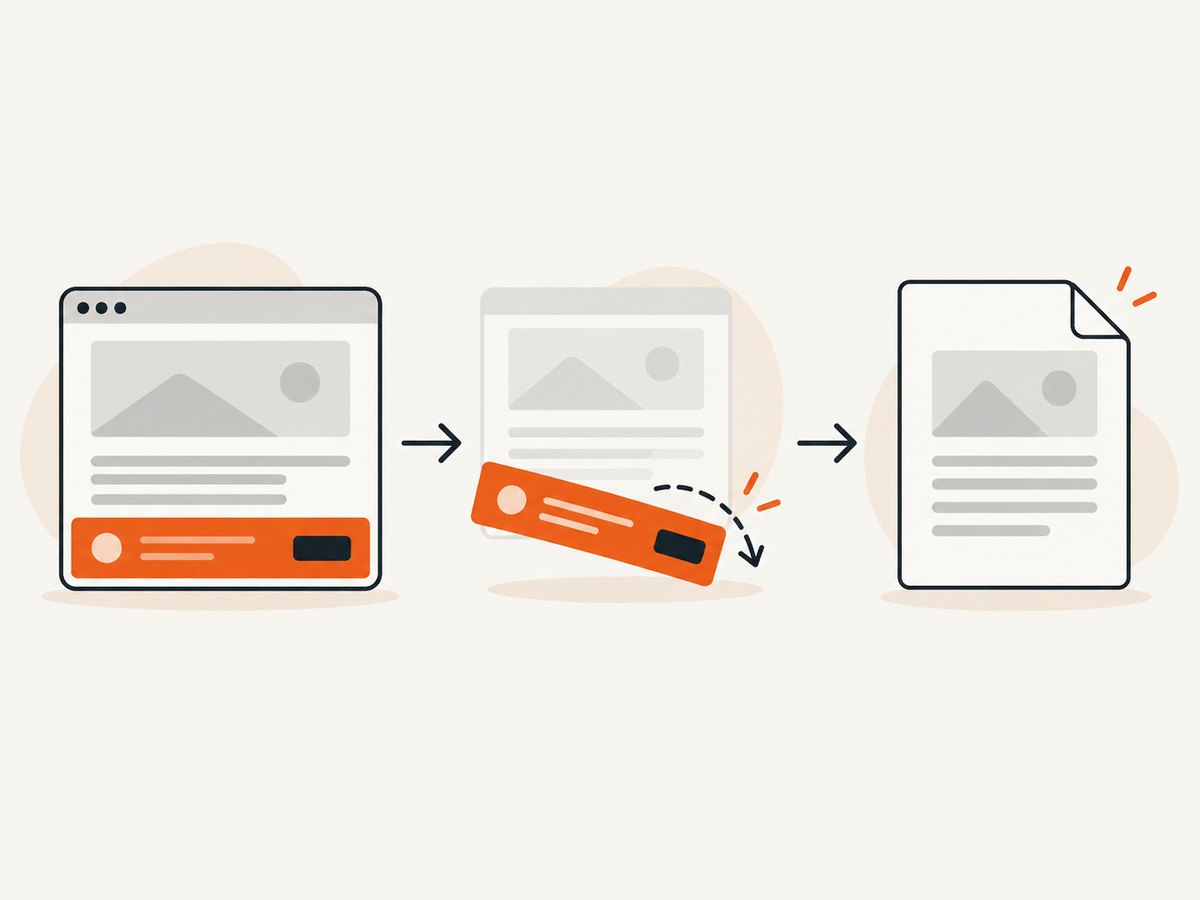
Mozilla recommends an editing extension such as Print Edit WE when a page needs cleanup before printing. Remove advertisements, empty containers, or repeated navigation in the editing view, then print the revised page.
6. Developer automation with Firefox’s extension API
If you are building a Firefox extension, Mozilla exposes browser.tabs.saveAsPDF(pageSettings). It saves the current page and opens the operating-system save dialog. The returned promise reports statuses including saved, replaced, canceled, not_saved, and not_replaced. Read the MDN API documentation for the current method signature and permissions.
async function saveCurrentTabAsPdf() {
  const result = await browser.tabs.saveAsPDF({
    orientation: "portrait",
    paperSizeUnit: "in",
    paperWidth: 8.27,
    paperHeight: 11.69,
    marginTop: 0.5,
    marginRight: 0.5,
    marginBottom: 0.5,
    marginLeft: 0.5,
    showBackgroundColors: true,
    showBackgroundImages: true,
    showBorders: true,
    showFooterLeft: "",
    showFooterCenter: "",
    showFooterRight: "",
    showHeaderLeft: "",
    showHeaderCenter: "",
    showHeaderRight: ""
  });

  if (["saved", "replaced"].includes(result)) {
    console.log(`PDF result: ${result}`);
  } else {
    console.error(`PDF was not saved: ${result}`);
  }
}
Exact accepted fields can vary with Firefox versions, so treat the MDN reference as authoritative. Handle cancellation explicitly: a user closing the save dialog is a normal canceled result, not necessarily an extension failure.
7. Or skip the browser setup
For scheduled jobs, CI pipelines, bulk URLs, or consistent server-side output, ScreenshotNeo provides a website screenshot and PDF API. See the ScreenshotNeo documentation for request options. The API accepts a URL and returns a clean screenshot or PDF.
cURL
curl -G "https://api.screenshotneo.com/v1/shot" -d access_key=YOUR_API_KEY --data-urlencode url=https://stripe.com -o shot.webpPython
import requests
r = requests.get("https://api.screenshotneo.com/v1/shot", params={"access_key": "YOUR_API_KEY", "url": "https://stripe.com"}, timeout=90)
open("shot.webp", "wb").write(r.content)
Node.js
const q = new URLSearchParams({ access_key: 'YOUR_API_KEY', url: 'https://stripe.com' });
const res = await fetch(`https://api.screenshotneo.com/v1/shot?${q}`);
Change the URL and add the PDF and rendering parameters described in the documentation. ScreenshotNeo supports full-page capture with lazy images loaded, CSS-element capture, dark mode, device presets and custom viewports, retina scale, PDF paper size, margins, landscape mode and page ranges. You can also provide custom CSS or JavaScript, click an element, wait for a selector, delay, or network idle, hide selectors, block ads or resource types, set headers, cookies, user agents, authorization, timezone and geolocation, use transparent backgrounds, resize images, cache with a chosen TTL, create signed links, submit asynchronous jobs with signed webhooks, capture up to 100 URLs per bulk call, and read usage through its API.
Cookie and consent banners, newsletter popups, and chat widgets are accepted or removed before capture. Bot checks and CAPTCHAs, blank pages, timeouts, failed loads, and cache hits are not billed as clean shots; responses identify the result with X-Page-Verdict and X-Billed headers. An MCP server exposes take_screenshot, get_page_info, and capture_pdf for Claude, Cursor, and other MCP clients.
A free plan includes 1,000 shots per month without a card. Paid plans start at $5 for 3,000 shots; yearly billing gives two months free, and every feature is included on every plan. Create a free ScreenshotNeo account to try the API.
8. Troubleshooting checklist
| Symptom | Likely cause | Fix |
|---|---|---|
| The Save to PDF destination is missing | Firefox or the operating system print backend is unavailable or misconfigured. | Restart Firefox, check the system print dialog, and update Firefox. Try printing a simple page to isolate the problem. |
| Only the visible portion is saved | The extension captured the viewport rather than the full document. | Enable full-page or full-document capture, or use Firefox’s print workflow. |
| Images are blank | Lazy loading or blocked third-party resources. | Wait for the page to load, scroll through it, allow required resources, and enable background images when appropriate. |
| Text is cut off at the right edge | The content is wider than the paper. | Use landscape orientation, reduce scale, choose a larger paper size, or remove wide columns. |
| Colors disappear | Background printing is disabled or Simplified format is active. | Enable background graphics and use the normal page format. |
| A PDFCrowd export fails on a private page | The extension’s online service cannot create PDFs from login-required pages. | Use Firefox’s local print flow while authenticated, or use an authorized server-side capture with the required headers and cookies. |
| The extension shortcut does nothing | Another shortcut owns the key combination, or the extension is disabled for that page. | Check the extension’s shortcut settings, reload the tab, and test on a public page. |
| ScreenshotNeo returns a bot verdict | The target presents a bot check or CAPTCHA. | Inspect X-Page-Verdict, do not treat the response as a valid page capture, and review the target’s access policy. |
9. Performance, reliability, and cost considerations
For one-off documents, Firefox print preview is usually the shortest path because rendering happens locally and there is no API setup. Extensions can reduce clicks, but online extensions add a network dependency and may exclude authenticated pages.
For automation, wait for the page state that matters. A fixed delay is simple but can be wasteful; waiting for a selector or network idle is more deterministic when the page has asynchronous content. Full-page PDFs and pages with many images take longer and produce larger files. Blocking advertisements, trackers, or unnecessary resource types can reduce work, but confirm that the blocked resources are not required for the article or chart.
Use caching when the source changes infrequently and choose a TTL that matches your freshness requirement. For many URLs, bulk capture reduces request overhead. For long-running jobs, asynchronous capture and signed webhooks avoid holding an HTTP connection open. Keep API keys on the server, set a client timeout, and record verdict and billing headers so retries do not hide whether a usable document was produced.
Firefox’s local workflow has no per-shot API charge, but it requires a desktop or extension runtime and a user or automation host. ScreenshotNeo’s free tier covers 1,000 shots per month with no card; paid usage starts at $5 for 3,000 shots. Failed loads, blank pages, bot checks, timeouts, and cache hits are not billed as clean shots.
10. Choosing the right method
| Need | Best starting point |
|---|---|
| One public article on desktop | Firefox Print → Save to PDF. |
| Cleaner article layout | Reader View or Simplified print format. |
| Toolbar button or shortcut | A Firefox PDF extension such as Print PDF. |
| Firefox for Android | Web to PDF by Emma Boat, where available. |
| Authenticated local page | Firefox’s built-in print flow while signed in. |
| Scheduled, repeatable, or bulk captures | ScreenshotNeo API, with waits, headers, caching, and bulk options. |
| AI-agent workflow | ScreenshotNeo’s MCP tools for screenshot, page information, and PDF capture. |
11. FAQ
Does Firefox need an extension to save a PDF?
No. Firefox’s Print dialog includes Save to PDF on supported desktop configurations.
Can I save a webpage that requires a login?
Firefox can print a page you can view while authenticated. The PDFCrowd extension listing specifically says its online service cannot create PDFs from login-required pages.
Will links remain clickable?
Selectable text and link behavior depend on the converter and page structure. Preview the generated PDF and test important links before distributing it.
How do I make a long page fit fewer pages?
Reduce scale, adjust margins, choose a larger paper size, or use reader mode to remove unrelated content. Check readability before selecting an extreme scale.
Can an extension export only one HTML element?
Firefox’s native print flow is page-oriented. Some extensions support article or selection export; for CSS-selector capture and automated PDF options, use a capture API such as ScreenshotNeo.
What should I do when a page changes between captures?
Save the source URL and capture time, wait for the content state you need, and use a consistent viewport, paper size, scale, and custom CSS. For automation, cache a known version when appropriate.


