Convert a Webpage to PDF with Hyperlinks
Learn how to save webpages as PDFs while keeping links clickable, structure readable, and long pages complete.
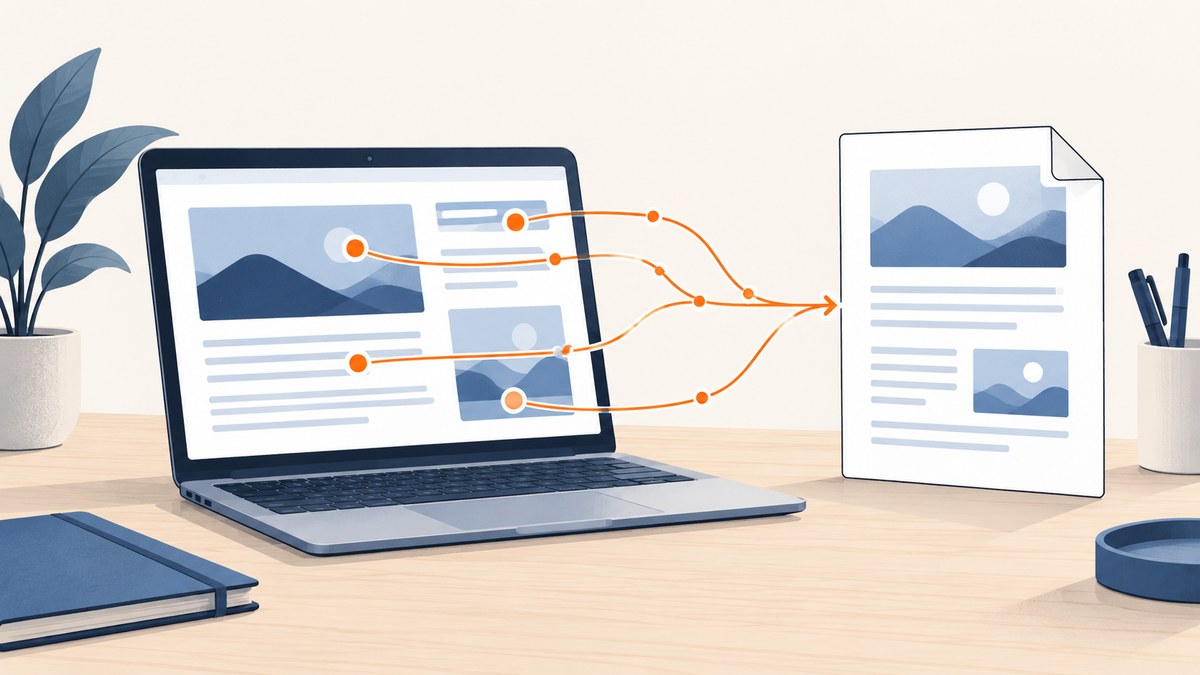
Saving a webpage as a PDF is easy. Saving it as a PDF that preserves clickable internal and external links, readable layout, images, and document structure requires choosing the right capture method.
For a single page, use your browser’s Print command and select a PDF destination. For a long page, a site section, or a repeatable workflow, use Adobe Acrobat’s web-page converter or an automated browser. Always open the resulting PDF and test representative links; scripts, login walls, print styles, and content that appears only after interaction can change the result.
Quick answer: the best method for each job
| Need | Recommended method | Why |
|---|---|---|
| One ordinary page | Browser Print to PDF | Already installed and quick |
| Cleaner article before printing | Microsoft Edge Immersive Reader, then Print | Removes some page clutter where supported |
| Multiple pages or a site section | Adobe Acrobat web-page conversion | Supports capture depth and same-path or same-server limits |
| Scheduled or high-volume capture | Automated browser or ScreenshotNeo | Repeatable options, scripts, and API integration |
Method 1: print a webpage to PDF in your browser
Microsoft Edge
- Open the page and wait for the text, images, and embedded content you need.
- Remove cookie banners, chat bubbles, newsletter popups, and other overlays. If the site supports it, open Immersive Reader first for a cleaner reading view.
- Open Print with Ctrl+P on Windows or Command+P on macOS, or choose the three-dot menu, then Print. Microsoft documents all three routes in its [Print in Microsoft Edge guide](https://support.microsoft.com/en-us/microsoft-edge/print-in-microsoft-edge-0f7f1f7e-1a5f-4f5c-8e7d-7c2f7f1a8f6b).
- Choose Save to PDF or your operating system’s PDF printer.
- Set paper size, orientation, scale, margins, headers, and backgrounds. Backgrounds can be necessary when a page uses colored panels or diagrams to convey meaning.
- Save the file with a descriptive name, such as
product-docs-2026-09-29.pdf. - Open the saved file in a PDF viewer and click several links before sharing it.
What browser printing preserves
Normal HTML anchors usually become PDF link annotations. The visible page layout is controlled by print CSS, so navigation bars, sticky headers, animations, video, and interactive widgets may be hidden or replaced. A page that loads more content when you scroll can also be incomplete unless you scroll through it first.
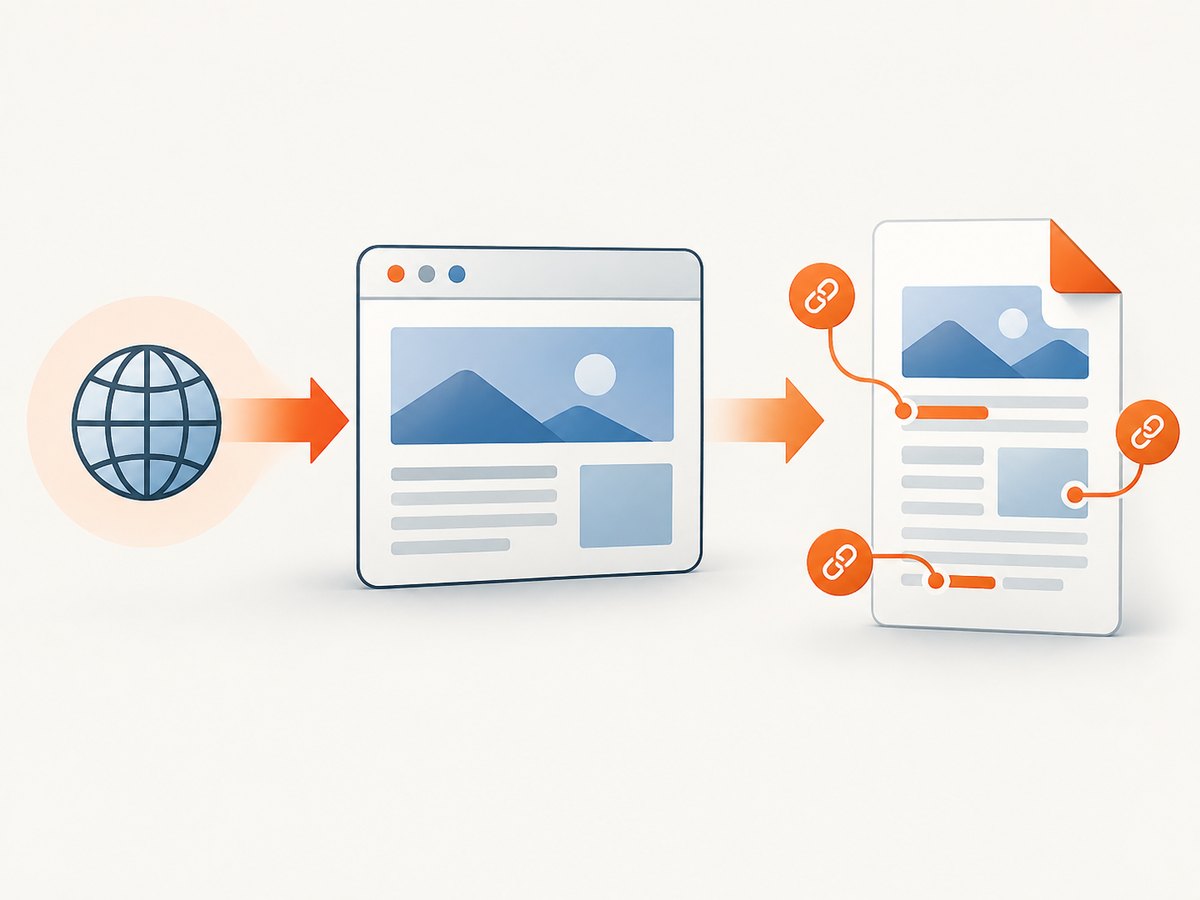
Browser printing is a one-page workflow. It does not automatically crawl linked pages, select a site depth, or create a navigable bookmark tree for an entire documentation site.
Method 2: convert a webpage with Adobe Acrobat
Acrobat is useful when you need more control than a browser print dialog provides. Adobe’s desktop web-page converter accepts a URL or HTML file and can capture multiple levels or an entire site. You can restrict the capture to the same path or server so a conversion does not follow unrelated links. See Adobe’s [web-page conversion documentation](https://helpx.adobe.com/acrobat/using/converting-web-pages-pdf.html).
- Open Acrobat and choose the command for creating a PDF from a web page.
- Enter the page URL or select an HTML file.
- Choose whether to capture one level, several levels, or the complete site.
- Apply same-path or same-server restrictions when converting a site.
- Open the conversion settings and review links, bookmarks, tags, backgrounds, images, and scrollable blocks.
- Start the conversion and wait for all requested pages to finish.
- Save the PDF, then test links and inspect the document outline.
Adobe’s browser extension can convert an open page, an HTML file, or selected content. Adobe describes the result as retaining the same links, layout, and formatting as the converted page. The extension is convenient for a page already open in your browser; the desktop converter is better when you need crawl depth or boundary controls.
Preserve hyperlinks, bookmarks, and HTML structure
Links
Enable the link-related options in your conversion tool. Test both absolute links, such as https://example.com/docs, and relative links, such as /docs. Also test mail links, telephone links, fragment links such as #installation, and links that open a new tab. A PDF viewer may handle these differently.
Bookmarks and tags
Bookmarks provide a clickable outline for headings. PDF tags preserve structural information from the HTML and help navigation and accessibility tools interpret headings, paragraphs, lists, and tables. Adobe lists bookmarks and PDF tags among its web conversion controls. Turn them on when the PDF will be searched, reviewed, or distributed as documentation.
Images, backgrounds, and scrollable areas
Review image conversion and background settings. If a page contains a code sample or diagram inside a scrollable block, enable expansion of scrollable blocks when available; otherwise only the visible portion may enter the PDF. Expanding every block can create very long pages, so inspect the output after conversion.
Automate conversion with a headless browser
Automation is useful for nightly archives, generated reports, and pages that need a wait condition before capture. The following Playwright example loads a page, waits for network activity to settle, and writes a PDF. Install Playwright with npm install playwright, then install its browser with npx playwright install chromium.
import { chromium } from 'playwright';

const browser = await chromium.launch();
const page = await browser.newPage({
  viewport: { width: 1440, height: 1000 },
  deviceScaleFactor: 1
});

await page.goto('https://example.com/docs', {
  waitUntil: 'networkidle',
  timeout: 90000
});

// Dismiss a consent banner if this site has one.
const consent = page.locator('[data-cookie-consent="accept"]');
if (await consent.count()) {
  await consent.first().click().catch(() => {});
}

await page.pdf({
  path: 'docs.pdf',
  format: 'A4',
  printBackground: true,
  preferCSSPageSize: true,
  margin: { top: '18mm', right: '14mm', bottom: '18mm', left: '14mm' },
  tagged: true,
  outline: true
});

await browser.close();
Use a stable selector or an application-specific readiness signal when possible. networkidle can take a long time on pages with analytics or live connections. For authenticated pages, create a browser context with the required cookies or storage state. Keep credentials outside source code.
Or skip the browser setup
ScreenshotNeo provides a website capture API and MCP server. Its PDF endpoint can handle the browser work for you, while the same service supports full-page capture, lazy-loaded images, CSS selectors, waiting rules, custom headers and cookies, JavaScript, resource blocking, device and viewport settings, and PDF paper size, margins, landscape mode, and page ranges. See the [ScreenshotNeo documentation](https://screenshotneo.com/docs/) for the complete option list.
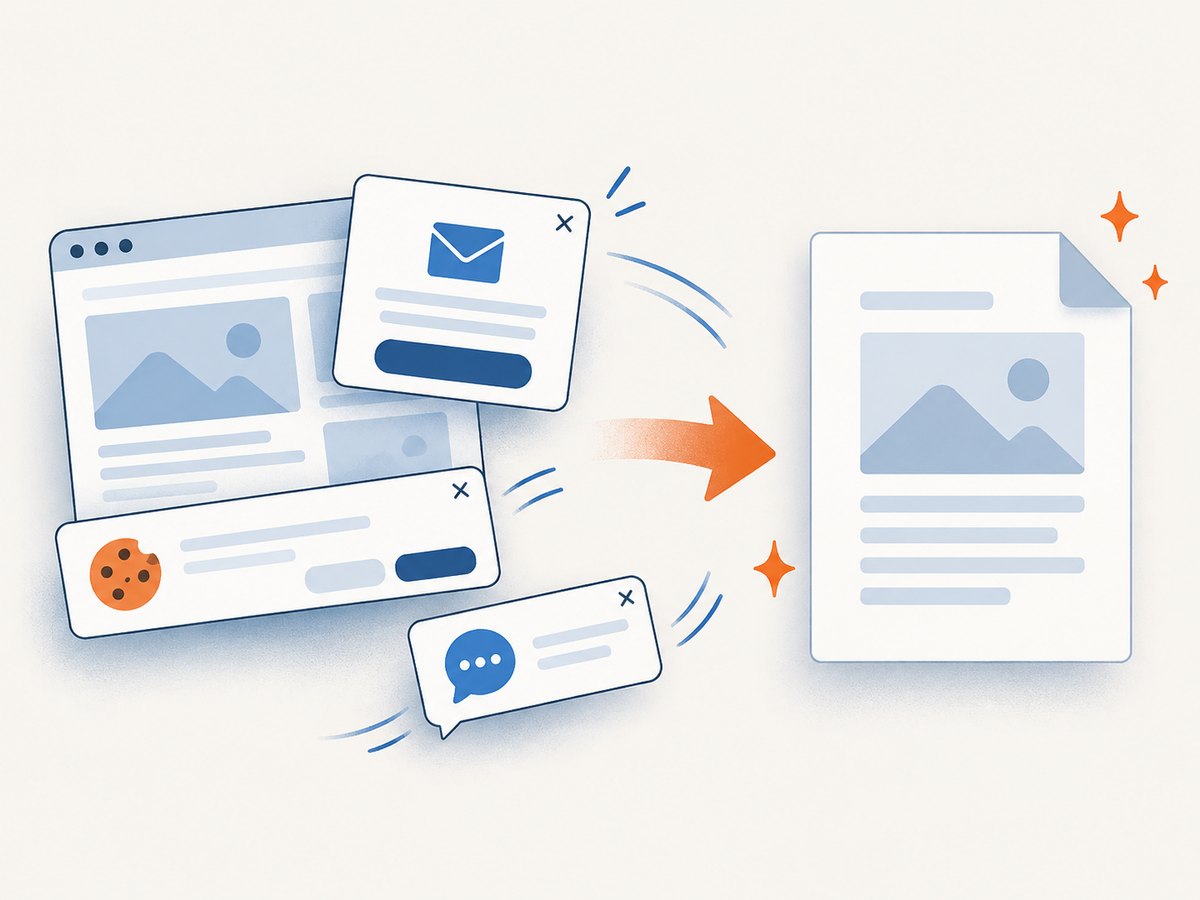
One GET request returns the PDF or image. Replace the URL with the page you need:
cURL
curl -G "https://api.screenshotneo.com/v1/shot" \
  -d access_key=YOUR_API_KEY \
  --data-urlencode url=https://stripe.com \
  -d format=pdf \
  -o page.pdf
Python
import requests

r = requests.get(
    "https://api.screenshotneo.com/v1/shot",
    params={
        "access_key": "YOUR_API_KEY",
        "url": "https://stripe.com",
        "format": "pdf",
    },
    timeout=90,
)
r.raise_for_status()
open("page.pdf", "wb").write(r.content)
Node.js
const q = new URLSearchParams({
  access_key: 'YOUR_API_KEY',
  url: 'https://stripe.com',
  format: 'pdf'
});
const res = await fetch(`https://api.screenshotneo.com/v1/shot?${q}`);
if (!res.ok) throw new Error(`HTTP ${res.status}`);
const body = Buffer.from(await res.arrayBuffer());
await import('node:fs/promises').then(fs => fs.writeFile('page.pdf', body));
Cookie banners, popups, and chat widgets are removed before the shot. Bot checks, blank pages, timeouts, failed loads, and cache hits are never billed, and response headers identify the page verdict and whether the request was billed. An MCP server lets Claude, Cursor, and other MCP clients call take_screenshot, get_page_info, and capture_pdf. The free plan includes 1,000 screenshots a month with no card; paid plans start at $5 for 3,000 shots. [Create a free ScreenshotNeo account](https://screenshotneo.com/account/sign-up/).
Important edge cases
- Login-required pages: A browser or API must receive an authenticated session. Without it, the PDF may contain a login form or an access-denied page.
- Cookie consent: Consent dialogs can cover links or trigger a different page state. Accept or remove them before capture.
- Lazy loading: Images and text may appear only after scrolling. Scroll the page in an automated browser or use a full-page capture option that loads lazy images.
- Infinite scroll: Decide on a maximum depth or page length. Otherwise the capture may never finish or produce an impractical PDF.
- Print CSS: Inspect the page in print preview. A site can intentionally hide navigation, backgrounds, or entire sections for paper output.
- Interactive content: Video, maps, accordions, and canvases are represented as a static frame. Expand important accordions before conversion.
- Cross-origin and blocked requests: Security policies, bot checks, or robots-related controls can prevent assets from loading. Diagnose the page in a normal browser first.
- Link targets that require JavaScript: A PDF can preserve a visible anchor but cannot reproduce every application action. Test the exported file in the viewer your readers will use.
Troubleshooting
| Symptom | Likely cause | Fix |
|---|---|---|
| Links are not clickable | The converter rasterized the page or the viewer is in a restricted mode | Use a PDF conversion workflow that preserves annotations, then test in a full PDF viewer |
| Only part of the page appears | Lazy loading, a collapsed scrollable block, or a print stylesheet | Scroll or expand content before capture; enable scrollable-block expansion; inspect print preview |
| Blank PDF | Page failed to load, required authentication, or timed out | Open the URL directly, verify access, increase the wait timeout, and capture after a readiness selector |
| Cookie banner covers content | Consent UI was still present | Accept or dismiss it before printing, or configure a capture service to remove known consent platforms |
| Fonts or images differ | Web fonts or assets had not finished loading | Wait for the relevant selector and fonts, use print backgrounds, and check the output on a second machine |
| Conversion follows unrelated pages | Crawl scope is too broad | Set same-path or same-server limits and choose a finite capture depth |
| PDF is extremely large | High-resolution images, expanded blocks, or many pages | Reduce capture scope, optimize images, and split a site into logical sections |
Performance, reliability, and cost planning
Browser printing has almost no incremental software cost but requires a person and is difficult to reproduce exactly. Acrobat adds a paid desktop workflow and is more suitable when you need crawl controls and document structure. A headless browser gives you repeatability but requires browser binaries, memory, timeout handling, and maintenance as websites change.
For reliable automation, record the source URL and access date, use deterministic viewport and paper settings, wait for a meaningful selector, and retry transient network failures with a limit. Store the response status and output checksum with the PDF. For large jobs, queue work and cap concurrency so the target site and your own worker do not become overloaded.
ScreenshotNeo can cache captures with a TTL you choose, accept bulk requests for up to 100 URLs per call, and expose usage data through its API. Its plans are Free (1,000 shots/month), Starter ($5 for 3,000), Growth ($15 for 15,000), Pro ($39 for 60,000), Scale ($99 for 250,000), and Business ($249 for 1,000,000); yearly billing provides two months free. Every feature is available on every plan.
Verification checklist
- Open the PDF in the viewer your audience uses.
- Click at least three internal links and three external links.
- Check a heading bookmark and search for a distinctive phrase.
- Inspect the first, middle, and final pages for clipped content.
- Confirm images, backgrounds, tables, and code blocks are readable.
- Record the original URL, capture date, tool, and settings.
- Remove passwords, session tokens, and private query parameters from shared filenames and notes.
FAQ
Does saving a webpage as PDF always keep links?
No. Standard anchors usually survive a proper HTML-to-PDF conversion, but print styles, JavaScript navigation, authentication, and rasterized output can remove or change link behavior. Test the result.
Can I convert an entire website into one PDF?
Acrobat supports multiple levels and entire-site capture with same-path or same-server restrictions. For large sites, separate PDFs are easier to search, update, and verify.
Why do links work in the browser but not in my PDF?
The browser executes the site’s scripts and knows its session. A PDF contains static pages and link annotations. JavaScript-only actions and expired authentication may not work after export.
Should I use browser printing or Acrobat?
Use browser printing for a quick one-page copy. Choose Acrobat when you need crawl depth, bookmarks, tags, or controls for images and scrollable blocks.
How can I automate this without installing Chromium?
Use a capture API such as ScreenshotNeo. It accepts a URL and PDF options over HTTP and also provides an MCP server for AI-agent workflows.


