How to Convert a Webpage to PDF in React
Choose browser printing for user-controlled PDFs or Puppeteer for automated generation. This guide covers React code, print styling, server setup, troubleshooting, and a hosted screenshot option.
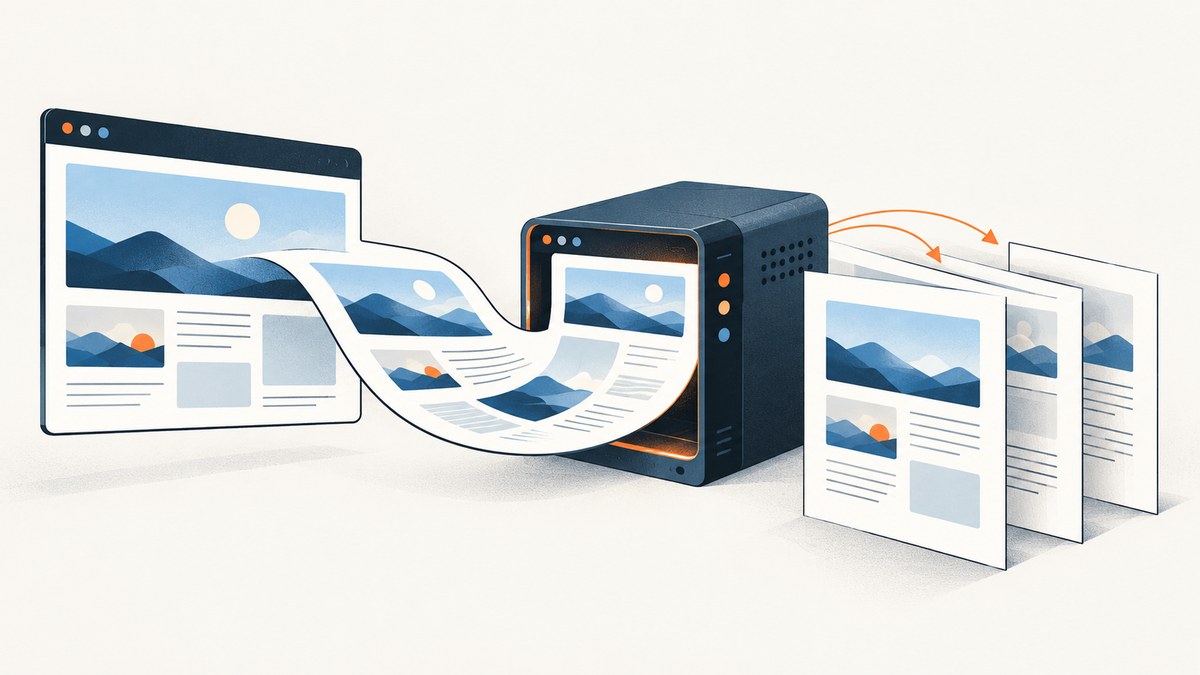
To let a person save a rendered React page as a PDF, make the page print-friendly and call window.print(); the browser opens its print dialog, where the person chooses a PDF destination. To generate and deliver PDFs automatically, render the page in a headless browser and call Puppeteer’s page.pdf(). Use react-to-print when the print dialog should contain one React component rather than the whole document.
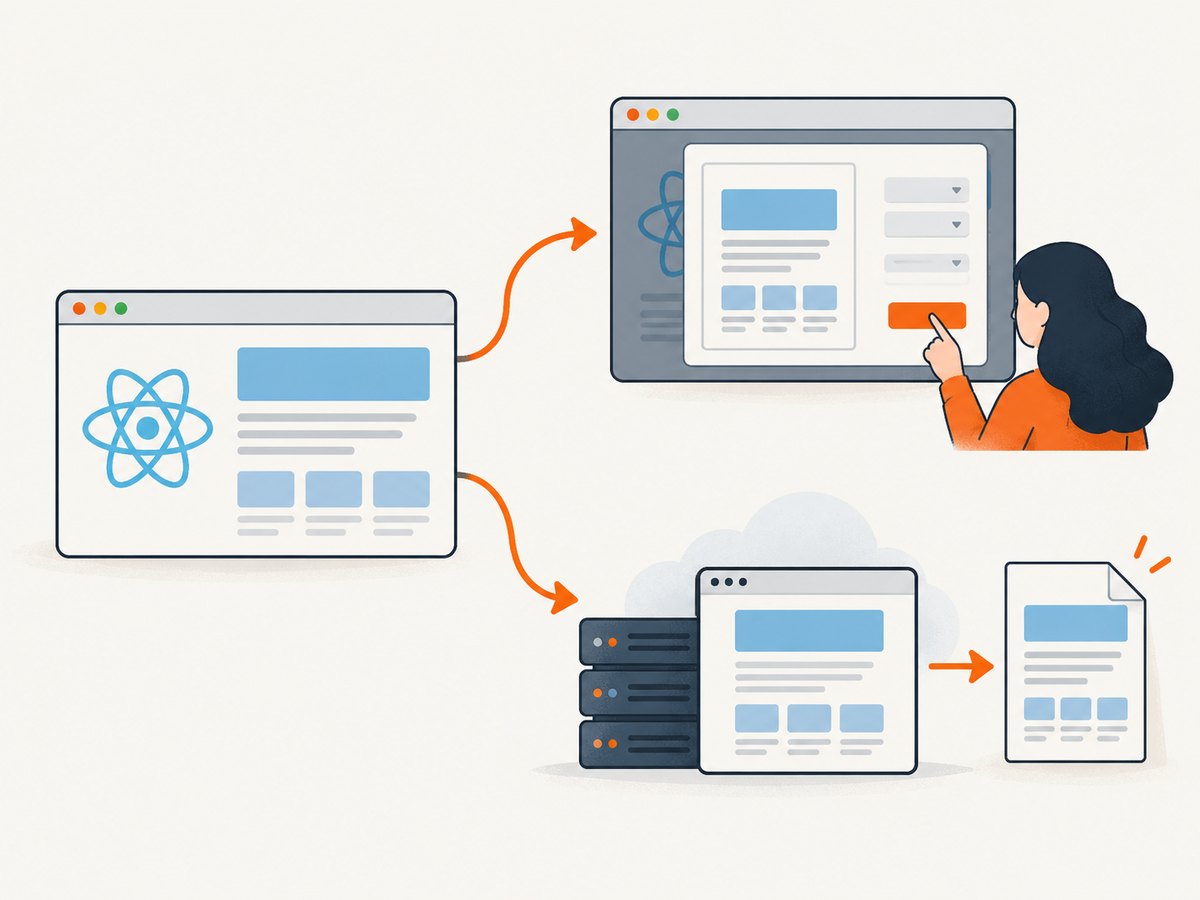
These are different workflows: browser printing leaves the save interaction to the user, while a headless browser lets application code produce a PDF. The choice depends on who initiates the export, how much layout control is needed, and whether your deployment can run a browser.
1. Choose the PDF workflow
| Need | Use | What happens |
|---|---|---|
| A user clicks Export and saves a PDF | window.print() with print CSS |
The browser opens its print dialog. The user selects a PDF destination or printer. |
| A user prints just one component | react-to-print |
A React ref identifies the content to send through the browser’s print flow. |
| A backend or job creates a PDF without a user dialog | Puppeteer Page.pdf() |
Server-side code renders a page and receives PDF bytes or writes a file. |
| A React component must be converted directly to a downloadable file in the browser | A dedicated client-side PDF library | Choose and verify a library for the content and pagination needs; the browser print APIs do not silently save a file. |
window.print() opens the print dialog for the current document; it is not a silent PDF download API. Likewise, react-to-print targets component content but uses the print-preview flow. Its documentation says direct PDF download is not supported by that native route; a custom print handler can pass content to a separate PDF generator. See the MDN print API and react-to-print documentation.
2. Print the current React page
This is the smallest browser-based solution. Put the action behind a user click, then control the printed layout with CSS. A typical Vite or Create React App component can look like this:
import './print.css';

export default function InvoicePage() {
  return (
    <main className="invoice">
      <nav className="screen-only">
        <button onClick={() => window.print()}>Save as PDF</button>
      </nav>
      <article>
        <h1>Invoice 1042</h1>
        <p>Customer: Ada Example</p>
        <table>
          <tbody>
            <tr><th>Service</th><th>Amount</th></tr>
            <tr><td>Design work</td><td>$500</td></tr>
          </tbody>
        </table>
      </article>
    </main>
  );
}
Add a print stylesheet. The @media print block hides controls and removes screen-only layout constraints. The @page rule requests paper size and margins; the browser’s print interface and user settings can still affect the final output.
/* print.css */
.invoice { max-width: 72rem; margin: 2rem auto; padding: 2rem; }

@media print {
  .screen-only { display: none !important; }
  html, body { background: #fff; color: #111; }
  .invoice { max-width: none; margin: 0; padding: 0; }
  article { font-size: 11pt; }
  a { color: inherit; text-decoration: none; }
  thead { display: table-header-group; }
  tr, img { break-inside: avoid; }
  h1, h2 { break-after: avoid; }
}

@page {
  size: A4 portrait;
  margin: 16mm 14mm;
}
Use size: Letter portrait if your documents target US Letter paper, landscape for wide tables, and a deliberate margin that leaves room for printer or PDF headers and footers if those are enabled. Browser support and print UI behavior vary; inspect the generated PDF in the browsers and environments your product supports.
Wait for page data before printing
If the content loads asynchronously, do not open print preview while it still shows a spinner or partial data. Disable the print button until the React data state is ready. For client-rendered charts or images, wait until they are drawn and loaded before enabling export. You can also use the browser’s beforeprint and afterprint events to adapt UI state around printing, but the main layout should already be correct in print CSS.
3. Print one React component with react-to-print
Use this library when an application shell contains navigation or unrelated panels that should not appear in the printed document. The ref marks the printable component; the hook opens the browser print flow.
import { useRef } from 'react';
import { useReactToPrint } from 'react-to-print';

function Report() {
  return (
    <article className="report">
      <h1>Quarterly report</h1>
      <p>The content to print goes here.</p>
    </article>
  );
}

export default function ReportPage() {
  const reportRef = useRef(null);
  const printReport = useReactToPrint({
    contentRef: reportRef,
    documentTitle: 'quarterly-report',
    onBeforePrint: async () => {
      // Resolve only after any final preparation is complete.
    },
  });

  return (
    <>
      <button onClick={printReport}>Print report</button>
      <div ref={reportRef}><Report /></div>
    </>
  );
}
Package APIs can change, so check the documentation for the version in your lockfile. In particular, verify its current ref property and callback signatures when upgrading. If you need an application-managed PDF download, use a custom handler that passes the intended content to a separate PDF-generation library; do not expect print preview to produce a file without the user.
4. Generate a PDF automatically with Puppeteer
For server-side generation, render a URL that serves the intended React view, then call Puppeteer’s Page.pdf(). Install Puppeteer in a Node.js service with the package manager used by your project. This example uses an Express route and returns the PDF bytes to the caller.
import express from 'express';
import puppeteer from 'puppeteer';

const app = express();

app.get('/reports/:id.pdf', async (req, res) => {
  let browser;
  try {
    browser = await puppeteer.launch({ headless: true });
    const page = await browser.newPage();
    await page.setViewport({ width: 1280, height: 900 });
    await page.goto(
      `https://app.example.com/reports/${encodeURIComponent(req.params.id)}`,
      { waitUntil: 'networkidle0', timeout: 30000 }
    );
    await page.pdf({
      format: 'A4',
      printBackground: true,
      margin: { top: '16mm', right: '14mm', bottom: '16mm', left: '14mm' },
    }).then((pdf) => {
      res.setHeader('Content-Type', 'application/pdf');
      res.setHeader('Content-Disposition', 'attachment; filename="report.pdf"');
      res.send(pdf);
    });
  } catch (error) {
    console.error('PDF generation failed', error);
    if (!res.headersSent) res.status(500).send('Could not generate PDF');
  } finally {
    if (browser) await browser.close();
  }
});

app.listen(3000);
For a real service, authenticate and authorize the report request before navigating, validate identifiers, and ensure the rendered URL cannot be influenced to access arbitrary internal addresses. Avoid putting long-lived secrets in query strings. A common design is to create a short-lived, access-controlled render route or pass scoped credentials through the browser context. Treat generated files and logs as potentially sensitive.
Important Puppeteer options
formatselects a standard paper format such as A4 or Letter. Alternatively, usewidthandheightfor explicit dimensions.landscapechanges orientation. Choose it for wide tables and verify pagination.marginaccepts top, right, bottom, and left dimensions. Coordinate it with@pagerules.printBackgroundincludes background graphics. Without it, print-oriented output may omit colored backgrounds.preferCSSPageSizecan give CSS@pagesize priority when using a CSS-defined page size.pageRangescan restrict output to selected pages if your workflow needs an excerpt.scaleadjusts rendered content scale; use sparingly, since shrinking can make text difficult to read.
Puppeteer’s Page.pdf() uses print CSS media by default. To render with screen media styles instead, call await page.emulateMediaType('screen') before generating the PDF. Print color adjustment can change colors for paper; where accurate color matters, consider the CSS property -webkit-print-color-adjust: exact and the printBackground option. The API documentation says PDF generation waits for fonts by default. Check the Puppeteer Page.pdf API and its PDF guide for the version you deploy.
5. Handle page breaks, fonts, and assets
PDFs are paginated paper documents, so a layout that works on a tall screen may split awkwardly. Apply print CSS to control likely boundaries:

@media print {
  .new-page { break-before: page; }
  .keep-together, figure, table tr { break-inside: avoid; }
  h2 { break-after: avoid; }
  .wide-report { overflow: visible; }
}

@page { size: A4; margin: 15mm; }
Avoid applying break-inside: avoid to a very long container; a block taller than the printable page cannot stay together and may overflow or paginate unexpectedly. Large tables need testing with repeated headers and rows that fit page boundaries. Prefer semantic HTML tables and explicit widths over a screenshot-like layout made of positioned elements.
For browser printing, wait for data and ensure web fonts and images have loaded before calling window.print(). For Puppeteer, navigation completion is not always equivalent to application readiness: a React route may hydrate or fetch after the initial document load. Use an explicit ready marker when possible:
await page.goto(reportUrl, { waitUntil: 'domcontentloaded', timeout: 30000 });
await page.waitForSelector('[data-pdf-ready="true"]', { timeout: 15000 });
const pdf = await page.pdf({ format: 'A4', printBackground: true });
Set the marker only after the required data and visual assets are ready. Network-idle waits can be unsuitable for pages with polling, analytics, or persistent connections; a page-specific readiness condition is often more predictable.
6. Or skip the browser setup
If your goal is a PDF of a public webpage rather than a React component whose PDF must reflect application state, ScreenshotNeo can return a PDF from one GET request. See the ScreenshotNeo website and API documentation for the current request options.
curl -G "https://api.screenshotneo.com/v1/shot" \
  -d access_key=YOUR_API_KEY \
  --data-urlencode url=https://stripe.com \
  -d format=pdf \
  -o page.pdf
Use the API’s PDF options for paper size, margins, landscape orientation, and page ranges. ScreenshotNeo also supports full-page capture, custom CSS and JavaScript, waiting for a selector or network idle, custom headers and cookies, and bulk capture. Cookie banners, newsletter popups, and chat widgets are removed before the shot by default, and each step can be turned off. Bot checks, blank pages, timeouts, failed loads, and cache hits are not billed; response headers identify the page verdict and billing status. An MCP server provides screenshot and PDF tools for AI agents. Free usage includes 1,000 shots per month with no card; paid plans start at $5 for 3,000 shots. Sign up for the free plan.
7. Reliability, performance, and cost
Browser printing has little application infrastructure to operate, but the user’s browser, printer settings, installed fonts, and selected destination affect the workflow. Your application controls the content and print CSS; the user completes the save step.
With Puppeteer, each generated document consumes browser and application resources. Reusing browser processes while creating an isolated page per job can avoid repeated startup work, but requires lifecycle management and concurrency limits. Set navigation and readiness timeouts, close pages after use, close the browser during shutdown, and cap concurrent jobs according to available memory. These are operational considerations; the cited documentation does not establish comparative performance figures.
Estimate cost from the full workload: browser compute, memory, storage or transfer for generated files, and any hosted rendering charges. A hosted API can reduce the amount of browser infrastructure you operate, but compare output requirements, plan limits, privacy needs, and request behavior. For ScreenshotNeo, published plans are Free (1,000 shots/month), Starter ($5 for 3,000), Growth ($15 for 15,000), Pro ($39 for 60,000), Scale ($99 for 250,000), and Business ($249 for 1,000,000); yearly billing gives two months free. Every feature is on every plan.
8. Troubleshooting
| Symptom | Likely cause | Fix |
|---|---|---|
| The app prints, but no file downloads | window.print() opens a dialog; it does not silently save a PDF. |
Let the user choose PDF in the dialog, or generate the file with a dedicated client-side library or server-side browser. |
| The PDF contains the whole app shell | The current-document flow prints all visible document content. | Hide shell elements in print CSS or use react-to-print to target the content component. |
| Styles look like the screen layout | Print rules are missing, overridden, or the server emulated screen media. | Inspect @media print; for Puppeteer use its default print media unless screen styling is intentional. |
| Background colors disappear | Print backgrounds may be omitted by default or disabled in the print dialog. | Use Puppeteer printBackground: true or enable background graphics in the user’s print UI; apply print color adjustment if needed. |
| Content is missing or stale | React data, fonts, images, or hydration had not completed before capture. | Gate browser printing on ready state; in Puppeteer wait for a specific application readiness selector. |
| A table row splits or a heading is stranded | Page-break rules are absent or applied to the wrong container. | Add break-inside: avoid to suitable rows/figures and break-after: avoid to headings; check oversized blocks. |
| Puppeteer times out on navigation | The site has long-running requests or an overly strict wait condition. | Try domcontentloaded followed by an explicit ready selector; keep a bounded timeout. |
| PDF route fails in production | The runtime may lack browser dependencies, memory, or capacity for concurrent jobs. | Use a deployment image compatible with Puppeteer, monitor failures and resource use, and bound concurrency. Consider hosted rendering if operating a browser is undesirable. |
9. FAQ
Can React export a PDF without opening a print dialog?
Not with window.print() or the standard react-to-print flow. Use a dedicated PDF generator or generate the document in a server-side browser.
Does Puppeteer render React?
Puppeteer renders the page in a browser engine. It can render a React app when it navigates to a route that serves and initializes that app.
Can I use screen CSS in the PDF?
Yes. Puppeteer defaults to print media; emulate screen media before page.pdf() when screen styles are desired. For user printing, design and inspect print-specific CSS.
Is Playwright another option?
Yes. Its Page API includes PDF-related controls. Since API details depend on the installed version, consult the official Playwright Page documentation before implementing it.


