How to Convert a Webpage to PDF in Safari
Save any Safari webpage as a PDF on Mac, iPhone, or iPad, with optional annotations, passwords, sharing, troubleshooting, and an API alternative.
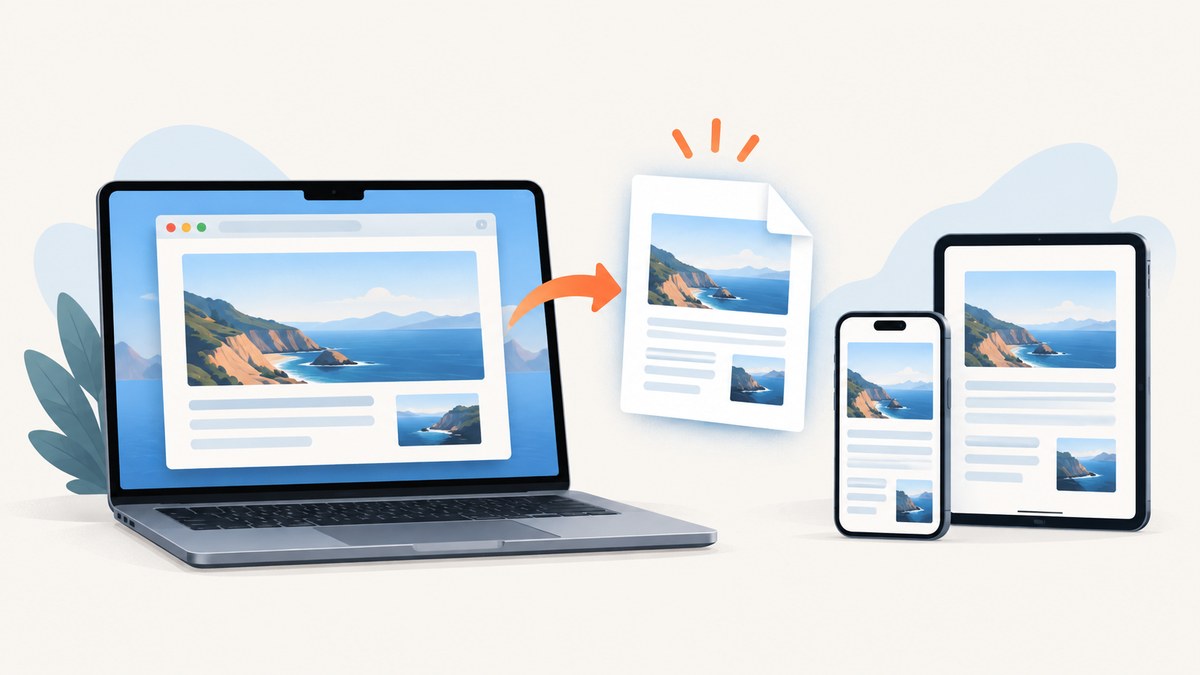
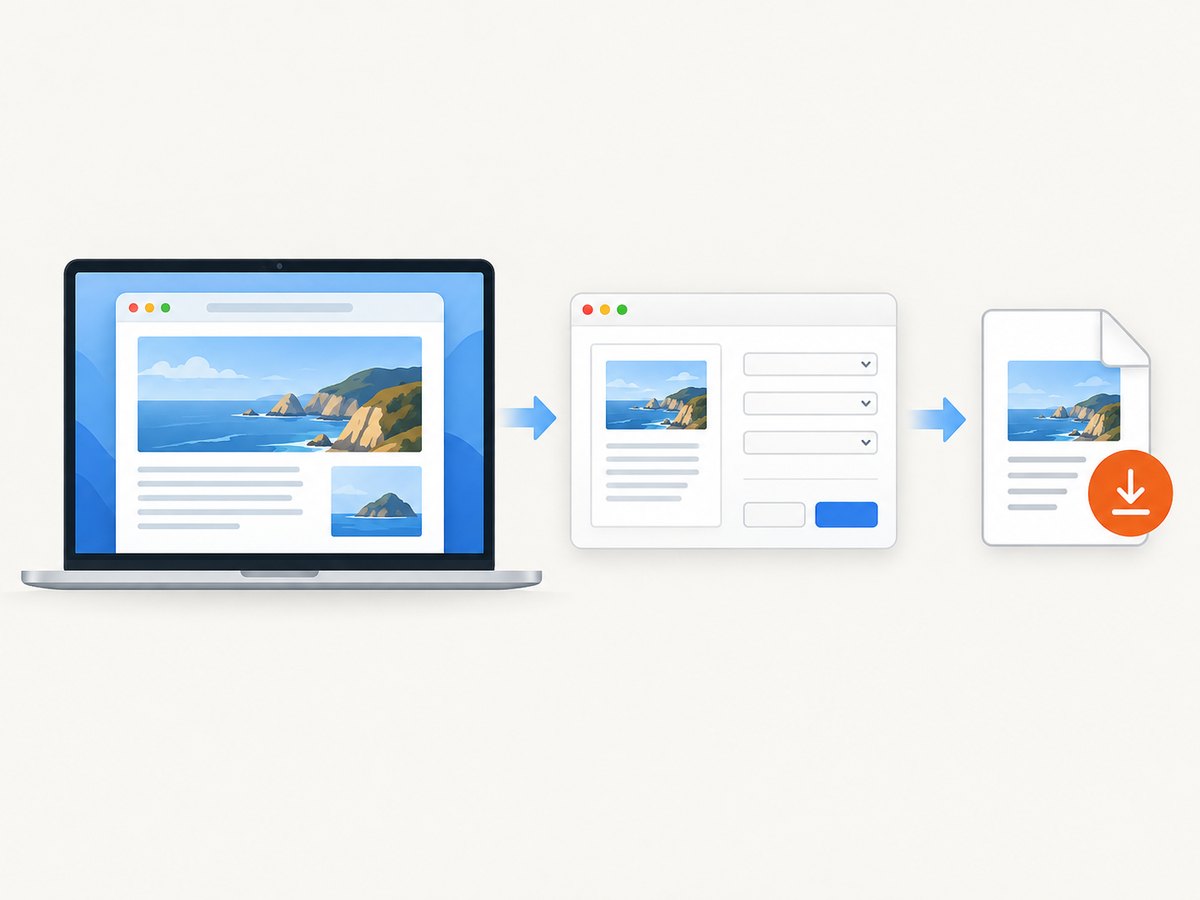
Safari can convert a webpage to a PDF without a printer or another application. On a Mac, open the page, choose File > Print, then choose Save as PDF. On an iPhone or iPad, use Safari’s Share menu, choose Markup, tap Done, and save the result to Files. Markup is optional: you can save a clean PDF immediately or annotate first.
This guide covers every built-in Safari route, including local saving, annotation, password protection on Mac, email sharing, page-length problems, Reader view, and repeatable automated captures. The right method depends on your device and whether you need a plain archive, notes, a protected document, or a PDF generated by code.
Convert a webpage to PDF on a Mac
Safari uses the standard macOS print dialog to create the file. A physical printer is not required; the PDF destination is built into the dialog.
Step-by-step
- Open Safari and navigate to the webpage you want to preserve.
- Wait for the page to finish loading. If it is a long page, scroll through it once so lazy-loaded images and sections appear before export.
- Choose File > Print from the menu bar, or press
Command-P. - In the print dialog, click the PDF button or open the PDF menu.
- Choose Save as PDF.
- Enter a filename, choose a folder, and click Save.
The resulting PDF contains the printable representation Safari produced. Web fonts, animations, hover states, video playback, and interactive controls may not behave as they do in the browser. If the page is an article, Reader view can often produce a cleaner document; that option is covered below.
Choose print settings before saving
macOS exposes the same controls it would use for paper printing. Depending on the page and your macOS version, you can select page ranges, orientation, paper size, scaling, and whether backgrounds are included. Use a smaller scale or landscape orientation when a wide table is clipped. Use portrait for normal articles.
To save only part of a page, set a page range such as 1-3 in the print dialog. This range refers to generated PDF pages, not the webpage’s headings or sections.
Password-protect the Mac PDF
After choosing Save as PDF, open Security Options if it is available in your print dialog. macOS can require a password to open the PDF and can apply separate passwords or restrictions for copying text and printing. Record the password in a secure password manager; Safari cannot recover it for you.
Convert a webpage to PDF on iPhone
On iPhone, Safari’s PDF workflow is in the Share sheet. The Markup screen is also the place to crop, highlight, draw, or add handwritten notes before the file is saved.
- Open the page in Safari.
- Tap the Page Menu button in the address bar or tap Share.
- Tap Markup. If it is not visible, swipe up in the Share sheet or tap More.
- Optionally highlight text, draw, write notes, or add shapes.
- Tap Done.
- Choose Save to Files.
- Rename the document if needed, select a location such as iCloud Drive or On My iPhone, and tap Save.
Markup saves the webpage as a PDF rather than an image. If you only want an unannotated copy, open Markup and tap Done without adding marks.
Convert a webpage to PDF on iPad
The iPad steps are nearly identical, but the destination label may be Save File To.
- Open the webpage in Safari.
- Tap Share.
- Tap Markup. On some iPad versions it appears under More or View More.
- Add annotations if required, then tap Done.
- Choose Save File To.
- Choose a folder, enter a filename, and save.
If the Share sheet is crowded, scroll through its actions or use the search field where available. You can also rearrange actions so Markup is easier to find next time.
Save a clean article with Reader view
Reader view removes many navigation elements, advertisements, and other page furniture from supported articles. Open the page menu in Safari and choose Show Reader (or the Reader icon in the address bar), then export the simplified page using the Mac or iPhone/iPad steps above.
Reader view is useful for documentation and news articles, but it is not appropriate when the PDF must preserve a dashboard, a product page, a table layout, or exact branding. Compare the preview before saving. If headings, images, or sidebars disappear, return to the normal webpage and export that instead.
Share a Safari webpage as a PDF by email
On Mac, choose File > Share or click Safari’s Share button and select Mail. Mail lets you choose how to send the page: as a webpage, PDF, link, or Reader article when the page qualifies as an article. Select PDF, add recipients, and send. This creates an attachment for the recipient; it does not require you to first save a local copy.
For a repeatable workflow, save the PDF first and attach it manually. That gives you a chance to inspect the filename, page count, and annotations before sending.
Which Safari PDF method should you use?
| Goal | Mac | iPhone or iPad |
|---|---|---|
| Plain local PDF | File > Print > Save as PDF | Share > Markup > Done > Save to Files/Save File To |
| Annotate before saving | Use a PDF annotation app after export, or annotate the saved PDF in Preview | Share > Markup, add notes, then save |
| Remove article clutter | Enable Reader view, then print | Enable Reader view, then use Markup |
| Password protection | Security Options in the print dialog | Export, then apply protection in a PDF app |
| Email without managing a file | File/Share > Mail > PDF | Save to Files, then attach from Mail or another share action |
Long pages, lazy images, and layout edge cases
Long or infinite-scroll pages
Safari prints a page as a sequence of PDF pages. Infinite-scroll sites may load additional content only after you scroll. Scroll through the entire page first, wait for images to appear, and then print. For very long pages, saving in sections with page ranges can make the result easier to inspect and share.
Cookie banners, popups, and chat widgets
Dismiss consent banners and overlays before export. A fixed chat button can cover text on every PDF page. If the site provides a “print” or “reader” view, use it. Otherwise, close the overlay, reload if necessary, and print again.
Wide tables and clipped content
Switch to landscape orientation, reduce scale, or choose a larger paper size. Preview the pages before saving. If a table is still clipped, copy the table into a spreadsheet or document and export that source instead.
Missing images or blank sections
Some images load only when they enter the viewport. Scroll over the affected section, wait for the image to finish, and retry. A blocked tracker, login requirement, script error, or offline connection can also prevent content from appearing in the print preview.
Interactive pages and video
A PDF captures a static state. It cannot preserve a live form, a playable video, a carousel’s alternate slides, or a hover tooltip as an interactive control. Open the exact state you need before printing and add a note if the context will otherwise be unclear.
Troubleshooting Safari PDF exports
| Symptom | Likely cause | Fix |
|---|---|---|
| No Save as PDF option | The compact print dialog is hiding the PDF menu | Expand the dialog with Show Details, then look for the PDF button or menu. |
| Markup is missing on iPhone/iPad | The action is lower in the Share sheet or under More | Scroll the actions, tap More/View More, and select Markup. |
| Only the visible portion saved | The page uses an embedded frame, canvas, or script-controlled scroll area | Use the site’s own print command, open the content in a new tab, or export each section separately. |
| Text is cut off | Scale, margins, or orientation do not match the layout | Choose landscape, reduce scale, adjust paper size, and inspect the preview. |
| Images are blank | Lazy loading, blocked requests, or an incomplete page load | Scroll through the page, wait, disable content blockers for the site if appropriate, and retry. |
| PDF is too large to email | High-resolution images or a long page count | Export fewer pages, compress a copy in Preview or another PDF tool, or share a cloud link. |
| Saved file cannot be found | It was saved to a different Files folder | Check the location selected in the save dialog and search by filename in Finder or Files. |
| Password no longer works | The PDF password was mistyped or changed by a later tool | Use the original password manager entry; Safari cannot reset an encrypted PDF. |
Or skip the browser setup
For one-off exports, Safari is enough. For a script, a backend job, or many URLs, ScreenshotNeo returns a PDF or image from one API request. Its capture can accept consent banners as a visitor and remove more than 60 known consent platforms, newsletter popups, and chat widgets before the shot. You can turn each cleanup step off.
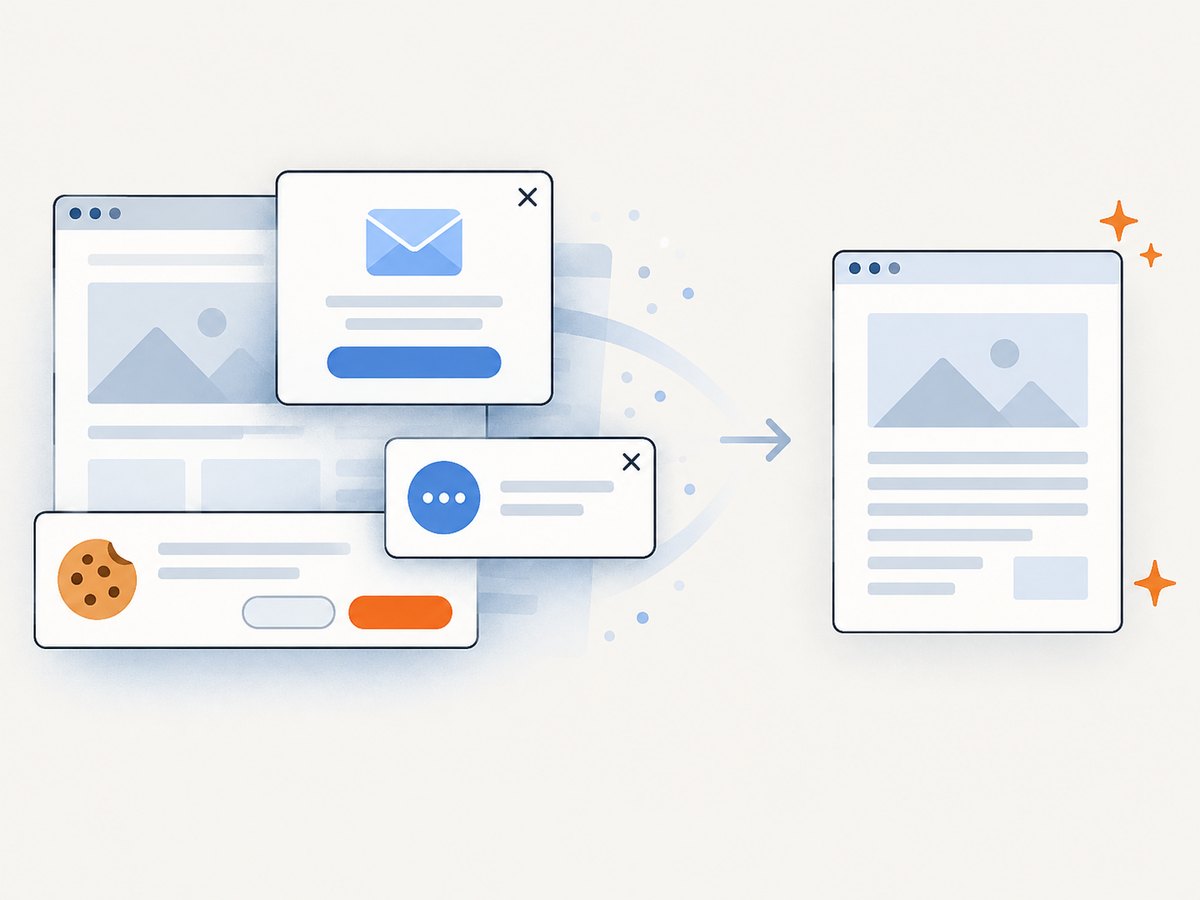
Only clean shots are billed. Bot checks or CAPTCHAs, blank pages, timeouts, failed loads, and cache hits cost nothing, and response headers identify the page verdict and whether it was billed. ScreenshotNeo also provides an MCP server with take_screenshot, get_page_info, and capture_pdf for Claude, Cursor, and other MCP clients.
See the complete parameter reference in the ScreenshotNeo documentation. The following request captures a PDF; replace the URL with the page you need and add your API key.
cURL
curl -G "https://api.screenshotneo.com/v1/shot" \
  -d access_key=YOUR_API_KEY \
  --data-urlencode url=https://stripe.com \
  -d format=pdf \
  -o page.pdf
Python
import requests

r = requests.get(
    "https://api.screenshotneo.com/v1/shot",
    params={
        "access_key": "YOUR_API_KEY",
        "url": "https://stripe.com",
        "format": "pdf",
    },
    timeout=90,
)
r.raise_for_status()
open("page.pdf", "wb").write(r.content)
Node.js
const q = new URLSearchParams({
  access_key: 'YOUR_API_KEY',
  url: 'https://stripe.com',
  format: 'pdf'
});
const res = await fetch(`https://api.screenshotneo.com/v1/shot?${q}`);
if (!res.ok) throw new Error(`HTTP ${res.status}`);
const body = Buffer.from(await res.arrayBuffer());
require('fs').writeFileSync('page.pdf', body);
For PDF-specific output, ScreenshotNeo supports paper size, margins, landscape mode, and page ranges. Other useful controls include custom CSS or JavaScript, a wait for a selector, a delay or network idle, custom headers and cookies, timezone and geolocation, request blocking, caching with a chosen TTL, signed links, asynchronous jobs with signed webhooks, and bulk capture of up to 100 URLs per call. These controls help when the Safari print dialog cannot reproduce a logged-in, localized, or dynamic page.
ScreenshotNeo has 1,000 shots per month free with no card. Paid plans start at $5 for 3,000 shots; yearly billing gives two months free. Every feature is available on every plan. Create a free ScreenshotNeo account and try the first 1,000 screenshots without entering a card.
Performance, reliability, and cost considerations
For a single page on your own device, Safari is the fastest and simplest choice because the browser already has the page and the PDF destination. Export time depends on page size, fonts, images, scripts, and your connection. Scrolling first improves completeness for lazy-loaded pages but adds manual work.
For repeatable jobs, an API avoids keeping a Mac or iPhone available. Use a selector wait or network-idle wait for dynamic pages, cache stable URLs with an appropriate TTL, and inspect the verdict and billed headers when diagnosing failures. Bulk capture reduces request-management overhead for a list of URLs. Keep API keys on the server, set a client timeout, and save the response as binary data.
Safari itself has no per-export charge. ScreenshotNeo usage is metered by clean shots according to the listed plan; failed loads, bot checks, blank pages, timeouts, and cache hits are not billed. Choose the local workflow for occasional personal files and the API when consistency, automation, or scale matters.
FAQ
Do I need a printer to make a Safari PDF?
No. On Mac, the print dialog’s Save as PDF destination works without a physical printer.
Can I annotate before saving?
Yes. On iPhone and iPad, choose Share > Markup, add highlights or notes, tap Done, and save. On Mac, export first and annotate the PDF in Preview.
Where does Safari save the PDF on iPhone?
It saves wherever you choose in the Files picker, such as iCloud Drive or On My iPhone. The selected folder is shown before you tap Save.
Can Safari preserve a webpage’s animations?
No. A PDF is a static document. Export the visible state you need, or use a video or screen recording when motion is essential.
Can I protect a Safari PDF with a password?
On Mac, open Security Options from the PDF save menu when available. iPhone and iPad exports can be protected later with a PDF app.
When should I use an API instead of Safari?
Use an API when you need scheduled captures, many URLs, consistent waits and cleanup, server-side output, or an automated PDF pipeline. ScreenshotNeo is designed for that workflow and includes an MCP server for AI agents.


