How to Convert a Webpage PDF to Word
Save a webpage as a PDF, convert it to an editable Word document, and check the result. Learn what to do with scanned pages and layout problems.

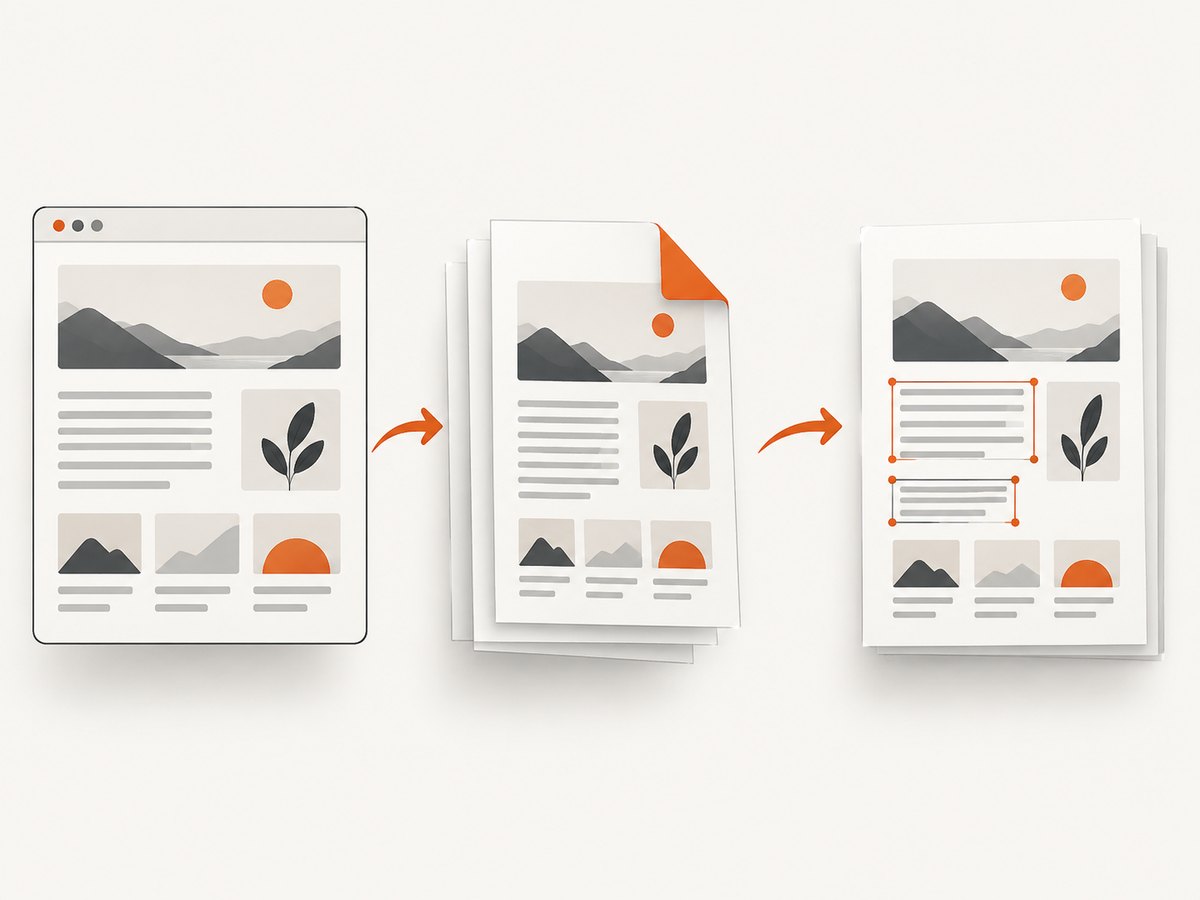
To convert a webpage to Word, first save or print the page as a PDF. Then open that PDF in Microsoft Word, which converts a copy into an editable document. If you use Word for the web, upload the PDF and let Word convert it. Review the result against the PDF: columns, tables, images, page breaks, and graphic-heavy layouts can change. If the PDF is a scan or its text cannot be selected, use OCR during conversion and proofread the recognized text.
The process has two distinct steps: saving the webpage as a PDF, then converting the PDF to Word. A PDF preserves a page’s appearance; a Word document reconstructs its contents for editing, so the two may not look exactly alike. Microsoft says, “Converting from PDF to Word works best with files that are mostly text.” Microsoft Support: Opening PDFs in Word.
1. Save the webpage as a PDF
Open the webpage you want to keep and use your browser’s print or save-to-PDF option. Select PDF as the destination or output, then save the file somewhere you can find it. Browser labels and menu locations vary, so look for the browser’s print or PDF-saving workflow rather than relying on a particular menu name.
- Open the page and wait for its content to finish loading. If the page loads content as you scroll, scroll through the sections you need before saving.
- Open the browser’s print or save workflow.
- Choose PDF as the output destination or format, if prompted.
- Save the file and note its location and filename.
- Open the saved PDF and check that the pages and content you need are present.
Saving a webpage to PDF captures a particular rendered version of the page. It does not make that PDF an editable Word document yet. If you need a record of the page’s appearance, keep the PDF as your source copy.
2. Convert the PDF with desktop Word
In the desktop version of Word, choose File > Open and select the PDF. Word converts the PDF into a Word document that you can edit. It creates a converted copy; the original PDF remains available. Save the converted document as a Word file after checking it.
- Start Word and open the PDF from its saved location.
- Accept the prompt to convert the PDF, if Word displays one.
- Wait for the editable document to open.
- Review the converted content and correct any layout or text problems.
- Save the result in Word format, such as DOCX, under a new filename.
This route is a good first choice when the PDF contains selectable text and you already have desktop Word. Text-heavy pages are generally more suitable for conversion than pages dominated by graphics. A complex webpage may not map neatly to Word’s paragraphs, tables, and page layout.
3. Convert using Word for the web
Word for the web can also convert a PDF. Upload the PDF, allow Word to convert it, then save or download the editable result. The exact workflow can depend on the account and version of Word available to you; use the PDF upload and conversion options shown in Word for the web.
- Open Word for the web and upload the PDF.
- Allow Word to process and convert the file.
- Check the resulting document in the browser.
- Save or download the editable document in Word format.
- Keep the original PDF and compare it with the converted file.
Web conversion is convenient when you are working in a browser or do not have the desktop application at hand. The same review step applies: conversion reconstructs content and layout, so verify what Word produced before sharing or relying on it.
4. Check whether the PDF contains text or a scan
Before choosing a conversion route, try selecting a sentence in the PDF and copying it. If you can select individual words, the PDF likely contains text that a converter can work with. If the page behaves like one flat image, or copying produces no useful text, it may be a scan or image-only PDF. A scan needs optical character recognition (OCR) to turn visible letters into editable text.

| What you see in the PDF | Suggested route | What to inspect afterward |
|---|---|---|
| Selectable paragraphs and simple layout | Open or upload it in Word and convert | Headings, paragraphs, links, and page breaks |
| Selectable text, but several columns or many tables | Convert with Word, then plan for manual layout repair | Reading order, table structure, and column boundaries |
| Text cannot be selected; page acts like a picture | Use an OCR-capable conversion workflow | Names, numbers, punctuation, and other recognized text |
| Page is mostly illustrations, banners, or other graphics | Convert if you need editable text, but expect some parts to remain images | Whether important words are editable and whether graphics are positioned correctly |
OCR output is recognized text, not a guaranteed transcription. Compare it with the page image and correct misread characters, missing words, and reading order—especially in names, URLs, dates, and figures.
5. Use Adobe Acrobat when export or OCR is useful
Adobe Acrobat is another route for exporting a PDF to Word formats such as DOC or DOCX. Adobe documents text recognition as part of its conversion workflow for scanned text. It can be an option if you already use Acrobat or need its PDF export workflow. Do not assume it will preserve every element or fix every layout: inspect the exported document just as you would a Word conversion.
Choose based on the PDF and the software you have available. Word offers a direct open or upload conversion route. Acrobat offers PDF export and documents OCR for scanned text. The cited product guidance does not establish that one tool is universally more accurate or that either one will preserve a particular webpage’s layout.
6. Review and repair the Word document
Compare the Word file side by side with the source PDF. Focus on whether the content is complete and in the right order before spending time adjusting appearance. Correct errors in the text, then repair formatting that matters to the document’s use.
- Headings: Check that section titles are present, in the right order, and formatted as headings where appropriate.
- Columns: Confirm that text reads in the intended sequence. Multi-column pages can be reconstructed in an unexpected order.
- Tables: Verify row and column alignment, cell contents, and whether the converter turned the table into plain text.
- Images and graphics: Check whether an image replaced text, whether captions are missing, and whether graphics moved or changed size.
- Page breaks: Look for blank pages, headings stranded at the bottom of a page, and paragraphs split awkwardly.
- Links and symbols: Check important URLs, special characters, bullets, and punctuation.
- Scanned text: Proofread OCR results against the visible source, including small text and figures.
If your goal is editing the wording, prioritize editable, accurate text and clear reading order. If your goal is a close visual copy, expect to adjust page layout manually. Keep the source PDF so you can resolve ambiguous text or placement later.
Or skip the browser setup
If your actual goal is to capture a webpage as an image or PDF, ScreenshotNeo provides a one-request screenshot API. It captures a URL as PNG, JPEG, WebP, or PDF. It does not convert a PDF into an editable Word document; use the steps above for that. See the ScreenshotNeo API documentation for request options.
curl -G "https://api.screenshotneo.com/v1/shot" -d access_key=YOUR_API_KEY --data-urlencode url=https://stripe.com -o shot.webpimport requests
r = requests.get(
"https://api.screenshotneo.com/v1/shot",
params={"access_key": "YOUR_API_KEY", "url": "https://stripe.com"},
timeout=90,
)
open("shot.webp", "wb").write(r.content)const q = new URLSearchParams({ access_key: 'YOUR_API_KEY', url: 'https://stripe.com' });
const res = await fetch(`https://api.screenshotneo.com/v1/shot?${q}`);
if (!res.ok) throw new Error(`Screenshot request failed: ${res.status}`);
await Bun.write('shot.webp', res);With ScreenshotNeo, cookie banners, newsletter popups, and chat widgets are removed before the shot. Bot checks, blank pages, failed loads, and cache hits are not billed. Its MCP server lets AI agents such as Claude and Cursor take screenshots. The free plan includes 1,000 screenshots a month with no card; paid plans start at $5 for 3,000.
Sign up free for 1,000 screenshots a month, no card required.
Troubleshooting
| Problem | Likely cause | What to do |
|---|---|---|
| The Word document has missing or jumbled text | The PDF has columns, complex positioning, or a layout Word could not reliably reconstruct | Compare with the PDF, correct the reading order, and re-create complex sections manually if needed |
| Text in a graphic cannot be edited | The page content was stored as an image; Microsoft notes that graphic-heavy PDF pages may appear as images in Word | Use OCR if you need editable text, then proofread the recognition |
| A scanned page produces no useful text | The source is image-only and the conversion did not recognize its text | Use a workflow with OCR enabled and inspect the result character by character where accuracy matters |
| The converted file looks different from the PDF | Word reconstructs an editable layout from a fixed-layout PDF; images or multiple columns can shift | Repair formatting in Word and keep the PDF as the visual reference |
| The PDF is missing sections of the webpage | The saved PDF may not include content that had not loaded or was outside the captured print output | Return to the webpage, let needed content load, save a new PDF, and check its pages before conversion |
| OCR confuses letters and numbers | Recognition can misread small, low-quality, or stylized text | Proofread against the page image; pay particular attention to names, dates, IDs, and URLs |
| The PDF does not open in Word for the web | The upload or conversion may not have completed, or the available web workflow may differ | Confirm the PDF opens locally, try the upload again, or use desktop Word or Acrobat’s PDF export workflow |
Performance, reliability, and file handling
Conversion time and output quality depend on the document’s size, structure, and content; the cited documentation provides no general conversion-time or success-rate figures. A straightforward text PDF is typically easier to reconstruct than a long page with many images, columns, or positioned elements. For important documents, retain the PDF and inspect the complete Word output rather than assuming a successful conversion means an accurate one.
For private or sensitive webpages, consider whether uploading the PDF to an online service fits your organization’s data-handling requirements. Word for the web and any cloud-based workflow involve uploading the file. If that is not appropriate, use software and storage approved for the document. Keep both source and converted versions until you have checked the result.
Frequently asked questions
Can I turn a webpage directly into a Word document?
This workflow saves the rendered webpage as a PDF first, then converts that PDF to Word. Review the Word file because the PDF-to-document step can change layout.
Will the converted Word file look exactly like the webpage?
There is no guarantee. Conversion rebuilds editable content from a fixed-layout PDF, and complex or graphic-heavy pages may not translate cleanly.
Can I convert a scanned webpage PDF?
Yes, if the workflow uses OCR to recognize the text. Proofread the result because OCR can make recognition errors.
Should I delete the PDF after conversion?
Keep it until you have checked the Word version. It is the reference for the original page appearance and helps resolve uncertain text or layout.


