How to Convert a Webpage to a Readable PDF
Convert any webpage into a readable PDF with browser reading modes, print settings, automation tips, troubleshooting, and a clean API option.
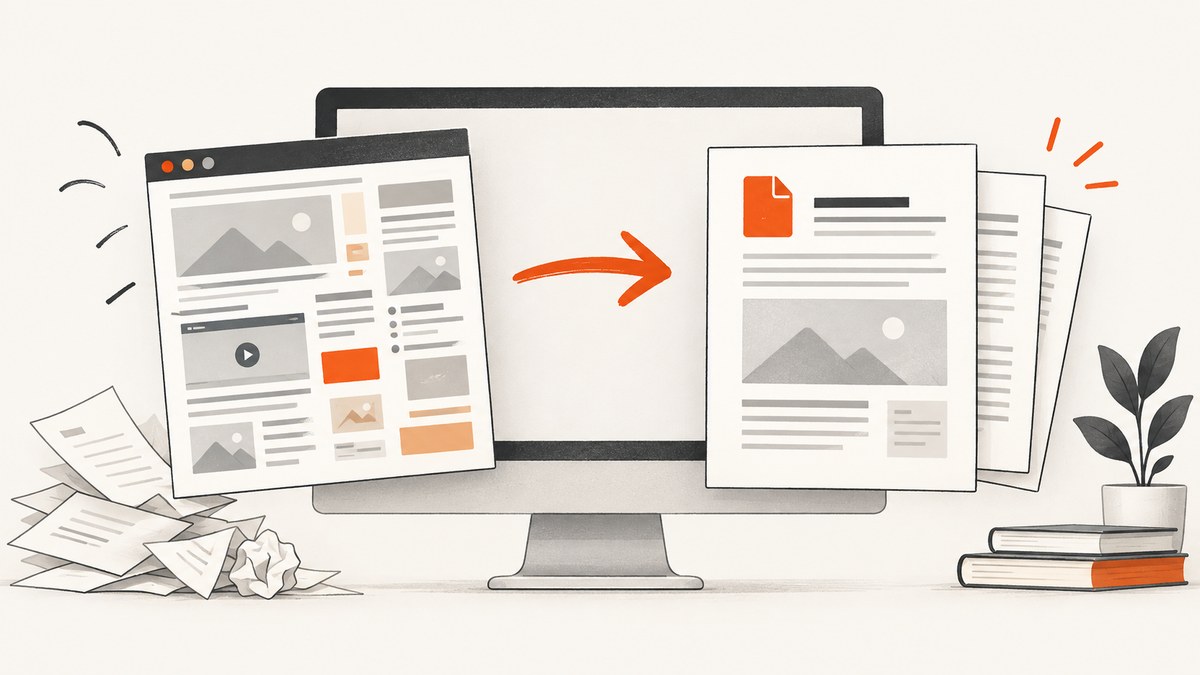
To convert a webpage to a readable PDF, simplify the page first, open the browser print dialog, choose a PDF destination, adjust the preview, and then save. Reading modes remove navigation, advertising, popups, and other distractions before the print engine lays out the document. Always inspect the preview: scale, margins, orientation, backgrounds, and page range determine whether the result is comfortable to read or clipped and tiny.
Fast method: simplify, print, inspect, save
- Open the page in Chrome, Edge, or Firefox.
- Switch to the browser’s reading or simplified view when available.
- Open Print with Ctrl+P on Windows/Linux or Command+P on macOS.
- Choose the browser’s PDF destination, such as Save to PDF.
- Set paper size, orientation, scale, margins, page range, and headers or footers.
- Review every page in the preview, especially the right edge of wide content and pages containing images.
- Save with a descriptive filename, for example
api-authentication-guide-2026-09.pdf.
For article pages, reading mode is usually the largest readability improvement. It creates a narrower text column, removes unrelated controls, and gives you font and spacing controls before printing.
Prepare the webpage for a readable PDF
Use a reading or simplified view
Chrome Reading mode is designed to help readers focus on text and reduce on-screen distractions. On desktop, open the page’s context menu and choose Open in reading mode, use the Reading mode button in the address bar, or use Alt+Shift+R on Windows/Linux/ChromeOS and Command+Option+R on macOS. Reading mode can change typeface, font size, color theme, line spacing, and letter spacing. It is not available for every website; image galleries, interactive maps, forms, quizzes, payment pages, and login screens may not convert correctly.
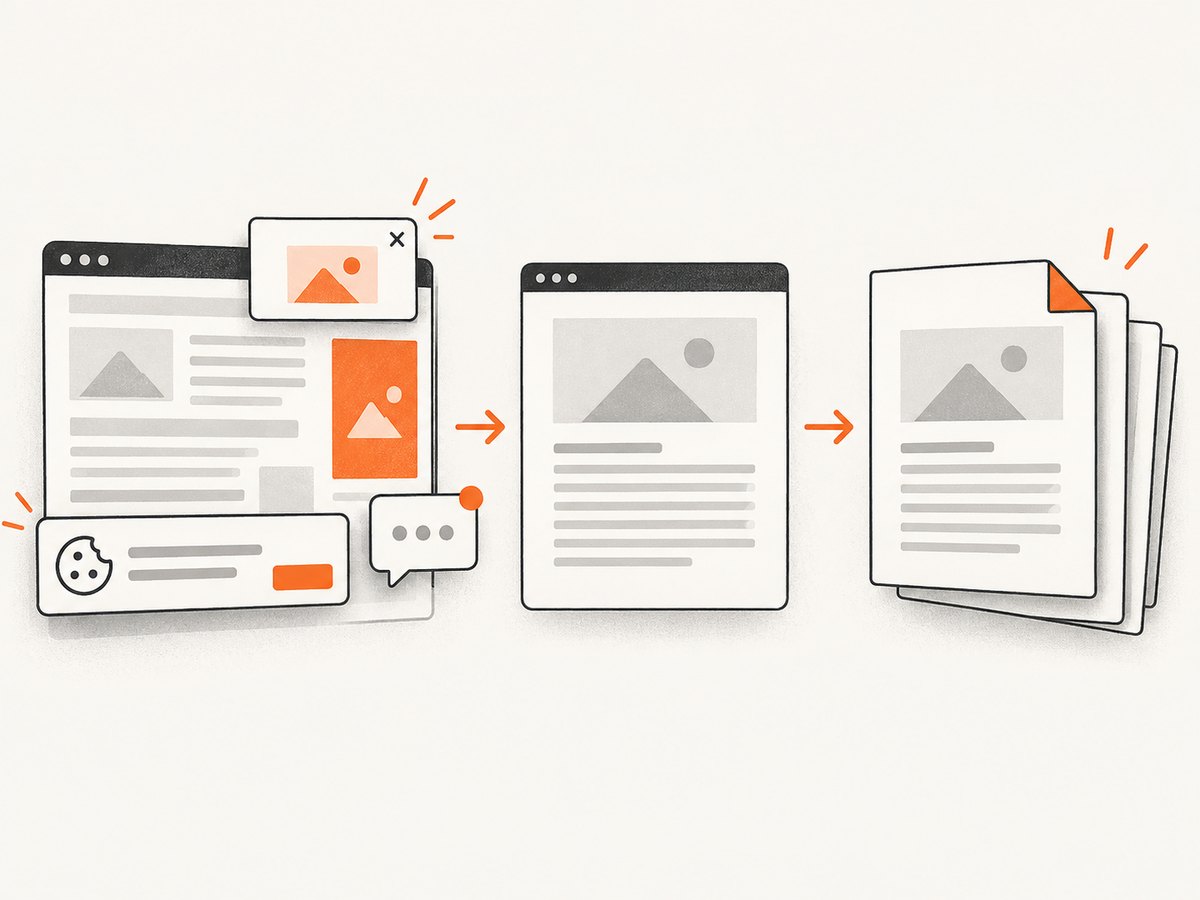
In Edge, open Immersive Reader from the address bar or press F9 on supported pages. Edge describes its clutter-free print option as removing surrounding material such as ads and site navigation. Immersive Reader and Reading mode can hide popups and buttons and let you tune font size, column width, and theme. Availability varies by site.
Firefox may offer Simplified format in print preview. If it appears, enable it before saving. Firefox’s preview also exposes expanded controls for paper size, scale, pages per sheet, margins, headers, footers, backgrounds, orientation, and color.
Choose typography that survives printing
- Increase the reading-view font size until body text is comfortable at 100% zoom in the PDF viewer.
- Increase line spacing for long articles or technical documentation.
- Use portrait for normal article columns. Use landscape for wide tables, diagrams, or code listings.
- Keep margins wide enough that text is not clipped by a printer or viewer, but avoid excessive margins that create very short lines.
- Remove headers and footers when they add repeated clutter. Keep them when the URL, date, or page number is useful for citation.
Chrome: webpage to PDF
- Open the page and enter Reading mode if the option is available.
- Adjust font size, typeface, theme, and spacing in the reading pane.
- Press Ctrl+P or Command+P.
- Select the PDF destination shown in the print dialog.
- Choose portrait or landscape, paper size, margins, scale, and a page range.
- Enable background graphics only when color blocks, charts, or images carry meaning.
- Turn headers and footers off for a cleaner document, or leave them on when source information matters.
- Check the preview for clipped code, orphaned headings, blank pages, and missing images, then save.
If Reading mode is unavailable, print the original page. Use the preview’s scale and margins to fit the content, and manually dismiss cookie notices or overlays before opening Print.
Edge: Immersive Reader and print preview
- Open the page and select Immersive Reader from the address bar, or press F9 when supported.
- Set the text column width, font size, and theme for comfortable reading.
- Open Print from the menu, with Ctrl+P on Windows or Command+P on macOS.
- Choose the PDF destination.
- Review orientation, paper size, page range, scale, margins, headers and footers, and background graphics.
- Save only after checking the preview at several pages, including one with images or tables.
Edge’s clutter-free print option is useful when Immersive Reader does not support the site. The original-page fallback still lets you control scale, margins, and page range.
Firefox: Simplified format and Save to PDF
- Open the page and press Ctrl+P or Command+P.
- In print preview, enable Simplified when Firefox offers it.
- Set the destination to Save to PDF.
- Choose orientation, pages, color mode, paper size, scale, pages per sheet, margins, headers, footers, and backgrounds.
- Inspect the preview and save.
Mozilla warns that web pages can set themselves up to appear differently on paper than on screen. Treat the preview as the authority: if a table is cut off, change orientation or scale before saving.
Make difficult pages readable
Wide tables and code
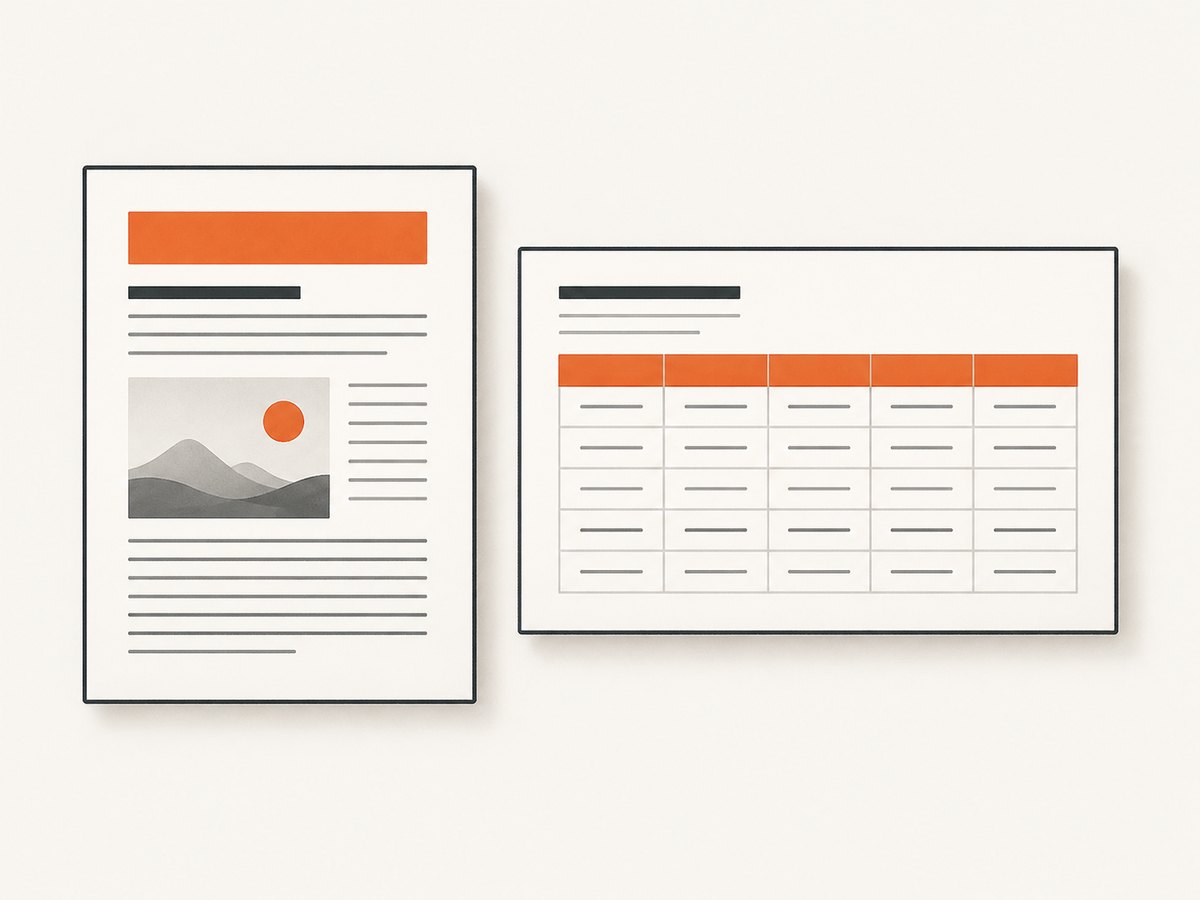
Switch to landscape, reduce scale slightly, or choose a wider paper size. For code, keep a readable font size and avoid shrinking an entire long listing to fit one page. Printing selected pages can produce a more useful reference than exporting an entire site.
Images, colors, and charts
Enable background graphics when the preview loses meaningful color coding or chart regions. If decorative backgrounds create visual noise, leave them disabled. Confirm that lazy-loaded images have appeared before printing; scroll through the page once if necessary.
Interactive and protected content
Forms, maps, video players, login screens, payment interfaces, and other interactive controls may not produce useful static content. Capture the explanatory text and images, and record a link to the live application when interaction is essential. If a page requires authentication, sign in before printing and check that private data is not included unintentionally.
Cookie banners, ads, and overlays
Dismiss consent dialogs and newsletter prompts before printing. If a banner returns after reload, use reading mode or a clutter-free print option. A browser PDF contains whatever is visible when printing, so a modal covering the article can become a blank or partial page.
Automate webpage-to-PDF conversion
For repeated jobs, browser automation provides consistent viewport, wait, and output settings. Playwright can be used from Node.js or Python. Install it with npm install playwright and npx playwright install chromium for Node, or pip install playwright followed by playwright install chromium for Python.
Node.js with Playwright
const { chromium } = require('playwright');

(async () => {
  const browser = await chromium.launch();
  const page = await browser.newPage({ viewport: { width: 1280, height: 900 } });
  await page.goto('https://example.com/article', { waitUntil: 'networkidle' });
  await page.emulateMedia({ media: 'print' });
  await page.pdf({
    path: 'article.pdf',
    format: 'A4',
    printBackground: true,
    margin: { top: '18mm', right: '16mm', bottom: '18mm', left: '16mm' }
  });
  await browser.close();
})();
Use a specific wait condition instead of an arbitrary long delay when the page has a known article selector. If the site keeps analytics connections open, networkidle may never settle; wait for the content selector and then use a short, deliberate delay.
Python with Playwright
from playwright.sync_api import sync_playwright

with sync_playwright() as p:
    browser = p.chromium.launch()
    page = browser.new_page(viewport={"width": 1280, "height": 900})
    page.goto("https://example.com/article", wait_until="networkidle")
    page.emulate_media(media="print")
    page.pdf(
        path="article.pdf",
        format="A4",
        print_background=True,
        margin={"top": "18mm", "right": "16mm", "bottom": "18mm", "left": "16mm"},
    )
    browser.close()
Automation should handle failures explicitly: set a navigation timeout, save an error record with the URL, and retry transient network failures with a limit. Do not retry indefinitely when a site returns a bot check or requires credentials.
Or skip the browser setup
ScreenshotNeo provides a website capture API that can return a clean screenshot or PDF from one GET request. Its capture process accepts cookie and consent banners, then removes more than 60 known consent platforms, newsletter popups, and chat widgets before the shot. Each step can be turned off. Bot checks and CAPTCHAs, blank pages, timeouts, failed loads, and cache hits are not billed, and response headers identify the page verdict and whether the request was billed.
See the ScreenshotNeo API documentation for PDF paper size, margins, landscape mode, page ranges, and the complete option list. The same service also supports full-page capture with lazy images loaded, CSS element capture, dark mode, device presets, custom viewports, retina scale, custom CSS and JavaScript, clicks, selector waits, network-idle waits, ad and tracker blocking, custom headers and cookies, user agents, authorization, timezone and geolocation, transparent backgrounds, resizing, TTL caching, signed links, asynchronous jobs with signed webhooks, bulk capture of up to 100 URLs per call, a usage API, and an OpenAPI specification.
curl -G "https://api.screenshotneo.com/v1/shot" -d access_key=YOUR_API_KEY --data-urlencode url=https://stripe.com -o shot.webpimport requests
r = requests.get("https://api.screenshotneo.com/v1/shot", params={"access_key": "YOUR_API_KEY", "url": "https://stripe.com"}, timeout=90)
open("shot.webp", "wb").write(r.content)const q = new URLSearchParams({ access_key: 'YOUR_API_KEY', url: 'https://stripe.com' });
const res = await fetch(`https://api.screenshotneo.com/v1/shot?${q}`);Use the PDF options documented for the endpoint when you need a PDF output. The practical reasons to use the API are straightforward: cookie banners, popups, and chat widgets are removed before the shot; bot checks, blank pages, and failed loads are never billed; an MCP server lets AI agents take screenshots with take_screenshot, get_page_info, and capture_pdf; and 1,000 screenshots per month are free with no card, while paid plans start at $5 for 3,000 shots.
Sign up for the free ScreenshotNeo plan to start with 1,000 screenshots each month and no card.
Performance, reliability, and cost considerations
- Page readiness: wait for the article selector or a known application state. Network-idle waits can be slow on pages with persistent connections.
- Large documents: full-page PDFs use more memory and take longer than a selected element or page range. Split very long exports when readers only need sections.
- Images: lazy-loaded assets may require scrolling, a full-page option that loads lazy images, or an explicit wait.
- Repeat captures: cache stable pages with a TTL when supported. Disable caching when the PDF must reflect every update.
- Cost control: select only needed pages, avoid unbounded retries, and inspect verdict or billing headers when using ScreenshotNeo. Cache hits and failed captures are not billed by ScreenshotNeo.
- Reproducibility: record URL, timestamp, viewport, paper size, scale, margins, and whether backgrounds were enabled so another person can recreate the PDF.
Troubleshooting
| Symptom | Likely cause | Fix |
|---|---|---|
| Ads, menus, or a cookie banner appear | The original page was printed without simplification | Use Reading mode, Immersive Reader, or Firefox Simplified; dismiss overlays before printing. |
| Text is tiny | Landscape or a low print scale forced too many columns onto each page | Use portrait, increase scale, increase reading-view font size, or print selected pages. |
| The right edge is cut off | Content is wider than the paper area | Switch to landscape, reduce scale, widen paper size, or reduce margins. |
| Colors or images disappear | Background graphics are disabled or assets were not loaded | Enable background graphics, wait for images, and verify the preview. |
| Reading view is unavailable | The site or content type is unsupported | Print the original page and adjust scale, margins, headers, and page range manually. |
| Interactive content is missing | PDF is static and cannot reproduce maps, video, forms, or login controls | Export the explanatory text and images, and link readers to the live interface. |
| Automation times out | Persistent connections, slow assets, or a bot check prevented readiness | Wait for a content selector, set a bounded timeout, inspect the page response, and stop retrying when authentication or a bot check is required. |
| PDF has unexpected blank pages | CSS print rules, forced page breaks, or an empty range | Inspect print preview, change the page range, and test with print media styles. |
Checklist before sharing the PDF
- Confirm the title, source URL, and capture date are present when readers need provenance.
- Read one page at normal zoom and check that body text is not cramped.
- Inspect pages with tables, code, images, and headings for clipping or awkward breaks.
- Verify that private account data, tokens, and personal details are not visible.
- Search the PDF for a distinctive sentence to confirm text is selectable when that matters.
- Open the saved file in a second PDF viewer if the document is business-critical.
FAQ
Can I save only part of a webpage?
Yes. Use the print dialog’s page range after previewing, or capture a specific element with an automation tool or ScreenshotNeo.
Why does the PDF look different from the browser?
Print media styles, hidden navigation, unavailable web fonts, and different viewport dimensions can change layout. Preview the print version and adjust scale, margins, and orientation.
Should I enable background graphics?
Enable them when colors or shaded regions carry meaning. Leave them off when they are purely decorative and make the file larger or harder to read.
Will a browser PDF be tagged for accessibility?
Browser print tools do not promise tagged-PDF or PDF/UA conformance. If semantic accessibility is a requirement, validate the exported document with your accessibility workflow.
What is the most dependable cross-browser process?
Simplify the page when possible, choose the PDF destination, inspect the preview, correct scale or margins, and then save. Keep the original-page print path as a fallback for unsupported reading views.


