How to Convert a Webpage to a Single-File PDF
Save any webpage as one PDF file with Chrome, Firefox, Edge, Android, or code. Check print settings, fix layout issues, and automate captures with ScreenshotNeo.
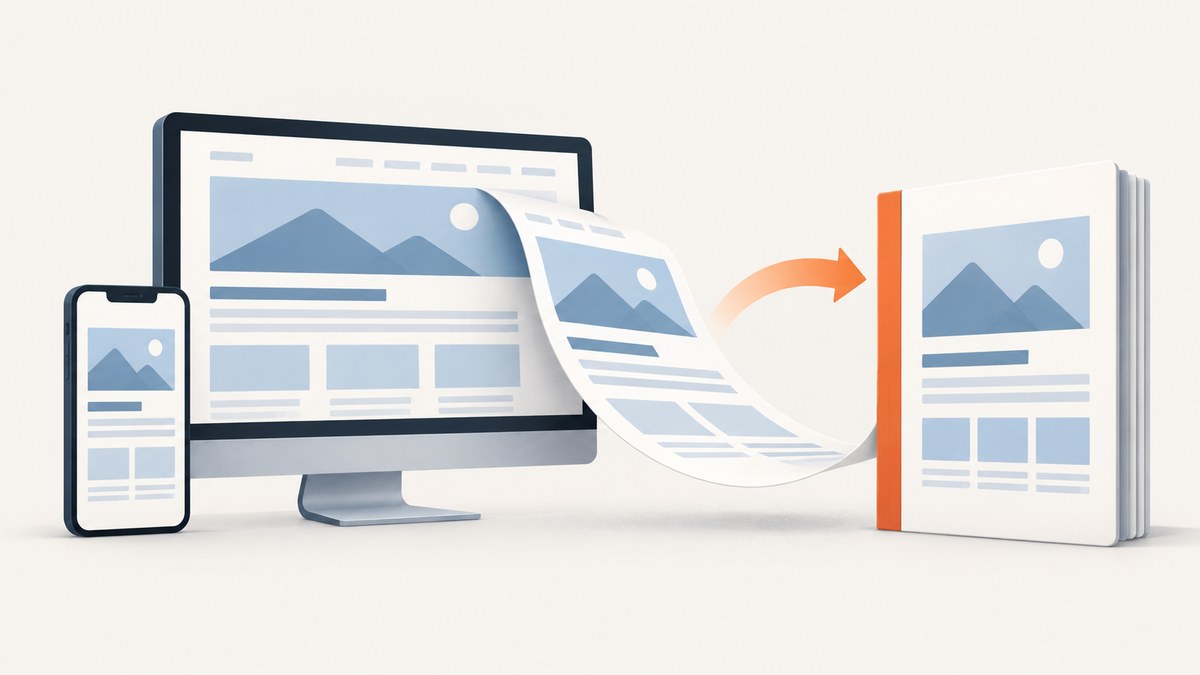
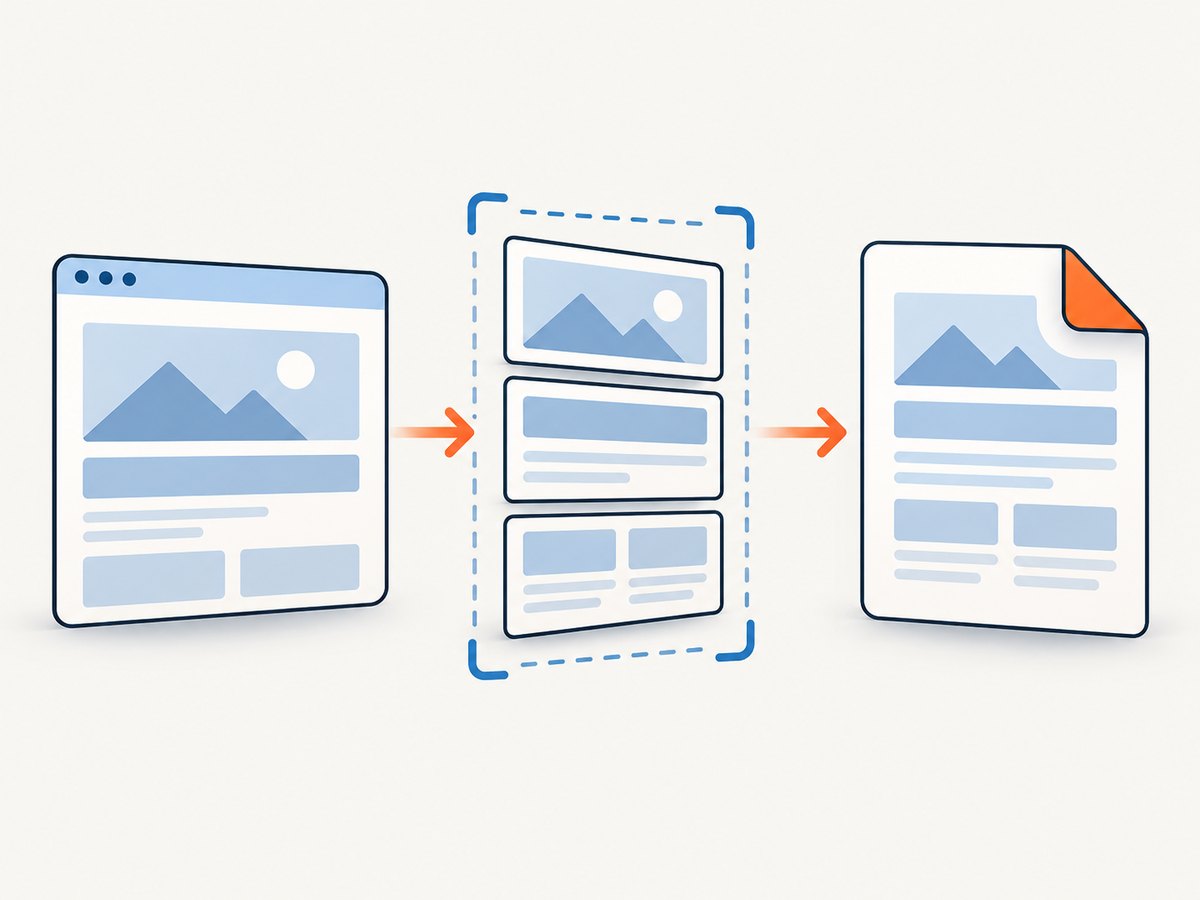
To convert a webpage to a single-file PDF, open it in a browser, start the Print command, choose a PDF destination such as Save as PDF, review the preview, and save the file. A PDF is one document file, so you do not need a physical printer or a folder of downloaded webpage assets.
This guide covers Chrome on Windows, Linux, macOS, and Android, plus Firefox and Microsoft Edge. It also explains what a PDF preserves, which settings affect the result, how to troubleshoot missing content, and how to automate PDF capture with an API.
What “single-file PDF” means
A single-file PDF is a document file containing the printed representation of a webpage. It is different from an HTML archive: the PDF is not guaranteed to retain scripts, interactive forms, video, live data, or every behavior of the original page. The browser prints what its print renderer can display at that moment.
Saving a page as PDF also differs from downloading “Web page, complete.” The latter creates HTML plus an asset folder. The PDF route creates one .pdf file that is convenient to email, store, or attach to a ticket.
Fastest method: Chrome on a computer
- Open the webpage in Chrome and wait for the content you need to appear.
- Open the print dialog with File > Print, or press Ctrl+P on Windows/Linux or Command+P on macOS. Google documents these shortcuts and the destination workflow in its Chrome printing help.
- In Destination, choose Save as PDF (the exact label can vary by platform).
- Set paper size, orientation, margins, scale, page range, and whether headers and footers should appear when those controls are available.
- Inspect every page in the preview. Look for clipped columns, blank pages, missing images, and headings stranded at page bottoms.
- Click Save, choose a filename and folder, then open the resulting PDF to confirm it is readable.
Recommended pre-save checklist
- Scroll through the live page first so lazy-loaded sections have a chance to load.
- Close menus, chat panels, cookie dialogs, and other overlays that should not be printed.
- Check the print preview rather than assuming the screen view equals the printed output.
- Use a descriptive filename, such as
project-requirements-2026-09-30.pdf. - Reopen the saved file and test text selection, links, images, and page order.
Chrome on Android
- Open the page in Chrome.
- Tap More (the three-dot menu), then Share, then Print.
- Open the print settings and select Save as PDF.
- Choose the destination folder, set available options, and save.
That navigation is documented in Google’s Chrome for Android printing help. Android print providers can expose different labels or settings, so use the PDF destination shown on your device.
Firefox and Microsoft Edge
Firefox
Open the page, start printing from the browser menu or your operating system’s print command, and choose Save to PDF in the print-preview destination menu. Mozilla describes this option in its Firefox printing support.
Microsoft Edge
Open the page in Edge and choose Settings and more > Print, or press Ctrl+P on Windows or Command+P on macOS. Select the available PDF destination, adjust the print settings, and save. Microsoft’s Edge printing documentation covers the print interface and settings.
Print settings that change the PDF
| Setting | What it changes | When to adjust it |
|---|---|---|
| Destination | Where the output goes | Choose a PDF destination instead of a physical printer. |
| Paper size | Page dimensions and wrapping | Match Letter, A4, or your publishing requirement. |
| Orientation | Portrait or landscape | Use landscape for wide tables or dashboards. |
| Margins | Whitespace around content | Reduce margins for dense layouts, but check clipping. |
| Scale | Content size on each sheet | Lower it when columns run off the page. |
| Background graphics | Colors and background images | Enable it when branding or visual context matters. |
| Headers and footers | URL, title, date, and page numbers | Disable them for a clean handoff; enable them for provenance. |
| Pages | All or selected page range | Export only the relevant section of a long page. |
Names and availability vary by browser, operating system, and installed print provider. No single setting fixes every layout because the print renderer depends on the page’s CSS and the content that successfully loaded.
Why the PDF does not look like the webpage
Responsive layout changes
Print rendering can select print-specific CSS, change breakpoints, hide navigation, or reflow columns. A page that looks correct at a wide monitor width may become a narrow portrait document. Try landscape, a different paper size, or a modest scale reduction.
Lazy-loaded and dynamic content
Images or sections loaded only after scrolling may be absent if you print immediately. Scroll through the page, wait for network activity to settle, and print again. Content that requires a click, login, or client-side action may still not appear in print preview.
Interactive elements
Forms, video players, animations, maps, and JavaScript widgets become a static representation, if they render at all. A PDF should be treated as a snapshot rather than a fully interactive offline copy.
Fonts and external resources
If a webfont, stylesheet, image, or third-party request fails, the print output can fall back to another font or leave an empty area. Reload the page, check connectivity, and wait for the intended layout before opening print preview.
Automating webpage-to-PDF conversion
For a handful of pages, browser printing is simplest. Automation becomes useful for recurring reports, many URLs, CI jobs, or a service that must produce the same output without a person operating a browser. A browser automation tool normally needs to launch Chromium, navigate, wait for content, set print options, and write a PDF. Your own implementation must also handle browser binaries, authentication, timing, fonts, crashes, and concurrency.
Minimal Playwright example (Node.js)
import { chromium } from 'playwright';

const browser = await chromium.launch();
const page = await browser.newPage({
  viewport: { width: 1440, height: 900 },
  deviceScaleFactor: 1
});

await page.goto('https://example.com', { waitUntil: 'networkidle' });
await page.pdf({
  path: 'page.pdf',
  format: 'A4',
  printBackground: true,
  margin: { top: '16mm', right: '12mm', bottom: '16mm', left: '12mm' }
});

await browser.close();
This produces a PDF from the browser’s print renderer. For production, add explicit timeouts, retries for transient navigation errors, authentication handling, a maximum page count or job duration, and cleanup when the browser process fails. Never treat networkidle as proof that all application data is complete; some sites keep long-lived connections or render after the network quiets.
Or skip the browser setup
ScreenshotNeo provides a website capture API that can return a PDF from one GET request. See the API documentation for the complete option list. The basic request is:
cURL
curl -G "https://api.screenshotneo.com/v1/shot" -d access_key=YOUR_API_KEY --data-urlencode url=https://stripe.com -o shot.webpPython
import requests
r = requests.get("https://api.screenshotneo.com/v1/shot", params={"access_key": "YOUR_API_KEY", "url": "https://stripe.com"}, timeout=90)
open("shot.webp", "wb").write(r.content)
Node.js
const q = new URLSearchParams({ access_key: 'YOUR_API_KEY', url: 'https://stripe.com' });
const res = await fetch(`https://api.screenshotneo.com/v1/shot?${q}`);
For a PDF, request the PDF output and configure paper size, margins, landscape mode, or page ranges as described in the docs. ScreenshotNeo supports full-page capture with lazy images loaded, custom CSS and JavaScript, waiting for a selector, delay, or network idle, and authenticated requests with headers, cookies, a user agent, or Authorization. You can also block ads, trackers, requests, or resource types; set timezone and geolocation; hide selectors; click an element; and capture one element by CSS selector.
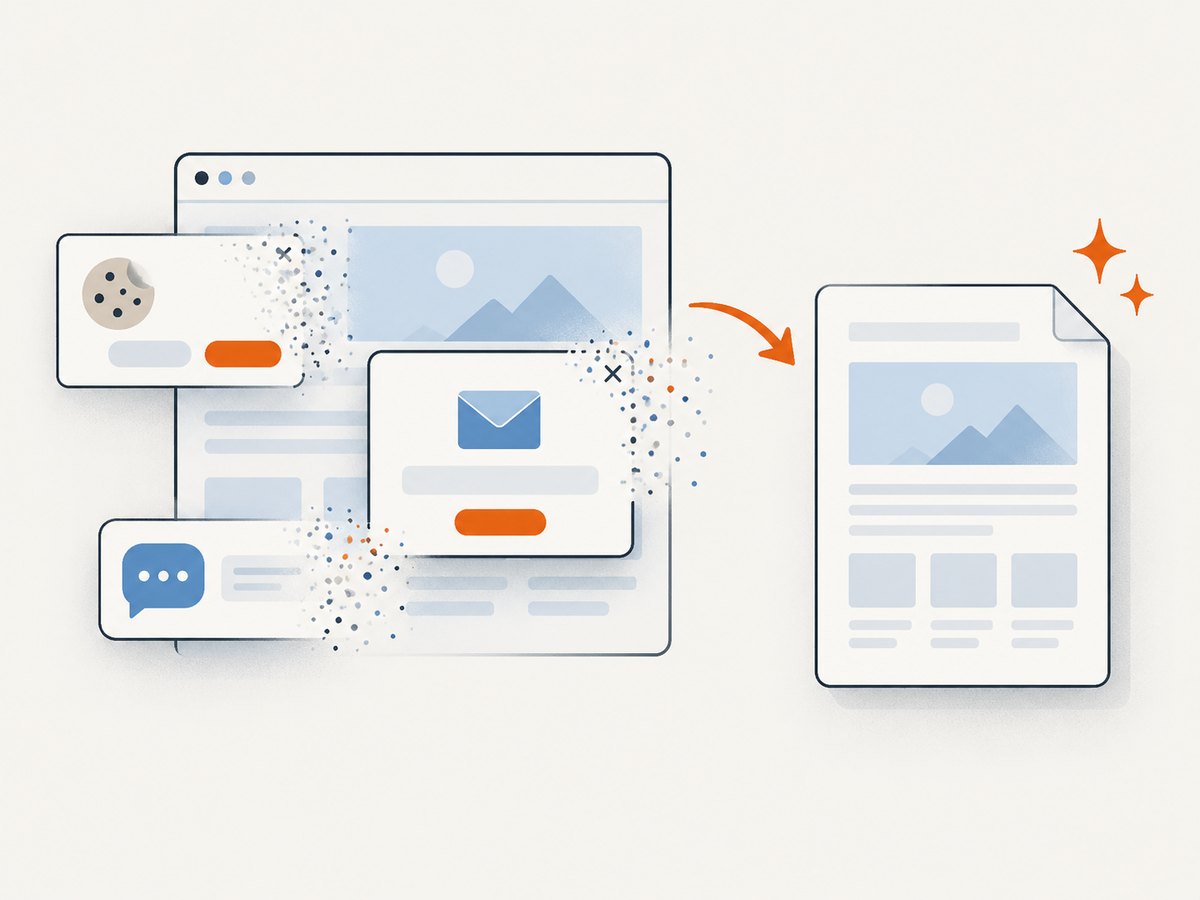
It removes cookie and consent banners, newsletter popups, and chat widgets from more than 60 known platforms before capture, with controls to turn each cleanup step off. Bot checks or CAPTCHAs, blank pages, timeouts, failed loads, and cache hits are not billed; response headers identify the page verdict and whether the request was billed. Async jobs, signed webhooks, bulk capture for up to 100 URLs per call, caching with a chosen TTL, usage reporting, an OpenAPI specification, and signed links are available when you need a service workflow.
ScreenshotNeo also includes an MCP server with take_screenshot, get_page_info, and capture_pdf tools for Claude, Cursor, and other MCP clients. The Free plan includes 1,000 shots per month without a card; paid plans start at $5 for 3,000 shots. Every feature is on every plan.
Create a free ScreenshotNeo account and start with 1,000 screenshots each month at no charge.
Reliability, performance, and cost considerations
Browser automation
- Startup cost: launching a browser for every request is slower than reusing a controlled browser process.
- Memory: each concurrent page consumes resources; cap concurrency and close contexts.
- Reliability: use navigation and selector timeouts, retry only transient failures, and record the URL and renderer error.
- Reproducibility: pin browser versions, viewport, timezone, locale, and fonts when output must be comparable.
- Security: isolate untrusted pages and restrict access to internal network addresses in multi-tenant systems.
API capture
An API removes browser installation and patching from your application. Keep requests bounded with a client timeout, use caching for unchanged pages, and use async jobs for long or bulk captures. Check the returned verdict and billing headers so your accounting reflects successful clean captures. ScreenshotNeo’s published plans are Free (1,000), Starter ($5 for 3,000), Growth ($15 for 15,000), Pro ($39 for 60,000), Scale ($99 for 250,000), and Business ($249 for 1,000,000) shots per month; yearly billing provides two months free.
Troubleshooting
| Symptom | Likely cause | Fix |
|---|---|---|
| PDF option is missing | No PDF print provider is available | Install or enable the system PDF printer, or use a browser that offers Save as PDF. |
| Right side of a table is cut off | Content is wider than the paper | Choose landscape, reduce scale, use a larger paper size, or adjust margins. |
| Images are blank | Lazy loading or failed image requests | Scroll first, wait, reload, and confirm the images work before printing. |
| Cookie banner appears in the PDF | The overlay remained open | Accept or close it before printing, or hide the element with print CSS/automation. |
| Extra URL/date text appears | Headers and footers are enabled | Disable headers and footers in print settings. |
| Only part of a dashboard prints | Scrollable container or canvas is clipped | Use a full-page capture method, expand the container, or export the data directly. |
| Automation times out | Slow resources, blocked requests, or never-ending connections | Set a bounded timeout, wait for a specific selector, block unnecessary resources, and retry transient navigation failures. |
| ScreenshotNeo response is not billed | The page verdict is a bot check, blank page, timeout, failed load, or cache hit | Read X-Page-Verdict and X-Billed; resolve the page condition if you need a clean PDF. |
FAQ
Does saving as PDF require a printer?
No. Select the browser’s PDF destination, such as Save as PDF or Save to PDF.
Will links remain clickable?
Links may remain PDF links when the browser exports them, but the result is still a static document and behavior varies with the page and viewer.
Can I save only one section?
Use a page range when the section occupies known PDF pages, or capture a selected element with an automation tool or ScreenshotNeo.
Why is my PDF larger than expected?
Large images, background graphics, embedded fonts, and long pages increase file size. Disable unnecessary backgrounds, reduce image dimensions, or use an image/PDF pipeline with explicit sizing.
Is a PDF an offline copy of the website?
It is an offline document snapshot. It does not guarantee the live page’s scripts, forms, media, or interactive state will work offline.
Final checklist
- Open the page and let required content load.
- Start Print and select a PDF destination.
- Choose paper size, orientation, margins, scale, background graphics, headers, footers, and page range.
- Inspect the preview for clipping, missing content, and bad page breaks.
- Save, reopen, and verify the resulting single PDF file.
- For repeatable or high-volume work, automate with a controlled browser or use ScreenshotNeo’s PDF API.


