How to Convert Webpage Text to PDF
Save a webpage as a readable PDF with your browser’s Print dialog. Learn how to print selected text, clean up clutter, and capture a page as a PDF with an API.
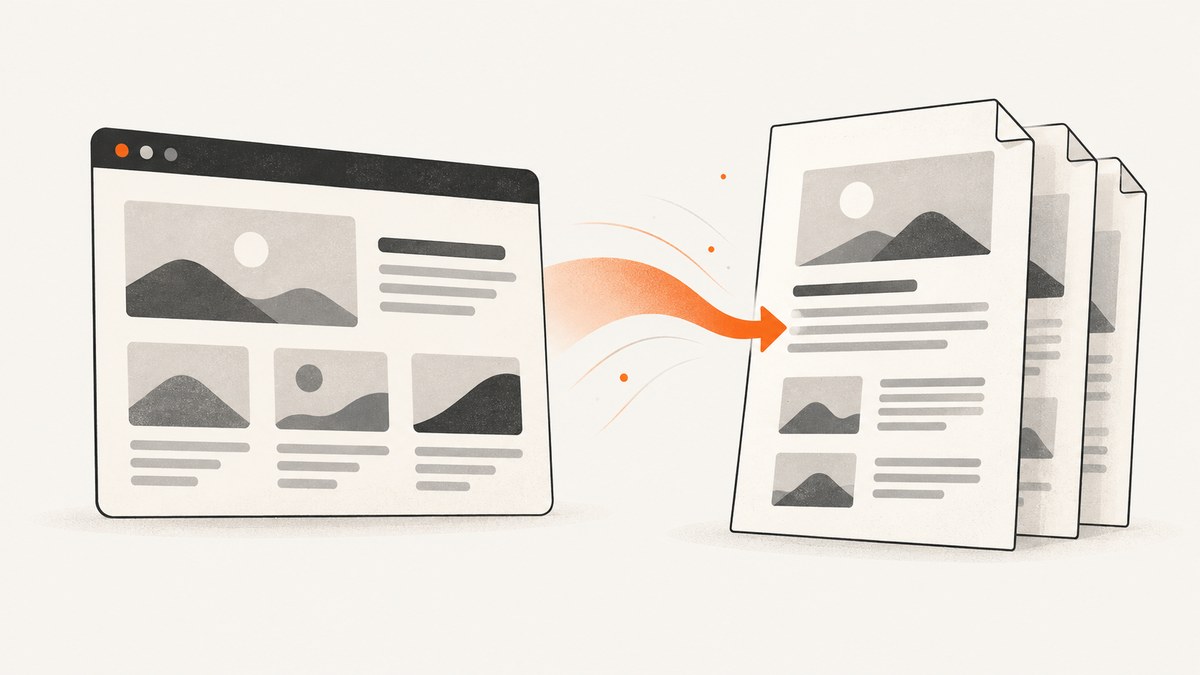
To save webpage text as a PDF, open the page in a desktop browser, choose Print, select a PDF destination, review the preview, and save. On Windows, Microsoft Edge documents Ctrl+P; its macOS workflow uses Command+P. Firefox provides a Save to PDF destination in its print preview. Menu labels and available controls vary by browser, operating system, and version.
For a cleaner text-focused result, try a browser’s reader or simplified-print mode if the page supports it. If you need a PDF generated programmatically from a webpage, an API can capture the page directly as a PDF; that preserves a rendered page rather than extracting only its text.
1. Choose what you want in the PDF
Before printing, decide whether the PDF should preserve the whole webpage or contain only a selected passage. The whole-page route retains surrounding context, images, and links where the page’s print layout includes them. Printing a selection is useful when you need a specific excerpt, but it can omit context that makes the text understandable.
| Need | Try | Check |
|---|---|---|
| Save an article or page for reading later | Print the whole page to PDF | Page breaks, margins, and images in preview |
| Save just a passage | Select the text or images, then print the selection where supported | That the selection includes the material you need |
| Reduce menus and page clutter | Reader or simplified mode, if available | That headings, links, and important visuals remain |
| Make a PDF from a URL in a script or service | Use a webpage-to-PDF capture API | Whether it captures the rendered page or extracts text |
Browser print workflows make a PDF from the page’s print layout. They are not guaranteed to reproduce the screen exactly: websites may use a distinct print layout, and page breaks can change how content flows. Preview before saving.
2. Save a webpage as a PDF in Microsoft Edge
- Open the webpage you want to keep.
- Open Print with Ctrl+P on Windows, or Command+P in Edge’s documented macOS workflow. You can also choose Print from the menu or right-click the page and choose Print.
- In the print dialog, choose the available PDF destination. The exact name and location of that option depend on your system and browser environment.
- Review the preview. Look for missing text, awkward page breaks, clipped content, or unnecessary blank pages.
- Adjust settings such as scale, headers and footers, or background graphics if those controls are available and relevant. Edge documents scaling options including fit to printable area, actual size, and custom scaling.
- Choose the save action in the dialog and select where to store the PDF.
To print only a selection: select the text or images on the page, right-click the selection, and choose Print. Confirm in the preview that the selected material, and any context you need, appears as expected. These steps and settings are documented in Microsoft’s Edge print guide.

Try Immersive Reader for a less cluttered page
On supported pages, Edge’s Immersive Reader can simplify the layout before you print. Microsoft says it removes distracting pop-ups and buttons while keeping important text and visual content. It is not available for every website; on supported Windows pages, Microsoft documents an address-bar control and the F9 shortcut. Once the page is simplified, open Print and save it using the available PDF destination. See Microsoft’s Immersive Reader guide for availability and instructions.
3. Save a webpage as a PDF in Firefox
- Open the webpage and choose Print from the browser menu.
- In print preview, choose Save to PDF from the destination dropdown.
- Review the preview and adjust the settings you need. Mozilla documents paper size, scale, pages per sheet, margins, format, two-sided printing, headers and footers, and backgrounds.
- Use the print action to create the PDF, then choose a location if prompted.
Firefox may offer Simplified under Format. It can make text easier to read, but Mozilla says it cannot be combined with print backgrounds. Check the preview to see whether simplified formatting keeps what matters to you. Mozilla also cautions that pages may be set up to print differently from their on-screen appearance. See Mozilla’s Firefox printing guide.
4. Make the PDF easier to read
Use the preview as a practical checklist before you save:
- Text is too small: try a different scale, then inspect every page. Scaling up may create more pages or change page breaks.
- Content is clipped: try fit to printable area or adjust margins if the dialog offers those controls.
- Colors or images are missing: check whether background graphics are enabled. Printing backgrounds may use more ink or make text harder to read; Firefox’s simplified format cannot be combined with print backgrounds.
- Navigation and pop-ups make the PDF noisy: try reader or simplified mode if available. Such modes are page-dependent and can change which content appears.
- You only need a portion: use selection printing if supported, then verify the selection in preview.
- The page breaks in odd places: adjust scale, paper size, or margins if available. Recheck the entire preview because a local-looking adjustment may affect later pages.
There is no universal setting that works for every website. A page may have print-specific styling, and browser controls depend on the current system print dialog. Choose settings based on the preview and the kind of document you need.
5. Generate a webpage PDF with an API
If you need to generate PDFs from URLs in a script, job, or application, a capture API can return a PDF representation of a rendered page. This is useful for repeatable captures or automated workflows. It is different from selecting and extracting plain text: the PDF reflects the page capture and its layout.

ScreenshotNeo is a website screenshot API and MCP server. Its PDF capture supports settings such as paper size, margins, landscape orientation, and page ranges. See the ScreenshotNeo API documentation for request parameters and options. Keep an API key private; don’t put it in browser-side code or a public repository.
cURL
curl -G "https://api.screenshotneo.com/v1/shot" \
  -d access_key=YOUR_API_KEY \
  --data-urlencode url=https://stripe.com \
  -d format=pdf \
  -o webpage.pdf
Python
import requests

response = requests.get(
    "https://api.screenshotneo.com/v1/shot",
    params={
        "access_key": "YOUR_API_KEY",
        "url": "https://stripe.com",
        "format": "pdf",
    },
    timeout=90,
)
response.raise_for_status()
with open("webpage.pdf", "wb") as output:
    output.write(response.content)
Node.js
const q = new URLSearchParams({
  access_key: 'YOUR_API_KEY',
  url: 'https://stripe.com',
  format: 'pdf',
});
const res = await fetch(`https://api.screenshotneo.com/v1/shot?${q}`);
if (!res.ok) throw new Error(`ScreenshotNeo returned ${res.status}`);
const bytes = new Uint8Array(await res.arrayBuffer());
await import('node:fs/promises').then(fs => fs.writeFile('webpage.pdf', bytes));
These examples use the API endpoint and a PDF format parameter. Confirm the exact supported parameter names and PDF settings in the API docs before adapting the request to a production workflow.
Or skip the browser setup
Use a single request to capture a URL as a PDF. With ScreenshotNeo, cookie banners, newsletter pop-ups, and chat widgets are removed before the shot; each cleanup step can be turned off. Bot checks, blank pages, timeouts, and failed loads are never billed, and cache hits cost nothing. Responses identify page verdict and billing status in headers. An MCP server gives AI agents tools to take screenshots, get page information, and capture PDFs. The free plan includes 1,000 shots a month with no card; paid plans start at $5 for 3,000 shots. Every feature is on every plan.
curl -G "https://api.screenshotneo.com/v1/shot" \
  -d access_key=YOUR_API_KEY \
  --data-urlencode url=https://stripe.com \
  -d format=pdf \
  -o webpage.pdf
Sign up for 1,000 free screenshots a month, with no card required.
6. Options, reliability, and cost considerations
Browser printing: It is a built-in route in the documented Edge and Firefox workflows; there is no separate converter requirement for those steps. It is a good fit for a one-off PDF you can inspect and save yourself. Its output depends on the page’s print styling, browser, system dialog, and selected settings.
API capture: It fits automated workflows where a URL and settings need to produce a file repeatedly. ScreenshotNeo offers full-page capture, custom wait conditions, custom headers and cookies, caching with a chosen TTL, async jobs with signed webhooks, bulk capture of up to 100 URLs per call, and a usage API. Use only options your workflow needs; for example, a page that loads content late may need an appropriate wait condition. Confirm parameter details in the docs.
For cost planning, ScreenshotNeo’s listed monthly plans are Free: 1,000 shots; Starter: $5 for 3,000; Growth: $15 for 15,000; Pro: $39 for 60,000; Scale: $99 for 250,000; and Business: $249 for 1,000,000. Yearly billing gives two months free. The product states that only clean shots are billed; bot checks/CAPTCHAs, blank pages, timeouts, failed loads, and cache hits cost nothing. Inspect the response’s X-Page-Verdict and X-Billed headers to understand a result. These prices and plan details are ScreenshotNeo product facts; check the site for current terms.
For reliability, handle HTTP errors, set a timeout appropriate to your job, and avoid treating every returned byte sequence as a valid PDF without checking the response. In batch jobs, record the URL and response status for failures so you can retry selectively. Browser printing remains useful when a person should inspect the preview; a generated capture is useful when the process needs to run without manual dialog steps.
7. Troubleshooting
| Problem | Likely cause | What to try |
|---|---|---|
| The PDF looks different from the webpage | The site uses a print layout or pagination changes the flow | Inspect preview; adjust scale, margins, or paper size where available |
| Menus, pop-ups, or chat controls appear | The page’s print output includes them | Try reader/simplified mode if available, or use a capture cleanup option |
| Images or colored backgrounds are absent | Background printing is off or the print mode omits it | Check the background setting; in Firefox, Simplified cannot be combined with print backgrounds |
| Reader mode is unavailable | The browser does not support that page in reader mode | Use the ordinary print preview and adjust the available settings |
| The API request fails or times out | Network, authentication, target-page load, or request settings need attention | Check the key, URL encoding, HTTP status, timeout, and API docs; retry transient failures selectively |
| The generated file is not a readable PDF | The response may contain an error rather than a PDF | Check the HTTP status and response headers before saving; confirm the PDF format parameter in the docs |
| The captured page is blank or incomplete | The page may require more time or may show a bot check | Use an appropriate wait option where supported and inspect the page verdict; don’t assume the capture contains article text |
8. Frequently asked questions
Can I convert only selected webpage text to PDF?
Edge documents selecting text or images, right-clicking the selection, and choosing Print. Check that the preview contains the full passage you need. Selection printing availability can differ elsewhere.
Will the PDF look exactly like the webpage?
Not necessarily. Websites may define a different print layout, and pagination changes the composition. Review the preview and adjust settings.
Does a PDF capture API extract plain text?
Not by default. A webpage capture produces a PDF of the rendered page; text extraction is a separate task and may require a dedicated extraction workflow.
Can I make a PDF on a phone?
This guide covers the documented desktop workflows in Edge and Firefox. Mobile steps vary by browser and operating system, so consult the print or share controls in the version you use.
Do I need to buy PDF software?
Not for the Edge and Firefox browser workflows described here: both document browser print paths to a PDF destination.


