How to Convert a Webpage to an Editable PDF
Convert a webpage into a clean PDF, then make its text editable with Word, Acrobat, or OCR. Learn browser, site-wide, and API workflows.
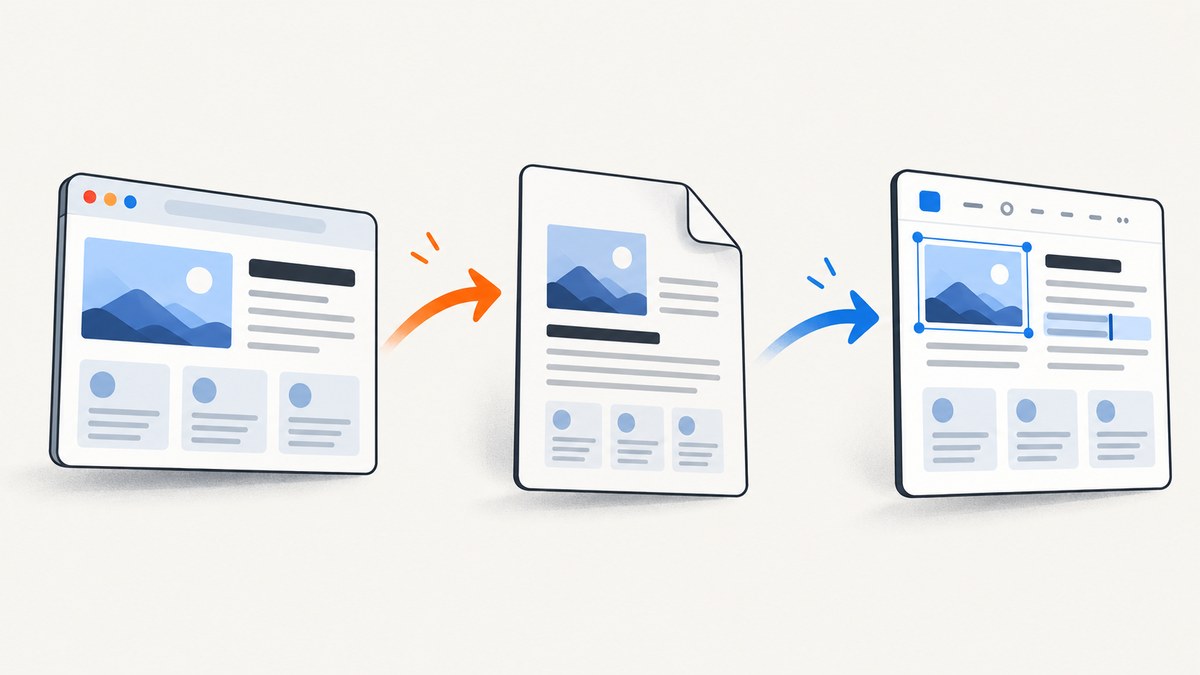
Short answer: saving a webpage as a PDF creates a snapshot. It does not automatically make the PDF editable like a Word document. Capture the page first with your browser, Acrobat, or an API. Then edit the PDF directly in a PDF editor, or convert it to DOCX when you need to rewrite and restructure the text.
This distinction matters because a PDF can contain selectable text while still being difficult to edit. A scanned or image-only page needs OCR before its text can be searched or changed. Microsoft also notes that a basic PDF reader can view and print a PDF but cannot edit its contents. Microsoft’s PDF guidance describes converting a PDF to an editable format such as DOCX with desktop Word.
Choose the right workflow
| Goal | Best starting point | What you get |
|---|---|---|
| Save one visible page | Browser print or PDF workflow | A PDF snapshot of the rendered page |
| Convert several linked pages or a site | Acrobat desktop Web Page conversion | A multi-page PDF with crawl scope controls |
| Rewrite the captured content | Convert PDF to DOCX in desktop Word | An editable document whose layout may need cleanup |
| Make text in a scan selectable | OCR in Acrobat | Searchable text that can be edited with review |
| Automate repeatable captures | Screenshot API | PDF or image output from a URL in code or CI |
Method 1: Save one webpage as a PDF in your browser
For a single page, the browser is the quickest route. Open the page, use its print or PDF-creation command, choose PDF as the destination, and save the file. Menu names differ between browsers and operating systems, so use the print dialog available on your platform rather than relying on a fixed sequence of clicks.
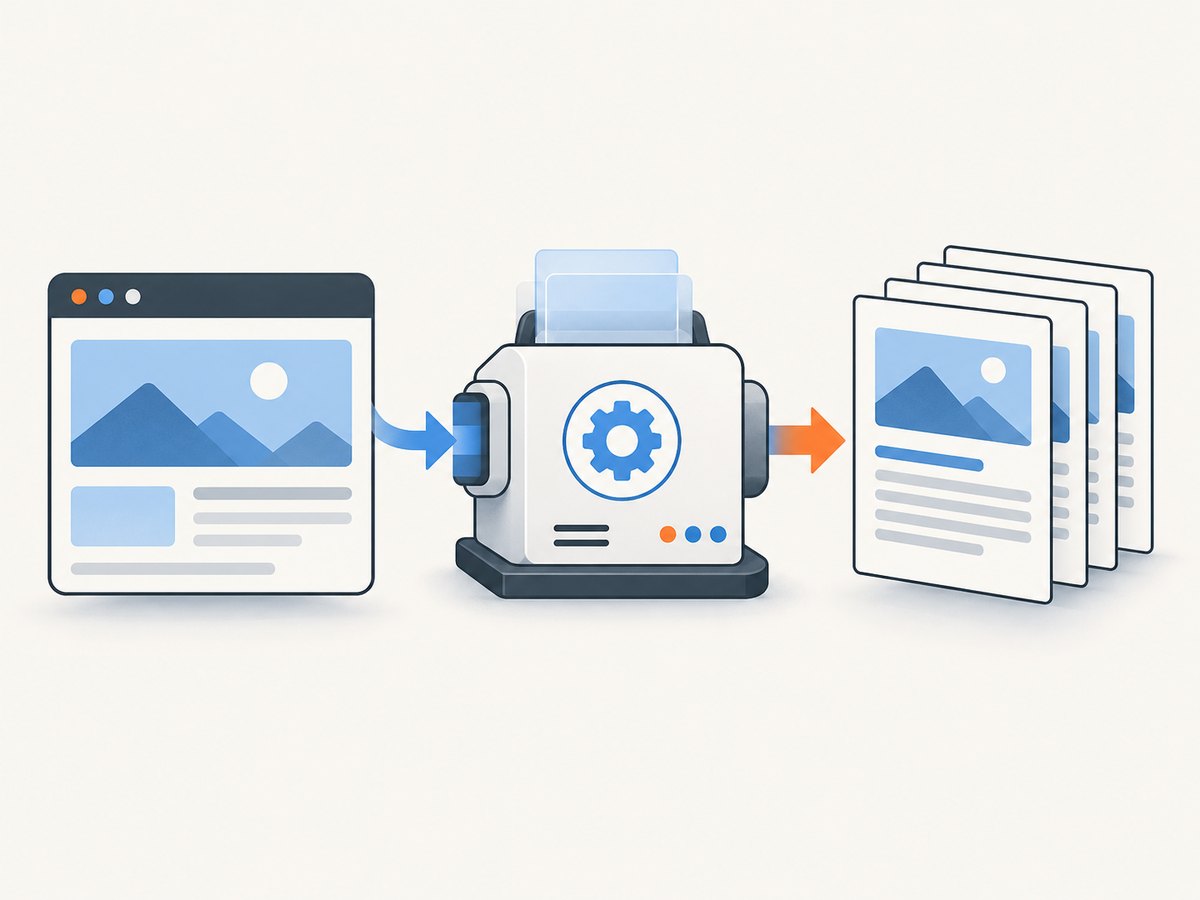
- Open the fully loaded webpage.
- Wait for charts, images, and expandable content you need in the PDF.
- Open the browser’s print or save-to-PDF workflow.
- Choose page range, paper size, orientation, margins, scale, and whether backgrounds should print.
- Save the PDF and open it in a PDF editor to inspect text selection, links, page breaks, and missing images.
When browser capture is enough
Use this method for an article, receipt, report, or reference page that you need to archive or share. It is less suitable for pages behind authentication, content that appears only after interaction, very long infinite-scroll pages, or a group of linked pages. Browser print output also depends on the page’s print CSS. A site can intentionally hide navigation, backgrounds, or interactive controls when printing.
Method 2: Convert a page or whole site with Acrobat
Adobe Acrobat desktop provides more control for multi-level conversion. Its documented workflow lets you choose Create, then Web page, enter a URL or select an HTML file, and set how many link levels to retrieve. You can also choose to get the entire site and limit crawling to the same path or server. Adobe’s desktop instructions describe these controls.
- In Acrobat desktop, choose Create and then Web page.
- Enter the page URL or browse to an HTML file.
- Choose the number of levels, or select the option to retrieve the entire site.
- Use Stay on same path and Stay on same server when you need to prevent unrelated links from being followed.
- Start the conversion, then inspect every section of the resulting PDF.
Acrobat’s documented conversion settings include tags and bookmarks, headers and footers, text encoding and fonts, colors and backgrounds, image inclusion, link underlining, expansion of scrollable blocks, page size, orientation, margins, and scaling wide content. Review the conversion settings before accepting defaults.
Settings that solve common layout problems
| Problem | Setting to review | Why it helps |
|---|---|---|
| Wide tables are clipped | Landscape orientation, page size, scaling | Gives wide content more horizontal space |
| Long panels disappear | Expand scrollable blocks | Includes content hidden inside scroll areas |
| Navigation is hard to use | Bookmarks and link handling | Adds document navigation and preserves destinations |
| Colors print poorly | Background and color options | Controls whether screen styling is retained |
| Assistive technology cannot follow the file | Tags and source reading order | Provides structure, but does not guarantee accessibility |
Multi-page conversion cannot guarantee complete capture of dynamic, authenticated, or restricted content. Check the output against the source, especially when scripts load data after the initial request.
Method 3: Make the PDF editable
Decide whether you need to edit the PDF itself or create a new editable document. Minor changes such as correcting a word, adding a signature, or filling a form can be handled in a PDF editor. Substantial rewriting is usually easier after converting the PDF to DOCX in desktop Word.
Convert the PDF to DOCX
- Open the PDF in desktop Word.
- Accept the notice that Word will convert a PDF into an editable document.
- Save the result as DOCX.
- Review headings, columns, tables, links, fonts, and page breaks.
- Repair the document before distributing it.
Word’s conversion is a practical route, not a promise of perfect layout preservation. Complex columns, positioned elements, forms, and web-specific styling often require manual cleanup. Keep the original PDF as the visual reference.
Run OCR when the page is an image
If you cannot select individual words, the PDF may contain only a screenshot or scan. In Acrobat, use the OCR workflow’s Recognize text command. Adobe’s documentation explains that OCR makes image text searchable and editable. Follow Adobe’s OCR guidance, then proofread names, numbers, punctuation, and columns.
Quality checklist before you share the PDF
- Search for a distinctive sentence and confirm the expected text is present.
- Zoom into images, charts, and small table text.
- Check that links point to the intended destinations.
- Look for clipped wide content and unexpected blank pages.
- Confirm headers, footers, page numbers, and dates.
- Review the reading order with a keyboard or screen reader when accessibility matters.
- Open the PDF on another device to catch font or rendering substitutions.
Or skip the browser setup
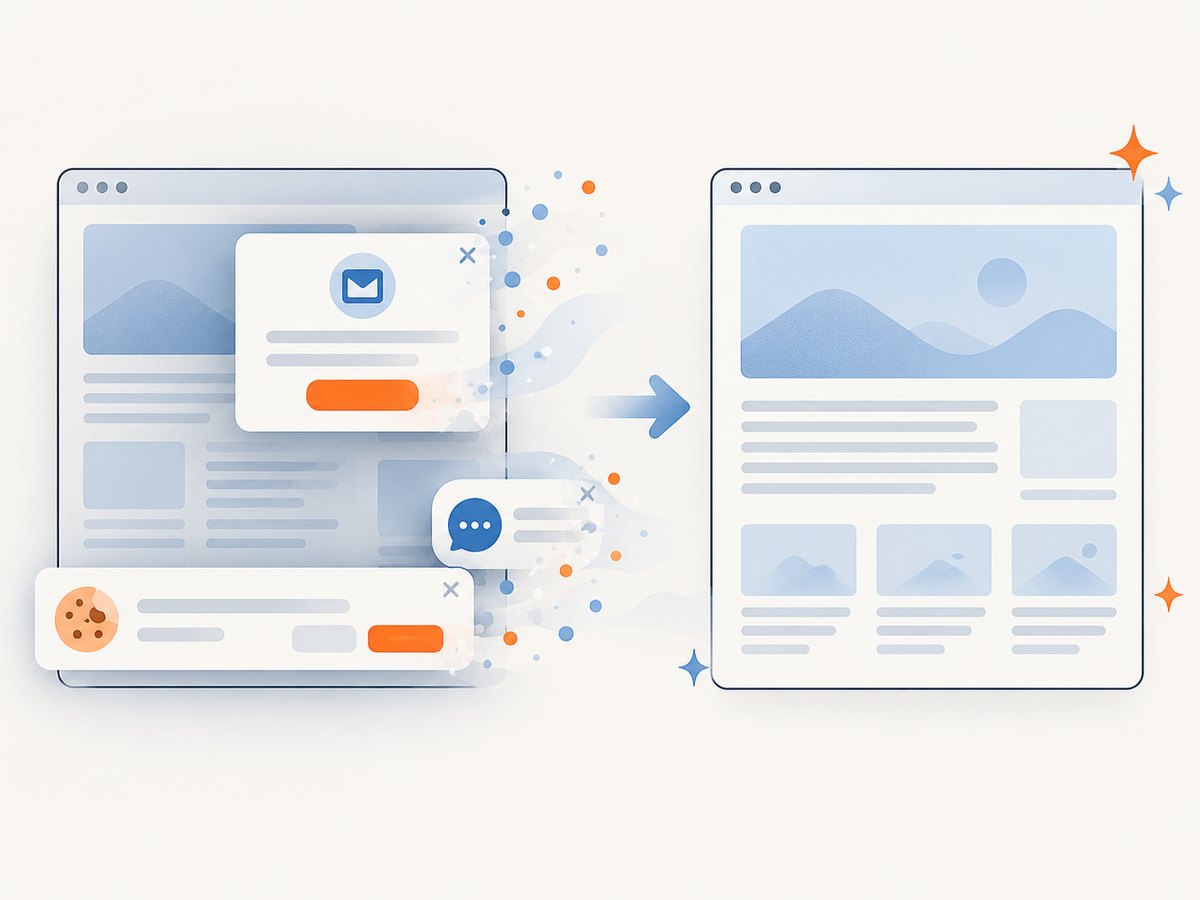
For automated captures, ScreenshotNeo turns a URL into a PDF or image through one request. It accepts cookie and consent banners like a visitor, then removes more than 60 known consent platforms along with newsletter popups and chat widgets before the capture. Each step can be turned off. Bot checks, blank pages, timeouts, failed loads, and cache hits are not billed, and the response identifies the result with X-Page-Verdict and X-Billed headers.
See the ScreenshotNeo API documentation for PDF paper size, margins, landscape mode, page ranges, full-page capture, custom CSS and JavaScript, waiting rules, authentication, cookies, headers, and other options.
cURL
curl -G "https://api.screenshotneo.com/v1/shot" -d access_key=YOUR_API_KEY --data-urlencode url=https://stripe.com -o shot.webpPython
import requests
r = requests.get("https://api.screenshotneo.com/v1/shot", params={"access_key": "YOUR_API_KEY", "url": "https://stripe.com"}, timeout=90)
open("shot.webp", "wb").write(r.content)
Node.js
const q = new URLSearchParams({ access_key: 'YOUR_API_KEY', url: 'https://stripe.com' });
const res = await fetch(`https://api.screenshotneo.com/v1/shot?${q}`);
The same service includes an MCP server with take_screenshot, get_page_info, and capture_pdf tools for Claude, Cursor, and other MCP clients. It also supports element capture, device presets, retina scale, custom CSS and JavaScript, click actions, selector waits, delay or network-idle waits, request blocking, geolocation, timezone, transparent backgrounds, resizing, caching with a chosen TTL, signed links, asynchronous jobs, signed webhooks, bulk capture of up to 100 URLs per call, a usage API, and an OpenAPI specification.
ScreenshotNeo has 1,000 free shots per month with no card. Paid plans start at $5 for 3,000 shots; yearly billing gives two months free, and every feature is available on every plan. Create a free ScreenshotNeo account to start capturing pages.
Troubleshooting
The PDF is blank
Cause: the page failed to load, requires JavaScript, or returned a bot check. Fix: wait for the page to render, authenticate where permitted, capture after a selector or network idle, and inspect the response verdict when using an API.
Cookie banners cover the content
Cause: consent UI is part of the rendered page. Fix: accept the banner before printing, hide the banner with a controlled custom style, or use ScreenshotNeo’s consent and popup removal.
Images or charts are missing
Cause: lazy loading, blocked resources, or capture before the content appears. Fix: scroll or wait for a target selector, allow required resource types, and verify the page at its final scroll position.
Text cannot be selected
Cause: the PDF contains an image. Fix: run OCR, then proofread the result. A normal HTML page should produce text when the conversion engine preserves its structure.
Columns and tables are broken after DOCX conversion
Cause: web layouts use positioned elements and responsive CSS that do not map cleanly to Word. Fix: keep the PDF for visual fidelity, or rebuild complex tables and headings in the DOCX.
The site conversion includes unrelated pages
Cause: the crawler followed links beyond the intended section. Fix: limit levels and use same-path or same-server restrictions.
Performance, reliability, and cost considerations
For one-off work, browser or Acrobat conversion has no API setup cost. For recurring jobs, automation avoids manual steps and gives you repeatable options. Full-page captures, large images, JavaScript-heavy pages, OCR, and multi-level crawls take longer and produce larger files. Use a specific wait condition instead of an unnecessarily long fixed delay, and cache stable pages when you do not need a fresh render.
Reliability depends on the source page as well as the converter. Authenticated content, rate limits, consent flows, client-side rendering, and bot protection can change the result. Store the source URL, capture time, options, and verdict with the PDF so an archived file has provenance.
With ScreenshotNeo, only clean shots are billed. Failed loads, bot checks, blank pages, timeouts, and cache hits cost nothing. Its free tier covers 1,000 shots per month; paid plans begin at $5 for 3,000 shots. Estimate usage from URLs per run, retries, and refresh frequency, then select a plan that covers successful captures.
FAQ
Does saving a webpage as PDF make it editable?
No. It creates a PDF snapshot. Convert it to DOCX or edit it in a PDF editor when you need changes.
What is the best method for a whole website?
Acrobat desktop offers levels and same-path or same-server scope controls. Inspect the result because dynamic and restricted pages may not convert completely.
Can I preserve links and bookmarks?
Yes, review Acrobat’s link, bookmark, and tagging settings. Always test links in the finished file.
When should I use OCR?
Use OCR when the PDF is image-only and text cannot be selected or searched.
How do I automate webpage-to-PDF conversion?
Use a screenshot API such as ScreenshotNeo, configure the PDF options documented for the endpoint, and record response verdict and billing headers for each job.
Will the converted DOCX look exactly like the webpage?
No conversion can guarantee that. Web layouts, columns, fonts, and interactive elements often need manual correction after conversion.


