How to Convert a Webpage to PDF in Acrobat
Convert an open webpage with Acrobat’s browser extension, or use Acrobat desktop to capture a URL, local HTML file, or linked pages with more control.
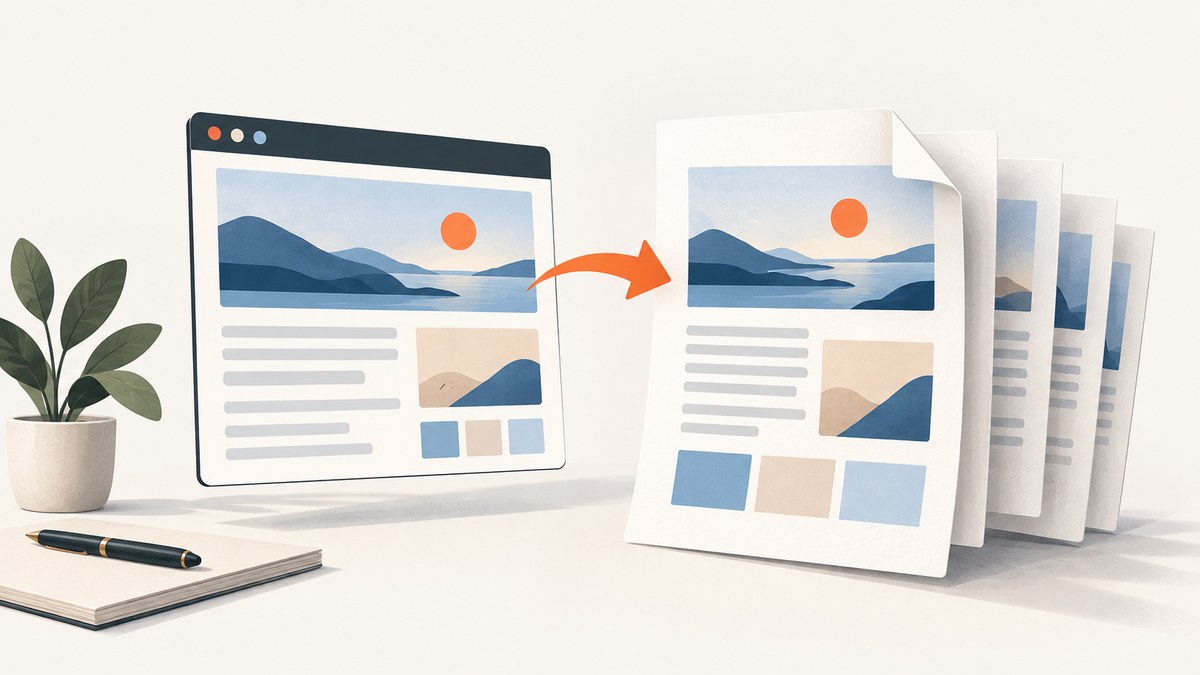
To convert a webpage to PDF in Acrobat, use the Acrobat browser extension for a quick capture of the page already open in your browser. For a URL or local HTML file, linked pages, or more control over layout and structure, use Acrobat desktop: choose Create, then Web page, enter the URL or select an HTML file, adjust capture settings, and choose Create.
The desktop workflow below follows Adobe’s documented instructions. Interface labels can change between releases. The finished PDF may span several pages, and its appearance depends on both the source page and the conversion settings. Inspect the result before sharing or archiving it.
1. Choose the Acrobat route that fits the page
| Route | Best for | What it gives you |
|---|---|---|
| Acrobat browser extension | Saving the page currently open in a browser | A quick conversion without entering the page URL in Acrobat desktop. |
| Acrobat desktop | Entering a URL, converting local HTML, capturing linked pages, or adjusting output | Capture-scope controls and advanced conversion and page-layout options. |
Use the extension when the current page is all you need. Choose desktop when you need to tell Acrobat which URL or file to convert, include pages linked from it, constrain the crawl, or tune the PDF output. Adobe’s instructions describe both routes, but do not establish price, subscription eligibility, or operating-system parity for every feature; check the current Adobe product documentation for your installation.
2. Convert the open page with the browser extension
- Open the webpage you want to save in your browser.
- Use the Acrobat browser extension’s convert-to-PDF action.
- Save the resulting PDF, then open it and check that the content and links you need are present.
This path is suited to a single open page. If you need to start from a URL without opening it, use a local HTML file, capture related pages, or configure the page layout and tags, use the desktop method below.
3. Convert a URL or HTML file in Acrobat desktop
- Open Acrobat desktop and choose Create from the global toolbar.
- In the left rail, choose Web page.
- Enter the webpage URL, or browse to a local HTML file.
- If you only want that page, leave multi-level capture off. To include related pages, enable Capture multiple levels, then choose a number of levels or Get entire site.
- Set crawl limits if needed. Select Stay on same path to keep capture under the specified URL path, and/or Stay on same server to exclude pages on external domains.
- Optionally open Advanced settings and adjust conversion options. Choose Create to start.
- Open the completed PDF and inspect its pages, layout, navigation, and structure.
Adobe says you can queue additional pages while a conversion is running; pending requests appear in Download Status. For a large linked site, decide the intended scope before starting. A whole-site capture can include much more material than a single-page save, and path or server limits help narrow it.
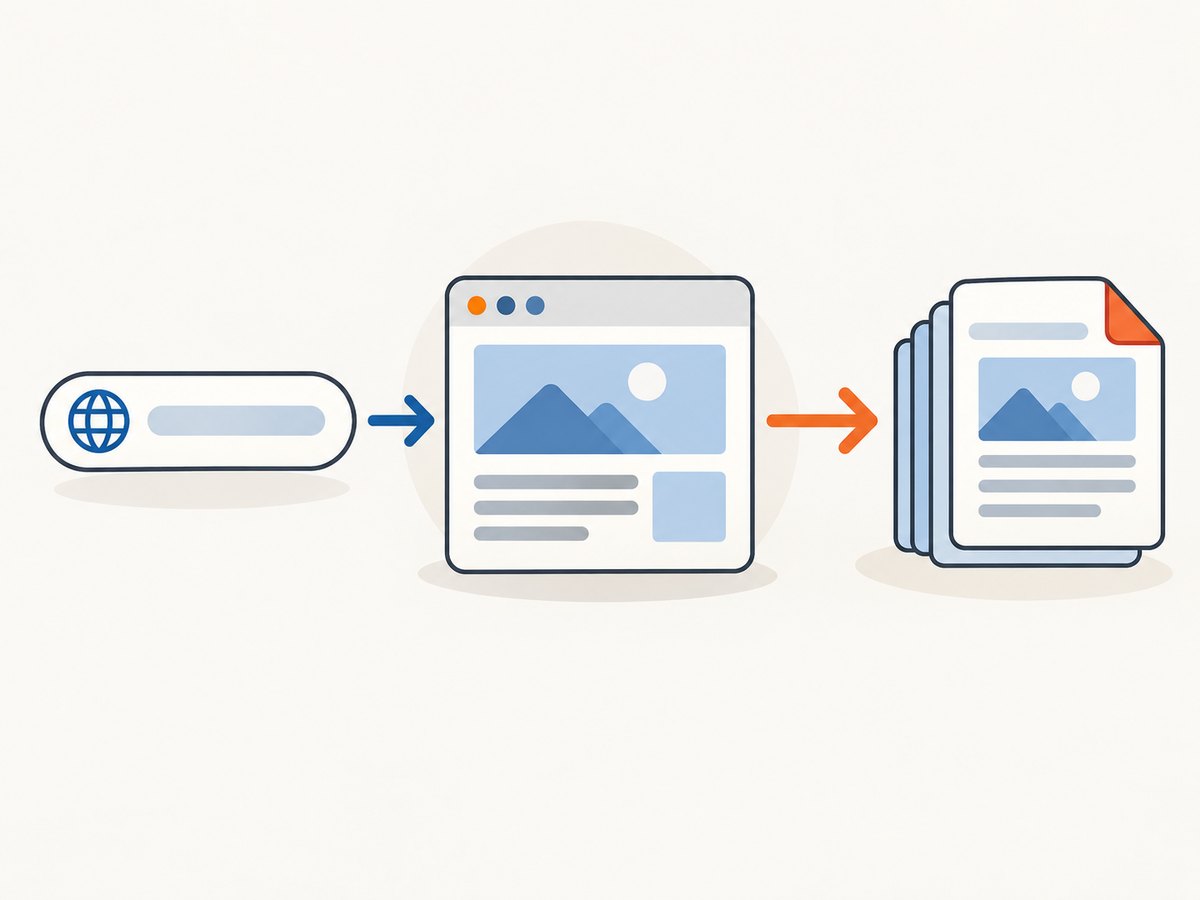
4. Set capture scope deliberately
One page
Enter the specific URL and leave Capture multiple levels disabled. This is the most direct choice when you want a receipt, article, reference page, or a snapshot of a particular page.
A limited set of linked pages
Enable multi-level capture and choose how many link levels to follow. A level count controls how far Acrobat follows links from the starting page. Use the same-path and same-server limits to keep the capture focused on a section or domain.
Entire site
Get entire site asks Acrobat to capture the site’s pages, subject to any selected scope limits. Review the starting URL and restrictions carefully. If you only need a section, use Stay on same path; if external domains should be excluded, use Stay on same server. These limits determine which links are eligible for capture; they do not guarantee that every page will be available or convert identically.
For local HTML, browse to the file instead of entering a URL. Relative resources such as images or stylesheets can affect how the page renders, so inspect the PDF after conversion.
5. Tune conversion and PDF layout
Acrobat’s Advanced settings include controls for what content is converted and how the resulting document is structured. Names and availability can vary with the installed release, so use the options shown in your copy of Acrobat.
| Setting area | What it can affect | When to review it |
|---|---|---|
| HTML and text conversion | How page content is interpreted and included | When text is missing, awkwardly ordered, or visually different from the browser. |
| Images, backgrounds, colors, and fonts | Visual fidelity and file content | When branding, diagrams, page backgrounds, or legibility matter. |
| Multimedia and scrollable blocks | Handling of embedded media and content inside scrollable areas | When important material appears in a player or an independently scrolling region. |
| Links and underlining | Link appearance and behavior in the PDF | When the saved document is meant to remain navigable. Depending on conversion configuration, clicking a link can append its content if it is not already included. |
| Bookmarks | Navigation entries based on page titles or URLs | When capturing multiple pages or creating a document readers will browse. |
| PDF tags | Structure carried over from HTML | When structure and assistive-technology support are part of the deliverable. |
| Headers and footers, encoding | Page presentation and interpretation of text | When print-like page furniture or non-default character handling is needed. |
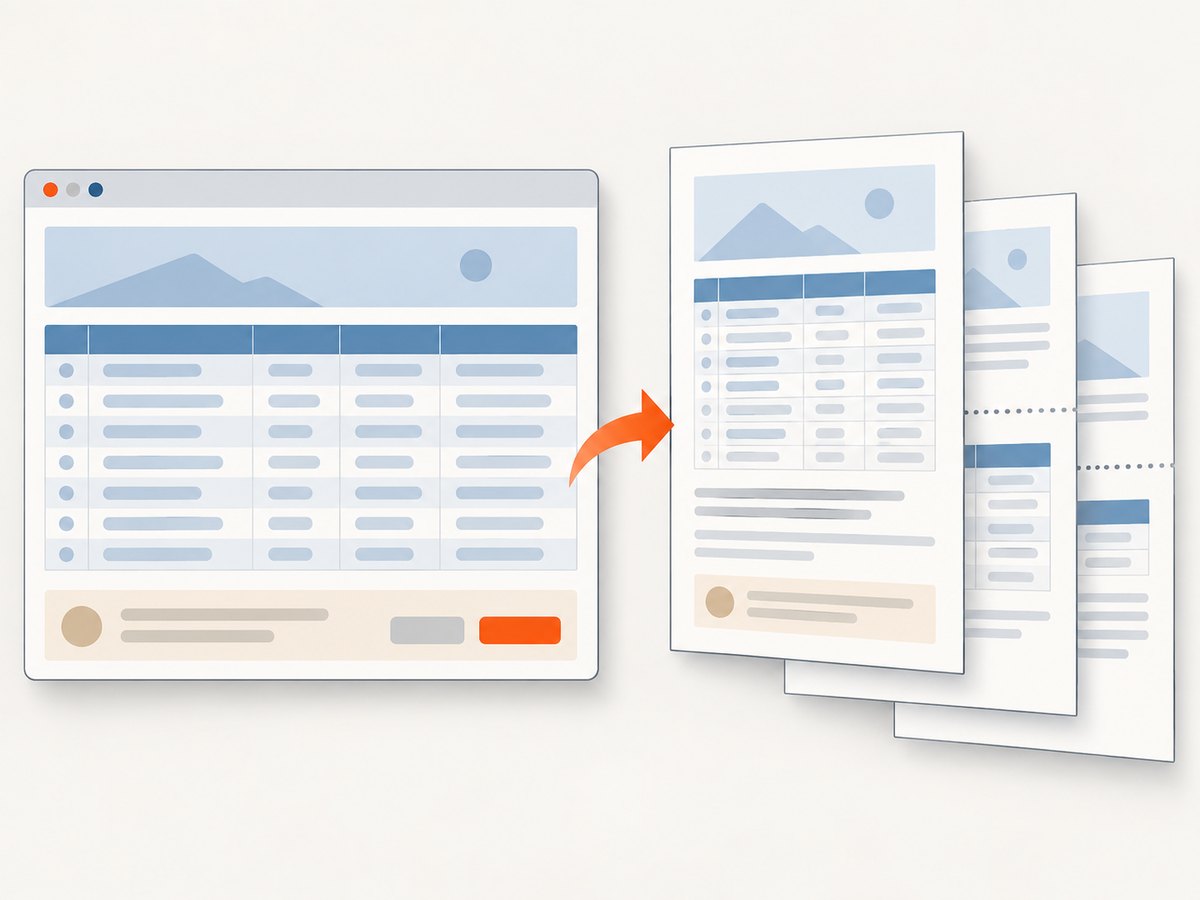
| Page size, orientation, margins, scaling | Pagination and fit of wide content | When tables or layouts run beyond the page width, or a particular paper layout is required. |
A long webpage can become multiple standard-size PDF pages. Wide layouts may wrap, shrink, or split across pages depending on scaling and page dimensions. There is no single best setting for every source: choose based on whether the PDF is for reading, printing, reference, or further processing, then inspect the output at normal zoom and in print preview if print layout matters.
6. Check accessibility and document quality
Conversion does not automatically make a webpage accessible. Adobe states: “A PDF that you create from a web page is only as accessible as the HTML source that it is based on.” Creating PDF tags carries structure from the HTML, but complex layouts may still need reading-order or tag-tree repairs in Acrobat Pro. Adobe recommends establishing a logical reading order in the HTML source.
Before distributing the PDF, check that headings and paragraphs read in a sensible order, links are understandable, images convey the necessary information, and tables remain usable. If the source page is poorly structured, a conversion setting cannot fully repair the underlying content. Treat tags as useful structure to verify, not as a guarantee of accessibility.
7. Common problems and fixes
| Problem | Likely cause | What to try |
|---|---|---|
| The PDF contains only one page, but more were expected | Multi-level capture was not enabled, or the crawl scope excludes linked pages. | Enable Capture multiple levels, choose the intended depth or entire-site option, and review same-path/server limits. |
| Unrelated pages or external domains appear | The capture scope is broader than intended. | Set a level limit and select Stay on same path and/or Stay on same server. |
| A page or linked content is missing | The page may be outside the selected scope, unavailable, or dependent on resources the conversion did not capture. | Try the page URL directly as a separate conversion, verify the source opens, and inspect link and content inclusion settings. |
| Text, colors, fonts, or images differ from the browser | Web rendering and PDF conversion handle some content differently; conversion options also affect inclusion and appearance. | Review HTML/text, font, color, image, and background options, then create a new PDF and compare the relevant section. |
| Wide content is clipped or hard to read | The page width exceeds the chosen page layout. | Adjust orientation, margins, page size, or scaling to fit wide content. Check whether shrinking makes text too small. |
| Scrollable content is absent or incomplete | The content is inside a scrollable block or is loaded interactively. | Review the option for expanding scrollable blocks and inspect the page content in the source before conversion. |
| Bookmarks are absent | Bookmark creation was not selected, or the source does not supply useful page titles. | Review bookmark options and select page titles or URLs as appropriate. |
| The PDF is tagged but difficult to navigate with assistive technology | Source HTML structure or reading order may be poor, or the page layout is complex. | Improve source structure where possible; inspect tags and reading order in Acrobat and repair them when needed. |
| A queued conversion has not finished | Other requests may be ahead of it in the conversion queue. | Check Download Status for pending requests and wait for completion before assuming the output failed. |
8. Performance, reliability, and file size
Conversion scope is the clearest lever you control. A single URL is a smaller task than following multiple link levels or asking for an entire site. Use the narrowest scope that meets the need, especially when the source has many links. This also makes it easier to identify missing or unexpected pages during review.
Page complexity affects the output: images, backgrounds, fonts, multimedia, wide layouts, and scrollable regions all create settings and rendering choices to check. When reliability matters, retain the source URL and date alongside the PDF, and verify that the document opens and contains the expected pages. A PDF is a saved conversion of the page, not a guarantee that every interactive behavior or future site state is preserved.
No conversion-time benchmark or fixed file-size expectation is established by Adobe’s cited instructions. File size and completion time depend on the content and capture scope. If a result is too large or slow to review, reduce the number of captured pages or reconsider whether every visual asset and background needs to be included.
9. Or skip the browser setup
If your goal is a PDF deliverable, Acrobat’s web-page workflow above is the documented route. If you also need a clean image capture of a webpage for a report, preview, or downstream workflow, ScreenshotNeo provides a website screenshot API and MCP server. One GET request can return an image or PDF; see the API documentation for the parameters and response details.
curl -G "https://api.screenshotneo.com/v1/shot" -d access_key=YOUR_API_KEY --data-urlencode url=https://stripe.com -o shot.webpimport requests
r = requests.get(
"https://api.screenshotneo.com/v1/shot",
params={"access_key": "YOUR_API_KEY", "url": "https://stripe.com"},
timeout=90,
)
open("shot.webp", "wb").write(r.content)const q = new URLSearchParams({ access_key: 'YOUR_API_KEY', url: 'https://stripe.com' });
const res = await fetch(`https://api.screenshotneo.com/v1/shot?${q}`);
if (!res.ok) throw new Error(`Screenshot request failed: ${res.status}`);
await require('node:fs/promises').writeFile('shot.webp', Buffer.from(await res.arrayBuffer()));These examples save an image response. For a PDF, use the documented PDF output options in the API. ScreenshotNeo’s pre-capture flow accepts cookie or consent banners and removes more than 60 known consent platforms, newsletter popups, and chat widgets; each step can be turned off. Bot checks or CAPTCHAs, blank pages, timeouts, failed loads, and cache hits cost nothing, and response headers report the page verdict and billing status. An MCP server exposes take_screenshot, get_page_info, and capture_pdf to Claude, Cursor, and other MCP clients.
The free plan includes 1,000 screenshots a month with no card. Paid plans start at $5 for 3,000; yearly billing gives two months free. See ScreenshotNeo for product details, and create a free account to get 1,000 screenshots a month with no card.
10. Frequently asked questions
Can Acrobat make a PDF from a local HTML file?
Yes. In Acrobat desktop’s Web page creation workflow, browse to the HTML file instead of entering a URL.
Does creating PDF tags guarantee an accessible PDF?
No. Tags carry structure from the HTML, but the source’s structure and reading order still matter, and complex pages may require repairs.
Can I capture an entire site?
Acrobat desktop offers Get entire site in the multi-level capture settings. Use path and server limits when you need to constrain what is included.
Will the PDF look exactly like the live page?
Not necessarily. Conversion settings, page dimensions, interactive content, and source structure affect the result. Inspect the PDF and adjust settings for its intended use.


