How to Convert a Webpage to PDF with a Browser Extension
Save any webpage as a PDF using built-in browser tools or an extension, with layout fixes, privacy checks, troubleshooting, and an API option.
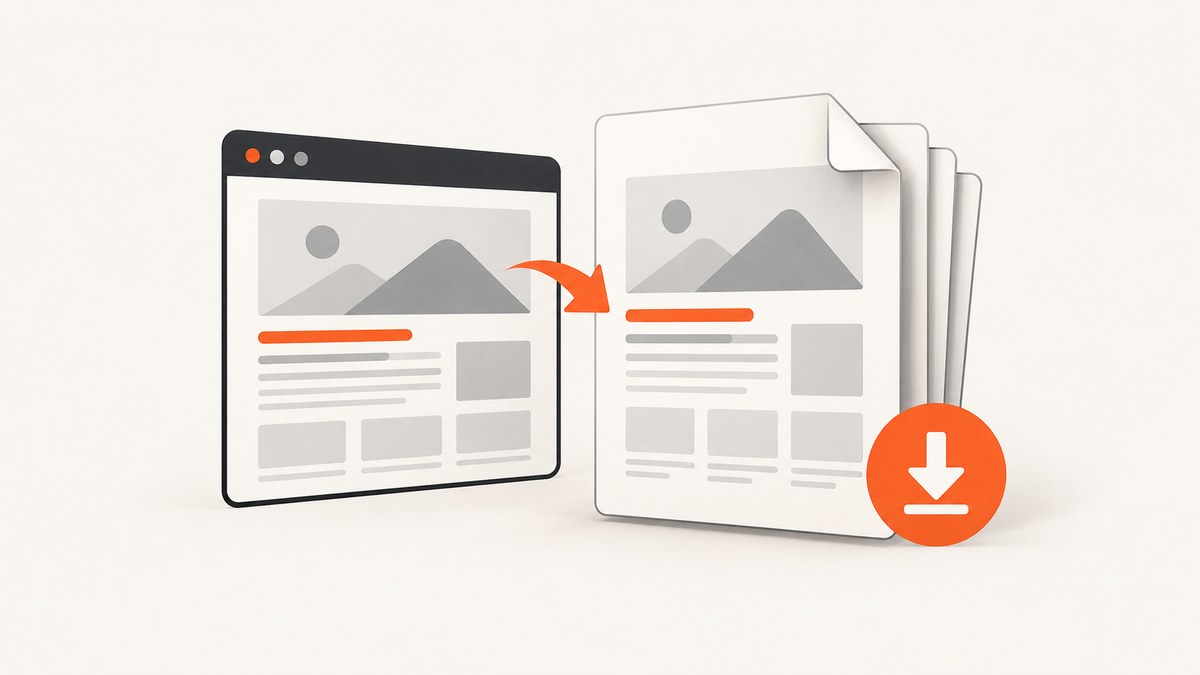
Short answer: you often do not need an extension. Open the page, choose your browser’s Print command, select Save to PDF, review the preview, and save. Install an extension when you need article mode, element selection, PDF editing tools, or repeated one-click conversions.
This guide covers Firefox’s documented workflow, Chrome extension options, privacy and permission checks, difficult pages, multi-page capture, troubleshooting, and an API alternative for automated jobs.
1. Save a webpage as a PDF without an extension
Built-in printing is the simplest method for a single open page. It works in Firefox, Chrome, Edge, Safari, and most Chromium-based browsers, although labels differ slightly.
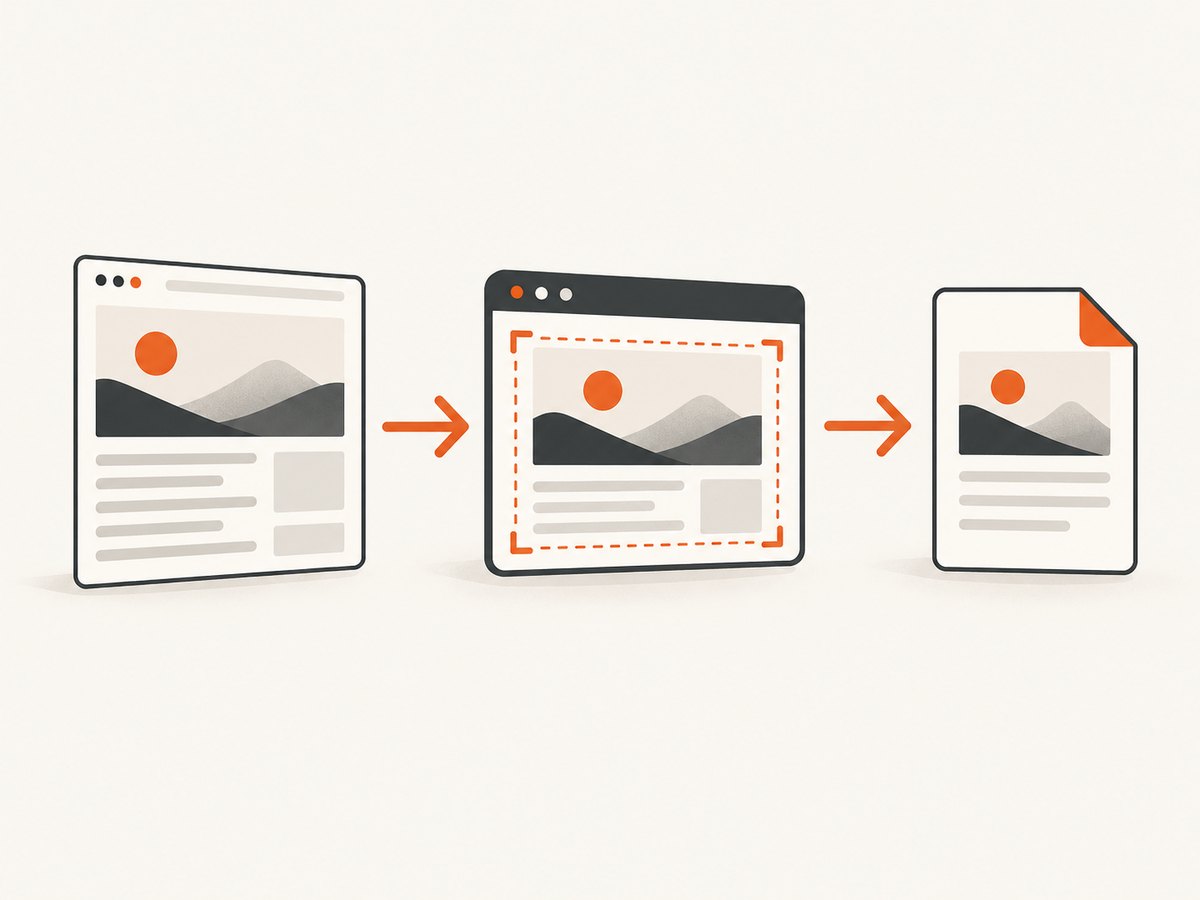
Firefox steps
- Open the webpage in Firefox.
- Open the menu and choose Print….
- In the print preview window, set Destination to Save to PDF.
- Choose the paper size, orientation, scale, margins, color mode, page range, and whether backgrounds, headers, and footers should be printed.
- If Firefox offers Format: Simplified, use it for an article-style layout when appropriate. Mozilla notes that Simplified format disables printed backgrounds.
- Check every page in the preview. Then select Print or Save and choose a filename.
Mozilla warns that webpages can deliberately use a different print layout from their screen layout, so changes are expected. Previewing matters when a page has wide tables, sticky navigation, ads, cookie notices, or responsive columns. See Mozilla’s complete instructions in How to print web pages in Firefox.
Chrome, Edge, and other Chromium browsers
- Open the page and press Ctrl+P on Windows/Linux or Cmd+P on macOS.
- Set the destination or printer to Save to PDF.
- Expand More settings to adjust paper size, scale, margins, pages per sheet, headers and footers, and background graphics.
- Review the preview, then save the file.
Use Background graphics only when the document needs colored panels, diagrams, or background images. Turning it off usually creates a smaller, cleaner PDF.
2. When a browser extension is useful
An extension is useful when the browser’s print dialog does not provide the control you need. Common reasons include:
- Article or simplified mode: remove navigation, ads, comments, and unrelated page furniture.
- Select Element: export one product description, table, recipe, or documentation section instead of the entire page.
- Full-page capture: capture content that extends beyond the current viewport.
- PDF actions: fill, comment, sign, compress, or edit after conversion.
- Repeatability: add a toolbar button or context-menu action for frequent work.
Install an extension only for a specific capability. A browser extension can read the page you give it, and some request access to browsing history, tabs, or website content. Review the current store listing, developer identity, update history, and permissions before installing.
Adobe Acrobat extension for Chrome
Adobe’s Chrome extension adds a PDF toolbar and context-menu actions for converting an open webpage. It also provides browser-based PDF functions such as viewing, filling, commenting, signing, and compressing. Adobe’s setup instructions say to enable the extension from Chrome’s Extensions page, then open or refresh a webpage before selecting the Acrobat icon. Follow the current Adobe setup documentation because extension controls can change.
Web to PDF – Save Webpage as PDF
The Chrome Web Store listing for Web to PDF – Save Webpage as PDF describes Full Page, Select Element, and Article modes with paper and layout controls. The publisher says conversion happens locally in the browser and that page content is not uploaded to a remote conversion service. That is a publisher statement, not an independent audit. The listing also discloses handling of browser history and website content, so compare that disclosure with your requirements before installing. Store versions, user counts, permissions, and availability can change.
Print to PDF for Firefox
Mozilla Add-ons lists Print to PDF by moris as a toolbar and context-menu print action with page-size and header/footer options. The listing reports that it requires access to browser tabs and data for all websites. Its listed version and last update are old, so check compatibility and maintenance status before relying on it for a production workflow.
3. Configure the PDF for a readable result
| Setting | Use it when | Common side effect |
|---|---|---|
| Orientation | Landscape for wide tables or dashboards; portrait for articles. | Changing orientation can alter page breaks. |
| Scale | Reduce scale when columns are clipped; increase it for small text. | Too much reduction makes text hard to read. |
| Margins | Use narrow margins for wide content and normal margins for reports. | Very narrow margins may be rejected by a printer or PDF viewer. |
| Background graphics | Keep enabled for color-coded diagrams or panels. | Increases file size and may include decorative backgrounds. |
| Headers and footers | Enable when URL, title, date, or page numbers are useful. | They can add unwanted text to every page. |
| Page range | Save only relevant pages from a long article. | Interactive content may span pages unexpectedly. |
| Simplified or Article mode | Reading-focused documents with fewer distractions. | Images, backgrounds, navigation, or embedded widgets may disappear. |
Fixing common layout problems
- Blank pages: switch orientation, reduce scale slightly, or remove forced page-break content.
- Clipped right edge: choose landscape, reduce scale, or select a larger paper size.
- Text is microscopic: increase scale, use portrait for prose, or remove wide sidebars with an article mode.
- Missing colors: enable background graphics and check whether Simplified format disables backgrounds.
- Sticky bars on every page: use an article mode or extension that removes page furniture; otherwise hide the bar with print-specific CSS if you control the site.
- Images missing: wait for lazy-loaded images before printing, scroll through the page once, or use a full-page capture extension.
4. Privacy and permissions checklist
A PDF extension operates inside your browser session, so treat it as software with access to the pages you open.
- Read the permissions before selecting Add extension.
- Check whether the publisher says conversion is local or sends content to a server.
- Compare that statement with the store’s data-safety disclosure.
- Review the update date and developer identity.
- Do not install an extension for a one-time conversion if built-in Print already works.
- For confidential pages, test with non-sensitive content and inspect network activity if your security policy requires it.
Local processing can reduce upload exposure, but a store disclosure still deserves review. Permissions and privacy practices can change after installation.
5. One page versus an entire website
Converting the active tab creates one PDF representation of that page. It does not automatically archive every linked page, pagination view, or file referenced by the page.
Adobe’s desktop Acrobat documentation describes broader website capture controls, including page levels, same-path or same-server limits, and adding pages to an existing PDF. Use that type of workflow when you need a site section or a linked-page archive. Define the scope first: a whole domain can contain thousands of URLs, login-only pages, tracking links, and duplicate content.
Planning a multi-page capture
- Choose the starting URL and maximum depth.
- Limit capture to the same host or path when possible.
- Exclude search results, calendars, query-string duplicates, and account pages.
- Decide whether each page should become a separate PDF or one combined document.
- Check copyright, robots policies, and access permissions for content you do not own.
6. Troubleshooting
| Symptom | Likely cause | Fix |
|---|---|---|
| Print preview never finishes | Blocked resource, script error, or a page that keeps loading. | Wait for visible content, reload, disable the extension temporarily, or save after the main content appears. |
| Cookie banner is printed | The banner is part of the page’s print DOM. | Accept or dismiss it first, use reader/article mode, or hide the selector with a suitable extension. |
| Only the visible viewport is captured | The tool is using viewport capture rather than full-page capture. | Choose Full Page or use the browser’s print command, which lays out scrollable content for printing. |
| Fonts change | Web fonts failed to load or print CSS selects a different font. | Wait for fonts, reload without an ad blocker conflict, and check the preview before saving. |
| Interactive controls vanish | PDF is a static format; menus, video, and live widgets cannot remain interactive. | Capture explanatory text and link destinations, or keep the original URL alongside the PDF. |
| Extension button is missing | It is disabled, hidden in the extensions menu, or needs a page refresh. | Open the browser’s Extensions manager, enable it, pin its icon, and refresh the page. |
| PDF contains private data | The page was saved while logged in. | Inspect the document, remove sensitive pages, and store or share it according to your security policy. |
| Large PDF file | High-resolution images, backgrounds, or many pages. | Disable backgrounds, reduce scale, choose fewer pages, or compress the finished PDF. |
7. Or skip the browser setup
For automated captures, CI jobs, scheduled reports, or pages that need consistent browser handling, ScreenshotNeo provides a website screenshot API and MCP server. One GET request can return PNG, JPEG, WebP, or PDF. The service can accept consent banners before capture and remove more than 60 known consent platforms, newsletter popups, and chat widgets. Bot checks or CAPTCHAs, blank pages, timeouts, failed loads, and cache hits are not billed; response headers identify the page verdict and billing status.

See the complete parameter reference in the ScreenshotNeo documentation. The examples below use the required API call shape; set the PDF output option described in the documentation when you need a PDF instead of an image.
cURL
curl -G "https://api.screenshotneo.com/v1/shot" -d access_key=YOUR_API_KEY --data-urlencode url=https://stripe.com -o shot.webpPython
import requests
r = requests.get("https://api.screenshotneo.com/v1/shot", params={"access_key": "YOUR_API_KEY", "url": "https://stripe.com"}, timeout=90)
open("shot.webp", "wb").write(r.content)
Node.js
const q = new URLSearchParams({ access_key: 'YOUR_API_KEY', url: 'https://stripe.com' });
const res = await fetch(`https://api.screenshotneo.com/v1/shot?${q}`);
ScreenshotNeo includes options for full-page capture with lazy images loaded, CSS-selector element capture, dark mode, device presets, custom viewport and retina scale, PDF paper size, margins, landscape mode and page ranges, custom CSS and JavaScript, clicks, selector or network-idle waits, blocked ads and resources, headers, cookies, user agents, Authorization, timezone, geolocation, transparent backgrounds, resizing, configurable caching, signed links, asynchronous jobs with signed webhooks, bulk capture of up to 100 URLs per call, a usage API, and an OpenAPI specification. Parameters used by other screenshot APIs also work, which can simplify migration.
An MCP server exposes take_screenshot, get_page_info, and capture_pdf for Claude, Cursor, and other MCP clients. Plans include 1,000 screenshots per month free with no card; paid plans start at $5 for 3,000 shots. Only clean shots are billed, and every feature is available on every plan. Create a free ScreenshotNeo account.
8. Performance, reliability, and cost considerations
Browser extensions
Extension conversion time depends on page size, images, scripts, fonts, and network conditions. Full-page captures take longer than a viewport because the browser must lay out or scroll through more content. Repeated manual captures also depend on the machine staying awake and logged in. The benefit is immediate visual review before saving.
Automated capture
For repeatable jobs, set an explicit wait condition, use a timeout appropriate for the page, and cache stable URLs when freshness allows. Block advertising and analytics requests when they are irrelevant to the document. Capture a representative sample after changing CSS, consent handling, or viewport settings. Keep the original URL, timestamp, and output filename with each PDF so readers can trace the source.
Cost control
Built-in printing has no service charge. Extensions may be free, paid, or bundled with a broader PDF product; check the current listing. An API introduces usage-based pricing, but ScreenshotNeo’s free tier covers 1,000 shots per month without a card, and paid plans begin at $5 for 3,000 shots. Cache stable pages and use bulk capture for batches to avoid unnecessary requests.
9. FAQ
Can I convert a webpage to PDF without installing anything?
Yes. Open Print, choose Save to PDF, adjust the preview, and save.
Why does my PDF look different from the webpage?
Websites can define separate print styles. Preview the result and adjust orientation, scale, margins, backgrounds, or simplified mode.
Does saving a page include videos and menus?
No. A PDF is static. It can preserve text, images, and links, but live controls and video playback generally do not remain interactive.
Is an extension required for a full-page PDF?
No. Print preview often lays out the full document. An extension is useful when you need article cleanup, element selection, or a dedicated full-page workflow.
Can a browser extension save an entire website?
Usually it converts the active page. Website-level capture requires a tool that follows links and lets you control depth, host, and path.
What should I check before installing an extension?
Review permissions, privacy disclosures, developer identity, update history, and whether the publisher’s processing claims match the store disclosure.
When should I use an API instead?
Use an API for scheduled jobs, CI, bulk URLs, consistent device settings, signed public links, or AI-agent workflows.


