How to Convert a Webpage to PDF Online for Free
Save any webpage as a readable PDF with browser tools, online converters, or an API. Compare privacy, layout, automation, and troubleshooting options.
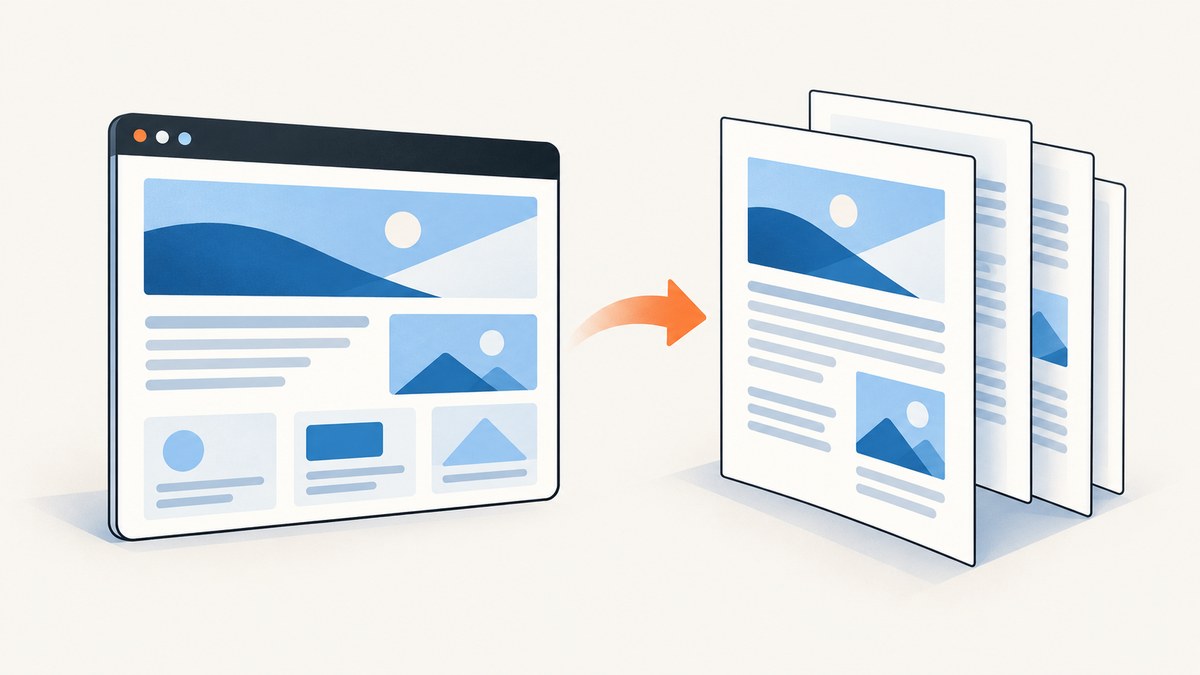
To convert a webpage to PDF for free, open the page in Microsoft Edge or Firefox, use the browser’s Print command, choose a PDF destination, review the preview, and save. This is the quickest option for one page and keeps the conversion on your computer. If you need a URL-based workflow, a cloud converter such as PDF24 can create the file without installing software. For repeatable captures, authenticated pages, or automation, use a screenshot or PDF API.
1. Use your browser’s built-in Print to PDF
The browser method is free, available on ordinary desktop installations, and usually the best first choice for a single public webpage.
Microsoft Edge
- Open the webpage you want to save.
- Press Ctrl+P on Windows or Command+P on macOS. You can also open the menu and choose Print.
- Choose a PDF destination, such as Save to PDF or an available PDF printer.
- Check the preview. Set the page size, orientation, scale, margins, page range, background graphics, headers, and footers as needed.
- Click Save, choose a filename and folder, and open the PDF to verify it.
Edge documents a clutter-free printing option that removes surrounding material such as advertisements and site navigation. If that option is unavailable for a site, Microsoft documents Immersive Reader as a possible way to obtain a cleaner page before printing.
Firefox
- Open the page and choose Menu > Print.
- In the print dialog, select Save to PDF in the destination list.
- Adjust orientation, paper size, scale, margins, page range, and whether backgrounds are printed.
- Save the file and inspect the result.
Firefox may offer Simplified format for supported pages. This can remove navigation and other surrounding content before printing. The exact labels and destinations depend on your operating system, browser version, and locale.
2. Tune the PDF before saving
Always use the preview rather than assuming the screen layout will become the paper layout. A webpage can deliberately use a different print stylesheet, hide navigation, or omit elements when printed. Mozilla warns that pages can look different on paper than on screen.
| Problem | Setting or action to try |
|---|---|
| Text or tables run off the right edge | Use landscape orientation, reduce scale, or select a wider paper size. |
| Colors, diagrams, or background sections disappear | Enable background graphics or background colors. |
| Advertisements and menus fill the PDF | Use Firefox Simplified format, Edge Immersive Reader, or a reader mode supplied by the site. |
| Content is split at awkward points | Try a different scale, margins, or orientation. If the site has a print view, use it. |
| The final page is blank | Check the page range and remove trailing blank pages in the preview or PDF editor. |
| Images are missing | Wait for the page to finish loading, reload it, and print again. Confirm that background graphics are enabled when the images are backgrounds. |
For an article, recipe, or reference page, a narrow portrait page with moderate margins is usually readable. For dashboards, code samples, and wide tables, landscape orientation and a smaller scale often work better. If the page is very long, inspect several pages in the preview to ensure headings are not stranded at the bottom of a page.
3. Convert a URL online with a cloud service
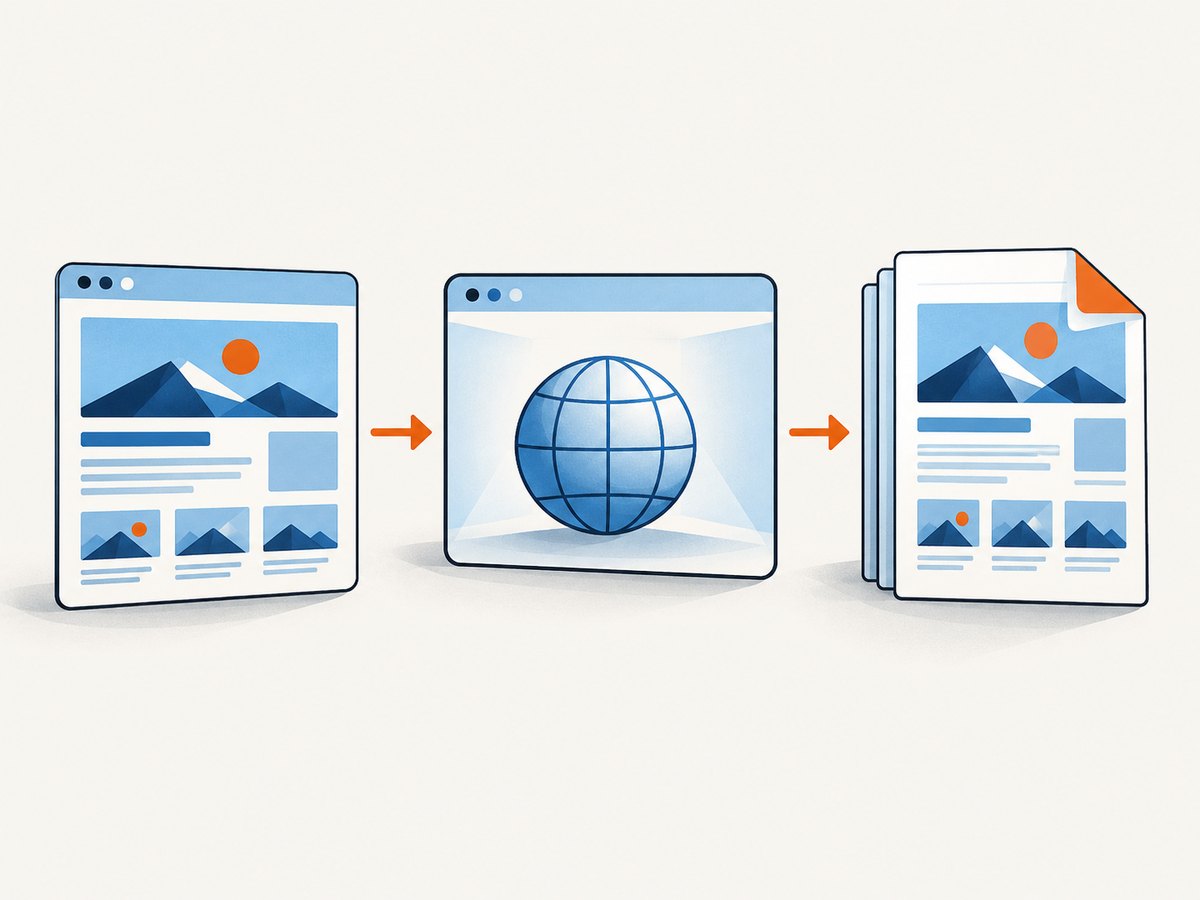
A URL converter is useful when you do not want to open the page in a desktop browser. PDF24 describes a workflow in which you enter a webpage URL, start the conversion, and download the resulting PDF. It says the service is free, requires no registration, supports common operating systems and browsers, and performs conversion on its servers. PDF24 also states that uploaded files are automatically deleted from its server after one hour. These are the provider’s statements and can change, so review its current terms before sending sensitive material.
- Open the PDF24 webpage-to-PDF tool.
- Paste the public webpage URL.
- Start conversion and wait for the service to render the page.
- Download the PDF and inspect the pages, fonts, links, and images.
Cloud conversion means the URL and the resulting content are processed by a third party. Do not submit private, confidential, or access-controlled pages unless the service’s handling meets your requirements. A local browser print keeps the work on your machine. Microsoft says Edge’s Microsoft Print to PDF does not send file data back to Microsoft, while PDF24 explicitly describes its conversion as cloud-based.
4. Choose the right method
| Method | Best for | Tradeoff |
|---|---|---|
| Browser Print to PDF | One open page, local processing, no extra account | Output follows the site’s print layout and may need manual tuning. |
| Online URL converter | Converting from a URL without installing software | The provider processes the page on its servers; check retention and privacy terms. |
| Desktop site capture | Several linked levels or an entire site | Requires a desktop product with site-capture controls. |
| API capture | Scheduled jobs, applications, bulk URLs, repeatable output | Requires an API key and implementation work. |
Adobe’s Acrobat desktop documentation describes multi-level capture and an option to retrieve an entire site, with controls to remain on the same URL path or server. That is a different requirement from saving one page. Use it when you need linked pages or a site archive rather than a single document.
5. When the PDF does not match the webpage
Missing sections
Some pages load text, images, charts, or comments after the initial navigation. Wait until the page is complete, scroll through it to trigger lazy content, and print again. If the page requires a login, make sure you are signed in before opening Print.
Unexpected page breaks
Print styles can insert page breaks or hide controls. Try landscape mode, a different scale, or the site’s print or reader view. There is no universal setting that fixes every website because the page author controls the print stylesheet.
Fonts look different
Web fonts may not have finished loading, or the print stylesheet may choose a different font. Reload, wait for the page to settle, and print again. If the font is still different, the PDF is reflecting the site’s print design.
Interactive content is static
A PDF records a rendered state. Video, hover menus, forms, and interactive charts will not remain interactive in the same way. Capture the relevant state before printing and include a link to the live page when the interaction matters.
6. Or skip the browser setup
ScreenshotNeo provides a website screenshot and PDF API for developers. Make one GET request with the target URL and select PDF output in the request options described in the ScreenshotNeo documentation. The same service also supports PNG, JPEG, and WebP screenshots.
cURL
curl -G "https://api.screenshotneo.com/v1/shot" \
  -d access_key=YOUR_API_KEY \
  --data-urlencode url=https://stripe.com \
  -o page.pdf
Python
import requests

r = requests.get(
    "https://api.screenshotneo.com/v1/shot",
    params={"access_key": "YOUR_API_KEY", "url": "https://stripe.com"},
    timeout=90,
)
r.raise_for_status()
open("page.pdf", "wb").write(r.content)
Node.js
const q = new URLSearchParams({
  access_key: 'YOUR_API_KEY',
  url: 'https://stripe.com'
});
const res = await fetch(`https://api.screenshotneo.com/v1/shot?${q}`);
if (!res.ok) throw new Error(`HTTP ${res.status}`);
const bytes = Buffer.from(await res.arrayBuffer());
require('fs').writeFileSync('page.pdf', bytes);
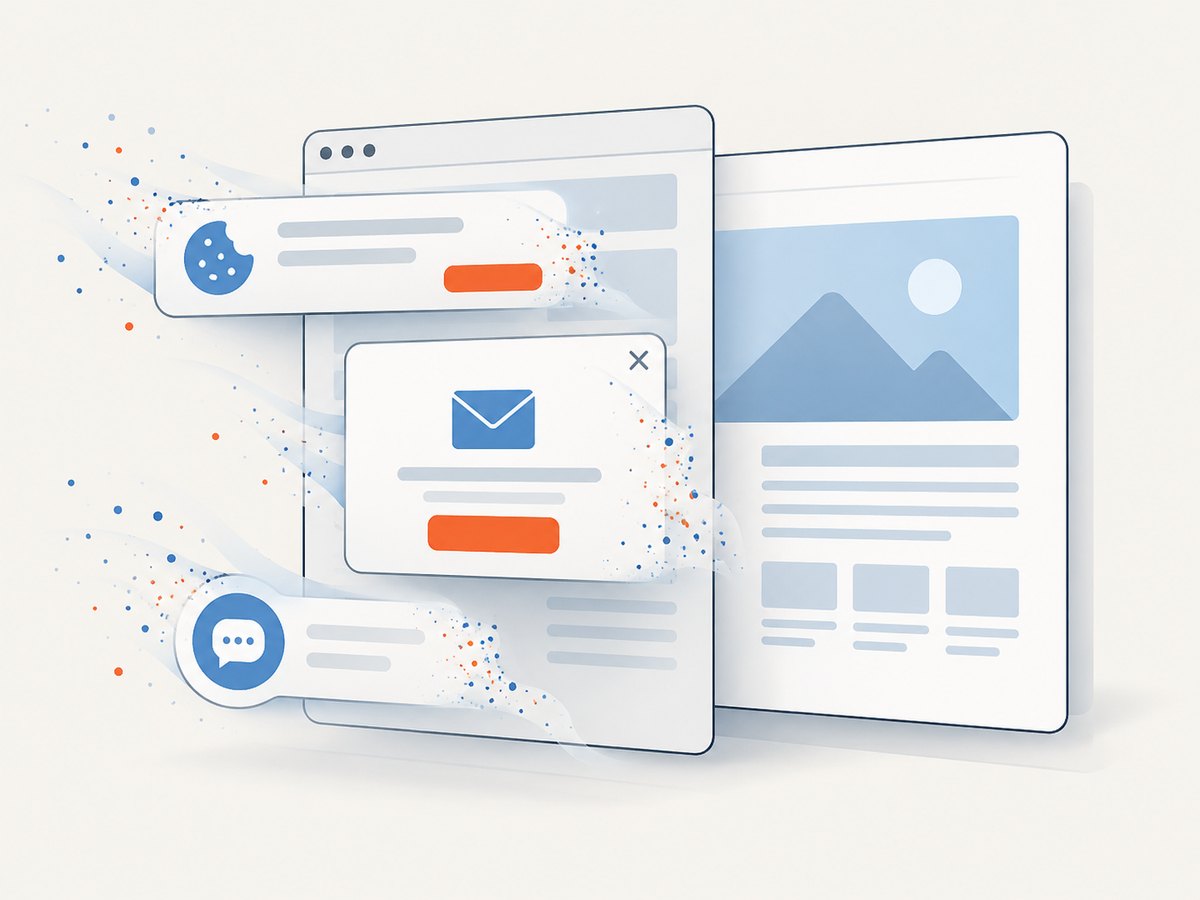
ScreenshotNeo removes cookie and consent banners, newsletter popups, and chat widgets before capture. Each of those cleanup steps can be turned off. It bills only clean shots: bot checks or CAPTCHAs, blank pages, timeouts, failed loads, and cache hits are not billed, and response headers identify the page verdict and whether the request was billed. An MCP server provides take_screenshot, get_page_info, and capture_pdf tools for Claude, Cursor, and other MCP clients.
For PDF jobs, the available controls include paper size, margins, landscape mode, and page ranges. Other capture options cover full-page rendering with lazy images loaded, a CSS-selector element, dark mode, device presets or custom viewports, retina scale, custom CSS and JavaScript, clicks, selector waits, delays, network-idle waits, blocked ads or trackers, custom headers and cookies, user agents, Authorization, timezone, geolocation, transparent backgrounds, resizing, caching with a chosen TTL, signed links, asynchronous jobs with signed webhooks, bulk capture of up to 100 URLs per call, usage reporting, and an OpenAPI specification.
The Free plan includes 1,000 shots each month without a card. Paid plans start at $5 for 3,000 shots; yearly billing provides two months free. Create a free ScreenshotNeo account and start with the included monthly shots.
7. Automating reliable webpage-to-PDF jobs
If you are generating documents from code, treat a capture as a job with inputs, a result, and a verification step.
- Normalize the URL. Resolve redirects and ensure the URL is reachable by the rendering service.
- Wait for the page. Use a selector wait, a delay, or network-idle waiting when JavaScript builds the content after navigation.
- Control the environment. Set viewport, device preset, dark mode, timezone, geolocation, headers, cookies, and user agent when the page changes by context.
- Reduce noise. Block advertisements and trackers or hide selectors for elements that should not appear in the document.
- Choose PDF geometry. Set paper size, margins, orientation, and page ranges for the intended reader.
- Validate the response. Check the HTTP status, content type, file size, and ScreenshotNeo’s page-verdict and billed headers before storing the file.
- Retry carefully. Retry transient network failures with backoff. Do not blindly retry a deterministic bot check or a page that consistently fails to load.
Performance and cost considerations
Full-page PDFs take longer than viewport captures because the renderer must lay out and load more content. Waiting for network idle can improve completeness but increases latency on pages with long-lived analytics requests. Blocking ads, trackers, and unnecessary resource types can reduce work and make the result more stable. Reuse caching when the page does not change frequently; cache hits are not billed by ScreenshotNeo. For large batches, use its bulk capture endpoint, which accepts up to 100 URLs per call, and use asynchronous jobs with signed webhooks when a synchronous request would exceed your application’s request window.
Keep the original URL and capture settings alongside each PDF so you can reproduce a document. For private pages, pass the required cookies, headers, or Authorization values through the documented options and protect logs from exposing them.
8. Troubleshooting checklist
| Symptom | Likely cause | Fix |
|---|---|---|
| Print command is unavailable | Browser menu or platform-specific UI | Use Ctrl+P or Command+P, or open the browser menu and select Print. |
| PDF is empty | Page failed to load or content is rendered later | Reload, wait, scroll through the page, and print again. For an API, add a selector wait or delay. |
| Background colors are absent | Background printing is disabled | Enable background graphics or colors in the print settings. |
| Cloud converter cannot reach the page | The URL requires login, blocks automated traffic, or is unavailable publicly | Use a local signed-in browser, or an API that supports the necessary headers and cookies. |
| API response is a bot check | The target returned a CAPTCHA or bot challenge | Inspect the page verdict header, avoid treating the response as a valid document, and fix the target’s access policy. ScreenshotNeo does not bill bot checks. |
| Images are incomplete | Lazy loading or insufficient wait time | Use full-page capture and wait for a selector, delay, or network idle. |
| Request times out | Heavy page, slow third-party resources, or an overly long wait | Block unnecessary resources, use a targeted wait, and retry transient failures with backoff. |
| PDF has the wrong theme | Site detects dark mode or a device preference | Set the desired dark-mode and device options explicitly. |
9. FAQ
Can I convert a webpage to PDF without installing anything?
Yes. Browser Print to PDF needs no additional software. A URL converter such as PDF24 also describes a no-installation workflow.
Is browser Print to PDF always free?
The built-in Edge and Firefox workflows use the browser and an available PDF destination, so they do not require a separate conversion subscription. Your operating system may label the destination differently.
Can a PDF contain the whole website?
Saving one page captures one page. Multi-level or whole-site capture is a separate task; Adobe Acrobat documents controls for linked levels and site scope.
Why does my PDF differ from the screen?
Websites can define print-specific styles, hide controls, omit backgrounds, and change page breaks. Review the preview and adjust print settings before saving.
Which approach is best for recurring jobs?
Use an API when you need scheduled captures, consistent settings, bulk URLs, authentication, or result metadata. ScreenshotNeo combines PDF output with waits, cookies, headers, cleanup, caching, bulk capture, and asynchronous jobs.
Should I send a private page to an online converter?
Check where the conversion runs and how long files are retained. Local browser printing keeps the operation on your machine; cloud services process the page on their infrastructure.


