How to Convert a Webpage to PDF on iPhone
Save any Safari webpage as a PDF on your iPhone using Apple's built-in Markup workflow, with fixes for missing options and long pages.

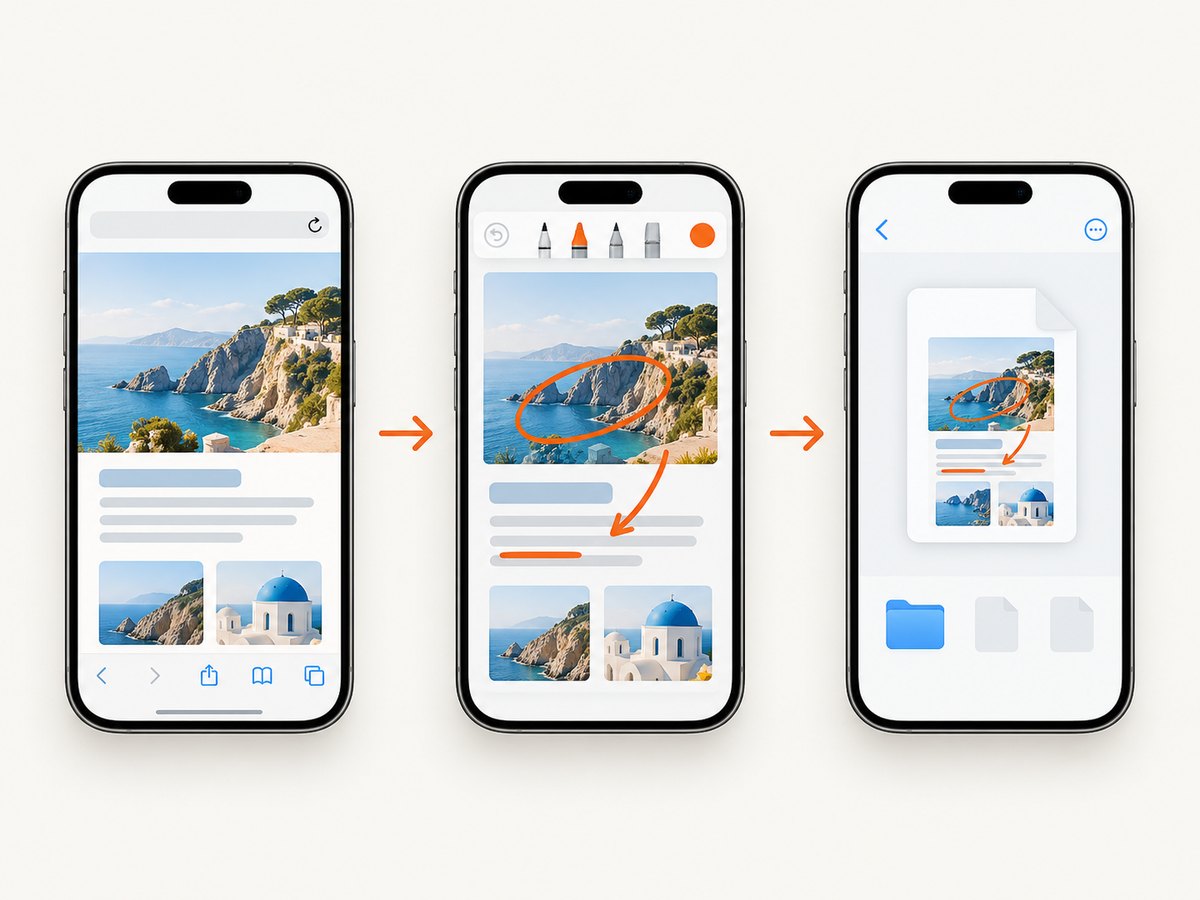
Yes. Safari on iPhone can convert a webpage to a PDF without another app. Open the page, tap the Page Menu or Share button, choose Markup, tap Done, select Save File To, name the document, and tap Save. You can annotate the page in Markup before saving it.
Apple documents this built-in workflow in its iPhone User Guide. The labels can vary slightly with your iOS version and Safari tab layout, but the Share → Markup → Save File To path is the same.
Convert a webpage to PDF in Safari
- Open Safari. Navigate to the webpage you want to keep. Wait for the important content, images, and embedded sections to load.
- Open Safari’s page controls. Tap the Page Menu button in the address bar. Depending on whether your tabs are shown at the top or bottom, Safari may show a Share button directly instead.
- Tap Share. This opens the iPhone share sheet for the current webpage.
- Choose Markup. Safari creates a PDF preview of the page and opens Apple’s Markup tools. You can draw, highlight, add text, add a signature, or crop pages.
- Tap Done. When you finish annotating, tap Done in the Markup screen.
- Choose Save File To. Pick a location in Files, such as On My iPhone, iCloud Drive, or a folder provided by another Files integration.
- Name and save the PDF. Enter a useful filename, select the destination folder, and tap Save.
The resulting file is a normal PDF that you can open in Files, attach to an email, upload to a document system, print, or annotate again. Apple’s guide describes the feature as a way to mark up a webpage, highlight important parts, write notes, and share the result as a PDF.
What Safari captures in the PDF
Safari generates the PDF from the webpage currently open. That means the output can reflect the page’s loaded state, responsive layout, login state, and any content that appears only after scrolling or interaction.
Long pages and lazy-loaded content
Scroll through important sections before exporting if the page loads images or text on demand. Some sites do not request lower-page assets until you approach them. If the PDF preview is missing images, return to the page, scroll through it, wait for the content to appear, and repeat the Share and Markup steps.
Reader mode versus the normal page
If Safari offers Reader mode, decide which version you need before creating the PDF. Reader mode usually removes navigation, ads, and some interactive elements and produces a more article-like document. The normal page preserves more of the site’s visual structure but may include sidebars, banners, and dynamic widgets.
What does not behave like a print layout
A webpage is not a paper document. Fixed headers, sticky navigation, animated content, video players, cookie dialogs, and responsive columns can produce surprising page breaks. If the PDF is for reading, Reader mode or a cleaned capture is often easier to use. If you need an exact record of a transaction, confirm that the relevant values are visible before exporting.
Annotate before you save
Markup is part of the PDF workflow, not a separate app. In the preview, use the pen, marker, eraser, lasso, text, shape, or signature tools. You can also crop the page and use the magnifier when reviewing a small detail.
Annotations become part of the saved document. For a clean archival copy, save the original first, then make an annotated copy with a different filename. For example, save project-brief.pdf and then project-brief-reviewed.pdf.
Choose a reliable filename and location
A descriptive filename makes the PDF searchable later. Include the subject and date when they matter: support-policy-2026-09-29.pdf is easier to find than Safari PDF.pdf.
- On My iPhone: stores the file locally and makes it available without an internet connection.
- iCloud Drive: synchronizes the file across devices signed in to the same Apple Account.
- A project folder: keeps exports next to related documents and makes later sharing easier.
If Save File To does not appear, scroll the share sheet, use the Edit Actions option if available, or open the Files app separately and confirm that the destination service is enabled.
Common problems and fixes
The Share or Page Menu button is hard to find
Safari’s controls move with the tab layout. Look at both the address-bar area and the bottom toolbar. Apple notes that the Share button can appear directly with the Top or Bottom tab layout. Tapping the Page Menu icon first is the most consistent route.
Markup is missing from the share sheet
Scroll through the actions list; Markup may be below the first group of suggestions. If it still is not visible, use Edit Actions to add it. Make sure you are sharing the open webpage from Safari rather than a copied URL from another app.
The PDF is blank or missing content
Return to Safari and wait for the page to finish loading. Check your connection, dismiss a consent dialog, sign in if the content requires an account, and scroll through lazy-loaded sections. A page that depends on scripts blocked by a content blocker may need that blocker temporarily disabled.
Images or fonts look wrong
Reload the page, wait for images to finish loading, and export again. Try Reader mode for article pages. For a site that changes its layout at different widths, rotate the iPhone before exporting and use the orientation that keeps tables or diagrams readable.
The PDF has awkward page breaks
This is a property of the webpage’s responsive design. Try Reader mode, zoom the page to a comfortable width before exporting, or capture a cleaned version with a dedicated screenshot-to-PDF service. For a single section, crop the PDF in Markup after creation.
Save fails or the file disappears
Check available storage in Settings, choose On My iPhone as a test destination, and use a short filename without unusual characters. If iCloud Drive is unavailable, saving locally first lets you verify that the PDF was created before moving it.
Privacy and access considerations
The PDF reflects what Safari could see. Private pages may contain account names, order details, addresses, or other sensitive information. Review the document before sharing it, especially when annotations add comments or signatures. A PDF saved to iCloud Drive may sync to other devices on the same Apple Account.
Some pages are behind authentication, region restrictions, paywalls, or bot checks. Safari can only export the content available in that session. Respect the site’s terms and access controls; exporting a page does not grant permission to redistribute it.
When an automated PDF capture is better
The iPhone workflow is ideal for an occasional page. Developers often need repeatable captures for documentation, monitoring, visual QA, customer reports, or a batch of URLs. In those cases, an automated browser or API avoids manually opening every page and provides explicit controls for viewport, timing, authentication, and output format.
A self-hosted route usually means running a browser such as Playwright or Puppeteer, waiting for navigation and network activity, handling cookies and consent dialogs, selecting a print format, and storing the resulting PDF. It gives you control, but you must operate the browser, manage dependencies, handle failures, and decide how to sanitize pages.
Or skip the browser setup
ScreenshotNeo provides a website capture API with PDF output. One GET request can capture a URL, while options cover paper size, margins, landscape mode, page ranges, waiting for a selector or network idle, custom JavaScript and CSS, cookies, headers, user agents, timezone, geolocation, and authentication. See the ScreenshotNeo documentation for the complete parameter list.

These runnable examples capture a PDF. Replace the URL with the page you need and keep your API key private.
cURL
curl -G "https://api.screenshotneo.com/v1/shot" -d access_key=YOUR_API_KEY --data-urlencode url=https://stripe.com -o shot.webpFor a PDF, add the PDF output parameter described in the documentation and use a .pdf filename. The endpoint can also return PNG, JPEG, or WebP.
Python
import requests
r = requests.get("https://api.screenshotneo.com/v1/shot", params={"access_key": "YOUR_API_KEY", "url": "https://stripe.com"}, timeout=90)
r.raise_for_status()
open("shot.webp", "wb").write(r.content)
Node.js
const q = new URLSearchParams({ access_key: 'YOUR_API_KEY', url: 'https://stripe.com' });
const res = await fetch(`https://api.screenshotneo.com/v1/shot?${q}`);
if (!res.ok) throw new Error(`HTTP ${res.status}`);
const buffer = Buffer.from(await res.arrayBuffer());
require('fs').writeFileSync('shot.webp', buffer);
ScreenshotNeo removes cookie and consent banners, newsletter popups, and chat widgets before capture; each cleanup step can be disabled. Bot checks, blank pages, timeouts, failed loads, and cache hits are not billed, and response headers report the page verdict and billing status. An MCP server provides take_screenshot, get_page_info, and capture_pdf tools for Claude, Cursor, and other MCP clients. The Free plan includes 1,000 screenshots per month with no card; paid plans start at $5 for 3,000 shots.
Start with 1,000 free screenshots a month; no card is required.
Automation options that matter
| Need | Useful control |
|---|---|
| Only the article body | Capture one element by CSS selector or hide unwanted selectors. |
| Pages that load slowly | Wait for a selector, fixed delay, or network idle. |
| Personalized pages | Send custom headers, cookies, user agent, or Authorization. |
| Consistent rendering | Choose a device preset, viewport, retina scale, timezone, or geolocation. |
| Repeat captures | Use a chosen cache TTL, async jobs, signed webhooks, or bulk capture for up to 100 URLs per call. |
| Public image embeds | Use signed links with an expiration policy. |
For reliability, check the HTTP status and response headers, set a client timeout longer than the page’s expected load time, retry transient network failures with backoff, and store the URL plus capture parameters alongside the output. Caching can reduce repeated work, while async jobs and webhooks keep long captures out of a request thread.
FAQ
Do I need an app to convert a webpage to PDF on iPhone?
No. Safari’s Share and Markup workflow is built into iOS and saves through the Files app.
Can I edit the webpage text before saving?
Markup adds annotations to the PDF. It does not rewrite the webpage’s original text. Use a web editor or document conversion tool when you need to change the content itself.
Where is the PDF stored?
It is stored wherever you select in Save File To, such as On My iPhone or iCloud Drive.
Can I convert several URLs automatically?
Safari is a manual, one-page workflow. An API such as ScreenshotNeo supports bulk capture for up to 100 URLs per call and can run asynchronously.
Why does my PDF look different from the desktop site?
Safari exports the mobile webpage rendered for the iPhone. Responsive CSS, mobile navigation, lazy loading, and device-specific content can all change the result.
Quick checklist
- Open the complete page in Safari.
- Dismiss consent dialogs and wait for dynamic content.
- Tap Page Menu or Share, then Markup.
- Annotate or crop if needed.
- Tap Done, choose Save File To, name the file, and tap Save.
- Open the PDF from Files and verify the pages before sharing.


