How to Convert a Webpage to PDF on Your Phone
Save any webpage as a PDF on iPhone or Android with clear steps, file checks, troubleshooting, and an API option for developers.
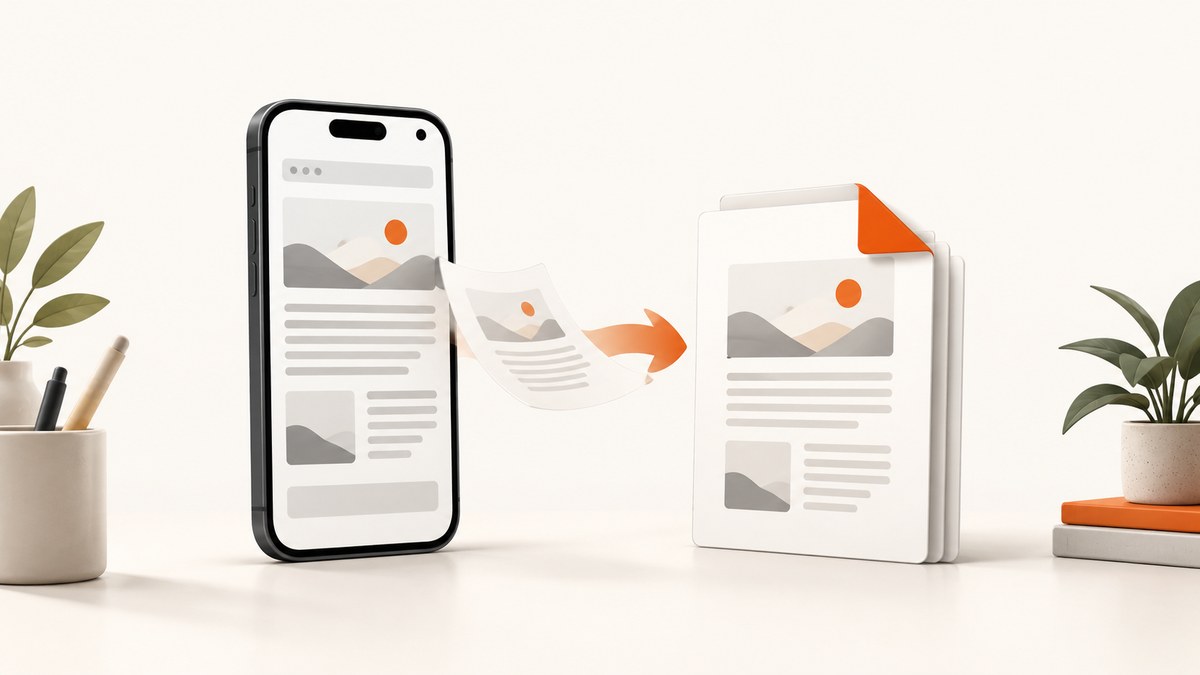
How do I save a webpage as a PDF on my phone? On an iPhone, open the page in Safari, use Share or the page menu, choose Markup, then save the finished document to Files. On Android, open the page in Chrome, choose More > Share > Print, select Save as PDF, and choose a storage location.
The labels and icons can vary by operating-system and browser version. Look for the same functions even when the wording differs: Share, Print, Markup, Save as PDF, or Save to Files. Always open the PDF before sending it. Long pages can lose images, tables, embedded fonts, or the bottom of the page during export.
How to convert a webpage to PDF on an iPhone
Safari can turn the current webpage into a PDF through its Share and Markup workflow. Apple describes Markup as a way to annotate a webpage and share it as a PDF. See the iPhone User Guide if your menu names differ.
Steps in Safari
- Load the page completely. Open Safari, enter the URL, and wait for text, images, charts, and other lazy-loaded content to appear. Scroll through the page once if sections load only when they enter the viewport.
- Open the page actions. Tap the Share button (the square with an upward arrow) or the page menu beside the address bar. On some versions, the page menu contains the same Share command.
- Choose Markup. In the share sheet, tap Markup. Safari creates a PDF preview of the page.
- Annotate if needed. Use the pen, highlighter, text, shapes, or signature tools. You can leave the document unchanged if you only need a clean copy.
- Finish the export. Tap Done, then choose Save File To. Pick a folder in iCloud Drive, On My iPhone, or another available Files location.
- Name and save it. Enter a useful filename, check the folder shown in the dialog, and tap Save.
Some Safari builds show an Options control in the Share sheet. If it appears, choose PDF before saving. Treat that as a user-interface variation; the current labels on your phone determine the exact path.
Where the iPhone PDF goes
The document is saved through the Files app. Open Files and browse to the folder selected in the save dialog. If you used iCloud Drive, the file can become available on other Apple devices after synchronization. If you chose On My iPhone, it remains in local device storage until you move or share it.
How to save a web page as a PDF on Android
Chrome on Android uses the system print preview. Google’s documented route is More > Share > Print, followed by Save as PDF. The exact final button may say Save or Print depending on the Android version. Refer to Chrome Help for current menu details.
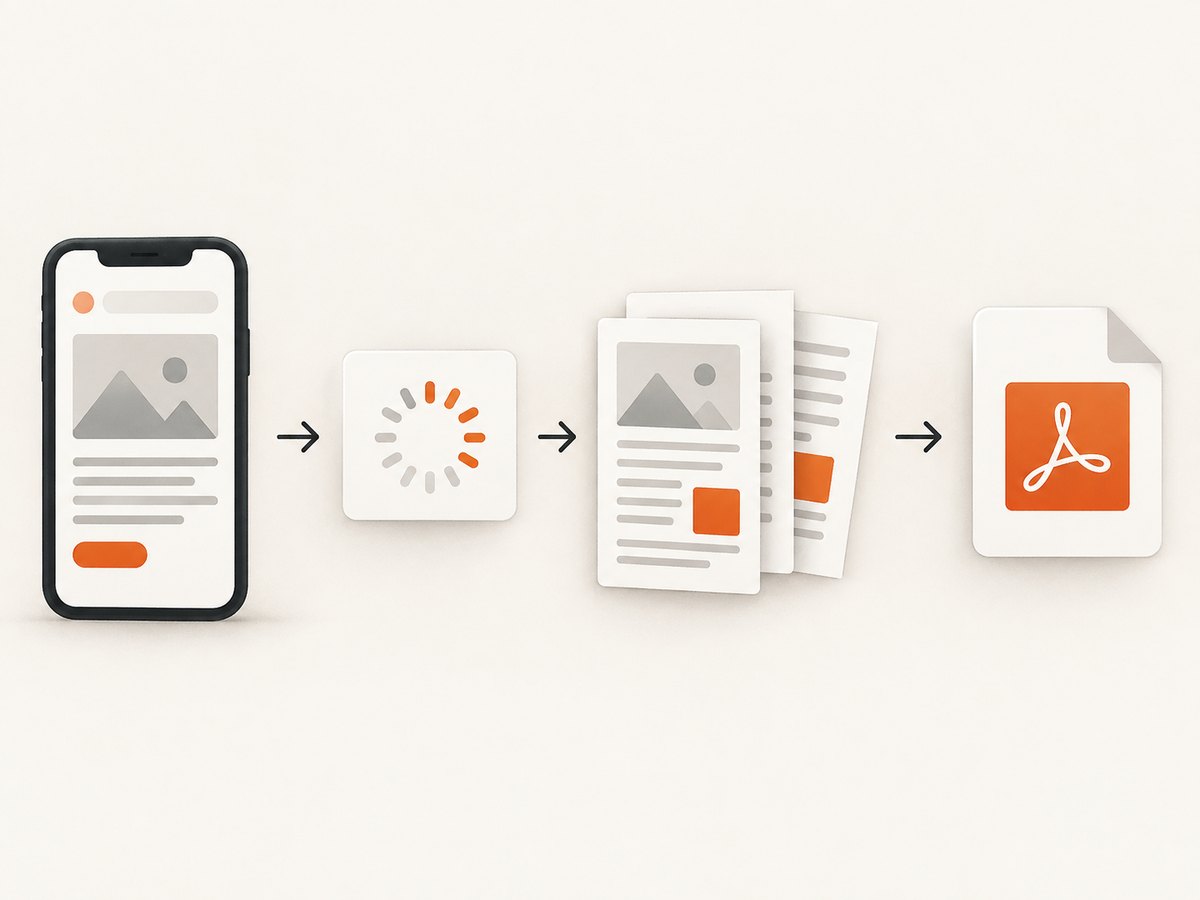
Steps in Chrome
- Open the webpage. Launch Chrome and wait until the page finishes loading. For pages with infinite scroll or lazy images, scroll through the content you need before exporting.
- Open More. Tap the three-dot menu in the upper-right corner.
- Choose Share, then Print. The Share command may be below the first group of actions. In the share targets, select Print.
- Select Save as PDF. In the printer selector or print preview, tap the current printer and choose Save as PDF.
- Choose a destination. Select a folder in device storage, Downloads, Drive, or another provider exposed by the save dialog.
- Save the file. Tap Save or Print, depending on the device. Confirm the filename and location if Android asks again.
Android manufacturers sometimes replace Chrome’s print preview with their own system screen. Look for a printer selector, a PDF icon, or an action named Save as PDF. These are the same export function even when the layout is different.
Preview and check the PDF before sharing
Saving successfully does not guarantee that every part of a complex webpage rendered correctly. Open the file in Files, a PDF viewer, or your preferred cloud-storage app and check:
- Page count and ending: confirm that the article, table, or instructions do not stop halfway through.
- Images and charts: look for blank boxes, missing graphs, or low-resolution placeholders.
- Tables and columns: make sure cells are not clipped horizontally or split in an unreadable way.
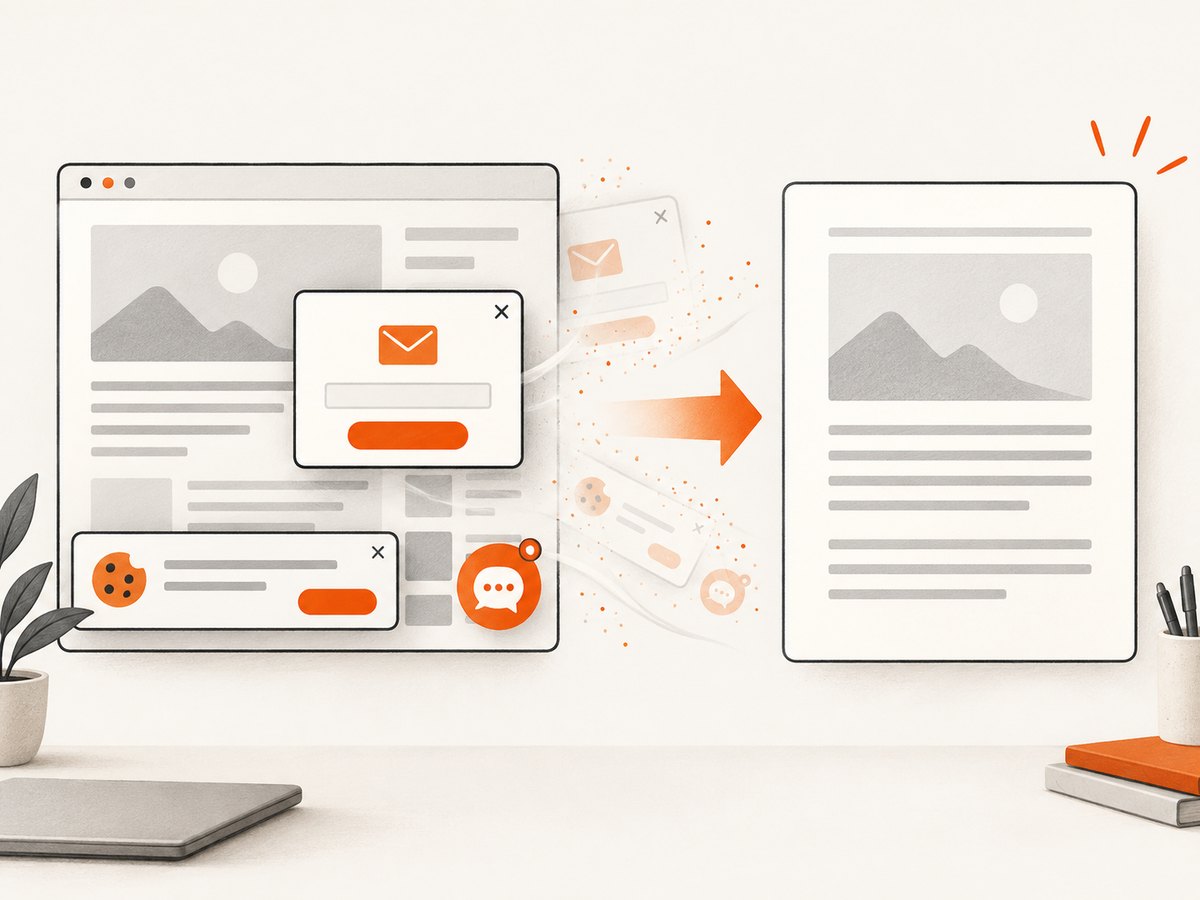
- Navigation and overlays: cookie banners, sticky headers, newsletter forms, chat bubbles, and advertisements can occupy space or cover content.
- Fonts and symbols: verify that icons, accented characters, mathematical symbols, and code snippets are visible.
- Links and annotations: test important links if the PDF will be used as a reference, and confirm that any Markup notes are where you intended.
If anything is missing, return to the browser, let the page load longer, dismiss obstructing dialogs, scroll through lazy content, and repeat the export. A simplified reader view can improve readability when the browser offers it, but it may remove tables, interactive controls, or styling that you need.
Full webpage capture versus a simplified page
Phones generally export the rendered page they receive from the browser. That can include navigation, related-content blocks, cookie notices, and responsive layouts designed for a narrow screen. A reader or simplified view may produce a cleaner document, but it can also omit diagrams, product cards, code examples, or embedded media.
| Goal | Best starting point | What to check |
|---|---|---|
| Keep the article’s original appearance | Safari Markup or Chrome Print | Headers, ads, tables, and page breaks |
| Read a long article offline | Reader or simplified view, if available | Missing images, footnotes, and captions |
| Archive a receipt or confirmation | Standard PDF export | Order details, totals, and QR codes |
| Share selected evidence | Export, then annotate or crop in a PDF app | Redactions, page order, and legibility |
Common problems and fixes
The PDF option is missing on iPhone
Make sure you opened Safari’s Share or page menu while the webpage is active. Scroll the action list; Markup may be lower down. If another app opened the link, use that app’s own export command or copy the URL into Safari.
Chrome shows no Save as PDF printer
Open the printer selector in Android’s print preview. Save as PDF may be one item among several printers. If the list is empty, check that Android’s system print service is enabled in Settings and try the Share > Print route again.
The bottom of the page is missing
Many sites load images or sections only after you scroll. Return to the webpage, scroll from top to bottom, wait for loading indicators to finish, and export again. Pages with infinite scroll may have no fixed ending; save the section you actually need or use a desktop capture workflow.
Images are blank or low quality
Wait for image placeholders to resolve before exporting. A slow connection, a blocked image host, or an image that requires interaction can prevent it from appearing. If the source offers a download link for the original image, save that separately.
Cookie banners, chat bubbles, or popups cover content
Dismiss the banner or popup before export. Some overlays return after a reload, so complete the page and export in the same session. If the dialog cannot be closed, use a capture service that removes common consent platforms and widgets before rendering.
The PDF is too large to share
Large images and long pages increase file size. Use a PDF app to compress a copy after checking quality, or export only the pages you need. Avoid repeatedly compressing the same file because text and images can become blurry.
The saved file cannot be found
Open Files on iPhone or the file manager on Android and search for “.pdf” or the filename you entered. Check Downloads, On My iPhone, iCloud Drive, and the folder selected in the save dialog. Cloud providers may take a moment to finish syncing.
When phone export is not enough
Browser print flows are ideal for an occasional page. A developer who needs repeatable PDFs may need a fixed viewport, full-page lazy-image loading, custom CSS, authentication headers, cookies, a wait condition, or a way to remove consent dialogs before capture. A service also avoids keeping a browser open on a phone and can run from a build job or backend.
Or skip the browser setup
ScreenshotNeo provides a GET-based website capture API that can return PNG, JPEG, WebP, or PDF. For PDF work, you can set paper size, margins, landscape orientation, and page ranges. It also supports full-page capture with lazy images loaded, custom CSS and JavaScript, click actions, selector waits, delays, network-idle waits, cookies, custom headers, Authorization, timezone, geolocation, and request blocking. See the ScreenshotNeo API documentation for the complete option list.
Here is a minimal PDF request with cURL:
curl -G "https://api.screenshotneo.com/v1/shot" \
  -d access_key=YOUR_API_KEY \
  --data-urlencode url=https://example.com \
  -d format=pdf \
  -o page.pdf
Python:
import requests

r = requests.get(
    "https://api.screenshotneo.com/v1/shot",
    params={
        "access_key": "YOUR_API_KEY",
        "url": "https://example.com",
        "format": "pdf",
    },
    timeout=90,
)
r.raise_for_status()
open("page.pdf", "wb").write(r.content)
Node.js:
const q = new URLSearchParams({
  access_key: 'YOUR_API_KEY',
  url: 'https://example.com',
  format: 'pdf'
});
const res = await fetch(`https://api.screenshotneo.com/v1/shot?${q}`);
if (!res.ok) throw new Error(`HTTP ${res.status}`);
const data = Buffer.from(await res.arrayBuffer());
require('fs').writeFileSync('page.pdf', data);
The practical reasons to use an API are specific: ScreenshotNeo accepts cookie and consent banners before capture and removes more than 60 known consent platforms, newsletter popups, and chat widgets. Bot checks, blank pages, timeouts, failed loads, and cache hits are not billed; response headers identify the page verdict and whether the request was billed. An MCP server exposes take_screenshot, get_page_info, and capture_pdf for Claude, Cursor, and other MCP clients. The Free plan includes 1,000 screenshots each month with no card, and paid plans start at $5 for 3,000 shots. Create a free ScreenshotNeo account.
API options that matter for PDF jobs
- Page scope: capture the complete page or one element using a CSS selector.
- Rendering: choose a device preset or any viewport, set retina scale, dark mode, transparent background, and image resizing where applicable.
- Timing: wait for a selector, a fixed delay, or network idle. This is useful for client-rendered pages and charts.
- Interaction: click a consent button or another element before capture; hide selectors that should not appear.
- Network control: block ads, trackers, requests, or resource types to reduce noise and load time.
- Identity and location: send custom headers, cookies, a user agent, Authorization, timezone, or geolocation.
- Delivery: use caching with a chosen TTL, signed links for public image tags, asynchronous jobs with signed webhooks, bulk capture for up to 100 URLs per call, and the usage API for accounting.
Performance, reliability, and cost considerations
For a phone, the main variables are connection speed, page complexity, and how much content must load before export. Scrolling through lazy content improves completeness but takes longer. On an API, waiting for a specific selector is usually more predictable than choosing an arbitrary delay. Network-idle waits can help on static pages but may never settle on applications with analytics or live updates, so use a selector or bounded delay when appropriate.
Cache a document when the source does not change often and choose a TTL that matches your freshness requirement. For recurring archives, asynchronous jobs and signed webhooks keep the requesting process from waiting on a long render. Bulk capture reduces request overhead when processing many URLs. Keep access keys private, and use signed links or authenticated delivery when a PDF must be exposed to another system.
ScreenshotNeo’s plans include every feature: Free has 1,000 shots per month, Starter is $5 for 3,000, Growth is $15 for 15,000, Pro is $39 for 60,000, Scale is $99 for 250,000, and Business is $249 for 1,000,000. Yearly billing gives two months free. Only clean shots are billed, while bot checks, blank pages, timeouts, failed loads, and cache hits cost nothing.
FAQ
Can I save a webpage as a PDF without installing an app?
Yes. Safari on iPhone and Chrome on Android include the required Share, Markup, or Print functions. The resulting file is saved through Files or the Android storage location you choose.
Will an interactive webpage remain interactive in the PDF?
Usually no. A PDF preserves rendered content, links, and some document structure, but web forms, live dashboards, video, and application behavior generally become static or unavailable.
Can I export only part of a webpage?
On a phone, select-and-print controls depend on the browser and page. For repeatable partial captures, an API with element selection or PDF page ranges gives you explicit control.
Why does the same page look different on iPhone and Android?
Each browser uses its own print and layout pipeline, and responsive CSS changes with viewport size. Compare the exported files and choose the workflow that preserves the content you need.


