How to Convert a Webpage to PDF with Links
Save a webpage as a searchable PDF, check that links work, and automate reliable PDF capture when browser printing is not enough.
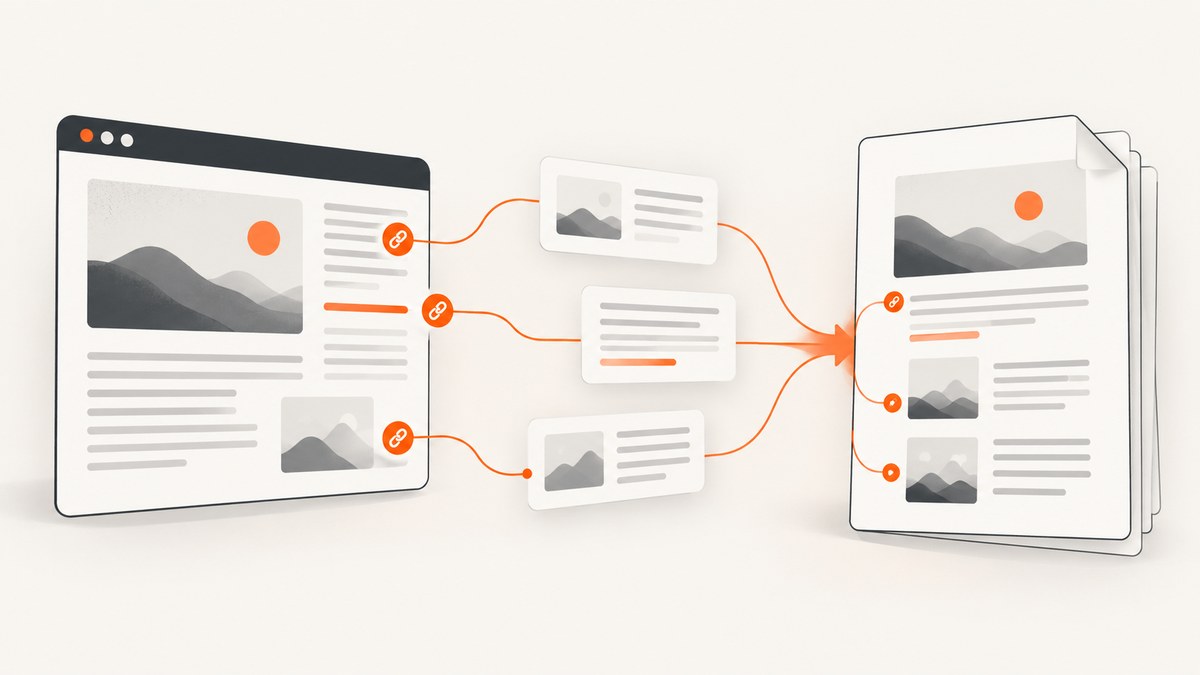
Short answer: For one webpage, open the page in Microsoft Edge, press Ctrl+P on Windows or Command+P on Mac, choose the browser’s PDF destination, inspect the preview, and save. Then open the PDF in a reader and click several representative links. Link preservation depends on the browser, operating system, page, PDF destination, and any downstream PDF driver, so always verify the saved file.
This guide covers the browser workflow first, then Edge’s layout controls, Acrobat’s expanded web-to-PDF options, automation with cURL, Python, and Node.js, troubleshooting, and a verification checklist for clickable links and searchable text.
1. Save one webpage as a PDF in Microsoft Edge
- Open the exact webpage you want to save in Edge and wait for the content to finish loading.
- Open the print dialog with Ctrl+P on Windows or Command+P on macOS. The labels and available destinations can differ by Edge version and operating system.
- Choose the browser’s PDF destination, such as Save as PDF. A Microsoft Q&A community answer about a reported Edge issue recommended Save as PDF instead of the Microsoft Print to PDF driver; treat that as a case-specific community answer, not a universal current guarantee (Microsoft Q&A).
- Review the preview before saving. Look for clipped columns, missing images, blank sections, unexpected page breaks, or text that is too small to read.
- Adjust pages, orientation, paper size, margins, scale, and background graphics. Edge documents these print controls in its support guide (Microsoft Support).
- Save the file with a descriptive name, such as
project-documentation.pdf. - Open the saved PDF in a PDF reader. Test links in the heading, body, navigation, and footer instead of assuming every URL survived conversion.
A PDF can contain selectable text and still have broken or missing annotations for links. Conversely, a visible URL may be clickable even when the surrounding text was laid out differently. Test the actual file you plan to distribute.
2. Make the print preview readable
Choose a page range
Use a custom page range when the page includes a long comments section, related links, or other material you do not need. Printing fewer pages also reduces the chance that a late-loading section creates an awkward blank page.
Set orientation and paper size
Portrait works for ordinary articles. Landscape can make wide tables and code samples more readable. Select the paper size expected by the people who will read or print the PDF. Changing paper size can alter line wrapping and page breaks, so inspect the preview again after each change.
Control margins and scale
Large margins waste space; very small margins can make headers and links hard to read. If a page is clipped, reduce the scale or choose a fit-to-page option. If the page becomes tiny, try landscape orientation or a larger paper size before lowering the scale further.
Include background graphics when they carry meaning
Background graphics can contain colored callouts, diagrams, or visual separators. Enable them when they communicate information. Disable them when they are decorative and make the PDF heavier or reduce contrast. The preview is the reliable way to see the effect.
Reduce clutter with Immersive Reader
Edge describes Immersive Reader as a way to reduce surrounding material such as advertisements and navigation before printing. It is not available on every website. If the button is present, open the page in Immersive Reader, confirm that the main content and links are still present, and then print that view (Microsoft Support).
3. Verify clickable links and searchable text
Use this checklist after saving:
- Drag across a paragraph to confirm text is selectable rather than a single raster image.
- Use the PDF reader’s search box for a distinctive word from the page.
- Click an internal link and an external link. Confirm that the destination is the one shown in the original page.
- Test a link near an image, a link in a table, and a link in the footer or navigation.
- Check links that open in a new tab or window; some PDF readers handle these differently.
- Inspect the document on another PDF reader if the file will be distributed to other people.
Do not promise universal link preservation. The documented conversion settings explain how tools handle structure, links, and layout, but they do not establish identical results for every site and PDF destination. Acrobat’s documentation describes link and structure controls, while the Microsoft community thread records one reported Edge workflow rather than a general rule.
4. Use Adobe Acrobat for more control
Acrobat desktop is useful when browser printing does not provide enough control or when you need to capture more than one page. You can enter a webpage URL or select an HTML file, capture selected website levels or an entire site, and restrict capture to the same URL path or server (Adobe Acrobat Help).
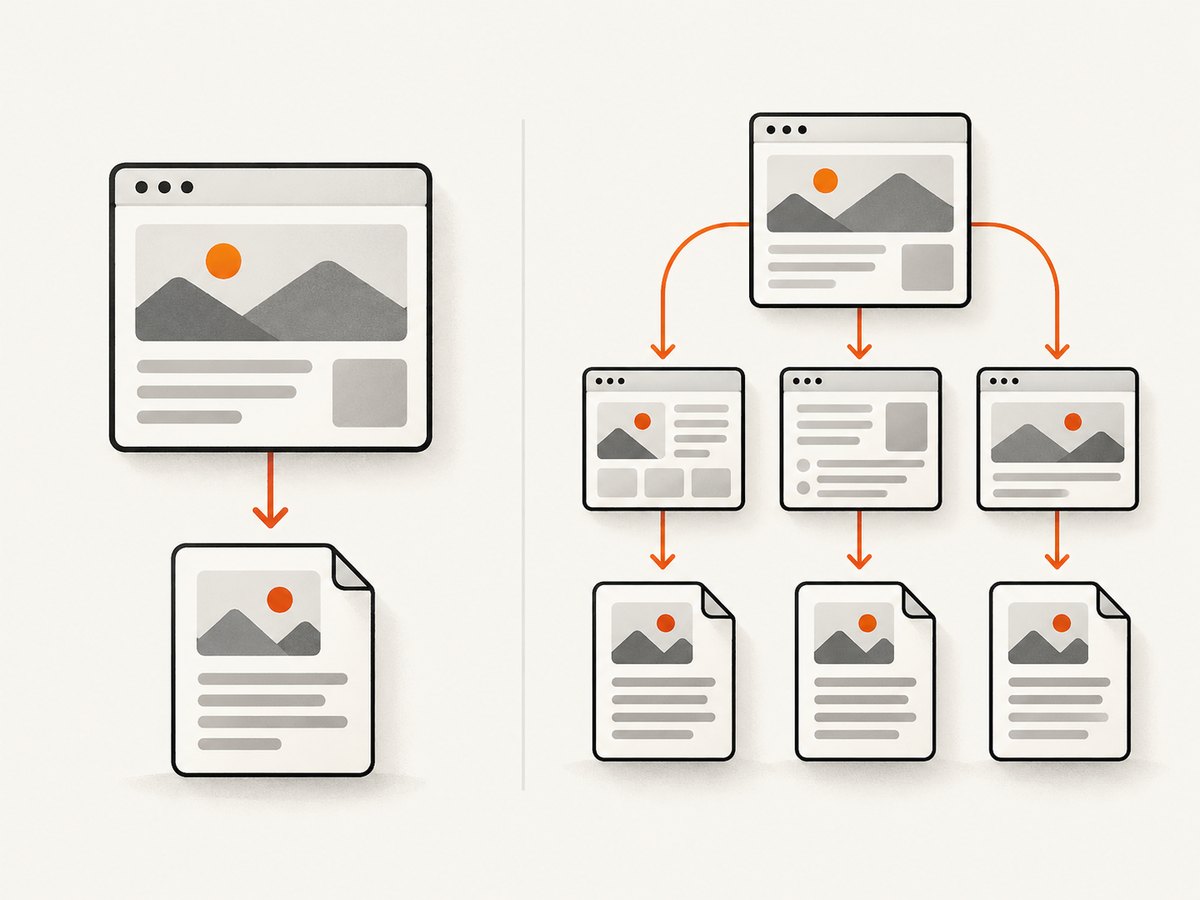
Its web-to-PDF settings include PDF tags, bookmarks, headers and footers, encoding, link color and underlining, page backgrounds, images, scrollable blocks, page size, orientation, and scaling for wide content. Adobe describes the tag option this way: “Create PDF tags: Preserve the HTML structure in the PDF for easier navigation and accessibility.” That describes the purpose of tags; it is not a guarantee of complete accessibility or working links in every source page (Adobe Acrobat Help).
When Acrobat is the better fit
- You need multiple linked pages or several levels of a site.
- You need bookmarks, headers, footers, or link styling controls.
- You need to preserve or tune page structure for a document workflow.
- You want to capture an HTML file as well as a live URL.
For a single article, Edge’s print dialog is usually the shortest path. For a site section, define the URL scope carefully so that menus, search results, and unrelated domains are not captured accidentally.
5. Automate webpage-to-PDF capture
Manual printing is difficult to repeat across hundreds of URLs. An automated capture service can load each page, wait for content, and return an image or PDF from a request. ScreenshotNeo is a website screenshot API and MCP server; its API can return PNG, JPEG, WebP, or PDF output. See the ScreenshotNeo documentation for the PDF output settings, paper size, margins, orientation, and page ranges.
cURL
curl -G 'https://api.screenshotneo.com/v1/shot' -d access_key=YOUR_API_KEY --data-urlencode url=https://stripe.com -o shot.webpPython
import requests

r = requests.get(
    'https://api.screenshotneo.com/v1/shot',
    params={'access_key': 'YOUR_API_KEY', 'url': 'https://stripe.com'},
    timeout=90,
)
r.raise_for_status()
open('shot.webp', 'wb').write(r.content)
Node.js
const q = new URLSearchParams({ access_key: 'YOUR_API_KEY', url: 'https://stripe.com' });
const res = await fetch(`https://api.screenshotneo.com/v1/shot?${q}`);
if (!res.ok) throw new Error(`HTTP ${res.status}`);
const data = Buffer.from(await res.arrayBuffer());
await import('node:fs/promises').then(fs => fs.writeFile('shot.webp', data));
The examples use the documented request shape and save the response body as a file. Select PDF output and its paper, margin, orientation, and page-range options in the API configuration described in the docs. Keep the output extension consistent with the format you request.
6. Or skip the browser setup
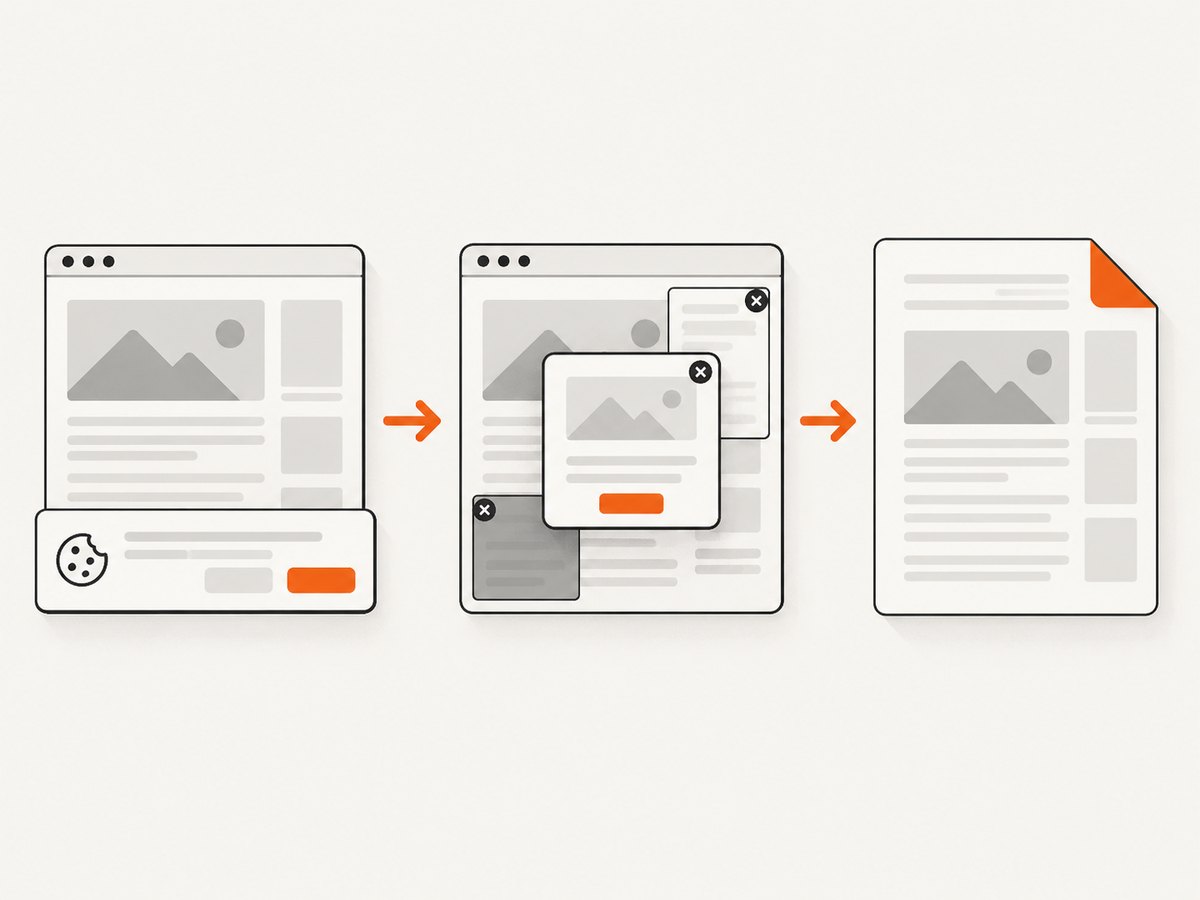
ScreenshotNeo removes cookie and consent banners, newsletter popups, and chat widgets before the shot. Bot checks, blank pages, timeouts, failed loads, and cache hits are not billed, and each response identifies the result with X-Page-Verdict and X-Billed headers. Its MCP server lets Claude, Cursor, and other MCP clients use take_screenshot, get_page_info, and capture_pdf. You get 1,000 screenshots a month free with no card; paid plans start at $5 for 3,000 shots. Every plan includes the features.
Start with the ScreenshotNeo screenshot API, read the API documentation, and sign up free.
7. Capture options that affect PDF quality
Whether you use a browser or an API, the same page-state issues determine the result:
| Need | Useful setting or action |
|---|---|
| Lazy-loaded images | Scroll or use a full-page capture that loads lazy images before rendering. |
| One section only | Capture the element identified by its CSS selector. |
| Dynamic content | Wait for a selector, a fixed delay, or network idle before capture. |
| Personalized page | Provide the required cookies, headers, user agent, authorization, timezone, or geolocation. |
| Popups and ads | Hide selectors or block ad, tracker, request, and resource types. |
| Dark layouts | Set dark mode deliberately and inspect contrast in the PDF. |
| Repeated jobs | Use caching with a TTL that matches how often the page changes. |
For public embeds, signed links can restrict access. For queues, asynchronous jobs and signed webhooks avoid holding an HTTP request open. Bulk capture supports up to 100 URLs per call, and a usage API helps reconcile volume and cost.
8. Troubleshooting
| Symptom | Likely cause | Fix |
|---|---|---|
| Links look like text and do not click | The conversion path did not create link annotations, or the reader is in a restricted mode. | Try the browser’s Save as PDF destination, inspect another reader, and test the saved file before distributing it. |
| Text cannot be searched | The page was printed as an image or rendered through a raster-only driver. | Use the browser PDF destination or a conversion setting that preserves HTML text; run OCR only when necessary. |
| Images or sections are missing | Content loaded after printing, lazy loading was not triggered, or a script failed. | Wait for the page, scroll through long pages, refresh, and check the print preview. For automation, wait for a selector or network idle. |
| Text is tiny | The page is wider than the selected paper size or the scale is too low. | Use landscape, a larger paper size, narrower margins, or a higher scale. |
| Cookie banner covers content | The page requires consent before revealing the main layout. | Accept or dismiss it before printing. Automated capture should handle consent before rendering. |
| PDF has unexpected blank pages | Background sections, fixed-height elements, or print CSS created extra space. | Inspect the preview, change margins or scale, and remove nonessential elements before capture. |
| API response is not a readable PDF | The request returned an error page, a bot check, or a different output format. | Check the HTTP status and response headers, save the body only after a successful response, and inspect X-Page-Verdict and X-Billed. |
| Capture times out | The page has slow scripts, blocked resources, or an authentication step. | Increase the client timeout, provide required headers or cookies, block unnecessary resource types, and wait for a specific ready selector. |
9. Performance, reliability, and cost notes
For occasional documents, browser printing has no API setup cost and gives immediate visual feedback. Its result can vary when the page changes, when fonts are unavailable, or when a PDF driver handles links differently. Record the source URL, capture date, browser version, and selected print settings when reproducibility matters.
For repeated captures, keep requests bounded with a client timeout, retry transient failures with backoff, and store the returned file together with the URL and verdict headers. Do not blindly retry a bot check or a permanent authorization error. Cache stable pages with a deliberate TTL; invalidate the cache when the source changes.
ScreenshotNeo bills only clean shots. Bot checks, CAPTCHAs, blank pages, timeouts, failed loads, and cache hits cost nothing, and the response says which case occurred. Plans are Free (1,000 shots/month), Starter ($5 for 3,000), Growth ($15 for 15,000), Pro ($39 for 60,000), Scale ($99 for 250,000), and Business ($249 for 1,000,000); yearly billing gives two months free. Confirm current plan details in the product documentation before budgeting a large job.
10. A repeatable verification checklist
- Open the source page in a normal browser and note its visible links.
- Wait for images, fonts, and interactive content to load.
- Choose PDF output and inspect every preview page.
- Save with a stable filename and metadata such as the source URL and date.
- Search for text in the PDF.
- Click representative internal, external, image, table, and footer links.
- Open the file in the PDF reader your audience uses.
- For automated batches, record status, verdict, billed state, response time, and output size.
FAQ
Does printing to PDF always keep hyperlinks clickable?
No. Results vary by page, browser, operating system, PDF destination, and driver. Save the file, then test representative links.
Can a PDF be searchable and still have broken links?
Yes. Searchable text and clickable link annotations are separate parts of a PDF.
Should I use Edge or Acrobat?
Use Edge for a quick one-page capture. Use Acrobat when you need multi-level site capture, bookmarks, tags, headers, footers, or detailed conversion controls.
How do I preserve a page that requires login?
Print it from an authenticated browser session, or provide the required authentication headers and cookies to an authorized automated capture workflow.
What should I do when the page changes after I save it?
Keep the original URL and capture date, then recapture with the same print or API settings. For recurring jobs, use a defined cache TTL and store each version separately.


