How to Convert a Webpage to a PDF File
Save a webpage as a PDF with your browser’s Print dialog, or create one through a screenshot API. Learn the settings, tradeoffs, and fixes for common layout problems.
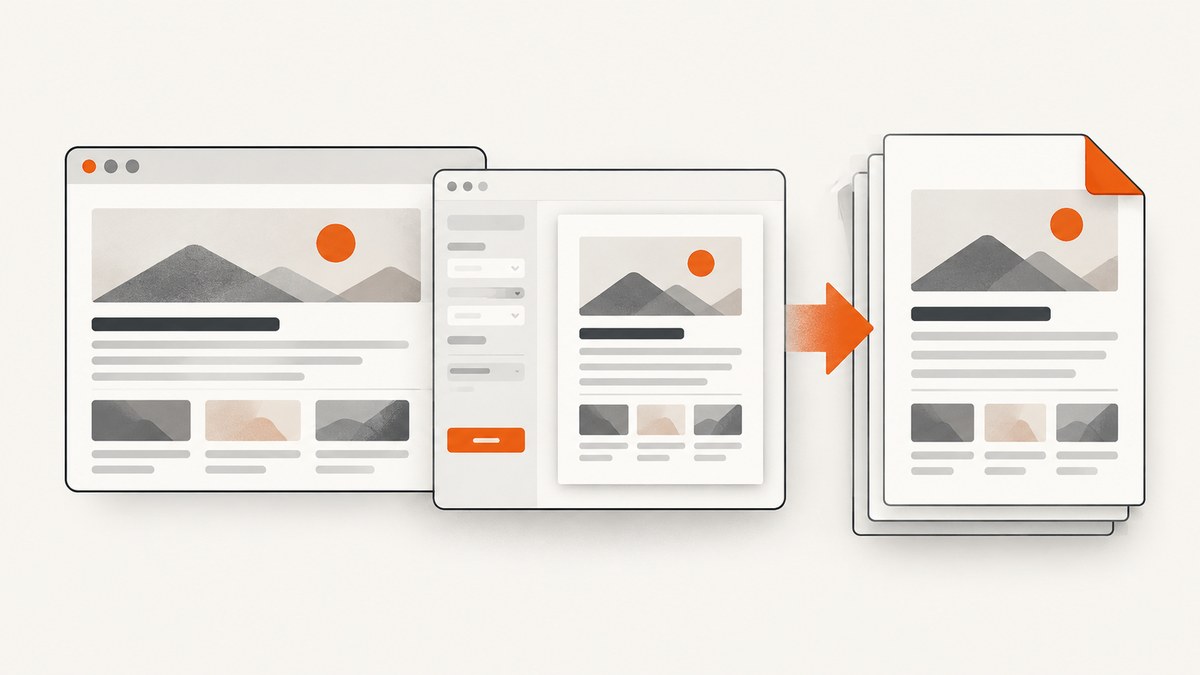
To convert a webpage to a PDF, open it in your browser, choose Print, select Save to PDF (or the browser’s equivalent destination), review the preview and settings, then save the file. For a single page, this built-in workflow is usually the simplest. If you need repeatable captures, a specific paper layout, or an automated PDF from code, use a PDF conversion tool or a screenshot API that supports PDF output.
Print preview matters: websites can define a print presentation that differs from the page on screen. Check for clipped columns, missing backgrounds, large blank areas, and content that did not load before saving. [Mozilla’s Firefox printing guide]
1. Save a webpage as a PDF in a browser
Chrome and other Chromium-based browsers
- Open the exact webpage you want to save and wait for the content you need to appear.
- Open the browser menu and choose Print. The keyboard shortcut is commonly Ctrl+P on Windows and Linux or Command+P on macOS.
- In the print dialog, set the destination to Save as PDF.
- Choose the page range, paper size, orientation, scale, and margins. Turn headers and footers or background graphics on or off depending on the result you want.
- Inspect the preview, then select Save and choose a filename and folder.
Adobe’s browser-oriented guide describes the Chrome flow as menu, Print, choose Save as PDF under Destination, then save. Interface names can change between browser versions. [Adobe’s guide to saving a website as a PDF]
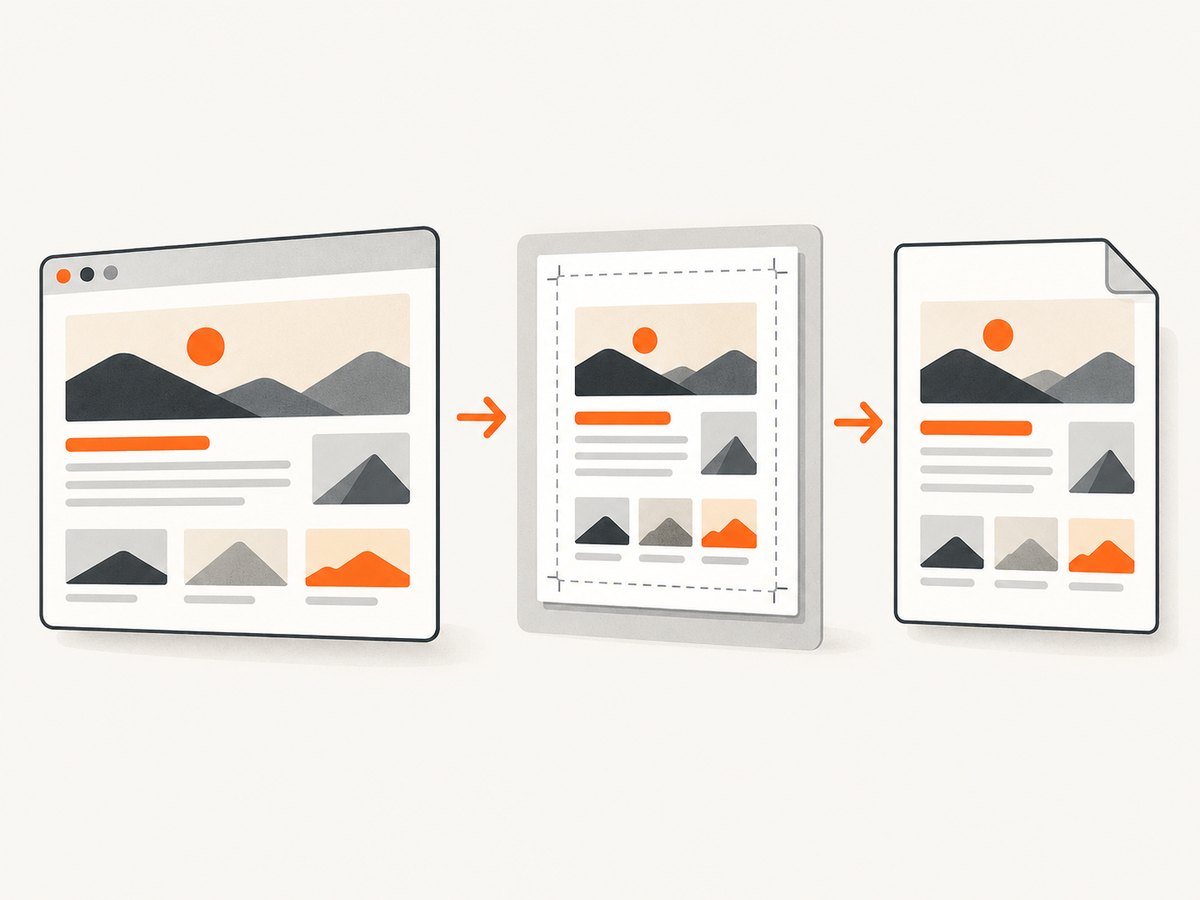
Firefox
- Open the page and choose the menu button, then Print.
- Set Destination to Save to PDF.
- Adjust options such as page range, orientation, paper size, scale, margins, color, pages per sheet, headers and footers, and backgrounds.
- Check the preview. If Firefox offers Simplified format, try it for a less cluttered print view. Simplified format disables background printing.
- Select Print, then choose where to save the PDF.
Firefox’s print options can vary with the selected destination and system printer. A page may also supply a different print layout than its normal screen layout, so use the preview to decide whether the output is acceptable. [Mozilla Support: How to print web pages in Firefox]
2. Tune the PDF layout before saving
| Setting | When to adjust it | What to check |
|---|---|---|
| Pages | You need only a section of a long article or document. | Confirm the selected range includes all required pages; page breaks may shift after other settings change. |
| Paper size | The PDF will be printed, submitted, or archived to a standard size. | Use the destination format required by the recipient. A different size can change line wrapping and page count. |
| Orientation | A table, chart, or wide layout is cut off in portrait. | Try landscape, then check whether text became too small or the page count increased. |
| Scale | Content overflows or leaves too much unused space. | Reduce scale to fit wide content, but make sure the resulting text is still readable. |
| Margins | Content sits too close to the edge or the page wastes space. | Some pages set their own print styling; inspect the preview after changing margins. |
| Headers and footers | You want page numbers or identifying information, or need to remove browser-added URL/date text. | Check the first and last page, where header and footer collisions are easiest to spot. |
| Backgrounds and color | Colors or shaded sections carry meaning, or you want a cleaner, more ink-friendly file. | Backgrounds may be omitted by default. Turning them on can increase ink use and file size. |
Do a final preview pass after changing any setting that affects page flow. Look for cut-off tables, awkward page breaks, headers overlaying content, blank pages, missing image assets, or a print stylesheet that hides content you expected to keep. Browser printing converts the rendered print view; it does not promise to preserve every interactive element, dynamic section, or screen effect.
3. When browser printing is not enough
The built-in dialog is a good first choice for an occasional, manually saved page. Consider a more configurable conversion workflow when you need repeatable output, control over HTML-derived structure, or handling for a very wide or complex page. Acrobat’s web-page-to-PDF settings document controls for bookmarks, PDF tags, headers and footers, encoding and language fonts, colors, multimedia, backgrounds, image conversion, underlined links, expanding scrollable blocks, page dimensions, orientation, and scaling wide content to fit. These are optional controls; check the product’s current platform and plan details before relying on a particular option. [Acrobat Help: Customize web page to PDF conversion settings]
For an advanced workflow, first identify the actual problem: for example, a scrollable block that hides text, wide content that needs scaling, or document structure that needs tags. Then choose a conversion method with a documented setting for that need and inspect a sample output. More settings do not automatically make a PDF more faithful; rendering still depends on the page and conversion environment.
4. Create a webpage PDF programmatically
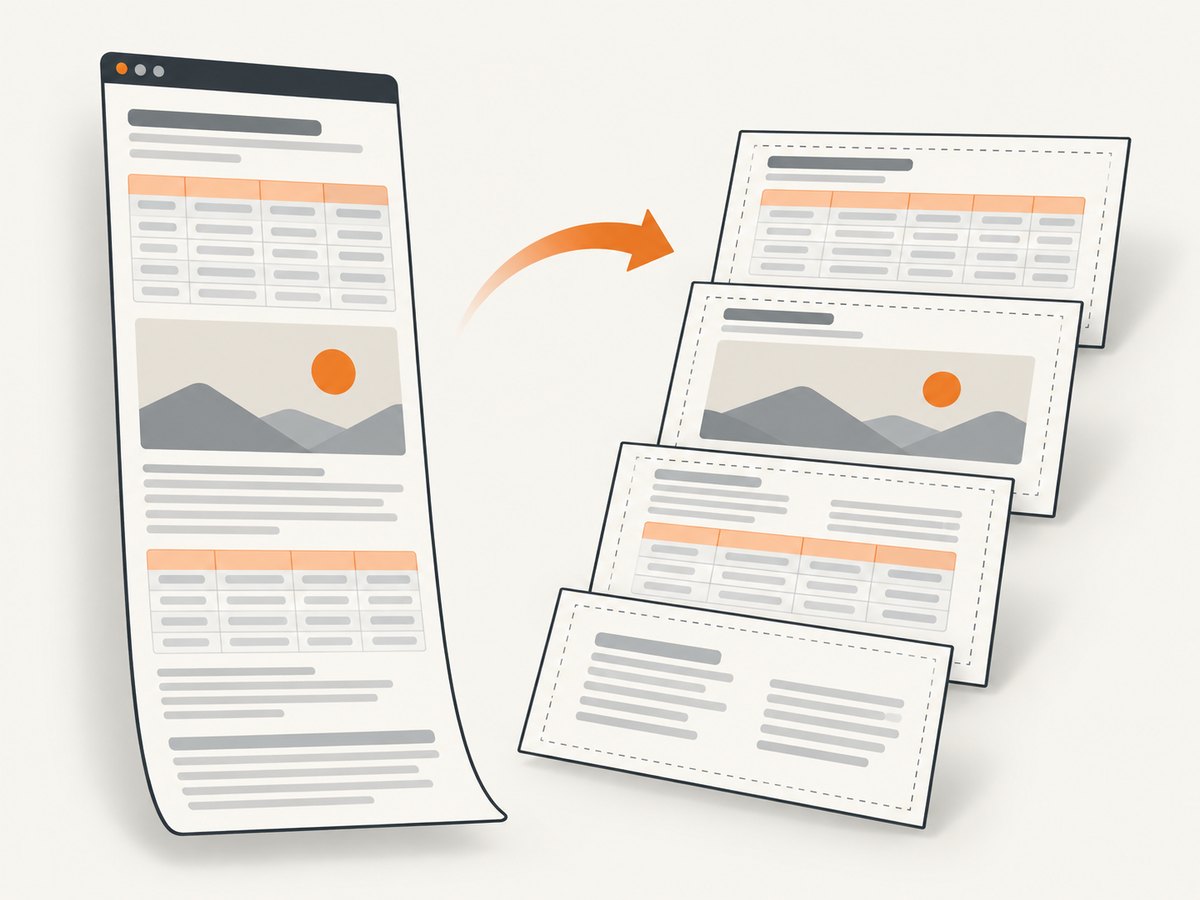
A browser print dialog is manual. For a repeatable server-side workflow, use a service that returns PDF output and check its documentation for the required format parameter, authentication, page size, and margins. ScreenshotNeo is a website screenshot API with PDF output. The API examples below follow its documented endpoint and request pattern; see the ScreenshotNeo API documentation for current parameter names and options.
cURL
curl -G "https://api.screenshotneo.com/v1/shot" \
  -d access_key=YOUR_API_KEY \
  --data-urlencode url=https://stripe.com \
  -d format=pdf \
  -o page.pdf
Python
import requests

response = requests.get(
    "https://api.screenshotneo.com/v1/shot",
    params={
        "access_key": "YOUR_API_KEY",
        "url": "https://stripe.com",
        "format": "pdf",
    },
    timeout=90,
)
response.raise_for_status()
with open("page.pdf", "wb") as pdf_file:
    pdf_file.write(response.content)
Node.js
const q = new URLSearchParams({
  access_key: 'YOUR_API_KEY',
  url: 'https://stripe.com',
  format: 'pdf',
});

const res = await fetch(`https://api.screenshotneo.com/v1/shot?${q}`);
if (!res.ok) {
  throw new Error(`Screenshot request failed: ${res.status} ${await res.text()}`);
}
const pdf = Buffer.from(await res.arrayBuffer());
await import('node:fs/promises').then(fs => fs.writeFile('page.pdf', pdf));
Keep API keys on the server; putting a secret in frontend JavaScript exposes it to page visitors. URL query parameters can appear in logs, so avoid logging full request URLs when they contain credentials. Use the provider’s supported secret-handling approach and rotate exposed keys.
PDF options to consider
For PDF output, the useful controls depend on the page and intended use. ScreenshotNeo documents PDF output with paper size, margins, landscape orientation, and page ranges. It also supports full-page capture with lazy images loaded, waiting for a selector, a delay or network idle, and custom CSS or JavaScript. These controls address different needs: page-range and paper settings define the document, while wait conditions and custom scripts affect what is rendered before conversion. Check the documentation for exact parameter spelling and accepted values.
- Paper size and margins: set these for your destination or printing requirements, then examine line wrapping and page breaks.
- Landscape: consider it for wide tables or dashboards; confirm the type remains legible.
- Page ranges: use them to limit a long result where supported.
- Wait behavior: wait for a known content selector when a page renders asynchronously. Use a delay only when the site has a predictable load delay; network idle can be unsuitable for pages with ongoing requests.
- Full-page capture: useful for long content, but lazy-loaded images may need scrolling or a supported full-page option to load.
- Custom CSS or JavaScript: adjust or prepare a page where permitted. Avoid scripts that submit forms, trigger purchases, or alter account data.
ScreenshotNeo also supports custom headers, cookies, user agents and authorization, timezone and geolocation, blocking ads or selected request types, hiding selectors, clicking an element before capture, image resizing, caching with a chosen TTL, asynchronous jobs with signed webhooks, bulk capture up to 100 URLs per call, and a usage API. These are relevant when building a capture pipeline, but use only the options your task needs. The API accepts parameter names used by other screenshot APIs as well, which can ease migration; verify the precise behavior in the docs.
5. Or skip the browser setup
ScreenshotNeo turns a URL into a PDF in one GET request. For a single call, add the PDF format parameter as shown below; check the docs for the current PDF options.
curl -G "https://api.screenshotneo.com/v1/shot" -d access_key=YOUR_API_KEY --data-urlencode url=https://stripe.com -d format=pdf -o page.pdfCookie banners, newsletter popups and chat widgets are removed before the shot, and each step can be turned off. Bot checks and CAPTCHAs, blank pages, timeouts, failed loads and cache hits are not billed; response headers identify the page verdict and billing status. An MCP server lets AI agents such as Claude, Cursor and other MCP clients take screenshots. The free plan includes 1,000 shots per month with no card; paid plans start at $5 for 3,000. PDF page size, margins, landscape and page ranges are available. See ScreenshotNeo for product details, then create a free account for 1,000 screenshots a month with no card.
6. Troubleshooting common PDF problems
| Problem | Likely cause | Fix |
|---|---|---|
| Text or a table is clipped | The page is wider than the selected paper layout, or print styling changes the layout. | Try landscape, reduce scale, adjust margins, or use a conversion tool with a wide-content fit option. Recheck readability and page breaks. |
| Background colors or images are missing | Background printing is disabled, or a simplified print view is active. | Enable background graphics if available. In Firefox, Simplified format disables background printing. |
| A menu, chart, or section is absent | The print stylesheet hides it, the content is interactive, or the page had not finished rendering. | Wait for the content, inspect browser preview, and try a supported simplified or advanced conversion path. Do not assume interactive controls will be embedded as working controls. |
| Images are blank or incomplete | Images load lazily, depend on scripts, or failed to load before capture. | Scroll the page before printing or use a capture workflow with a full-page and wait option. Check the resulting PDF rather than relying on the source page alone. |
| Unexpected blank pages or large gaps | Print CSS, page breaks, margins, or paper size introduce whitespace. | Change scale, margins, paper size, or page range; review each page in preview. |
| The PDF looks different from the screen | Web pages can define separate print presentation and browser print settings can omit backgrounds. | Treat the preview as the authoritative view of the generated PDF; test another output method if that print layout is unsuitable. |
| API returns an error instead of a PDF | Missing or invalid API key, malformed URL, unsupported option, or request failure. | Check the status and response body, confirm the URL is encoded, and compare parameters with the current API docs. Do not save an error response with a .pdf extension. |
| Request times out | The page is slow, keeps network requests open, or waits for a resource that never arrives. | Set an appropriate client timeout, use a specific selector or bounded delay where supported, and avoid indefinite network-idle waits on continuously updating sites. |
7. Performance, reliability, and cost
The browser method has no separate conversion-service charge, but it requires a person to open and save each page. For one-off files, this is often the practical choice. For repeated documents, automation removes repetitive manual steps but introduces an API dependency, credentials to protect, and a need to handle errors and inspect outputs.
There is no sourced universal conversion-time or success-rate figure for these workflows. Page complexity, network speed, blocked resources, scripts, and image loading all affect completion. For reliability, set explicit timeouts, check HTTP status before writing the response to a PDF file, retry only transient failures with a limit, and record non-sensitive request metadata. Keep a sample output review in the pipeline for important documents. Cache stable pages when permitted; avoid caching if the page is personalized or frequently changes.
ScreenshotNeo bills only clean shots; bot checks/CAPTCHAs, blank pages, timeouts, failed loads, and cache hits cost nothing, with response headers indicating the verdict and billed status. Its listed plans are Free: 1,000 shots/month with no card; Starter: $5 for 3,000; Growth: $15 for 15,000; Pro: $39 for 60,000; Scale: $99 for 250,000; Business: $249 for 1,000,000. Yearly billing gives two months free, and every feature is available on every plan. Match a plan to expected capture volume and read the current product details before adopting it.
8. FAQ
Can I turn a link into a PDF without opening the page?
Yes, with a URL-to-PDF service or a conversion application that accepts a webpage address. A browser’s Print dialog requires opening the page first.
Will a PDF preserve animations and interactive controls?
A PDF is a fixed document representation. Do not expect animations or page controls to behave as they do in the browser; inspect the output for the information you need.
Should I choose browser printing or a conversion API?
Use browser printing for occasional manual saves. Consider an API when you need repeatable, programmatic output, bulk processing, or a workflow integrated into an application.
Can I save only part of a page?
Use the browser’s page range if the content falls on predictable PDF pages. For a specific webpage element, use a tool that supports selecting an element, or hide unrelated content with a supported print stylesheet or custom CSS.
Does converting a page archive its content permanently?
A saved PDF is a snapshot of the rendered content at conversion time. It does not guarantee that links, embedded media, or later page changes will be preserved.


