Convert Webpages and HTML to PDF with PHP
Choose a PHP PDF renderer based on your HTML, CSS, and security needs. This guide covers Dompdf, mPDF, TCPDF, wkhtmltopdf, and headless Chrome with runnable examples.
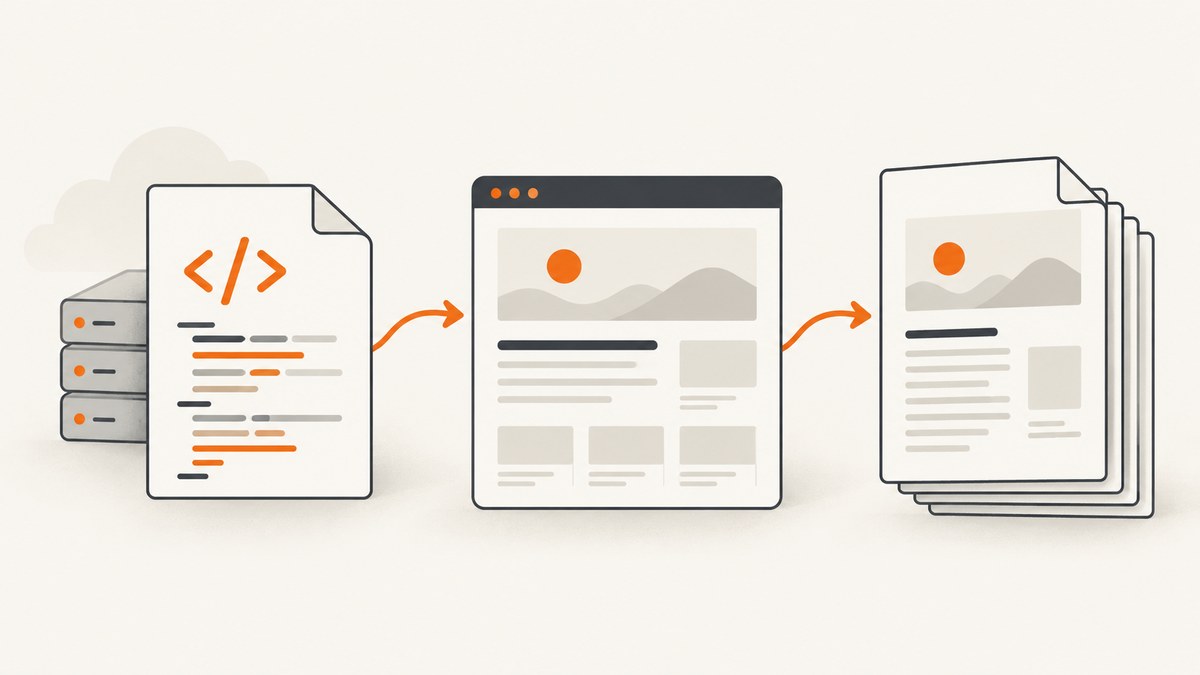
The short answer: use Dompdf for controlled PHP templates that fit a mostly CSS 2.1 layout; choose mPDF for print-oriented features such as headers, footers, page numbers, bookmarks, and barcodes; choose TCPDF or tc-lib-pdf for deterministic in-process PDF generation and standards-focused workflows. If you need to turn a modern, JavaScript-driven webpage into a PDF that resembles its browser rendering, use headless Chrome. Treat wkhtmltopdf as a legacy option and isolate it carefully.
The best choice depends less on the PHP syntax than on the HTML you need to render. A simple invoice template and a live web application are different inputs: the first may work well with a PHP layout engine, while the second may depend on browser CSS, JavaScript, and web fonts. This guide compares the options, gives runnable starting points, and covers security, pagination, troubleshooting, performance, and cost.
1. Choose a renderer for your document
| Option | Rendering model | Good fit | Important limits |
|---|---|---|---|
| Dompdf | PHP layout engine, mostly CSS 2.1 | Invoices, reports, and controlled HTML templates | Modern CSS and browser behavior are limited. Remote fetching is disabled by default and needs careful configuration. |
| mPDF | PHP library that generates PDF from UTF-8 HTML | Print-style documents with headers, footers, page numbers, bookmarks, tables of contents, or barcodes | Its manual describes the project as dated for modern CSS; templates may need mPDF-specific adjustments. |
| TCPDF / tc-lib-pdf | In-process renderer for a documented HTML/CSS subset | Deterministic output, font tooling, signatures, and PDF/A, PDF/X, or PDF/UA workflows | It is not a browser engine: JavaScript and browser-only layout are unavailable, and only supported CSS works. |
| Headless Chrome | Real browser engine | Modern CSS, JavaScript-driven pages, and browser-faithful webpage capture | Requires Chromium process management, isolation, resource controls, and deployment planning. |
| wkhtmltopdf | Older WebKit command-line renderer | Existing legacy deployments with controlled input | The official stable series is 0.12.6, dated June 11, 2020. The project warns that untrusted HTML can lead to complete server takeover. |
Dompdf describes itself as an HTML-to-PDF converter, but that does not mean it implements every browser feature. The mPDF manual specifically directs users seeking state-of-the-art CSS support or faithful rendering of existing HTML pages toward headless Chrome. Compare your actual templates—not a tiny demo—before settling on a renderer. Sources: Dompdf project, mPDF Manual, and wkhtmltopdf downloads and security warning.

2. Convert HTML to PDF with Dompdf
Dompdf is a practical starting point when your application owns the HTML and can keep its layout within the engine’s supported CSS model. Install it with Composer:
composer require dompdf/dompdfSave the following as make-pdf.php and run php make-pdf.php. It creates invoice.pdf in the current directory:
<?php
require __DIR__ . '/vendor/autoload.php';

use Dompdf\Dompdf;
use Dompdf\Options;

$options = new Options();
// Keep remote resources disabled unless the document needs them.
$options->set('isRemoteEnabled', false);

$dompdf = new Dompdf($options);
$html = '<!doctype html>
<html>
<head>
  <meta charset="UTF-8">
  <style>
    body { font-family: sans-serif; font-size: 12px; color: #222; }
    h1 { font-size: 22px; margin-bottom: 8px; }
    table { width: 100%; border-collapse: collapse; }
    th, td { border: 1px solid #bbb; padding: 8px; text-align: left; }
    @page { margin: 24mm 18mm; }
  </style>
</head>
<body>
  <h1>Invoice 1042</h1>
  <p>Prepared for Example Company</p>
  <table>
    <tr><th>Description</th><th>Amount</th></tr>
    <tr><td>Consulting</td><td>$500.00</td></tr>
  </table>
</body>
</html>';

$dompdf->loadHtml($html, 'UTF-8');
$dompdf->setPaper('A4', 'portrait');
$dompdf->render();
file_put_contents(__DIR__ . '/invoice.pdf', $dompdf->output());
To return the PDF from a web route instead of writing a file, send the appropriate content type and stream it after rendering:
header('Content-Type: application/pdf');
header('Content-Disposition: inline; filename="invoice.pdf"');
echo $dompdf->output();
Use attachment in the disposition when you want the browser to download the document. Set paper and orientation explicitly; common choices include A4 and letter, with portrait or landscape. Dompdf documents that one instance should not be reused for multiple documents because parser and rendering artifacts can persist. Create a fresh instance for each PDF.
3. Use mPDF for print-oriented documents
mPDF accepts UTF-8 HTML and provides print-document features such as headers, footers, page numbering, bookmarks, and barcodes. Install it with Composer:
composer require mpdf/mpdfExample file, make-mpdf.php:
<?php
require __DIR__ . '/vendor/autoload.php';

$mpdf = new \Mpdf\Mpdf(['format' => 'A4']);
$mpdf->SetHeader('Monthly report');
$mpdf->SetFooter('Page {PAGENO}');

$html = '<h1>Monthly report</h1>
<p>This HTML is encoded as UTF-8.</p>
<table width="100%">
  <tr><th>Department</th><th>Total</th></tr>
  <tr><td>Support</td><td>42</td></tr>
</table>';

$mpdf->WriteHTML($html);
$mpdf->Output(__DIR__ . '/report.pdf', \Mpdf\Output\Destination::FILE);
For a web response, use Destination::INLINE or Destination::DOWNLOAD as appropriate for your installed version. Confirm the output mode against the version pinned in your project. Expect to tune templates for mPDF’s own layout behavior rather than assuming all browser CSS will work. Its manual warns that mPDF is not intended to receive untrusted outside HTML or CSS. Source: mPDF HTML/PHP guidance.
4. When TCPDF or tc-lib-pdf is the right fit
TCPDF and tc-lib-pdf are worth considering when you want PDF generation in-process and can author to a documented HTML/CSS subset. They are not substitutes for a complete browser: JavaScript-driven layout and unsupported CSS will not appear as they do in Chrome. Their documented HTML entry points include addHTMLCell() and getHTMLCell(); the engine applies its supported cascade, selectors, box model, tables, typography, floats, and paged-media controls.
Use this family when deterministic PDF output, font tooling, signatures, or a PDF/A, PDF/X, or PDF/UA workflow matters and your layout fits the supported feature set. Check the package’s current documentation for the exact constructor and method signatures before integrating: the appropriate package and APIs depend on whether your project uses TCPDF or tc-lib-pdf. Build a small representative document first, including the fonts, tables, and page breaks your real output requires.
5. Render a modern webpage with headless Chrome
When the input is a URL or an application page that depends on modern CSS and JavaScript, use Chromium’s browser rendering and PDF printing. A reliable PHP integration should launch a pinned headless Chromium build through a maintained browser automation library or a separately managed rendering service. The research dossier does not establish a specific PHP package or its current API, so this guide avoids presenting unverified package-specific code as runnable.
The rendering job should follow this sequence:
- Start an isolated Chromium process for the job or a safely managed worker.
- Navigate only to an allowed URL, with navigation and network destinations constrained.
- Wait for the page’s required content, fonts, images, and client-side rendering to finish. Prefer an application-specific readiness signal over an arbitrary long delay.
- Print using the required paper size, margins, orientation, and background settings.
- Return or store the PDF, enforce output-size limits, and close the page and process cleanly.
Use process isolation, timeouts, memory limits, and restricted permissions. A browser rendering a URL is also making network requests, so constrain destinations to prevent access to internal services. If users supply HTML, sanitize it and keep navigation, file access, and network access limited to what the job needs.
6. Convert a webpage URL directly
A URL-to-PDF task is different from converting an HTML string: the renderer must fetch the page, load its resources, and possibly execute JavaScript. For a controlled, static page, a PHP renderer with remote fetching explicitly enabled may work, but remote resource access expands the security boundary. Use an allowlist of trusted hosts and prevent requests to private or internal addresses. Dompdf remote fetching is disabled by default and should not be enabled globally without a reason.
For browser-dependent pages, render the URL in isolated headless Chrome and wait for the page’s meaningful content. Do not assume that receiving the initial HTML means the page is ready: client-side applications may still be fetching data, loading fonts, or inserting images. A login wall, cookie prompt, CAPTCHA, or bot check may also mean the printed result is not the expected page.
For documents you control, a safer pattern is to render a dedicated print view from your application rather than accept arbitrary URL input. That lets you choose the exact data, styles, fonts, and page-break behavior before the PDF step.
7. Configure layout, fonts, and page breaks
PDF output is paginated, so a layout that looks fine in a scrolling browser may break across pages in unexpected places. Review the following settings with representative documents:
- Paper and orientation: explicitly select the required paper format and portrait or landscape orientation.
- Margins: reserve space for headers, footers, page numbers, and printer-safe content.
- Page breaks: test long tables, large images, headings near page bottoms, and sections that must remain together.
- Fonts: embed or register fonts deliberately, especially for multilingual content and PDF/UA output. Check that every required glyph appears in the generated file.
- Images and SVG: check how remote and local assets are resolved, their dimensions, and whether they push content onto extra pages.
- Print colors and backgrounds: verify the generated PDF directly; browser print defaults and renderer support vary.
- Links and bookmarks: confirm that hyperlinks and document navigation survive conversion if readers rely on them.
Keep CSS close to the renderer’s supported subset. For browser engines, test print styles and JavaScript readiness. For PHP renderers, avoid building a layout around CSS features the library does not implement.
8. Security and reliability checklist
- Sanitize user-controlled HTML and CSS before passing it to any renderer. Sanitization is not a replacement for process isolation.
- Disable remote images, stylesheets, and URL navigation unless the document needs them. If enabled, use an explicit host allowlist and block internal services and private network destinations.
- Set execution timeouts, memory limits, maximum HTML input size, and maximum PDF output size.
- Run browser and command-line renderers with restricted operating-system permissions. Treat each untrusted render as a separate job.
- Pin Composer dependencies and external browser binaries, then review compatibility during upgrades.
- Handle failures as job outcomes: report a timeout or a failed load instead of returning a misleading blank PDF.
- Test representative documents after upgrades, including page breaks, long tables, images, SVG, links, headers, footers, print colors, and multilingual fonts.
The warning is especially strong for wkhtmltopdf: its project says untrusted HTML can lead to complete server takeover unless input is sanitized. It is a legacy choice, not a safe shortcut for arbitrary user content. Source: wkhtmltopdf downloads page.
9. Troubleshooting common PDF problems
| Symptom | Likely cause | What to do |
|---|---|---|
| Modern CSS is missing or layout differs | The selected PHP engine supports only a subset of CSS. | Reduce the template to supported CSS or switch to headless Chrome for browser-level layout. |
| Images or stylesheets are absent | Remote fetching is disabled, the path is wrong, or the host is not allowed. | Check asset URLs and renderer permissions. Enable remote access only for required, allowlisted hosts. |
| Page is blank or content is incomplete | JavaScript has not finished, data did not load, or navigation reached an interstitial. | Wait for a content-specific readiness signal; inspect the final page state and network access rules. |
| Accented or non-Latin characters show as boxes | The selected font lacks glyphs or was not embedded/registered. | Choose and configure a font with the needed character coverage, then inspect the produced PDF. |
| Rows split awkwardly or content is clipped | Pagination, oversized content, or unsupported page-break rules. | Test long tables and images, adjust widths and margins, and use page-break controls supported by that renderer. |
| PDF request times out or exhausts memory | Large documents, slow remote assets, unbounded scripts, or concurrent browser jobs. | Set limits, reduce input and image sizes, constrain concurrency, and use a bounded readiness condition. |
| Remote content causes security concerns | The renderer can fetch arbitrary URLs or read local files. | Disable those capabilities where possible, use host allowlists, block internal destinations, and isolate the process. |
| Output changes after deployment | Different library, font, or browser versions are in use. | Pin dependencies and renderer binaries; compare representative PDFs during upgrades. |
10. Performance, reliability, and cost
There is no single renderer performance winner established by the supplied evidence, so benchmark with your own page size, assets, concurrency, and deployment environment rather than relying on invented throughput figures. PHP libraries keep rendering in the PHP application process; browser rendering adds Chromium startup or worker management and typically needs more deployment planning. Cache PDFs when the source data and rendering options are unchanged, and avoid loading assets the document does not use.
For reliable jobs, bound input size, execution time, memory, output size, and concurrent renders. Separate slow PDF work from latency-sensitive web requests when users can tolerate asynchronous generation. Record enough job context to diagnose the selected renderer, template version, and failure type without logging sensitive document contents.
Account for the full operating cost: package maintenance, browser or command-line binaries, worker resources, fonts, storage, and security work. A pure-PHP dependency can simplify deployment, but only if its rendering limits fit. Chrome can improve visual parity for modern pages, but requires controlled browser operations. wkhtmltopdf may remain in an existing system, but its age and security warning make migration planning important.
11. Or skip the browser setup
If the task is capturing a webpage as a PDF and you do not want to manage a browser renderer, ScreenshotNeo is a website screenshot API and MCP server for developers. One GET request can return a screenshot or PDF. See the API documentation for request options.

curl -G "https://api.screenshotneo.com/v1/shot" \
  -d access_key=YOUR_API_KEY \
  --data-urlencode url=https://stripe.com \
  -d format=pdf \
  -o page.pdf
Cookie and consent banners, newsletter popups, and chat widgets are removed before capture; each cleanup step can be turned off. Bot checks, blank pages, timeouts, failed loads, and cache hits are not billed, and the response includes X-Page-Verdict and X-Billed headers. Its MCP server gives AI agents tools for screenshots, page information, and PDF capture. The free plan includes 1,000 screenshots per month with no card; paid plans start at $5 for 3,000. Every feature is on every plan.
Create a free ScreenshotNeo account for 1,000 screenshots a month with no card.
12. FAQ
Can I convert an HTML string without creating a public webpage?
Yes. Dompdf, mPDF, and TCPDF-family libraries accept HTML through their PHP APIs. Use a renderer whose supported CSS matches your template, and sanitize user-provided markup.
Which PHP option supports the most modern CSS?
The dossier recommends headless Chrome when modern CSS or faithful browser rendering is needed. The PHP libraries described here implement their own supported subsets rather than a full browser engine.
Can these tools run JavaScript before making the PDF?
Headless Chrome can render JavaScript-driven pages. TCPDF-family rendering does not provide browser JavaScript; do not assume PHP HTML-to-PDF libraries execute client-side scripts.
Should I choose wkhtmltopdf for a new application?
Usually not. The project’s stable release is old, and it explicitly warns against rendering untrusted HTML without sanitization. Consider it only when maintaining a controlled legacy deployment.
How do I make the PDF accessible or suitable for a PDF standard?
Choose a workflow and renderer that supports the required PDF standard, register fonts deliberately, and validate representative output against your requirements. The supplied dossier identifies TCPDF/tc-lib-pdf for PDF/A, PDF/X, and PDF/UA workflows, but you still need to verify the specific conformance requirements.


