How to Convert a Website to a PDF Document
Save any webpage as a readable PDF on desktop, Android, or iPhone, then automate clean PDF captures with code.
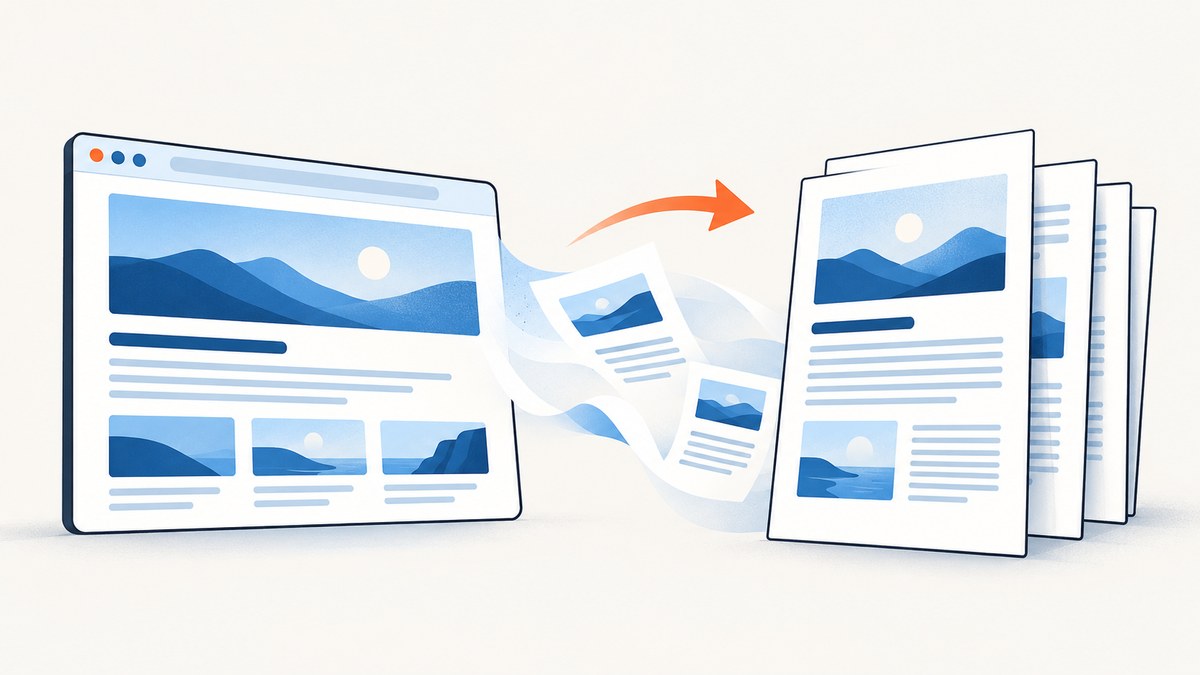
Quick answer: Open the webpage, use your browser’s Print command (Ctrl+P on Windows/Linux or Command+P on Mac), choose Save as PDF, review the preview, and save. On a phone, use the browser’s Share or menu action and choose its PDF option.
A browser PDF is a print rendering of the page. It can differ from the screen layout, especially when a site uses responsive styles, lazy-loaded content, ads, or interactive widgets. Preview the result and adjust orientation, scale, margins, backgrounds, and page ranges before saving.
Convert a website to PDF on a computer
Google Chrome (Windows, Linux, and Mac)
- Open the page in Chrome.
- Choose File → Print, or press Ctrl+P on Windows/Linux or Command+P on Mac.
- In the destination list, select Save as PDF.
- Set layout, paper size, margins, scale, and whether background graphics should print.
- Check the preview, then click Save and choose a filename and folder.
Chrome also documents an optional Google Drive route: save the PDF first and upload it to Drive, or select a configured Save to Google Drive destination. Drive is storage after conversion, not a requirement for creating the PDF. See Chrome’s print instructions.
Mozilla Firefox (desktop)
- Open the page and select the menu button, then Print….
- Set the destination to Save to PDF.
- Choose portrait or landscape, paper size, scale, margins, headers and footers, background graphics, and a page range.
- If the option is available, choose Simplified under Format for a text-focused document.
- Save the file after checking the preview.
Firefox notes that pages can be laid out differently for paper than for a screen. Simplified format cannot be combined with printed backgrounds. Read Mozilla’s Firefox printing guide.
Microsoft Edge
- Open the page and press Ctrl+P on Windows or Command+P on macOS. You can also choose Settings and more → Print.
- Choose the PDF destination offered by your operating system.
- Open More settings to change scale, margins, paper size, orientation, headers, footers, and Background graphics.
- Save after reviewing the preview.
For a less cluttered page, try Immersive Reader before printing when the site supports it. Edge also lets you select text or images, right-click, and print only that selection. Availability of Immersive Reader varies by website. See Microsoft’s Edge printing documentation.
Convert a website to PDF on Android
Chrome for Android
- Open the webpage.
- Tap More (the three-dot menu), then Share → Print.
- In the print preview, select Save as PDF.
- Choose a location and tap Print to save the file.
Google documents this flow in Print from Chrome on Android.
Firefox for Android
- Open the page and tap the three-dot menu.
- Tap the Share icon, then Save as PDF.
- Tap Download in the confirmation prompt.
- Find the document in Downloads or from the completed-download notification.
Mozilla’s Android instructions were updated in 2023, so labels may differ slightly in newer app releases.
Convert a website to PDF on iPhone
Safari
- Open the page in Safari.
- Tap the Page Menu and then Share (the Share button may be shown directly depending on your tab layout).
- Tap Markup if it appears in the share actions.
- Tap Done, choose Save File To, name the PDF, and select a folder.
Apple documents this route in Annotate and save a webpage as a PDF in Safari.
Make the PDF readable before you save it
| Problem | Setting to try | Why it helps |
|---|---|---|
| Wide tables are cut off | Landscape orientation or a smaller scale | Provides more horizontal space |
| Content is clipped at the edges | Reduce margins or scale | Moves content inside the printable area |
| Too many blank pages | Adjust scale, margins, or page range | Changes pagination |
| Colors or design blocks disappear | Enable background graphics | Prints CSS backgrounds |
| Ads and navigation dominate | Firefox Simplified or Edge Immersive Reader | Creates a text-focused reading view when supported |
| Only one section is needed | Select the content and print selection (Edge) | Exports only the selected text and images |
Always inspect headings, images, tables, links, and page breaks in the preview. Interactive controls, videos, animations, and forms are represented as a static print view; they do not remain interactive in a normal PDF. Mozilla cautions that “Web pages can set themselves up to appear different on paper to how they look on screen,” so a difference from the browser view is expected.
Automate website-to-PDF conversion with a browser
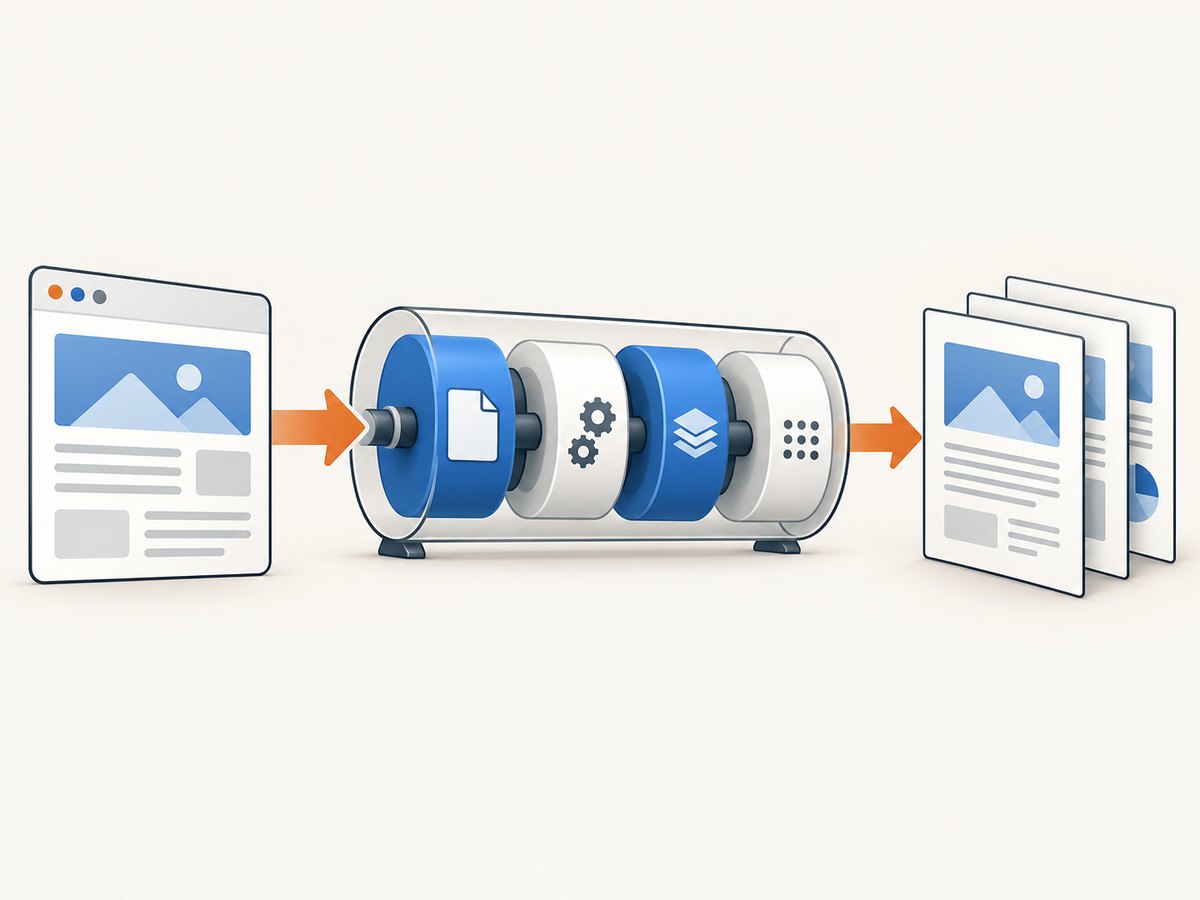
For scheduled jobs, reports, or many URLs, a headless browser gives you repeatable settings. The following Playwright example waits for the page to load and writes a PDF. Install Playwright with npm install playwright, then install its browser binaries with npx playwright install chromium.
import { chromium } from 'playwright';

const browser = await chromium.launch();
const page = await browser.newPage({
  viewport: { width: 1440, height: 900 },
  deviceScaleFactor: 1
});

await page.goto('https://example.com', { waitUntil: 'networkidle' });
await page.pdf({
  path: 'website.pdf',
  format: 'A4',
  printBackground: true,
  margin: { top: '16mm', right: '16mm', bottom: '16mm', left: '16mm' }
});

await browser.close();
For long pages, make sure lazy-loaded images have entered the DOM before calling page.pdf(). You can scroll through the document, wait for a known selector, or add a short delay. For authenticated pages, create a browser context with the required cookies or headers. Keep credentials out of source control and logs.
Python with Playwright
from playwright.sync_api import sync_playwright

with sync_playwright() as p:
    browser = p.chromium.launch()
    page = browser.new_page(viewport={"width": 1440, "height": 900})
    page.goto("https://example.com", wait_until="networkidle")
    page.pdf(
        path="website.pdf",
        format="A4",
        print_background=True,
        margin={"top": "16mm", "right": "16mm", "bottom": "16mm", "left": "16mm"},
    )
    browser.close()
Common automation edge cases
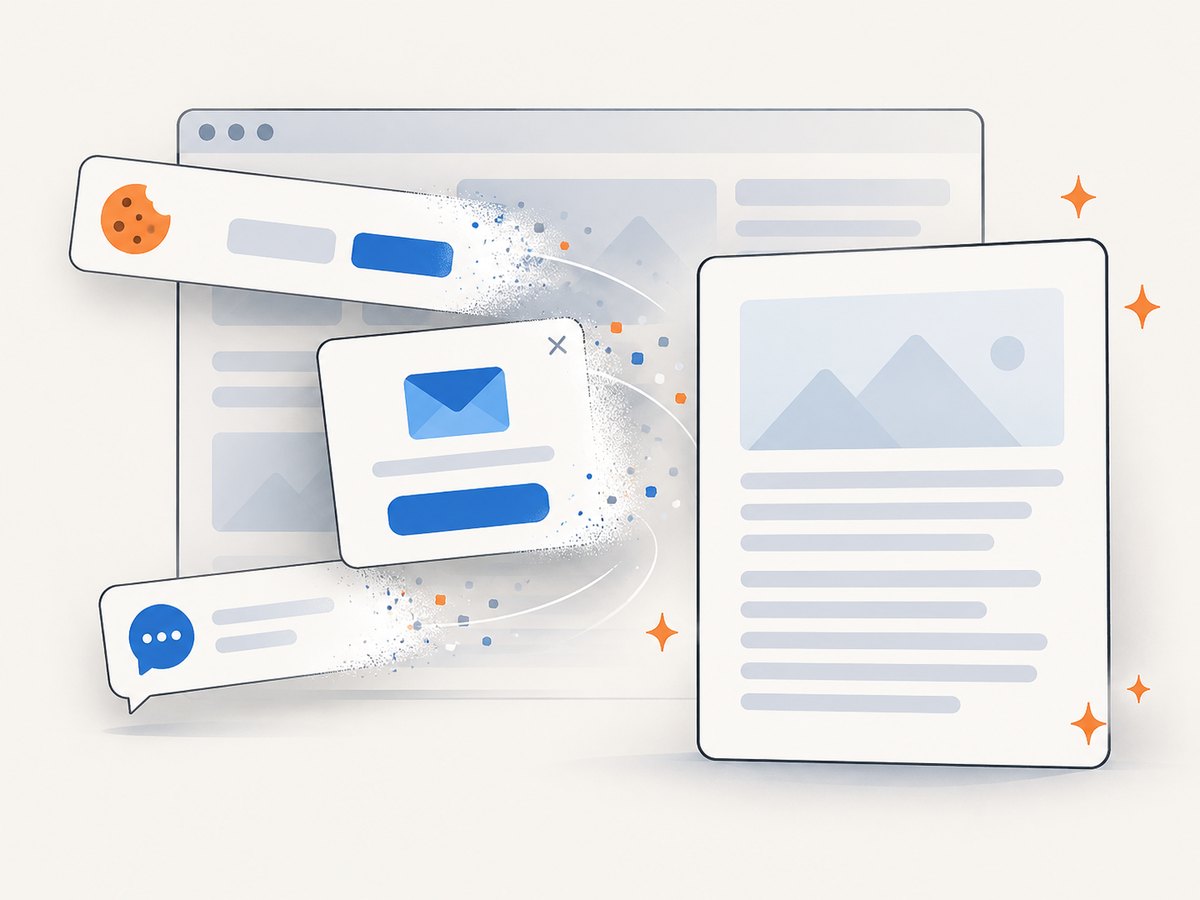
- Cookie banners: dismiss them before generating the PDF or the banner may cover content.
- Infinite scroll: scroll incrementally and wait for new content; otherwise only the first viewport may be present.
- Cross-origin frames: content inside an iframe may have its own loading and print behavior.
- Web fonts: wait for
document.fonts.readyif typography affects pagination. - Very large documents: split by URL section or page range to reduce memory use.
Or skip the browser setup
ScreenshotNeo provides a website capture API that can return PNG, JPEG, WebP, or PDF. A single GET request accepts a URL; PDF captures support paper size, margins, landscape mode, and page ranges. See the ScreenshotNeo API documentation for request options.
curl -G "https://api.screenshotneo.com/v1/shot" -d access_key=YOUR_API_KEY --data-urlencode url=https://stripe.com -o shot.webpimport requests
r = requests.get("https://api.screenshotneo.com/v1/shot", params={"access_key": "YOUR_API_KEY", "url": "https://stripe.com"}, timeout=90)
open("shot.webp", "wb").write(r.content)const q = new URLSearchParams({ access_key: 'YOUR_API_KEY', url: 'https://stripe.com' });
const res = await fetch(`https://api.screenshotneo.com/v1/shot?${q}`);For a PDF, select PDF output and its paper settings in the request as described in the docs, then save the response with a .pdf filename. ScreenshotNeo removes cookie and consent banners, newsletter popups, and chat widgets before capture; each step can be turned off. Bot checks, blank pages, timeouts, failed loads, and cache hits are not billed, and response headers identify the page verdict and whether the request was billed. Its MCP server gives Claude, Cursor, and other MCP clients take_screenshot, get_page_info, and capture_pdf tools. You get 1,000 screenshots per month free with no card; paid plans start at $5 for 3,000 shots.
Create a free ScreenshotNeo account to start.
Troubleshooting
The PDF is blank
The page may still be loading, require JavaScript, or have failed network requests. Reload, wait for the page to render, and try again. In automation, use a meaningful readiness selector or networkidle rather than an immediate screenshot.
Images are missing
Images may be lazy-loaded, blocked, or outside the captured viewport. Scroll the page before printing, allow image requests, and check whether a content blocker is active.
Text overlaps or fonts change
Web fonts may not have finished loading. Wait for document.fonts.ready, increase the delay, or use a stable fallback font. Overlap can also result from print-specific CSS; inspect the page’s print preview.
Background colors are absent
Enable Background graphics in Chrome or Edge, or enable printed backgrounds in Firefox. Some operating-system print dialogs expose this setting separately.
Pages break in the wrong places
Try a different paper size, orientation, scale, or margin. Use page ranges for especially large sections. CSS rules such as break-inside: avoid can help when you control the page.
The browser shortcut does nothing
Use the browser menu’s Print command instead of the keyboard shortcut. Managed devices can disable printing; in that case, ask an administrator or use an approved capture service.
Performance, reliability, and cost
- One-off conversions: browser print is fastest because it requires no setup or account.
- Repeated conversions: reuse a browser process, wait only for the selector you need, and avoid unnecessary full-page work.
- Reliability: record the URL, timestamp, viewport, paper settings, and final file size so failed jobs can be retried and compared.
- Large pages: limit page ranges, disable nonessential resources, or split work into multiple jobs.
- Service billing: ScreenshotNeo bills only clean shots. Bot checks, blank pages, timeouts, failed loads, and cache hits cost nothing; inspect
X-Page-VerdictandX-Billedheaders in your logs. - Plans: Free includes 1,000 shots/month without a card; Starter is $5 for 3,000, Growth $15 for 15,000, Pro $39 for 60,000, Scale $99 for 250,000, and Business $249 for 1,000,000. Yearly billing gives two months free, and every feature is on every plan.
FAQ
Can I convert a website without installing software?
Yes. Chrome, Firefox, Edge, Android browsers, and Safari on iPhone include print or share workflows that save a PDF.
Will links remain clickable?
Many browser-generated PDFs retain hyperlinks, but behavior depends on the browser and page. Verify important links in the saved file.
Can a PDF preserve animations or video?
No. A PDF is a static document. Capture the frame you need or provide the original URL for interactive content.
How do I save only part of a page?
Use a page range when the content occupies known pages. In Edge, select text or images, right-click, and print the selection.
Why does my PDF look different from the webpage?
Print styles, paper dimensions, missing backgrounds, responsive breakpoints, and unloaded assets can all change the rendering. Use the preview and adjust the settings described above.


