How to Convert a Website to PDF With AI
Save one page or an entire site as a PDF, then use AI to summarize and analyze the captured content.
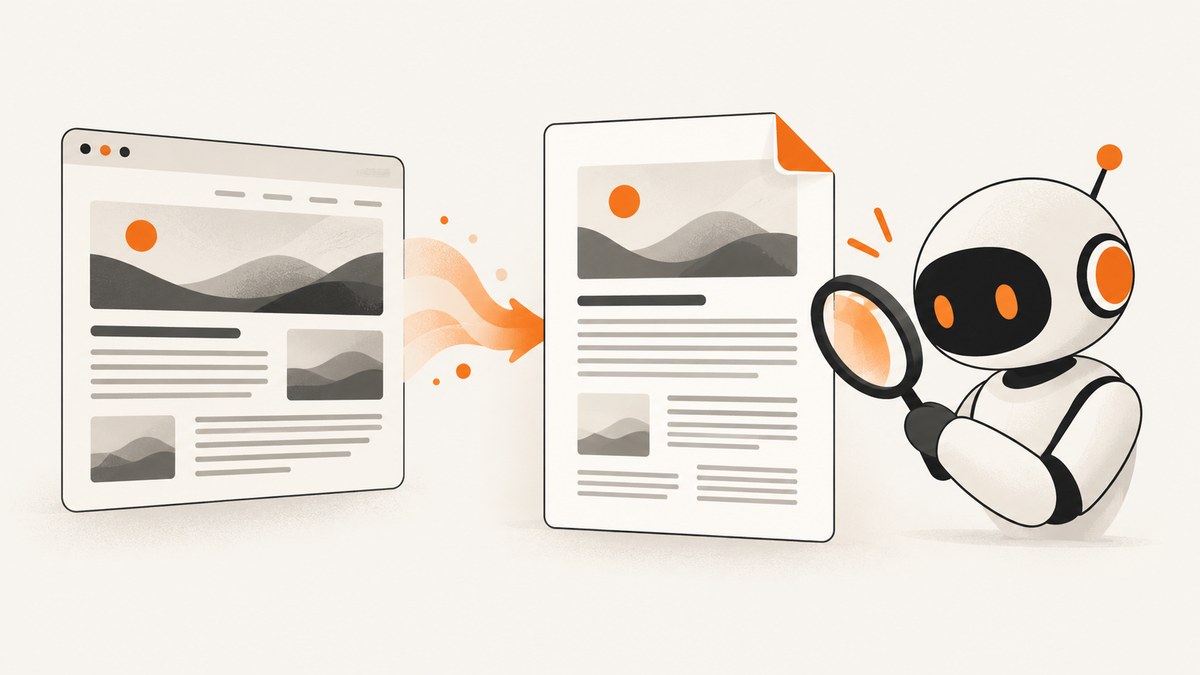
For one page, open it in Chrome, press Ctrl+P (Windows/Linux) or Cmd+P (Mac), choose “Save as PDF,” review the preview, and save. The PDF conversion and the AI step are separate: first create a reliable PDF, then upload it to an AI tool or open it in an AI-enabled PDF application for summarization and questions.
Save a single webpage as a PDF in Chrome
- Open the webpage you want to capture in Chrome.
- Open the print dialog with Ctrl+P on Windows/Linux or Cmd+P on macOS. You can also open Chrome’s menu and choose Print.
- In the printer or destination list, select Save as PDF.
- Choose the page range, paper size, orientation, margins, scale, and whether background graphics should be included.
- Inspect every page in the preview. Check headings, tables, images, code blocks, page breaks, and footers.
- Choose a filename and destination, then save.
Chrome’s documented workflow is the quickest option for the page currently open in your browser. The result uses the page’s print presentation, which can differ substantially from the live screen. Responsive layouts may reflow, navigation may disappear, sticky elements may repeat, and content loaded only after interaction may be absent. Adobe’s browser guidance also recommends checking print preview and orientation before relying on the file.
Print settings that affect the result
| Setting | When to change it |
|---|---|
| Destination | Choose Save as PDF rather than a physical printer. |
| Pages | Use a range when you need only selected sections. |
| Layout | Landscape often works better for wide tables and dashboards. |
| Paper size | Match the format your readers or printer expect. |
| Margins | Reduce margins for dense documentation; increase them for annotations. |
| Scale | Lower it when lines or tables are clipped; raise it when text is too small. |
| Background graphics | Enable this when color bands, diagrams, or shaded code blocks carry meaning. |
| Headers and footers | Disable them for a clean handoff, or keep them when the URL and date provide useful provenance. |
Why the PDF does not match the live page
A browser print job is not a screenshot. The browser asks the page for print styles, lays content out for paper, and may omit interactive or off-screen elements. Common differences include:
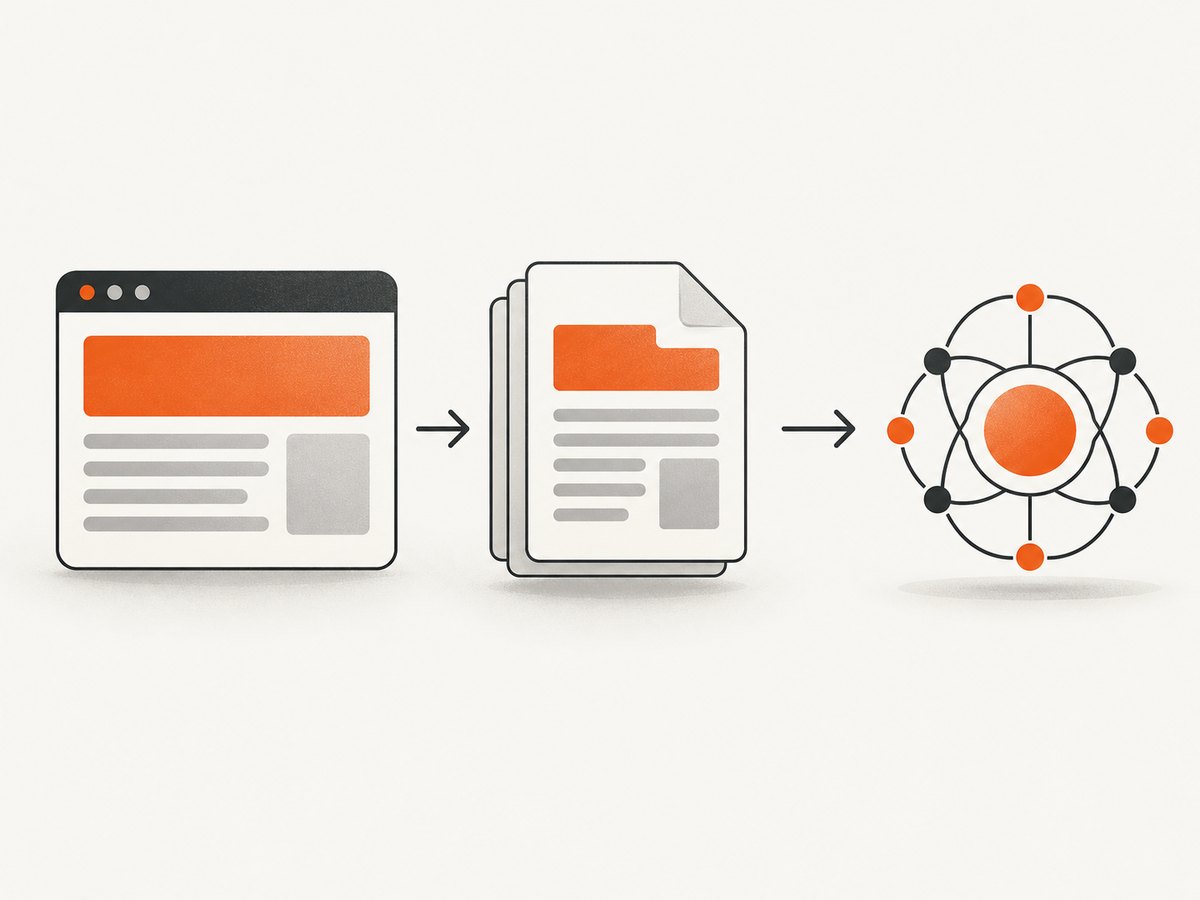
- Menus, cookie banners, chat widgets, and advertising are hidden or printed unexpectedly.
- Lazy-loaded images have not loaded before printing.
- Infinite-scroll content is missing because it was never inserted into the document.
- Videos, animations, maps, and interactive charts become a still frame or disappear.
- Very wide tables are scaled down or split across pages.
- Fonts or images fail because the page is offline, protected, or still loading.
Before sharing the PDF, scroll through the complete preview and open the saved file. If a section is missing, wait for it to load, expand accordions, accept required consent controls, or use the site’s own export command when available.
How to save an entire website as a PDF
A browser print command handles the current document. For multiple pages, Adobe Acrobat desktop supports converting a webpage URL or a local HTML file and selecting a crawl depth. Its web-capture controls can include a chosen number of levels or the entire site, with restrictions to the same path or same server.
- Open Acrobat desktop and choose the command for creating a PDF from a webpage.
- Enter the page URL or select a local HTML file.
- Choose the capture depth. A single level captures the supplied page; additional levels follow links from it.
- Limit links to the same path or server when you do not want the capture to leave the site area.
- Start the conversion and review the resulting document.
Multi-page capture is useful for documentation, a small knowledge base, or an archived section. It is not a guarantee that every linked page will render perfectly. JavaScript applications, authentication, robots restrictions, infinite scrolling, rate limits, and links that leave the permitted path or server can all change the result. Treat the crawl settings as scope controls, then inspect the output.
Choosing a capture scope
| Goal | Recommended scope | Risk to check |
|---|---|---|
| One article | Current page or one crawl level | Print styles and lazy content |
| Documentation section | Several levels, same path | Unexpected external links |
| Small site archive | Entire site or same server | Large volume, duplicate pages, login walls |
Use AI with the saved PDF
Once the PDF exists, AI can summarize it, extract requirements, compare sections, or answer questions about its contents. OpenAI documents uploading PDF files to ChatGPT for analysis, and Adobe documents asking questions with AI Assistant in Acrobat. Availability depends on the product, account, plan, file limits, and content rules.
A reliable PDF-to-summary workflow
- Capture: Save the page or site and keep the original URL and capture date in the filename or notes.
- Check: Search the PDF for a distinctive heading, inspect images and tables, and confirm that the final page is present.
- Upload or open: Add the PDF to an AI-enabled product that supports file analysis.
- Ask a bounded question: Specify the audience, format, and sections to use.
- Verify: Check every important claim against the PDF and, when needed, the live source.
Useful prompts include:
Summarize this PDF for a software engineer in 8 bullets. Include the document title, scope, assumptions, limits, and any dates. If a detail is absent, say “not stated.”Extract every requirement from this PDF. Return a table with requirement, evidence page, owner if stated, and unresolved question. Do not infer missing owners.Compare the introduction and conclusion. List agreements, contradictions, and claims that need verification. Quote only short phrases and include page numbers.AI output is generated and can be wrong or incomplete. Ask it to identify missing information, preserve page references, and distinguish quoted facts from interpretation. Google’s webpage-summary feature is a useful example of a separate live-page workflow, but Google lists device, account, language, indexing, subscription, page-length, and eligibility limits. Availability and quality vary, so do not assume that every page or device supports it.
Automate website-to-PDF capture with ScreenshotNeo
If you need repeatable captures in a script or pipeline, ScreenshotNeo provides a website screenshot API and MCP server. Its PDF endpoint can capture a URL with controls for paper size, margins, landscape mode, and page ranges. You can also wait for a selector, delay, or network idle; run custom JavaScript; set headers, cookies, user agent, timezone, or geolocation; block unwanted resources; and cache results with a TTL you choose.
cURL
curl -G "https://api.screenshotneo.com/v1/shot" \
  -d access_key=YOUR_API_KEY \
  --data-urlencode url=https://stripe.com \
  -d format=pdf \
  -o page.pdf
Python
import requests

r = requests.get(
    "https://api.screenshotneo.com/v1/shot",
    params={
        "access_key": "YOUR_API_KEY",
        "url": "https://stripe.com",
        "format": "pdf",
    },
    timeout=90,
)
r.raise_for_status()
open("page.pdf", "wb").write(r.content)
Node.js
const q = new URLSearchParams({
  access_key: 'YOUR_API_KEY',
  url: 'https://stripe.com',
  format: 'pdf'
});
const res = await fetch(`https://api.screenshotneo.com/v1/shot?${q}`);
if (!res.ok) throw new Error(`HTTP ${res.status}`);
const buffer = Buffer.from(await res.arrayBuffer());
await Bun.write('page.pdf', buffer);
See the ScreenshotNeo documentation for parameter names and the OpenAPI specification. The service accepts the parameter names used by other screenshot APIs, which can simplify migration.
Or skip the browser setup
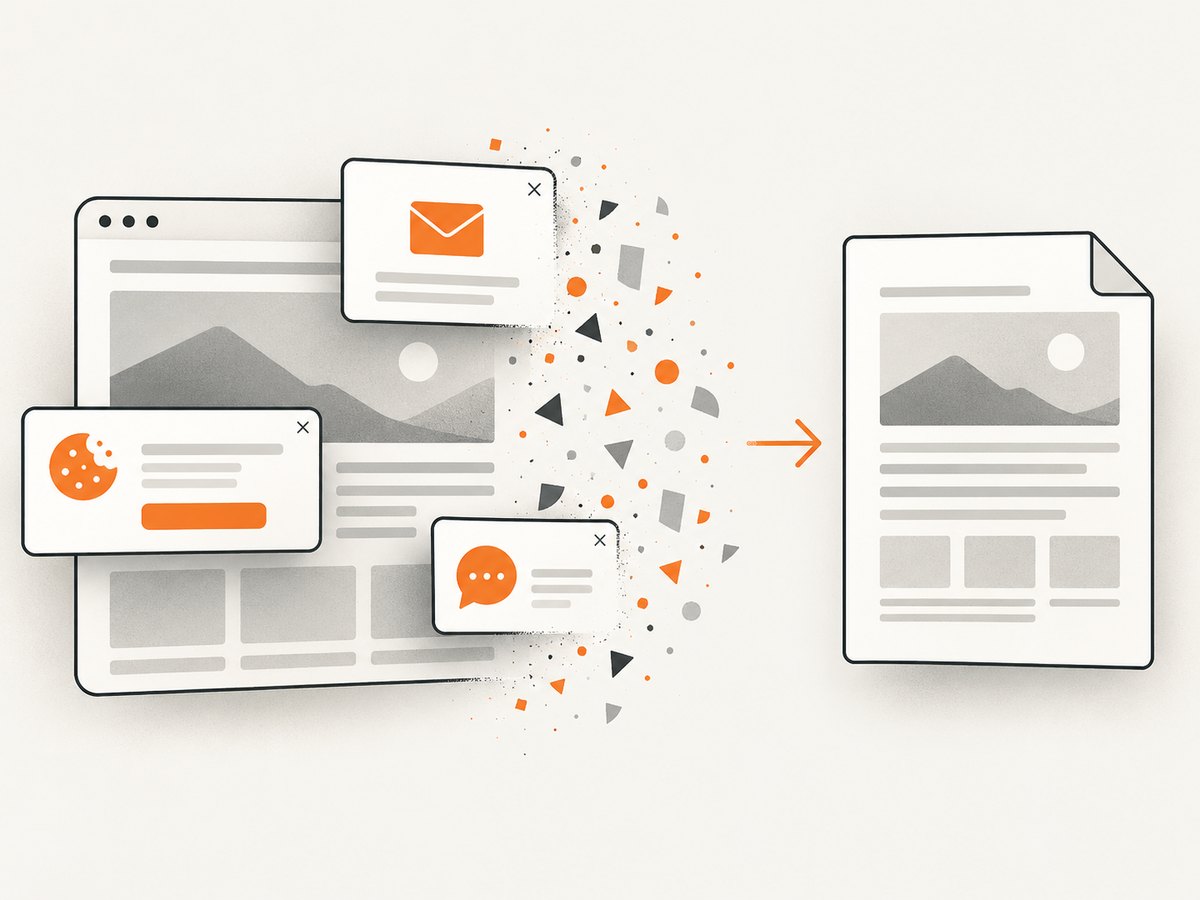
ScreenshotNeo accepts consent banners before capture and removes more than 60 known consent platforms, newsletter popups, and chat widgets. Each cleanup step can be turned off. Bot checks and CAPTCHAs, blank pages, timeouts, failed loads, and cache hits are not billed; response headers identify the page verdict and whether the request was billed. Its MCP server gives Claude, Cursor, and other MCP clients the tools take_screenshot, get_page_info, and capture_pdf.
The Free plan includes 1,000 shots per month with no card. Paid plans start at $5 for 3,000 shots; Growth is $15 for 15,000, Pro is $39 for 60,000, Scale is $99 for 250,000, and Business is $249 for 1,000,000. Yearly billing gives two months free, and every feature is included on every plan.
Create a free ScreenshotNeo account and start with 1,000 screenshots a month at no charge.
Troubleshooting
The PDF is blank
The page may still be loading, require JavaScript, or show a bot check. Wait and print again, disable extensions that block page scripts, or use an automated capture with a selector wait and a longer delay. With ScreenshotNeo, inspect X-Page-Verdict and X-Billed to distinguish a blank or blocked result from a clean capture.
Images or charts are missing
Scroll through the page first so lazy images load, wait for network activity to settle, and enable background graphics. For automated jobs, use a network-idle wait or selector wait and allow the page’s image host through any request blocking rules.
Text is cut off
Try landscape orientation, a larger paper size, smaller print scale, or narrower margins. Wide tables may need a dedicated export or a PDF capture configured for landscape.
Only the first part of an infinite-scroll page appears
Print and URL conversion tools capture the DOM that exists at conversion time. Scroll or trigger loading before printing, or use a script that scrolls incrementally and waits for new content.
The site requires login
A normal browser print uses your current session. Automated capture needs authenticated cookies or headers and may still be blocked by additional access controls. Do not place secrets in a public URL; use request headers or cookies supported by your capture service.
The AI summary contains errors
Ask for page references, require “not stated” for missing facts, and compare important claims with the PDF. A summary is an analysis layer, not proof that the source was captured completely.
Performance, reliability, and cost
- Performance: A single browser print is fastest for one page. Multi-page crawls and JavaScript-heavy sites take longer because each page must load and render.
- Reliability: Save the source URL, capture date, settings, and a checksum or versioned filename. Reopen the PDF before distributing it.
- Repeatability: Use fixed paper settings, explicit waits, and a stable user agent. Cache unchanged pages when appropriate.
- Cost: Chrome print has no service charge. Acrobat and AI products may require plans or account access. ScreenshotNeo’s free tier covers 1,000 shots monthly; paid pricing is based on the plans listed above.
- Privacy: Review the policies of any browser extension, PDF service, or AI product before uploading confidential pages.
FAQ
Can I convert a website to PDF without AI?
Yes. Chrome’s Print → Save as PDF workflow does not require AI. AI is optional for summarizing or analyzing the saved file.
Can one PDF contain a whole website?
Yes, tools such as Acrobat can capture multiple levels, but crawl depth, same-path or same-server limits, authentication, scripts, and site structure determine what is included.
Should I summarize the live webpage or the PDF?
Use the PDF when you need a fixed, reviewable record. Use a live-page summary only when the feature is available and you accept that the page may change.
How do I preserve evidence for an AI-generated answer?
Keep the original PDF, URL, capture date, and page references. Ask the AI to cite pages and verify consequential claims manually.
What is the simplest automated option?
Send the URL to ScreenshotNeo’s API with format=pdf, save the response, then upload the resulting PDF to your chosen AI tool.


