How to Convert Websites to PDF in Bulk
Compare Acrobat, Playwright, PDF Services, and ScreenshotNeo for reliable bulk website-to-PDF workflows, with code, retries, scope controls, and troubleshooting.

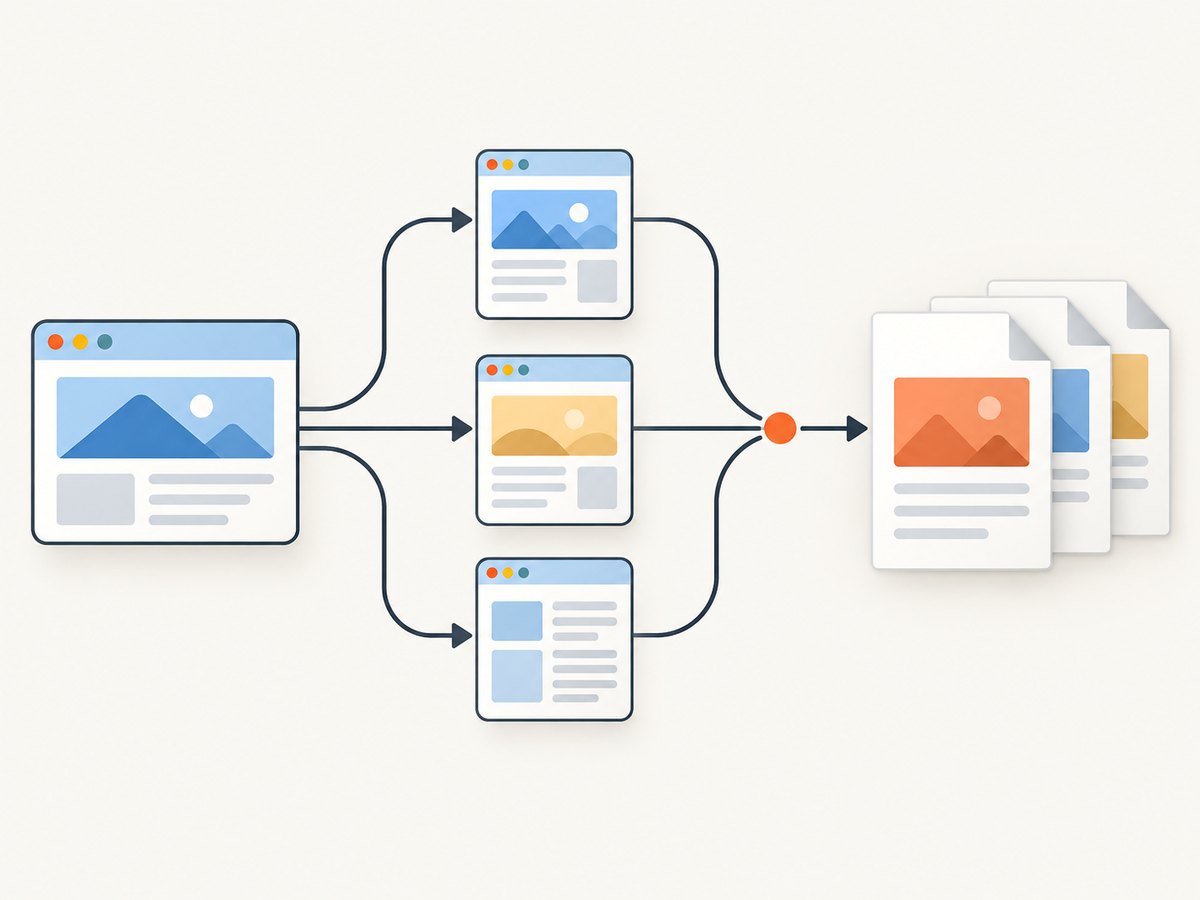
Bulk website-to-PDF conversion means turning a list of URLs, or a bounded site crawl, into separate PDF files with predictable names and repeatable rendering. The best method depends on whether you need a guided desktop workflow, a programmable browser, or an API inside your backend.
Quick answer: use Adobe Acrobat’s multi-level website capture for a no-code, bounded crawl; use Playwright when you control a URL list and need custom browser behavior; use Adobe PDF Services when conversion belongs in an application. If you want to avoid operating a browser, ScreenshotNeo can capture pages and PDFs through one API call, with bulk capture and signed asynchronous jobs available.
Choose the right bulk conversion method
| Approach | Best for | Controls | Trade-off |
|---|---|---|---|
| Acrobat desktop | Nontechnical users and bounded site captures | Crawl levels, entire-site capture, same-path or same-server limits | Less programmable orchestration |
| Playwright | Developers processing a repeatable URL list | Chromium rendering, media emulation, page.pdf(), custom waits and retries | You build iteration, throttling, naming and validation |
| Adobe PDF Services | Backend or product integration | HTML and URL inputs, REST and SDK jobs | Requires API integration and current service terms |
| ScreenshotNeo | Managed screenshots or PDFs without browser operations | Bulk URLs, PDF settings, waits, headers, cookies, caching and webhooks | Requires an API key |
1. Convert a bounded website with Adobe Acrobat
Acrobat is the shortest route when you want to enter a starting URL, follow links for a controlled number of levels, and review the resulting PDFs manually. Adobe’s help describes a Capture Multiple Levels option with either a chosen level count or Get Entire Site. You can constrain discovery with Stay on Same Path or Stay on Same Server. See the Acrobat website-to-PDF instructions.
- Open Acrobat and choose the command for creating a PDF from a web page.
- Enter the starting URL.
- Enable Capture Multiple Levels.
- Select Get level(s) and enter a depth, or choose Get Entire Site for an intentionally broad crawl.
- Choose Stay on Same Path when you only want a section such as
/docs/. Choose Stay on Same Server when linked content can live in different paths on the same host. - Start the conversion and monitor the queued requests.
Set the smallest depth that contains the pages you need. Adobe warns that unnecessary levels can consume disk space and slow processing. A crawl also follows links you did not intend to archive, so inspect the scope before selecting an entire site.
When Acrobat is a good fit
- You have a one-off archive or a small number of bounded captures.
- A person can inspect the crawl and remove irrelevant pages.
- You do not need deterministic filenames, custom retries, or a scheduled job.
2. Build a repeatable bulk converter with Playwright
Playwright gives you a real browser for each URL and exposes Chromium PDF generation through page.pdf(). The documentation states that PDF generation is Chromium-only. Your application must supply the URL list, output naming, retries, throttling, and checks that every expected file exists. See the Playwright page.pdf() reference.
Install and run
npm install playwright
npx playwright install chromium
const { chromium } = require('playwright');
const fs = require('fs/promises');
const path = require('path');
const urls = [
'https://example.com/',
'https://example.com/docs',
'https://example.com/pricing'
];
function safeName(url, index) {
const u = new URL(url);
const stem = (u.hostname + u.pathname)
.replace(/[^a-z0-9]+/gi, '-')
.replace(/^-|-$/g, '')
.toLowerCase();
return `${String(index + 1).padStart(3, '0')}-${stem || 'page'}.pdf`;
}
async function withRetry(fn, attempts = 3) {
let lastError;
for (let i = 0; i < attempts; i++) {
try { return await fn(); }
catch (error) {
lastError = error;
if (i + 1 < attempts) await new Promise(r => setTimeout(r, 1000 * 2 ** i));
}
}
throw lastError;
}
(async () => {
await fs.mkdir('pdf-output', { recursive: true });
const browser = await chromium.launch();
const context = await browser.newContext({
viewport: { width: 1440, height: 900 },
colorScheme: 'light',
serviceWorkers: 'allow'
});
for (let i = 0; i < urls.length; i++) {
const page = await context.newPage();
try {
await withRetry(async () => {
await page.goto(urls[i], { waitUntil: 'networkidle', timeout: 60000 });
await page.emulateMedia({ media: 'screen' });
await page.pdf({
path: path.join('pdf-output', safeName(urls[i], i)),
format: 'A4',
printBackground: true,
margin: { top: '16mm', right: '14mm', bottom: '16mm', left: '14mm' }
});
});
console.log(`saved ${urls[i]}`);
} catch (error) {
console.error(`failed ${urls[i]}: ${error.message}`);
} finally {
await page.close();
}
}
await context.close();
await browser.close();
})();Important Playwright options
format,widthandheightcontrol paper dimensions. Do not combine incompatible paper and explicit dimensions.printBackground: truepreserves colored sections and background images.landscape: trueis useful for wide tables.marginprevents headers, footers and content from touching the edge.pageRangeslimits output to selected pages when you know the required range.- Use
page.waitForSelector()for a known component, or an explicit delay when a page has a short client-side transition.networkidlecan hang on analytics or long-polling connections, so use it only when the site becomes quiet. - For print-specific styling, call
page.emulateMedia({media: 'print'}); for a screen-like PDF, usescreen.
Bulk reliability practices
- Keep the input URL list in a durable file or database and record status per URL.
- Use deterministic names derived from the URL plus an index to avoid collisions.
- Retry transient navigation failures with exponential backoff, but cap attempts.
- Limit concurrency. A small worker pool avoids exhausting memory and triggering remote rate limits.
- Write to a temporary filename and rename after a successful PDF write so interrupted jobs are easy to detect.
- Validate that each expected output exists and has a non-zero size. For high-value archives, open PDFs in a second validation pass.
3. Use Adobe PDF Services in an application
Adobe PDF Services documents HTML-to-PDF conversion for static and dynamic HTML, URL inputs, REST calls and SDK integrations. A bulk workflow submits one input per job, records the job identifier, downloads the resulting PDF, and applies your own retry and queue policy. Start with the PDF Services API documentation and confirm current authentication, limits and retention terms before production use.
This route suits a service that already has a job queue, object storage and observability. Keep conversion state separate from download state: a conversion can finish while a result download fails. Store the source URL, request parameters, attempt count, provider response and final object key for each item.
4. Define scope, rendering and output rules
URL scope
For a crawl, decide whether links may leave the starting path, host or domain. For a fixed list, normalize URLs before processing: remove accidental whitespace, decide how to treat fragments, and preserve query strings when they change the page. Deduplicate after normalization.

Dynamic and protected pages
Client-rendered pages may be blank until JavaScript completes. Authenticated pages need a logged-in browser context or request headers and cookies. Bot checks, CAPTCHAs, robots policies, geolocation gates and expiring links can prevent a faithful capture. Build a clear failure status instead of silently saving an error page as a PDF.
PDF layout
Choose a paper size and margins that match your audience. Long tables often need landscape orientation or a larger paper size. Background colors and images may be disabled by print CSS unless you explicitly preserve them. Page breaks can split cards and headings; add print CSS such as break-inside: avoid to components you control.
Or skip the browser setup
ScreenshotNeo provides a managed website screenshot API and MCP server. Its capture tools can return PNG, JPEG, WebP or PDF, and bulk capture accepts up to 100 URLs per call. PDF options include paper size, margins, landscape mode and page ranges. You can also use waits, custom CSS and JavaScript, headers, cookies, user agents, authorization, timezone and geolocation. The ScreenshotNeo documentation lists the current parameters and OpenAPI specification.
cURL
curl -G "https://api.screenshotneo.com/v1/shot" \
  -d access_key=YOUR_API_KEY \
  --data-urlencode url=https://stripe.com \
  -o shot.webp
Python
import requests

r = requests.get(
    "https://api.screenshotneo.com/v1/shot",
    params={"access_key": "YOUR_API_KEY", "url": "https://stripe.com"},
    timeout=90,
)
r.raise_for_status()
open("shot.webp", "wb").write(r.content)
Node.js
const q = new URLSearchParams({ access_key: 'YOUR_API_KEY', url: 'https://stripe.com' });
const res = await fetch(`https://api.screenshotneo.com/v1/shot?${q}`);
if (!res.ok) throw new Error(`HTTP ${res.status}`);
const data = Buffer.from(await res.arrayBuffer());
require('fs').writeFileSync('shot.webp', data);
For a PDF job, use the PDF capture options in the docs or the MCP server’s capture_pdf tool. The MCP server also exposes take_screenshot and get_page_info, so Claude, Cursor and other MCP clients can run captures. Cookie and consent banners are accepted and removed before capture, along with more than 60 known consent platforms, newsletter popups and chat widgets; each cleanup step can be turned off. Bot checks, blank pages, timeouts, failed loads and cache hits are not billed, and response headers report X-Page-Verdict and X-Billed. A free plan includes 1,000 shots per month without a card; paid plans start at $5 for 3,000 shots.
Create a free ScreenshotNeo account and start with 1,000 screenshots each month at no charge.
Troubleshooting bulk PDF jobs
| Symptom | Likely cause | Fix |
|---|---|---|
| PDF is blank | JavaScript content was not ready, or navigation hit a bot check | Wait for a selector, inspect the final URL and response status, and record blocked pages as failures. |
| Fonts or colors differ | Print CSS, missing web fonts or disabled backgrounds | Load fonts before export, choose the intended media type and enable background printing. |
| Job hangs | Persistent analytics or websocket traffic prevents network idle | Replace network-idle waiting with a selector plus a bounded timeout. |
| Out-of-memory errors | Too many concurrent pages or very large images | Reduce worker count, close pages promptly and process URLs in batches. |
| Duplicate or overwritten files | Names derived only from the final path | Include host, normalized path, query hash or an index in the filename. |
| Acrobat captures unrelated pages | Crawl scope is too broad | Use a level limit and Stay on Same Path or Same Server. |
| ScreenshotNeo response is not billed | The page was a cache hit, blank, timed out or failed | Read X-Page-Verdict and X-Billed, then fix the URL or wait settings before retrying. |
Performance, reliability and cost
Conversion time is dominated by page load, JavaScript, images and concurrency. More workers can improve throughput until CPU, memory or the origin server becomes the bottleneck. Use caching for unchanged URLs, but choose a TTL that matches how often content changes. For scheduled archives, persist the URL manifest and resume only failed items.
Acrobat has no per-call API orchestration in this workflow, but it consumes local disk and processing time as crawl depth grows. Playwright costs the compute and storage of the machines running Chromium, plus your engineering time for queueing and maintenance. PDF Services and ScreenshotNeo add provider charges according to their current terms. ScreenshotNeo’s plans include every feature: Free 1,000 shots/month, Starter $5 for 3,000, Growth $15 for 15,000, Pro $39 for 60,000, Scale $99 for 250,000 and Business $249 for 1,000,000; yearly billing gives two months free.
Checklist before you run a large batch
- Confirm the exact URL set and crawl boundary.
- Decide paper size, margins, orientation and page ranges.
- Define readiness signals for dynamic pages.
- Set a concurrency limit and retry policy.
- Use deterministic filenames and durable status records.
- Detect authentication failures, bot checks and blank outputs.
- Validate every expected PDF and retain an error report.
- Estimate storage and provider cost before scheduling recurring runs.
FAQ
Can I convert an entire website automatically?
Yes. Acrobat can crawl multiple levels or an entire site within its scope controls. A scripted workflow can crawl links too, but you must implement discovery, deduplication and boundaries.
Should every URL become a separate PDF?
Usually yes for retries, naming and selective delivery. Merge PDFs later only when readers need one continuous document and you can preserve page order.
Why is Chromium required in Playwright?
Playwright’s documented PDF generation is Chromium-only. Other browser engines can still automate pages, but they do not provide the same page.pdf() export.
How do I handle pages behind login?
Use an authenticated browser context or send the required cookies and headers. Never place long-lived credentials in a public URL list or committed script.
Is a managed API better than running Chromium?
It depends on control and operations. Chromium gives maximum browser-level customization; a managed API removes browser installation, queueing and maintenance. ScreenshotNeo also adds cleanup of consent banners and widgets, verdict headers, bulk capture and MCP tools for agents.


