Convert a Whole Website to PDF
Learn how to convert a whole website to PDF, capture linked pages with Acrobat, print one page from Chrome, or create an offline mirror.
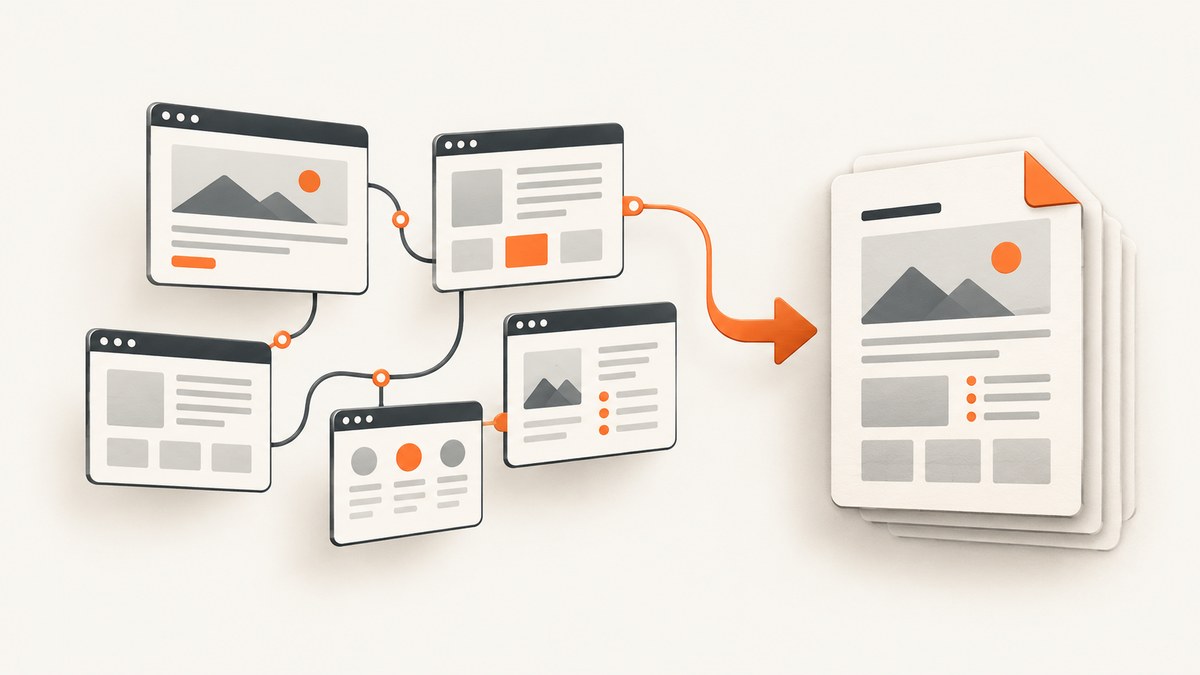
Short answer: “Convert a whole website to PDF” can mean three different jobs: save the page currently open, capture several linked pages into one website project, or create a browsable offline copy. Use Chrome’s print workflow for one page, Adobe Acrobat desktop’s Web Page capture for multiple linked pages with crawl controls, and HTTrack when you need an offline mirror rather than a PDF. If you need an automated screenshot or PDF endpoint, ScreenshotNeo can capture a URL with one request.
A long article and an entire website are not the same thing. Printing a page captures the document you opened, including its rendered layout. A site capture follows links to additional pages. An offline mirror downloads pages and resources so links work without an internet connection. Decide which output you need before choosing a tool.
Choose the right website-to-PDF method
| Goal | Recommended route | What it does | Important limit |
|---|---|---|---|
| Save one page | Chrome print to PDF | Prints the currently open page, image, or file | Does not crawl linked pages |
| Capture several pages as a website project | Adobe Acrobat desktop Web Page | Follows links to a selected depth or the entire site, with path and server limits | Requires Acrobat desktop and careful scope settings |
| Browse a site offline | HTTrack | Mirrors pages and resources and rewrites links for local browsing | Produces an offline website, not a PDF |
| Automate captures in an application | ScreenshotNeo API | Returns a clean PNG, JPEG, WebP, or PDF from a URL | Captures requested URLs; it is not a general-purpose site crawler |
For multi-page capture, “entire site” can be much larger than expected. A domain may contain support portals, search results, calendars, file downloads, or links to other domains. Set a bounded crawl depth and restrict the path or server whenever possible.
Convert linked pages with Adobe Acrobat desktop
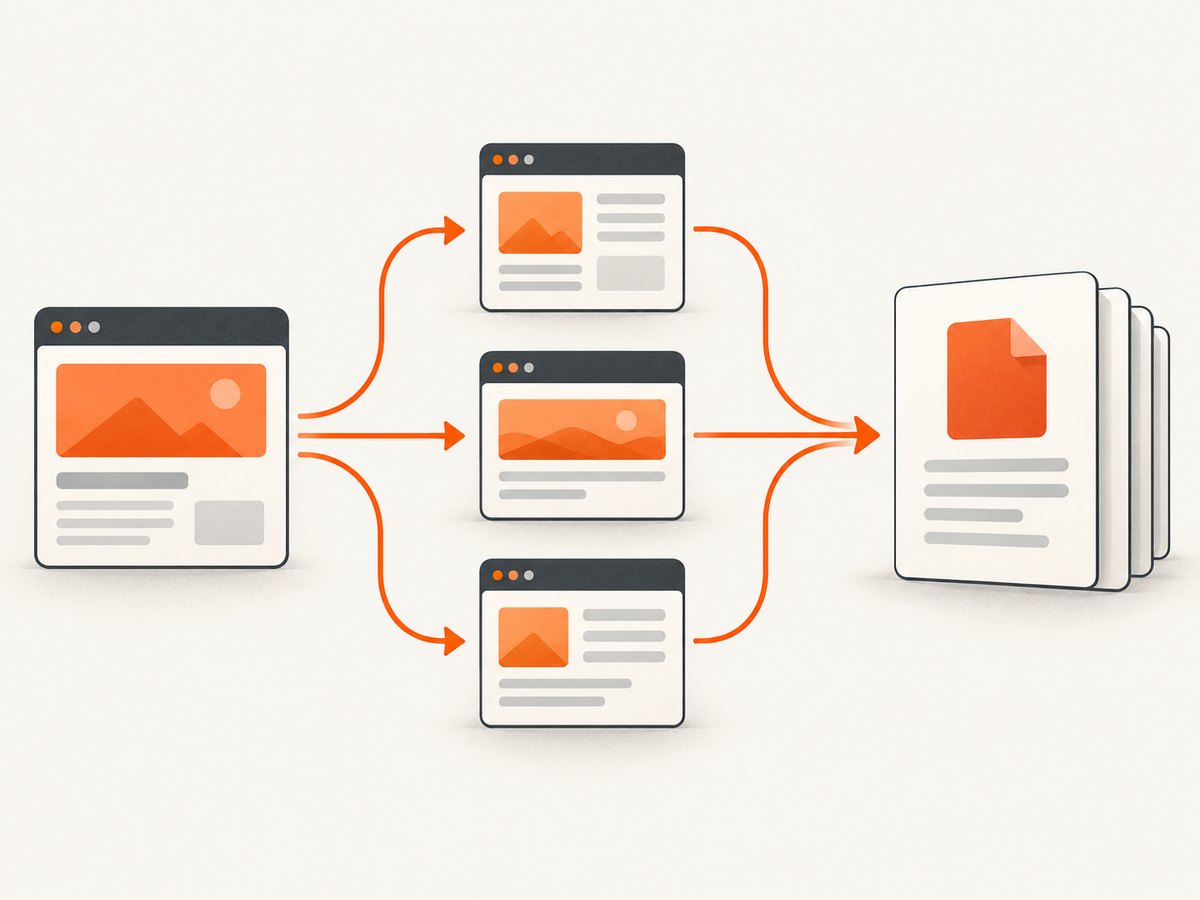
Acrobat desktop provides the documented workflow for capturing multiple levels of a website. Adobe’s instructions describe a Web Page conversion that can include a chosen number of levels or Get entire site, with controls to stay on the same path and/or server. Adobe’s page was updated September 23, 2025. See Adobe’s web-page conversion documentation for the current interface.
Step-by-step
- Open Adobe Acrobat desktop.
- Choose Create, then Web Page.
- Enter the starting URL, or select a local HTML file.
- Select Capture multiple levels.
- Choose a number of levels, or choose Get entire site.
- For a bounded capture, enable Stay on same path to keep subordinate URLs under the starting path.
- Enable Stay on same server to exclude links that leave the starting server.
- Review advanced conversion settings, then select Create.
How crawl depth works
The starting URL is the first level. Links found on that page lead to the next level, and links on those pages lead to later levels. A shallow depth is useful for a landing page and its immediate documentation links. A deeper capture may include navigation archives, tag pages, or dynamically generated URLs. “Get entire site” should be treated as an open-ended scope request: use the same-path and same-server restrictions to reduce accidental expansion.
Scope checklist before you start
- Confirm the starting URL uses the canonical host (for example,
wwwversus the apex domain). - Decide whether subdirectories belong in the output.
- Decide whether subdomains are part of the project.
- Exclude external domains unless you intentionally want them.
- Check whether navigation creates calendar, search, or filter URLs that can multiply pages.
- Confirm that you have permission to archive the material.
- Expect login-only, paywalled, or consent-gated pages to require additional access or fail to render.
Save the current page as a PDF with Chrome
Chrome’s official print workflow is for the item currently open: a page, image, or file. It does not describe following links to crawl an entire website. On desktop, open the page and choose File > Print, or press Ctrl+P on Windows/Linux or Command+P on macOS. Select the PDF destination, adjust settings, and save. See Google Chrome Help for the current print instructions.
Desktop settings that affect the result
- Destination: choose the system PDF printer or “Save to PDF,” depending on your platform.
- Pages: print all pages or a selected range of the rendered document.
- Layout: portrait is usually better for articles; landscape can preserve wide tables.
- Paper size: choose the size your readers will use.
- Margins: default margins are safer; minimum margins can clip content.
- Scale: reduce scale when wide content is cut off.
- Background graphics: enable this when colors, diagrams, or shaded table cells are part of the content.
- Headers and footers: disable them for a clean document, or keep them when the URL and date are useful provenance.
Android
Open the page, choose More > Share > Print, select Save as PDF, choose a destination, and save. This is still a single-page print operation, not a linked-site crawl.
When HTTrack is the better deliverable
Use HTTrack when the requirement is “let me browse this website offline.” It copies a website to disk, downloads permitted resources, and rewrites links for local browsing. Its graphical and command-line interfaces can resume an interrupted download or update an existing mirror. The command-line documentation says robots.txt is obeyed by default; do not configure a mirror to bypass site restrictions.
An offline mirror is useful for internal reference, travel, or preservation workflows where navigation matters. It is not a paginated PDF. If a stakeholder specifically needs a printable, searchable document, capture the relevant pages as PDFs after defining the scope.
Automated PDF capture with ScreenshotNeo
If you need repeatable captures from code, ScreenshotNeo is a website screenshot API and MCP server. A GET request can return a PNG, JPEG, WebP, or PDF. It supports full-page capture with lazy images loaded, PDF paper size, margins, landscape mode, and page ranges. You can also wait for a selector, a delay, or network idle; run custom JavaScript; set cookies and headers; choose a timezone or geolocation; block resource types; hide selectors; and cache a result with a TTL you choose. See the ScreenshotNeo API documentation for parameter names and response details.
cURL
curl -G "https://api.screenshotneo.com/v1/shot" \
  -d access_key=YOUR_API_KEY \
  --data-urlencode url=https://stripe.com \
  -o shot.webp
The example saves the response as WebP. Use the PDF options documented by ScreenshotNeo when your output must be a PDF, and provide the target URL you want captured.
Python
import requests

r = requests.get(
    "https://api.screenshotneo.com/v1/shot",
    params={"access_key": "YOUR_API_KEY", "url": "https://stripe.com"},
    timeout=90,
)
r.raise_for_status()
open("shot.webp", "wb").write(r.content)
Node.js
const q = new URLSearchParams({
  access_key: 'YOUR_API_KEY',
  url: 'https://stripe.com'
});
const res = await fetch(`https://api.screenshotneo.com/v1/shot?${q}`);
if (!res.ok) throw new Error(`HTTP ${res.status}`);
const buffer = Buffer.from(await res.arrayBuffer());
require('fs').writeFileSync('shot.webp', buffer);
Cleaning and reliability features
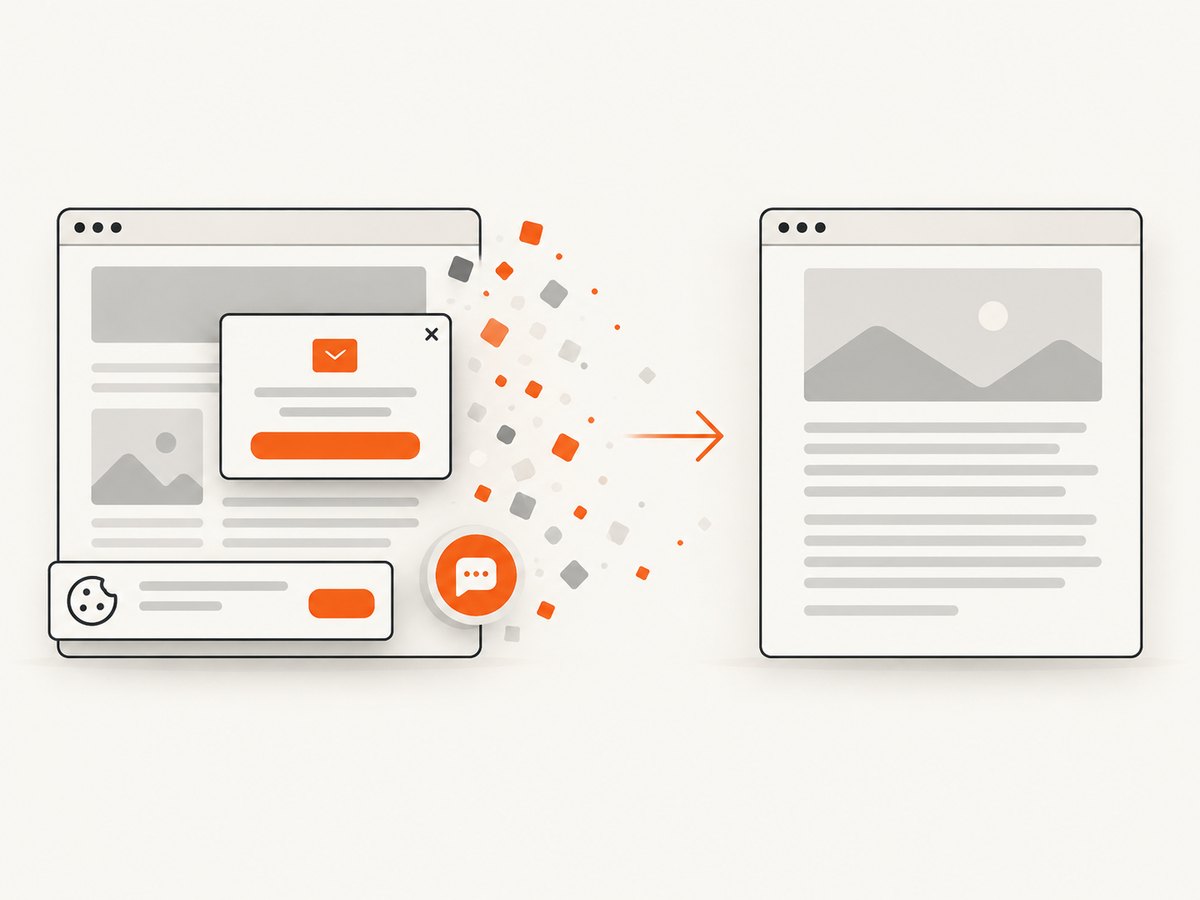
ScreenshotNeo accepts cookie and consent banners like a visitor, then removes more than 60 known consent platforms, newsletter popups, and chat widgets before capture. Each step can be turned off. Responses include X-Page-Verdict and X-Billed headers. Bot checks or CAPTCHAs, blank pages, timeouts, failed loads, and cache hits cost nothing, and the response identifies which case occurred.
For a multi-page project, call the API once per URL from your own queue, or use bulk capture for up to 100 URLs per call. Async jobs with signed webhooks are useful when rendering takes longer than a request timeout. Signed links let you place public images in <img> tags without exposing your access key. An MCP server provides take_screenshot, get_page_info, and capture_pdf tools for Claude, Cursor, and other MCP clients.
Common problems and fixes
| Symptom | Likely cause | Fix |
|---|---|---|
| Only one page appears | You used browser print | Use Acrobat’s multiple-level capture, or collect URLs and automate individual captures. |
| The capture includes unrelated sections | Crawl scope is too broad | Lower the level count and enable same-path and same-server restrictions. |
| Navigation links are missing | The output is a PDF, not a site mirror | Use HTTrack when offline browsing and working links are required. |
| Images or colors disappear in Chrome | Background graphics are disabled or assets have not loaded | Enable background graphics, wait for the page to finish loading, then print again. |
| Wide tables are clipped | Portrait layout, large scale, or narrow margins | Try landscape, reduce scale, or choose a wider paper size. |
| Acrobat captures too much | “Get entire site” follows many links | Use a fixed depth and same-path/server controls; exclude search and calendar paths where possible. |
| ScreenshotNeo returns a bot verdict | The target presents a bot check or CAPTCHA | Do not treat the body as a normal document; inspect X-Page-Verdict and resolve access with the site owner. |
| ScreenshotNeo times out | The page is slow, blocked, or waiting on resources | Use a selector, delay, or network-idle wait deliberately; consider an async job and inspect the verdict header. |
| Authenticated content is blank | The capture has no session | Pass the required cookies, custom headers, user agent, or Authorization value. |
Performance, reliability, and cost planning
For desktop tools, page count, asset size, JavaScript execution, and network speed determine processing time. Start with a small scope and inspect the output before requesting an entire site. Save intermediate files so an interrupted run does not force you to repeat every page.
For automated capture, process URLs with a bounded queue, set an explicit request timeout, and record the URL, status, verdict, and output path. Use caching for pages that do not change frequently. Use bulk capture for groups of known URLs and async jobs for long-running PDF renders. Avoid treating a successful HTTP response as proof that the page is usable; check the response headers and verify that the file is non-empty.
ScreenshotNeo includes 1,000 shots per month free with no card. Paid plans are Starter $5 for 3,000 shots, Growth $15 for 15,000, Pro $39 for 60,000, Scale $99 for 250,000, and Business $249 for 1,000,000; yearly billing gives two months free. Every feature is on every plan. Only clean shots are billed, while failed loads, blank pages, bot checks, timeouts, and cache hits are not billed.
Or skip the browser setup
Use ScreenshotNeo when you want a clean, repeatable capture without installing a browser or maintaining a crawler. Cookie banners, newsletter popups, and chat widgets are removed before the shot. Bot checks, blank pages, and failed loads are never billed. An MCP server lets AI agents take screenshots. You get 1,000 screenshots a month free with no card, and paid plans start at $5 for 3,000. Create a free ScreenshotNeo account.
FAQ
Can Chrome convert every page on a domain?
Chrome’s documented print flow saves the currently open page. It does not provide a site crawl. Use Acrobat’s multi-level Web Page capture or an automated URL list instead.
Is “Get entire site” safe for a large production domain?
It can include more material than intended. Restrict the same path and server, choose a bounded depth when possible, and review generated URLs before a large run.
Should I choose a PDF or an offline mirror?
Choose PDF for a fixed, shareable document. Choose HTTrack when readers need to follow links and browse without an internet connection.
Can a PDF preserve interactive website behavior?
No. A PDF records rendered content and links that the converter preserves; it does not retain the full application behavior of a JavaScript website.
How do I capture a private page?
Use a tool that can receive the page’s authentication context. ScreenshotNeo supports custom headers, cookies, user agents, and Authorization values. Do not publish credentials in client-side code or public URLs.
What should I do when the site changes during capture?
Record the capture date, starting URL, scope, and tool settings. For repeatability, use stable URLs, caching where appropriate, and a queued automated workflow that logs each result.


