How to Convert YouTube Thumbnail Sizes
Convert any image to the right YouTube thumbnail size without stretching, with crop, padding, export, upload, and automation instructions.
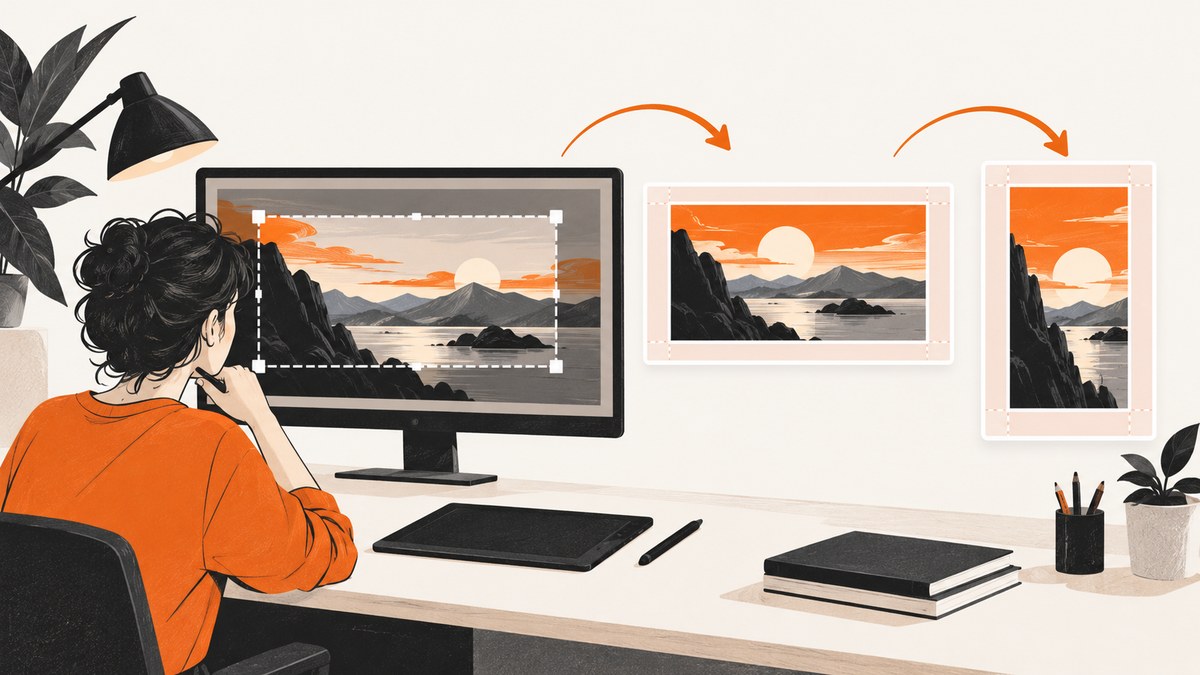
For a standard YouTube video, use a 16:9 canvas. YouTube Help currently recommends 3840 × 2160 pixels; 1280 × 720 remains a practical working size and the YouTube Data API’s usual maxres size. For a YouTube Short, use 9:16: YouTube recommends 2160 × 3840 pixels. Preserve the source aspect ratio, then choose a crop or padding strategy. Never stretch width and height independently unless distortion is intentional.
YouTube recommends JPG or PNG. Video thumbnails have a stated file-size ceiling of 2 MB on mobile and 50 MB on desktop; Shorts and podcast limits can vary by device or category. Check the applicable limit before uploading.
Choose the target size first
| Use case | Ratio | Recommended canvas | Practical working canvas | Minimum |
|---|---|---|---|---|
| Standard video | 16:9 | 3840 × 2160 | 1280 × 720 | 640 px wide |
| Short | 9:16 | 2160 × 3840 | Use the recommended portrait canvas or a smaller 9:16 export | 640 px high |
These dimensions and format requirements come from YouTube Help. The 1280 × 720 value is also documented in Google’s YouTube playbook and appears as the usual maxres thumbnail size in the YouTube Data API documentation.
Crop or contain: the decision that controls the result
Crop (cover)
Crop when the image should fill the complete thumbnail and trimming the edges is acceptable. Scale until both canvas dimensions are covered, then remove the overflow from the sides or top and bottom. This produces an edge-to-edge composition.
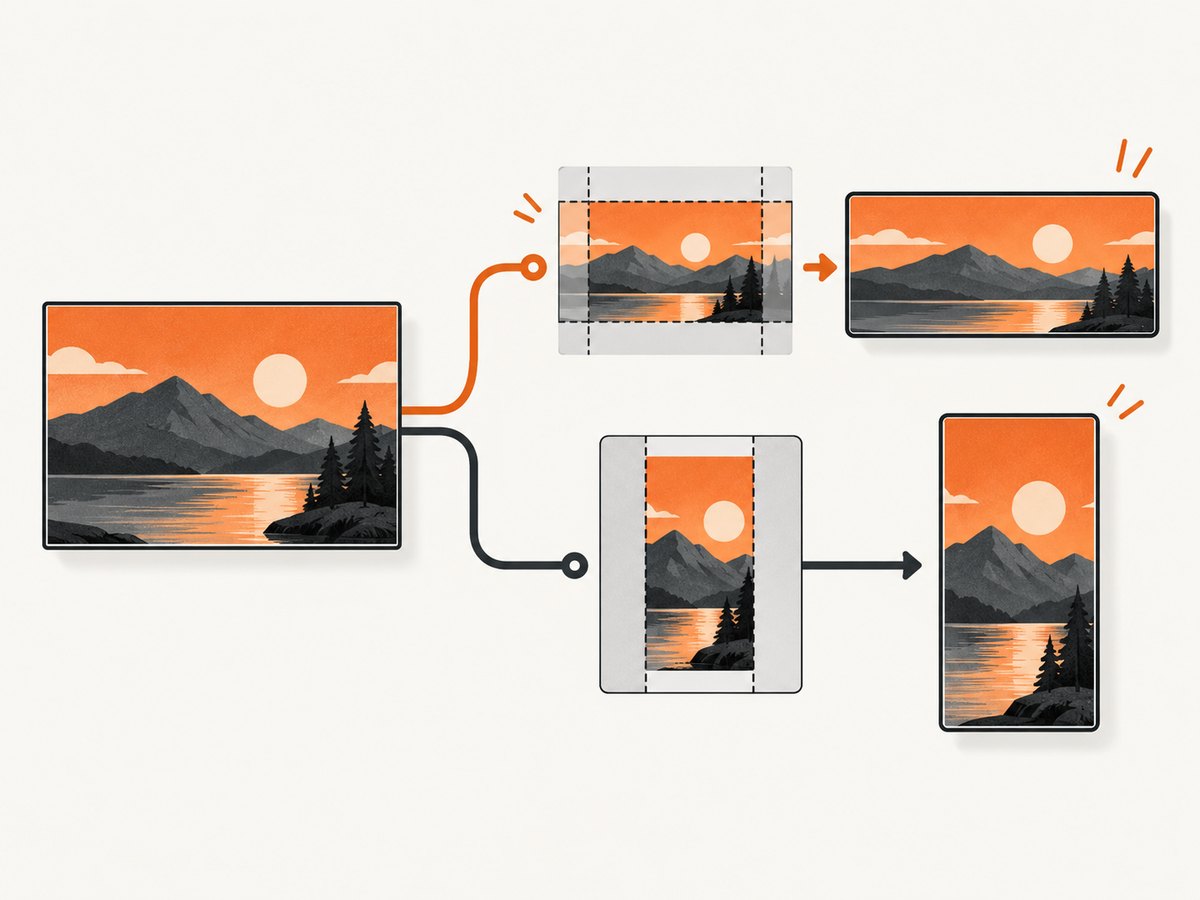
Contain (pad)
Contain when the entire source must remain visible. Scale until the image fits inside the target canvas, then fill the unused area with a solid color, gradient, or designed background. This prevents lost faces, logos, or product details but creates borders.
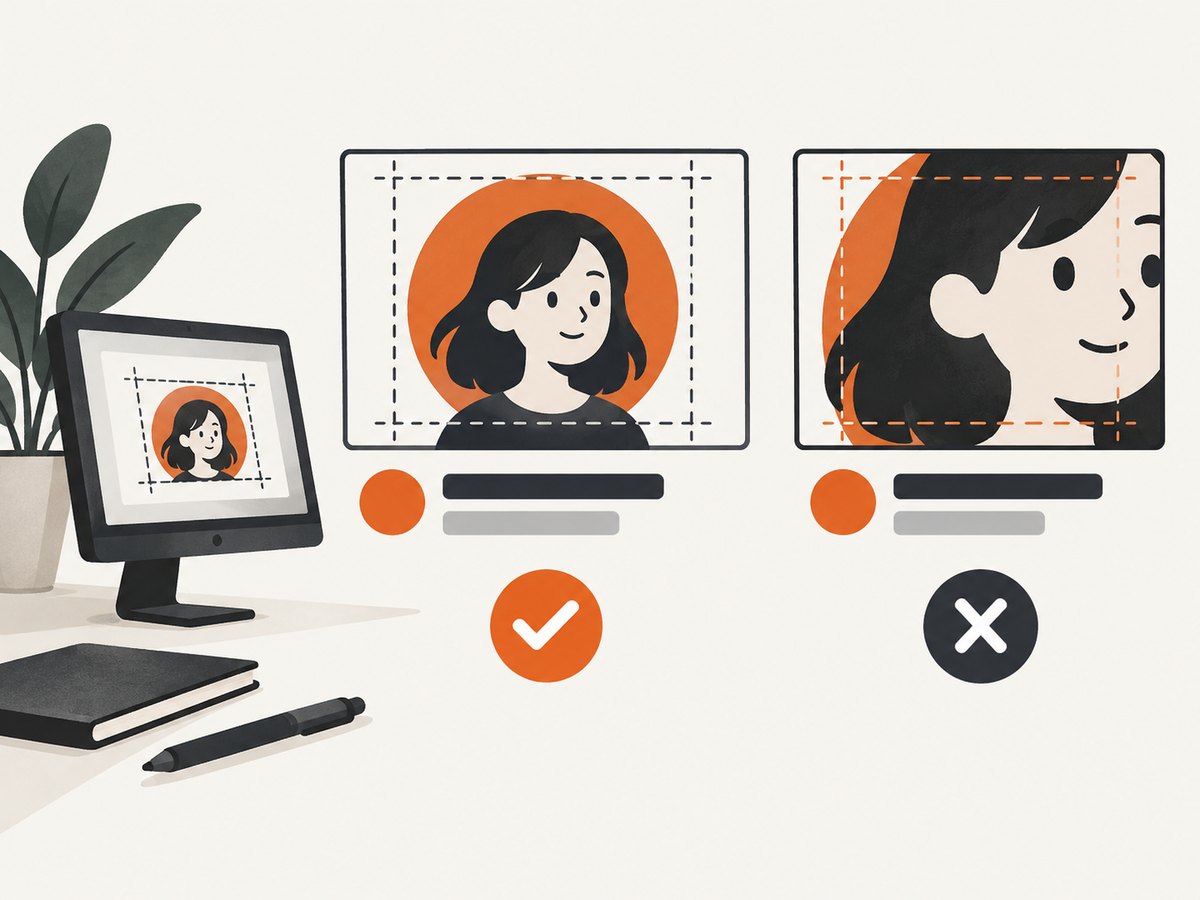
Keep the important subject near the center safe area. Preview at the small size viewers will actually see. This is an editorial quality check, not a published performance guarantee.
Conversion math
For a source width W and height H:
- 16:9 target ratio =
1.777…. - 9:16 target ratio =
0.5625. - Contain scale =
min(target_width / W, target_height / H). - Cover scale =
max(target_width / W, target_height / H).
Example: 1920 × 1080 to 1280 × 720 scales by 1280 / 1920 = 2/3, producing exactly 1280 × 720. A 1080 × 1080 square converted to 1280 × 720 with cover becomes 1280 × 1280 before cropping 560 pixels vertically in total. With contain, it becomes 720 × 720 and leaves 560 pixels of horizontal padding in total.
Convert a thumbnail with Python
This script uses Pillow, preserves the aspect ratio, and supports either cover cropping or contain padding.
from PIL import Image, ImageOps
import argparse

parser = argparse.ArgumentParser()
parser.add_argument("source")
parser.add_argument("output")
parser.add_argument("--width", type=int, required=True)
parser.add_argument("--height", type=int, required=True)
parser.add_argument("--mode", choices=["cover", "contain"], default="cover")
parser.add_argument("--background", default="#111111")
args = parser.parse_args()

image = Image.open(args.source).convert("RGB")
target = (args.width, args.height)

if args.mode == "cover":
    result = ImageOps.fit(image, target, method=Image.Resampling.LANCZOS, centering=(0.5, 0.5))
else:
    result = ImageOps.contain(image, target, method=Image.Resampling.LANCZOS)
    canvas = Image.new("RGB", target, args.background)
    left = (args.width - result.width) // 2
    top = (args.height - result.height) // 2
    canvas.paste(result, (left, top))
    result = canvas

result.save(args.output, quality=90, optimize=True)
Install the dependency with python -m pip install pillow. Example commands:
python convert_thumbnail.py source.jpg video.webp --width 1280 --height 720 --mode cover
python convert_thumbnail.py source.png short.jpg --width 2160 --height 3840 --mode contain --background "#202020"
Use JPG for photographic artwork when file size matters. Use PNG when sharp text, flat graphics, or transparency is important. If the result is over the applicable limit, lower JPG quality modestly, simplify effects, or export at 1280 × 720 while keeping 16:9.
Convert with ImageMagick
# Cover crop to a 16:9 video thumbnail
magick source.jpg -resize '1280x720^' -gravity center -extent 1280x720 -strip -quality 90 video.jpg

# Contain with padding
magick source.jpg -resize '1280x720' -gravity center -background '#111111' -extent 1280x720 -strip -quality 90 video-padded.jpg

# Cover crop to a 9:16 Short thumbnail
magick source.jpg -resize '2160x3840^' -gravity center -extent 2160x3840 -strip -quality 90 short.jpg
Convert with JavaScript and Sharp
import sharp from 'sharp';

const source = process.argv[2];
const output = process.argv[3];
const width = Number(process.argv[4]);
const height = Number(process.argv[5]);
const mode = process.argv[6] || 'cover';

if (!source || !output || !width || !height) {
  throw new Error('Usage: node convert.mjs input output width height [cover|contain]');
}

const fit = mode === 'contain' ? 'contain' : 'cover';
const options = { width, height, fit, position: 'centre' };
if (fit === 'contain') options.background = { r: 17, g: 17, b: 17, alpha: 1 };

await sharp(source).resize(options).jpeg({ quality: 90, mozjpeg: true }).toFile(output);
npm install sharp
node convert.mjs source.jpg video.jpg 1280 720 cover
node convert.mjs source.jpg short.jpg 2160 3840 contain
Automate conversion with cURL, Python, or Node.js
If your workflow receives an image URL, download it first, then pass the local file to one of the converters above. Keep URL validation, timeouts, and maximum input sizes in your own service so an unexpected remote file cannot consume unlimited memory.
curl -L --fail --max-time 30 "https://example.com/source.jpg" -o source.jpg
python convert_thumbnail.py source.jpg video.jpg --width 1280 --height 720 --mode cover
import io
import requests
from PIL import Image, ImageOps

source_url = "https://example.com/source.jpg"
r = requests.get(source_url, timeout=30)
r.raise_for_status()
image = Image.open(io.BytesIO(r.content)).convert("RGB")
result = ImageOps.fit(image, (1280, 720), method=Image.Resampling.LANCZOS)
result.save("video.jpg", quality=90, optimize=True)
const response = await fetch('https://example.com/source.jpg');
if (!response.ok) throw new Error(`Download failed: ${response.status}`);
const buffer = Buffer.from(await response.arrayBuffer());
await sharp(buffer).resize({ width: 1280, height: 720, fit: 'cover' }).jpeg({ quality: 90 }).toFile('video.jpg');
Account for YouTube’s processing
The Data API documents thumbnail variants such as 120 × 90, 320 × 180, 480 × 360, 640 × 480, and 1280 × 720. If an uploaded image does not match required dimensions, YouTube resizes it without changing its aspect ratio; black bars may be added. Designing the crop or padding yourself gives you control over that result.
In YouTube Studio, open the video’s thumbnail control, upload the converted JPG or PNG, and save. Custom thumbnails require a verified account. Shorts custom thumbnails are currently added in Studio on a computer. YouTube may take time to show a change, and the image must follow its Community Guidelines.
Edge cases and quality checklist
- Square source: use cover only if trimming is acceptable; otherwise contain with a deliberate background.
- Very wide source: cover may remove the top and bottom; inspect faces and text before export.
- Very tall source: cover may remove the sides; use contain or redesign the composition.
- Transparent PNG: flatten onto a background for JPG, or keep PNG if transparency is required by your workflow.
- Small source: enlarging cannot restore detail. Start with the largest original available.
- Text near edges: move it inward before cropping; do not rely on YouTube to preserve it.
- Color shifts: convert to sRGB before export when your editor uses a wider color profile.
- File too large: reduce JPG quality in small steps, remove metadata, or use the 1280 × 720 working size.
Troubleshooting
| Problem | Cause | Fix |
|---|---|---|
| Faces or logos are cut off | Cover crop is centered on the wrong point | Change the crop focal point or use contain padding. |
| Image looks stretched | Width and height were scaled independently | Use a ratio-preserving cover or contain operation. |
| Black bars appear after upload | The uploaded ratio differs from the target | Export at 16:9 for videos or 9:16 for Shorts and control padding yourself. |
| Upload is rejected for size | File exceeds the device or category limit | Export JPG, lower quality modestly, simplify effects, or use 1280 × 720. |
| Text is blurry | Source was too small or repeatedly recompressed | Use a larger original, add text after resizing, and export once. |
| Short thumbnail is sideways | Orientation metadata was ignored | Auto-orient before resizing and verify the pixel dimensions are portrait. |
| Custom thumbnail option is missing | Account is not verified or Studio context is wrong | Verify the account; add Shorts custom thumbnails from Studio on a computer. |
Performance, reliability, and cost notes
- Resize once from the highest-quality source and cache the output by source hash plus target dimensions and mode.
- For batch jobs, process images in bounded workers so large originals do not exhaust memory.
- Use streaming downloads and enforce a maximum response size before decoding remote images.
- Keep the original source so you can regenerate 16:9 and 9:16 variants when the design changes.
- Do not assume one export size fits every device limit; validate the final byte size before upload.
- There is no universal click-through advantage established here for crop, padding, JPG, PNG, 3840 × 2160, or 1280 × 720. Choose based on composition, sharpness, and file-size requirements.
Or skip the browser setup
If your thumbnail or preview is rendered as a web page, ScreenshotNeo can capture that page with one request. It is useful for generating a review image of a converted thumbnail, a social preview, or a batch of hosted designs without maintaining Playwright or Puppeteer.
Before capture, ScreenshotNeo accepts cookie or consent banners and removes more than 60 known consent platforms, newsletter popups, and chat widgets; each step can be turned off. Bot checks, blank pages, timeouts, failed loads, and cache hits are not billed, and the response identifies the result with X-Page-Verdict and X-Billed headers. Its MCP server provides take_screenshot, get_page_info, and capture_pdf tools for Claude, Cursor, and other MCP clients.
See the ScreenshotNeo documentation for all capture options.
curl -G "https://api.screenshotneo.com/v1/shot" -d access_key=YOUR_API_KEY --data-urlencode url=https://stripe.com -o shot.webpimport requests
r = requests.get("https://api.screenshotneo.com/v1/shot", params={"access_key": "YOUR_API_KEY", "url": "https://stripe.com"}, timeout=90)
open("shot.webp", "wb").write(r.content)const q = new URLSearchParams({ access_key: 'YOUR_API_KEY', url: 'https://stripe.com' });
const res = await fetch(`https://api.screenshotneo.com/v1/shot?${q}`);ScreenshotNeo includes 1,000 screenshots a month free with no card; paid plans start at $5 for 3,000 shots. Create a free ScreenshotNeo account.
FAQ
Is 1280 × 720 still valid?
Yes. It is a practical 16:9 working size and the usual API maxres size. Use 3840 × 2160 when you want the larger recommended source canvas.
Should a Short thumbnail be landscape?
No. Use a 9:16 portrait canvas, such as 2160 × 3840.
Should I always crop?
No. Crop for full bleed; contain with padding when preserving the entire subject matters more.
Does PNG always look better than JPG?
No. PNG is useful for sharp text, flat graphics, and transparency. JPG is usually smaller for photographic artwork.
Can YouTube add bars after upload?
Yes. If the uploaded ratio does not match the required dimensions, YouTube can resize without changing the aspect ratio and may add black bars.


