How to Convert a YouTube URL to a PDF
Turn a YouTube video's transcript into a PDF using Show transcript, a document editor, or the browser print dialog.
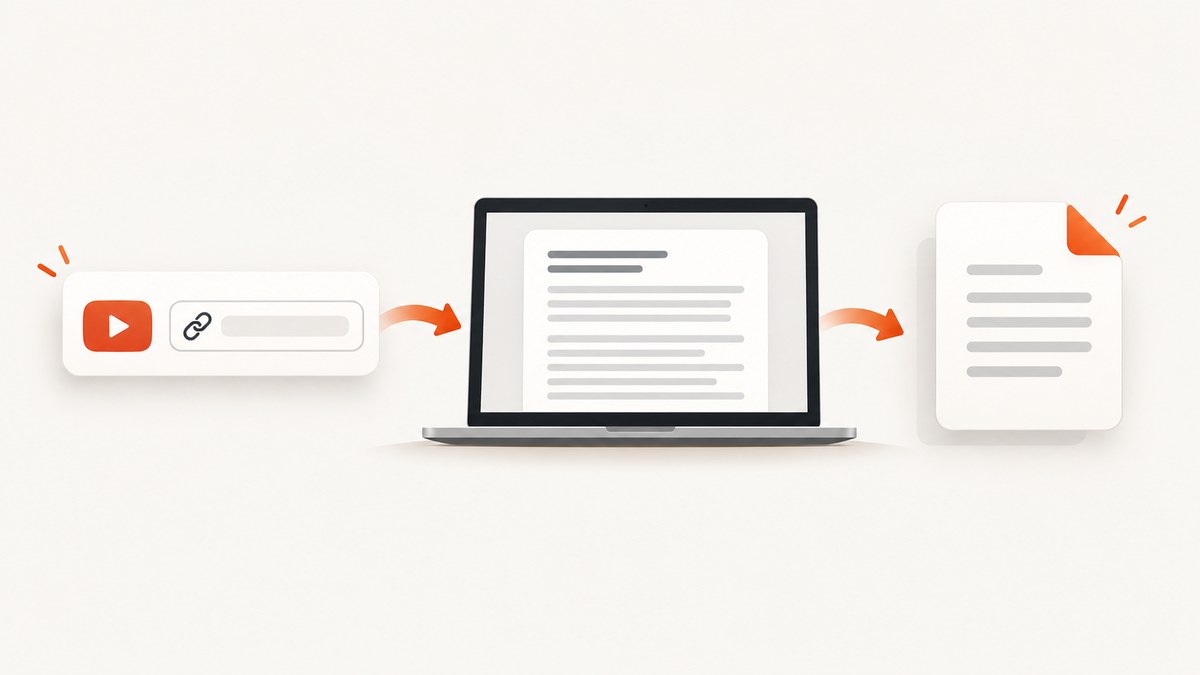
Short answer: YouTube does not provide a universal “convert URL to PDF” button for ordinary viewers. If the video has captions, open Show transcript, copy the transcript into a document editor, and export or print that document as a PDF. The transcript contains spoken text; it does not automatically include the video’s slides, demonstrations, or other visuals.
1. Check whether the video has a transcript
YouTube says you can view the full transcript of any video that has captions. Open the video URL, expand the description, and look for Show transcript. If the option is missing, captions may not be available for that video, language, or account context. YouTube’s transcript help explains where viewers can find it.
- Open the YouTube URL in a browser.
- Expand the video description.
- Select Show transcript.
- Choose a language or caption track if YouTube offers one.
- Scroll through the transcript and check that the text covers the part you need.
2. Copy the transcript into a document
Select the transcript text exposed by the YouTube interface and copy it into Google Docs, Microsoft Word, LibreOffice Writer, or another editor that can export PDF.
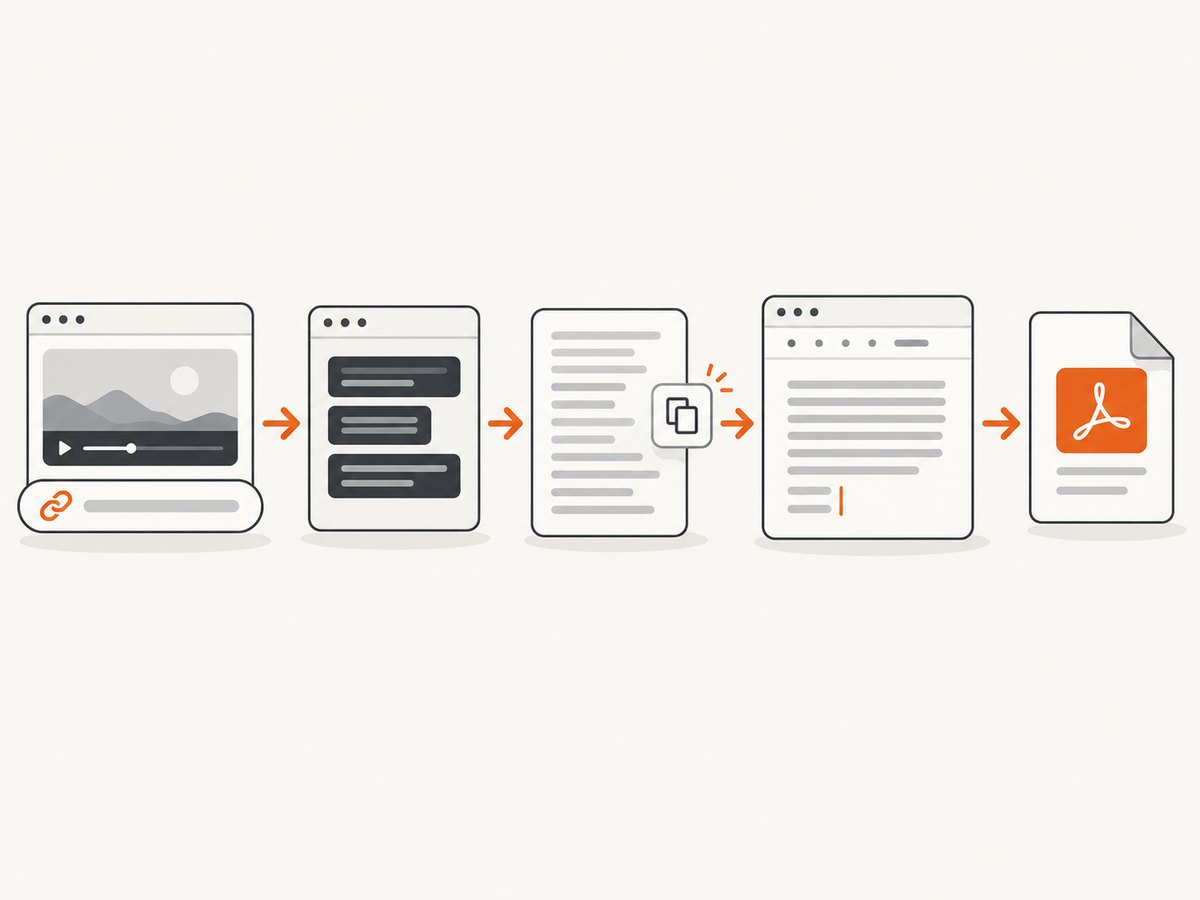
Keep a source note at the top or bottom of the document:
Video title: [title]
YouTube URL: https://www.youtube.com/watch?v=VIDEO_ID
Retrieved: 2026-10-01
Caption language: [language]
If the transcript includes timestamps, keep them when you need to locate statements in the video. For a shorter PDF, copy only the relevant passage and record the start and end timestamps.
3. Export or print the document as PDF
Using a document editor
- Google Docs: choose File → Download → PDF Document (.pdf).
- Microsoft Word: choose File → Save As or Export, then select PDF.
- LibreOffice Writer: choose File → Export as PDF.
Using the browser print dialog
- Open the transcript or your prepared document.
- Press Ctrl+P on Windows/Linux or Command+P on macOS.
- Choose a PDF destination such as Save to PDF.
- Set the page size, margins, orientation, and page range.
- Save the file, then open it to check the result.
4. Clean up the PDF before sharing
Review the exported file instead of assuming the copy operation preserved everything correctly.
- Confirm that the title, URL, and caption language are present.
- Search the PDF for a sentence near the beginning, middle, and end.
- Look for duplicated lines, missing words, odd line breaks, and broken punctuation.
- Check accents, non-Latin scripts, and embedded fonts.
- Verify important quotations against the video and retain timestamps.
- Add page numbers or headings if the transcript is long.
5. What captions and transcripts can contain
A transcript is generated from the video’s caption track. Captions may be manually written, uploaded, or automatically generated. YouTube’s creator guidance says automatic transcription works best with clear sound, clear speech, and videos under an hour; it also warns that automatic captions can contain recognition errors. Treat the result as a navigation and note-taking aid, not a verified verbatim record. See YouTube’s caption guidance for the creator-side details.
Translated caption tracks are machine translations. Do not describe them as reviewed human translations, especially when the PDF will be used for legal, medical, academic, or customer-facing work.
6. When Show transcript is unavailable
No captions exist
If the video has no usable caption track, YouTube may not show a transcript. Ask the owner for captions or use a transcription tool that performs speech recognition, subject to the video’s rights, your privacy requirements, and the tool’s permissions.
The audio is difficult to recognize
Background music, multiple speakers, accents, poor microphones, and overlapping speech can produce errors. For important material, listen to the video while correcting the text and mark uncertain passages.
You need the video’s visuals
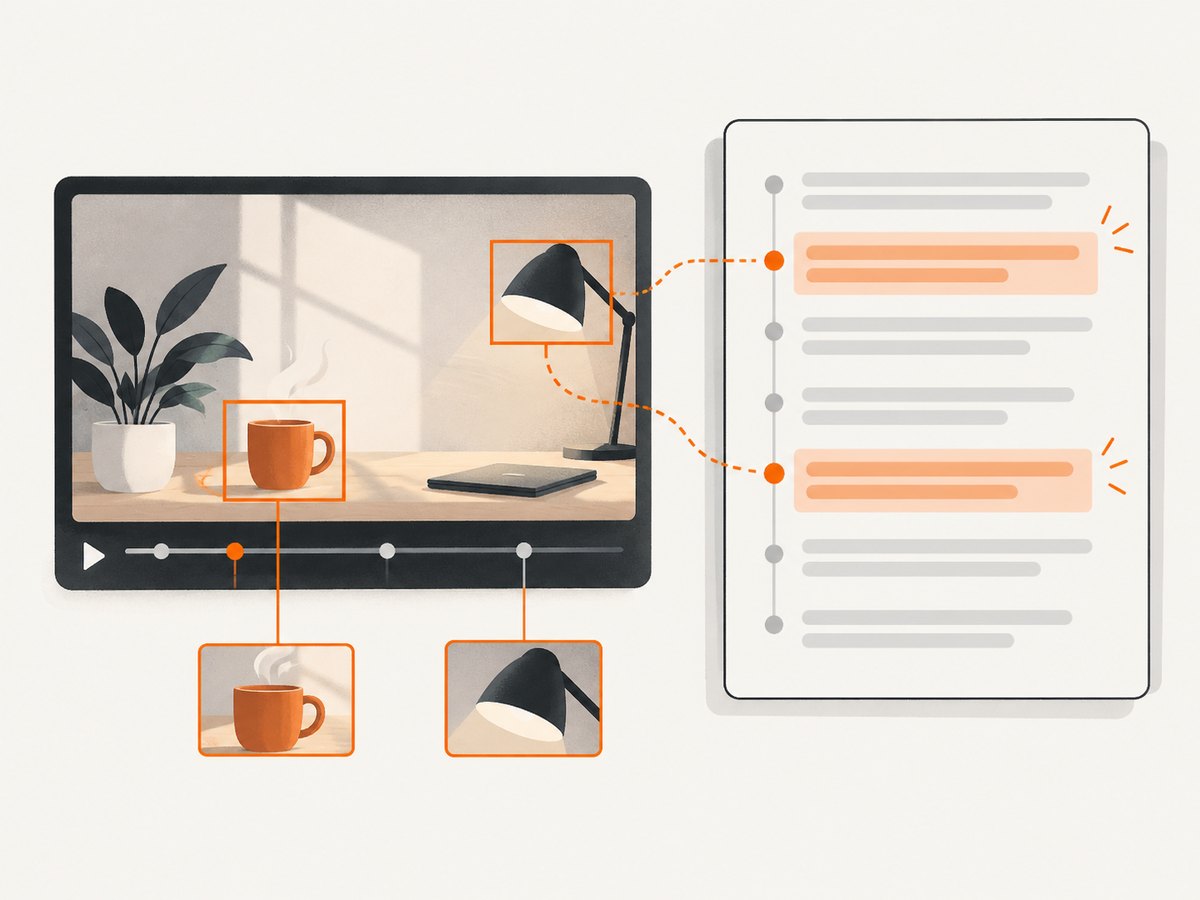
A transcript PDF contains text. It does not automatically preserve slides, charts, code demonstrations, or on-screen labels. Add timestamps and permitted screenshots, or create a separate visual handout.
You need a caption file through the API
YouTube’s official caption-download API is permissioned. The caller must be authorized and have permission to edit the video. It is not a method for ordinary viewers to download captions from any public URL. The documented caption formats include SBV, SCC, SRT, TTML, and VTT. Read the YouTube Data API caption-download documentation before building an owner-authorized workflow.
7. A repeatable manual workflow
- Store the original URL and retrieval date.
- Open Show transcript and select the required language.
- Copy the exposed transcript into a document.
- Normalize headings and remove interface-only text.
- Keep timestamps for every quotation or key section.
- Proofread names, numbers, code, and technical terms against the audio.
- Export to PDF and inspect the saved file.
- Share the PDF together with the original YouTube URL.
8. Troubleshooting
| Problem | Likely cause | Fix |
|---|---|---|
| There is no “Show transcript” option. | The video has no captions, captions are unavailable in the current context, or the interface has changed. | Try another caption language, confirm the video is public, ask the owner for captions, or use an authorized transcription workflow. |
| The transcript is incomplete. | Only a selected caption range was copied, or the page did not load all lines. | Scroll through the transcript, copy in sections, and compare the first and last timestamps with the video. |
| Words are wrong. | Automatic speech recognition misheard names, numbers, accents, or overlapping speech. | Listen to the relevant timestamp and correct the text manually. |
| Formatting disappears when pasted. | The browser copied plain text or hidden interface markup. | Paste without formatting, then add headings and timestamps in the document editor. |
| The PDF has blank pages or strange breaks. | Print CSS, page margins, or pasted line breaks created poor pagination. | Use the editor’s PDF export, adjust margins and font size, and inspect print preview before saving. |
| Characters show as boxes. | The PDF lacks a font covering the transcript’s script. | Choose a Unicode font that supports the language and confirm font embedding during export. |
| A translated transcript reads incorrectly. | The caption track is machine translated. | Use the original language when possible and have a qualified person review any important translation. |
| The PDF is expected to contain slides or demonstrations. | A transcript records speech, not all visual context. | Add permitted screenshots with timestamps or create a separate visual summary. |
9. Privacy, permissions, and reliability
Before sending a transcript to an extension or transcription service, review its permissions, supported languages, retention policy, and whether it uses existing captions or performs speech recognition. Avoid uploading private, copyrighted, or confidential material unless you have permission and the service’s handling meets your requirements.
For reliable records, keep the original URL, video title, caption language, retrieval date, and timestamps. Captions can change when the owner edits them, and automatic captions can be regenerated. A PDF is a snapshot of the text you reviewed at export time.
10. Performance and cost considerations
- The manual method costs nothing beyond the editor and time required to review the text.
- Long videos take longer to copy, format, and proofread.
- Copying in smaller sections can prevent browser selection failures on very long transcripts.
- Speech-recognition services may charge by audio duration; check their current pricing before uploading a large collection.
- Proofreading important passages usually takes longer than exporting the PDF itself.
Or skip the browser setup
ScreenshotNeo renders a URL through a website screenshot API and can capture pages as images or PDFs. It is useful when you need a visual PDF of a YouTube page or another web page; it does not replace caption review or turn speech into a verified transcript. See the ScreenshotNeo API documentation for PDF capture options.
curl -G "https://api.screenshotneo.com/v1/shot" -d access_key=YOUR_API_KEY --data-urlencode url=https://www.youtube.com/watch?v=VIDEO_ID -o shot.webpimport requests
r = requests.get("https://api.screenshotneo.com/v1/shot", params={"access_key": "YOUR_API_KEY", "url": "https://www.youtube.com/watch?v=VIDEO_ID"}, timeout=90)
open("shot.webp", "wb").write(r.content)const q = new URLSearchParams({ access_key: 'YOUR_API_KEY', url: 'https://www.youtube.com/watch?v=VIDEO_ID' });
const res = await fetch(`https://api.screenshotneo.com/v1/shot?${q}`);ScreenshotNeo removes cookie banners, newsletter popups, and chat widgets before the shot. Bot checks, blank pages, failed loads, timeouts, and cache hits are not billed, and response headers identify the page verdict and billing status. Its MCP server provides take_screenshot, get_page_info, and capture_pdf tools for Claude, Cursor, and other MCP clients. The Free plan includes 1,000 screenshots a month with no card; paid plans start at $5 for 3,000. Create a free ScreenshotNeo account.
FAQ
Can I convert a YouTube URL directly to a transcript PDF?
Not through a universal YouTube export button. Open Show transcript, copy the text, and export it from a document editor or print dialog.
Does every YouTube video have a transcript?
No. A transcript is available when YouTube has captions it can show. Missing captions, language availability, or access restrictions can prevent the option from appearing.
Can I download any video’s captions with the YouTube API?
No. The official caption-download method requires authorization and permission to edit the video.
Will the PDF include the video itself?
No. A transcript PDF contains text. Include timestamps or separately capture permitted visuals when the visual context matters.
Are automatic captions accurate enough for quotations?
They can contain recognition errors. Check important quotations against the video and preserve timestamps.