How to Convert YouTube Videos to PDF
Turn a YouTube transcript into a searchable, printable PDF with timestamps, source details, and a workflow for captions that need cleanup.
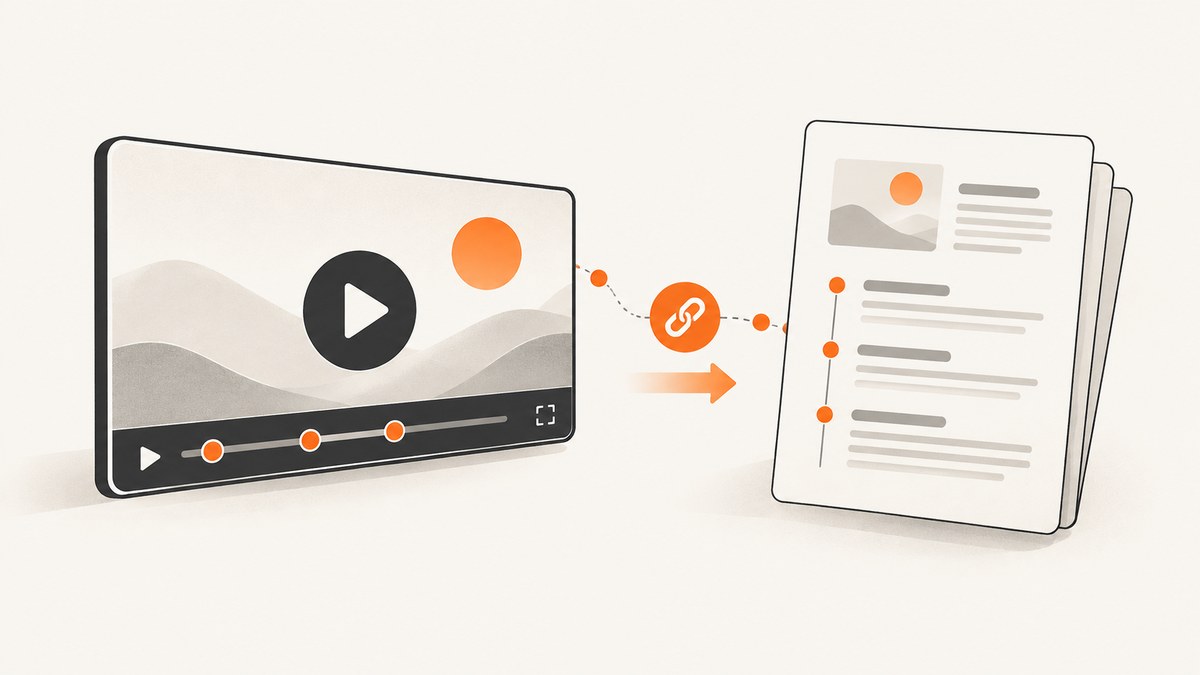
Direct answer: To convert a YouTube video to PDF, open the video’s transcript, copy its captions into a document editor, add the video’s title and source details, then export or print the document as a PDF. The result is searchable text of the spoken words, not a PDF made from video frames. This works when a transcript or caption track is available.
YouTube describes the transcript panel as a way to view the full caption text and jump to a point in the video by selecting a line. Captions are the practical source for a study, reference, or reading PDF; review them for errors before relying on important details. YouTube Help: View video transcripts
1. Make a transcript PDF manually
This method works in a browser and a word processor. It gives you control over the title, timestamp style, cleanup, and citations. No special product is required.
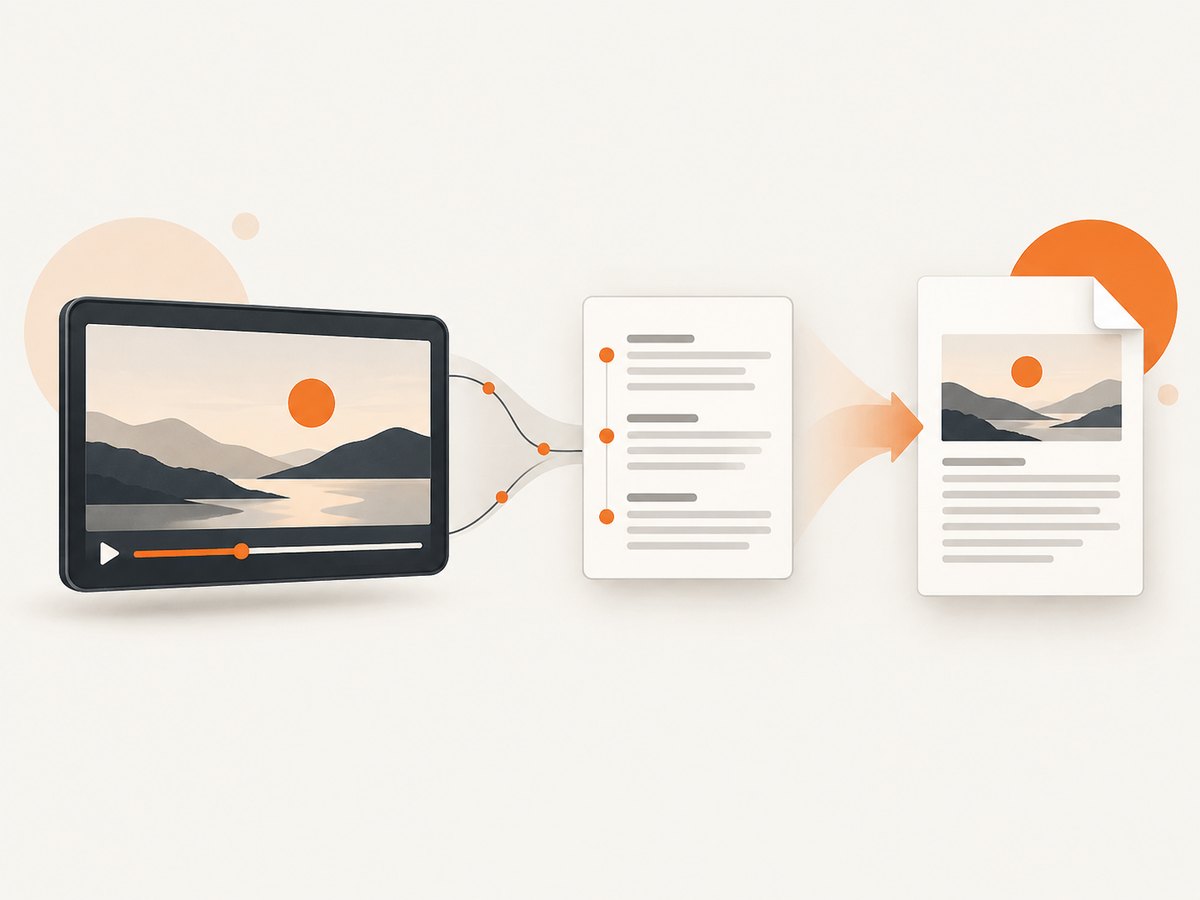
- Open the video. Copy its URL and note the channel name and the date you accessed it.
- Find the transcript. Expand the video description and select Show transcript if that option is available. The transcript panel shows caption text; selecting a line can take you to that point in the video. Interface labels or placement may vary.
- Choose whether to keep timestamps. Keep them for study, fact-checking, or citations so readers can return to the spoken passage. Remove them for a continuous reading document.
- Copy the text. Select the transcript and copy it. If the panel offers a timestamp display control, set it before copying. If copying selects the whole page or misses lines, try selecting within the transcript panel, or use the browser’s keyboard selection carefully.
- Paste into an editor. Use Google Docs, Microsoft Word, LibreOffice Writer, or another editor that can export or print to PDF.
- Add source information. Include the video title, channel, URL, access date, transcript language, and a note such as “Text transcribed from available captions.”
- Clean up the text. Repair paragraph breaks and obvious caption fragments. Check speaker labels, repeated words, names, figures, and technical terms against the video.
- Export to PDF. Choose the editor’s PDF download/export command, or use Print and select Save as PDF. Reopen the resulting file and check page breaks, links, timestamps, and non-Latin characters.
YouTube’s own guidance says transcript files can be prepared as plain text and notes that clear speech and good audio help transcription quality; its guidance says transcripts work best for videos under an hour. Caption quality varies, especially for automatic captions, so the PDF should not be treated as a verified verbatim record without review. YouTube Help: Tips for creating a transcript file
2. Format the PDF for its intended use
A transcript becomes easier to use when its layout matches the reason you saved it. Before exporting, decide whether readers need to follow along with the video or read the words without interruption.
| Use | Include | Formatting choice |
|---|---|---|
| Study notes | Title, channel, URL, access date, timestamps | Use headings for topic changes and leave timestamps visible. |
| Fact-checking or citation | All source details and timestamps near relevant passages | Preserve caption order; verify quotations against the video. |
| Continuous reading | Title, source link, language, caption note | Remove timestamps if they interrupt reading; add paragraph breaks conservatively. |
| Accessibility or language study | Transcript language and speaker labels where available | Check Unicode characters, punctuation, and line wrapping in the exported PDF. |
Keep the original wording distinct from your edits. If you correct a clear recognition error, mark that the transcript was edited, particularly when another person will cite or rely on the document. Captions can omit non-speech sounds, overlap, or speaker distinctions. A polished page does not make an incomplete caption track complete.
3. If “Show transcript” is missing
The transcript panel only helps when captions or a transcript are available to you. If the control does not appear, the video may not have captions, access may be restricted by the owner, or the YouTube interface may differ on your device or account. Try these checks:
- Open the video page in a desktop browser and inspect the expanded description and video controls.
- Check the captions/subtitles menu for available languages. A transcript may be available in one language but not another.
- Confirm that you are viewing the intended video and can play it. Restricted or private content may not expose the same controls.
- If no caption track is offered, a copied transcript cannot be complete. For content you own or are authorized to process, use an appropriate transcription workflow and review its output against the audio.
YouTube says caption files contain the text of what is said in a video. Its caption guidance also notes that automatic synchronization expects the transcript to match the dialogue language and is not recommended for videos over an hour or with poor audio. YouTube Help: Add subtitles and captions
Automatic captions may mishear names, numbers, accents, music, and overlapping speakers. Check critical passages by playing the video at the corresponding timestamp. If the available captions are incomplete, the PDF will be incomplete too.
4. Creator workflow: YouTube Data API
If you manage the channel and have permission to edit the video, the YouTube Data API has a captions download endpoint. Google documents that it can return a caption track in its original format or a requested format and language. The request requires OAuth authorization and permission to edit that video; it is not a general viewer download endpoint. YouTube Data API: captions.download
After obtaining an authorized caption file, inspect its format and timestamps, then import or convert the caption text into your document editor and export it as PDF. Preserve the language and timing information if they matter to the intended readers. The API route is useful for authorized creator workflows, while ordinary viewers should use the transcript exposed in the YouTube interface or another lawful method available to them.
5. Browser extensions and export tools
Some Chrome Web Store listings advertise transcript copying or PDF export. For example, listings describe Transcript to PDF for YouTube, Transcript Forge, and YT2PDF as offering combinations of transcript retrieval, print views, or file export. These are publisher descriptions, can change, and do not guarantee that a transcript exists or is accurate. Treat them as convenience options, not as official YouTube features.
Before installing any extension, check its current publisher, requested permissions, privacy policy, pricing, supported languages, and whether processing happens locally or on a service operated by its publisher. If transcript text is sensitive, manual copy and local editing avoids sending that text to an additional provider. For non-Latin scripts, make a sample export first and inspect font coverage and character order.
6. Troubleshooting
| Problem | Likely cause | What to do |
|---|---|---|
| “Show transcript” is absent | No accessible caption track, owner restrictions, or a changed interface. | Check the captions menu and try the video page in a desktop browser. If no track is available, use an authorized transcription route; do not assume the PDF can contain unavailable captions. |
| Transcript text is missing or cut off | Only part of the transcript was selected, or the panel did not load fully. | Scroll through the panel, copy in sections if necessary, and compare the beginning and end of the pasted text with the video. |
| Names, numbers, or technical terms are wrong | Automatic captions can misrecognize speech, especially with accents, noise, music, or overlapping speakers. | Use timestamps to replay each important passage and correct it. Mark substantive edits if the PDF will be shared as a reference. |
| PDF has no selectable or searchable text | The source was printed as images, or the export path rasterized the page. | Export from a word processor or a text-based document editor. Reopen the PDF and try selecting a sentence. |
| Timestamp formatting is inconsistent | Timestamp controls differed during copying, or timestamps were edited as ordinary text. | Choose one style before cleanup, then check several timestamps against the video. Preserve the original caption file if exact timing matters. |
| Characters appear as boxes or in the wrong order | The chosen font or PDF export does not handle the script correctly. | Use a font with the required glyphs, export again, and inspect the PDF in another viewer. Verify right-to-left text and punctuation separately. |
| Pages break in the middle of a useful section | Long unstructured text and default page layout. | Add headings or paragraph breaks, adjust margins and line spacing, then export again. Avoid editing the wording in ways that obscure the original sequence. |
7. Reliability, privacy, and rights
For a one-off transcript, manual copying is dependable when YouTube exposes a complete track and you verify the output. For repeated work, save the source URL, language, and access date alongside the PDF so the material can be traced back to its context. Captions may be changed or removed, so retaining those details helps readers identify which source they are consulting.
Consider where the transcript text goes. A local editor keeps the copied text within your chosen workflow; an extension or online converter may send it elsewhere, depending on how that product works. Review its privacy terms before processing private or sensitive material.
A transcript reproduces spoken content. Share or republish it only when you have the rights or permission to do so, or when applicable law and the content’s license allow it. Keep attribution and source details in the PDF, and do not suggest that a third-party extension is affiliated with YouTube unless its publisher establishes that relationship.
8. Or skip the browser setup
For a PDF of a YouTube transcript, use the transcript workflow above: ScreenshotNeo captures web pages as images or PDFs, but it does not turn spoken audio into transcript text. If your task also involves capturing a web page, ScreenshotNeo provides a one-request screenshot API and an MCP server for AI agents. Its API is not a YouTube transcript exporter.
Example: request a PDF of an accessible web page. The target below is a web page, not a YouTube transcript.
curl -G "https://api.screenshotneo.com/v1/shot" \
  -d access_key=YOUR_API_KEY \
  --data-urlencode url=https://stripe.com \
  -d format=pdf \
  -o page.pdf
See the ScreenshotNeo API documentation for request options. ScreenshotNeo removes cookie banners, popups, and chat widgets before capture; bot checks, blank pages, and failed loads are never billed; its MCP server lets AI agents take screenshots; and 1,000 screenshots a month are free with no card, with paid plans starting at $5 for 3,000. Sign up for 1,000 free screenshots a month, no card required.
FAQ
Does converting a YouTube video to PDF save the video?
No. The transcript method makes a text document from available captions. It does not include the moving video or necessarily every sound, visual, or on-screen word.
Can I keep timestamps?
Yes. Keep them when you need to locate a passage in the video or cite it. Remove them when you want uninterrupted reading, but retain the source URL.
Can I make a PDF if captions are unavailable?
Not from the YouTube transcript panel. You need an authorized transcription method to create text from the audio, then you can format and export that text as a PDF.
Is the YouTube Data API available to any viewer?
No. The documented captions download endpoint requires OAuth and permission to edit the video, so it is intended for authorized channel workflows.
Will an automatic transcript be word-for-word accurate?
There is no guarantee. Review important names, figures, and quotations against the video, especially when captions are automatic or the audio is unclear.


