How to Convert YouTube Videos to GIF
Convert an authorized YouTube video into a compact GIF: download your own source, trim it, tune FPS and width, and avoid common copyright and quality traps.
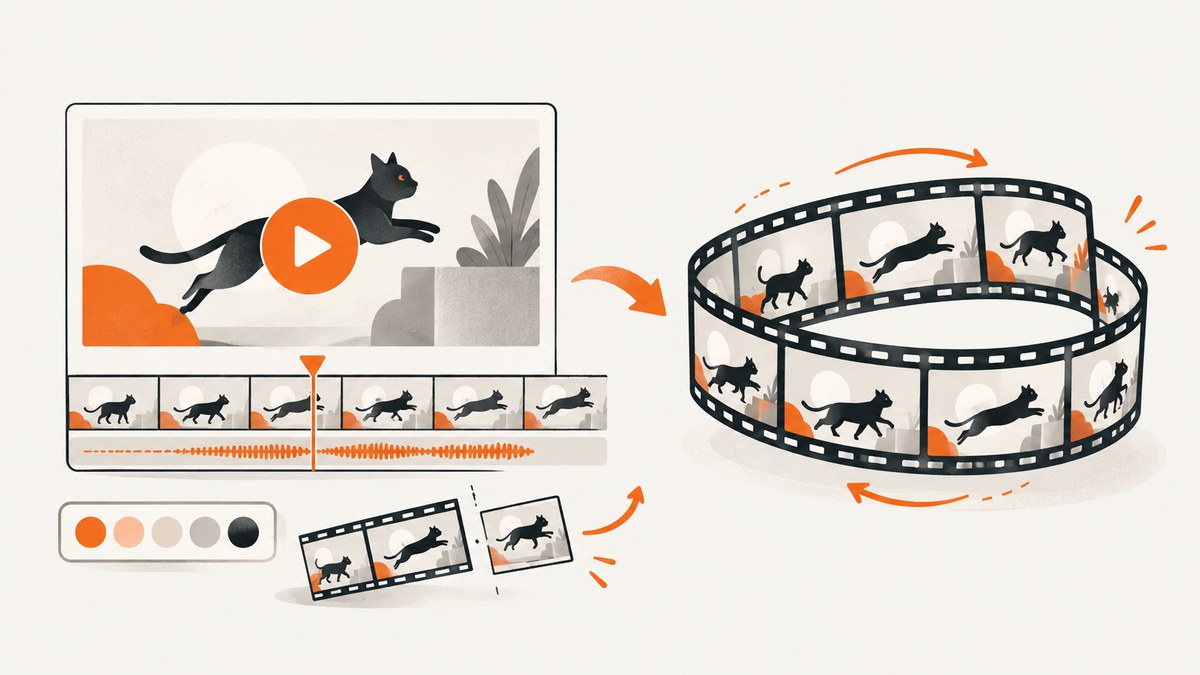
Short answer: use a video file you own or are authorized to use, trim it to a brief segment, then convert it with a video-to-GIF tool. Set the start and end times, choose a practical width and frame rate, export, and inspect the result for motion, color and file size. YouTube documents a download route for videos you uploaded yourself; it does not provide that route for downloading other users’ videos.
1. Check that you can use the source
Start with rights, because a technically successful GIF can still be an unauthorized copy. YouTube Help says a signed-in creator can download their own uploads from YouTube Studio, or use Google Takeout to download all of their uploaded videos. The Studio download is MP4 in 720p or 360p depending on video size. YouTube also says this route does not download other users’ videos. See the official download instructions.
For someone else’s video, identify a valid basis before saving or publishing a clip: permission, a license such as an applicable Creative Commons license, public-domain status, or a copyright exception that applies where you are. YouTube notes that these routes do not guarantee that a claim will not be filed. Its terms also restrict accessing, reproducing, downloading, distributing, altering or otherwise using content unless YouTube expressly authorizes it, you have written permission, or applicable law permits it. The cited terms page is the UK version, so check the terms and law for your location.
Fair use is not a universal permission slip. YouTube says fair use varies by country or region, and giving credit alone does not automatically make a use fair. A short excerpt can still be significant if it takes the “heart” of a work. Read YouTube’s fair-use guidance and obtain professional advice for a high-risk use.
2. Get an authorized video file
- Open YouTube Studio while signed in to the channel that owns the upload.
- Choose Content, open the video’s menu, and select Download, or use Google Takeout for a larger archive.
- Keep the downloaded MP4 in a working folder. Do not upload a private or sensitive recording to a third-party converter until you have read its retention policy.
If your source is already a local MP4, WebM, AVI, MOV or MKV, skip the download step. A converter can also accept a direct video URL when the host permits it. Do not confuse a watch-page URL with a direct media URL; many converters cannot fetch a watch page, and attempting to bypass access controls can violate terms.
3. Convert the video with an online tool
Ezgif’s video-to-GIF converter accepts a local video or a direct video URL and lists support for MP4, WebM, AVI, MOV and MKV. Upload the file, or provide the permitted direct URL, then continue to the conversion settings. Its cited upload limit is 200 MB, and it says uploaded files are automatically deleted after one hour. Confirm the current policy before sending confidential footage. Open the converter.
Choose the exact moment
Set a start time and an end time around the action you need. If you leave the range blank, Ezgif says its converter uses the first five seconds. A short, intentional loop is easier to share and much smaller than an entire scene. Include a little lead-in and follow-through so the loop does not cut off a gesture or word.
Set width and frame rate
| Setting | What changes | Practical starting point |
|---|---|---|
| Duration | Every additional second adds frames and bytes. | Trim to the shortest complete moment. |
| Width | More pixels increase detail and file size. | 480 px or less for a lightweight shareable GIF. |
| Frame rate | Higher FPS looks smoother but creates more frames. | 10–15 FPS for many short clips. |
| Loop | Controls whether playback repeats. | Use an infinite loop for reactions; a finite loop for presentations. |
The 10–15 FPS and 480-pixel suggestions come from Ezgif’s guide, not a universal requirement. Use more FPS when quick motion is hard to read, and reduce it when size matters. GIF stores only 256 colors per frame, so gradients, dark scenes and fine text can band or dither. Ezgif identifies APNG, WebP and AVIF as higher-fidelity alternatives when the destination supports them.
Export and inspect
- Start the conversion after selecting the range, width and FPS.
- Download the resulting GIF and open it in a browser and in the app where it will be posted.
- Check that the first and last frames form an acceptable loop, text remains legible, and the file meets the destination’s size limit.
- If it is too large, shorten it first, then reduce width or FPS. Re-export rather than repeatedly recompressing an already converted GIF.
4. A repeatable command-line workflow
For batches or private media, use a local video tool such as FFmpeg after obtaining an authorized file. A palette pass usually preserves color better than a one-step conversion:
ffmpeg -ss 00:01:12 -t 4 -i input.mp4 -vf "fps=12,scale=480:-1:flags=lanczos,split[s0][s1];[s0]palettegen=max_colors=256[p];[s1][p]paletteuse=dither=sierra2_4a" -loop 0 output.gif-ss is the start position, -t is duration, fps controls smoothness, and scale sets width while preserving aspect ratio. Replace -loop 0 with a finite loop setting when your publishing system requires one. For a transparent source, GIF transparency is limited and may show halos; WebP or APNG can be a better target.
5. Troubleshooting
| Symptom | Likely cause | Fix |
|---|---|---|
| “Unsupported format” | The upload is damaged, encrypted or not a direct media file. | Play the file locally, re-export it as MP4, and upload the new file. |
| URL fetch fails | You supplied a watch-page URL, or the host blocks automated fetching. | Use an authorized local download or a permitted direct video URL. |
| Upload rejected | The file exceeds the converter’s current limit; the cited Ezgif limit is 200 MB. | Trim or transcode locally, then upload the smaller file. |
| GIF is huge | Duration, width or FPS is too high. | Shorten first, then try 480 px or less and 10–15 FPS. |
| Motion looks jerky | FPS is too low or the source has variable frame timing. | Raise FPS modestly, or convert the source to a constant frame rate first. |
| Colors look poor | GIF’s 256-color-per-frame limit causes banding or dithering. | Use palette generation, simplify the scene, or publish WebP/APNG/AVIF. |
| Text is unreadable | The output width is too small for the original typography. | Increase width or crop to the relevant area; do not expect GIF to restore detail. |
| Private material remains online | A third-party service retains uploads temporarily. | Check its policy; Ezgif says its uploads are deleted after one hour, then delete your local copy when appropriate. |
| Published GIF is removed | A copyright owner or platform policy applies. | Document your permission or license and replace the clip with an authorized source. |
6. Performance, reliability and cost
Conversion cost is mostly compute and storage. Longer clips, larger dimensions and higher FPS multiply the number of pixels and frames. Batch work is more predictable when you normalize inputs locally, use a fixed output width and record each source’s start, duration and FPS in a manifest.
For reliability, keep the original authorized file, retain the exact conversion settings, and verify the output after every batch. Online converters are convenient but depend on upload limits, network time and their retention rules. Local conversion avoids uploading sensitive footage and makes retries deterministic, at the cost of installing and operating a video tool.
GIF is widely supported, but it is inefficient for photographic video. If your destination accepts WebP, APNG or AVIF, compare a short sample at the same dimensions. Choose GIF when compatibility is the requirement; choose a modern format when quality and size matter more.
7. Or skip the browser setup
If your workflow also needs clean screenshots of the source page, documentation, or a generated preview, ScreenshotNeo provides a single website-screenshot API. It accepts cookie and consent banners like a visitor, then removes more than 60 known consent platforms, newsletter popups and chat widgets before capture; each step can be turned off. Bot checks, blank pages, timeouts, failed loads and cache hits are not billed, and the response reports the result in X-Page-Verdict and X-Billed headers.
See the ScreenshotNeo API documentation. A minimal request is:
curl -G "https://api.screenshotneo.com/v1/shot" -d access_key=YOUR_API_KEY --data-urlencode url=https://stripe.com -o shot.webpimport requests
r = requests.get("https://api.screenshotneo.com/v1/shot", params={"access_key": "YOUR_API_KEY", "url": "https://stripe.com"}, timeout=90)
open("shot.webp", "wb").write(r.content)const q = new URLSearchParams({ access_key: 'YOUR_API_KEY', url: 'https://stripe.com' });
const res = await fetch(`https://api.screenshotneo.com/v1/shot?${q}`);Relevant options include full-page or CSS-element capture, dark mode, device presets or custom viewports, retina scale, custom CSS and JavaScript, clicks, selector waits, delays, network-idle waits, blocked ads or resource types, headers, cookies, user agents, authorization, timezone, geolocation, transparent backgrounds, resizing, caching with your chosen TTL, signed links, asynchronous jobs with signed webhooks, bulk capture of up to 100 URLs per call, usage reporting and PDF output. An MCP server exposes take_screenshot, get_page_info and capture_pdf to Claude, Cursor and other MCP clients.
Plans include 1,000 screenshots per month free with no card; paid plans start at $5 for 3,000 shots. Yearly billing gives two months free, and every feature is on every plan. Create a free ScreenshotNeo account.
8. FAQ
Can I convert any YouTube URL directly?
No. You need an available source file or a direct video URL that you are authorized to use. A normal watch-page URL may not be fetchable, and downloading another person’s video can violate YouTube’s terms.
Why is my GIF blurry?
GIF cannot add detail that is absent from the source. Increase output width, start with a higher-resolution authorized file, and avoid enlarging a small download.
How short should a GIF be?
Short enough to communicate one action and fit the destination’s size limit. Trim unnecessary lead-in and pauses before reducing quality.
Is credit enough permission?
No. YouTube explicitly says giving credit does not automatically make a use fair. Permission, licensing, public-domain status or a applicable legal exception must be considered separately.
When should I use WebP instead?
Use WebP, APNG or AVIF when the destination supports them and you need smoother color or a smaller photographic animation. Use GIF when broad legacy compatibility is the priority.


