How to Use Cookies When Converting HTML to PDF in Node.js
Set authenticated cookies, wait for dynamic content, and create reliable PDFs with Puppeteer in Node.js. Includes security, debugging, and an API alternative.
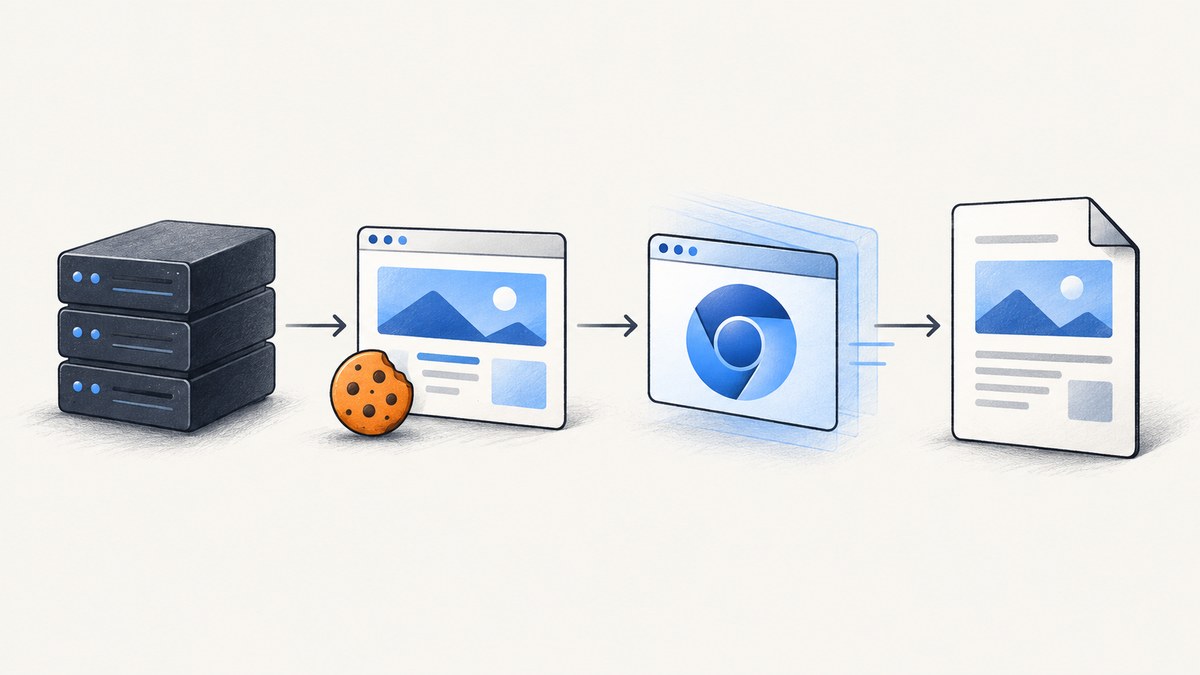
To convert cookie-dependent HTML to PDF in Node.js, use a real browser renderer: set the cookie in the browser context before navigation, open the page, wait for the data and assets your document needs, then call page.pdf(). Puppeteer is the direct fit for this browser-rendered workflow. Its current documentation recommends browser- or context-level cookie APIs; the older page-level methods are deprecated. Read the cookie guide and the PDF generation guide.
What the workflow does
- Launch Chromium with Puppeteer.
- Choose a browser context for the job.
- Set the cookie with the real domain, path, expiry, and security flags.
- Create a page from that same context.
- Navigate to the protected URL, or inject HTML with
page.setContent(). - Wait for the application’s meaningful ready condition.
- Generate a PDF with explicit paper, margin, and background options.
- Close the browser in a
finallyblock.
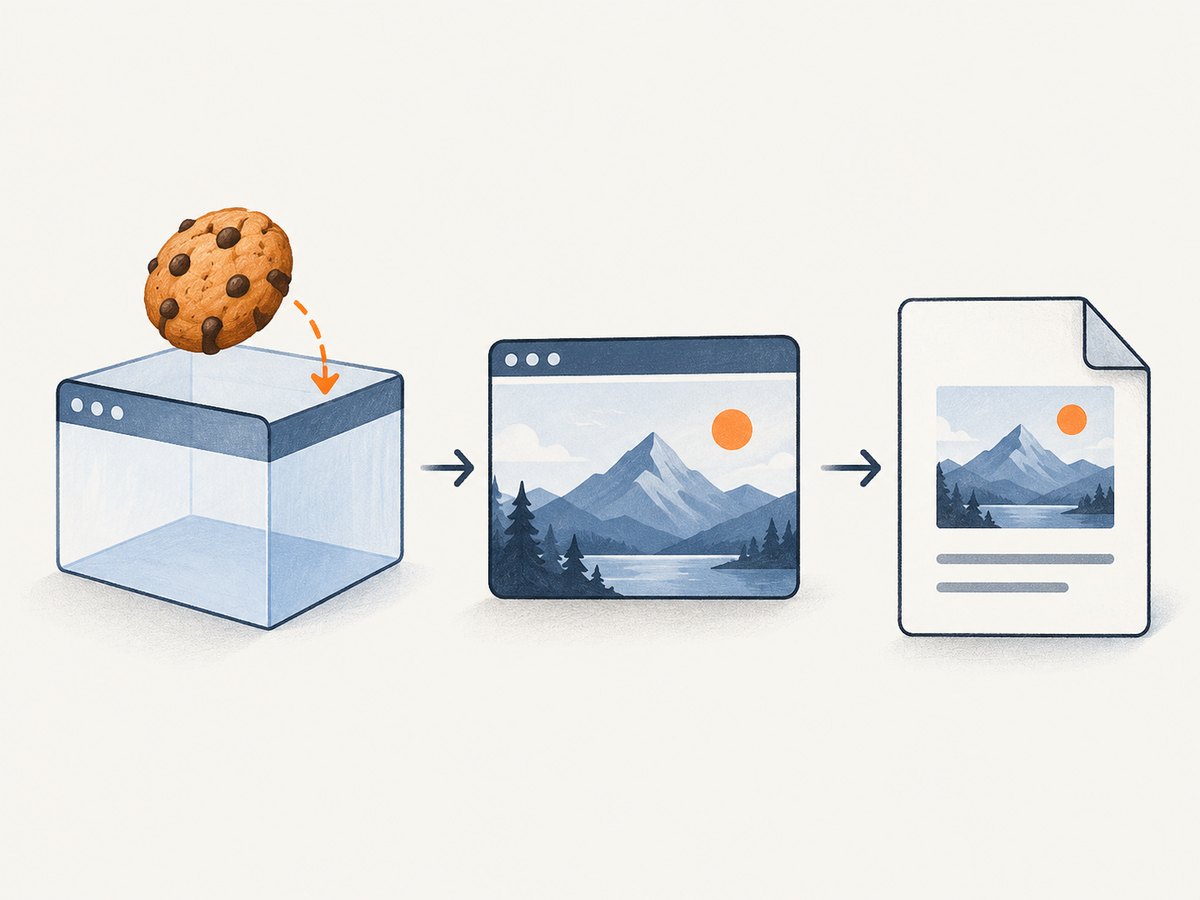
Cookies are scoped browser storage. A cookie for app.example.com does not automatically apply to example.com, and a path of /reports does not cover /billing. The cookie must also be set in the context that owns the page. Puppeteer’s current API documents fields including name, value, domain, path, expires, httpOnly, and secure.[1]
Complete Puppeteer example
Install Puppeteer and save this as cookie-pdf.mjs:
npm install puppeteer

import puppeteer from 'puppeteer';

const target = 'https://example.com/report';
const session = process.env.SESSION_COOKIE;

if (!session) throw new Error('SESSION_COOKIE is required');

const browser = await puppeteer.launch();
try {
  const context = browser.defaultBrowserContext();

  await context.setCookie({
    name: 'session',
    value: session,
    domain: 'example.com',
    path: '/',
    secure: true,
    httpOnly: true
  });

  const page = await context.newPage();
  await page.goto(target, {
    waitUntil: 'networkidle2',
    timeout: 60000
  });

  // Replace this selector with the element that proves your report is ready.
  await page.waitForSelector('[data-report-ready]', { timeout: 30000 });

  // PDF uses print CSS by default. Use screen CSS when that is what you need.
  await page.emulateMediaType('screen');

  await page.pdf({
    path: 'report.pdf',
    format: 'A4',
    printBackground: true,
    margin: { top: '18mm', right: '14mm', bottom: '18mm', left: '14mm' },
    preferCSSPageSize: true
  });
} finally {
  await browser.close();
}
The domain in this example is illustrative. Use the domain that the browser will request, and use the cookie’s actual attributes. Keep session values in environment variables or a secret manager; do not print them in logs or commit them to source control.
Setting cookies correctly
Domain and path
Use a host-only cookie when the application expects one host, or a parent domain when the application explicitly shares cookies across subdomains. A leading dot is not a substitute for understanding the site’s cookie policy. Match the path used by the application. If the protected endpoint is /reports/monthly, a cookie scoped to /admin will not be sent.
Secure, HttpOnly, and expiry
Set secure: true for HTTPS production pages. An httpOnly cookie is still sent by the browser but cannot be read by page JavaScript. Include an expires value when you are reproducing a time-limited session, and make sure the session is valid for the entire capture. Do not copy a development cookie to production without checking its scope and lifetime.
Same context, same job
Set the cookie on the context before creating or navigating the page. If you set it on one context and open the page in another, the page will appear logged out. For multi-tenant or concurrent jobs, isolate users in separate browser contexts and never reuse a logged-in context across unrelated customers.
Verify without exposing secrets
You can inspect cookie metadata while debugging, but redact values:
const cookies = await context.cookies('https://example.com/report');
console.log(cookies.map(({ name, domain, path, expires, secure, httpOnly }) => ({
  name, domain, path, expires, secure, httpOnly
})));
The current API reference marks page.setCookie() and page.cookies() deprecated and points to Browser or BrowserContext methods instead.[2]
HTML strings instead of URLs
If your application already has the HTML, use page.setContent(). Cookies still matter when that HTML loads relative images, stylesheets, fonts, or API requests.
const html = `<!doctype html>
<html><head><style>body{font-family:Arial}</style></head>
<body><h1>Invoice</h1><div id="total">$120</div></body></html>`;

await page.setContent(html, { waitUntil: 'networkidle0', timeout: 60000 });
await page.pdf({ path: 'invoice.pdf', format: 'A4', printBackground: true });
For a string that references protected resources, set cookies for the resource’s domain before calling setContent(). You may also need a
Waiting for dynamic content
networkidle2 is a useful starting point, not a universal definition of “ready.” Analytics, long polling, and WebSockets can keep a page active, while a report may still be rendering after network activity drops. Wait for the condition that represents a complete document:
await page.waitForSelector('#report-complete', { timeout: 30000 });
await page.waitForFunction(() => document.fonts.status === 'loaded');
await new Promise(resolve => setTimeout(resolve, 250));
Puppeteer’s PDF guide says PDF generation waits for fonts by default, but application data and images remain application-specific readiness concerns.[3] Prefer a server-rendered “ready” marker over an arbitrary delay. If you must use a delay for a chart animation, keep it short and document why.
PDF options that affect output
| Option | Use it when |
|---|---|
format: 'A4', 'Letter' |
You want a standard paper size. |
width, height |
You need a custom page size. |
margin |
Content must stay inside printer-safe boundaries. |
landscape: true |
Tables or dashboards are wider than a portrait page. |
printBackground: true |
Background colors and images are part of the design. |
preferCSSPageSize: true |
Your CSS defines @page dimensions and margins. |
pageRanges: '1-3' |
You need only selected pages. |
displayHeaderFooter: true |
You need generated headers or footers. |
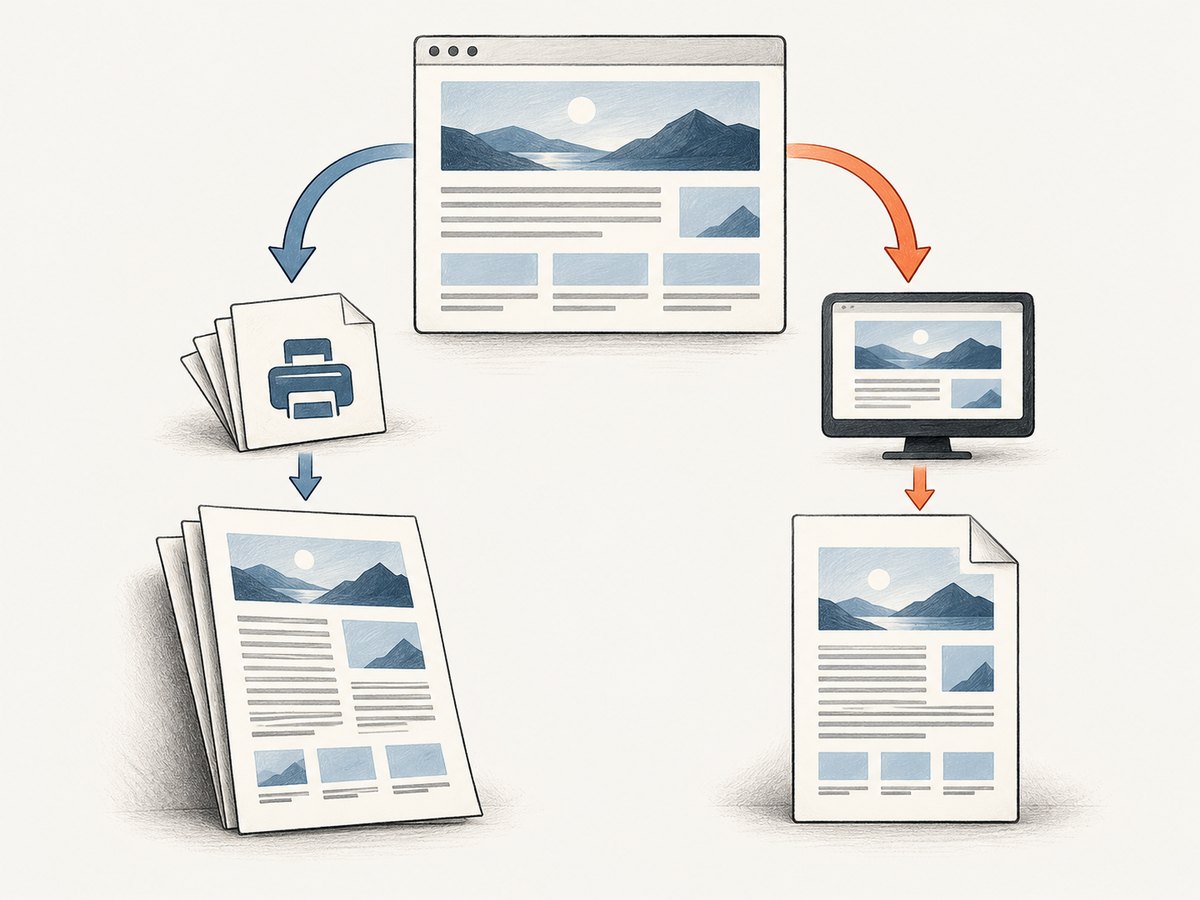
page.pdf() uses print media by default. Call page.emulateMediaType('screen') before generating the PDF when your screen stylesheet is the source of truth. Print rendering can also alter colors; CSS -webkit-print-color-adjust: exact helps preserve intended colors where supported.[4] [5]
Authentication patterns beyond one cookie
Several cookies
Pass an array to context.setCookie() for a session plus preference or tenant cookies. Give each cookie its own correct domain and path. Avoid sending an unnecessary broad cookie to every host.
Authorization headers
If the application authenticates API calls with a bearer token, set a request header before navigation:
await page.setExtraHTTPHeaders({
  Authorization: `Bearer ${process.env.REPORT_TOKEN}`
});
This affects requests made by the page. It does not replace a cookie when the web application checks browser session state.
Login flow
When you cannot obtain a session cookie out of band, automate the login form in an isolated context, wait for the post-login URL or marker, then navigate to the report. Do not save the resulting profile directory unless you have a deliberate secret-storage policy.
Security checklist
- Keep cookie values and bearer tokens out of logs, screenshots, PDF metadata, and error messages.
- Use a separate context per customer or job.
- Allow navigation only to expected hosts when URLs are user supplied.
- Set practical navigation and PDF timeouts.
- Do not disable TLS verification to “fix” a certificate error.
- Delete temporary PDFs when they are no longer needed.
- Run Chromium with an appropriate sandbox policy for your deployment environment.
Troubleshooting common failures
| Symptom | Likely cause | Fix |
|---|---|---|
| The PDF shows a login page. | Wrong domain/path, expired cookie, or a different context. | Compare the cookie scope with the final URL, set it before goto(), and verify redacted metadata from the same context. |
| Cookie is absent on the first request. | It was added by page JavaScript after navigation. | Set it through BrowserContext.setCookie() before navigation. |
| Works on HTTP, fails on HTTPS. | secure and host attributes do not match. |
Use the production cookie attributes and an HTTPS target. |
| Charts or totals are missing. | The PDF ran before asynchronous rendering finished. | Wait for a report-ready selector, application flag, or data-specific condition. |
| Colors or layout differ from the browser. | Print CSS is active. | Use emulateMediaType('screen'), inspect @media print, and consider printBackground. |
| Fonts wrap differently. | Font files failed, were blocked, or loaded after your custom readiness check. | Check font requests, wait for document.fonts, and confirm the browser can reach the font host. |
| Navigation times out. | Slow third-party resources, bot protection, or a page that never becomes idle. | Use a targeted readiness selector, raise the timeout carefully, and inspect failed requests instead of relying only on network idle. |
| Old examples fail with a deprecation warning. | They use page-level cookie methods. | Move to browser- or context-level cookie APIs. |
Performance, reliability, and cost
Launching Chromium is expensive compared with formatting a string. Reuse a browser process when safe, but create isolated contexts for independent sessions. Keep pages short-lived, block nonessential third-party resources when they cannot affect the document, and avoid waiting for analytics or advertisements. Measure navigation time, readiness time, PDF generation time, and output size separately so a slow stage is visible.
Use bounded concurrency. Too many simultaneous pages compete for CPU, memory, and file descriptors and can make every job slower. Set retries around navigation and browser startup, but avoid blindly retrying an invalid cookie or a deterministic authorization failure. Store a request identifier with each job so failures can be correlated without logging secrets.
PDFKit is a different category: its documentation shows constructing a PDF from drawing and text commands and piping the document to a file or response. It is suitable when your application owns the layout; it is not established by that documentation as a browser renderer for HTML, JavaScript, and cookie-dependent state.[6]
Or skip the browser setup
ScreenshotNeo can capture a cookie-dependent page or produce a PDF through one API request. It handles the browser layer and supports custom cookies, headers, user agents, waits, JavaScript, CSS, PDF paper settings, margins, landscape mode, and page ranges. See the ScreenshotNeo API documentation.
curl -G 'https://api.screenshotneo.com/v1/shot' -d access_key=YOUR_API_KEY --data-urlencode url=https://example.com/report -d format=pdf -o report.pdfimport requests
r = requests.get('https://api.screenshotneo.com/v1/shot', params={
'access_key': 'YOUR_API_KEY',
'url': 'https://example.com/report',
'format': 'pdf'
}, timeout=90)
r.raise_for_status()
open('report.pdf', 'wb').write(r.content)const q = new URLSearchParams({ access_key: 'YOUR_API_KEY', url: 'https://example.com/report', format: 'pdf' });
const res = await fetch(`https://api.screenshotneo.com/v1/shot?${q}`);
if (!res.ok) throw new Error(`HTTP ${res.status}`);
await Bun.write('report.pdf', res);For a cookie-authenticated page, pass the cookie using ScreenshotNeo’s cookie option documented in the API reference, and use the target site’s real cookie name, value, domain, and path. Cookie banners, newsletter popups, and chat widgets are removed before the shot. Bot checks, blank pages, timeouts, and failed loads are never billed, and response headers identify the page verdict and whether the request was billed. An MCP server lets Claude, Cursor, and other MCP clients call take_screenshot, get_page_info, and capture_pdf. The free plan includes 1,000 screenshots per month with no card; paid plans start at $5 for 3,000 shots. Create a free ScreenshotNeo account.
FAQ
Should I set cookies before or after goto()?
Before. That allows the cookie to be sent with the initial request instead of requiring a second navigation.
Can JavaScript read an HttpOnly cookie?
No. The browser can send it to matching requests, but page JavaScript cannot read its value.
Why does my PDF ignore my screen layout?
Puppeteer prints with the print media type by default. Emulate screen before calling page.pdf() when appropriate.
Is a fixed sleep reliable?
Only for a known, stable animation. A selector or application-ready signal is more reliable because it waits for the condition that matters.
When should I use PDFKit?
Use it when you are composing a document from programmatic drawing and text primitives. Use Puppeteer when the source is an existing browser-rendered page whose cookies, JavaScript, and CSS must execute.


