How to Use Cookies When Converting HTML to PDF
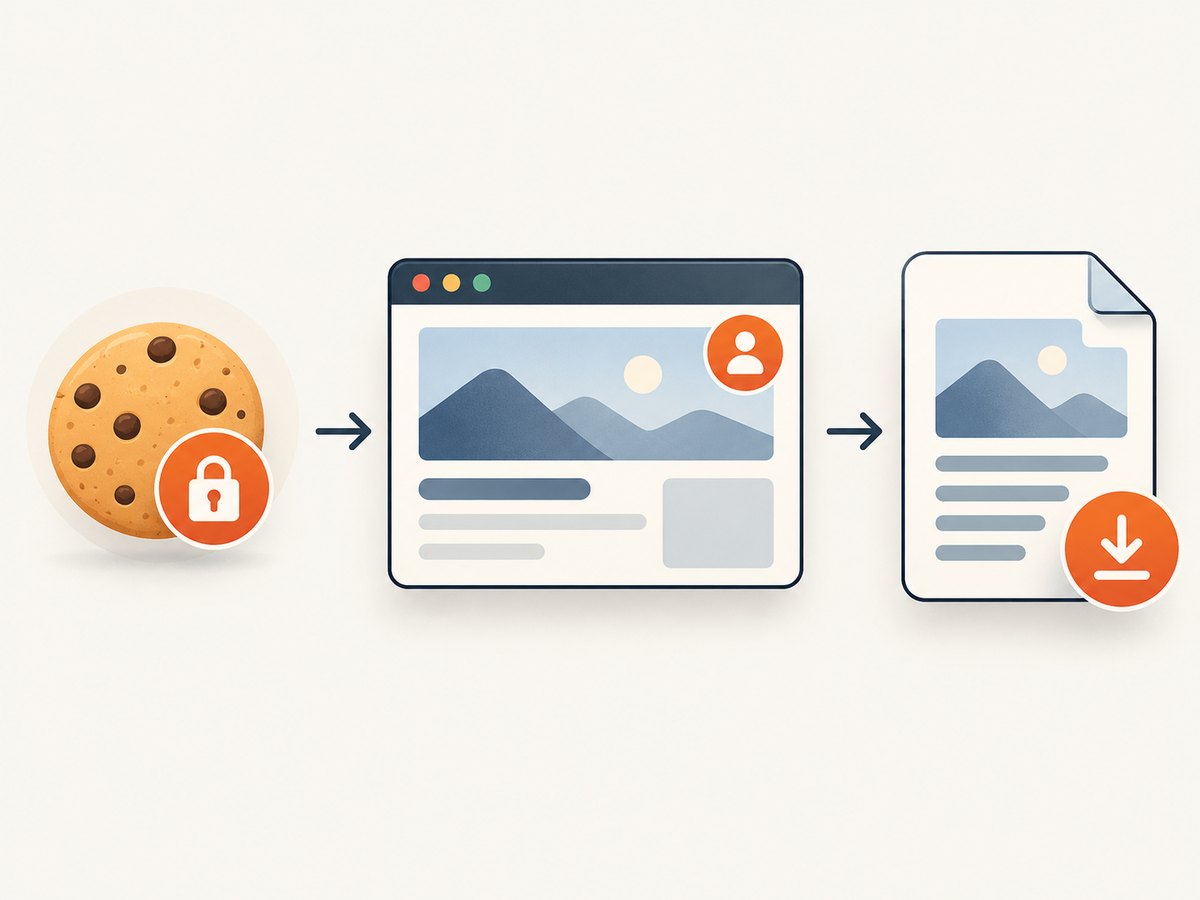
Set authentication cookies in the browser context before navigation, wait for protected content, then generate the PDF from that same session.

To convert a protected HTML page to PDF, use a real browser session: create an isolated browser context, add the authentication cookie to that context before navigation, wait until the authenticated page and its important assets are ready, and generate the PDF from a page in the same context. Close the context after the job.
A PDF is a rendered artifact. It does not retain the browser session or the source page’s document.cookie authority. If you need login-protected content in the output, the browser that loads the page must have valid access while it renders.
1. Understand which cookie the browser needs
Start with the cookie used by the website’s login flow. It is usually a session cookie, but some systems require several cookies or another authentication mechanism. Use a cookie obtained through the site’s approved login process; do not guess a value or copy credentials into logs.
Cookie scope determines whether the browser sends it. The host and path must cover the page URL. A cookie scoped to app.example.com does not automatically apply to www.example.com. Secure cookies are intended for HTTPS, and SameSite rules can affect cross-site use. When available, supply the cookie’s correct expiry, httpOnly, secure, and sameSite attributes. The browser context’s cookie API accepts either a URL or a domain and path combination. See the official Playwright BrowserContext cookie API and Puppeteer BrowserContext API.
2. Generate a protected PDF with Playwright
This Node.js example uses an isolated, non-persistent context. Install Playwright and its Chromium browser in your project before running it:
npm install playwright
npx playwright install chromium
Save the following as pdf-with-cookie.js. Set SESSION_COOKIE in the environment, then run node pdf-with-cookie.js. Replace the URL and readiness selector with values from your application.
const { chromium } = require('playwright');

async function main() {
  const value = process.env.SESSION_COOKIE;
  if (!value) throw new Error('Set SESSION_COOKIE in the environment');

  const browser = await chromium.launch();
  const context = await browser.newContext();
  try {
    await context.addCookies([{
      name: 'session',
      value,
      url: 'https://app.example.com',
      httpOnly: true,
      secure: true,
      sameSite: 'Lax'
    }]);

    const page = await context.newPage();
    const response = await page.goto(
      'https://app.example.com/report/42',
      { waitUntil: 'domcontentloaded', timeout: 45000 }
    );
    if (!response || !response.ok()) {
      throw new Error(`Navigation failed: ${response && response.status()}`);
    }

    await page.waitForSelector('[data-report-ready]', { timeout: 30000 });
    await page.evaluate(() => document.fonts.ready);
    await page.pdf({
      path: 'report.pdf',
      format: 'A4',
      printBackground: true,
      preferCSSPageSize: true,
      margin: { top: '15mm', right: '12mm', bottom: '15mm', left: '12mm' }
    });
  } finally {
    await context.close();
    await browser.close();
  }
}

main().catch(error => {
  console.error(error.message);
  process.exitCode = 1;
});
Use url for a cookie that should apply to the given origin, or specify both domain and path. If the application intentionally needs a cross-site cookie, set the correct SameSite policy and understand the browser’s rules before changing it; SameSite=None generally requires secure: true. Do not widen the cookie domain without a reason.
Why this waits for a selector
domcontentloaded confirms that the initial document was parsed, not that a report’s data, charts, or images finished rendering. A stable application marker such as [data-report-ready] is a more useful signal. Have the page set it only when the authenticated content is ready. If you control the application, a clear ready state is more reliable than an arbitrary sleep.
3. Generate the same PDF with Puppeteer
Puppeteer follows the same cookie principle. Install the package and browser as appropriate for your deployment:
npm install puppeteerSave this as puppeteer-pdf.js. Current Puppeteer guidance uses browser or browser-context cookie methods; page-level cookie methods are deprecated. The exact cookie API can vary by Puppeteer version, so consult the current BrowserContext documentation.
const puppeteer = require('puppeteer');

async function main() {
  const value = process.env.SESSION_COOKIE;
  if (!value) throw new Error('Set SESSION_COOKIE in the environment');

  const browser = await puppeteer.launch();
  const context = await browser.createBrowserContext();
  try {
    await context.setCookie({
      name: 'session',
      value,
      domain: 'app.example.com',
      path: '/',
      secure: true,
      httpOnly: true
    });

    const page = await context.newPage();
    const response = await page.goto(
      'https://app.example.com/report/42',
      { waitUntil: 'networkidle2', timeout: 45000 }
    );
    if (!response || !response.ok()) {
      throw new Error(`Navigation failed: ${response && response.status()}`);
    }

    await page.waitForSelector('[data-report-ready]', { timeout: 30000 });
    await page.pdf({
      path: 'report.pdf',
      format: 'A4',
      printBackground: true,
      preferCSSPageSize: true,
      waitForFonts: true
    });
  } finally {
    await context.close();
    await browser.close();
  }
}

main().catch(error => {
  console.error(error.message);
  process.exitCode = 1;
});
Puppeteer’s page.pdf() waits for fonts by default, but that cannot make a blocked or failed font request succeed. Check that the font host is reachable and that its response is successful. The official Page.pdf() reference describes its PDF behavior and options.
4. Choose waits, media, and page layout deliberately
Both libraries render using print CSS by default. Puppeteer documents that page.pdf() generates the PDF with the print media type; Playwright documents the same behavior. To render screen styles, emulate screen media before generating the PDF. See Puppeteer PDF documentation and Playwright Page API.

// Playwright: preserve screen styles
await page.emulateMedia({ media: 'screen' });
await page.pdf({ path: 'report.pdf', printBackground: true });

// Puppeteer: preserve screen styles
await page.emulateMediaType('screen');
await page.pdf({ path: 'report.pdf', printBackground: true });
For print-oriented documents, keep print media and define CSS such as @page { size: A4; margin: 15mm; }. Set preferCSSPageSize: true when CSS page sizing should take precedence. Set printBackground: true if colored backgrounds or background images matter; printing backgrounds is otherwise disabled by default in Puppeteer. For landscape reports, choose landscape: true. Use margins, paper format, and page ranges to control output size and content. Puppeteer’s PDFOptions reference lists its options.
Use networkidle or Puppeteer’s networkidle2 when the page becomes quiet after loading. These waits can stall on polling, analytics, WebSockets, or long-lived requests. For those applications, navigate with domcontentloaded, then wait for a page-specific ready marker. If the app has no marker, wait for a specific chart, table, or response that signals the data is present rather than relying on a fixed delay alone.
5. Add cookies safely and handle more than one
For multiple cookies, add each cookie to the same context before opening the page. Match the real cookie metadata where you can obtain it. Playwright accepts a cookie array in context.addCookies(); Puppeteer’s context cookie API accepts cookie data. Cookies are shared among pages in that context, which is useful when navigation triggers authenticated API calls or opens a related page.
Prefer a fresh non-persistent context per conversion. Playwright describes non-persistent contexts as isolated sessions that do not write browsing data to disk. A persistent context can be useful for recurring jobs that depend on cookies and local storage, but its profile directory contains authentication state. Use a dedicated directory per account or job class, restrict filesystem access, and do not share it between unrelated customers. Close contexts after each job and never print cookie values in logs.
When the site requires an interactive login, MFA, or a short-lived token, authenticate through the site’s intended login flow and then use that session. A copied cookie can expire or be bound to other session properties. Re-authenticate when needed instead of retrying a stale cookie indefinitely.
6. Where cURL and Python fit
cURL and Python’s requests can send cookies with HTTP requests, but they do not run the browser page’s JavaScript or apply browser print CSS. They are suitable when the server returns the complete HTML or a ready-made PDF directly and does not require client-side rendering. For a browser-rendered protected page, use Playwright or Puppeteer so the same browser session both loads the page and prints it.
For an endpoint that accepts an authenticated cookie and returns a PDF, a cURL request can look like this. Use a secret store or environment variable for the cookie; avoid putting secrets in shell history or shared logs.
curl --fail --location \
  --cookie "session=$SESSION_COOKIE" \
  "https://app.example.com/report/42.pdf" \
  --output report.pdf
Equivalent Python for a server endpoint that responds with a PDF:
import os
import requests

response = requests.get(
    "https://app.example.com/report/42.pdf",
    cookies={"session": os.environ["SESSION_COOKIE"]},
    timeout=60,
)
response.raise_for_status()
if "application/pdf" not in response.headers.get("content-type", ""):
    raise ValueError("The endpoint did not return a PDF")
with open("report.pdf", "wb") as pdf:
    pdf.write(response.content)
If the endpoint returns HTML instead, these snippets save or fetch that response; they do not convert it with browser layout, JavaScript, or print styles. Use a browser automation library for that job.
7. Troubleshoot common failures
| Symptom | Likely cause | Fix |
|---|---|---|
| Redirects to login | Cookie domain or path does not match, cookie expired, or SameSite/security settings prevent it being sent. | Check the target host and path, expiry, and cookie attributes. Inspect the first navigation response and confirm the cookie exists in the context for that URL. |
| PDF contains a logged-out shell | The cookie was installed in a different context, after navigation, or on a different page/session. | Add it to the context that creates the PDF page, before navigation. Keep navigation and rendering in that context. |
| Charts, images, or data are missing | Protected API or asset requests failed, or capture started before client rendering completed. | Wait for an application ready marker. Inspect failed requests and make sure they use the same authenticated context. |
| PDF uses different colors or layout | PDF generation uses print media by default, or print backgrounds are disabled. | Emulate screen media if needed, enable printBackground, or adjust print CSS and @page. |
| Fonts look wrong | Font requests are blocked, cross-origin access fails, or fonts are not ready. | Check font network responses and cross-origin configuration. Wait for document.fonts.ready; Puppeteer also has waitForFonts. |
| Navigation or network-idle wait times out | The page polls or holds open requests, or a required request never finishes. | Use domcontentloaded followed by a deterministic selector or app signal. Investigate failed critical requests separately. |
| One customer sees another customer’s page | Cookies or local storage were reused in a shared context or profile. | Isolate contexts and persistent profile directories by account. Close the context when the job ends. |
| PDF is blank or truncated | The PDF was generated before content appeared, print CSS hides it, or page sizing clips it. | Wait for the content marker, inspect print styles, and tune paper size, margins, scale, and CSS page breaks. |
8. Performance, reliability, and cost
Browser startup and page loading are usually the expensive parts of an individual conversion. If processing a batch, reuse a launched browser process while creating a fresh isolated context for each independent job. This avoids reusing session state while reducing repeated browser startup. Limit parallel pages to the CPU and memory available: rendering many large reports concurrently can increase latency or exhaust worker memory.
Set explicit navigation, selector, and PDF timeouts. Treat login redirects, missing readiness markers, and failed critical assets as conversion failures; do not silently return a PDF that looks complete but lacks data. For retries, distinguish transient network errors from expired credentials and application errors. Refresh authentication when necessary, and avoid retrying indefinitely. Record URL, response status, elapsed time, and failure category, but redact cookie values, authorization headers, and sensitive page content.
Self-hosted conversion costs include browser-worker compute, memory, storage, and engineering time to operate browser versions and dependencies. Estimate these from your own page sizes, concurrency, and deployment environment; there is no single universal per-page cost. A hosted screenshot API can reduce browser setup for screenshot workflows, but verify that its documented output and authentication options match your PDF requirements.
Or skip the browser setup
For a screenshot of a page, ScreenshotNeo is a website screenshot API and MCP server. One GET request returns an image or PDF. Its API supports cookies and other capture options; see the ScreenshotNeo docs for the current request parameters.
curl -G "https://api.screenshotneo.com/v1/shot" \
  -d access_key=YOUR_API_KEY \
  --data-urlencode url=https://stripe.com \
  -o shot.webp
Cookie banners, newsletter popups, and chat widgets are removed before the shot. Bot checks, blank pages, and failed loads are never billed. An MCP server lets AI agents use the take_screenshot, get_page_info, and capture_pdf tools. The Free plan includes 1,000 screenshots a month with no card; paid plans start at $5 for 3,000. Sign up for 1,000 free screenshots a month, no card required.
FAQ
Can I pass a cookie directly to a PDF file?
No. The cookie must be available to the browser that loads the protected page. The generated PDF does not inherit the source browser’s authenticated session.
Can a JavaScript cookie be set with an HTTP-only session cookie?
JavaScript cannot read an HTTP-only cookie, but the browser cookie API can install cookie data in the context. Treat the session value as a secret and do not expose it to page scripts or logs.
Why does the PDF differ from what I see in the browser?
PDF generation defaults to print media in both libraries. The page may have print-specific CSS, omitted backgrounds, or page-size rules. Emulate screen media when screen styling is the intended output.
Should I use Puppeteer or Playwright?
Both can render authenticated pages with context cookies. Choose the library already used by your application or the one that best fits your browser and deployment needs; the cookie workflow is the same.


