How to Copy a Canvas to the Clipboard as an Image With JavaScript
Copy a canvas as a PNG with toBlob() and ClipboardItem, handle permissions and cross-origin errors, and provide reliable fallbacks.
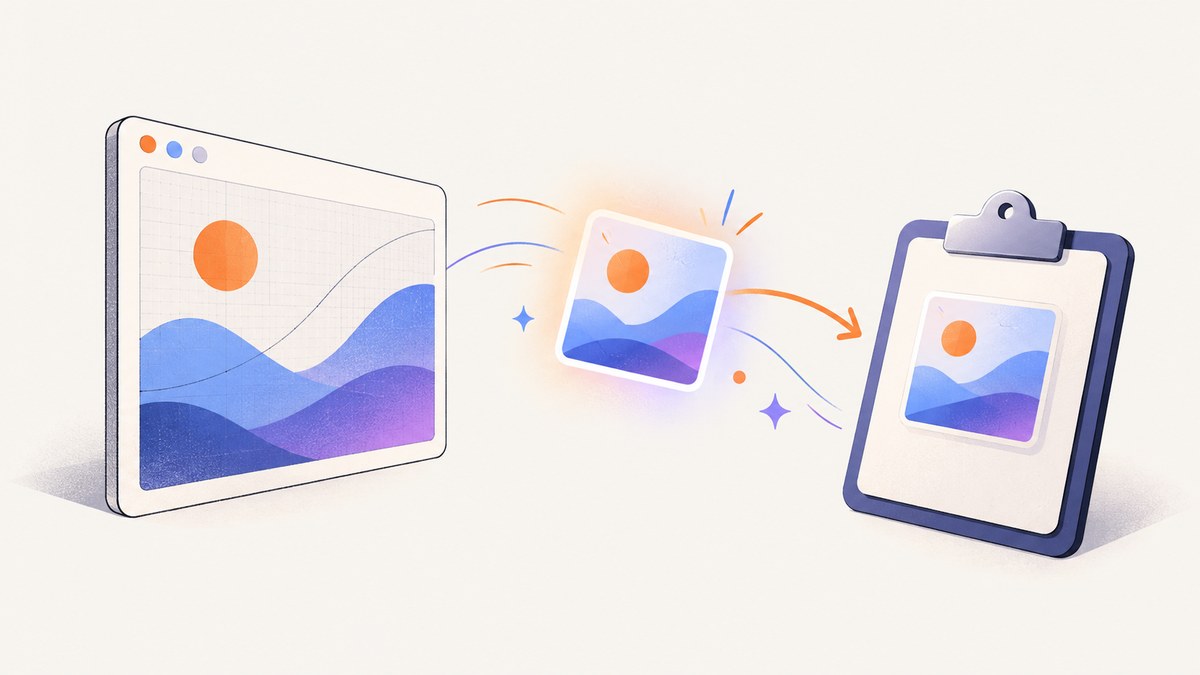
Use HTMLCanvasElement.toBlob() to encode the canvas, put the resulting Blob in a ClipboardItem, and call navigator.clipboard.write() from a user action such as a button click. PNG is the safest image format to start with. The page must run in a secure context, the browser must support image clipboard writes, and the canvas must be origin-clean.
This pattern is the complete minimal implementation:
function canvasToBlob(canvas, type = "image/png") {
  return new Promise((resolve, reject) => {
    canvas.toBlob((blob) => {
      if (blob) resolve(blob);
      else reject(new Error("Canvas image could not be created."));
    }, type);
  });
}

async function copyCanvasImage(canvas) {
  if (!navigator.clipboard?.write || typeof ClipboardItem === "undefined") {
    throw new Error("Image clipboard writing is not available in this browser.");
  }

  const blob = await canvasToBlob(canvas, "image/png");
  await navigator.clipboard.write([
    new ClipboardItem({ [blob.type]: blob }),
  ]);
}

const copyButton = document.querySelector("#copy-canvas");
copyButton.addEventListener("click", async () => {
  try {
    await copyCanvasImage(document.querySelector("canvas"));
    showStatus("Image copied.");
  } catch (error) {
    showStatus("Could not copy the image. Check browser support and permissions.");
    console.error(error);
  }
});
1. Build a complete copy button
The following page creates a canvas, draws an example, and copies it when the user clicks a button. The status message distinguishes success from a rejected or unsupported operation.
<!doctype html>
<html lang="en">
<meta charset="utf-8">
<title>Copy canvas image</title>
<style>
  canvas { border: 1px solid #bbb; max-width: 100%; }
  #status { min-height: 1.5em; }
</style>
<canvas id="art" width="800" height="450"></canvas>
<button id="copy-canvas" type="button">Copy image</button>
<p id="status" role="status" aria-live="polite"></p>
<script>
const canvas = document.querySelector("#art");
const context = canvas.getContext("2d");
const status = document.querySelector("#status");

const gradient = context.createLinearGradient(0, 0, canvas.width, canvas.height);
gradient.addColorStop(0, "#4f46e5");
gradient.addColorStop(1, "#06b6d4");
context.fillStyle = gradient;
context.fillRect(0, 0, canvas.width, canvas.height);
context.fillStyle = "white";
context.font = "bold 48px sans-serif";
context.fillText("Canvas image", 50, 150);
context.font = "28px sans-serif";
context.fillText(new Date().toLocaleDateString(), 52, 205);

function canvasToBlob(canvas, type = "image/png") {
  return new Promise((resolve, reject) => {
    canvas.toBlob((blob) => {
      if (blob) resolve(blob);
      else reject(new Error("Canvas image could not be created."));
    }, type);
  });
}

async function copyCanvasImage(canvas) {
  if (!window.isSecureContext) {
    throw new Error("Clipboard writes require a secure context.");
  }
  if (!navigator.clipboard?.write || typeof ClipboardItem === "undefined") {
    throw new Error("This browser cannot write image data to the clipboard.");
  }
  const blob = await canvasToBlob(canvas, "image/png");
  await navigator.clipboard.write([
    new ClipboardItem({ [blob.type]: blob }),
  ]);
}

document.querySelector("#copy-canvas").addEventListener("click", async () => {
  status.textContent = "Copying…";
  try {
    await copyCanvasImage(canvas);
    status.textContent = "Image copied. Paste it into an image editor or document.";
  } catch (error) {
    console.error(error);
    status.textContent = error.message || "Copy failed. Try downloading the image.";
  }
});
</script>
</html>
Keep the write() call inside the click handler (or another direct user gesture). Browsers apply different clipboard policies, and a delayed call from a timer or unrelated promise chain can lose the required user activation.
2. Why toBlob() and ClipboardItem are used
canvas.toBlob() encodes the current pixels as a file-like Blob. PNG is the default and a broadly supported export type. The callback can receive null, so production code must treat a missing Blob as an export failure. See the MDN toBlob() documentation for format behavior and origin-clean restrictions.
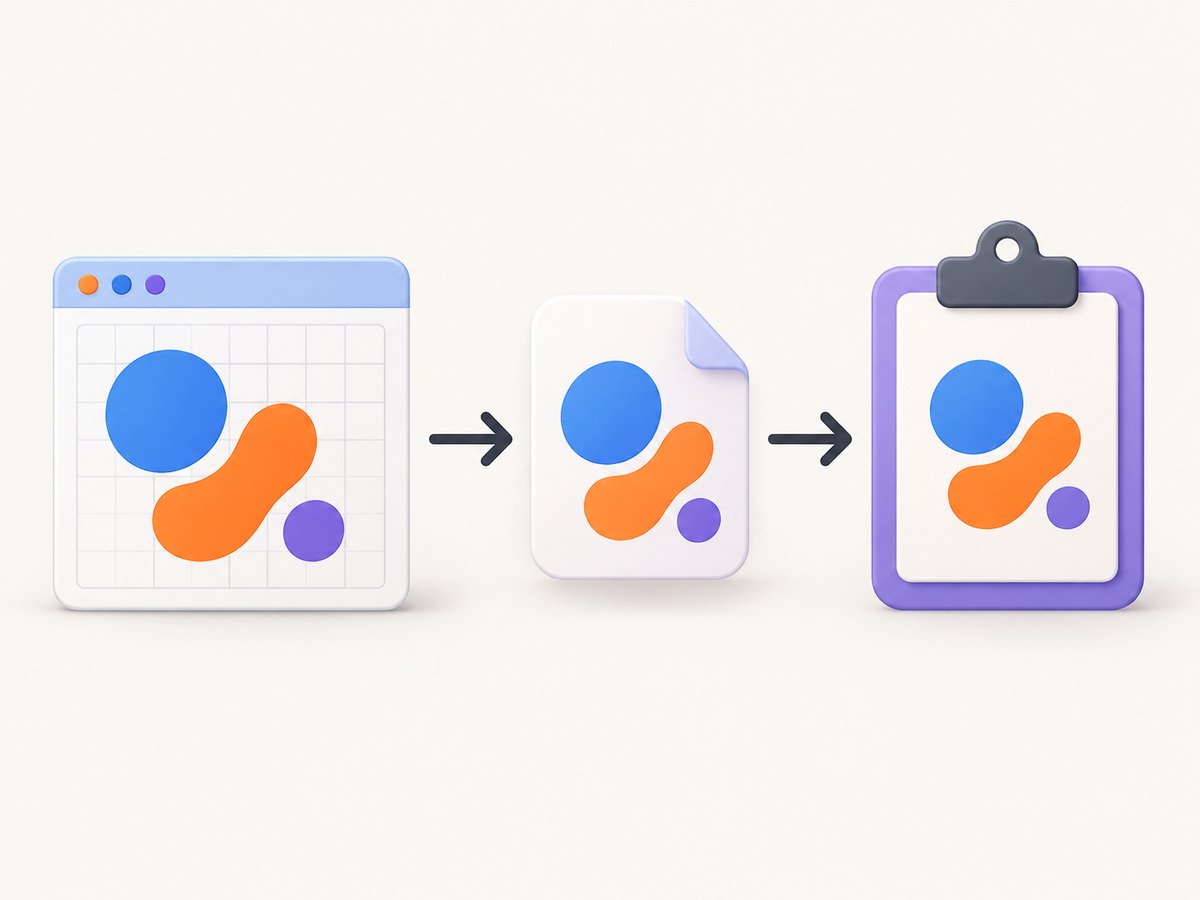
ClipboardItem associates a MIME type with the bytes. Passing an array of items to navigator.clipboard.write() requests an image clipboard entry:
const blob = await canvasToBlob(canvas, "image/png");
const item = new ClipboardItem({ [blob.type]: blob });
await navigator.clipboard.write([item]);
Clipboard writing is restricted to secure contexts. The MDN Clipboard.write() reference also documents common PNG support, permission failures, and the current browser support baseline. The ClipboardItem constructor reference explains typed data and format caveats.
3. Check image-format support
PNG should be your default. JPEG can be useful for photographs, but it is lossy and does not preserve transparency. WebP support for clipboard writing varies more, so feature-detect it when available and provide a PNG fallback.
function canWriteType(type) {
  return typeof ClipboardItem !== "undefined" &&
    typeof ClipboardItem.supports === "function" &&
    ClipboardItem.supports(type);
}

function chooseType(preferred = "image/png") {
  if (preferred === "image/png") return preferred;
  return canWriteType(preferred) ? preferred : "image/png";
}

async function copyCanvas(canvas, preferredType = "image/png") {
  const type = chooseType(preferredType);
  const blob = await canvasToBlob(canvas, type);
  await navigator.clipboard.write([
    new ClipboardItem({ [blob.type]: blob }),
  ]);
}
ClipboardItem.supports() is not present everywhere, so the check itself must be optional. Even when it reports support, still catch a rejected Promise because operating-system clipboard rules and permissions can reject a write.
4. Secure contexts, permissions, and user activation
Run the page over HTTPS in production. localhost is commonly treated as a secure development origin, while an ordinary HTTP host is not. You can inspect the context before enabling the button:
const copyButton = document.querySelector("#copy-canvas");

if (!window.isSecureContext || !navigator.clipboard?.write) {
  copyButton.disabled = true;
  document.querySelector("#status").textContent =
    "Image clipboard copy needs HTTPS and a supported browser.";
}
Do not request permission on page load and then wait for a later operation. Attach the copy to a visible button, keyboard activation, or another action the user initiated. In embedded pages, iframe permissions and the embedding site’s policy can also affect clipboard access. The Clipboard API security guidance describes transient user activation and browser differences.
5. Avoid a tainted canvas
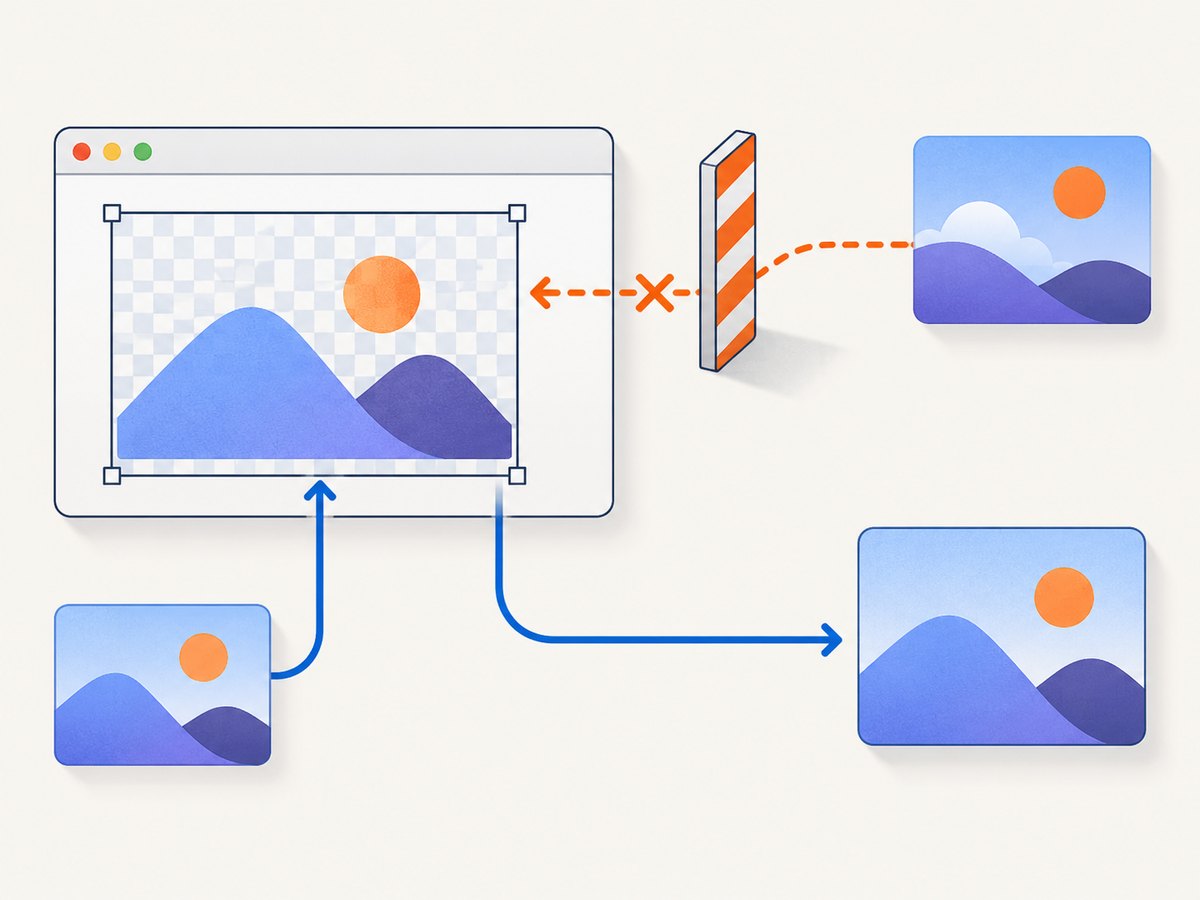
A canvas becomes non-origin-clean when it contains pixels from a cross-origin image that was not made available for canvas use. Exporting such a canvas can raise a SecurityError. Typical causes include drawing a remote image without CORS permission, loading an image from a CDN that omits an appropriate Access-Control-Allow-Origin header, or setting crossOrigin after assigning src.
const image = new Image();
image.crossOrigin = "anonymous";
image.src = "https://cdn.example.com/illustration.png";

image.addEventListener("load", () => {
  context.drawImage(image, 0, 0);
});
image.addEventListener("error", () => {
  console.error("Image failed to load or did not permit CORS use.");
});
The server hosting the image must opt into the requested origin. Setting crossOrigin in JavaScript cannot grant permission by itself. If you cannot control the remote server, proxy the asset through a server you control, use a same-origin copy, or omit it from the canvas.
6. Offer a download fallback
Some browsers and managed environments cannot write image data to the clipboard. The same Blob can still be downloaded, giving users a useful alternative.
async function downloadCanvas(canvas, filename = "canvas.png") {
  const blob = await canvasToBlob(canvas, "image/png");
  const objectUrl = URL.createObjectURL(blob);
  const link = document.createElement("a");
  link.href = objectUrl;
  link.download = filename;
  link.click();
  setTimeout(() => URL.revokeObjectURL(objectUrl), 0);
}
Show the download action when feature detection fails or when the clipboard Promise rejects. A download is also useful for users who need a file rather than a transient clipboard item.
7. Common errors and fixes
| Error or symptom | Likely cause | Fix |
|---|---|---|
navigator.clipboard is undefined |
Insecure origin or unsupported browser | Serve the page over HTTPS, test on localhost, feature-detect the API, and enable the download fallback. |
NotAllowedError |
Missing user activation, denied permission, iframe policy, or browser restriction | Call write() directly from a click or key event, inspect embedding permissions, and ask the user to allow clipboard access. |
SecurityError from toBlob() |
The canvas is tainted by a cross-origin resource | Use a CORS-enabled image, set crossOrigin before src, proxy the asset, or remove it. |
The callback receives null |
Encoding failed or the requested type is unavailable | Use PNG, check canvas dimensions and memory use, and surface an export error. |
| Image pastes as a file or does not paste | Browser or destination application does not accept image clipboard data | Try PNG, test in another destination, and offer a download. |
| Works in one browser but not another | Clipboard image support and permission rules differ | Use capability checks and error handling; do not assume a browser version from another engine has the same behavior. |
8. Performance and reliability considerations
- Encode only on demand. Calling
toBlob()when the user clicks avoids repeatedly encoding unchanged pixels. - Control canvas size. Very large canvases consume memory during rasterization and encoding. Render at the required output dimensions rather than an unnecessarily large backing store.
- Use a sensible export type. PNG preserves crisp diagrams and transparency. JPEG may produce smaller photographs but discards transparency and quality.
- Keep status feedback visible. Encoding and clipboard writes are asynchronous. Disable the button briefly or show a busy state to prevent duplicate requests.
- Make retries safe. A rejected write can be retried after another click. Do not silently report success until the Promise resolves.
- Test the destination. Clipboard support in the browser does not guarantee that every editor, document application, or remote desktop accepts the image format.
9. Or skip the browser setup
If your application needs screenshots of web pages rather than pixels already rendered in your own canvas, ScreenshotNeo provides a website screenshot API and MCP server. It accepts one GET request and returns PNG, JPEG, WebP, or PDF. Cookie banners, newsletter popups, and chat widgets are removed before capture; bot checks, blank pages, failed loads, timeouts, and cache hits are not billed.
Start with the ScreenshotNeo API documentation. cURL:
curl -G "https://api.screenshotneo.com/v1/shot" \
  -d access_key=YOUR_API_KEY \
  --data-urlencode url=https://stripe.com \
  -o shot.webp
Python:
import requests

r = requests.get(
    "https://api.screenshotneo.com/v1/shot",
    params={"access_key": "YOUR_API_KEY", "url": "https://stripe.com"},
    timeout=90,
)
r.raise_for_status()
open("shot.webp", "wb").write(r.content)
Node.js:
const q = new URLSearchParams({
  access_key: 'YOUR_API_KEY',
  url: 'https://stripe.com'
});
const res = await fetch(`https://api.screenshotneo.com/v1/shot?${q}`);
if (!res.ok) throw new Error(`Screenshot failed: ${res.status}`);
const bytes = Buffer.from(await res.arrayBuffer());
require('fs').writeFileSync('shot.webp', bytes);
For automation, ScreenshotNeo also supports full-page captures, element selectors, custom CSS and JavaScript, waits, cookies, headers, device presets, retina scale, PDF output, caching, signed links, asynchronous jobs, bulk capture, usage reporting, and an MCP server with take_screenshot, get_page_info, and capture_pdf. Response headers identify the page verdict and whether the capture was billed. Plans include 1,000 screenshots per month free with no card; paid plans start at $5 for 3,000.
Create a free ScreenshotNeo account and try the API with 1,000 screenshots a month at no charge.
10. Testing checklist
- Test on HTTPS and on your local development origin.
- Click the button directly; do not trigger the write from a timer.
- Verify that the canvas contains the expected pixels before encoding.
- Test a same-origin image and a cross-origin image with and without CORS.
- Check PNG output in at least two browser engines and paste into the target applications your users rely on.
- Confirm that unsupported or denied writes show a download option.
- Log the original error for diagnostics while showing a short, actionable message to users.
Frequently asked questions
Can I copy JPEG or WebP instead of PNG?
Yes, pass the requested MIME type to toBlob(), but check ClipboardItem.supports() when available and retain a PNG fallback. PNG is generally the safest clipboard image format.
Does the user need to grant permission every time?
That depends on the browser, origin, embedding context, and existing permission state. Always handle a rejected Promise even when the API is present.
Why does a downloaded image work while clipboard copy fails?
Blob encoding and clipboard writing are separate operations. The browser may permit the export but reject clipboard access because of security context, user activation, permissions, or destination support.
Can I copy a canvas from a cross-origin iframe?
The iframe needs its own permission and a permitted origin, and the canvas must remain origin-clean. Coordinate iframe policy, CORS headers, and the user gesture before relying on clipboard writes.
What resolution will the copied image have?
The Blob contains the canvas’s pixel dimensions. For formats that support encoding resolution metadata, MDN documents a 96 dpi resolution for images created by toBlob(); display size is controlled by the receiving application.


